# Aspire Themes
> Premium Ghost themes for independent publishers building blogs, newsletters, magazines, news sites, and membership publications.
Aspire Themes sells individual Ghost themes for $149 and a complete bundle for $499. Product facts, prices, versions, documentation, and policies are generated from the same sources as the public website. Expanded context is available in [llms-full.txt](https://aspirethemes.com/llms-full.txt).
## Products
- [Pricing](https://aspirethemes.com/pricing.md): Current individual-theme and bundle pricing.
- [Complete Themes Bundle](https://aspirethemes.com/bundle.md): Every current Aspire theme and future themes.
- [Beirut](https://aspirethemes.com/themes/beirut.md): A Ghost portfolio theme for independent creatives, with project, services, testimonials, writing, and about sections in one focused site.
- [Hakone](https://aspirethemes.com/themes/hakone.md): A Ghost theme for writers who want complete posts on the homepage, with per-post styling, image lightboxes, memberships, and reading controls.
- [Hanoi](https://aspirethemes.com/themes/hanoi.md): Build a visual magazine in Ghost with media-rich layouts, navigation previews, reader tools, memberships, and newsletter sections.
- [Hue](https://aspirethemes.com/themes/hue.md): Build a podcast website in Ghost with numbered episodes, separate blog posts, embedded players, listening links, memberships, and dark mode.
- [Krabi](https://aspirethemes.com/themes/krabi.md): Magazine‑style Ghost theme with two‑column layout, sidebar newsletter, tags menu, authors page, translations, and native search.
- [Marsa](https://aspirethemes.com/themes/marsa.md): Build a configurable Ghost publication with 23 color palettes, post modal, topic sections, memberships, newsletters, testimonials, and sortable archive.
- [Moshi](https://aspirethemes.com/themes/moshi.md): A Ghost newsletter theme with configurable signup, introduction, logos, testimonials, statistics, and recent-post sections.
- [Nubia](https://aspirethemes.com/themes/nubia.md): A Ghost theme for image-led blogs and small magazines, with a varied post grid, article sidebar, dark mode, memberships, and comments.
- [Penang](https://aspirethemes.com/themes/penang.md): Build a Ghost membership publication with signup forms, account links, gated-content prompts, topic sections, author pages, and dark mode.
- [Petra](https://aspirethemes.com/themes/petra.md): A Ghost theme for personal blogs and newsletters, with an introduction, visual highlights, featured stories, recent posts, and subscriptions.
- [Sinai](https://aspirethemes.com/themes/sinai.md): Build a minimal Ghost blog or simple magazine with readable layouts, tag sections, comments, search, memberships, six color schemes, and custom colors.
- [Siwa](https://aspirethemes.com/themes/siwa.md): Siwa is a Ghost theme for personal blogs and newsletters. Introduce yourself, guide readers into your stories, and invite them to subscribe.
- [Taba](https://aspirethemes.com/themes/taba.md): Build a Ghost newsroom or magazine with editorial sections, video publishing, memberships, newsletters, stock tickers, and reader tools.
- [Tripoli](https://aspirethemes.com/themes/tripoli.md): A Ghost theme for news and multi-author magazines, with Editors' Picks, topic sections, author and tag directories, dark mode, and memberships.
- [Ubud](https://aspirethemes.com/themes/ubud.md): A Ghost theme for personal newsletters, with six homepage styles, featured and recent posts, subscription forms, archives, and memberships.
## Documentation
- [Documentation index](https://aspirethemes.com/docs/): Setup guides for Aspire Ghost themes.
- [Beirut Ghost Theme — Documentation](https://aspirethemes.com/docs/beirut.md): Set up Beirut as a portfolio with project, services, testimonials, writing, about, and contact sections.
- [Hakone Ghost Theme — Documentation](https://aspirethemes.com/docs/hakone.md): Set up Hakone's full-post homepage, per-post styles, image lightbox, memberships, and reading controls.
- [Hanoi Ghost Theme — Documentation](https://aspirethemes.com/docs/hanoi.md): Set up Hanoi Ghost theme with homepage sections, navigation previews, video story layouts, reader tools, memberships, and newsletters.
- [Hue Ghost Theme — Documentation](https://aspirethemes.com/docs/hue.md): Set up Hue's podcast homepage, episode pages, embedded players, listening links, memberships, and dark mode.
- [Krabi Ghost Theme — Documentation](https://aspirethemes.com/docs/krabi.md): Set up Krabi's two-column layout, tag navigation, featured posts, sidebar newsletter, dark mode, and memberships.
- [Marsa Ghost Theme — Documentation](https://aspirethemes.com/docs/marsa.md): Set up Marsa's 23 color palettes, topic sections, post modal, newsletters, testimonials, archive, and memberships.
- [Moshi Ghost Theme — Documentation](https://aspirethemes.com/docs/moshi.md): Set up Moshi's newsletter homepage, signup section, introduction, logos, testimonials, statistics, and recent posts.
- [Nubia Ghost Theme — Documentation](https://aspirethemes.com/docs/nubia.md): Set up Nubia's image-led post grid, article sidebar, navigation, search, comments, dark mode, and memberships.
- [Penang Ghost Theme — Documentation](https://aspirethemes.com/docs/penang.md): Set up Penang's signup forms, account links, gated-content prompts, topic sections, author pages, and dark mode.
- [Petra Ghost Theme — Documentation](https://aspirethemes.com/docs/petra.md): Set up Petra's introduction, visual highlights, featured stories, recent posts, colors, and subscriptions.
- [Sinai Ghost Theme — Documentation](https://aspirethemes.com/docs/sinai.md): Configure the Sinai Ghost theme for minimal blogs and magazines, including layouts, colors, fonts, search, social links, navigation, and memberships.
- [Siwa Ghost Theme — Documentation](https://aspirethemes.com/docs/siwa.md): Set up Siwa in Ghost with homepage sections, post layouts, navigation previews, newsletters, reader tools, and inline stock quotes.
- [Taba Ghost Theme — Documentation](https://aspirethemes.com/docs/taba.md): Set up Taba with homepage sections, video publishing, voice reader, custom post layouts, memberships, and Ghost theme settings.
- [Tripoli Ghost Theme — Documentation](https://aspirethemes.com/docs/tripoli.md): Set up Tripoli with homepage sections, featured posts, tag pages, dark mode, memberships, and Ghost theme customization options.
- [Ubud Ghost Theme — Documentation](https://aspirethemes.com/docs/ubud.md): Set up Ubud's six homepage styles, featured and recent posts, author details, subscription forms, archives, and memberships.
## Company and policies
- [Company details](https://aspirethemes.com/company.md): Legal registration and contact details for Aspire Themes, LLC.
- [Frequently asked questions](https://aspirethemes.com/faq.md): Purchasing, setup, updates, and support answers.
- [License and terms](https://aspirethemes.com/terms.md): License scope, support, updates, and refund terms.
- [Contact](https://aspirethemes.com/contact): Contact Aspire Themes for product and support questions.
## Optional
- [Hanoi vs Beirut: Choosing a Ghost Theme for Photography](https://aspirethemes.com/blog/hanoi-vs-beirut.md): Aspire Themes article published 2026-10-15.
- [2 Music Blog Examples Built with Ghost](https://aspirethemes.com/blog/music-website-examples.md): Aspire Themes article published 2026-10-12.
- [What to Check Before Buying a Ghost Theme](https://aspirethemes.com/blog/ghost-theme-buyer-checks.md): Aspire Themes article published 2026-10-12.
- [Why Your Ghost Tag Page Returns 404](https://aspirethemes.com/blog/ghost-tag-page-404.md): Aspire Themes article published 2026-10-12.
- [How Multiple Ghost Newsletters Work](https://aspirethemes.com/blog/ghost-multiple-newsletters.md): Aspire Themes article published 2026-10-12.
- [Ghost Inline Stocks: Add Stock Quotes to Ghost Posts](https://aspirethemes.com/blog/ghost-inline-stocks.md): Aspire Themes article published 2026-10-12.
- [Designing Tripoli: Bringing Order to a Magazine Homepage](https://aspirethemes.com/blog/designing-tripoli.md): Aspire Themes article published 2026-10-08.
- [Designing Hakone: Letting the Reader Stay With the Writing](https://aspirethemes.com/blog/designing-hakone.md): Aspire Themes article published 2026-10-08.
- [Designing Taba: Giving a Busy Front Page a Clear Order](https://aspirethemes.com/blog/designing-taba.md): Aspire Themes article published 2026-10-06.
- [Designing Hanoi: From the Cover Story to the Archive](https://aspirethemes.com/blog/designing-hanoi.md): Aspire Themes article published 2026-10-06.
- [Sinai vs Hakone: Cards or Complete Posts?](https://aspirethemes.com/blog/sinai-vs-hakone.md): Aspire Themes article published 2026-10-05.
- [3 Photography Website Examples Built with Ghost](https://aspirethemes.com/blog/photography-website-examples.md): Aspire Themes article published 2026-10-05.
- [How to Schedule a Ghost Post or Newsletter](https://aspirethemes.com/blog/ghost-schedule-posts.md): Aspire Themes article published 2026-10-05.
- [Why Your Ghost Page Is Not on the Homepage](https://aspirethemes.com/blog/ghost-page-not-on-homepage.md): Aspire Themes article published 2026-10-05.
- [Designing Siwa: From First Visit to Newsletter](https://aspirethemes.com/blog/designing-siwa.md): Aspire Themes article published 2026-10-05.
- [Tripoli vs Taba: Choosing a Ghost Theme for a Magazine](https://aspirethemes.com/blog/tripoli-vs-taba.md): Aspire Themes article published 2026-10-04.
- [Siwa vs Ubud: Choosing a Ghost Theme for Your Writing](https://aspirethemes.com/blog/siwa-vs-ubud.md): Aspire Themes article published 2026-10-04.
- [Why Ghost Newsletter Emails Look Different](https://aspirethemes.com/blog/ghost-newsletter-email-design.md): Aspire Themes article published 2026-10-04.
- [Ghost Post Access: Public, Members, Paid and Tiers](https://aspirethemes.com/blog/ghost-content-access.md): Aspire Themes article published 2026-10-04.
- [How to Choose a Ghost Theme for Your Newsletter](https://aspirethemes.com/blog/ghost-newsletter-themes.md): Aspire Themes article published 2026-09-30.
- [6 Technology Website Examples Built with Ghost](https://aspirethemes.com/blog/technology-website-examples.md): Aspire Themes article published 2026-09-30.
- [10 Sports News Website Examples Built with Ghost](https://aspirethemes.com/blog/sports-website-examples.md): Aspire Themes article published 2026-09-30.
- [6 Podcast Website Examples Built with Ghost](https://aspirethemes.com/blog/podcast-website-examples.md): Aspire Themes article published 2026-09-30.
- [6 Personal Blog Examples Built with Ghost](https://aspirethemes.com/blog/personal-blog-examples.md): Aspire Themes article published 2026-09-30.
- [6 Newsletter Website Examples Built with Ghost](https://aspirethemes.com/blog/newsletter-website-examples.md): Aspire Themes article published 2026-09-30.
- [6 Business Blog Examples Built with Ghost](https://aspirethemes.com/blog/business-blog-examples.md): Aspire Themes article published 2026-09-30.
- [Ghost Voice Reader: A Free Post Listen Button](https://aspirethemes.com/blog/ghost-voice-reader.md): Aspire Themes article published 2026-08-11.
- [Aqua: A Free Mac-Inspired Ghost Theme](https://aspirethemes.com/blog/aqua-free-ghost-theme.md): Aspire Themes article published 2026-07-30.
- [My Ghost Theme Demo Setup on DigitalOcean](https://aspirethemes.com/blog/digitalocean-ghost-themes-setup.md): Aspire Themes article published 2024-12-15.
- [Install Multiple Ghost Sites on DigitalOcean](https://aspirethemes.com/blog/digitalocean-ghost-multiple-sites-installation.md): Aspire Themes article published 2024-11-01.
- [Ghost RTL Support: Arabic, Hebrew and More](https://aspirethemes.com/blog/ghost-rtl.md): Aspire Themes article published 2024-07-01.
- [Ghost 5.59 — Header Card Enhancements](https://aspirethemes.com/blog/ghost-5-59.md): Aspire Themes article published 2024-03-01.
- [Anatomy of a Ghost Theme — Part 1](https://aspirethemes.com/blog/anatomy-of-ghost-theme.md): Aspire Themes article published 2023-01-01.
- [Change Casper Fonts with Google Fonts](https://aspirethemes.com/blog/casper-google-fonts.md): Aspire Themes article published 2022-12-01.
- [How to Deploy Your Ghost Theme Using GitHub Actions](https://aspirethemes.com/blog/deploy-ghost-theme.md): Aspire Themes article published 2022-11-01.
- [Download and Upload Ghost Images with SCP](https://aspirethemes.com/blog/download-upload-ghost-images-digitalocean.md): Aspire Themes article published 2022-08-01.
- [How to Use Ghost Author Context](https://aspirethemes.com/blog/ghost-author-context.md): Aspire Themes article published 2022-05-01.
- [Ghost Authors: Practical Theme Examples](https://aspirethemes.com/blog/ghost-author-examples.md): Aspire Themes article published 2022-04-01.
- [How to Use Ghost Code Injection](https://aspirethemes.com/blog/ghost-code-injection.md): Aspire Themes article published 2022-03-01.
- [How to Add a Contact Form to Your Ghost Site](https://aspirethemes.com/blog/ghost-contact-form.md): Aspire Themes article published 2022-02-01.
- [How to Display a List of Primary Tags in Ghost](https://aspirethemes.com/blog/ghost-list-of-primary-tags.md): Aspire Themes article published 2022-01-27.
- [Add Custom Social Links to a Ghost Theme](https://aspirethemes.com/blog/ghost-social-media-custom-settings.md): Aspire Themes article published 2022-01-17.
- [Show Ghost Post Times in AM/PM Format](https://aspirethemes.com/blog/ghost-date-am-bm.md): Aspire Themes article published 2022-01-01.
- [How I Load JavaScript Libraries in Ghost Themes](https://aspirethemes.com/blog/ghost-theme-load-scripts.md): Aspire Themes article published 2021-12-15.
- [Using the Ghost Handlebars Match Helper](https://aspirethemes.com/blog/ghost-match-helper.md): Aspire Themes article published 2021-12-15.
- [Troubleshoot Ghost Membership Forms](https://aspirethemes.com/blog/ghost-membership-troubleshooting.md): Aspire Themes article published 2021-10-01.
- [How to Create a Tags List Page in Your Ghost Theme](https://aspirethemes.com/blog/ghost-tags-page.md): Aspire Themes article published 2021-06-01.
- [Ghost Tags: Practical Theme Examples](https://aspirethemes.com/blog/ghost-tags.md): Aspire Themes article published 2021-05-01.
- [How to Edit a Ghost Theme](https://aspirethemes.com/blog/ghost-theme-editing.md): Aspire Themes article published 2021-04-01.
- [How to Update Your Ghost Theme](https://aspirethemes.com/blog/ghost-theme-update.md): Aspire Themes article published 2021-03-10.
- [Behind the Scenes of the Ubud Ghost Theme](https://aspirethemes.com/blog/ubud-behind-the-scenes.md): Aspire Themes article published 2021-01-01.
- [How to Add a Custom Homepage to the Krabi Ghost Theme](https://aspirethemes.com/blog/krabi-custom-home.md): Aspire Themes article published 2020-11-06.
- [How to Change a Ghost Theme Font Using Google Fonts](https://aspirethemes.com/blog/google-font-ghost-theme.md): Aspire Themes article published 2020-05-30.
- [How to Create an Authors Page in Your Ghost Theme](https://aspirethemes.com/blog/ghost-authors-page.md): Aspire Themes article published 2018-05-08.
## Full content
---
Resource: https://aspirethemes.com/blog/anatomy-of-ghost-theme.md
# Anatomy of a Ghost Theme — Part 1
> Understand a Ghost theme's essential files, template hierarchy, package metadata, and Handlebars structure.
- Canonical page: [Anatomy of a Ghost Theme — Part 1](https://aspirethemes.com/blog/anatomy-of-ghost-theme)
- Author: [Ahmad Ajmi](https://aspirethemes.com/about)
- Published: 2023-01-01
In this post, I want to discuss what makes a Ghost theme, the theme structure, the essential files, and what each file does. If you're looking for premium Ghost themes, browse the [Ghost themes collection](https://aspirethemes.com/themes/), used by 3,000+ customers.
## Handlebars
First, Ghost uses [Handlebars](https://handlebarsjs.com/) as a template language; that’s why the theme file extension is `.hbs`. For example, `index.hbs`, `post.hbs` or `author.hbs`. There is no need to install Handlebars in a Ghost theme; it is part of Ghost.
Let’s take a quick example of how Handlebars integrated with Ghost to output data from a Ghost website.
Suppose we want to output your post content, we can use the [`content`](https://docs.ghost.org/themes/helpers/data/content) helper enclosed by double curly braces ``, which will give us a Handlebars expression. So, adding the complete `` expression to a theme will generate the post content.
In addition to Handlebars, Ghost uses the [express-hbs](https://github.com/TryGhost/express-hbs) library to extend Handlebars features. For example, to add partials and layout support.
## File Hierarchy
An essential concept to how a Ghost theme works is how Ghost chooses which file to use to render the content. For example, for the website Homepage, Ghost first checks if a theme file called `home.hbs` exists; use it; if not, Ghost will look for another file, in this case, the `index.hbs` file.
Another example for the Author page, Ghost will look for the `author.hbs` first and use it if it exists. If not, Ghost will use `index.hbs`.
From the two examples above, we can see that the `index.hbs` file is necessary for any Ghost theme.
## Essential Files
The `package.json`, `index.hbs`, and `post.hbs` files are three essential files in any Ghost theme.
Let’s consider that we have a theme called **anatomy**; the file structure would be.
```shell
anatomy
|__index.hbs
|__post.hbs
|__package.json
```
Let’s see each file in more detail.
### ➊ **`package.json`**
The `package.json` is a JSON file with the `.json` extension. It contains name/value pairs of data. What kind of data can we add?
- Theme name and version
- Theme author data
- Ghost and [Content API](https://docs.ghost.org/faq/api-versioning) versions
- Theme configuration like [how many posts per page](https://docs.ghost.org/themes/helpers/data/config#providing-config) to display
- Dynamic [image sizes](https://docs.ghost.org/themes/assets#responsive-images-configuration) for uploaded images
- Theme NPM dependencies
Some of this data is visible on the admin side. For example, when you go to your Ghost admin **Settings → Site → Theme** section, you can see a list of the available themes on your blog. For each theme, you can see the theme `name` and `version`.
The `name` and `version` are available as name/value pairs in the `package.json` file.
The `name` field is, of course, the name of the theme. The `version` is the theme version.
Apply this to the **anatomy** theme and add the following data to the `package.json` file.
```
{
"name": "anatomy",
"version": "1.0.0"
}
```
Now, Ghost will use this information to list the theme under the **INSTALLED THEMES** section with `anatomy` as the theme name and `1.0.0` as the theme version.
We created our first theme by adding the `package.json` file, which is visible in the available themes list. But if we try to activate this theme, Ghost will throw a fatal error complaining that the other two files are missing, the `index.hbs`, and `post.hbs`.
### ➋ **`index.hbs`**
The `index.hbs` is the second essential file used to show a list of posts.
We discussed hierarchy earlier in this post and mentioned that Ghost would use the `index.hbs` for the Author page to list the author’s posts if the `author.hbs` file does not exist. In addition to the Author page, Ghost will use it for the Tag page if the `tag.hbs` file does not exist.
### ➌ **`post.hbs`**
The third essential theme file is `post.hbs`, which outputs the post details.
We can now activate the theme after adding both `index.hbs` and `post.hbs`. However, we will see missing CSS classes and `package.json` missing properties while activating the theme. If you went to the website homepage, you would see an empty page. But as a starting point and at this stage, we were able to activate the theme with the must-have files.
## Further Reading
- See real‑world Ghost website examples → [Showcase](https://aspirethemes.com/showcase/)
- Read the docs to build and customize → [Ghost theme documentation](https://aspirethemes.com/docs/)
That’s all that I wanted to share today, and I hope you find this post helpful.
Source: https://aspirethemes.com/blog/anatomy-of-ghost-theme
---
Resource: https://aspirethemes.com/blog/aqua-free-ghost-theme.md
# Aqua: A Free Mac-Inspired Ghost Theme
> Aqua is a free, open-source Ghost theme with a Finder-style homepage, reading windows, Dock navigation, and responsive layouts.
- Canonical page: [Aqua: A Free Mac-Inspired Ghost Theme](https://aspirethemes.com/blog/aqua-free-ghost-theme)
- Author: [Ahmad Ajmi](https://aspirethemes.com/about)
- Published: 2026-07-30
I made a new Ghost theme called [Aqua](https://github.com/aspirethemes/aqua). It is free, open source, and inspired by the visual language of early Mac OS X.
The idea was to make a publication feel more like using a desktop interface. The homepage uses Finder-style columns for topics and stories, with a preview that changes as you browse.
Posts open in a focused document window, while the Dock keeps Home, Search, Latest, and membership actions close by. The Latest page turns the archive into a simple visual grid.
Aqua supports Ghost 6, memberships, search, comments, custom fonts, and responsive layouts. It is built with Ghost templates, plain CSS, and vanilla JavaScript.
[Try the live demo](https://aqua.aspirethemes.com/) or [download Aqua from GitHub](https://github.com/aspirethemes/aqua/releases).
Source: https://aspirethemes.com/blog/aqua-free-ghost-theme
---
Resource: https://aspirethemes.com/blog/business-blog-examples.md
# 6 Business Blog Examples Built with Ghost
> See how six businesses use Ghost for customer stories, technical articles, educational content, and product news, with real website screenshots.
- Canonical page: [6 Business Blog Examples Built with Ghost](https://aspirethemes.com/blog/business-blog-examples)
- Author: [Ahmad Ajmi](https://aspirethemes.com/about)
- Published: 2026-09-30
A business blog should give a reader something useful before asking them to visit a shop, explore a product, or book a demo. Its layout needs to make the relevant articles easy to find and keep the relationship with the business clear.
These six blogs from the [customer showcase](https://aspirethemes.com/showcase/) use Krabi, Penang and Marsa. Their shops, booking tools and other external services need separate setup.
## [Tap Payments](https://blog.tap.company/)
Tap Payments publishes customer stories, payment education, partnerships, and product updates. Topic links such as Success Stories, Announcements, and Payments Academy separate examples of the service in use from lessons about payments and company news. Readers can choose the kind of information they need before opening an article.
Theme: [Krabi](https://aspirethemes.com/themes/krabi).
## [Wonderful.org](https://blog.wonderful.org/)
Wonderful.org publishes fundraising guidance for charities, donors, and fundraisers. Its topic links address those audiences separately. Someone organizing a fundraiser can start with that role instead of sorting through advice written for donors. This is a different organizing choice from Tap’s article-purpose labels.
Theme: [Krabi](https://aspirethemes.com/themes/krabi).
## [Skill Samurai Lane Cove](https://blog.skillsamurailc.com.au/)
Skill Samurai Lane Cove publishes articles about coding education for children, including guidance for parents and student stories. Homepage sections for Parents, Pedagogy, and Spotlight bring several stories from each area together. Families can sample the teaching approach and student work on the homepage before choosing a full article.
Theme: [Marsa](https://aspirethemes.com/themes/marsa).
## [Nuvotex](https://blog.nuvotex.de/)
Nuvotex publishes technical articles about infrastructure and software. Navigation by technologies such as Linux, Azure, and Kubernetes lets readers begin with a tool they already use. That works for a specialist audience who recognizes those names; audience labels like Wonderful’s would answer a different question.
Theme: [Krabi](https://aspirethemes.com/themes/krabi).
The next two blogs keep a route to the business alongside their educational articles.
## [Rua do Café](https://blog.ruadocafe.com.br/)
Rua do Café publishes coffee articles in Portuguese about preparation, origins, producers, equipment, and recipes. Its coffee topics remain available alongside a separate shop link. A visitor can continue learning or go to the store without the article feed becoming a product catalogue.
Theme: [Penang](https://aspirethemes.com/themes/penang).
## [Opinew](https://www.opinew.com/blog/)
Opinew publishes articles about ecommerce, Shopify, customer reviews, and marketing. Header links to pricing, demo booking, and the app remain separate from the article topics. Readers who want to evaluate the product have a direct route, while someone researching a question can stay with the blog.
Theme: [Krabi](https://aspirethemes.com/themes/krabi).
## The Customer’s Next Step
Choose labels from the way customers approach your material: their role, the subject they work with, or the type of article they need. Keep the route to your shop or product distinct from those reading choices.
For the publishing layout, compare [Krabi](https://krabi.aspirethemes.com/) for an article feed with a sidebar, [Penang](https://penang.aspirethemes.com/) for an introduction and topic navigation, or [Marsa](https://marsa.aspirethemes.com/) for featured posts and homepage topic sections.
Source: https://aspirethemes.com/blog/business-blog-examples
---
Resource: https://aspirethemes.com/blog/casper-google-fonts.md
# Change Casper Fonts with Google Fonts
> Learn how to change fonts in the Ghost Casper theme with Google Fonts, Code Injection, custom CSS, and browser tools for finding selectors.
- Canonical page: [Change Casper Fonts with Google Fonts](https://aspirethemes.com/blog/casper-google-fonts)
- Author: [Ahmad Ajmi](https://aspirethemes.com/about)
- Published: 2022-12-01
In this tutorial, I will show you how to change the Casper Ghost CMS theme’s fonts using Google Fonts.
The Casper theme is using two different fonts:
- *Georgia* for the post content and excerpts.
- *UI System Fonts* for everything else.
Suppose you want to use the [Roboto](https://fonts.google.com/specimen/Roboto) Google font instead of the theme *UI System Fonts*.
In your Ghost admin, using the *Code Injection* *Site Header* section, embed the font code given from Google Fonts as follows.
```html
```
You can choose different font styles depending on your needs. In this example, I chose the *300* and the *700* weights.
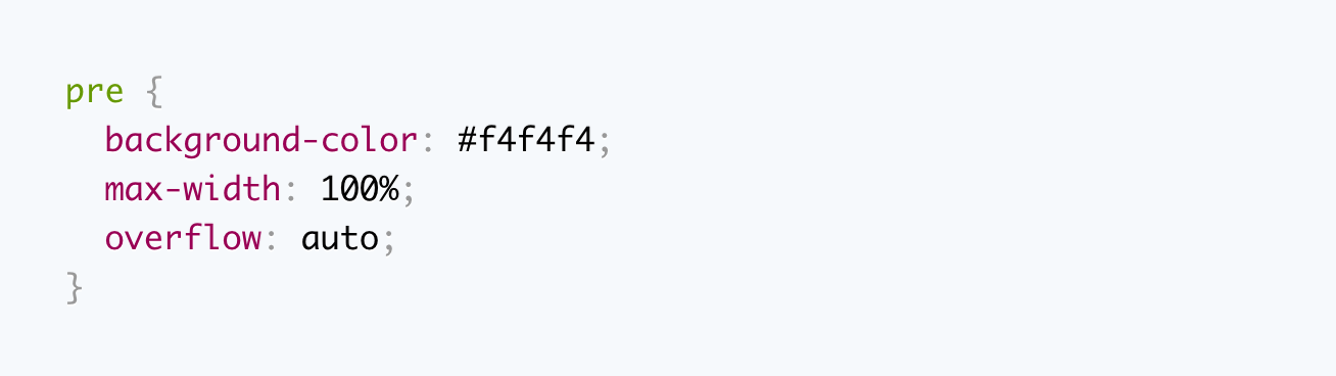
The next step is to assign the Roboto font to the `body` element using CSS.
```html
```
The *Code Injection* area will look similar to the below screenshot.
## Change the Font of a Specific Element
If you want to change the font of a specific element, you need to get the element’s class name. You can use the browser development tools to do that.
You can use [Chrome DevTools](https://developer.chrome.com/docs/devtools/) or [Firefox Developer Tools](https://firefox-source-docs.mozilla.org/devtools-user/index.html). To open the DevTools, right-click on an element on the page and choose **Inspect**, then the **Elements** panel will open. Also, you can press `Command+Option+C` (Mac) or `Control+Shift+C` (Windows, Linux, Chrome OS) to open the **Elements** panel.
You can then get the element CSS selector class, in our case, the post excerpt class `.post-card-excerpt`, and you can assign the new font to it as follows.
```html
```
To move around the web page elements or to go to a more specific element class, you can click the **Inspect** icon to select an element on the page.
If you want to set the font size for an element, you can use the [CSS font-size](https://www.w3schools.com/cssref/pr_font_font-size.php) property to do that. For example, to set the font family and font size for the previous example, you can do something like the following.
```html
```
To wrap all the code, we have done so far; it could look like the following in Code Injection.
```html
```
Don't worry if you didn't grasp how the CSS code works at first. If you are curious to learn more, I would recommend the [Learn web development](https://developer.mozilla.org/en-US/docs/Learn_web_development) resource by Mozilla.
Source: https://aspirethemes.com/blog/casper-google-fonts
---
Resource: https://aspirethemes.com/blog/deploy-ghost-theme.md
# How to Deploy Your Ghost Theme Using GitHub Actions
> Configure the Deploy Ghost Theme GitHub Action to upload theme changes to a Ghost site when you push to the repository.
- Canonical page: [How to Deploy Your Ghost Theme Using GitHub Actions](https://aspirethemes.com/blog/deploy-ghost-theme)
- Author: [Ahmad Ajmi](https://aspirethemes.com/about)
- Published: 2022-11-01
Last week I tried the [Deploy Ghost Theme](https://github.com/marketplace/actions/deploy-ghost-theme) GitHub action. This is an excellent tool for theme deployment and a time saver. This tool helps with theme deployment. This means that instead of uploading your theme to your Ghost blog every time you make a change. You can now deploy your theme every time you push a new update to your theme repository main branch. So, the purpose of the GitHub action is to take the theme from the GitHub repo and send it to your website.
I assume you are familiar with using Git and GitHub, and your theme is already on GitHub.
## ➊ Create a Custom Ghost Integration
The first step is creating a new Custom Integration in Ghost Admin → Integrations.
You can give the new integration a new name—for example, Deploy Ghost Theme.
Once created the integration, two values will be available, `Admin API Key`, and `API URL`.
## ➋ Create GitHub Repository Secrets
On the GitHub theme repository, navigate to **Settings → Secrets and variables → Actions**.
Create two new secrets. The first is `GHOST_ADMIN_API_KEY`, containing the `Admin API Key`. The second is `GHOST_ADMIN_API_URL`, including the `API URL`.
## ➌ Add the Github Deployment Config File
Inside your local theme repository, create a config file called `.github/workflows/deploy-theme.yml` and copy the following code. Once you have added this file, commit and push your changes to the remote repository.
```yaml
name: Theme Deploy
on:
push:
branches:
- master
- main
jobs:
deploy:
runs-on: ubuntu-latest
steps:
- uses: actions/checkout@v7
- name: Deploy Ghost Theme
uses: TryGhost/action-deploy-theme@v2
with:
api-url: ${{ secrets.GHOST_ADMIN_API_URL }}
api-key: ${{ secrets.GHOST_ADMIN_API_KEY }}
```
You are now ready to test and do your first theme deployment. The theme will automatically be deployed whenever you push a new commit to the main repository branch.
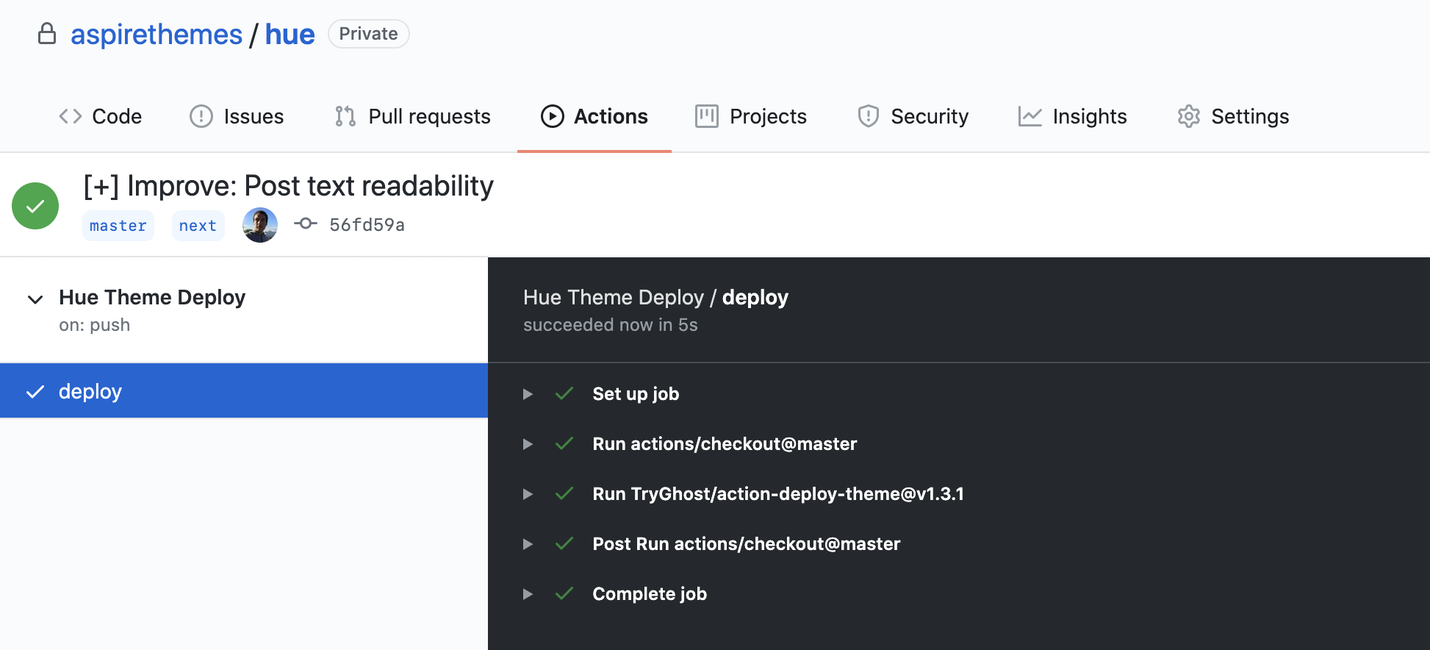
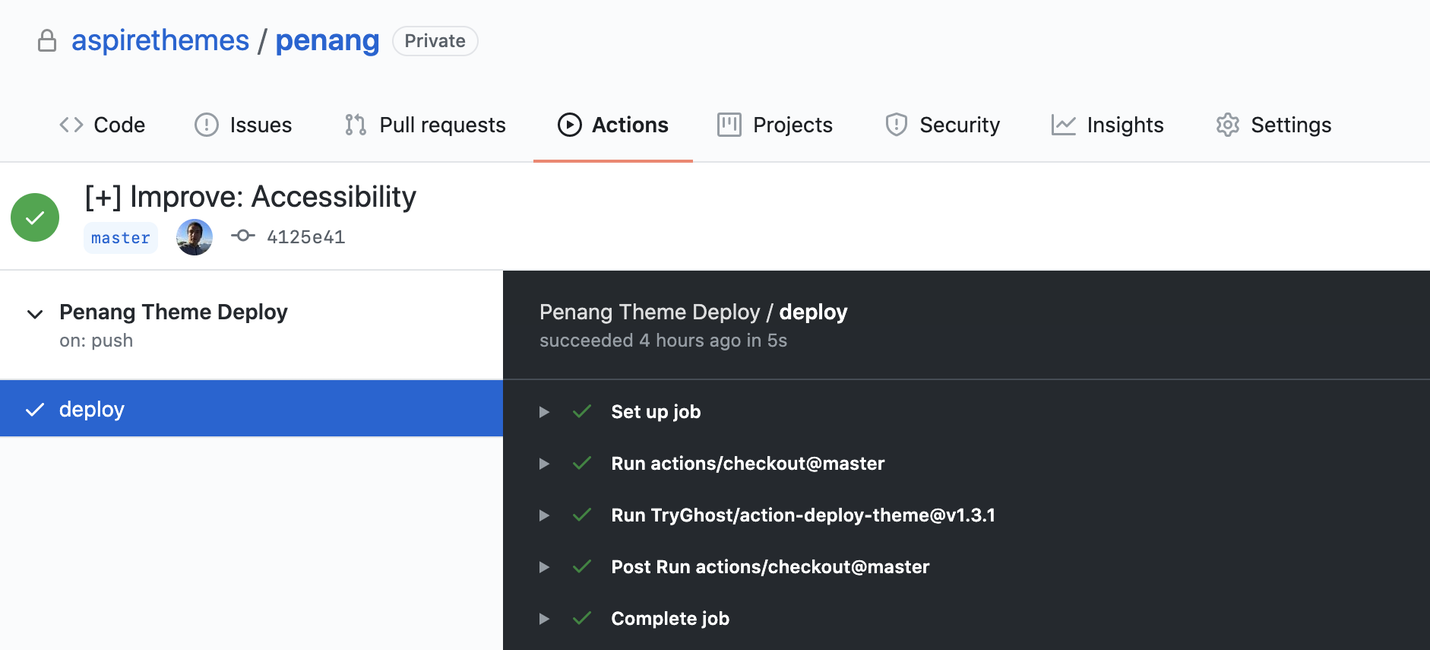
On the GitHub theme repository, navigate to *Settings > Actions* to check the theme deployment actions list.
You can click any action and see more details about it.
Looking for a professional design? Explore [premium Ghost themes](https://aspirethemes.com/themes/).
Or get them all in the [Aspire Themes bundle](https://aspirethemes.com/bundle).
I hope you find this tutorial helpful.
Source: https://aspirethemes.com/blog/deploy-ghost-theme
---
Resource: https://aspirethemes.com/blog/designing-hakone.md
# Designing Hakone: Letting the Reader Stay With the Writing
> How Hakone displays complete posts on its homepage, with individual post colors, image backgrounds, a lightbox and a compact archive.
- Canonical page: [Designing Hakone: Letting the Reader Stay With the Writing](https://aspirethemes.com/blog/designing-hakone)
- Author: [Ahmad Ajmi](https://aspirethemes.com/about)
- Published: 2026-10-08
On the [Hakone demo](https://hakone.aspirethemes.com/), you can start reading The Library as soon as the homepage opens. The text is there beneath the title, followed by artwork and the rest of the story. You don’t have to open a preview first.
[Hakone](https://aspirethemes.com/themes/hakone) is a Ghost theme I make at Aspire Themes. Its homepage brings complete posts together, including their colors, quotations and images. The screenshots below use the demo’s sample content.
## Full Posts on the Homepage
The Library opens with a title and an italic introduction, then a narrow column of text. Further down, images and a quotation break up the paragraphs. These are the contents of the post itself, displayed on the homepage.
The title links to a separate post page for sharing and comments. Readers can also stay on the homepage, continue into the next entry and use Load More to see older posts.
Ghost’s membership rules still apply. A restricted post shows the content available to that visitor and a membership prompt. The full-post layout does not give public visitors access to members-only writing.
## Post Colors
Hakone lets publishers choose background and text colors for individual posts. The demo uses yellow for The Library and black with light text for the entry above. Each background extends across the post, so the change is visible as readers move between entries.
The white-background example uses a narrow quotation above a wider artwork. Both appear directly in the feed. A post can contain a brief quotation, an image collection or an essay; it does not need a conventional title-and-thumbnail presentation to appear on the homepage.
## Image Backgrounds
A feature image can fill the post’s background, with the writing placed over it. In this example, the painting extends behind the quotation and paragraphs instead of sitting above them.
The image needs to leave the text readable. A photograph with busy detail or sharp changes in brightness may work better as an image inside the post. Background images are an option for individual entries, so a publisher can reserve them for pieces that suit the treatment.
## Image Lightbox
Readers can open content images in an optional lightbox, a larger viewer over the page, and move through them with the arrows. In the example above, the painting fills the viewing area, with a counter showing its place in the image sequence.
This gives a photo essay or artwork collection a larger view while keeping its images within the post’s text when the lightbox is closed.
## The Archive
Reading complete entries is less convenient when someone is looking for a particular older post. Hakone’s [archive page](https://hakone.aspirethemes.com/archive/) provides a compact list of titles grouped by month. It lists up to 100 posts; it is not a complete index for a larger collection.
That gives readers two ways to use the site: read the posts on the homepage or go straight to a title in the archive. For a closer look at how this differs from a preview-based blog, see the [Sinai and Hakone comparison](https://aspirethemes.com/blog/sinai-vs-hakone).
Source: https://aspirethemes.com/blog/designing-hakone
---
Resource: https://aspirethemes.com/blog/designing-hanoi.md
# Designing Hanoi: From the Cover Story to the Archive
> How Hanoi’s cover story, visual topics, navigation previews and article layouts connect discovery to reading in a Ghost magazine.
- Canonical page: [Designing Hanoi: From the Cover Story to the Archive](https://aspirethemes.com/blog/designing-hanoi)
- Author: [Ahmad Ajmi](https://aspirethemes.com/about)
- Published: 2026-10-06
The first screen of the [Hanoi demo](https://hanoi.aspirethemes.com/) belongs to a story. A photograph fills the opening, with the title and excerpt placed over it. Before a visitor has browsed the magazine’s topics, they have something specific to read.
For a visual magazine, photographs have several jobs. They introduce a subject, distinguish one story from another, and sometimes become the story itself. Hanoi changes their scale and position as the reader moves through the publication.
[Hanoi](https://aspirethemes.com/themes/hanoi) is a Ghost theme I make at Aspire Themes. These examples use its sample magazine.
## The Cover Story
The opening can hold up to five Featured stories. Each selection takes the same large stage, with controls for moving between them. The first story sets the initial impression; the others let an editor offer more than one starting point without putting several equally large panels on screen at once.
That arrangement asks something of the photograph. It needs to work as a broad crop, and the words still need to remain readable over it. A closely framed subject may suit a different article opening better. The large lead is useful when the picture and title can carry the first encounter together.
The editorial introduction follows the lead. This order lets the work introduce the magazine before its own description explains what holds the stories together. Where [Siwa introduces its writer first](https://aspirethemes.com/blog/designing-siwa), Hanoi starts with a piece of the publication.
## Topics and Recent Stories
A cover story offers an editorial choice. The next reader may want a subject of their own. Homepage topic cards pair tag names with images, giving someone interested in food, travel or interiors a route beyond the lead.
The Tags directory extends that approach to a separate browsing page. The name identifies the subject; the image gives it a visual character. A publisher can select the homepage topics rather than putting every tag in that space.
Latest Stories follows the homepage topics, broadening the selection to recent work. The five Featured selections are excluded from that feed when present, so the lead does not immediately reappear as another card. Farther down, Editor’s Pick gives one additional story a distinct place. These changes in scale separate a subject choice, a recent story and an editorial recommendation.
## Navigation Previews
Hanoi’s desktop dropdown places an available image beside its text links. Internal posts, pages, tags and authors can supply that preview; supported video stories can add muted movement. A reader gets a glimpse of the destination while the link remains the way to reach it.
On mobile, the navigation keeps its links in a drawer without the desktop preview panel.
## Article Openings
Once a reader chooses a story, the photograph can take another role. Hanoi’s Default, Hero, Fullscreen, Split and Video layouts give the publisher different ways to begin the article.
Split places the image and introduction alongside each other. Both can be read together: the photograph supplies context while the title and excerpt explain the piece. A Fullscreen opening gives the cover more of the first view, which suits a photograph that needs room before the writing begins.
The Video layout makes playback the opening media. Its expanding presentation gives motion a larger stage as the reader scrolls. This is a different commitment from a muted preview in navigation: the visitor has now opened the story and can choose to watch it.
An essay can use the Default layout while a photographic report uses a larger opening image.
## Reading Tools
The cover attracts attention; the article still needs to hold readable text. After the opening, controls for listening, text size, comments and sharing stay near the writing.
Text-size controls let the reader adjust the article rather than relying on the publisher’s preferred size. Listen uses browser speech support, so the available voice depends on the reader’s device. It is an alternative way to follow the text, not a recorded narration.
The lightbox opens photographs in a larger viewer over the article, so readers can inspect a photograph or gallery and return to the text.
## The Archive
The [Archive](https://hanoi.aspirethemes.com/archive/) collects titles and dates in a compact list, with image previews available for recognition. The reader can scan the words without opening a grid of large photographs. [Latest](https://hanoi.aspirethemes.com/latest/) offers the more visual alternative for browsing recent work.
Source: https://aspirethemes.com/blog/designing-hanoi
---
Resource: https://aspirethemes.com/blog/designing-siwa.md
# Designing Siwa: From First Visit to Newsletter
> Explore the design decisions behind Siwa’s introduction, story discovery, reading tools, video layouts, color system, and newsletter invitation.
- Canonical page: [Designing Siwa: From First Visit to Newsletter](https://aspirethemes.com/blog/designing-siwa)
- Author: [Ahmad Ajmi](https://aspirethemes.com/about)
- Published: 2026-10-05
Before you reach the stories on the [Siwa demo](https://siwa.aspirethemes.com/), you meet the publication. A large introduction sits beside a portrait video, with enough room for a few paragraphs and a direct invitation to subscribe. Below it, selected stories lead into the latest writing. Farther down, the newsletter has its own introduction and choices.
A personal publication needs room to introduce its writer, but visitors may arrive ready to read or subscribe. Siwa gives the introduction space while keeping those other routes visible. The same balance continues through its story layouts and newsletter section.
[Siwa](https://aspirethemes.com/themes/siwa) is a Ghost theme I make at Aspire Themes. The examples here use its sample publication, rather than a customer site.
## The Introduction
The homepage opens with words before it opens with a collection of posts. The heading, short introduction and longer body have distinct roles: identify the publication, explain what it offers, and give the writer space to say more.
The media column is narrower than the text column. A portrait can accompany the writing without pushing it into a small caption. On a smaller screen, the columns stack; with no image or supported introduction video, the text takes a single column.
This flexibility also shapes how the section is edited. Its content comes from a Ghost page, so the publisher can use the editor for paragraphs, links and buttons. The introduction can grow or become shorter as the publication changes. It is not limited to a fixed sentence in a theme setting.
Video uses the same space as the portrait. A Play control opens it with sound in a lightbox, a viewer over the page, leaving the visitor to choose when to watch. The introduction can establish a voice in writing or let the visitor hear it, while preserving the same overall composition.
## Reader Quotes
The introduction tells visitors what the publication offers. Reader quotes can add another perspective before the stories begin. Siwa places them between the introduction and Featured, where the publisher’s words give way to someone else’s account of reading the work.
The rounded cards have a small speech-bubble tail, making a quote visually different from a story card. Each carries its own attribution and optional role. These are sample endorsements in the demo; a publisher would supply their own reader quotes.
Longer quotes remain readable without a fixed-height text box. Publishers without reader quotes can leave the section out and move directly to Featured.
## Featured and Latest
Once the introduction has established the publication, the next question is which story to open. Featured gives selected posts more space than the latest grid: a large image or video sits beside the title and excerpt, with text and media alternating sides across the cards.
That difference in scale separates an editorial selection from a chronological feed. Featured holds up to three posts marked Featured in Ghost. The latest stories follow, excluding those selections so the homepage does not immediately repeat them.
The composition changes with the content. A Featured story without an image or supported video becomes a full-width text card. The selected story keeps its place in the sequence on smaller screens.
## Navigation Previews
A small homepage selection cannot show everything a publication contains. Navigation gives readers a route to the rest, and its desktop previews add a glimpse of the destination before they leave the page.
The image sits beside the links inside the same panel. A reader can move through the titles and see the associated media without opening each page. For supported video stories, that slot can show muted movement.
The menu remains a list of usable links. A missing image, an external destination or unavailable preview data does not prevent navigation. On mobile, a drawer keeps the grouped links without the preview panel.
## The Archive
A preview helps when the reader is deciding what looks interesting. Finding a particular older piece calls for another view. Siwa’s Archive keeps titles and dates together in a compact list, giving the words more weight than the photographs.
This gives a returning reader a way to scan for a title they remember. On devices with hover support, or when a row receives keyboard focus, an available feature image can appear beside it. A story without an image still has a complete title and date; pictures help recognition without becoming a requirement for the list.
Latest offers the more visual alternative, while tag and author pages let readers follow a subject or a person. These views lead to the same stories through different clues.
## Article Openings
Finding a story leads to another design decision: what should the reader encounter first? A title, a photograph or a video can each provide the opening, and they ask for different arrangements.
Siwa’s Default layout centers the article opening. Hero places the title over the image, Fullscreen gives the cover more of the first screen, and Split puts the photograph beside the title and introduction. Post Video reserves the opening media area for playback.
Native Ghost video, YouTube and Vimeo can appear in the introduction, story cards, navigation previews and video articles. A publisher selects Post Video when the first supported video in the content should become the primary media. Video can also remain within an ordinary article when it belongs later in the piece.
There is a distinction between a glimpse and a viewing session. Eligible card and navigation previews stay muted; primary playback begins with an explicit Play action. Reduced-motion preferences keep previews static. Movement can help a reader recognize a story without requiring every visitor to watch it.
## Reading Tools
Siwa puts text size and Listen beside comments and sharing in the article’s action bar. Readers can adjust the text or listen while staying on the story.
A reader can enlarge the text, and the browser remembers their choice. For a longer article, the table of contents offers a route back to a particular section. It appears only when there are headings to navigate.
Listen uses the browser’s text-to-speech support to read the story aloud. Its voice depends on the browser and device, and the control is removed when native speech is unavailable. This is a reading option, rather than a recorded audio edition supplied by the publisher.
The same approach extends to photographs and conversation. Unlinked images and galleries open in a fullscreen viewer; linked images keep their destinations. Available comments open beside the article in a side panel. A reader can look closer or respond while keeping their place in the story.
## Page and Story Colors
These different openings still need to feel like parts of one site. Siwa separates the overall page palette from the surfaces used for individual stories and sections.
The examples below keep the same stories and layout while changing the page palette: light Cloud Dancer, olive Kombu Green and burgundy Port Royale. That makes the two layers of color visible.
The surrounding page changes while the colored story cards remain recognizable. Publishers can give a story or section its own background, with a contrasting text color. The introduction, reader quotes and newsletter use that same approach.
A mint introduction and a peach Featured card can share a dark site without every element taking on the same accent.
Smaller surfaces also follow the page palette, so a panel does not carry a fixed light background into a dark scheme. The [Siwa color guide](https://aspirethemes.com/docs/siwa#color-scheme) covers the available palettes and custom settings.
## The Newsletter Invitation
The newsletter section has room to explain what readers will receive before asking them to subscribe.
Its title, description and optional image come from a Ghost page. The choices come from the publication’s actual [Ghost newsletters](https://ghost.org/help/setup-email-newsletters/). Each can have a description, so a visitor can distinguish a weekly collection from occasional notes before selecting what to receive. The sample publication shows several choices; a publisher can configure their own offer.
The optional image accompanies the description; without it, the copy and form use a centered column. Publishers can explain the newsletter without supplying artwork.
This is one shared section across the homepage, archives and article layouts. A Split article and a video article can have different openings and arrive at the same newsletter presentation. Signed-in members do not see the repeated signup section. For signed-out visitors, it appears when Ghost Members is enabled and the newsletter page exists. The [Siwa setup guide](https://aspirethemes.com/docs/siwa#site-newsletter) covers those requirements.
The theme shapes this invitation on the website; [Ghost’s newsletter settings](https://ghost.org/help/email-design/) shape the email itself.
Siwa leaves a subscription link in the header for visitors who are already ready. The larger invitation remains available farther down, with room to explain each newsletter.
Source: https://aspirethemes.com/blog/designing-siwa
---
Resource: https://aspirethemes.com/blog/designing-taba.md
# Designing Taba: Giving a Busy Front Page a Clear Order
> How Taba’s lead stories, topic sections, columns and video coverage help readers choose their way through a Ghost newsroom or magazine.
- Canonical page: [Designing Taba: Giving a Busy Front Page a Clear Order](https://aspirethemes.com/blog/designing-taba)
- Author: [Ahmad Ajmi](https://aspirethemes.com/about)
- Published: 2026-10-06
A magazine that covers several subjects has more than one answer to “what should I read?” There is the lead story, the latest report, a subject the reader follows, and a video they might want to watch. A front page needs to distinguish those answers before the reader opens anything.
On the [Taba demo](https://taba.aspirethemes.com/), the lead gets a large image and its own text panel. Three supporting stories follow. Further down, recent posts, topics, an editorial pick and video coverage offer different ways to continue. The page changes its arrangement as the reason for choosing a story changes.
[Taba](https://aspirethemes.com/themes/taba) is a Ghost theme I make at Aspire Themes. The screenshots use its sample publication.
## Featured and Latest
Taba’s Featured section holds one large lead and up to three supporting stories. The lead pairs media with a title and excerpt, giving the editor room to explain why that story deserves attention. The smaller cards let other selections remain visible without taking the same space.
Latest then answers a different need: what has been published recently? Keeping it separate from Featured gives editorial selection and publication order their own roles. A story can be important without being the newest thing on the site.
## Topic Sections and Columns
Recent work can range across subjects. A reader following one of those subjects needs a collection that stays together.
Homepage topic sections give selected subjects a heading and a row of up to four stories. The heading links to the topic’s archive. A single subject can therefore offer an immediate selection and a route into its wider coverage.
Topic columns use the space differently. Each column starts with an image-led story and follows it with a compact list of titles. Several subjects can sit alongside one another without each requiring a full-width section. The two lists of homepage topics are independent: a publisher can give a major beat a broad section and place other regular subjects in columns.
The header’s Topics menu keeps subjects within reach after the reader leaves the front page. The homepage can stay selective because it is not the only route into the archive.
## Editors’ Pick and Video
Between topic coverage and the lower columns, Editors’ Pick gives one selected story another large presentation. It excludes the four Featured selections, allowing the recommendation to introduce something beyond the opening group.
Video has a different reason to be separate. The homepage Video section collects video-tagged stories, while the standard Featured and topic groups exclude those entries. A visitor choosing to watch can find that format together, instead of discovering only after opening a card that the main story is a video.
The [video archive](https://taba.aspirethemes.com/video/) continues that route. The separation is useful when video is a recurring part of the publication. A magazine publishing mainly written stories can let its topic coverage do more of the work.
## Article Openings
Taba’s article templates let editors choose how much of the opening to give to photographs, galleries or video.
Image Cover gives a photograph a large opening presence, with the story title over the image.
A report with one supporting image does not need the same opening as a photographic feature. The distinction lets the editor give a major visual story more space while retaining a simpler arrangement for everyday writing.
The Video Theater layout gives the player a large stage before the written story. It suits a feature whose main material is something to watch.
For a comparison of these layouts with a consistent written-article opening, see [Tripoli vs Taba](https://aspirethemes.com/blog/tripoli-vs-taba).
## Reading Tools
A front page needs many routes. Once a reader opens an article, that density can recede so the text has room.
Text-size controls, browser voice playback and sharing sit with the article. Reading progress gives a sense of position in a longer piece. Listen relies on browser speech support; it does not mean the publisher has recorded an audio edition.
## Newsletter Choices
A broad magazine may publish more than one newsletter. Asking a reader to subscribe becomes clearer when the site explains what each one contains.
Taba’s [newsletters page](https://taba.aspirethemes.com/newsletters/) presents the publication’s Ghost newsletters as separate choices with descriptions. A signed-out visitor selects what to receive; a signed-in member can manage preferences through Ghost Portal. These choices depend on the newsletters the publisher has configured.
Readers can follow one newsletter without subscribing to every subject the magazine covers.
Source: https://aspirethemes.com/blog/designing-taba
---
Resource: https://aspirethemes.com/blog/designing-tripoli.md
# Designing Tripoli: Bringing Order to a Magazine Homepage
> How Tripoli brings featured stories, recent posts and topic coverage together, then gives readers a quieter space for the article they choose.
- Canonical page: [Designing Tripoli: Bringing Order to a Magazine Homepage](https://aspirethemes.com/blog/designing-tripoli)
- Author: [Ahmad Ajmi](https://aspirethemes.com/about)
- Published: 2026-10-08
The [Tripoli demo](https://tripoli.aspirethemes.com/) opens with three featured stories and a list of recent posts. Below them, topics such as Politics and Technology have their own sections. A reader can start with the editor’s lead, catch up on new work or browse a subject.
[Tripoli](https://aspirethemes.com/themes/tripoli) is a Ghost theme I make at Aspire Themes. Its magazine layout separates these choices instead of putting every story into one chronological list. The screenshots below use the demo’s sample content.
## Featured and Latest
On desktop, the lead story sits in the center, between two smaller featured stories and the Latest column. Its larger image, title and excerpt give it more space than the supporting cards.
Latest uses compact entries with small thumbnails. The three featured stories are excluded from that list, so readers see more of the publication’s work in the opening view.
The editor can keep a feature in the lead position while newer reports appear beside it. An important story does not have to disappear from the opening selection simply because something else has been published.
## Topic Sections
Below the featured stories, each selected topic has a heading and a row of story cards. The Politics row shows four stories from that subject. Images, titles and excerpts give readers a selection from each subject.
These sections let a reader follow one area of coverage without sorting through unrelated posts. The topic heading links to its archive. A See All link appears when there are more posts than the homepage section displays.
The homepage can show a few stories from an active subject while its archive holds the rest. The [Tripoli and Taba comparison](https://aspirethemes.com/blog/tripoli-vs-taba) looks more closely at the different ways the two themes arrange topic coverage.
## Editors’ Picks
Editors’ Picks appears near the bottom of the homepage as a numbered group of stories. Unlike the topic rows, it can bring selections from different subjects together.
This gives the editor a place to recommend older work alongside recent coverage. A featured story can also appear here; the selections do not automatically exclude stories used elsewhere on the homepage.
## Inside the Article
After choosing from the homepage’s story groups, the reader reaches a narrower article column. The title, introduction and author details establish the selected story before the feature image and writing.
For a longer article, the table of contents above the opening paragraph lets readers go directly to a section or return to one later.
## Authors and Topics
The authors directory pairs contributor portraits and biographies with links to their stories. A reader who recognizes a writer can find their work without searching through the homepage’s topic sections.
The [topics directory](https://tripoli.aspirethemes.com/tags/) offers another way into the publication, organized by subject. These pages keep writers and subjects accessible beyond whichever stories the editor has selected for the front page.
Source: https://aspirethemes.com/blog/designing-tripoli
---
Resource: https://aspirethemes.com/blog/digitalocean-ghost-multiple-sites-installation.md
# Install Multiple Ghost Sites on DigitalOcean
> Install an additional Ghost site on an existing DigitalOcean droplet while keeping its domain, database, files, and service separate.
- Canonical page: [Install Multiple Ghost Sites on DigitalOcean](https://aspirethemes.com/blog/digitalocean-ghost-multiple-sites-installation)
- Author: [Ahmad Ajmi](https://aspirethemes.com/about)
- Published: 2024-11-01
If you’re already using Ghost on a DigitalOcean droplet and want to add more Ghost instances to the same server, this guide is for you.
Prerequisites:
Your server uses Ghost’s supported Ubuntu, MySQL, NGINX, and systemd stack.
The server has enough memory and storage for another Ghost process and database.
You are logged into the droplet via SSH as a user with sudo access.
Your domain name is connected to the droplet’s IP address.
You have backed up every existing Ghost site on the server.
Before continuing, read Ghost’s current [Ubuntu installation requirements](https://docs.ghost.org/install/ubuntu) and [Ghost CLI documentation](https://docs.ghost.org/ghost-cli). Multiple sites share the server’s CPU, memory, disk, MySQL, and NGINX, so monitor resource use after adding the site.
1. Back Up the Existing Site
Run the backup command inside the existing Ghost installation:
sudo -i -u ghost-mgr
cd /var/www/ghost
ghost backup
exit
Repeat this for any other Ghost installations on the server.
2. Create a Directory for the New Site
Create a separate directory and give the DigitalOcean Ghost manager account ownership:
sudo mkdir /var/www/new-blog
sudo chown ghost-mgr:ghost-mgr /var/www/new-blog
Replace new-blog with a short name for the new publication.
3. Switch to the Ghost Manager Account
DigitalOcean’s Ghost image uses ghost-mgr for Ghost maintenance:
sudo -i -u ghost-mgr
Then enter the directory:
cd /var/www/new-blog
4. Install the New Ghost Site
Run the supported production installer:
ghost install
Follow the prompts for the new domain, MySQL administrator credentials, NGINX, SSL, systemd, and starting Ghost. Choose a unique database name when prompted.
Do not reuse the application database account from the existing site’s configuration. Ghost CLI’s MySQL setup creates a dedicated, minimally privileged database user for the new installation.
5. Verify Both Sites
List the Ghost installations and confirm both are running:
ghost ls
Open both domains over HTTPS and sign in to the new site’s admin immediately to claim its owner account.
See also: [Ghost Theme Demo Setup on DigitalOcean](https://aspirethemes.com/blog/digitalocean-ghost-themes-setup).
Source: https://aspirethemes.com/blog/digitalocean-ghost-multiple-sites-installation
---
Resource: https://aspirethemes.com/blog/digitalocean-ghost-themes-setup.md
# My Ghost Theme Demo Setup on DigitalOcean
> See how Aspire Themes organizes multiple Ghost theme demos on one DigitalOcean droplet and what each site keeps separate.
- Canonical page: [My Ghost Theme Demo Setup on DigitalOcean](https://aspirethemes.com/blog/digitalocean-ghost-themes-setup)
- Author: [Ahmad Ajmi](https://aspirethemes.com/about)
- Published: 2024-12-15
As a [Ghost theme](https://aspirethemes.com/themes/) developer, I've opted to host all of my Ghost theme demos on a single DigitalOcean droplet.
## Droplet Configuration
* **CPU Type:** Regular Intel
* **Plan:** Basic
* **RAM:** 16 GB
* **vCPUs:** 8
* **Storage:** 100 GB SSD
## Benefits of Hosting Demos on One Droplet
1. I can manage all my demos in one place, saving time and effort.
2. Hosting multiple sites on a single droplet is often more affordable than using individual hosting plans for each demo.
3. With resources dedicated to all demos, I can fine-tune the server environment for optimal Ghost performance.
For a detailed guide on setting up multiple Ghost installations on a single DigitalOcean droplet, check out my post on [How I Install Multiple Ghost Installations on DigitalOcean](https://aspirethemes.com/blog/digitalocean-ghost-multiple-sites-installation).
## Further Reading
- Explore premium Ghost themes → [Themes](https://aspirethemes.com/themes/)
- See real‑world Ghost website examples → [Showcase](https://aspirethemes.com/showcase/)
- Build and customize with the docs → [Ghost theme documentation](https://aspirethemes.com/docs/)
Source: https://aspirethemes.com/blog/digitalocean-ghost-themes-setup
---
Resource: https://aspirethemes.com/blog/download-upload-ghost-images-digitalocean.md
# Download and Upload Ghost Images with SCP
> Download or upload a Ghost site's images directory with SCP when Ghost runs on a DigitalOcean droplet.
- Canonical page: [Download and Upload Ghost Images with SCP](https://aspirethemes.com/blog/download-upload-ghost-images-digitalocean)
- Author: [Ahmad Ajmi](https://aspirethemes.com/about)
- Published: 2022-08-01
You can download and upload your Ghost CMS images folder using the command line. I assume you can already locally access your DigitalOcean Ghost droplet from the command line from your computer.
I will use the SCP command-line tool. SCP term is shorthand for secure copy. It allows to securely transfer of files between a remote server and a local machine. In our case, it will copy the images from the Ghost server to the local computer and vice versa.
Zip Images Folder
The first step for downloading the images is to log in to your DigitalOcean Ghost server and zip the images folder.
Login to your DigitalOcean remote server with your droplet IP address.
Replace 207.154.195.220 with your IP.
ssh root@207.154.195.220
Go to the Ghost installation content path.
cd /var/www/ghost/content/
Zip the images folder using the zip command.
zip -r images.zip images
You may need to install the zip command tool if it is unavailable on your server.
The command line will check whether the zip tool is available or not and then give you instructions to install it if it is not available.
Now, you have the images.zip file ready for download.
Working with SCP
The SCP command needs two parameters, the first is the remote location file path, and the second is the local path.
scp REMOTE_PATH LOCAL_PATH
In our case, the remote path will be something like this:
root@207.154.195.220:/var/www/ghost/content/images.zip
And the local bath, for example, will be on my desktop.
/Users/ahmadajmi/Desktop
Download Images
Combining the previous parameters, you can use the following command to download the images zipped file.
scp root@207.154.195.220:/var/www/ghost/content/images.zip /Users/ahmadajmi/Desktop
Upload Images
The other scenario is to upload the images from your local machine to the remote server; you can use the same concept. Flip the parameters to make the local path comes first and then the remote path last.
So, I assume the images.zip is on the desktop; the upload command will be.
scp /Users/ahmadajmi/Desktop/images.zip root@159.65.227.236:/var/www/ghost/content/
Unzip Images
After uploading the images.zip to the remote server, you can use the unzip command to unzip it.
unzip -o images.zip
That’s all I wanted to share today, and I hope you find this post helpful.
Source: https://aspirethemes.com/blog/download-upload-ghost-images-digitalocean
---
Resource: https://aspirethemes.com/blog/ghost-5-59.md
# Ghost 5.59 — Header Card Enhancements
> See the layout, background, image, button, and size controls introduced for Header cards in Ghost 5.59.
- Canonical page: [Ghost 5.59 — Header Card Enhancements](https://aspirethemes.com/blog/ghost-5-59)
- Author: [Ahmad Ajmi](https://aspirethemes.com/about)
- Published: 2024-03-01
In version 5.59.0, Ghost introduced enhancements to the Header Card. These enhancements allow for layout and color customization, similar to what can be done with the Signup card. However, the main difference is that the Signup card contains a signup form, while the Header Card does not.
To add a Header card to your content, click the + button to open the Cards menu and choose **Header**.
Some examples of what you can do with the Header card.
Make sure that the [new Ghost editor](https://ghost.org/changelog/editor-beta/) is enabled.
Source: https://aspirethemes.com/blog/ghost-5-59
---
Resource: https://aspirethemes.com/blog/ghost-author-context.md
# How to Use Ghost Author Context
> Use Ghost author context and Handlebars helpers to display author data in posts and custom author templates.
- Canonical page: [How to Use Ghost Author Context](https://aspirethemes.com/blog/ghost-author-context)
- Author: [Ahmad Ajmi](https://aspirethemes.com/about)
- Published: 2022-05-01
This post will discuss Ghost Author’s context and how Ghost decides to select which theme file to show author data with some examples.
Every Ghost author has its page to show the author’s information like name, photo, and a list of posts written by that author. So, when you visit your author page on your website, for example, `/author/ahmad`, you are now in the author context.
The `index.hbs` theme file is used as the default author context template.
So, how can we know if we're on the blog home page or the author page? We can use the `{}` helper to know that.
So, in the `index.hbs` file, we can do.
```html
{{#is 'author'}}
{{/is}}
```
Between these two lines, we can show the author’s information, like name and photo. But first, we need to use the `{}` block helper. Within that helper, we can access the author properties we need.
```html
{{#is 'author'}}
{{#author}}
{{ name }}
{{/author}}
{{/is}}
```
You might say that you don't want to use the `index.hbs` file for the author page. Is there another solution? Yes, we can create a new template file and call it `author.hbs`.
How does Ghost choose between `index.hbs` and `author.hbs`? Well, Ghost will look for the `author.hbs` first and select it if it exists. If not, Ghost will choose `index.hbs`. That’s why the `index.hbs` file is necessary for any Ghost theme.
So, in the `author.hbs` file, the previous example will be.
```html
{{#author}}
{{ name }}
{{/author}}
```
Note that I removed the `{}` helper as we are now in a dedicated author context page.
You can access more author attributes; besides the `name` and `profile_image` we used above, see a list of all the author attributes at [Author object attributes](https://docs.ghost.org/themes/contexts/author#author-object-attributes)
Suppose you want to go deeper and create a dedicated page for a single author. For example, if you want to design a unique page for every author. You can name the template file as `author-:slug.hbs` where the `:slug` part will be the author slug. So, if your user URL is `/author/ahmad/`, create the `author-ahmad.hbs` file.
After we talked about this custom author template, let’s review how Ghost will choose the template file. First, it will check if a template matches the author slug, then looks for the `author.hbs` file, and then ends up using the `index.hbs` file if both of them did not exist.
That’s all that I wanted to share today, and I hope you find this post helpful.
Source: https://aspirethemes.com/blog/ghost-author-context
---
Resource: https://aspirethemes.com/blog/ghost-author-examples.md
# Ghost Authors: Practical Theme Examples
> Learn practical Ghost author examples, including how to list authors, show selected authors, exclude authors, and use author data in themes.
- Canonical page: [Ghost Authors: Practical Theme Examples](https://aspirethemes.com/blog/ghost-author-examples)
- Author: [Ahmad Ajmi](https://aspirethemes.com/about)
- Published: 2022-04-01
I discussed how the Ghost Author Context works in the [latest post](https://aspirethemes.com/blog/ghost-author-context). This practical post will show how to work with Ghost Author API. I will show examples of displaying all the website authors, show-specific authors, exclude some and more cases to use in your Ghost theme.
I will use the Ghost [**`#get`**](https://docs.ghost.org/themes/helpers/functional/get) block helper to make custom queries to the Ghost API to get the author’s data.
## Show All Authors
Let’s start with a basic example to show all the website authors.
```html
{{#get 'authors' limit='all'}}
{{#foreach authors}}
{{ name }}
{{/foreach}}
{{/get}}
```
We have used the `limit` attribute with the `all` value to specify how many authors we want in return. In this case, we passed the `all` value to get all authors.
The default value of the `limit` attribute is `15`. In addition to the `all` value, we can pass a number; for example, if we want to get five authors, we can use `limit='5'`.
```html
{{#get 'authors' limit='5'}}
{{#foreach authors}}
{{ name }}
{{/foreach}}
{{/get}}
```
In addition to the **`#get`** block helper, I used the [**`foreach`**](https://docs.ghost.org/themes/helpers/functional/foreach#foreach), loop helper, to iterate over the data one by one and then output the author content inside its opening and closing tags `{}`.
The final result of the previous example will be.
```html
William James
Emily James
Jeff Rosenberger
Olivia Thomas
```
As you can see, the only date we get so far is the author name using the `{}` attribute. Let’s see how we can make the author name clickable to go to the author page when clicking on it.
The following example will output all the author as an HTML unordered list.
```html
{{#get 'authors' limit='5'}}
{{#foreach authors}}
{{ name }}
{{/foreach}}
{{/get}}
```
Here, I used the `{}` attribute, which will output the author URL within an HTML link tag.
The result will be.
```html
William JamesEmily JamesJeff RosenbergerOlivia Thomas
```
For the list of the available attributes, check [Author object attributes](https://docs.ghost.org/themes/contexts/author#author-object-attributes).
To create a custom authors page, read my [Create an Authors Page](https://aspirethemes.com/blog/ghost-authors-page) post.
## Show Specific Authors
To show only a specific author, use the `filter` attribute and pass the *Slug* of each tag you want to get.
You can find the tag *Slug* on the tag setting page.
In this case, the basic syntax for the `#get` block helper is.
```
{{#get 'authors' filter='slug:[SLUG, SLUG, SLUG]'}}
```
Note the Comma (`,`) separating each slug.
If we want to get the authors with the *ahmad*, *eiad* and *adham* slugs, the previous example will be like.
```html
{{#get 'authors' filter='slug:[ahmad, eiad, adham]'}}
{{#foreach authors}}
{{ name }}
{{/foreach}}
{{/get}}
```
Note
This way does not guarantee getting the same authors in the same order as you added the slugs. Probably a Ghost issue. Instead, use the following method.
In this method, we get each author separately. For example, to get the author with `ahmad` and `eiad` slugs.
```html
{{#get 'authors' filter='slug:ahmad'}}
{{#foreach authors}}
{{ name }}
{{/foreach}}
{{/get}}
{{#get 'authors' filter='slug:eiad'}}
{{#foreach authors}}
{{ name }}
{{/foreach}}
{{/get}}
```
I removed the `[ ]` around the slug as we are only filtering with one slug.
## Exclude Authors
Suppose you want to show all authors except a few ones. For example, you want to show all the website authors but the authors with *ahmad* and *eiad* slugs.
In this case, the basic syntax for the `#authors` helper is.
```
{{#get 'authors' filter='slug:-[SLUG, SLUG, SLUG]'}}
```
The difference from the previous example is the `-` sign in the `filter` attribute before the slugs. Note the following example.
```html
{{#get 'authors' filter='slug:-[ahmad, eiad]'}}
{{#foreach authors}}
{{ name }}
{{/foreach}}
{{/get}}
```
## Show Post Count
Another practical example is to show the post count for each author. Use the `include` attribute and pass the `count.posts` as a value. Let’s see, we want to show five authors and how many posts each one has.
```html
{{#get 'authors' limit='5' include='count.posts'}}
{{#foreach authors}}
{{ name }} ({{ count.posts }})
{{/foreach}}
{{/get}}
```
The result will be.
```html
William James (3)Emily James (2)Jeff Rosenberger (6)Olivia Thomas (8)
```
We can also order the authors by their post count. In the following example, I used the `order` attribute to order by the `count.posts` we used before in the `include` attribute.
```html
{{#get 'authors' limit='5' include='count.posts' order='count.posts desc'}}
{{#foreach authors}}
{{ name }} ({{ count.posts }})
{{/foreach}}
{{/get}}
```
The result will be.
```html
Olivia Thomas (8)Jeff Rosenberger (6)William James (3)Emily James (2)
```
## Show Posts for Each Author
Let’s take a more complex example. Suppose we want to list five authors ordered by how many posts they have and show their posts under each.
```html
{{#get 'authors' limit='5' include='count.posts' order='count.posts desc'}}
{{#foreach authors}}
{{/get}}
{{/foreach}}
{{/get}}
```
I added a new `#get` block helper starting from line five inside the `foreach` helper to get the posts associated with each author filtered by his `slug.` I also set the limit to three posts, but you are free to customize this.
For example, if the author slug is `ahmad`, I’m asking Ghost to get the posts associated with him using the [`filter`](https://docs.ghost.org/themes/helpers/functional/get#filter) attribute and pass the `` as a value to `primary_author`. The `` is already available for each author as a data value like name and image, and in this case, it will be rendered as `ahmad`.
So, the code for the posts helper will be interpreted as follows.
```html
{{#get 'posts' filter='primary_author:ahmad' limit='3'}}
{{#foreach posts}}
{{/foreach}}
{{/get}}
```
This will happen for each author within the loop. The result will look like the following example. Each author and their posts are underneath.
```html
```
That’s all that I wanted to share today, and I hope you find this post helpful.
Source: https://aspirethemes.com/blog/ghost-author-examples
---
Resource: https://aspirethemes.com/blog/ghost-authors-page.md
# How to Create an Authors Page in Your Ghost Theme
> Learn how to create a custom authors page in your Ghost theme, list contributors with their photos and bios, and publish it using a custom template.
- Canonical page: [How to Create an Authors Page in Your Ghost Theme](https://aspirethemes.com/blog/ghost-authors-page)
- Author: [Ahmad Ajmi](https://aspirethemes.com/about)
- Published: 2018-05-08
An authors page gives readers one place to discover every contributor to your [Ghost](https://ghost.org/pricing/?via=ahmad86) publication.
In this post, I will show you how to add a custom authors page to your [Ghost](https://ghost.org/pricing/?via=ahmad86) theme. The example uses Casper's HTML classes and partial names from the version shown in the screenshots. The Ghost helpers apply to other themes, but you will need to adapt the markup to your theme.
## Create the Authors Page Theme File
In your theme directory, create a new file and name it `custom-authors.hbs` and then copy the following code inside it.
```html
{{!< default}}
{{/post}}
```
In this code, the [**`#get`**](https://docs.ghost.org/themes/helpers/functional/get) helper is used to get the blog users. The `include` attribute is used to get the number of posts. The `order` attribute is used to order the users list based on the posts attached to them.
Next, the [foreach](https://docs.ghost.org/themes/helpers/functional/foreach) helper is used to loop through each author and render the list with the author profile image, name, URL, and bio.
After adding the template, upload and activate the updated theme. If you edit the files directly on a self-hosted production site, restart Ghost so the template appears in the dropdown.
## Create the Authors Static Page
- Create a new page and call it **Authors**, for example.
- From `Page settings`, choose the `Authors` template from the `Template` dropdown.
- Click **Publish** to publish the page.
This is an initial example of what you can do with an authors page. You can extend it with each author’s social accounts, location, cover image, and post count. For example, see the authors page in the [**Nubia**](https://aspirethemes.com/themes/nubia) theme. You can also add the authors page link to the site [navigation](https://aspirethemes.com/docs/nubia#navigation).
I would recommend checking the [official Ghost documentation](https://docs.ghost.org/themes), including the [author-context](https://docs.ghost.org/themes/contexts/author) for more information about the list of available attributes.
Source: https://aspirethemes.com/blog/ghost-authors-page
---
Resource: https://aspirethemes.com/blog/ghost-code-injection.md
# How to Use Ghost Code Injection
> Use Ghost Code Injection to add site-wide or post-specific CSS, JavaScript, metadata, and tracking code without editing theme files.
- Canonical page: [How to Use Ghost Code Injection](https://aspirethemes.com/blog/ghost-code-injection)
- Author: [Ahmad Ajmi](https://aspirethemes.com/about)
- Published: 2022-03-01
Learn how Ghost Code Injection works and how to use it effectively for customizing your site with CSS, JavaScript, and third-party integrations.
That’s all that I wanted to share today, and I hope you find this post useful.
Source: https://aspirethemes.com/blog/ghost-code-injection
---
Resource: https://aspirethemes.com/blog/ghost-contact-form.md
# How to Add a Contact Form to Your Ghost Site
> Add a Formspree contact form to a Ghost page, connect its form endpoint, and add the page to your site navigation.
- Canonical page: [How to Add a Contact Form to Your Ghost Site](https://aspirethemes.com/blog/ghost-contact-form)
- Author: [Ahmad Ajmi](https://aspirethemes.com/about)
- Published: 2022-02-01
An Aspire Themes customer asked how to add a contact form to a new [Ghost](https://ghost.org/pricing/?via=ahmad86) publication. Ghost does not include a contact form, but you can add one to a page with an HTML card and [Formspree](https://formspree.io/).
This guide creates the Formspree form, embeds it on a Ghost page, and adds that page to the site navigation.
## Create the Contact Page
In Ghost Admin, open **Pages**, click **New page**, and give the page a title such as *Contact*.
## Create the Contact Form
Create a form in Formspree, then copy its endpoint from the Formspree **Integration** page. Replace `{form_id}` below with the ID from that endpoint.
```html
```
In the Ghost editor, add an **HTML** card.
Paste the form code into the card, replace the form ID, and publish the page.
Submit a test message from the published page, then confirm that Formspree receives it.
## Add the Page to the Blog Navigation
The last step is to add the contact page to the blog navigation. Go to **Settings → Site → Navigation**, add an item with a label and the page slug, then click **Save**.
You can add fields or style the form to match your theme. Each field you want Formspree to save must have a `name` attribute.
Source: https://aspirethemes.com/blog/ghost-contact-form
---
Resource: https://aspirethemes.com/blog/ghost-content-access.md
# Ghost Post Access: Public, Members, Paid and Tiers
> Learn how Ghost post access works, add a public preview, and check what visitors and members can read before publishing.
- Canonical page: [Ghost Post Access: Public, Members, Paid and Tiers](https://aspirethemes.com/blog/ghost-content-access)
- Author: [Ahmad Ajmi](https://aspirethemes.com/about)
- Published: 2026-10-04
Ghost lets you decide who can read each post. You can make an article public, require a member login, restrict it to paid members, or give access to selected paid tiers. You can also leave part of a restricted article open as a public preview.
## Choose Who Can Read the Post
Open a post in the editor, then select **Settings** in the top-right corner. The **Post access** menu is in that panel. Its options answer a different question from the design of your article: who is allowed to read it?
- **Public:** visitors can read the article without signing in.
- **Members only:** signed-in free and paid members can read it.
- **Paid-members only:** members with an active paid or complimentary subscription can read it.
- **Specific tier(s):** access is limited to the paid tiers you select.
Ghost's [protected-content settings](https://ghost.org/help/protected-content/) define the access levels. [Complimentary plans](https://ghost.org/help/complimentary-plans/) also grant access to paid content without payment. Your theme controls the article's presentation and signup or upgrade prompt.
For example, a publication can keep its reporting public, offer a members-only discussion post, and reserve a research briefing for paid members. Set the access for each post according to its purpose.
## Set Up Memberships First
If you have not configured memberships, open **Settings → Membership → Access**. Choose who can subscribe and set the default access for new posts. See [Ghost's membership setup guide](https://ghost.org/help/setup-members/) for the signup options.
To charge for memberships, connect Stripe. Keep the signup offer consistent with your content: a free member should understand which articles require an upgrade.
## Use Tiers When Paid Offers Differ
A tier is a paid membership product. It can have its own name, description, benefits, and monthly and yearly prices. With Stripe connected, create tiers under **Settings → Membership → Tiers**.
Select specific tiers in the post settings when an article belongs to only part of your paid offer. For example, you might offer a general subscription and a separate professional research tier. Do not assume that every paid member belongs to every tier.
Creating a tier does not assign existing posts to it. Choose the intended tier in each restricted post's settings. Ghost's [tier guide](https://ghost.org/help/tiers/) explains how those offers appear in Portal.
## Add a Public Preview
A public preview gives readers part of a restricted article before they reach the access prompt. Use it to explain the subject and show enough of the writing to make the offer clear.
1. Open the article in the Ghost editor.
2. On a new line where the public section should end, type `/preview` and select **Public preview**.
3. Move the divider if needed.
4. Set **Post access** to the intended member or paid access level.
The divider does not replace the access setting. With Members only access, visitors see the preview and signed-in members can read the whole article. With Paid-members only access, free members see the preview while eligible paid members get the full post. Ghost applies the access rules on the web and in newsletters. See its [public-preview guide](https://ghost.org/help/public-previews/).
## Check Every Reader State
Open **Preview** while editing a draft. Ghost provides web and email previews and lets you switch reader states. The available states depend on the site’s membership setup. You can also send yourself a test email. See [Ghost's publishing guide](https://ghost.org/help/publishing-content/).
Before publishing, check:
- The preview ends where you intended.
- A visitor can understand what signing up unlocks.
- A free member gets the right access or upgrade prompt.
- An eligible paid member can read the complete post.
- The chosen email recipients match the offer.
For a tier-specific post, choose **Specific tier** in the Web preview. Select an included tier, then an excluded tier. In this Gold-only example, Gold can read both paragraphs; Bronze sees only the opening and the Gold access prompt.
Check the selected tiers in Post access again if either result is wrong. Publish only after both the permitted and restricted views match your offer.
Source: https://aspirethemes.com/blog/ghost-content-access
---
Resource: https://aspirethemes.com/blog/ghost-date-am-bm.md
# Show Ghost Post Times in AM/PM Format
- Canonical page: [Show Ghost Post Times in AM/PM Format](https://aspirethemes.com/blog/ghost-date-am-bm)
- Author: [Ahmad Ajmi](https://aspirethemes.com/about)
- Published: 2022-01-01
If you notice some news websites, you will see that they also show which hour the post was published, besides the published date.
Let’s take an example and see how it works.
```
{{ date published_at format='h:mm A' }}
```
We passed the `format` filter to the `published_at` property in this example. The `h` in the format filter means *hour*, the `mm` means *minutes*, and `A` means *AM* or *PM*. This example will give the following result.
```
10:02 PM
```
Suppose we want to show *AM* or *PM* in lowercase. We can use `a` instead of `A`, like in the following example.
```
{{ date published_at format='h:mm a' }}
```
```
10:02 pm
```
We can use the following if we want to combine this with the regular date format.
```
{{ date published_at }} - {{ date published_at format='h:mm A' }}
```
The result will be.
```
Mar 25, 2020 - 10:02 PM
```
I hope you find this helpful.
Source: https://aspirethemes.com/blog/ghost-date-am-bm
---
Resource: https://aspirethemes.com/blog/ghost-inline-stocks.md
# Ghost Inline Stocks: Add Stock Quotes to Ghost Posts
> Add prices and percentage changes beside stock symbols in Ghost posts with a free, open-source script. Includes Finnhub setup and a working example.
- Canonical page: [Ghost Inline Stocks: Add Stock Quotes to Ghost Posts](https://aspirethemes.com/blog/ghost-inline-stocks)
- Author: [Ahmad Ajmi](https://aspirethemes.com/about)
- Published: 2026-10-12
When an article mentions Apple’s stock symbol, `$AAPL`, a reader may want to see its price beside it. [Ghost Inline Stocks](https://github.com/aspirethemes/ghost-inline-stocks) turns that symbol into a small quote with a price in US dollars and a percentage change, directly inside the paragraph.
I made this free script so you can add the feature to your Ghost theme without editing theme files.
The feature is already included in [Siwa](https://aspirethemes.com/themes/siwa) and [Taba](https://aspirethemes.com/themes/taba), two Ghost themes I make. If you use either theme, follow the setup guide for your theme: [Siwa](https://aspirethemes.com/docs/siwa#inline-stocks) or [Taba](https://aspirethemes.com/docs/taba).
## Get a Finnhub Key
The script is free; the quotes come from [Finnhub](https://finnhub.io/). You need a Finnhub account and an API key: a code that lets the script request quotes.
1. Create or log in to your [Finnhub account](https://finnhub.io/register).
2. Open the [Finnhub dashboard](https://finnhub.io/dashboard).
3. Copy your API key.
Check Finnhub’s current [plans and limits](https://finnhub.io/pricing), including which stocks you can access and permission to publish quotes. Then choose one of the two setup options below.
## Choose a Setup
Complete one of the two options below, then continue to [Add the Script](#add-the-script).
### Direct Setup
This is the quickest option. Anyone who views your site’s code will be able to see your Finnhub key.
1. In Ghost, open **Settings → Advanced → Code Injection**.
2. Paste this snippet into **Site Header**.
3. Replace `YOUR_FINNHUB_KEY` with your key.
4. Select **Save**.
```html
```
### Cloudflare Setup (Recommended)
This option keeps your Finnhub key in your Cloudflare account instead of your site’s code. You need a [Cloudflare account](https://dash.cloudflare.com/sign-up) and your Finnhub API key. You do not need to move your website to Cloudflare.
1. Open the [stock ticker setup](https://aspirethemes.com/stock-ticker/).
2. Connect your Cloudflare account.
3. Enter your website address and Finnhub API key.
4. Copy the snippet provided by the setup.
5. In Ghost, paste it into **Settings → Advanced → Code Injection → Site Header**.
6. Select **Save**.
If you switch from direct setup, remove the direct-key snippet. To add another site or update your key, run the setup again using the same Cloudflare account.
## Add the Script
After completing either setup option, paste this into **Site Footer** and select **Save**:
```html
```
The script works on Ghost posts. It leaves the homepage, tag pages, author pages, and regular pages unchanged.
## Check a Post
Write this in a normal paragraph, then open the post preview or its web page:
```text
Following $AAPL and $MSFT this week.
```
Each supported symbol should show a price in US dollars and its percentage change from the previous closing price. Quotes load when the post opens; they do not update continuously.
Use uppercase US stock symbols of one to five letters, with a dollar sign before them. Symbols with extra parts, such as `$BRK.B` or `$VOD.L`, stay as plain text.
Symbols inside headings, links, and code blocks stay unchanged. The script enhances the web page; it does not add quotes to Ghost newsletter emails.
If a symbol stays unchanged:
1. Check that you saved the setup snippet in **Site Header** and the script in **Site Footer**.
2. Check that the symbol is uppercase and appears in a normal paragraph.
3. For direct setup, check that you replaced `YOUR_FINNHUB_KEY` with your key. For Cloudflare setup, check that you entered the same website address readers visit.
4. Wait a minute and reload in case the account has reached its quote-request limit. Try `$AAPL` as well: if it loads but another symbol does not, contact Finnhub support to check whether your plan covers that symbol.
If quotes still do not appear, [contact me](https://aspirethemes.com/contact) with your theme name, the post’s address, and the stock symbol. Do not include your API key in the message. The original symbol stays readable when a quote cannot load.
## Remove the Feature
To disable the feature, delete the Inline Stocks script from **Site Footer** and save. To remove its configuration too, delete the setup snippet from **Site Header** if no other stock feature uses it. Preserve any unrelated code in both fields. Your posts still contain the original symbols; no post content needs to be rewritten.
Source: https://aspirethemes.com/blog/ghost-inline-stocks
---
Resource: https://aspirethemes.com/blog/ghost-list-of-primary-tags.md
# How to Display a List of Primary Tags in Ghost
> Learn how to display primary tags in a Ghost theme by looping through posts, limiting each tag list, and cleaning duplicate tags with JavaScript.
- Canonical page: [How to Display a List of Primary Tags in Ghost](https://aspirethemes.com/blog/ghost-list-of-primary-tags)
- Author: [Ahmad Ajmi](https://aspirethemes.com/about)
- Published: 2022-01-27
I came across this [Ghost Forum post](https://forum.ghost.org/t/list-of-primary-tags/28079/3) about showing a list of primary tags. There is no native Ghost helper, but here is a workaround.
Loop through posts. Then, loop through tags for each post and limit the tags to one, which will be the primary tag.
```html
{{#get 'posts' include='tags'}}
{{#foreach posts}}
{{#foreach tags limit='1'}}
{{/foreach}}
{{/foreach}}
{{/get}}
```
All the primary tags will now be visible but with duplication. With some JavaScript, we can clean the duplicated ones.
```html
```
jQuery version.
Make sure to load jQuery before that JS code.
```html
```
*JS code credit: https://mijokristo.com/remove-duplicate-elements-from-list-by-value-with-jquery/*
Hopefully, you find this helpful.
Source: https://aspirethemes.com/blog/ghost-list-of-primary-tags
---
Resource: https://aspirethemes.com/blog/ghost-match-helper.md
# Using the Ghost Handlebars Match Helper
> Use Ghost's match helper inside a post loop to check a post's primary tag and render tag-specific markup.
- Canonical page: [Using the Ghost Handlebars Match Helper](https://aspirethemes.com/blog/ghost-match-helper)
- Author: [Ahmad Ajmi](https://aspirethemes.com/about)
- Published: 2021-12-15
Today I was looking for a way to check if a post has a specific primary tag inside a loop, and I found the @Ghost `match` helper.
In this example, the `match` helper will check if the primary tag slug is "work".
```html
{{#match primary_tag.slug "work"}}
{{/match}}
```
Another use case with [custom settings](https://docs.ghost.org/themes/custom-settings).
In this example, the match helper will check if the `homepage_layout_style` setting is "Default".
```html
{{#match @custom.homepage_layout_style "Default"}}
{{/match}}
```
The `homepage_layout_style` is a custom setting with the `select` type.
```js
"homepage_layout_style": {
"type": "select",
"options": [
"Default",
"Image Right",
"Image Circle",
"Image Center",
"Image Wide",
"Image Full"],
"default": "Default",
"group": "homepage"
}
```
Hopefully, you find this helpful.
Source: https://aspirethemes.com/blog/ghost-match-helper
---
Resource: https://aspirethemes.com/blog/ghost-membership-troubleshooting.md
# Troubleshoot Ghost Membership Forms
> Solve common issues with Ghost membership subscription forms, including configuration problems, theme compatibility, and server-side troubleshooting tips.
- Canonical page: [Troubleshoot Ghost Membership Forms](https://aspirethemes.com/blog/ghost-membership-troubleshooting)
- Author: [Ahmad Ajmi](https://aspirethemes.com/about)
- Published: 2021-10-01
Solve common issues with Ghost membership forms, including email and site URL configuration problems.
First, open your browser console and check for errors when you submit the form. The error message can help you identify which configuration to check.
In this post, I will share two reasons that might cause the issue.
## Transactional Email Is Not Configured
Self-hosted Ghost sites need [transactional email](https://docs.ghost.org/config#mail) to send member sign-in links and staff invitations. After changing the mail configuration, restart Ghost so the new settings take effect.
Newsletter delivery is configured separately. Self-hosted sites use Mailgun for [bulk newsletter email](https://docs.ghost.org/newsletters), while member authentication emails use the standard mail configuration.
If you use [Ghost(Pro)](https://ghost.org/pricing/?via=ahmad86), Ghost manages the email configuration for you.
## Config URL
The second issue occurs when Ghost's configured URL does not match the address visitors use. A common example is opening the site over HTTPS while Ghost is configured with an HTTP URL.
The following Console screenshot is what you will see if you have the same issue.
Ghost then sends the form request to the HTTP address, which the browser blocks as mixed content.
Set Ghost's [`url` configuration](https://docs.ghost.org/config#url) to the full public address, including `https://` and any subpath, then restart Ghost.
---
I hope you find these points helpful in solving your problem. Feel free to [reach out](https://aspirethemes.com/contact) if you have any other points to solve this issue or feedback.
Source: https://aspirethemes.com/blog/ghost-membership-troubleshooting
---
Resource: https://aspirethemes.com/blog/ghost-multiple-newsletters.md
# How Multiple Ghost Newsletters Work
> Create separate newsletter subscriptions, check signup defaults and choose the right email audience without confusing newsletters with tags or paid tiers.
- Canonical page: [How Multiple Ghost Newsletters Work](https://aspirethemes.com/blog/ghost-multiple-newsletters)
- Author: [Ahmad Ajmi](https://aspirethemes.com/about)
- Published: 2026-10-12
A weekly newsletter and an occasional studio letter can share one Ghost website while readers choose which emails to receive. Each newsletter has its own subscriptions, so someone can receive Weekly Edit, Studio Letter or both.
These choices are separate from post tags and paid membership tiers. Tags organize website posts; tiers control access to paid content. Creating a tag called “Weekly” does not create a newsletter subscription.
## Create a Newsletter
On Ghost(Pro), check your [plan’s newsletter limit](https://ghost.org/pricing/) first. Starter includes one newsletter; adding another requires a higher plan. Self-hosted sites need [email delivery configured](https://ghost.org/help/setup-email-newsletters/) before they can send newsletters.
In Ghost Admin, open **Settings → Membership → Newsletters** and check that **Newsletter sending** is enabled. Choose **Add newsletter**, then enter a name and description that explain what readers will receive. For example, name it **Weekly Edit** and describe the weekly articles readers will receive.
Enable **Opt-in existing subscribers** to add existing subscribers to the new newsletter, or leave it off so they can choose to join. Select **Create**.
## New Member Defaults
Back in **Newsletters**, select **Edit** beside Weekly Edit, then open its **General** tab. Under **Member settings**, **Subscribe new members on signup** controls the default for people who join later. You could enable it for Weekly Edit and leave it off for Studio Letter.
This setting applies to new signups; the choice in the creation dialog applies to existing subscribers. Review both so each group starts with the subscriptions you intend.
## Reader Choices
Readers can choose newsletters through [Portal](https://ghost.org/help/customize-portal/), Ghost’s signup and account interface. Existing members can sign in and manage their email preferences from their account. To check this yourself, sign in as a member and open `/#/portal/account/newsletters` on your website.
Your theme may also show newsletter choices in its signup form. In this example from the [Siwa theme](https://siwa.aspirethemes.com/), Weekly Edit is selected, while Field Notes and Studio Letter are optional.
After adding a newsletter, check the choices in Portal and your theme’s form. If a custom form omits a newsletter, consult the theme’s documentation or its developer. If the form has only an email field, its description should explain which newsletters a signup includes.
## Choose the Send Audience
Write your email as a post in the Ghost editor. A weekly roundup needs its own written content; creating a newsletter does not automatically gather your posts into a digest.
Select **Publish** to open the delivery options. Choose **Publish and email** to put the post on your website and email it, or **Email only** to send it without a website post. **Publish only** sends no email.
Open the audience row beneath the delivery options, then choose the list from the **Newsletter** dropdown. For the weekly email in this example, choose **Weekly Edit**. Check any free or paid member filter as well: the recipients must match both the newsletter subscription and the audience filter.
Before confirming the send, read Ghost’s final summary and check the newsletter name and recipient count. If either is unexpected, go back and correct the audience selection. Ghost’s [email delivery guide](https://ghost.org/help/delivering-emails/) explains the publishing flow.
Source: https://aspirethemes.com/blog/ghost-multiple-newsletters
---
Resource: https://aspirethemes.com/blog/ghost-newsletter-email-design.md
# Why Ghost Newsletter Emails Look Different
> Your Ghost theme designs the website, while newsletter emails use a separate template. See which settings control each and how to preview your email.
- Canonical page: [Why Ghost Newsletter Emails Look Different](https://aspirethemes.com/blog/ghost-newsletter-email-design)
- Author: [Ahmad Ajmi](https://aspirethemes.com/about)
- Published: 2026-10-04
You can publish a Ghost post on your website and send it as a newsletter. The writing comes from the same editor, but the two versions have separate designs. Your theme controls the website; Ghost's newsletter template controls the email.
To change the email’s appearance, use the newsletter settings in Ghost Admin.
## Your Theme Controls the Website
The theme determines how visitors see your homepage, article pages, and other website layouts. Its design options are under **Settings → Site → Design & branding → Customize**.
[Ghost's website design guide](https://ghost.org/help/design-settings/) explains the website controls.
## The Newsletter Has Its Own Settings
Open **Settings → Membership → Newsletters**, then edit the newsletter you want to change. If you publish several newsletters, open the one you intend to send.
[Ghost's newsletter template guide](https://ghost.org/help/email-design/) describes the options in the **Content** and **Design** tabs.
### Content: What Appears in the Email
The Content tab lets you show or hide the publication title, newsletter name, post title, excerpt, and feature image.
For example, a post can have a feature image on the website while the newsletter's **Feature image** switch is off. To include that image at the top of the email, enable it here.
The same distinction applies to the excerpt: writing one for the post and displaying it in the newsletter are separate choices.
### Design: How the Email Looks
The Design tab offers heading and body fonts, colors, and styling for elements such as links and buttons.
Use these controls to match the newsletter's colors and typography to your publication.
## Preview the Email Before Sending
Open a draft post and select **Preview**, then switch to **Email**. Check the selected newsletter before reviewing its appearance. The Web preview shows the theme's article page; the Email preview shows the newsletter version.
Check the elements you chose to include: the title, excerpt, feature image, and writing. Then use **Test** to send a preview to your own inbox, as described in [Ghost's publishing guide](https://ghost.org/help/publishing-content/).
Open that test email on the devices and in the email apps your readers use. Check that the text is readable, images display, and links work.
Source: https://aspirethemes.com/blog/ghost-newsletter-email-design
---
Resource: https://aspirethemes.com/blog/ghost-newsletter-themes.md
# How to Choose a Ghost Theme for Your Newsletter
> Compare Moshi, Petra, Ubud, and Siwa to choose a Ghost newsletter website around signup, writer introductions, and sample articles.
- Canonical page: [How to Choose a Ghost Theme for Your Newsletter](https://aspirethemes.com/blog/ghost-newsletter-themes)
- Author: [Ahmad Ajmi](https://aspirethemes.com/about)
- Published: 2026-09-30
A reader arriving at your newsletter website needs to understand the offer and find a way to subscribe. Some publications put that invitation first. Others introduce the writer or give visitors an article to read before asking for an email address.
The examples below compare four themes I make at Aspire Themes: Moshi, Petra, Ubud and Siwa.
## Website and Email Design
Your theme sets the design of your website: the homepage, articles, and signup forms. The newsletters sent to subscribers use Ghost's email template. You customize those emails separately in Ghost Admin, including their fonts and colors. See [Ghost's email design guide](https://ghost.org/help/email-design/) for those settings.
## Homepage Choices
Moshi gives you control over the order of a newsletter landing page. Petra and Ubud bring the writer, image, and signup together before the posts. Siwa combines several article layouts with a dedicated signup section. It can present several Ghost newsletters as choices; creating multiple newsletters is a Ghost capability rather than a feature exclusive to Siwa. Start with that distinction, then use the examples to judge the space your own content needs.
Theme
Choose it for
Homepage and signup
[Moshi](https://aspirethemes.com/themes/moshi)
A newsletter landing page
Arrange signup, introduction, testimonials, and recent-post sections.
[Petra](https://aspirethemes.com/themes/petra)
A writer introduction with a post archive
Show an introduction, portrait, and signup form above featured and recent posts.
[Ubud](https://aspirethemes.com/themes/ubud)
A personal newsletter with a choice of homepage layouts
Choose a layout for your image and introduction, followed by featured posts, recent posts, and another signup form.
[Siwa](https://aspirethemes.com/themes/siwa)
A personal publication with story layouts and a dedicated signup section
Introduce the writer, feature stories, and let readers choose newsletters in a signup section.
Scroll sideways to see all columns.
### [Moshi](https://moshi.aspirethemes.com/)
Moshi lets you arrange the signup form, reader quotes and recent posts around your newsletter offer. You must create those sections: the homepage is empty after installation, and demo content is not included. The [Moshi setup guide](https://aspirethemes.notion.site/Moshi-Documentation-815c75790f8641359a55b466524e52a6) shows what that work involves.
### [Petra](https://petra.aspirethemes.com/)
Petra brings the writer's introduction, portrait, and signup form together, then shows featured and recent posts. It gives visitors both a reason to subscribe and writing they can sample. Compared with Moshi's arranged sections, Petra gives the introduction and writing an established order. Choose it when that order fits your publication. Its [homepage guide](https://aspirethemes.com/docs/petra#homepage) covers the introduction page and supplied routes file.
### [Ubud](https://ubud.aspirethemes.com/)
Ubud suits a personal newsletter where readers meet the writer before exploring the archive. Choose from six homepage styles, with different placements for your image and introduction. Featured and recent posts follow, with another signup form at the bottom. Choose Ubud when the placement of your portrait or artwork matters more than building a sequence of landing-page sections. The [Ubud homepage guide](https://aspirethemes.com/docs/ubud#homepage) shows the alternatives and setup.
### [Siwa](https://siwa.aspirethemes.com/)
Siwa combines a personal introduction and featured stories with a newsletter section before the footer. Readers can choose from the newsletters you have configured in Ghost. The section can include your own image and description. It appears for signed-out visitors when Members is enabled and the newsletter page exists; the [Siwa newsletter guide](https://aspirethemes.com/docs/siwa#site-newsletter) covers those requirements.
The newsletter choices are useful when you have distinct emails for readers to select. For one newsletter, judge Siwa by the introduction, story cards, and the position of that signup section rather than by the extra choices. Multiple newsletters are a Ghost capability; this example shows how Siwa presents them.
The demo screenshots use sample copy, artwork, and newsletter names. Compare the space your own introduction and offer would need.
## Before Choosing
Once the homepage approach fits your offer, use the [theme buyer’s guide](https://aspirethemes.com/blog/ghost-theme-buyer-checks) to check installation, article pages and support before purchasing.
If none of those approaches fits the first visit you want, use the [newsletter website examples](https://aspirethemes.com/blog/newsletter-website-examples) to explore other arrangements before settling on a theme.
Source: https://aspirethemes.com/blog/ghost-newsletter-themes
---
Resource: https://aspirethemes.com/blog/ghost-page-not-on-homepage.md
# Why Your Ghost Page Is Not on the Homepage
> Published a Ghost page but cannot see it on the homepage? Learn why pages stay outside the post feed and choose the right way to display your content.
- Canonical page: [Why Your Ghost Page Is Not on the Homepage](https://aspirethemes.com/blog/ghost-page-not-on-homepage)
- Author: [Ahmad Ajmi](https://aspirethemes.com/about)
- Published: 2026-10-05
You published a page in Ghost, but it is missing from the list of articles on your homepage. The page may open perfectly at its own URL. Why does publishing it not add it to that list?
Ghost keeps **pages** separate from **posts**. The default homepage feed lists posts, so publishing a page does not add an article card to it. This is expected behavior.
The next step depends on what you meant to publish: an article that belongs among your latest posts, or standalone information such as About or Contact. Start by checking which content type you used.
## Why Pages Stay Outside the Homepage Feed
[Ghost's default site structure](https://docs.ghost.org/themes/routing#base-configuration) uses the homepage to list posts, with the newest first. A post is part of that publishing stream: an essay, news story or announcement can appear alongside your other articles.
A page serves a different purpose. It has its own address, but publishing it does not automatically place it in the homepage feed, tag collections, author collections or menu. [Ghost's page documentation](https://ghost.org/help/pages/) describes this separation.
For example, an About page can stay available at `/about/` while your latest articles appear on the homepage. If you created a new essay under **Pages**, it follows the same standalone-page behavior, even though its content reads like an article.
## Check That You Published a Page
Open **Pages** in Ghost Admin and find the content. If it is listed there, you created a page. Open it and check its publication status, then select **Settings** to find **Page URL** and **View page**.
For example, the [About page on Aspire Themes’ Hakone demo](https://hakone.aspirethemes.com/about/) opens at `/about/`, separately from the homepage’s post feed. On your own site, use the Admin checks above to confirm the page’s status and address.
If your page opens at its public URL, it is available even though it is absent from the feed. If that URL returns a 404, check the publication status and address first; the page-versus-post distinction does not explain an unavailable destination.
If you find the content under **Posts** instead, this explanation is not the cause of its absence. Check whether it is published to the website and whether your theme or site's routing rules limit which posts appear on the homepage.
## Use a Post for Content That Belongs in the Feed
For an essay, announcement or other article you want alongside your latest stories, use **Posts**, rather than **Pages**. New articles start from **Posts → New post** in Admin.
[Ghost's post documentation](https://ghost.org/help/posts/) explains that published posts normally appear on the homepage and in the site's post collections. This applies to the default feed; a custom homepage or filtered collection can display a different selection.
If the article is already a published page, do not delete it just to make it appear in the feed. Plan how the replacement post will preserve or redirect its existing URL first; readers may already have links to that address.
## Keep Standalone Pages and Link to Them
For About, Contact or similar information, a page is the appropriate format. You can make it reachable from the homepage through the menu while keeping it outside the article feed.
Copy its public URL from **View page**. Then open **Settings → Site → Navigation → Customize**, add a **Primary** item with a clear **Label** and the page's **URL**, and select **Save**. [Ghost's navigation guide](https://ghost.org/help/updating-navigation/) explains the setup. Secondary navigation is also available when your theme supports it.
Hakone's menu already has an **About** link pointing to `https://hakone.aspirethemes.com/about/`. Follow your own saved link on desktop and on a phone to check that it reaches the intended public URL.
A [Ghost Forum question about a missing Now page](https://forum.ghost.org/t/new-page-not-loading/29783) illustrates this choice: the page was already published, and its author reported resolving the issue by adding a navigation link.
## A Custom Homepage
Displaying a page's content at your site's root address, such as `example.com/`, is a separate setup. Publishing a page or adding it to the menu does not assign it as the homepage.
Check your theme's homepage documentation first. Where a custom route is needed, [Ghost's routing documentation](https://docs.ghost.org/themes/routing#using-a-custom-homepage) explains how a custom homepage can replace the default feed while posts live at another address, such as `/blog/`. Ask your theme developer or host to set this up. It needs a suitable page layout and rules for which content appears at each address.
Source: https://aspirethemes.com/blog/ghost-page-not-on-homepage
---
Resource: https://aspirethemes.com/blog/ghost-rtl.md
# Ghost RTL Support: Arabic, Hebrew and More
> Learn how RTL support works in Ghost CMS, which themes support Arabic and Hebrew, and how to set up a right-to-left Ghost site.
- Canonical page: [Ghost RTL Support: Arabic, Hebrew and More](https://aspirethemes.com/blog/ghost-rtl)
- Author: [Ahmad Ajmi](https://aspirethemes.com/about)
- Published: 2024-07-01
Ghost has limited built-in support for Right to Left (RTL) languages like Arabic, Hebrew, Persian, and Urdu. This guide covers everything you need to know about running a Ghost site in an RTL language — from choosing the right theme to setting it up.
## Which Themes Support RTL?
Nine of my [themes](https://aspirethemes.com/themes/) include full RTL layout support and Arabic translation:
**Easy setup (admin toggle — no code editing):**
- [Tripoli](https://aspirethemes.com/themes/tripoli) — Enable via [**Settings → Site → Design & branding → Customize → Theme → Site wide → Enable right to left layout**](https://aspirethemes.com/docs/tripoli#rtl)
- [Hakone](https://aspirethemes.com/themes/hakone) — Enable via the [admin design settings](https://www.notion.so/aspirethemes/Hakone-Documentation-45978346cb3f42cebc29f5acfadc6413#7ae935005d61471bb7960e5ae774a32b)
**Manual setup (one small file edit):**
- [Beirut](https://aspirethemes.com/themes/beirut)
- [Petra](https://aspirethemes.com/themes/petra)
- [Ubud](https://aspirethemes.com/themes/ubud)
- [Krabi](https://aspirethemes.com/themes/krabi)
- [Penang](https://aspirethemes.com/themes/penang)
- [Hue](https://aspirethemes.com/themes/hue)
For manual setup themes, you edit one line in the `partials/head.hbs` file to switch the stylesheet from LTR to RTL. Each theme's documentation has the exact steps — for example, see the [Ubud RTL documentation](https://aspirethemes.com/docs/ubud#rtl).
**Themes without RTL support:** Marsa, Moshi, Nubia, and Sinai do not include RTL layout stylesheets.
## Built-in Translations
[Translation](https://docs.ghost.org/themes/helpers/utility/translate) covers the theme's UI elements — buttons, labels, and navigation text like "Read more," "Subscribe," "Share on Twitter," and "Load more." When you set your publication language to `ar` for example, the theme looks for an `ar.json` file and swaps these UI strings to Arabic. Your actual content (posts, pages) is whatever language you write in — translation only affects the theme interface.
Most RTL-supported themes come with an Arabic (`ar`) translation file out of the box. [Ubud](https://aspirethemes.com/themes/ubud) also includes a Hebrew (`he`) translation.
For other languages like Hebrew, Persian, or Urdu, you can add your own translation file. Create a new file (e.g., `he.json`) in the theme's `/locales/` folder, copy the structure from `en.json`, and replace the values with your translations. After adding the file, re-upload the theme.
## How to Enable RTL
### Step 1: Set the Publication Language
Go to **Settings → General → Publication language** and set the **Publication Language** to your language code — `ar` for Arabic, `he` for Hebrew, `fa` for Persian, etc.
This tells Ghost (and search engines) what language your site uses.
### Step 2: Enable the RTL Layout
For **Tripoli** and **Hakone**, toggle the RTL option in the Ghost admin design settings — no code changes needed.
For the other seven themes, open the `partials/head.hbs` theme file using a code editor and swap the stylesheet reference to the RTL version. Each theme's documentation page has the exact line to change. After editing, re-upload the theme zip to Ghost.
## Ghost Admin RTL
The Ghost admin editor itself does not have built-in RTL support. When writing content in an RTL language, the editor input will still be left-to-right. However, the published content on your site will display correctly in RTL when the theme RTL layout is enabled.
## Multi-language Sites
Each Ghost publication has one publication language, which controls the theme and Ghost's public interface. If you publish different content in different languages, Ghost recommends a separate installation for each language. If you want to translate the same content, Ghost recommends a translation service such as Weglot or Transifex. See [Translation in Ghost](https://docs.ghost.org/faq/translation/) for the current options.
## RTL Themes in Action
Here are examples of live sites using my themes with RTL:
- [Ahmed Shamrani](https://ahmed.so/) — using [Ubud](https://aspirethemes.com/themes/ubud)
- [amoshrif](https://amoshrif.com/) — using [Krabi](https://aspirethemes.com/themes/krabi)
## Conclusion
If you are looking for the easiest RTL setup, **Tripoli** and **Hakone** are the best choices — you can enable RTL directly from the Ghost admin with no code editing. All nine RTL-supported themes produce the same quality RTL layout once enabled.
If you have any questions about RTL support, feel free to [contact me](https://aspirethemes.com/contact).
*Last updated: February 13, 2026*
Source: https://aspirethemes.com/blog/ghost-rtl
---
Resource: https://aspirethemes.com/blog/ghost-schedule-posts.md
# How to Schedule a Ghost Post or Newsletter
> Choose web, email or both, check the publication timezone, preview the content and schedule it from Ghost Admin.
- Canonical page: [How to Schedule a Ghost Post or Newsletter](https://aspirethemes.com/blog/ghost-schedule-posts)
- Author: [Ahmad Ajmi](https://aspirethemes.com/about)
- Published: 2026-10-05
A finished Ghost draft has two separate decisions: where it should appear and when it should go out. A scheduled web post, an email newsletter and a post sent to both destinations use the publishing controls in the editor. Choosing a future time does not decide the destination or audience for you.
This guide walks through those decisions before the final scheduling step. You need a draft you are allowed to publish; email delivery also needs a configured newsletter and subscribed recipients.
The screenshots use sample content from Aspire Themes' Hanoi demo.
## Check the Destination Before the Date
Start with the outcome you want:
- **Publish only:** publish a post at its website URL without sending an email.
- **Email only:** deliver a newsletter to its selected subscribers.
- **Publish and email:** publish the post and send it to the selected newsletter audience.
Ghost supports these options in its [publishing menu](https://ghost.org/help/publishing-content/). Open the draft from **Posts**, then use **Publish** to inspect the choices. Read the destination summary rather than assuming that every post becomes an email.
When you select **Publish only**, the recipient summary changes to **Not sent as newsletter**. That is a destination summary, not a scheduling error. The available email choices depend on the publication's newsletter setup.
For email, you need a configured newsletter and subscribed recipients. Each newsletter has its own subscriptions, so the site’s total member count may differ from this send’s recipient count. If the email options are unavailable, follow [Ghost’s newsletter setup guide](https://ghost.org/help/setup-email-newsletters/) before scheduling; self-hosted sites also need email delivery configured.
## Preview the Post and Email
Return to the editor and open **Preview**. Inspect the web version on desktop and mobile. If you are sending email, inspect the email preview too: website presentation does not establish how the newsletter will look in an inbox.
Check the title, links, images and ending in each relevant version. For restricted content, use the available reader previews to check what a visitor or member can see. Post access and email recipients are separate decisions; use the [post access guide](https://aspirethemes.com/blog/ghost-content-access) if you need to confirm who can read the protected web content.
## The Publication’s Timezone
Open **Settings** and find **Timezone** under **General settings**. The current interface labels the control **Site timezone**. Check its selected value before planning a send for readers in another region.
The Hanoi demo uses **UTC**, and its scheduling panel also displays **UTC** beside the time. Your publication may use a different timezone. Treat the label on your own panel as the reference; do not assume the editor uses your computer's local time.
For example, an editor working three hours ahead of UTC who wants a 09:00 local release would choose 06:00 on a UTC publication. That conversion is only valid when the offset is three hours on the release date. Check the date as well as the hour when working across timezones or daylight-saving changes.
## Schedule and Confirm
Go back to the draft and open **Publish**. Confirm the destination and, for email, the selected newsletter and recipients. Then:
1. Open the timing option, initially **Right now**.
2. Select **Schedule for later**.
3. Enter the future date and time, checking the displayed timezone.
4. Select **Continue, final review** and inspect the destination, audience and scheduled time again.
5. Complete the scheduling action only when that review matches your intention. The final button includes the chosen date; in this web-only example, it reads **Publish post, on October 6th**. Choose your own future date rather than copying the screenshot.
Changing the date in the first panel is not the final confirmation. Leaving that panel without completing scheduling leaves the publishing action unfinished.
Ghost's [publishing and scheduling documentation](https://ghost.org/help/publishing-content/) explains the native scheduling behavior.
## Check the Scheduled Post
After you complete scheduling, use **Posts → Scheduled** to locate the post and check its planned time. Ghost provides separate draft, scheduled and published views in its [content management interface](https://ghost.org/help/organizing-content/).
If the post remains a draft, reopen the publishing flow and check whether the final scheduling action was completed. If an email destination is unavailable, return to newsletter setup rather than repeatedly changing the date. At the planned time, verify the public URL for a web post and the delivery result for a newsletter. A scheduled state records the plan; it does not by itself prove that a later email arrived.
Source: https://aspirethemes.com/blog/ghost-schedule-posts
---
Resource: https://aspirethemes.com/blog/ghost-social-media-custom-settings.md
# Add Custom Social Links to a Ghost Theme
> Add Dribbble, email, or another publication-wide profile field to a Ghost theme with custom theme settings.
- Canonical page: [Add Custom Social Links to a Ghost Theme](https://aspirethemes.com/blog/ghost-social-media-custom-settings)
- Author: [Ahmad Ajmi](https://aspirethemes.com/about)
- Published: 2022-01-17
Ghost supports Facebook, X/Twitter, LinkedIn, Threads, Bluesky, Mastodon, TikTok, YouTube, and Instagram for publications and staff profiles. Add these under **Settings → General → Social accounts**, then render them with Ghost's [`social_url`](https://docs.ghost.org/themes/helpers/data/social_url) or [`social_accounts`](https://docs.ghost.org/themes/helpers/data/social_accounts) helper.
For a network Ghost does not support, use [Custom Settings](https://docs.ghost.org/themes/custom-settings) to add a field to the admin and expose its value to the theme. This keeps the link editable without changing theme files each time.
Custom Settings supports five field types: `select`, `boolean`, `color`, `image`, and `text`. This example uses text fields for Dribbble and a public email address.
In the theme `package.json` file under the `config` key, add the following:
```json
"custom": {
"dribbble_page": {
"type": "text",
"default": ""
},
"email": {
"type": "text",
"default": ""
}
}
```
Upload the theme to your website, and you will be able to access the new fields at **Settings → Site → Design & branding → Customize → Theme → Site wide**
In your theme file, where you want to show the values of the fields, you can use the @custom object to access the value for each field. I will use the [`#if`](https://docs.ghost.org/themes/helpers/functional/if) helper to check if there is a value and then output that value.
```html
{{#if @custom.dribbble_page}}
Dribbble
{{/if}}
{{#if @custom.email}}
{{ @custom.email }}
{{/if}}
```
Use a descriptive setting name and validate any URL before adding it to the theme.
*This post began as an answer to the forum question [Configure Social Accounts in General Settings](https://forum.ghost.org/t/configure-social-accounts-in-general-settings-or-theme-code/27893). It was updated after Ghost added more built-in social accounts.*
Source: https://aspirethemes.com/blog/ghost-social-media-custom-settings
---
Resource: https://aspirethemes.com/blog/ghost-tag-page-404.md
# Why Your Ghost Tag Page Returns 404
> Check the tag URL, public tag status and published posts before changing a theme or routing configuration to fix a missing Ghost tag archive.
- Canonical page: [Why Your Ghost Tag Page Returns 404](https://aspirethemes.com/blog/ghost-tag-page-404)
- Author: [Ahmad Ajmi](https://aspirethemes.com/about)
- Published: 2026-10-12
If your Ghost tag page shows “Page not found,” first check its URL and whether the tag has any published posts.
## The Tag URL
Open **Tags** in Ghost Admin and select the tag. Its **Slug** is the part of the address that identifies it. Copy the URL beneath that field rather than guessing from the display name. For example, a tag named Photography with the slug `photography` uses `/tag/photography/`.
Check that the tag is public. [Internal tags](https://ghost.org/help/tags/) begin with `#` and organize content behind the scenes; they do not create public tag pages.
Open the copied URL in your browser. If it opens, update the menu or other link that led to the wrong address. If it still returns 404, check the posts assigned to the tag.
## Published Posts
A tag archive lists posts with that tag. Ghost returns 404 when a default archive has no published posts, as discussed in the [Ghost Forum](https://forum.ghost.org/t/why-do-tag-pages-without-posts-respond-with-a-404/38541).
Open **Posts**, choose the tag from the **All tags** menu and read each post's status. Drafts and scheduled posts that have not gone live do not supply published content for the tag page.
Once a tagged post is approved and published, open the copied tag URL again. The archive should list the post.
## When Published Posts Exist
In Ghost Admin, open a published post and check its tags in the post settings. Confirm that the public tag you checked is assigned to it, then open the post’s URL to confirm it is available on the website. If the copied tag URL still fails, ask the person maintaining your site whether it uses custom routing: rules that change which pages appear at particular addresses.
Ghost's [routing documentation](https://docs.ghost.org/themes/routing) explains these rules in `routes.yaml`. Contact the person or provider maintaining your Ghost installation with the tag URL, the URL of a published post assigned to it and whether custom routing is enabled, if you know.
Source: https://aspirethemes.com/blog/ghost-tag-page-404
---
Resource: https://aspirethemes.com/blog/ghost-tags-page.md
# How to Create a Tags List Page in Your Ghost Theme
> Learn how to create a custom Ghost tags page that lists every tag, shows post counts, and helps readers browse topics in your publication.
- Canonical page: [How to Create a Tags List Page in Your Ghost Theme](https://aspirethemes.com/blog/ghost-tags-page)
- Author: [Ahmad Ajmi](https://aspirethemes.com/about)
- Published: 2021-06-01
Adding a page to list all the tags in your [Ghost](https://ghost.org/pricing/?via=ahmad86) theme will allow your readers to discover and browse your content.
In this post, I will share with you how to add a custom tags page to your [Ghost](https://ghost.org/pricing/?via=ahmad86) theme. I will use the default Casper theme as an example, but all the steps and codes will apply to any theme with some customization as required.
## ➊ Create the Tags Page Theme File
In your theme directory, create a new file and name it `custom-tags.hbs` and then copy the following code inside it.
```html
{{!< default}}
{{/post}}
```
In this code, the [**`#get`**](https://docs.ghost.org/themes/helpers/functional/get) helper is used to get the blog tags. The `include` attribute is used to include the posts count. The `order` attribute is used to order the tags based on the number of posts attached to them.
Next, the [foreach](https://docs.ghost.org/themes/helpers/functional/foreach#foreach) helper is used to loop through each tag and render the list with the tag URL, title, and the posts count.
At this stage, you may need to do a server restart. This will help the `Template` dropdown appear in the next step.
## ➋ Create the Tags Static Page
- Create a new page and call it **Tags**, for example.
- From `Page settings`, choose the `Tags` template from the `Template` dropdown.
- Click **Publish** to publish the page.
This is an initial example of what you can do to the tags page. You can take the code further and show the tag image with a custom design. As an example, you can create something like what I have done with the [**Nubia**](https://aspirethemes.com/themes/nubia) and [**Sinai**](https://aspirethemes.com/themes/sinai) themes. You can also add the tag page link to the blog [navigation](https://aspirethemes.com/docs/nubia#navigation).
I recommend checking the Ghost [tags documentation](https://docs.ghost.org/themes/helpers/data/tags) for more information about the list of available attributes.
Source: https://aspirethemes.com/blog/ghost-tags-page
---
Resource: https://aspirethemes.com/blog/ghost-tags.md
# Ghost Tags: Practical Theme Examples
> Learn practical techniques for working with Ghost Tags in your theme - from displaying all tags to showing specific ones or excluding others.
- Canonical page: [Ghost Tags: Practical Theme Examples](https://aspirethemes.com/blog/ghost-tags)
- Author: [Ahmad Ajmi](https://aspirethemes.com/about)
- Published: 2021-05-01
In this practical issue, I will show how to work with Ghost Tags to display all the website tags, show-specific tags, or exclude some in a Ghost theme.
I will use the Ghost [**`#get`**](https://docs.ghost.org/themes/helpers/functional/get) block helper to make custom queries to the Ghost API to get the tags data.
## Show All Tags
Let’s start with a basic example to show all the website tags.
```html
{{#get 'tags' limit='all'}}
{{ tags }}
{{/get}}
```
We have used the `limit` attribute with the `all` value to specify how many tags we want in return. In this case, we passed the `all` value to get all tags.
The default value of the `limit` attribute is `15`. In addition to the `all` value, we can pass a number; for example, if we want to get five tags, we can use `limit='5'`.
```html
{{#get 'tags' limit='5'}}
{{ tags }}
{{/get}}
```
The `` helper will automatically output the tags as link items. If we looked at the HTML output, the result would be.
```html
Inspiration, Lifestyle, Money Managers, Nature, retirement
```
Note that the links are returned with a comma (`,`) as a separator. We can control this from the `` helper.
So, if we need to add a `/` instead of `,`, the `` helper will be ``.
```html
{{#get 'tags' limit='5'}}
{{ tags separator=' / ' }}
{{/get}}
```
The final result will be.
```html
Inspiration / Lifestyle / Money / Nature / retirement
```
## Show Specific Tags
To show only specific tags, use the `filter` attribute and pass the *Slug* of each tag you want to get.
You can find the tag *Slug* on the tag setting page.
*Image: Ghost Tag Slug*
In this case, the basic syntax for the `#get` block helper is.
```
{{#get 'tags' filter='slug:[SLUG,SLUG,SLUG]'}}
```
Note the Comma (`,`) separating each slug.
If we want to get the tags with the *inspiration*, *lifestyle* and *money* slugs, the previous example will be like.
```html
{{#get 'tags' filter='slug:[inspiration,lifestyle,money]'}}
{{ tags separator=' / ' }}
{{/get}}
```
Note
If the tag is empty with no posts, it will not be visible. Add the tag to any post, and it will appear.
This way does not guarantee getting the same tags in the same order as you added the slugs. Probably a Ghost issue. Instead, use the following method.
In this method, we get each tag separately. For example, to get the tags with `inspiration` and `lifestyle` slugs.
```html
{{#get 'tags' filter='slug:inspiration'}}
{{ tags }}
{{/get}}
{{#get 'tags' filter='slug:lifestyle'}}
{{ tags }}
{{/get}}
```
Note that I removed the `separator` attribute as we are getting only one tag. Also, I removed the `[ ]` around the slug as we are only filtering with one slug.
## Exclude Tags
Suppose you want to show all tags except a few ones. For example, you want to show all the website tags except the *Inspiration* and *Lifestyle* tags.
In this case, the basic syntax for the `#get` helper is.
```
{{#get 'tags' filter='slug:-[SLUG,SLUG,SLUG]'}}
```
The difference from the previous example is the `-` sign in the `filter` attribute before the slugs. Note the following example.
```html
{{#get 'tags' filter='slug:-[inspiration,lifestyle]'}}
{{ tags }}
{{/get}}
```
## Customize the Output Markup
As we have seen, the `` helper automatically outputs the tags as links. How about adding a CSS class to the link or how to output a custom HTML markup?
Instead of using the `` helper, we can use the [**`#foreach`**](https://docs.ghost.org/themes/helpers/functional/foreach) loop helper. This helper iterates over the tags data and outputs the content placed inside its opening and closing tags `{}`.
The following example will output all the tags as an HTML unordered list.
```html
```
Note the new `` and `` attributes. The `` attribute will show the tag *URL* white `` will output the tag *Name*. For the list of the available attributes, check [Tag Attributes](https://docs.ghost.org/themes/helpers/data/tags#the-visibility-attribute).
The final result will be.
```html
```
## Show Post Count
Another practical example is how to show post count for each tag. Use the `include` attribute and pass the `count.posts` as a value.
```html
```
That’s all that I wanted to share today, and I hope you find this post helpful.
Source: https://aspirethemes.com/blog/ghost-tags
---
Resource: https://aspirethemes.com/blog/ghost-theme-buyer-checks.md
# What to Check Before Buying a Ghost Theme
> Check hosting, Ghost compatibility, content layouts, setup requirements and support before choosing a theme for your publication.
- Canonical page: [What to Check Before Buying a Ghost Theme](https://aspirethemes.com/blog/ghost-theme-buyer-checks)
- Author: [Ahmad Ajmi](https://aspirethemes.com/about)
- Published: 2026-10-12
Before buying a Ghost theme, answer three questions: can you install it, does it fit your content, and what work will you need to set it up and maintain it? The examples below use Aspire Themes' Siwa demo.
## Can You Install It?
On Ghost(Pro), you need a hosting plan that permits custom themes. Starter does not; check the current [plan comparison](https://ghost.org/pricing/) before buying a third-party theme.
If you host Ghost yourself, check that the theme supports your installed Ghost version. Ask the developer if the product page does not specify this.
Ask whether the current release passes [Ghost's GScan checker](https://gscan.ghost.org/), which checks theme files for errors and compatibility issues. It does not assess the design or loading speed.
## Does It Fit Your Content?
### Homepage Layout
Open the live demo and check how visitors reach the writing. A complete-post homepage lets them begin reading immediately; story cards let them choose an article first. An introduction gives them context about the writer before either step.
Look for demo posts similar to yours, including long titles or posts without images. If an important format is missing, ask the developer to show an example. For a new site with few posts, ask which homepage sections you can leave out.
The [Sinai and Hakone comparison](https://aspirethemes.com/blog/sinai-vs-hakone) shows the difference between story cards and a complete-post reading feed.
### Article Pages
Read a full demo article on your phone and desktop. Check text size, long headings, image crops and captions. If you publish video or audio, find a post that includes it and try the player.
Try search and subscription links if you plan to use them. Check that search returns matching posts and that the subscription link reaches the intended signup form.
## What Work Will You Need?
### Setup
Read the setup documentation before buying. Check which sections need pages, tags or selected posts, and which changes need code. Ask about a specific change you want to make, such as moving the signup form or changing the homepage order.
The [Siwa setup guide](https://aspirethemes.com/docs/siwa) explains how to create its homepage and newsletter section. Check whether sample writing and images are included or whether you must supply your own.
Ghost controls [newsletter email templates](https://ghost.org/help/email-design/) separately from the website theme. The [website and email guide](https://aspirethemes.com/blog/ghost-newsletter-email-design) explains where each design is configured.
### Support, Updates and the License
Check how many sites the license covers, how updates are delivered and which work support includes. Read the changelog to see recent fixes and compatibility updates.
Aspire Themes' [single-theme license](https://aspirethemes.com/terms#single-theme-license) covers one Ghost website and permits a separate test installation. Six months of support covers theme functionality, configuration and bugs in the original theme. Customization, manual update installation and Ghost server setup are excluded. Available theme updates continue after support expires. See the [terms](https://aspirethemes.com/terms) and [FAQ](https://aspirethemes.com/faq) for the full conditions.
Before paying, resolve any unanswered question with the developer. Name the change or content format you need and ask whether the theme supports it, what setup it requires, and whether that work is included in support.
Source: https://aspirethemes.com/blog/ghost-theme-buyer-checks
---
Resource: https://aspirethemes.com/blog/ghost-theme-editing.md
# How to Edit a Ghost Theme
> Download, edit, zip, and upload a Ghost theme when a customization requires changing the theme files directly.
- Canonical page: [How to Edit a Ghost Theme](https://aspirethemes.com/blog/ghost-theme-editing)
- Author: [Ahmad Ajmi](https://aspirethemes.com/about)
- Published: 2021-04-01
Discover the essential tools and techniques for editing Ghost theme files, with step-by-step guidance for safely customizing your site’s appearance.
The mentioned text editors.
[Visual Studio Code](https://code.visualstudio.com/)
[Sublime Text](https://www.sublimetext.com/)
That’s all that I wanted to share today, and I hope you find this post helpful.
Source: https://aspirethemes.com/blog/ghost-theme-editing
---
Resource: https://aspirethemes.com/blog/ghost-theme-load-scripts.md
# How I Load JavaScript Libraries in Ghost Themes
> Compare three ways to load a JavaScript library in a Ghost theme and bundle the dependency into the theme's compiled script.
- Canonical page: [How I Load JavaScript Libraries in Ghost Themes](https://aspirethemes.com/blog/ghost-theme-load-scripts)
- Author: [Ahmad Ajmi](https://aspirethemes.com/about)
- Published: 2021-12-15
This post was my reply to a [Ghost Forum question](https://forum.ghost.org/t/adding-and-using-external-js-libraries-to-a-ghost-theme/27260) about loading an external JavaScript library in a Ghost theme. I will show different ways to load a script, the difference between each one, and the method I use in [my Ghost themes](https://aspirethemes.com/themes/).
## Loading From CDN
Loading a library from a CDN is the simplest option. Add the library first, then run the code that depends on it. The order is essential.
```html
```
```html
```
This approach leaves loading and caching under the CDN's control. For a production theme, pin an exact package version instead of using `@latest` so an upstream release cannot change your site unexpectedly.
## Loading From node_modules
During local development, you might try to reference the installed file directly:
```
```
```html
```
This path will not exist in an uploaded theme unless you include `node_modules` in the final zip. That would make the theme unnecessarily large, so copy or bundle only the files the browser needs.
## Here Is How I Do It
I use **[Gulp](https://gulpjs.com/)** to combine third-party libraries with the theme script (`/assets/js/app.js`) in one browser-ready file.
### 1.
Install the library with npm. It will be recorded in `package.json`.
```
npm install typewriter-effect
```
### 2.
Add the library to the `gulpfile.js` file JavaScript task. Here is a simplified example.
```js
gulp.task('js', function () {
return gulp.src([
'./node_modules/typewriter-effect/dist/core.js',
'./assets/js/app.js'
])
.pipe(concat('app.js'))
.pipe(rename({ suffix: '.min' }))
.pipe(gulp.dest('./assets/js'));
});
```
I will have the `app.min.js` file by running this task, which I add to the theme `default.hbs` file.
```html
```
I have another task to **zip** the theme, which will exclude the `node_modules` directory.
Looking for production‑ready designs? Explore [premium Ghost themes](https://aspirethemes.com/themes/).
Or get them all in the [Aspire Themes bundle](https://aspirethemes.com/bundle).
```js
gulp.task('zip', function () {
return gulp.src([
'./**',
'!node_modules/**',
'!bower_components/**',
'!.git/**',
'!.DS_Store'
], { dot: true })
.pipe(zip('beirut.zip'))
.pipe(gulp.dest('../'));
});
```
Here is a [complete example of the `gulpfile.js`](https://gist.github.com/ahmadajmi/a588d77eedd5164ba1211ee21bcc93d8).
Source: https://aspirethemes.com/blog/ghost-theme-load-scripts
---
Resource: https://aspirethemes.com/blog/ghost-theme-update.md
# How to Update Your Ghost Theme
> Update a customized Ghost theme by using its changelog to copy changed files and account for new or deleted files.
- Canonical page: [How to Update Your Ghost Theme](https://aspirethemes.com/blog/ghost-theme-update)
- Author: [Ahmad Ajmi](https://aspirethemes.com/about)
- Published: 2021-03-10
Learn the step-by-step process for safely updating your Ghost theme to the latest version using theme [changelog](https://aspirethemes.com/changelogs/) to understand new features and fixes.
That’s all that I wanted to share today, and I hope you find this video useful.
Source: https://aspirethemes.com/blog/ghost-theme-update
---
Resource: https://aspirethemes.com/blog/ghost-voice-reader.md
# Ghost Voice Reader: A Free Post Listen Button
> Add a free Listen button to Ghost posts through Code Injection. Includes the browser requirements, a working check and removal instructions.
- Canonical page: [Ghost Voice Reader: A Free Post Listen Button](https://aspirethemes.com/blog/ghost-voice-reader)
- Author: [Ahmad Ajmi](https://aspirethemes.com/about)
- Published: 2026-08-11
I made [Ghost Voice Reader](https://github.com/aspirethemes/ghost-voice-reader), a free and open-source script that lets readers listen to Ghost posts.
The script adds a floating **Listen** button to the lower-left corner of supported posts with at least 40 words of readable text. Readers can play, pause, and resume the post. The script uses the browser's built-in voice, so you do not need an account, an API key, or an external speech service.
## Add It to Ghost
1. Open **Ghost Admin → Settings → Advanced → Code Injection**.
2. Paste this code into **Site Footer**:
```html
```
3. Select **Save**.
4. Open a post with at least 40 words of readable text.
5. Confirm that the floating **Listen** button appears in the lower-left corner.
The reader finds common Ghost post layouts automatically and stays separate from your theme styles. It needs the browser’s speech support; the available voice depends on the browser and device.
## If the Button Is Missing
Check that you saved the snippet in **Site Footer** and opened a post rather than a regular page. Try a longer post: the button stays hidden when it finds fewer than 40 readable words. It also stays hidden if browser speech is unavailable.
If it still does not appear, [contact me](https://aspirethemes.com/contact) with your theme name, browser and post address. Some themes need a different way to locate the article text.
## Remove the Reader
Delete the Voice Reader snippet from **Site Footer** and save. Preserve any other code in that field; your posts do not need editing.
## Themes with a Built-in Voice Reader
For a voice reader inside the post toolbar, see [Siwa for personal publications](https://aspirethemes.com/themes/siwa), [Hanoi for visual magazines](https://aspirethemes.com/themes/hanoi) and [Taba for news and magazine publishers](https://aspirethemes.com/themes/taba).
[View the source and configuration options on GitHub](https://github.com/aspirethemes/ghost-voice-reader).
Source: https://aspirethemes.com/blog/ghost-voice-reader
---
Resource: https://aspirethemes.com/blog/google-font-ghost-theme.md
# How to Change a Ghost Theme Font Using Google Fonts
> Change a Ghost theme's fonts with Google Fonts, Code Injection, CSS selectors, and browser developer tools.
- Canonical page: [How to Change a Ghost Theme Font Using Google Fonts](https://aspirethemes.com/blog/google-font-ghost-theme)
- Author: [Ahmad Ajmi](https://aspirethemes.com/about)
- Published: 2020-05-30
In this new tutorial, I will show you how to change a Ghost theme’s font using a Google Fonts font with CSS. The following is an example of using the [Encode Sans](https://fonts.google.com/specimen/Encode+Sans) font to change the body and the logo font. You can use the same way to change the font of any element.
In your Ghost admin, using the *Code Injection* *Site Header* section, embed the font code from Google Fonts and then assign the font to the body with CSS. Depending on how the theme is developed, this will change the overall theme font.
```html
```
## Change the Font of a Specific Element
If you want to change the font of a specific element, you can use the browser development tools to get the element’s class name. You can use *Google Chrome DevTools* in the Chrome browser.
Open the developer tools by right-clicking an element and choosing **Inspect**. You can also press `Command+Option+C` on macOS or `Control+Shift+C` on Windows, Linux, or ChromeOS.
Then, you can get the element CSS selector class, in our case, the logo class `.c-logo__link`, and you can assign the new font to it as follows.
```html
```
Use the CSS [`font-size`](https://developer.mozilla.org/en-US/docs/Web/CSS/Reference/Properties/font-size) property to change an element's text size. This example sets both the font family and font size:
```html
```
Source: https://aspirethemes.com/blog/google-font-ghost-theme
---
Resource: https://aspirethemes.com/blog/hanoi-vs-beirut.md
# Hanoi vs Beirut: Choosing a Ghost Theme for Photography
> Compare Hanoi’s photo stories with Beirut’s project portfolio, including homepage layouts, browsing, story presentation, and prices.
- Canonical page: [Hanoi vs Beirut: Choosing a Ghost Theme for Photography](https://aspirethemes.com/blog/hanoi-vs-beirut)
- Author: [Ahmad Ajmi](https://aspirethemes.com/about)
- Published: 2026-10-15
A photography website might publish a new photo essay each week, or present a selected set of projects to prospective clients. Both need room for photographs, but visitors arrive with different questions: what can I read next, or is this the photographer I want to hire?
[Hanoi](https://aspirethemes.com/themes/hanoi) suits a visual journal or magazine, with featured stories, topics and a feed of recent posts. [Beirut](https://aspirethemes.com/themes/beirut) suits a portfolio, with an introduction, projects and a separate writing section. I make both themes at Aspire Themes. This comparison uses their public demos, which contain sample content.
## The First Visit
Hanoi opens with a featured story. Its photograph fills the lead section, with the title and excerpt over the image. That gives a new photo essay, interview or travel report a prominent place before the reader browses the rest of the publication.
The lead can hold up to five featured posts. It works best when you have stories you want to select and promote. The photograph needs to tolerate a wide crop and leave the title readable; a tightly framed portrait may work better inside the story than behind its opening text.
Beirut begins with an introduction to the person, followed by their work. For a photographer taking commissions, that opening can explain the kind of work they do and give visitors a contact link before the projects begin.
Beirut’s demo also includes services, client logos and testimonials. Those sections help a prospective client assess the person behind the projects, while Hanoi’s homepage gives more space to finding stories.
## Browsing More Work
Once someone finishes the opening story, Hanoi offers subjects to explore. Tags can represent portraiture, architecture or travel, with an image for each subject. Its Latest page collects recent stories, while the Archive offers a date-led route through older posts.
That structure is useful when photographs belong to an ongoing publication: readers can move between series by subject, rather than only following the newest posts.
Beirut separates Work from Writing. A project goes into Work; an essay or studio update goes into Writing. The Work page gives prospective clients a direct route through the portfolio without mixing in every recent article.
Beirut is better suited to a considered selection of projects than a large portfolio requiring several filterable categories. A photographer who publishes frequent reports across many subjects may find Hanoi’s topic browsing more useful than the Work/Writing split.
## Inside a Story or Project
Both themes use Ghost’s editor for photographs and text. You can place individual image cards between paragraphs or group pictures in a [Gallery card](https://ghost.org/help/cards/#gallery). Those editing tools come from Ghost. Both themes also include an image lightbox so visitors can open a photograph for a closer look.
Hanoi adds a choice of story openings: the default layout, Hero, Fullscreen, Split and Video. For a photo essay, the choice is mainly how the first photograph meets the title. A split opening keeps them beside one another; a fullscreen opening gives the image the first screen. You choose a template for each post rather than changing the whole website.
Beirut’s project page starts with the title and a short description, followed by the project content. This lets a photographer explain the assignment or series before showing the pictures.
Beirut’s listing photograph and project opening are separate: the picture used on a project card does not automatically appear at the top of that project. Hanoi’s image-led templates carry the story’s cover photograph into the opening. This gives Beirut room for a text-first introduction, while Hanoi can lead directly with the image.
## Price and Fit
Hanoi and Beirut each have a base price of **$149 as a one-time purchase**. A single-theme license covers one Ghost website. Each purchase includes six months of theme support and available updates under the [published terms](https://aspirethemes.com/terms); support does not include custom design work or Ghost hosting setup.
With the same base price, compare the route through each demo. In [Hanoi](https://hanoi.aspirethemes.com/), follow the lead story, then browse the [Photography topic](https://hanoi.aspirethemes.com/tag/photography/). In Beirut, browse the [Work page](https://beirut.aspirethemes.com/work/), then open the [photography project](https://beirut.aspirethemes.com/work/photography/). One route helps readers discover a publication; the other helps visitors assess a body of work.
Source: https://aspirethemes.com/blog/hanoi-vs-beirut
---
Resource: https://aspirethemes.com/blog/krabi-custom-home.md
# How to Add a Custom Homepage to the Krabi Ghost Theme
> Learn how to set a static page as the Krabi Ghost theme homepage by adding a home template, updating routes, and publishing the page in Ghost.
- Canonical page: [How to Add a Custom Homepage to the Krabi Ghost Theme](https://aspirethemes.com/blog/krabi-custom-home)
- Author: [Ahmad Ajmi](https://aspirethemes.com/about)
- Published: 2020-11-06
Use these steps to set a static page as the Krabi homepage instead of showing the latest posts.
You can also watch the following video.
## ➊ Create the home.hbs File
In the root of your Krabi theme, create a new file, and name it `home.hbs`.
Next, copy the following code to it.
```html
{{!< default}}
{{#page}}
{{> post-header }}
{{ content }}
{{/page}}
```
Once you finish, zip the theme files, and [upload](https://aspirethemes.com/docs/krabi#theme-installation) the final zip file to Ghost.
## ➋ Update and Upload the Routes File
Copy the following code to the theme `routes.yaml` file and then [upload it](#upload-the-routesyaml-file--required).
```yaml
routes:
/:
data: page.home
template: home
collections:
/blog/:
permalink: /blog/{slug}/
template: index
taxonomies:
tag: /tag/{slug}/
author: /author/{slug}/
```
That’s all for this step.
To know what’s going on in the above code, we tell Ghost to do the following:
- Use the home template file for the homepage instead of the index file.
```yaml
/:
data: page.home
template: home
```
- Using collections, make the posts available at the `/blog/` URL and use the index template file.
```yaml
collections:
/blog/:
permalink: /blog/{slug}/
template: index
```
## Upload the routes.yaml File (⚑ Required)
After you upload the theme ZIP, upload the routes file:
Before you upload
Uploading this file replaces your site's current routes. Download your current `routes.yaml` from the **Routes** section first. If you have custom routes, preserve them in the new file before uploading. [Contact Aspire Themes](https://aspirethemes.com/contact) if you need help combining the files.
1. Unzip the *krabi.zip* theme file.
2. In Ghost Admin, go to **Settings → Advanced → Labs**.
3. Click **Open**.
4. Select **Beta features**.
5. In the **Routes** section, click **Upload routes file**.
6. Select and upload the `routes.yaml` file from the extracted theme folder.
## ➌ Create the Homepage
In Ghost admin, create a custom homepage as a Ghost Page.
Make sure that the **Page URL** setting is `home`.
Add your content and publish the page.
Now, go to your website homepage, and you should see the homepage becomes the static page you created like the following examples.
Like the regular theme page view, upload a page feature image, and it will be visible first.
Or skip it and the title will come first.
## ➍ Add the Blog Item to the Navigation
After moving the posts to the `/blog/` URL you may be asking: How can I access this URL without typing it in the browser bar?
You can add it as a [Navigation](https://aspirethemes.com/docs/krabi#navigation) item.
You might also want to [remove the **Latest** tab item](https://aspirethemes.com/docs/krabi#header-tags-menu) from the header tags bar. By default, it points to the homepage and describes its latest-posts view. After this change, the homepage is a custom page instead.
404: Page Not Found
In case you get the 404 message on the homepage, do the following:
Go to **Settings → Site → Theme** section in your Ghost admin.
Then, activate another theme other than Krabi and activate Krabi again.
This should solve the issue.
Change RSS Icon URL
Because we moved the posts to the `/blog/` URL, the website RSS feed will now be accessed through `/blog/rss/` instead of `/rss/`. So, we need to change the URL in the sidebar RSS icon. To do this, open the `partials/sidebar-social-icons.hbs` theme file using a [code editor](https://aspirethemes.com/docs/krabi#theme-editing-tools) and change the URL for the RSS link from `/rss/` to `/blog/rss/`.
Homepage metadata
Ghost uses your publication settings for the custom homepage's title, description, and preview image.
- Set the **Title & description** in **Settings → General**.
- Set the **Publication cover** in **Settings → Site → Design & branding → Customize → Brand**. You can use the same image as the homepage feature image.
Search engines and social platforms can use these values when they show a link to your homepage.
---
Use the **Twitter card** and **Facebook card** fields in **Settings → General** when you want a platform-specific title, description, or image.
---
Social platforms cache link previews, so a changed image or description may not appear immediately.
Source: https://aspirethemes.com/blog/krabi-custom-home
---
Resource: https://aspirethemes.com/blog/music-website-examples.md
# 2 Music Blog Examples Built with Ghost
> See how Vinyl Apothecary and Bonsound use Ghost to present music criticism and a chapter-based company history as complete posts.
- Canonical page: [2 Music Blog Examples Built with Ghost](https://aspirethemes.com/blog/music-website-examples)
- Author: [Ahmad Ajmi](https://aspirethemes.com/about)
- Published: 2026-10-12
These two music blogs from the [Aspire Themes showcase](https://aspirethemes.com/showcase/hakone) use Hakone to display full posts on the homepage. Vinyl Apothecary opens an ongoing publication; Bonsound guides readers through a three-part history.
## [Vinyl Apothecary](https://www.vinylapothecary.net/)
Vinyl Apothecary publishes music criticism, interviews and personal writing. Visitors can begin reading a full story immediately, while Interviews and Radio Show in the menu provide routes into specific kinds of work.
Theme: [Hakone](https://aspirethemes.com/themes/hakone).
## [Bonsound](https://blog.bonsound.com/)
Bonsound's French-language blog presents a three-part history for the music company's twentieth anniversary. The homepage starts with chapter one, and the menu links to all three in order. A reader can follow the series without reconstructing it from publication dates.
Theme: [Hakone](https://aspirethemes.com/themes/hakone).
## Choose the Reading Order
For ongoing reviews and interviews, let readers start with recent writing and use subject links to find more. For a connected history or series, give them a clear first chapter and links to the next parts. Both examples display full posts; their menus help readers follow different kinds of publication.
Source: https://aspirethemes.com/blog/music-website-examples
---
Resource: https://aspirethemes.com/blog/newsletter-website-examples.md
# 6 Newsletter Website Examples Built with Ghost
> Explore six Ghost newsletter websites showing clear signup offers, issue archives, recurring editions, and routes into membership publications.
- Canonical page: [6 Newsletter Website Examples Built with Ghost](https://aspirethemes.com/blog/newsletter-website-examples)
- Author: [Ahmad Ajmi](https://aspirethemes.com/about)
- Published: 2026-09-30
A newsletter website needs to answer two questions before a visitor subscribes: what will arrive in their inbox, and is the writing worth returning for? The introduction explains the offer; the published articles let readers judge it for themselves.
These six publications from the [customer showcase](https://aspirethemes.com/showcase/) use Ubud and Penang. Their writing, subscription offers and customizations belong to each publisher.
## The Subscription Offer
The subject alone may not explain the offer. Name the intended reader, what the newsletter helps them do, or the writer whose perspective they will follow.
### [USERWEEKLY](https://www.userweekly.com/)
USERWEEKLY is a newsletter for people working in UX research. Its introduction names the difficulty of keeping up with the field and places an email signup directly below that explanation.
Theme: [Ubud](https://aspirethemes.com/themes/ubud).
### [Liberating Narratives](https://www.liberatingnarratives.com/)
Liberating Narratives is Bram Hubbell's newsletter for world history teachers. Its introduction explains the content, paid access, and planned publishing breaks, giving prospective subscribers a concrete picture of the offer.
Theme: [Ubud](https://aspirethemes.com/themes/ubud).
### [The Wool Channel](https://www.thewoolchannel.com/)
The Wool Channel is Clara Parkes' publication about wool and its community. Her personal introduction connects the writer with the subject before visitors explore learning material, newsletter options, and membership content.
Theme: [Ubud](https://aspirethemes.com/themes/ubud).
## [Econ Dev Show](https://econdevshow.com/)
Econ Dev Show combines an economic development podcast, newsletter, and blog. Links to listen, subscribe, and read let visitors choose how they want to follow the publication.
Theme: [Ubud](https://aspirethemes.com/themes/ubud).
## Issues and Subject Archives
A newsletter can publish regular editions alongside longer subject guides. Distinguishing those collections helps visitors find a recent issue or explore a topic in more depth.
### [The Sustainable Investor](https://www.thesustainableinvestor.org.uk/)
The Sustainable Investor covers sustainability, strategy, and finance. Its recurring Sunday Brunch editions sit alongside subject navigation, giving readers routes into both the newsletter and the wider archive.
Theme: [Penang](https://aspirethemes.com/themes/penang).
### [Hotel Revenue Insights](https://www.hotelrevenueinsights.com/)
Hotel Revenue Insights publishes hospitality writing about revenue management, branding, strategy, and related topics. A dedicated Weekly Newsletter category separates its recurring digest from longer subject guides.
Theme: [Penang](https://aspirethemes.com/themes/penang).
## The Offer and Archive
Compare [Ubud](https://aspirethemes.com/themes/ubud) when the introduction and offer deserve the first screen. [Penang](https://aspirethemes.com/themes/penang) adds a visible row of subject links, useful when visitors need to choose between recurring issues and other coverage.
Source: https://aspirethemes.com/blog/newsletter-website-examples
---
Resource: https://aspirethemes.com/blog/personal-blog-examples.md
# 6 Personal Blog Examples Built with Ghost
> Explore six real personal blogs built with Ghost, including writing archives, newsletters, science portfolios, and photography journals.
- Canonical page: [6 Personal Blog Examples Built with Ghost](https://aspirethemes.com/blog/personal-blog-examples)
- Author: [Ahmad Ajmi](https://aspirethemes.com/about)
- Published: 2026-09-30
A personal blog can begin with its writer, a list of their work, or a complete post. The useful choice depends on what a first-time visitor needs: context about you, help choosing something to read, or room to follow a story immediately.
These six Ghost websites show those three approaches. They come from the [customer showcase](https://aspirethemes.com/showcase/) and use Ubud, Petra, Beirut, and Hakone. The sites use each publisher's own content and customizations.
## The Writer’s Introduction
An introduction gives unfamiliar readers context before they choose a story or subscribe. The next three sites connect that introduction with a newsletter, a starting point, or links to different kinds of work.
### [Iain Broome](https://www.iainbroome.com/)
Iain Broome writes fiction, produces podcasts, and works as a freelance content designer. His homepage places a portrait and introduction beside the Draft Mode newsletter signup, bringing his work and email offer together.
Theme: [Ubud](https://aspirethemes.com/themes/ubud).
### [Jen Vermet](https://www.jenvermet.com/)
Jen Vermet publishes writing and portfolio work on her personal website, with her Letters newsletter hosted on Substack. A Start Here link gives new visitors a route into her writing before they browse the archive.
Theme: [Petra](https://aspirethemes.com/themes/petra).
### [Deboki Chakravarti](https://www.debokic.com/)
Deboki Chakravarti is a freelance science writer who makes videos and podcasts. Separate navigation links for her different formats help visitors explore the projects that interest them.
Theme: [Petra](https://aspirethemes.com/themes/petra).
## [Jeremy Michael Cohen](https://www.jeremymichaelcohen.com/)
Jeremy Michael Cohen is a writer, director, and producer. His brief homepage introduction leads directly into a dated writing list, giving the work most of the page's space.
Theme: [Beirut](https://aspirethemes.com/themes/beirut).
## Complete Posts on the Homepage
A photographic journal or essay collection can put the work itself on the homepage, without a separate article-selection step.
### [Ahmad Ajmi](https://ahmadajmi.com/)
Ahmad Ajmi, Aspire Themes' founder, publishes a photography journal featuring places including Hiroshima, Petra, and Fayoum. Photographs and captions appear directly on the homepage, letting readers browse a journey without opening each post.
Theme: [Hakone](https://aspirethemes.com/themes/hakone).
### [Janosch Troehler](https://www.janoschtroehler.com/)
Janosch Troehler's DigitalMind publishes personal reflections and writing about digital life. Complete essays appear on the homepage, so visitors can begin reading without opening an article first.
Theme: [Hakone](https://aspirethemes.com/themes/hakone).
## The First Visit
Use an introduction-led homepage when readers need to meet you before the writing makes sense. [Ubud](https://aspirethemes.com/themes/ubud) and [Petra](https://aspirethemes.com/themes/petra) bring that introduction together with writing and signup opportunities. Choose a brief introduction followed by a work list, as in [Beirut](https://aspirethemes.com/themes/beirut), when you want visitors to spend more of the page browsing your writing.
Before choosing [Hakone](https://aspirethemes.com/themes/hakone), check how readers will find older work after a complete post. Its [archive](https://aspirethemes.com/blog/designing-hakone#the-archive) provides a title-based alternative to the reading feed.
Source: https://aspirethemes.com/blog/personal-blog-examples
---
Resource: https://aspirethemes.com/blog/photography-website-examples.md
# 3 Photography Website Examples Built with Ghost
> Compare three Ghost sites that present photographs as complete journals, a visual post grid, or part of a writer's introduction.
- Canonical page: [3 Photography Website Examples Built with Ghost](https://aspirethemes.com/blog/photography-website-examples)
- Author: [Ahmad Ajmi](https://aspirethemes.com/about)
- Published: 2026-10-05
A photography website can begin with a sequence of pictures, offer stories to choose from, or introduce the person behind the camera. These three Ghost sites show those different starting points. The choice affects what visitors see before they open an individual post.
The examples come from the [Aspire Themes showcase](https://aspirethemes.com/showcase/). These are publishing layouts; client proofing, print sales and booking services need their own setup.
## [Ahmad Ajmi](https://ahmadajmi.com/)
Ahmad Ajmi, Aspire Themes' founder, publishes a photography journal with posts about Hiroshima, Petra and other places. The homepage contains the post content, including photographs and captions, so a visitor can begin viewing a journey immediately.
Theme: [Hakone](https://aspirethemes.com/themes/hakone).
## [LOVE n PHOTO](https://lovenphoto.com/)
LOVE n PHOTO combines photographs and Korean-language writing in a post grid. Its prominent lead image gives one story more space, while nearby cards let the visitor choose another entry. The homepage also links to topic collections, including Gallery and Nature. A grid like this suits a publication whose visitors need to choose between stories before viewing a complete sequence; a post without a feature image can still appear as a text card.
Theme: [Nubia](https://aspirethemes.com/themes/nubia).
## [Alex Roddie](https://www.alexroddie.com/)
Alex Roddie's homepage introduces his outdoor writing and photography with a mountain image and a description of his work. Navigation leads to Photography, Books and a blog archive, giving a visitor routes beyond the introduction. The page also promotes Alpenglow Journal through Substack: that newsletter service and its embed are separate from the Ghost theme. This arrangement suits a photographer whose publication also needs to explain commissions, books or writing before presenting recent posts.
Theme: [Ubud](https://aspirethemes.com/themes/ubud), with customer typography, navigation and content customizations.
## Match the Homepage to the First Visit
Before choosing, browse a photo post in each demo on a phone and a desktop. Check the sequence, captions and route to another series. The public demos contain sample content; they do not let you upload your photographs. After installing a theme on your own site, check crops and loading with your photographs before publishing.
Explore [Hakone](https://hakone.aspirethemes.com/) for a reading feed, [Nubia](https://nubia.aspirethemes.com/) for a visual grid or [Ubud](https://ubud.aspirethemes.com/) for an introduction followed by writing. The [showcase](https://aspirethemes.com/showcase/) provides more live publications to compare.
Source: https://aspirethemes.com/blog/photography-website-examples
---
Resource: https://aspirethemes.com/blog/podcast-website-examples.md
# 6 Podcast Website Examples Built with Ghost
> Explore six podcast websites built with Ghost, showing listening links, episode navigation, supporting resources, and podcasts within magazines.
- Canonical page: [6 Podcast Website Examples Built with Ghost](https://aspirethemes.com/blog/podcast-website-examples)
- Author: [Ahmad Ajmi](https://aspirethemes.com/about)
- Published: 2026-09-30
A podcast website should help someone who has never heard the show decide where to start. Introduce the subject, offer a way to listen, and make the episode archive useful enough to choose a first conversation.
These six Ghost websites show that journey, from listening links to episode selection and supporting written material. All six are in the [customer showcase](https://aspirethemes.com/showcase/). Five use Hue; Podcast o Kawie uses Taba. The writing, artwork and transcripts are supplied by the publishers.
## [Complex Systems](https://www.complexsystemspodcast.com/)
Complex Systems is Patrick McKenzie's podcast about technology, finance, and systems thinking. Episodes explore how systems work through interviews and discussions, with full transcripts available on the website. A visitor who prefers reading can follow the conversation there rather than opening a podcast app. Listening links appear before the episode archive, so visitors can open the show in their preferred app straight away.
Theme: [Hue](https://aspirethemes.com/themes/hue).
## Choosing an Episode
A long archive needs more than a sequence of episode numbers. Guest names, seasons, and subjects give listeners different ways to find a conversation that interests them.
### [Analyse Podcast](https://www.analysepodcast.com/)
Analyse Podcast covers business, technology and media through interviews. Guest portraits identify the speaker, while the title names the interview’s question. This gives a new listener two reasons to choose an episode without relying on its number.
Theme: [Hue](https://aspirethemes.com/themes/hue).
### [Energy vs Climate](https://www.energyvsclimate.com/)
Energy vs Climate is a live webinar and podcast hosted by David Keith, Sara Hastings-Simon, and Ed Whittingham. The show examines the trade-offs and challenges of the energy transition. Its Episodes menu groups the archive by season. That gives returning listeners a way back to an earlier run of the show without scrolling through every recent release.
Theme: [Hue](https://aspirethemes.com/themes/hue).
### [The Cinedicate](https://www.cinedicate.com/)
The Cinedicate is a film and television podcast hosted by Armand Haddad. Episodes discuss individual films, their themes, and the storytelling behind them. The film title is the useful clue for someone looking for a specific discussion; the episode number helps place it in the wider series. Those labels serve a different search from Analyse’s guest-led choices.
Theme: [Hue](https://aspirethemes.com/themes/hue).
## [The Entrepreneur Ethos](https://theentrepreneurethos.com/)
The Entrepreneur Ethos is Jarie Bolander's podcast about entrepreneurship. Guest interviews explore building businesses. Separate links for the blog, resources, and host biography let visitors explore beyond the episode archive.
Theme: [Hue](https://aspirethemes.com/themes/hue).
## [Podcast o Kawie](https://www.podcastokawie.pl/)
Podcast o Kawie is a Polish coffee publication combining an online magazine and podcast. It publishes coffee reporting, interviews, and stories about the people and businesses around coffee. A dedicated Podcast link separates the show from the magazine’s written reporting.
Theme: [Taba](https://aspirethemes.com/themes/taba).
## A Dedicated Show or Magazine
If the show is the main publication, put its introduction, listening links, and episodes first. Compare [Hue](https://aspirethemes.com/themes/hue) for that arrangement, with separate blog posts alongside the episodes. Hue supports embedded players from your podcast hosting service; it does not host the audio or generate transcripts.
If the podcast accompanies a magazine, give listeners a dedicated route within the wider publication, as in the [Taba](https://aspirethemes.com/themes/taba) example.
Source: https://aspirethemes.com/blog/podcast-website-examples
---
Resource: https://aspirethemes.com/blog/sinai-vs-hakone.md
# Sinai vs Hakone: Cards or Complete Posts?
> Compare two Ghost homepage approaches: Sinai's post grid and Hakone's complete-post feed. Choose according to how readers should browse your work.
- Canonical page: [Sinai vs Hakone: Cards or Complete Posts?](https://aspirethemes.com/blog/sinai-vs-hakone)
- Author: [Ahmad Ajmi](https://aspirethemes.com/about)
- Published: 2026-10-05
A minimal Ghost theme can give readers two very different experiences. It can show several stories and let them choose, or put the writing directly in front of them. [Sinai](https://aspirethemes.com/themes/sinai) takes the first approach with a post grid. [Hakone](https://aspirethemes.com/themes/hakone) takes the second with complete posts on the homepage.
The screenshots use sample content from Aspire Themes' demos. Compare posts similar to your own writing before choosing from colors or photographs.
## Sinai’s Post Grid
Sinai gives each post a card. A reader can scan the title, topic and excerpt before opening the article. The grid makes several choices visible together, which is useful when visitors arrive looking for a particular subject or want to browse a writing archive.
That arrangement asks the excerpt to do useful work. A title that needs context should have an excerpt explaining the question or story behind it. The reader then opens a separate article page for the complete text.
## Hakone’s Complete Posts
Hakone renders post content in the homepage feed. In the demo, the reader begins *The Library* immediately, then reaches its images and the following entries by scrolling. Individual post URLs still exist; the homepage provides an additional place to read.
This suits a journal or a stream of short observations, where the entry itself is the reason to visit.
## Post Length and Images
Look for a short note, a long essay and an image-heavy post in the demos. Comparing these formats shows how each homepage handles different kinds of writing.
If long essays dominate your publication, compare how a visitor finds a second story after arriving at the homepage. Sinai lets the visitor choose another card; Hakone needs a useful archive or topic link for someone who wants to skip that entry.
Photographs can play either role. Sinai uses feature images to help readers choose a story. Hakone displays images inside the post content, so a photographic sequence can be part of the homepage itself. Compare whether visitors should select a series or begin viewing it immediately.
The demo’s imagery is sample content, not part of the theme download. Judge the layout using posts similar in length and format to your own.
## Older Posts
Sinai supports a tag directory and optional homepage sections for selected tags. Those sections give recurring subjects a place below the main grid. The [Sinai documentation](https://aspirethemes.com/docs/sinai) explains the setup; they do not appear merely because a topic has been mentioned in a post.
Hakone's demo links to Tags and Archive from its header. Use those destinations when the visitor needs a topic or date rather than the newest entry. Its Archive lists up to 100 posts, so it is not a complete index for a larger publication. The [Hakone documentation](https://aspirethemes.notion.site/Hakone-Documentation-45978346cb3f42cebc29f5acfadc6413) covers the available pages.
## Which Theme Fits?
Choose [Sinai](https://aspirethemes.com/themes/sinai) when readers should compare several stories, browse recurring subjects and open the piece they want. Choose [Hakone](https://aspirethemes.com/themes/hakone) when the homepage should be a place to read the posts themselves, and you are comfortable with the scrolling that their length creates.
Read existing posts in the [Sinai demo](https://sinai.aspirethemes.com/) and [Hakone demo](https://hakone.aspirethemes.com/), looking for examples similar in length and format to your own writing. The public demos let you browse sample content; they do not let you upload your own posts. If you need a large introduction before the writing, compare [Siwa and Ubud](https://aspirethemes.com/blog/siwa-vs-ubud). If the publication needs several distinct magazine sections and a stronger lead-story hierarchy, compare [Tripoli and Taba](https://aspirethemes.com/blog/tripoli-vs-taba).
Source: https://aspirethemes.com/blog/sinai-vs-hakone
---
Resource: https://aspirethemes.com/blog/siwa-vs-ubud.md
# Siwa vs Ubud: Choosing a Ghost Theme for Your Writing
> Compare Siwa and Ubud’s introductions, article layouts, reading tools, and post collections to choose a Ghost theme for your writing.
- Canonical page: [Siwa vs Ubud: Choosing a Ghost Theme for Your Writing](https://aspirethemes.com/blog/siwa-vs-ubud)
- Author: [Ahmad Ajmi](https://aspirethemes.com/about)
- Published: 2026-10-04
A writer's website has two jobs: introduce the person behind the work and give visitors something worth reading. The balance depends on how readers find you. Someone following your name may want a short introduction. Someone arriving through an article needs a comfortable reading page and a way to find more of your work.
Siwa and Ubud both suit a personal Ghost publication. I make both themes at Aspire Themes, but they take different approaches: Siwa adds expressive story layouts and reading tools, while Ubud offers six arrangements for a personal homepage and a consistent article layout.
## The Homepage Introduction
Before comparing the demos, decide what a new visitor needs to know about you. A portrait and a short description may be enough. If your work depends on a more personal introduction, a video or a longer passage may earn that space. In either case, readers should be able to reach a selected story without working through your whole biography.
### Siwa’s Introduction
Siwa places the introduction in its own section above featured and recent stories. You can use a portrait or introduce yourself with a video that opens in a lightbox, a viewer over the page. That gives a writer who also speaks, teaches, or records a way to introduce their work in the same medium.
Its featured cards can have individual colors and use images or video. They can help selected pieces stand apart, but the choices need a purpose: a few essays you want new readers to start with, rather than a different treatment for every post. Optional testimonials and a newsletter section give you further ways to explain the publication.
### Ubud’s Homepage Styles
Ubud gives you six homepage styles. The default places an image beside the introduction; other styles move it to the right, use a circle, center it, or give it a wider treatment. These are alternatives for the same introduction, not six different publishing systems.
Choose a side-by-side style if the photograph and writing deserve similar attention. The circle style gives more room to the text. Featured and recent writing follow the introduction in either case. Ubud suits a writer who wants to settle on one arrangement and keep the rest of the website visually consistent.
These examples use demo content; the Siwa screenshots use its Cloud Dancer palette. Compare the space your own introduction would occupy, rather than choosing from the demo's photograph or color palette alone.
## Article Layouts
Once someone opens an essay, the introduction has done its job. The article layout now needs to fit the writing. Start with a standard written post in each theme before comparing Siwa's additional layouts.
### Siwa’s Layouts and Tools
Siwa has five post layouts, including a default written article and layouts with a hero image, a fullscreen opening, a split opening, or video. A writer publishing visual essays alongside ordinary text can choose a presentation for each piece without changing themes.
It also offers controls for listening to an article, changing text size, commenting, and sharing. Those tools are a reason to choose Siwa if you want them in the reading experience. They are separate from putting an audio or video card inside a Ghost post, which both themes can display.
### Ubud’s Reading Column
Ubud uses one article layout. Its opening keeps the title, excerpt, author, and image together in a narrower column. If most of your work is written essays, that consistency may suit you. Siwa can also keep using its default layout; its other openings are optional.
Both themes support Ghost's editor cards, memberships, and posts without feature images. Those shared capabilities do not settle the comparison. The difference is how much variation and how many reading controls you want around the writing.
Read several paragraphs in each demo on your phone too. Pay attention to the line length, headings, captions, and the transition to another article. A dramatic opening image cannot tell you whether you enjoy reading the page.
## Older Writing
Siwa's Archive puts titles and dates in a compact list. Its separate Latest page offers a card-based way to browse. That gives readers a choice between scanning the writing by name and exploring it through images and excerpts.
Ubud's [Blog page](https://ubud.aspirethemes.com/blog/) combines dates, access labels, titles, excerpts, and thumbnails in rows, with a button to load more posts. A reader can learn something about an unfamiliar essay before opening it. Ubud also includes a month-grouped Archive template with tag links; its setup is covered in the [Ubud documentation](https://aspirethemes.com/docs/ubud).
## Which Theme Fits?
Choose [Siwa](https://aspirethemes.com/themes/siwa) if video introductions, different article openings, and built-in reading controls serve the way you publish. Choose [Ubud](https://aspirethemes.com/themes/ubud) if you want a choice of personal homepage arrangements followed by a consistent reading layout and post list.
If the main requirement is a busy, multi-topic magazine homepage, neither is the closest fit; compare the [magazine themes](https://aspirethemes.com/blog/tripoli-vs-taba) instead. If the website's primary job is newsletter signup, the [newsletter theme guide](https://aspirethemes.com/blog/ghost-newsletter-themes) compares that need directly.
Source: https://aspirethemes.com/blog/siwa-vs-ubud
---
Resource: https://aspirethemes.com/blog/sports-website-examples.md
# 10 Sports News Website Examples Built with Ghost
> Explore real sports news websites built with Ghost, from soccer publications and basketball coverage to college athletics and fantasy football.
- Canonical page: [10 Sports News Website Examples Built with Ghost](https://aspirethemes.com/blog/sports-website-examples)
- Author: [Ahmad Ajmi](https://aspirethemes.com/about)
- Published: 2026-09-30
Sports readers may arrive looking for their team, the latest result, or a longer piece of analysis. A homepage needs to help them find that coverage without giving every story the same prominence.
These ten Ghost sports websites show different ways to handle that task. They come from the [customer showcase](https://aspirethemes.com/showcase/). Nine use [Tripoli](https://aspirethemes.com/themes/tripoli), showing how publishers adapt the same theme through branding, navigation, and story selection. Legendary Upside uses [Penang](https://aspirethemes.com/themes/penang), with an introduction and signup form above the articles.
Statistics pages and external tools are customer additions, with setup separate from the theme.
## Teams and Competitions
The right navigation depends on what readers follow. A national publication may organize by league; a regional or college publication may need schools, conferences, teams, or individual sports. Reporting formats can provide another route once the subject is clear.
### [Backheeled](https://www.backheeled.com/)
Backheeled covers American soccer, including MLS, USL, and the U.S. men's national team. League labels such as MLS and USL divide a national publication by competition. A reader can stay with one league without browsing every team the site covers.
Theme: [Tripoli](https://aspirethemes.com/themes/tripoli).
### [Sounder at Heart](https://www.sounderatheart.com/)
Sounder at Heart publishes news, opinion, and analysis about the Seattle Sounders and Seattle Reign. Its navigation connects the reporting with team resources such as depth charts, standings, and schedules.
Theme: [Tripoli](https://aspirethemes.com/themes/tripoli).
### [HBCU Fan](https://hbcufan.com/)
HBCU Fan covers sports at historically Black colleges and universities. Its school and conference links give readers a route beyond the sport labels. A supporter following one institution has a different starting point from someone following all basketball coverage.
Theme: [Tripoli](https://aspirethemes.com/themes/tripoli).
### [R1S1](https://www.r1s1sports.com/)
R1S1, also branded Wave the Wheat, covers University of Kansas athletics. Because the publication stays with Kansas athletics, sport labels do the organizing work that league labels do on Backheeled. Football, basketball and volleyball can share one identity while remaining separate reading choices.
Theme: [Tripoli](https://aspirethemes.com/themes/tripoli).
### [SixOneFive Soccer](https://www.sixonefivesoccer.com/)
SixOneFive Soccer covers soccer in Nashville, including Nashville SC. Separate links for analysis, match recaps, and roster moves let readers choose the kind of reporting they need.
Theme: [Tripoli](https://aspirethemes.com/themes/tripoli).
### [Northland Soccer Journal](https://northlandsoccer.com/)
Northland Soccer Journal covers professional, women's, college, high-school, and non-league soccer in one regional publication. Links for the different levels of the game keep local school reporting reachable alongside professional coverage. The region unites the publication; the navigation separates the competitions within it.
Theme: [Tripoli](https://aspirethemes.com/themes/tripoli).
## Lead Stories and Recent News
A selected feature and a compact recent-news list serve different reading speeds. The feature gives a longer story room; the list lets returning readers scan what has happened since their last visit.
### [BasketEurope](https://www.basketeurope.com/)
BasketEurope covers French and European basketball through news, interviews, and videos. A compact news feed beside the lead story lets readers scan short updates while keeping longer reporting prominent.
Theme: [Tripoli](https://aspirethemes.com/themes/tripoli).
### [Pitchside US](https://pitchside-us.com/)
Pitchside US covers MLS, Concacaf, and U.S. soccer through reporting and analysis. Large lead photography sits beside smaller stories and a compact list of recent reports.
Theme: [Tripoli](https://aspirethemes.com/themes/tripoli).
## [MIR97 Media](https://www.meninred97.com/)
MIR97 Media covers the Chicago Fire, MLS, and other soccer stories. Its homepage presents podcast episodes alongside written reporting, with category labels distinguishing the formats.
Theme: [Tripoli](https://aspirethemes.com/themes/tripoli).
## [Legendary Upside](https://www.legendaryupside.com/)
Legendary Upside publishes fantasy football analysis for Best Ball, season-long leagues, and Dynasty. A short publication introduction beside the email signup explains the offer before visitors subscribe.
Theme: [Penang](https://aspirethemes.com/themes/penang).
## Homepage Priorities
Compare [Tripoli](https://tripoli.aspirethemes.com/) for featured stories, Editors' Picks, homepage topic sections, and author and tag directories. Compare [Penang](https://penang.aspirethemes.com/) for a homepage introduction and signup form, topic navigation, and member-access labels.
The choice is whether visitors need to catch up on coverage immediately or understand the publication’s offer first. The Tripoli examples lead with stories; Legendary Upside gives the introduction and signup that first space.
Source: https://aspirethemes.com/blog/sports-website-examples
---
Resource: https://aspirethemes.com/blog/technology-website-examples.md
# 6 Technology Website Examples Built with Ghost
> Explore six technology websites built with Ghost, with examples of specialist topic navigation, practical guides, and technical product blogs.
- Canonical page: [6 Technology Website Examples Built with Ghost](https://aspirethemes.com/blog/technology-website-examples)
- Author: [Ahmad Ajmi](https://aspirethemes.com/about)
- Published: 2026-09-30
A technology publication can organize its homepage around a field, a reader’s work or a particular problem. The useful choice depends on whether visitors want to catch up, find guidance or explore a product.
These six Ghost websites show how those needs affect homepage organization and navigation. All six are in the [customer showcase](https://aspirethemes.com/showcase/). The publishers supply their own content, customizations and linked technical resources.
## [Morning Tick](https://morningtick.com/)
Morning Tick covers emerging technologies, including connected devices, satellites and automation. Its Latest grid collects new coverage across subjects, while topic sections farther down let a specialist stay with a field. A broad news publication can offer both a recent-post view and a more selective route.
Theme: [Taba](https://aspirethemes.com/themes/taba).
## [Soft Side of Cyber](https://www.softsideofcyber.com/)
Soft Side of Cyber covers the human side of cybersecurity. Navigation names skills such as communication and leadership alongside professional roles. Readers can start with their job or a skill they want to develop.
Theme: [Penang](https://aspirethemes.com/themes/penang).
## [Privacy Shot](https://www.privacyshot.com/)
Privacy Shot publishes guides about VPNs, internet privacy, and streaming access. Its homepage combines a prominent guide with topic navigation, so a visitor can begin with the selected guide or choose a privacy subject. The lead gives one article priority without requiring every reader to start there.
Theme: [Tripoli](https://aspirethemes.com/themes/tripoli).
## [Navigate EdTech](https://www.navigate-edtech.com/)
Navigate EdTech covers the work of education technology professionals. Sections for marketing and sales, product development, educator voices, and careers organize the reporting around readers’ responsibilities. This is useful when the same industry has readers doing different jobs: their role can be a clearer entry point than a broad technology label.
Theme: [Tripoli](https://aspirethemes.com/themes/tripoli).
## [Tech Explained By X](https://techexplainedbyx.com/)
Tech Explained By X publishes explanations drawn from Xavier's work in software development, security and operations. Article excerpts introduce the question an explanation answers. The small feed can give each piece enough context for a reader to judge its relevance, without dividing a few articles among many homepage sections.
Theme: [Krabi](https://aspirethemes.com/themes/krabi).
## [Mithril Security](https://blog.mithrilsecurity.io/)
Mithril Security's blog covers AI privacy and security, including confidential computing. Header links to GitHub and documentation give readers somewhere to continue when they want to inspect or use the work. Those destinations are supplied by the company; the theme provides the links, not the documentation or software.
Theme: [Penang](https://aspirethemes.com/themes/penang).
## Navigation for Your Readers
If readers come back to follow a field, compare [Taba](https://aspirethemes.com/themes/taba) and [Tripoli](https://aspirethemes.com/themes/tripoli) for homepage topic sections and selected stories. For an explanation-led publication, compare how [Penang](https://aspirethemes.com/themes/penang) and [Krabi](https://aspirethemes.com/themes/krabi) present the introduction, article summaries, and navigation.
Morning Tick and Navigate EdTech show why the labels matter as much as the grid: one groups a field, the other groups professional needs. Choose the organizing idea before judging how many stories fit on the homepage.
Source: https://aspirethemes.com/blog/technology-website-examples
---
Resource: https://aspirethemes.com/blog/tripoli-vs-taba.md
# Tripoli vs Taba: Choosing a Ghost Theme for a Magazine
> Compare Tripoli and Taba for your Ghost magazine: homepage priorities, topic and author navigation, written and video layouts, and reader tools.
- Canonical page: [Tripoli vs Taba: Choosing a Ghost Theme for a Magazine](https://aspirethemes.com/blog/tripoli-vs-taba)
- Author: [Ahmad Ajmi](https://aspirethemes.com/about)
- Published: 2026-10-04
Tripoli and Taba both give a Ghost magazine room for featured stories, recurring topics, and several writers. The choice is how you want readers to move through that coverage: from the front page, into a subject or writer's archive, and finally into an article.
I make both themes at Aspire Themes. This comparison focuses on multi-topic magazines and news publications, where editors select lead stories and readers follow different beats. For an image-led journal with a different front-page structure, also consider [Hanoi](https://aspirethemes.com/themes/hanoi).
Tripoli brings selected stories and recent coverage together in its opening layout. Taba gives the lead story more space, then separates the coverage below into additional sections and columns. It also offers more ways to present individual stories. The following examples show when those differences are useful.
## The Main Differences
Before looking at the differences, establish what both themes provide. Both support Ghost's editor cards, individual topic and author pages, posts with several authors, memberships, and restricted content. Choosing Tripoli does not mean giving up video inside an article or the ability to publish paid stories. Taba's additional layouts and tools change how those stories are presented.
Publishing Need
[Tripoli](https://aspirethemes.com/themes/tripoli)
[Taba](https://aspirethemes.com/themes/taba)
Homepage Opening
Featured stories and a latest-post column visible together.
A large featured-story opening, followed by latest stories.
Recurring Coverage
Topic sections and an Editors' Picks section.
Separate topic sections and topic columns, an Editors' Pick, and a video section.
Browsing Topics and Writers
Individual topic and author pages, plus tag and author directories.
Individual topic and author pages, plus a header Topics menu.
Story Openings
A consistent article opening with the headline and byline above the feature image.
A standard article opening plus custom gallery, image, and video layouts.
Reading Tools
A table of contents for long articles, reading time, and sharing links.
Text-size controls, voice playback, reading progress, and sharing controls.
Scroll sideways to see all columns.
## Homepage Coverage
Consider your recent articles. Which one would lead the page, and which subjects deserve space below it? Publishing frequency alone does not decide the theme: a weekly magazine may have a deep archive, while a daily publication may concentrate on one beat. Compare how each layout presents your coverage.
### Tripoli’s Featured and Latest
Tripoli keeps selected stories and recent coverage visible together. An editor can leave a lead article prominent while readers catch up on newer posts beside it.
Below that opening, topic sections organize recurring coverage, while Editors' Picks highlight work worth returning to.
The editorial choices are which stories to feature, which topics to show, and what to select as a pick. See the [Tripoli homepage guide](https://aspirethemes.com/docs/tripoli#home-page) for configuration.
### Taba’s Lead and Topic Areas
Taba gives the lead story a larger opening. Latest stories follow, then topic sections, an Editors' Pick, video coverage, and topic columns.
Sections and columns can cover different subjects—for example, politics and culture in sections, business and sports in columns. Regular video coverage also has its own section.
Topic lists are configurable, and the video section appears when there are tagged video stories. Choose these areas because they serve your coverage; the demo does not require you to fill them all. See the [Taba guide](https://www.notion.so/30eb78f638d881608ddec173236d6cc9) for setup.
All screenshots in this comparison use prepared demo content. They show selected layouts and settings; installing a theme does not copy those stories or contributors into your publication.
## Topics and Writers
After the lead stories, readers need a way to continue into the archive. Both themes provide individual topic and author pages. The useful comparison is how readers reach those pages and what they find there.
### Tripoli’s Directories
Tripoli's [tag directory](https://tripoli.aspirethemes.com/tags/) shows the available subjects together. A reader can choose a beat before opening its stories, rather than relying on the topics linked in the main navigation.
Its [author directory](https://tripoli.aspirethemes.com/authors/) helps readers discover contributors or find a familiar columnist. Both themes support several authors on a post; the directory adds a separate way to browse them.
### Taba’s Menu and Archives
Taba's header Topics menu can show all topics or a selected set. This gives readers access to subjects from the header while the main navigation can carry other destinations. Its [Politics topic page](https://taba.aspirethemes.com/tag/politics/) illustrates the next step: a subject description and a prominent story before the rest of that coverage.
An [author page](https://taba.aspirethemes.com/author/sarah-mitchell/) offers a different route through the same publication. The writer's profile sits above their articles, bringing work from different subjects together under one name.
A reader following a beat needs a subject archive; someone returning for a columnist needs that writer’s page. A solo publication may have little use for an author directory.
## Article Formats
Compare standard written articles first, then Taba's additional media layouts.
### Written Articles
Tripoli places the title, excerpt, and byline above the feature image. Its article opening provides a consistent order for reported stories, interviews, and essays.
Taba's standard written article also puts the headline and author details before the image. Compare it with Tripoli's opening before considering the custom layouts below.
Compare a standard article in each demo on your phone, including its text and captions below the opening. This gives you a shared reference before judging Taba’s additional layouts.
### Images and Video
Both themes can display media through Ghost's editor cards. Taba adds custom story templates that change the opening itself, including the image and video treatments shown below. Its [layout examples](https://aspirethemes.com/themes/taba#story-layouts-for-every-format) also cover galleries and the other options.
Use an image-led opening when the photograph is part of the story's appeal.
The video opening suits an interview or filmed report where watching is the main reason to open the article.
For occasional video within written reporting, editor cards may be enough. For a recurring series, compare Taba's dedicated openings and [video archive](https://taba.aspirethemes.com/video/).
### Reading Tools and Membership
Tripoli includes a table of contents for long articles. Taba adds text resizing, listening, and reading progress. Try those controls with your audience in mind; voice playback depends on the browser and voice setup.
For a paid publication, open a restricted story while signed out in both demos. Both themes support Ghost memberships; compare the presentation of the signup or upgrade prompt and any public preview. Access levels and paid offers are configured in Ghost, as explained in [Ghost's protected-content guide](https://ghost.org/help/protected-content/), rather than determined by choosing one of these themes.
## Which Theme Fits?
[Tripoli](https://aspirethemes.com/themes/tripoli) is the stronger fit when your magazine needs selected stories beside recent coverage, recurring topic sections, and directories for subjects and contributors. A publication built mainly around written reporting can use that structure consistently without choosing a different opening for every story.
[Taba](https://aspirethemes.com/themes/taba) is the stronger fit when separate topic sections and columns reflect your coverage, or when video, galleries, and varied story openings are regular editorial choices. Its additional reader tools are another reason to compare it for a publication with substantial long-form work. You can still use its standard article layout; selecting a custom treatment is an option, not a task for every post.
Source: https://aspirethemes.com/blog/tripoli-vs-taba
---
Resource: https://aspirethemes.com/blog/ubud-behind-the-scenes.md
# Behind the Scenes of the Ubud Ghost Theme
> Follow the design and development of the Ubud Ghost theme through early sketches, work-in-progress screenshots, and feature decisions.
- Canonical page: [Behind the Scenes of the Ubud Ghost Theme](https://aspirethemes.com/blog/ubud-behind-the-scenes)
- Author: [Ahmad Ajmi](https://aspirethemes.com/about)
- Published: 2021-01-01
Get an exclusive look at the development process of the Ubud Ghost theme, including design decisions, work-in-progress screenshots, and feature planning.
---
Ubud will come with more different homepage variations to choose from.
---
Ubud will come with a quick and easy way to change the website color scheme; watch my video about this exciting feature.
Some examples for a quick showcase.
Of course, this will apply to any homepage layout, so you can switch to a different layout without affecting your color scheme.
---
Another example of the color scheme feature. With a few color changes in CSS on Ghost Code Injection, you will have a completely different style.
Example of the CSS code variables in Code Injection.
---
Started writing the docs.
I write everything in Markdown using the VS Code editor and use Jekyll for the whole Aspire Themes website.
Theme page in progress too.. [pic.twitter.com/kfS27oOTWt](https://t.co/kfS27oOTWt)— Aspire Themes (@aspirethemes) [January 12, 2021](https://twitter.com/aspirethemes/status/1349031682800820226?ref_src=twsrc%5Etfw)
---
The circle demo will come with four different sizes for the image to choose from.
---
## Theme Demos (in Progress)
1. Default Demo → [ubud.aspirethemes.com](https://ubud.aspirethemes.com/)
2. Image Right Demo → [ubud-right.aspirethemes.com](https://ubud-right.aspirethemes.com/)
3. Image Circle Demo → [ubud-circle.aspirethemes.com](https://ubud-circle.aspirethemes.com/)
4. Image Center Demo → [ubud-center.aspirethemes.com](https://ubud-center.aspirethemes.com/)
5. Image Wide Demo → [ubud-wide.aspirethemes.com](https://ubud-wide.aspirethemes.com/)
6. Image Full Demo → [ubud-full.aspirethemes.com](https://ubud-full.aspirethemes.com/)
---
Ubud theme will be entirely free for those who got the [**Themes Bundle**](https://aspirethemes.com/bundle).
---
My messy notes and todo. As much as I like taking notes and using applications like Notion, I love using pen and paper.
---
## Where the Name Ubud Come From?
Ubud is a lovely town in Bali, Indonesia. I visited Ubud in 2019 for two weeks during my three-month backpacking trip around Southeast Asia, and it is one of the best places I saw on that trip. Someday, I hope you'll visit Ubud and enjoy it as much as I did.
Stay tuned for more information and updates. You can also follow on [Twitter](https://twitter.com/aspirethemes).
*Latest update: 13 Jan 2020*
Source: https://aspirethemes.com/blog/ubud-behind-the-scenes
---
Resource: https://aspirethemes.com/bundle.md
# Ghost Themes Bundle
> Get all current Aspire themes, future Ghost themes, six months of support, updates at no extra cost, and a 30-day money-back guarantee.
- Canonical page: [Ghost Themes Bundle](https://aspirethemes.com/bundle)
Get all 15 Ghost themes for $499
15 Ghost Themes
Use on Unlimited Sites
Theme Updates at No Extra Cost
Future Ghost Themes Included
One‐time Purchase
30-Day Money-Back Guarantee
[Buy — $499](https://buy.stripe.com/00gdUN2h0b9WbfO7sL)
All 15 Ghost Themes
[Siwa](https://aspirethemes.com/themes/siwa)
[Hanoi](https://aspirethemes.com/themes/hanoi)
[Taba](https://aspirethemes.com/themes/taba)
[Marsa](https://aspirethemes.com/themes/marsa)
[Hakone](https://aspirethemes.com/themes/hakone)
[Moshi](https://aspirethemes.com/themes/moshi)
[Tripoli](https://aspirethemes.com/themes/tripoli)
[Petra](https://aspirethemes.com/themes/petra)
[Beirut](https://aspirethemes.com/themes/beirut)
[Ubud](https://aspirethemes.com/themes/ubud)
[Krabi](https://aspirethemes.com/themes/krabi)
[Penang](https://aspirethemes.com/themes/penang)
[Hue](https://aspirethemes.com/themes/hue)
[Nubia](https://aspirethemes.com/themes/nubia)
[Sinai](https://aspirethemes.com/themes/sinai)
[Showcase](https://aspirethemes.com/showcase/)
Explore live Ghost websites built by Aspire Themes customers.
[](https://www.legallyobscene.com/)
[](https://foofaraw.press/)
[](https://dwellings.blog/)
[](https://isdonaldtrumpalive.com/)
[](https://www.aboutblank.blog/)
[](https://eric.gg/)
Ghost 6.0
Built for Ghost 6, including native cards, newsletters, and memberships.
Membership support
Every theme supports Ghost memberships and paid subscriptions.
Responsive design
Layouts adapt to phone, tablet, and desktop screens.
Free updates
Updates include fixes, improvements, new features, and Ghost compatibility changes at no extra cost.
Free support
Support covers theme functionality, feature configuration, and reported issues.
Translation ready
Each theme includes editable language files. See its documentation for the included translations.
Documentation
Each theme includes documentation for installation and feature configuration.
Source files included
Includes Sass source files and build tools for code-level customization.
Money-back guarantee
Purchases are covered by a 30-day money-back guarantee.
Frequently Asked Questions
What browsers do your Ghost themes support?
All Ghost themes work in the latest stable releases of major browsers, including Firefox, Safari, Opera, Chrome, and Edge.
What is the scope of your support?
Support covers questions about theme functionality, feature configuration, and bugs or issues in the original theme.
What is not included in your support?
My theme support service does not cover theme customizations or assistance with Ghost setup or server configuration.
How fast do you respond to support inquiries?
I usually reply within one business day (Mon–Fri).
What if I need help with a Ghost issue?
Ghost issues and questions are best addressed by contacting [Ghost Support](https://ghost.org/contact/) ↗ directly or using the [Ghost Forum](https://forum.ghost.org/).
How long does theme support last?
Each purchase includes six months of support. You can extend this to 12 months for an additional fee at checkout.
What happens after the support period ends? Will I still be able to use the theme?
Yes. You can continue using the theme and receiving available updates after support expires. [Renew your support](https://aspirethemes.gumroad.com/l/renew-support) if you need help with theme functionality, configuration, or bugs.
How can I renew my support?
You can [renew your support](https://aspirethemes.gumroad.com/l/renew-support) for six months ($29) or twelve months ($49).
Can I try a theme before I purchase it?
You cannot download a theme before purchasing it, but you can explore its live demo. Purchases are covered by a 30-day money-back guarantee.
What is your refund policy?
You may request a full refund within 30 days of purchase. Before the refund is issued, you must uninstall the theme and stop using it. [Read the Terms](https://aspirethemes.com/terms#refund-policy) for the complete refund conditions.
Can I use a single theme license on more than one website?
No. A single-theme license covers one Ghost website. Choose the [Themes Bundle](https://aspirethemes.com/bundle) if you need to use Aspire Themes on multiple websites.
How can I reach you?
Send me a message through the [contact page](https://aspirethemes.com/contact).
What does ‘free updates’ mean?
You will receive free updates for any theme issue fixes, improvements, new features, and compatibility upgrades for the Ghost CMS.
How often do you update your Ghost themes?
Update schedules vary by theme. I release updates for compatibility, fixes, and improvements as needed.
How do I know when a new update is available?
When an update is released, I send an email with a link to download the new version.
I lost the theme download link. How can I find it?
The download link is in your purchase receipt email and the update email. If that’s missing, please send me the email address used to purchase the theme and I will resend it. If you bought the theme from ThemeForest, you can download it from your account’s Downloads page.
How do I apply the new theme update to my current theme?
The theme’s [changelog](https://aspirethemes.com/changelogs/) lists the files added, changed, or removed in each release.
Can I modify and customize the themes?
Yes, you are free to customize any theme as much as you like.
Do I need to know how to code to use your theme?
No coding is required to install the theme. Coding is only needed if you want to customize or extend the theme beyond the current features. Some features require configuration, and everything is explained in the online [documentation](https://aspirethemes.com/docs/). Also, there is a [video](https://aspirethemes.com/blog/ghost-theme-editing) with tips and recommended tools for editing theme files.
Are you available for theme customizations?
I'm not available for paid custom work or theme customizations.
Do the Ghost themes come with the raw HTML files?
No. The themes use Handlebars as the default Ghost template language.
Which Ghost Pro plan will I need to support your themes?
Ghost(Pro)’s Starter plan does not support custom theme installation. Choose a plan that includes custom themes and confirm the current options on [Ghost’s pricing page](https://ghost.org/pricing/).
Have any questions? [Contact Ahmad](https://aspirethemes.com/contact)
Get all 15 current themes and every future Ghost theme for $499.
[Buy Themes Bundle — $499](https://buy.stripe.com/00gdUN2h0b9WbfO7sL)
What my customers say
[Oren Cohen @orencohen I finally caved and bought @aspirethemes's bundle. It's either that or keep paying 149 dollars every time I see a theme I like - which is all of them. Good job!](https://x.com/orencohen/status/2077447402340884762)
Leslie Camacho
@LeslieSCamacho
If you happen to be looking for Ghost CMS themes, check out @aspirethemes I use one of their themes for Glimmering and love their work. Excellent design, code, and support.
[Iain Broome @iainbroome My new website/newsletter is in @Ghost using the excellent Ubud theme from @aspirethemes. Had some very generous support from them too as I wanted to do a little tweaking. 🙌](https://twitter.com/iainbroome/status/1415237026018996224)
Dr Fox, Wizard
@drjasonfox
It’s been a genuine delight to use @aspirethemes as the starting point for my adventures with @Ghost – @ahmadajmi has done an incredible job of creating a flexible yet robust site replete with incredible documentation. Highly recommend 🧡
[Menka Sanghvi @menka Thanks for sharing my newsletter, Ahmed! I'm really enjoying the simplicity and beauty of using your theme with Ghost.](https://twitter.com/menka/status/1458022812699045888)
Bruce Maples
@ForwardKY
I have used two different Aspire themes since I moved to Ghost. I have found the themes to be well designed, well built, and technically solid. They have features I have not found in other themes I have looked at. Even better, Ahmed Ajmi, the author of the themes, is both professional and responsive — a rare combination in the theme world. I recommend Aspire Themes and their author to anyone looking to either get started with Ghost, or take their Ghost site to the next level.
[Jason Shen @JasonShen If you’re admiring the theme, it’s Ubud powered by @aspirethemes.](https://twitter.com/JasonShen/status/1457720188296704011)
[Tom Bell @tombell93 I can honestly say I've been hugely impressed with @Ghost and the themes from @aspirethemes are beautifully simple. Thank you!](https://twitter.com/tombell93/status/1354033728121659392)
[Elizabeth Butler @elizabutlermd Thank you for making a great product! 😊 Ubud has been a great theme to work with. Your fantastic documentation makes things so easy to customize! ⚡ Highly recommend @aspirethemes for anyone building with @ghost.](https://twitter.com/elizabutlermd/status/1477345805052760068)
Marco Zehe
@MarcoInEnglish
I just bought the whole theme bundle from Ahmed this morning. That includes that theme. I am currently redoing my German blog using the Nubia theme and love it.
Isabelle Roughol
@iroughol
This is why I love the @Ghost community. I struggled to build a fadeout so a nice guy in the forum helped me. Then theme designer @ahmadajmi joined in. Next he releases it to all users with a (unnecessary but lovely) shoutout. This is what the Internet used to feel like.
[Caro Griffin @carolinesyrup Aw, thanks! 🥰 Ubud is my favorite theme ever. It's so lovely and easy to customize.](https://twitter.com/carolinesyrup/status/1470748814764126209)
Bill Fox
@BillFoxStrategy
Thank you for featuring my site! Your themes are superbly designed and a joy to work with. Thank you for your great work!
[Jonas Achouri @jasmourad Excellent support from the team behind the Aspire themes, if you decide to give it a try @ahmadajmi 🌟](https://twitter.com/jasmourad/status/1447891080431775744)
Source: https://aspirethemes.com/bundle
---
Resource: https://aspirethemes.com/company.md
# Company Details
> Find official company details for Aspire Themes, LLC, including business location, support contact, and publisher information for Ghost theme customers.
- Canonical page: [Company Details](https://aspirethemes.com/company)
Company name: Aspire Themes, LLC
Entity type: Delaware LLC
EIN: 61-2232617
Incorporation date: Nov 25, 2024
[Approved Certificate of Formation](https://drive.google.com/file/d/1K1ngYIx7qyjJnP5xhINWFweTq0nQ3r8_/view?usp=share_link)
Registered agent name: Legalinc Corporate Services Inc.
Registered agent address:
131 Continental Dr
Suite 305
Newark, DE 19713 US
Representative name: Ahmed Gharib Agami Mohamed
Phone number: +201096907347
Email: ahmad@aspirethemes.com
Source: https://aspirethemes.com/company
---
Resource: https://aspirethemes.com/docs/beirut.md
# Beirut Ghost Theme — Documentation
> Set up Beirut as a portfolio with project, services, testimonials, writing, about, and contact sections.
- Canonical page: [Beirut Ghost Theme — Documentation](https://aspirethemes.com/docs/beirut)
- Theme version: 1.0.4
- Theme last updated: 26-06-2025
---
## Theme Installation
1. Log in to your Ghost website admin (*example.com/ghost*).
2. Click the **settings** icon ( ) at the bottom of the left-hand side.
3. Go to **Site > Theme**.
4. Click **Change theme**.
5. Click **Upload theme**.
6. Select the *beirut.zip* theme file.
7. When the upload finishes, click **Activate**.
---
## Upload the routes.yaml File (⚑ Required)
The `routes.yaml` file is required for:
- Work page
- Writing page
After you upload the theme ZIP, upload the routes file:
Before you upload
Uploading this file replaces your site's current routes. Download your current `routes.yaml` from the **Routes** section first. If you have custom routes, preserve them in the new file before uploading. [Contact Aspire Themes](https://aspirethemes.com/contact) if you need help combining the files.
1. Unzip the *beirut.zip* theme file.
2. In Ghost Admin, go to **Settings → Advanced → Labs**.
3. Click **Open**.
4. Select **Beta features**.
5. In the **Routes** section, click **Upload routes file**.
6. Select and upload the `routes.yaml` file from the extracted theme folder.
---
## Content Structure (⚑ Required)
Make sure to [Upload the routes.yaml file](#upload-the-routesyaml-file--required).
This section covers three essentials:
1. [Beirut Concept](#-beirut-concept) to learn about the content structure
2. [Create Work and Writing Tags](#-create-work-and-writing-tags)
3. [Organize Posts by Tags](#-organize-posts-by-tags)
### ➀ Beirut Concept
The concept behind Beirut is to organize your work and writing into different pages and sections. Your work might be design, photography, or any other type of content.
Beirut uses tags to separate content. Posts tagged work appear in the Work section; posts tagged writing appear in the Writing section. Each new post should have either the work or writing tag.
The homepage will include the introduction, work, services, clients, testimonials, and writing sections.
You will have a list of all work posts under the [`/work/`](https://beirut.aspirethemes.com/work/) URL. The same goes for writing under [`/writing/`](https://beirut.aspirethemes.com/writing/).
### ➁ Create Work and Writing Tags
Go to your Ghost admin **Tags** and create two new tags: Work and Writing. Fill in the **Name** and **Description** for each.
#### Work Tag
Add the tag **Name** as `Work` and ensure the **Slug** is `work`. The **Description** field is optional.
Click **Save**.
#### Writing Tag
Add the tag **Name** as `Writing` and ensure the **Slug** is `writing`. The **Description** field is optional.
Click **Save**.
Beirut will use the **Name** and **Description** on the Work and Writing pages.
### ➂ Organize Posts by Tags
After creating your Work and Writing tags, organize your posts by giving each post a tag in **Post settings**.
If a post has multiple tags, ensure the Work or Writing tag is first (the primary tag).
**Don’t add Work and Writing tags in the same post; a post should have at least one but not both.**
Any additional tags will be visible under the title.
### Rename Work to another term
If you want to change the **Work** term to something like **Speaking** or **Newsletter**, do the following.
Using a [code editor](#theme-editing-tools), open each file below and replace `work` with `speaking` (lowercase). We'll use speaking as the example.
➊ In `partials/home/work.hbs`, change the `primary_tag:work` filter:
```html
{{#get 'posts' filter='primary_tag:speaking' include='tags' limit=@custom.number_of_work_items}}
```
➋ In the same file, change the visible `Work` heading. Use title case here because visitors will see it:
```html
{{t 'Speaking' }}
```
➌ In `partials/loop.hbs`, change the `primary_tag.slug` match:
```html
{{#match primary_tag.slug 'speaking'}}
```
➍ In `partials/related.hbs`, change the `post.primary_tag.slug` match:
```html
{{#match post.primary_tag.slug 'speaking'}}
```
➎ In `routes.yaml`, change every route value containing `work`:
```yaml
collections:
/speaking/:
permalink: /speaking/{slug}/
filter: primary_tag:speaking
template: speaking
data: tag.speaking
/writing/:
permalink: /writing/{slug}/
filter: primary_tag:writing
template: writing
data: tag.writing
/:
permalink: /{slug}/
template: index
taxonomies:
tag: /tag/{slug}/
author: /author/{slug}/
```
➏ Rename the `work.hbs` file to `speaking.hbs`
Once you finish, [zip](#zip-theme-files) the theme files, and [upload](#theme-installation) the final zip file to your Ghost website.
After that, make sure to [manage your tags and organize your content](#content-structure--required) to match your new term, **Speaking**, in this example.
---
## Homepage
The homepage will show a list of content sections.
- [Homepage Introduction](#homepage-introduction)
- [Homepage Work](#homepage-work)
- [Homepage Services](#homepage-services)
- [Homepage Clients/Logos](#homepage-clientslogos)
- [Homepage Testimonials](#homepage-testimonials)
- [Homepage Writing](#homepage-writing)
---
### Homepage Introduction
Here, you can add text, images, or links.
1. Go to your Ghost admin **Settings → Site → Design & branding → Customize → Theme → Homepage**
2. Add your content in the **Intro** box
3. Click **Save changes**
Use an HTML image element to add an image, for example:
```html
```
*The visible image size will be `32px` and will zoom in slightly when you hover over it.*
Alternatively, you can use an HTML link element to add a link:
```html
Link
```
If you want to add a contact link, use `mailto` as the following example:
```html
get in touch
```
If you want to highlight some text, you can use the `u-color-text-brand` class with a `span` element to paint the text with the [Accent color](#colors-explained).
```html
Your Text here…
```
You can also use other [HTML Text Formatting](https://www.w3schools.com/html/html_formatting.asp) elements.
Example:
```html
¶ Amelia Harry is a Designer and Art Director based in London ● Harry began her studies in art and interior decoration at Wiesbaden School of Art 2016 – Now, I work as an independent designer, get in touch. ✌︎
```
[**Dingbat ❊**](https://en.wikipedia.org/wiki/Dingbat)
✁ ✂ ✃ ✄ ✅ ✆ ✇ ✈ ✉ ☛ ☞ ✌ ✍ ✎ ✏ ✐
✑ ✒ ✓ ✔ ✕ ✖ ✗ ✘ ✙ ✚ ✛ ✜ ✝ ✞ ✟ ✠
✡ ✢ ✣ ✤ ✥ ✦ ✧ ★ ✩ ✪ ✫ ✬ ✭ ✮ ✯ ✰
✱ ✲ ✳ ✴ ✵ ✶ ✷ ✸ ✹ ✺ ✻ ✼ ✽ ✾ ✿ ❀
❁ ❂ ❃ ❄ ❅ ❆ ❇ ❈ ❉ ❊ ❋ ● ❍ ■ ❏ ☺
☻ ♥ ♦ ♣ ♠ • ◘ ○ ❐ ❑ ❒ ▲ ▼ ◆ ❖ ◗
❘ ❙ ❚ ❛ ❜ ❝ ❞ → ☀ ↳ ⤷ ✌︎ ☼
➀ ➁ ➂ ➃ ➄ ➅ ➆ ➇ ➈ ➉
➊ ➋ ➌ ➍ ➎ ➏ ➐ ➑ ➒ ➓
[**Fleuron ❦**](https://en.wikipedia.org/wiki/Fleuron_(typography))
❦ ❧ ☙
---
### Homepage Work
The Work section shows four recent posts with the [Work](#content-structure--required) tag.
The order is by the post publish date. You can adjust each post date from the post settings if you want to reorder the posts.
To control how many Work items to show:
1. Go to your Ghost admin **Settings → Site → Design & branding → Customize → Theme → Homepage**
2. Type a number in the **Number of work items** box. Or, type `none` to hide the Work section
3. Click **Save changes**
---
### Homepage Services
Add a list item; call it services, tools, or whatever.
The Services section is invisible by default. To show it:
1. Go to your Ghost admin **Settings → Site → Design & branding → Customize → Theme → Homepage**
2. Activate the **Show services section** option
#### Update the Services Section
Using a [code editor](#theme-editing-tools), open the theme `/partials/home/services.hbs` file. You can find two columns; I called one *Services* and the other *Technologies*. Each column has a list of items underneath. Each item is added inside an HTML `` element. Change, delete, and update as much as you like.
Once you finish, [zip](#zip-theme-files) the theme files, and [upload](#theme-installation) the final zip file to your Ghost website.
---
### Homepage Clients/Logos
#### Show or Hide the Clients/Logos Section
The Clients/Logos section is invisible by default. To show it:
1. Go to your Ghost admin **Settings → Site → Design & branding → Customize → Theme → Homepage**
2. Activate the **Show clients section** option
#### Add a New Logo
Open the theme folder on your computer and go to `/assets/images/clients/`. This is where you can add your logo images.
Using a [code editor](#theme-editing-tools), open the theme `/partials/home/clients.hbs` file. You can find a list of current logo examples in this file.
Each logo is an HTML list item.
```html
```
Add the logo image inside the `/assets/images/clients/` theme folder to add a new logo.
If the logo image name is `ghost.png`, your HTML code in the `/partials/home/clients.hbs` file would be:
```html
```
Once you finish, [zip](#zip-theme-files) the theme files, and [upload](#theme-installation) the final zip file to your Ghost website.
#### Adjust the Logo Size
If you want to change the logo size, whether to increase or decrease it, add the following CSS code in the Ghost admin [Code Injection](#code-injection) Site Header.
```html
```
The `24px` is the default value, increase or decrease it to match your preference.
---
### Homepage Testimonials
#### Show or Hide the Testimonials Section
The Testimonials section is invisible by default. To show it:
1. Go to your Ghost admin **Settings → Site → Design & branding → Customize → Theme → Homepage**
2. Activate the **Show testimonials section** option
#### Add a New Testimonial
Using a [code editor](#theme-editing-tools), open the theme `/partials/home/testimonials.hbs` file. In this file, you can find two testimonials as an example, which you can update or replicate to create new ones.
Each testimonial contains:
1. Testimonial text
2. Testimonial author image
3. Testimonial author name
4. Testimonial author title
```html
A beautiful product clearly made by a passionate, experienced team.
```
You can add the testimonial quote text inside the `blockquote` line.
```html
This is where you can add your testimonial quote
```
Open the theme folder on your computer and go to `/assets/images/testimonials/`. This is where you can add your testimonial author images. An image of `128px` × `128px` is a good size.
If the testimonial author's image name is `ahmad.jpg`, your image HTML code in `/partials/home/testimonials.hbs` would be:
```html
```
You can add a link using the HTML link tag; for example, I added a link to the testimonial author in the above example.
```html
```
Make sure to replace the `#` with the URL you want to link.
If you don't want to link to the author, remove the `a` start and closing tags; the final line would be:
```html
Amelia Harry
```
Once you finish, [zip](#zip-theme-files) the theme files, and [upload](#theme-installation) the final zip file to your Ghost website.
---
### Homepage Writing
The Writing section shows four recent posts with the [**Writing**](#content-structure--required) tag.
To control how many Writing items to show:
1. Go to your Ghost admin **Settings → Site → Design & branding → Customize → Theme → Homepage**
2. Type a number in the **Number of writing items** box. Or, type `none` to hide the Writing section
3. Click **Save changes**
---
Homepage metadata
Ghost uses your publication settings for the custom homepage's title, description, and preview image.
- Set the **Title & description** in **Settings → General**.
- Set the **Publication cover** in **Settings → Site → Design & branding → Customize → Brand**. You can use the same image as the homepage feature image.
Search engines and social platforms can use these values when they show a link to your homepage.
---
Use the **Twitter card** and **Facebook card** fields in **Settings → General** when you want a platform-specific title, description, or image.
---
Social platforms cache link previews, so a changed image or description may not appear immediately.
---
## Pages
Manage the [Work](#work-page), [Writing](#writing-page), and [About](#about-page) pages.
### Work Page
Make sure to [Upload the routes.yaml file](#upload-the-routesyaml-file--required).
The Work page shows all posts with the [Work](#content-structure--required) tag.
You can change the number of Work items in the [Posts Per Page](#posts-per-page) setting.
To add it to your navigation, see [Add Work Page to Navigation](#add-work-page-to-navigation).
The Work page theme file is `work.hbs`.
### Writing Page
Make sure to [Upload the routes.yaml file](#upload-the-routesyaml-file--required).
The Writing page shows all posts with the [Writing](#content-structure--required) tag.
You can change the number of Writing items in the [Posts Per Page](#posts-per-page) setting.
To add it to your navigation, see [Add Writing Page to Navigation](#add-writing-page-to-navigation).
The Writing page theme file is `writing.hbs`.
### About Page
1. Create a new page in Ghost Admin.
2. Add the title, content, and excerpt, and upload a feature image.
3. Open the page settings and choose About from the Template dropdown.
The About page theme file is `custom-about.hbs`.
---
## Work Feature Image
The ideal size for the work feature image is `1184` × `790`. The visible size is `592` × `395`, but using `1184` × `790` keeps it sharp on Retina displays.
Upload the feature image from the post editor (above the title). It appears in the work listing cards on the homepage but not on the individual work page. You can still insert it as the first image within the post content if desired.
The image aspect ratio is set to 3:2.
To change the ratio to 1:1, add this CSS in Ghost Admin [Code Injection](#code-injection) *(Site Header)*
```html
```
Ensure the uploaded image has a 1:1 ratio.
---
## Changing Colors
You can change all site colors from your Ghost admin.
Go to your Ghost admin **Settings → Site → Design & branding → Customize → Theme → Site wide** to edit color settings.
### Colors Explained
1. **Text color primary**. Main text color for site content.
2. **Text color secondary**. Text color for section headings, post dates, and image captions.
3. **Border color**. Border color (for example, the divider between items in the Writing list).
4. **Background color primary**. The main background color.
5. **Background color secondary**. Used for the site footer, Writing list hover states, and as the placeholder for images before they load.
You can also set the Accent color in **Settings → Site → Design & branding → Customize → Brand → Accent color**. The Accent color is only used for the content [Header card](https://ghost.org/changelog/headers/) when its background is set to the Accent color.
### Color Examples
Below are six accessible color schemes.
Copy each hex value into the [color settings](#changing-colors).
#### ➀ Green
[Demo →](https://beirut-green.aspirethemes.com/)
1. **Text color primary** → `016450`
2. **Text color secondary** → `016450`
3. **Border color** → `6c9a8d`
4. **Background color primary** → `ecf5f2`
5. **Background color secondary** → `d6ece5`
#### ➁ Isabelline
[Demo →](https://beirut-isabelline.aspirethemes.com/)
1. **Text color primary** → `703288`
2. **Text color secondary** → `703288`
3. **Border color** → `d4c1d3`
4. **Background color primary** → `f4efec`
5. **Background color secondary** → `dac9d9`
#### ➂ Red
[Demo →](https://beirut-red.aspirethemes.com/)
1. **Text color primary** → `B30000`
2. **Text color secondary** → `B30000`
3. **Border color** → `B30000`
4. **Background color primary** → `FFFFFF`
5. **Background color secondary** → `fafafa`
#### ➃ Dark
[Demo →](https://beirut-dark.aspirethemes.com/)
1. **Text color primary** → `d5caaf`
2. **Text color secondary** → `d5caaf`
3. **Border color** → `d5caaf`
4. **Background color primary** → `000000`
5. **Background color secondary** → `1c1c1c`
#### ➄ Yellow
[Demo →](https://beirut-yellow.aspirethemes.com/)
1. **Text color primary** → `000000`
2. **Text color secondary** → `000000`
3. **Border color** → `000000`
4. **Background color primary** → `ffe14b`
5. **Background color secondary** → `FFDA1F`
#### ➅ Purple
[Demo →](https://beirut-purple.aspirethemes.com/)
1. **Text color primary** → `f3eeeb`
2. **Text color secondary** → `f3eeeb`
3. **Border color** → `814b95`
4. **Background color primary** → `703288`
5. **Background color secondary** → `622C77`
### Color Tools
The following are some online websites and tools to help with color inspiration. Please make sure you choose an accessible color scheme; this is important for readers.
- [https://www.fffuel.co/cccolor/](https://www.fffuel.co/cccolor/)
- [https://coolors.co/](https://coolors.co/)
- [https://mdigi.tools/color-shades/](https://mdigi.tools/color-shades/#c5322e)
- [http://web-accessibility.carnegiemuseums.org/design/color/](http://web-accessibility.carnegiemuseums.org/design/color/)
- [http://colorsafe.co/](http://colorsafe.co/)
- [https://clrs.cc/a11y/](https://clrs.cc/a11y/)
---
## Membership
Beirut includes membership UI elements:
1. Footer subscribe form
2. Post-page call to action that encourages visitors to subscribe when a post is members-only
### Remove Footer Subscribe Form
1. In Ghost admin, go to **Settings → Membership → Access**.
2. Select **Nobody**.
3. Click **Save**.
### Remove Ghost Portal / The Bottom Right Button
This is the Ghost Portal button. You can disable it in Ghost Admin. Learn more in [Portal Look and feel](https://ghost.org/help/setup-members/#look-and-feel).
Membership Troubleshooting Tips
If the subscribe form shows an error, check these items first:
Make sure your site is running the latest version of Ghost.
If you self-host Ghost, configure the [mail settings](https://docs.ghost.org/config#mail) and restart your server.
Make sure the Ghost config URL matches the public URL readers use to visit your site, as described in the [Ghost docs](https://docs.ghost.org/config#url).
Use the full public URL. If your site uses a subpath, enter the full path, such as `https://example.com/blog/`. If SSL is enabled, use `https://`.
If the issue continues on Ghost(Pro), contact Ghost support. If you self-host, contact your hosting provider.
Membership email delivery and server configuration are handled by Ghost or your host, not by the theme.
For more information about Members, connecting Stripe, and setting the package price, check the [official Ghost documentation](https://ghost.org/help/setup-members/).
---
## Navigation
You can add, edit, delete, and reorder the navigation menu in Ghost Admin under **Settings → Site → Navigation**.
### Add New Page to Navigation
First, type the page name as you'd like it to appear in your navigation in the label field.
Next, click the item’s **URL**. The site URL is auto-populated; add the page slug after the final **/**.
Click the **Save** button.
### Add Work Page to Navigation
Add a [new navigation item](#add-new-page-to-navigation), fill in the **Label** field and make sure to set the **URL** to `/work/` like the following screenshot.
### Add Writing Page to Navigation
Add a [new navigation item](#add-new-page-to-navigation), fill in the **Label** field and make sure to set the **URL** to `/writing/` like the following screenshot.
### Dropdown
Add a Hyphen (`-`) followed by a space before the navigation **Label** to add a dropdown menu.
In this example, Contact will be the parent item with Blog and Archive as child items.
### Secondary Navigation / Footer
Like [Header Navigation](#navigation), you can add the footer navigation links from the Ghost admin **Settings → Site → Navigation**.
---
## Search
Beirut uses the [Ghost Native Search](https://docs.ghost.org/themes/search).
Ghost search uses post titles and excerpts from the 10,000 most recent posts. It does not search the full body of every post.
**To remove search:**
In the Ghost admin [Code Injection](#code-injection) Site Header, add:
```html
```
---
## Comments
The theme comes with [Ghost Native Comments](https://ghost.org/changelog/native-comments/) integration. You can turn the comments on from your Ghost admin **Settings → Membership → Access**.
[Learn more about Ghost comments](https://ghost.org/help/commenting/).
[Ghost developer documentation for comments](https://docs.ghost.org/themes/helpers/data/comments).
---
## Footer Social Media Links
The theme displays the Facebook and Twitter accounts set in Ghost Admin. Go to **Settings → General → Social accounts** and add your URLs.
By default, Ghost fills these fields with the Ghost social links. If you don't have Twitter or Facebook, you can remove the default ones, and the links will disappear from the theme.
Beirut supports adding Instagram, Dribbble, LinkedIn, and Email URLs. Go to **Settings → Site → Design & branding → Customize → Theme → Site wide**.
---
## Languages
Beirut ships with multiple languages. You can also add your own.
### Theme Translation
Beirut supports [Ghost i18n](https://docs.ghost.org/themes/helpers/utility/translate) and comes with **Arabic**, **German**, **Italian**, **Spanish**, **French**, **Finnish**, **Portuguese**, **Dutch**, **Turkish**, and **Danish** translations.
To use a language other than English, go to your Ghost admin **Settings → General → Publication language** and enter the [ISO code](https://ghost.org/help/site-setup/#publication-language) in the **Publication Language** field.
Available languages and their codes:
- `ar` for Arabic
- `da` for Danish
- `de` for German
- `en` for English
- `es` for Spanish
- `fi` for Finnish
- `fr` for French
- `it` for Italian
- `nl` for Dutch
- `pt` for Portuguese
- `tr` for Turkish
#### Add a New Language Translation
If the theme does not have a translation for your language, follow these steps to add a new language translation.
1. Create a new file using a [code editor](#theme-editing-tools) in the theme’s **locales** folder with the [ISO Language Codes](https://ghost.org/help/site-setup/#publication-language) code. For example, if the new language is Japanese, the ISO code will be `ja` and the file name will be `ja.json`.
2. In the same **locales** folder, open the `en.json` file and copy its content into your new language file.
3. Start translating, as shown in the following [Edit Translation](#edit-translation) section.
Once you finish, [zip](#zip-theme-files) the theme files, and [upload](#theme-installation) the final zip file to your Ghost website.
Now, go to your Ghost admin **Settings → General → Publication language** and enter your language ISO code into the **Publication Language** field. For example, `ja`.
Click **Save settings**.
*You may want to [restart Ghost or deactivate and activate](https://docs.ghost.org/themes/helpers/utility/translate#7-reactivate-the-theme) the theme again to make the new changes effective.*
### Edit Translation
To edit any translation, open the language file in the `/locales/` folder using a [code editor](#theme-editing-tools):
```sh
|____locales
| |____ar.json
| |____da.json
| |____de.json
| |____en.json
| |____es.json
| |____fi.json
| |____fr.json
| |____it.json
| |____nl.json
| |____pt.json
| |____tr.json
```
For example, the German translation file (`de`) looks like this:
```json
{
"Skip to content": "Zum Inhalt springen",
"Page Not Found": "Seite nicht gefunden",
"Work": "Arbeit",
"Writing": "Artikel",
"Services": "Leistungen",
"Technologies": "Technologien",
"Clients": "Kunden",
"Next": "Weiter",
"Comments": "Kommentare",
"Loading": "Wird geladen",
"Load More": "Mehr anzeigen",
"Subscribe": "Abonnieren",
"Newsletter": "Newsletter",
"Email address": "E-Mail-Adresse",
"Please check your inbox and click the link to confirm your subscription.": "Bitte überprüfen Sie Ihren Posteingang und klicken Sie auf den Link, um Ihr Abonnement zu bestätigen.",
"Please enter a valid email address.": "Bitte geben Sie eine gültige E-Mail-Adresse ein!",
"An error occurred, please try again later.": "Ein Fehler ist aufgetreten. Bitte versuchen Sie es später erneut.",
"This content is for Members": "Inhalt für Mitglieder",
"This content is for Paid Members": "Inhalt für zahlende Mitglieder",
"This content is for Subscribers on the ": "Inhalt für Abonnenten von ",
"Upgrade your account": "Ihr Konto aufwerten",
"Already have an account?": "Haben Sie schon ein Konto?",
"Published with {ghostLink} & {themeLink}": "Veröffentlicht mit {ghostLink} & {themeLink}"
}
```
Each entry has an English _key_ (e.g., `"Loading"`) and a translated _value_ (e.g., `"Wird geladen"`). Do not change the key; update only the value.
To suggest improvements or add a new language, please [contact](https://aspirethemes.com/contact) me.
### RTL
*RTL* means right to left. Turning on RTL makes the theme readable for languages written from right to left, like Arabic or Hebrew.
To enable RTL:
1. Go to **Settings → Site → Theme**.
2. Open the **…** menu beside your active theme and select [**Edit code**](https://ghost.org/help/installing-a-theme/#2-make-edits-using-the-theme-editor).
3. Open `partials/structure/head.hbs` and replace `` with ``.
4. Click **Save**, then **Replace theme** to apply the change.
Once you finish, [zip](#zip-theme-files) the theme files, and [upload](#theme-installation) the final zip file to your Ghost website.
Multiple Languages Support
The theme supports [Ghost translations](https://docs.ghost.org/themes/helpers/utility/translate) for different languages, which means if you set the site language to French, parts of the theme (e.g., button labels) will appear in French.
Multiple languages on a single site are not supported out of the box in Ghost, and the theme does not support this either.
---
## Posts Per Page
The theme displays `100` posts per page by default. To change this in Ghost Admin:
1. Go to **Settings → Site → Theme**.
2. Open the **…** menu next to your active theme and select [**Edit code**](https://ghost.org/help/installing-a-theme/#2-make-edits-using-the-theme-editor).
3. Open `package.json` and find `posts_per_page` inside `config`.
4. Replace `100` with the number of posts you want per page.
5. Click **Save**, then **Replace theme** to apply the change.
```json
"config": {
"posts_per_page": 100
}
```
Note
This does not apply to the homepage; it applies to the Work, Writing, Author, and Tag pages. For the homepage, check out the [Homepage](#homepage) section.
---
## Typography Drop Caps
The theme comes with different styles of typography drop caps. These apply to the first letter of the first word in a given paragraph.
To add a drop cap style to a paragraph:
1. Add an [HTML card](https://ghost.org/help/using-the-editor/#using-the-dynamic-menu) to your post or page content editor.
2. In that HTML card, add a `` HTML element with the drop cap CSS class. For example, ``. See below for the available classes for each style.
3. Add your paragraph text within that `` HTML element.
There are currently two styles available.
**➊ Small Drop Cap**
- CSS class → `u-drop-cap-small`
- Example ↓
```html
TEXT HERE
```
Result:
**➋ Large Drop Cap**
- CSS class → `u-drop-cap-large`
- Example ↓
```html
TEXT HERE
```
Result:
To save time, you can [create it as a snippet](https://ghost.org/changelog/content-snippets/).
## Changing Theme Typeface
Beirut uses one typeface, [**DM Sans**](https://fonts.google.com/specimen/DM+Sans).
The theme loads **DM Sans** via Google Fonts in `partials/typography.hbs`. It is then assigned to a CSS variable, with system fonts as fallbacks, as follows:
```css
:root {
--font-family: 'DM Sans', -apple-system, BlinkMacSystemFont, 'Segoe UI', Helvetica, Arial, sans-serif;
}
```
To change the typeface to one from Google Fonts, use **[Code Injection](#code-injection) > Site Header**.
For example, to use [**Roboto**](https://fonts.google.com/specimen/Roboto) from Google Fonts, your code might look like this:
```html
```
If you have a custom typeface, check out the [Loading Custom Typeface](#loading-custom-typeface) section below.
You might find the following posts helpful as well:
- [How to Change a Ghost Theme Font Using Google Fonts](https://aspirethemes.com/blog/google-font-ghost-theme)
- [How to Change Fonts in Ghost’s Casper Theme with Google Fonts](https://aspirethemes.com/blog/casper-google-fonts)
---
## Loading Custom Typeface
I assume you have the font files and the initial `@font-face` CSS code for loading the font. Something similar to the following code.
```css
@font-face {
font-family: 'Atyp';
src: local('Atyp Text Regular'), local('Atyp-Text-Regular'),
url('AtypText-Regular.woff2') format('woff2'),
url('AtypText-Regular.woff') format('woff'),
url('AtypText-Regular.ttf') format('truetype');
font-weight: 400;
font-style: normal;
}
```
➊ Create a new folder in the theme under `/assets` and name it `fonts`, for example, then copy your font files there.
➋ Once you finish, [zip](#zip-theme-files) the theme files, and [upload](#theme-installation) the final zip file to your Ghost website.
➌ In the Ghost admin [Code Injection](#code-injection) Site Header, add your `@font-face` code with the new font files path wrapped in the `
```
Watch the following short video about Ghost Code Injection, how it works, and how to use it.
Check out [How to use Code Injection](https://ghost.org/tutorials/use-code-injection-in-ghost/) Ghost guide for more information.
---
## Customize Logo Size
If you are using an image as a logo (instead of the site name) and want to change the logo size, use the following code in [Code Injection](#code-injection).
```html
```
The default value is `40px`, so you can increase this value to match your preference.
If the logo image has a large white space around it, trim that space with a photo editing app before uploading for better results.
---
## Footer Copyright
To change the footer copyright text:
1. Go to **Settings → Site → Theme**.
2. Open the **…** menu beside your active theme and select [**Edit code**](https://ghost.org/help/installing-a-theme/#2-make-edits-using-the-theme-editor).
3. Open `partials/structure/footer.hbs` and edit the copyright text.
4. Click **Save**, then **Replace theme**.
If you just want to remove the *Published with Ghost…* part, copy and paste the following code into the Ghost admin [Code Injection](#code-injection) *Site Footer*.
```html
```
---
## Zip Theme Files
You can compress it as a standard folder like any other folder on your computer. If you are on Mac, **right-click** on the theme folder to view the context menu. Then, click the **Compress** option.
---
Source: https://aspirethemes.com/docs/beirut
---
Resource: https://aspirethemes.com/docs/hakone.md
# Hakone Ghost Theme — Documentation
> Set up Hakone's full-post homepage, per-post styles, image lightbox, memberships, and reading controls.
- Canonical page: [Hakone Ghost Theme — Documentation](https://aspirethemes.notion.site/Hakone-Documentation-45978346cb3f42cebc29f5acfadc6413)
- Theme version: 1.0.5
- Theme last updated: 18-08-2025
Source: https://aspirethemes.notion.site/Hakone-Documentation-45978346cb3f42cebc29f5acfadc6413
---
Resource: https://aspirethemes.com/docs/hanoi.md
# Hanoi Ghost Theme — Documentation
> Set up Hanoi Ghost theme with homepage sections, navigation previews, video story layouts, reader tools, memberships, and newsletters.
- Canonical page: [Hanoi Ghost Theme — Documentation](https://aspirethemes.com/docs/hanoi)
- Theme version: 1.0.0
- Theme last updated: 23-06-2026
---
## Theme Installation
1. Log in to your Ghost website admin (*example.com/ghost*).
2. Click the **settings** icon ( ) at the bottom of the left-hand side.
3. Go to **Site > Theme**.
4. Click **Change theme**.
5. Click **Upload theme**.
6. Select the *hanoi.zip* theme file.
7. When the upload finishes, click **Activate**.
---
## Upload the routes.yaml File (⚑ Required)
After you upload the theme ZIP, upload the routes file:
Before you upload
Uploading this file replaces your site's current routes. Download your current `routes.yaml` from the **Routes** section first. If you have custom routes, preserve them in the new file before uploading. [Contact Aspire Themes](https://aspirethemes.com/contact) if you need help combining the files.
1. Unzip the *hanoi.zip* theme file.
2. In Ghost Admin, go to **Settings → Advanced → Labs**.
3. Click **Open**.
4. Select **Beta features**.
5. In the **Routes** section, click **Upload routes file**.
6. Select and upload the `routes.yaml` file from the extracted theme folder.
---
## Design Settings
Hanoi uses Ghost's design settings for brand, color, and typography choices.
### Site Identity and Logo
Set the site title and description in **Settings → General**.
To add a logo, go to **Settings → Site → Design & branding → Customize → Brand**, upload the logo, and click **Save**.
### Color Scheme
Go to **Settings → Site → Design & branding → Customize → Theme → Site wide** and choose a **Color scheme**.
Hanoi includes:
1. **Default Colors**
2. **Custom Colors**
3. **Soft Plum**
4. **Dark Charcoal**
5. **Dark Moss**
6. **Dark Claret**
If you choose **Custom Colors**, use the **Background color** and **Text color** settings to set your own palette.
### Accent Color
Set the site accent color in **Settings → Site → Design & branding → Customize → Brand → Accent color**.
Hanoi uses accent color for selected surfaces and fallback archive heroes. Tag pages can also use each tag's own accent color.
### Tag Images and Colors
To complete tag cards, tag pages, and navigation previews:
1. Go to **Tags** in Ghost Admin.
2. Open a public tag.
3. Add a description for the tag page.
4. Add a feature image.
5. Set an accent color.
6. Click **Save**.
Tag cards use the tag name, feature image, and accent color. Tag pages also use the description. Navigation previews use the tag feature image.
### Ghost Custom Fonts
Hanoi supports Ghost Custom Fonts.
To change fonts, open **Settings → Site → Design & branding → Customize** and use the typography controls in Ghost Admin.
Default Hanoi typography is designed for editorial publishing: [Fraunces](https://fonts.google.com/specimen/Fraunces) for titles and long-form article text, with [Manrope](https://fonts.google.com/specimen/Manrope) for navigation, metadata, labels, and buttons.
### Drop Caps
Hanoi includes two drop-cap utility classes for post content:
```text
u-drop-cap-small
u-drop-cap-large
```
To use one, add an HTML card in the Ghost editor and apply the class to the paragraph.
Example:
```html
Your opening paragraph...
```
---
## Homepage
Hanoi's homepage is assembled from Ghost content and a few theme settings. Upload the theme `routes.yaml` file before setting up the homepage sections.
Make sure to [Upload the routes.yaml file](#upload-the-routesyaml-file--required).
### Featured Posts
Hanoi shows up to five featured posts in the first homepage section.
Posts using the **Post Video** template can show a muted autoplay preview in this section.
To add a post to the Featured section:
1. Open a post in Ghost Admin.
2. Open **Post settings**.
3. Turn on **Feature this post**.
4. Click **Update** or **Publish**.
If no posts are featured, the Featured section is hidden and the next available homepage section moves up.
### Homepage Intro
The intro section is powered by a Ghost page tagged with the internal tag `#homepage-intro`.
To create the intro:
1. Create a new page in Ghost Admin.
2. Add the intro text in the editor.
3. If you use images, place one or two image cards inline where they should appear in the sentence.
4. Open **Page settings**.
5. Add the internal tag `#homepage-intro`.
6. Publish the page.
Hanoi uses the latest published page with this tag. The page title is not shown in the intro section; only the editor content appears.
Images in the intro appear as small inline editorial marks. On desktop, readers can hover an intro image to see a larger preview.
If the intro text is too large, go to **Settings → Code Injection → Site Header** in Ghost Admin and add:
```html
```
Change `40px` as needed.
### Homepage Tags
The homepage Tags section can show tags automatically, show selected tags, or be hidden.
Go to **Settings → Site → Design & branding → Customize → Theme → Homepage** and use the **Homepage tags** setting:
1. **Show up to 20 tags** - shows public tags alphabetically.
2. **Show selected tags** - shows only the slugs you enter.
3. **Hide tags section** - removes the section from the homepage.
If you choose **Show selected tags**, copy each tag slug from Ghost Admin and add the slugs to **Homepage tag slugs**, separated by commas with no spaces.
Example:
```text
design,photography,culture
```
Tag cards use the tag name, feature image, and accent color from Ghost Admin.
### Latest Stories
Latest Stories appears automatically and shows up to 12 recent posts.
If the Featured section has posts, Latest Stories excludes the five posts shown there. Other featured posts can still appear in Latest Stories.
### Editor's Pick
Editor's Pick is a single curated homepage spotlight.
To choose a story:
1. Open a post in Ghost Admin.
2. Add the internal tag `#editors-pick`.
3. Publish or update the post.
Hanoi shows one post with this internal tag. If that post is already shown in the Featured section, Hanoi uses another `#editors-pick` post instead.
### Site Newsletter
The site-wide newsletter section appears before the footer for signed-out visitors when Ghost Members is enabled.
To create it:
1. Create a new page in Ghost Admin.
2. Use the page title as the newsletter heading.
3. Add a custom excerpt for the short description.
4. Add a feature image if you want a split image layout.
5. Add the internal tag `#site-newsletter`.
6. Publish the page.
The newsletter choices come from Ghost newsletters. Manage them in Ghost Admin under **Settings → Membership → Newsletters**.
---
## Navigation
You can add, edit, delete, and reorder the primary navigation menu in Ghost Admin from **Settings → Site → Navigation**.
To add a page:
1. Type the label as it should appear.
2. Click the item's **URL** field.
3. Add the page slug after the final **/** and click **Save**.
### Dropdown Menus and Navigation Previews
Hanoi supports desktop dropdown menus from Ghost Primary navigation.
Add a parent navigation item, then add child items below it by starting the child label with a hyphen and a space.
Example:
```text
Archive Pages
- Tag Page
- Tags Directory
- Author Page
- Authors Directory
- All Stories
```
The child links are grouped under the closest parent item above them.
If the parent item is only a group label, use `#` as its URL. If the parent should open a real page, use that page URL.
On desktop, internal dropdown links can show a preview image. Hanoi uses:
1. Post and page feature images.
2. Tag feature images.
3. Author profile images, with author cover images as a fallback.
External links and internal links without images still work as normal text links. The preview is an enhancement, not a required setup step.
### Video Previews in Navigation
Navigation previews can also show muted video previews for links to posts using the **Post Video** template.
For best results:
1. Use the **Post Video** template on the linked post.
2. Add a native Ghost video card or a YouTube embed to the post.
3. Add a feature image if you want to choose the static preview shown while the video loads.
If the video preview cannot play, Hanoi keeps the link usable and shows a static preview when possible.
### Secondary Navigation / Footer
Like [Header Navigation](#navigation), you can add the footer navigation links from the Ghost admin **Settings → Site → Navigation**.
---
## Pages
Hanoi includes index-style pages for recent posts, older stories, tags, and authors.
Latest and Archive are created by the theme `routes.yaml` file. Tags Directory and Authors Directory are Ghost pages that use custom templates.
Make sure to [Upload the routes.yaml file](#upload-the-routesyaml-file--required).
### Latest Page
The [Latest page](https://hanoi.aspirethemes.com/latest/) lives at `/latest/`. It is created by `routes.yaml`, so you do not need to create a Ghost page for it.
Readers see recent posts in the standard post grid. The hero uses the publication cover image when available, or the site accent color when no cover image is set. Load more appears when there are more posts than the page limit.
To add it to navigation:
1. Go to **Settings → Site → Navigation**.
2. Add a label such as `Latest` or `Latest Stories`.
3. Use `/latest/` as the URL.
4. Click **Save**.
### Archive Page
The [Archive page](https://hanoi.aspirethemes.com/archive/) lives at `/archive/`. It is created by `routes.yaml`, so you do not need to create a Ghost page for it.
Readers see a date-led list of posts. On desktop, each row can show the post feature image on hover. The hero uses the site accent color when one is set.
To add it to navigation:
1. Go to **Settings → Site → Navigation**.
2. Add a label such as `Archive` or `All Stories`.
3. Use `/archive/` as the URL.
4. Click **Save**.
### Tags Directory
The [Tags Directory page](https://hanoi.aspirethemes.com/tags/) shows up to 100 public tags.
To create it:
1. Create a new page in Ghost Admin.
2. Use a title like `Tags`.
3. Add a custom excerpt if you want intro text below the title.
4. Add a feature image if you want a media hero.
5. Open **Page settings**.
6. Select the **Tags Directory** template.
7. Publish the page.
Hanoi shows the page title, custom excerpt, feature image, and public tags ordered by name.
### Authors Directory
The [Authors Directory page](https://hanoi.aspirethemes.com/authors/) shows authors who have published posts.
To create it:
1. Create a new page in Ghost Admin.
2. Use a title like `Authors`.
3. Add a custom excerpt if you want intro text below the title.
4. Add a feature image if you want a media hero.
5. Open **Page settings**.
6. Select the **Authors Directory** template.
7. Publish the page.
Hanoi shows the page title, custom excerpt, feature image, and authors ordered by name. Authors without published posts are hidden.
Note for self-hosters
If a custom template does not appear in Ghost Admin after uploading the theme, restart Ghost or deactivate and activate the theme again.
### Tag and Author Pages
Ghost automatically creates native tag pages at `/tag/tag-slug/`. Hanoi uses each tag's name, description, feature image, and accent color.
If a tag has a feature image, Hanoi uses it as the tag hero image. If there is no feature image, the tag accent color can be used as the hero background.
Ghost automatically creates native author pages at `/author/author-slug/`. Hanoi uses the author's name, bio, profile image, cover image, location, website, and social links when available.
---
## Post Layouts
Hanoi includes the default post layout plus four custom post templates.
To choose a layout:
1. Open a post in Ghost Admin.
2. Open **Post settings**.
3. Choose a template from the **Template** dropdown.
4. Click **Update** or **Publish**.
### Default Post
Use the default layout for standard articles. It shows the post title, excerpt, metadata, optional feature image, reading tools, content, authors, comments, and related posts.
### Post Hero
Use **Post Hero** for image-led stories that need a large media hero with the title over the image.
Add a feature image for the hero. Without a feature image, the post opens with a simple centered header.
### Post Fullscreen
Use **Post Fullscreen** for stories where the opening image should fill the first viewport.
Add a feature image for the fullscreen hero. Without a feature image, the post opens with a simple centered header.
### Post Split
Use **Post Split** for stories that need a split opening: image on one side, title and metadata on the other.
Add a feature image for the split media. Without a feature image, the post opens with a simple centered header.
### Post Video
Use **Post Video** for stories where video is the lead media.
The first eligible native Ghost video card or YouTube embed in the post content is promoted into the top video area. The article body remains readable below it.
---
## Video Stories and Previews
Hanoi supports video in three places: video story pages, post cards, and navigation previews.
### Create a Video Story
1. Open a post in Ghost Admin.
2. Add a native Ghost video card or a YouTube embed to the post content.
3. Open **Post settings**.
4. Choose the **Post Video** template.
5. Add a feature image to use as the video poster before playback.
6. Publish or update the post.
Hanoi uses the first eligible video in the post content as the top video. The original video card is removed from the visible article flow so the video does not appear twice.
### Video Previews
Posts using the **Post Video** template can show muted previews in post cards, the Featured section, Editor's Pick, and navigation previews.
Video previews are an enhancement. Readers can still open the post normally if a preview cannot play.
### Supported Video Sources
For the video story layout and previews, use:
1. Native Ghost video cards.
2. YouTube embeds.
Other embeds may still appear in post content, but they are not treated as Hanoi video preview sources.
---
## Membership and Newsletters
Hanoi uses Ghost Memberships, Portal, paid content, comments, and newsletters directly.
When Members is enabled:
1. Signed-out visitors see a **Subscribe** link in the header.
2. Signed-in members see an **Account** link.
3. Member-only posts show an upgrade or subscribe prompt when needed.
4. The site newsletter section can appear before the footer when a newsletter page exists.
### Disable Membership Components
To remove membership links and forms from the theme, disable membership access in Ghost Admin.
1. Go to **Settings → Membership → Access**.
2. Select **Nobody**.
3. Click **Save**.
### Newsletter Setup Notes
Newsletter choices come from Ghost newsletters, not theme settings.
Manage them in Ghost Admin under **Settings → Membership → Newsletters**. To create the visible site newsletter section, follow the [Site Newsletter](#site-newsletter) setup. If the section does not appear, check that Members is enabled, you are signed out, and the `#site-newsletter` page is published.
### Remove Ghost Portal / The Bottom Right Button
This is the Ghost Portal button. You can disable it in Ghost Admin. Learn more in [Portal Look and feel](https://ghost.org/help/setup-members/#look-and-feel).
Membership Troubleshooting Tips
If the subscribe form shows an error, check these items first:
Make sure your site is running the latest version of Ghost.
If you self-host Ghost, configure the [mail settings](https://docs.ghost.org/config#mail) and restart your server.
Make sure the Ghost config URL matches the public URL readers use to visit your site, as described in the [Ghost docs](https://docs.ghost.org/config#url).
Use the full public URL. If your site uses a subpath, enter the full path, such as `https://example.com/blog/`. If SSL is enabled, use `https://`.
If the issue continues on Ghost(Pro), contact Ghost support. If you self-host, contact your hosting provider.
Membership email delivery and server configuration are handled by Ghost or your host, not by the theme.
For more information about Members, connecting Stripe, and setting the package price, check the [official Ghost documentation](https://ghost.org/help/setup-members/).
---
## Search
Hanoi uses the [Ghost Native Search](https://docs.ghost.org/themes/search).
Ghost search uses post titles and excerpts from the 10,000 most recent posts. It does not search the full body of every post.
---
## Comments
The theme comes with [Ghost Native Comments](https://ghost.org/changelog/native-comments/) integration. You can turn the comments on from your Ghost admin **Settings → Membership → Access**.
[Learn more about Ghost comments](https://ghost.org/help/commenting/).
[Ghost developer documentation for comments](https://docs.ghost.org/themes/helpers/data/comments).
---
## Reader Tools
Hanoi includes quiet article tools for long-form reading.
### Reading Progress
Post pages show a reading progress bar at the top of the page.
### Voice Reader
The **Listen** button reads the post aloud. By default, it uses the browser and operating system speech voices, so voice quality can vary.
### Text Size
The text-size controls let readers adjust the article reading size while staying on the page. Hanoi remembers the choice in the reader's browser.
### Comments Drawer
When Ghost comments are enabled, Hanoi opens comments in a side drawer from the post action bar.
Direct links to `#comments` open the same comments area.
### Sharing
The Share action opens Ghost's native share modal.
### Image Lightbox
Unlinked post images, gallery images, and supported feature images can open in Hanoi's image viewer. Linked images keep their normal link behavior.
---
## Social Links
Hanoi uses Ghost social accounts.
Go to **Settings → General → Social accounts** and add the URLs you want to show.
Social links can appear in:
1. The homepage intro section.
2. The footer.
---
## Languages
Hanoi includes translation files for:
```text
da, de, en, es, fi, fr, he, it, nl, pt, pt-BR, tr
```
### Theme Translation
To use one of the included translations, go to **Settings → General → Publication language** and enter the language code.
For example:
```text
fr
```
Then click **Save settings**.
Source: https://aspirethemes.com/docs/hanoi
---
Resource: https://aspirethemes.com/docs/hue.md
# Hue Ghost Theme — Documentation
> Set up Hue's podcast homepage, episode pages, embedded players, listening links, memberships, and dark mode.
- Canonical page: [Hue Ghost Theme — Documentation](https://aspirethemes.com/docs/hue)
- Theme version: 1.1.2
- Theme last updated: 27-08-2025
---
## Theme Installation
1. Log in to your Ghost website admin (*example.com/ghost*).
2. Click the **settings** icon ( ) at the bottom of the left-hand side.
3. Go to **Site > Theme**.
4. Click **Change theme**.
5. Click **Upload theme**.
6. Select the *hue.zip* theme file.
7. When the upload finishes, click **Activate**.
---
## Upload the routes.yaml File (⚑ Required)
The `routes.yaml` is required for the following reasons:
- Show the posts tagged with the `podcast` tag on the homepage
- Show the posts tagged with the `blog` tag on the blog page
After you upload the theme ZIP, upload the routes file:
Before you upload
Uploading this file replaces your site's current routes. Download your current `routes.yaml` from the **Routes** section first. If you have custom routes, preserve them in the new file before uploading. [Contact Aspire Themes](https://aspirethemes.com/contact) if you need help combining the files.
1. Unzip the *hue.zip* theme file.
2. In Ghost Admin, go to **Settings → Advanced → Labs**.
3. Click **Open**.
4. Select **Beta features**.
5. In the **Routes** section, click **Upload routes file**.
6. Select and upload the `routes.yaml` file from the extracted theme folder.
---
## Members / Subscriptions
Hue includes several membership interface elements.
- *Log in* and *Subscribe* buttons in the header
- Homepage Hero section subscription form
- A call-to-action on post pages encouraging visitors to subscribe when a post is members-only
### Disable Membership Components
To remove membership links and forms from the theme, disable membership access in Ghost Admin.
1. Go to **Settings → Membership → Access**.
2. Select **Nobody**.
3. Click **Save**.
### Remove ‘Public’, ‘Members’ and ‘Paid’ Labels from Post Card
Add the following CSS in the Ghost admin [Code Injection](#code-injection) Site Header.
```html
```
Click **Save**.
### Remove Ghost Portal / The Bottom Right Button
This is the Ghost Portal button. You can disable it in Ghost Admin. Learn more in [Portal Look and feel](https://ghost.org/help/setup-members/#look-and-feel).
Membership Troubleshooting Tips
If the subscribe form shows an error, check these items first:
Make sure your site is running the latest version of Ghost.
If you self-host Ghost, configure the [mail settings](https://docs.ghost.org/config#mail) and restart your server.
Make sure the Ghost config URL matches the public URL readers use to visit your site, as described in the [Ghost docs](https://docs.ghost.org/config#url).
Use the full public URL. If your site uses a subpath, enter the full path, such as `https://example.com/blog/`. If SSL is enabled, use `https://`.
If the issue continues on Ghost(Pro), contact Ghost support. If you self-host, contact your hosting provider.
Membership email delivery and server configuration are handled by Ghost or your host, not by the theme.
For more information about Members, connecting Stripe, and setting the package price, check the [official Ghost documentation](https://ghost.org/help/setup-members/).
---
## Home Hero
The hero section shows the following components:
- Publication cover
- Site description
- Subscription form
- [Subscribe list](#subscribe-list) with icons linking to podcast services
### Publication Cover
- Settings → Site → Design & branding → Customize → Brand → Publication cover
### Site Description
- Settings → General → Title & description
You can use basic HTML (links, headings) in the description. The theme renders it automatically. For example:
```html
Hue Podcast
A Podcasting Theme for the Ghost CMS with membership and subscription built-in.
```
The site title in the header does not appear in the hero description/tagline. Include it in the description if needed (see example above).
### Subscribe list
Hue includes icons for these podcast services:
- Apple Podcasts
- Overcast
- Spotify
- YouTube
- Pocket Casts
- Castro
- Breaker
- RadioPublic
- RSS
To update the list:
1. Go to **Settings → Site → Design & branding → Customize → Theme → Homepage**.
2. Add links for the services you use; leave others blank.
3. Click **Save**.
The theme file for the icons is `partials/subscribe-list.hbs`.
---
## Pages
Manage pages for Homepage, Blog, and Contact.
### Homepage Podcasts
Make sure to [Upload the routes.yaml file](#upload-the-routesyaml-file--required).
Hue lists only posts tagged **podcast** on the homepage.
In Ghost admin, create a tag named **podcast**.
To show a post on the homepage, add the **podcast** tag.
---
### Blog Page
Hue lists posts tagged **blog** on the blog page (`/blog`).
In Ghost admin, create a tag named **blog**.
To show a post on the blog page, add the **blog** tag.
To add the blog link to the site navigation:
- Check out the [Navigation](#navigation) section for more information about how to add a new link.
- In the **URL** field, set it to `blog` like the following example.
---
### Contact Page
To create the Contact page:
1. Create a Formspree form and copy its endpoint from the **Integration** page.
2. In Ghost Admin, create a new page titled "Contact".
3. Add an HTML card and paste the code below. Replace `{form_id}` with the ID from your Formspree endpoint.
4. Publish the page.
5. To add the page to your site menu, follow the [Navigation](#navigation) guide.
```html
```
For more information, check out [How to Add a Contact Form to Your Ghost Blog](https://aspirethemes.com/blog/ghost-contact-form).
---
## RSS Feed URL
Ghost [automatically](https://ghost.org/integrations/custom-rss/) generates an RSS feed for every tag. You'll have feeds for posts tagged *blog* and *podcast*.
### Podcast RSS Feed URL
For the *podcast* tag, access `/tag/podcast/rss/` (demo: [hue.aspirethemes.com/tag/podcast/rss](https://hue.aspirethemes.com/tag/podcast/rss/)).
### Blog RSS Feed URL
For the *blog* tag, access `/tag/blog/rss/` (demo: [hue.aspirethemes.com/tag/blog/rss](https://hue.aspirethemes.com/tag/blog/rss/)).
If your website is [private](https://ghost.org/help/site-setup/#advanced-settings), the RSS URL will not function properly. Once your website is made public, the URL will work as expected.
---
## Colors
In this section, you will learn about:
1. [Accent color](#accent-color)
2. [Dark mode](#dark-mode)
### Accent Color
Change the accent color at **Settings → Site → Design & branding → Customize → Brand → Accent color**.
Hue uses the accent color for button backgrounds, Ghost Portal buttons, quote borders, and content links.
### Dark Mode
Hue adapts to the reader’s operating system color scheme. Dark mode is enabled by default. You can also toggle dark/light from the header.
You can control dark mode with these settings:
1. Disable dark mode entirely and keep the site in light mode.
2. Upload a logo for dark mode.
3. Set a dark mode accent color.
Go to **Settings → Site → Design & branding → Customize → Theme → Site wide**.
---
## Navigation
You can add, edit, delete, and reorder the navigation menu in Ghost Admin from the **Settings → Site → Navigation**.
To include a static page on your navigation menu, follow these steps.
First, type the page's name in the label field as you'd like it to appear on your menu.
Next, click on the item's **URL**. The blog URL will already be auto-populated. Add the page slug after the final **/**. When satisfied with your page configurations, click the **Save** button.
### Dropdown
Add a Hyphen (`-`) followed by a space before the navigation **Label** to add a dropdown menu.
In this example, Contact will be the parent item with Blog and Archive as child items.
### Secondary Navigation / Footer
Like [Header Navigation](#navigation), you can add the footer navigation links from the Ghost admin **Settings → Site → Navigation**.
---
## Search
Hue uses the [Ghost Native Search](https://docs.ghost.org/themes/search).
Ghost search uses post titles and excerpts from the 10,000 most recent posts. It does not search the full body of every post.
**To remove search:**
1. Go to your Ghost admin **Settings → Site → Design & branding → Customize → Theme → Site wide**
2. Toggle the **Enable search** option off
3. Click **Save**
---
## Embed Podcasts
I don't use a custom player for podcasts, but you can embed the podcast player code in a post.
To insert the podcast player into the Ghost editor, you need to get the **EMBED CODE** for that podcast and then add it as an HTML card.
To add the **EMBED CODE** to the editor, click on the **+** button and choose the **HTML** card.
Then paste the code into the editor field and save your post.
---
## Comments
The theme comes with [Ghost Native Comments](https://ghost.org/changelog/native-comments/) integration. You can turn the comments on from your Ghost admin **Settings → Membership → Access**.
[Learn more about Ghost comments](https://ghost.org/help/commenting/).
[Ghost developer documentation for comments](https://docs.ghost.org/themes/helpers/data/comments).
---
## Posts Per Page
The theme displays `6` posts per page by default. To change this in Ghost Admin:
1. Go to **Settings → Site → Theme**.
2. Open the **…** menu next to your active theme and select [**Edit code**](https://ghost.org/help/installing-a-theme/#2-make-edits-using-the-theme-editor).
3. Open `package.json` and find `posts_per_page` inside `config`.
4. Replace `6` with the number of posts you want per page.
5. Click **Save**, then **Replace theme** to apply the change.
```json
"config": {
"posts_per_page": 6
}
```
---
## Related Posts
Related posts section will be visible at the bottom of a post if other posts share the same tags as the current post.
---
## Publication icon
You can change the favicon from the Ghost admin **Settings → Site → Design & branding → Customize → Brand → Publication icon**.
---
---
## Footer Social Media Icons
Footer social media links are placed in the `partials/social-icons.hbs` file.
Ghost supports adding Facebook and Twitter profile URLs from the admin panel.
Go to **Settings → General → Social accounts** and add your URLs. This updates the Facebook and Twitter links shown in the footer.
Hue supports adding Instagram URL. Go to **Settings → Site → Design & branding → Customize → Theme → Site wide**.
---
## Languages
Hue includes multiple languages. You can add your own too.
### Theme Translation
Hue supports [Ghost i18n](https://docs.ghost.org/themes/helpers/utility/translate) and comes with **Arabic**, **German**, **Italian**, **Spanish**, **French**, **Finnish**, **Portuguese**, **Dutch**, **Turkish**, and **Danish** translations.
To use a language other than English, go to your Ghost admin **Settings → General → Publication language** and enter the [ISO Code](https://ghost.org/help/site-setup/#publication-language) into the **Publication Language** field.
The following is a list of the available theme languages with the code to use.
- `ar` for Arabic
- `da` for Danish
- `de` for German
- `nl` for Dutch
- `en` for English
- `es` for Spanish
- `fi` for Finnish
- `fr` for French
- `it` for Italian
- `pt` for Portuguese
- `tr` for Turkish
#### Add a New Language Translation
If the theme does not have a translation for your language, follow these steps to add a new language translation.
1. Create a new file using a [code editor](#theme-editing-tools) in the theme’s **locales** folder with the [ISO Language Codes](https://ghost.org/help/site-setup/#publication-language) code. For example, if the new language is Japanese, the ISO code will be `ja` and the file name will be `ja.json`.
2. In the same **locales** folder, open the `en.json` file and copy its content into your new language file.
3. Start translating, as shown in the following [Edit Translation](#edit-translation) section.
Once you finish, [zip](#zip-theme-files) the theme files, and [upload](#theme-installation) the final zip file to your Ghost website.
Now, go to your Ghost admin **Settings → General → Publication language** and enter your language ISO code into the **Publication Language** field. For example, `ja`.
Click **Save settings**.
*You may want to [restart Ghost or deactivate and activate](https://docs.ghost.org/themes/helpers/utility/translate#7-reactivate-the-theme) the theme again to make the new changes effective.*
### Edit Translation
To improve or edit a translation in a specific available language, you can open the language file using a [code editor](#theme-editing-tools) in the `/locales/` theme folder:
```sh
|____locales
| |____ar.json
| |____da.json
| |____de.json
| |____nl.json
| |____en.json
| |____es.json
| |____fi.json
| |____fr.json
| |____it.json
| |____pt.json
| |____tr.json
```
For example, the German translation file looks like this:
```json
{
"Loading": "Beladung",
"Load More": "Mehr Artikel",
"Latest Episodes": "Latest Episodes",
"Featured Post": "Featured Artikel",
"Page Not Found": "Seite nicht gefunden",
"Load Comments": "Bemerkungen",
"You might also like": "Sie könnten daran interessiert sein",
"Authors": "Autoren",
"Published with {ghostLink} & {themeLink}": "Veröffentlicht mit {ghostLink} & {themeLink}",
"Share on Twitter": "Auf Twitter teilen",
"Share on Facebook": "Auf Facebook teilen",
"Share on LinkedIn": "Auf LinkedIn teilen",
"Share on Pinterest": "Auf Pinterest teilen",
"Share via Email": "Teilen Sie per E-Mail",
"Copy link": "Link kopieren",
"Link copied to clipboard": "Link in die Zwischenablage kopiert",
"Search": "Suche",
"Comments": "Kommentare",
"Paid": "Bezahlt",
"Members": "Mitglieder",
"Public": "Öffentlichkeit",
"Account": "Konto",
"Log in": "Einloggen",
"Subscribe": "Abonnieren",
"Your email address": "Deine E-Mail-Adresse",
"Please check your inbox and click the link to complete the login.": "Bitte überprüfen Sie Ihren Posteingang und klicken Sie auf den Link, um die Anmeldung abzuschließen.",
"Please check your inbox and click the link to confirm your subscription.": "Bitte überprüfen Sie Ihren Posteingang und klicken Sie auf den Link, um Ihr Abonnement zu bestätigen.",
"Please enter a valid email address!": "Bitte geben Sie eine gültige E-Mail-Adresse ein!",
"An error occurred, please try again later.": "Ein Fehler ist aufgetreten. Bitte versuchen Sie es später erneut.",
"Already have an account?": "Hast du schon ein Konto?",
"Don't have an account yet?": "Sie haben noch keinen Account?",
"This page is for paying subscribers only": "Diese Seite ist nur für zahlende Abonnenten",
"This page is for subscribers only": "Dieser Seite ist nur für Abonnenten",
"This page is for subscribers on the ": "Diese Seite ist für Abonnenten der ",
"Upgrade your account": "Aktualisieren Sie Ihr Konto"
}
```
Each line consists of a left _key_ (`"More Posts"`) and a right _value_ (`"Mehr Artikel"`).
The key is plain English that exists in all translation files and **should not be** changed. You should change only the value.
If you have any suggestions to improve a current translation or add a new language, please [contact](https://aspirethemes.com/contact) me.
Once you finish, [zip](#zip-theme-files) the theme files, and [upload](#theme-installation) the final zip file to your Ghost website.
### RTL
*RTL* means right to left. Turning on RTL makes the theme readable for languages written from right to left, like Arabic or Hebrew.
To enable RTL:
1. Go to **Settings → Site → Theme**.
2. Open the **…** menu beside your active theme and select [**Edit code**](https://ghost.org/help/installing-a-theme/#2-make-edits-using-the-theme-editor).
3. Open `default.hbs` and replace `` with ``.
4. Click **Save**, then **Replace theme** to apply the change.
Multiple Languages Support
The theme supports [Ghost translations](https://docs.ghost.org/themes/helpers/utility/translate) for different languages, which means if you set the site language to French, parts of the theme (e.g., button labels) will appear in French.
Multiple languages on a single site are not supported out of the box in Ghost, and the theme does not support this either.
---
## Syntax Highlighting
Add a fenced code block with triple backticks ``` before and after the code:
This renders as a highlighted code block:
Wrap **inline code** with single backticks ` `.
### Prism
The theme uses [Prism.js](https://prismjs.com/){: rel='noopener' } to highlight code blocks.
The [initial Prism package](https://prismjs.com/download.html#themes=prism&languages=markup+css+clike+javascript){: rel='noopener' } includes some languages, like *Markup*, *CSS*, *C-like*, and *JavaScript*.
You can add support for more languages by adding the Prism `autoloader` script, which will automatically load the languages you need. To do this, add the following script to the website admin **Code Injection (Site Footer)**.
```html
```
Click **Save**.
---
## Theme Deploy with GitHub Actions
Hue comes integrated with the [Deploy Ghost Theme](https://github.com/marketplace/actions/deploy-ghost-theme){: rel='noopener' } GitHub Action. The purpose of the GitHub Action is to take the theme from the GitHub repo and send it to your website.
I have written about this in [How to Deploy Your Ghost Theme Using GitHub Actions](https://aspirethemes.com/blog/deploy-ghost-theme). All you need to do is follow steps **1** and **2**.
The Deploy Ghost Theme Action is maintained by Ghost and works with any Ghost install, whether you self-host Ghost or use Ghost Pro.
---
## Code Injection {#code-injection}
Another choice for customization is to use the **Code Injection** settings in Ghost admin.
For a CSS example, you can use the following code in the Ghost admin [Code Injection](#code-injection) Site Header to change the logo color and font size.
```html
```
Watch the following short video about Ghost Code Injection, how it works, and how to use it.
Check out [How to use Code Injection](https://ghost.org/tutorials/use-code-injection-in-ghost/) Ghost guide for more information.
---
## Changing Colors with CSS Variables
Using [Code Injection](#code-injection), you can change the theme colors for the light and dark modes with CSS Variables.
For a list of available theme variables, check:
- Light theme: `assets/sass/settings/_colors.scss`
- Dark theme: `assets/sass/settings/_colors-dark.scss`
**Don’t change the colors in these files; use it only as a reference for the available CSS Variables and instead use Code Injection as mentioned below to change the colors**.
Suppose you want, for example, to change the theme background and brand colors. You can copy the color variable and add it inside each code block like in the following example.
The brand color is the colors shown in buttons and content links.
```html
```
Notice that we duplicated the variable for dark mode in two blocks.
In the above example, we changed the color for the light mode to `red` and `green` for the dark mode. You can override this for any other variable.
If, for example, you want to add another color that is not available in the available theme variables and wants to add another style to a new element. You can create a new variable and give it a name and value.
We can extend the previous example to add a new color for the logo color and assign that variable to the `.c-logo__link` class.
```html
```
The logo will have `blue` color for the light mode and a `gold` color for the dark mode.
---
## Footer Copyright
To change the footer copyright text:
1. Go to **Settings → Site → Theme**.
2. Open the **…** menu beside your active theme and select [**Edit code**](https://ghost.org/help/installing-a-theme/#2-make-edits-using-the-theme-editor).
3. Open `partials/footer.hbs` and edit the copyright text.
4. Click **Save**, then **Replace theme**.
---
## Zip Theme Files
You can compress it as a standard folder like any other folder on your computer. If you are on Mac, **right-click** on the theme folder to view the context menu. Then, click the **Compress** option.
---
Source: https://aspirethemes.com/docs/hue
---
Resource: https://aspirethemes.com/docs/krabi.md
# Krabi Ghost Theme — Documentation
> Set up Krabi's two-column layout, tag navigation, featured posts, sidebar newsletter, dark mode, and memberships.
- Canonical page: [Krabi Ghost Theme — Documentation](https://aspirethemes.com/docs/krabi)
- Theme version: 1.2.1
- Theme last updated: 25-08-2025
---
## Theme Installation
1. Log in to your Ghost website admin (*example.com/ghost*).
2. Click the **settings** icon ( ) at the bottom of the left-hand side.
3. Go to **Site > Theme**.
4. Click **Change theme**.
5. Click **Upload theme**.
6. Select the *krabi.zip* theme file.
7. When the upload finishes, click **Activate**.
---
## Upload the routes.yaml File (⚑ Required)
After you upload the theme ZIP, upload the routes file:
Before you upload
Uploading this file replaces your site's current routes. Download your current `routes.yaml` from the **Routes** section first. If you have custom routes, preserve them in the new file before uploading. [Contact Aspire Themes](https://aspirethemes.com/contact) if you need help combining the files.
1. Unzip the *krabi.zip* theme file.
2. In Ghost Admin, go to **Settings → Advanced → Labs**.
3. Click **Open**.
4. Select **Beta features**.
5. In the **Routes** section, click **Upload routes file**.
6. Select and upload the `routes.yaml` file from the extracted theme folder.
---
## Members / Subscriptions
Krabi includes membership UI components.
- *Log in* and *Subscribe* buttons in the header
- Sidebar and footer subscription forms
- Post subscription form
- Call-to-action section on post pages prompting visitors to subscribe when a post is members-only
If a member is logged in, subscription forms are hidden automatically.
### Disable Membership Components
To remove membership links and forms from the theme, disable membership access in Ghost Admin.
1. Go to **Settings → Membership → Access**.
2. Select **Nobody**.
3. Click **Save**.
### Remove Ghost Portal / The Bottom Right Button
This is the Ghost Portal button. You can disable it in Ghost Admin. Learn more in [Portal Look and feel](https://ghost.org/help/setup-members/#look-and-feel).
Membership Troubleshooting Tips
If the subscribe form shows an error, check these items first:
Make sure your site is running the latest version of Ghost.
If you self-host Ghost, configure the [mail settings](https://docs.ghost.org/config#mail) and restart your server.
Make sure the Ghost config URL matches the public URL readers use to visit your site, as described in the [Ghost docs](https://docs.ghost.org/config#url).
Use the full public URL. If your site uses a subpath, enter the full path, such as `https://example.com/blog/`. If SSL is enabled, use `https://`.
If the issue continues on Ghost(Pro), contact Ghost support. If you self-host, contact your hosting provider.
Membership email delivery and server configuration are handled by Ghost or your host, not by the theme.
For more information about Members, connecting Stripe, and setting the package price, check the [official Ghost documentation](https://ghost.org/help/setup-members/).
---
## Navigation
You can add, edit, delete, and reorder the navigation menu in Ghost Admin from the **Settings → Site → Navigation**.
To include a static page on your navigation menu, follow these steps.
First, type the page's name in the label field as you'd like it to appear on your menu.
Next, click on the item's **URL**. The blog URL will already be auto-populated. Add the page slug after the final **/**. When satisfied with your page configurations, click the **Save** button.
### Dropdown
Add a Hyphen (`-`) followed by a space before the navigation **Label** to add a dropdown menu.
In this example, Contact will be the parent item with Blog and Archive as child items.
### Secondary Navigation / Footer
Like [Header Navigation](#navigation), you can add the footer navigation links from the Ghost admin **Settings → Site → Navigation**.
## Header Tags Menu
The tags menu automatically shows all the blog tags in alphabetical order.
### Remove Latest Tab
Copy and paste the following CSS code in the Ghost admin [Code Injection](#code-injection) Site Header.
```html
```
### Change the Wording or URL on the Latest Tab
To change the wording on the Latest tab, open the `partials/tags-list.hbs` theme file using a [code editor](#theme-editing-tools) and change the link text on line `8`. For example, to replace Latest with Home:
```html
Home
```
By default, the Latest tab points to the homepage. To point it elsewhere, change the link `href` (`/`) to your desired URL. For example:
```html
Home
```
### Show Specific Tags
To show only specific tags, open the `partials/tags-list.hbs` theme file using a [code editor](#theme-editing-tools) and replace line `4` with the following, after replacing each `TAG_SLUG` with your tag slug:
```hbs
{{#get 'tags' limit='all' filter='slug:[TAG_SLUG,TAG_SLUG,TAG_SLUG]'}}
```
For example, with tag slugs *tech-vc*, *design*, *coding*, use:
```hbs
{{#get 'tags' limit='all' filter='slug:[tech-vc,design,coding]'}}
```
Note the comma (,) separating each slug. Do not add spaces.
Tags Note
If a tag has no posts, it will not be visible. Add the tag to any post and it will appear.
Ordering may not match the provided slug list; Ghost controls the order.
### Show List of Pages Instead of Tags
If you want to show a list of static pages instead of the tags, open and edit the `partials/tags-list.hbs` theme file using a [code editor](#theme-editing-tools).
Instead of the current tags loop, remove the Handlebars lines and use the existing HTML markup to add your pages as list items.
Instead of the following code:
```html
{{#get 'tags' limit='all'}}
```
### Remove Tags Menu
If you want to remove the entire tags list, copy and paste the following CSS code in the Ghost admin [Code Injection](#code-injection) Site Header.
```html
```
Click **Save**.
## Navigation Icons/Emojis
You may have seen Krabi sites with icons in the navigation menu. These are emojis; add them as part of the navigation item text.
---
## Search
Krabi uses the [Ghost Native Search](https://docs.ghost.org/themes/search).
Ghost search uses post titles and excerpts from the 10,000 most recent posts. It does not search the full body of every post.
---
## Comments
The theme comes with [Ghost Native Comments](https://ghost.org/changelog/native-comments/) integration. You can turn the comments on from your Ghost admin **Settings → Membership → Access**.
[Learn more about Ghost comments](https://ghost.org/help/commenting/).
[Ghost developer documentation for comments](https://docs.ghost.org/themes/helpers/data/comments).
---
## Pages
Manage the Tags, Authors, and Contact pages from **Pages** in Ghost Admin.
### Tags Page
The Tags page will automatically pull your website tags. Max 100 tags will be shown.
Follow these steps to create the Tags page:
1. From the Ghost admin **Pages** section, create a new page and give it a title, like "Tags".
2. From **Page settings**, select the **Tags** template.
3. Click **Publish** to publish the page.
4. To add the page to the navigation, please check the [Navigation](#navigation) section.
Note for Self-hosters
If you are self-hosting your website, you may need to do a server restart. This should get the **Tags** option to show up in the **Template** dropdown.
### Authors Page
The Authors page will automatically pull your website authors. Max 100 authors will be shown.
To create the Authors page:
1. Create a new page and give it a title, like "Authors".
2. From **Page settings**, select the **Authors** template.
3. Click **Publish** to publish the page
4. To add the page to the navigation, please check the [Navigation](#navigation) section above
Note for Self-hosters
If you are self-hosting your website, you may need to do a server restart. This should get the **Authors** option to show up in the **Template** dropdown.
### Contact Page
To create the Contact page:
1. Create a Formspree form and copy its endpoint from the **Integration** page.
2. In Ghost Admin, create a new page titled "Contact".
3. Add an HTML card and paste the code below. Replace `{form_id}` with the ID from your Formspree endpoint.
4. Publish the page.
5. To add the page to your site menu, follow the [Navigation](#navigation) guide.
```html
```
For more information, check out [How to Add a Contact Form to Your Ghost Blog](https://aspirethemes.com/blog/ghost-contact-form).
---
## Typography Drop Caps
The theme includes multiple drop cap styles. A drop cap applies to the first letter of the first word in a paragraph.
To add a drop cap style to a paragraph:
1. Add an [HTML card](https://ghost.org/help/using-the-editor/#using-the-dynamic-menu) to your post or page content editor.
2. In that HTML card, add a `` element with the drop cap CSS class. For example: ``. See below for the available classes for each style.
3. Add your paragraph text within that `` element.
There are currently six styles available.
**➊ Small Drop Cap**
- CSS class → `u-drop-cap--small`
- Example ↓
```html
TEXT HERE
```
Result:
**➋ Medium Drop Cap**
- CSS class → `u-drop-cap--medium`
- Example ↓
```html
TEXT HERE
```
Result:
**➌ Large Drop Cap**
- CSS class → `u-drop-cap--large`
- Example ↓
```html
TEXT HERE
```
Result:
**➍ Block/Small Drop Cap**
- CSS class → `u-drop-cap--block-small`
- Example ↓
```html
TEXT HERE
```
Result:
**➎ Block/Medium Drop Cap**
- CSS class → `u-drop-cap--block-medium`
- Example ↓
```html
TEXT HERE
```
Result:
**➏ Block/Large Drop Cap**
- CSS class → `u-drop-cap--block-large`
- Example ↓
```html
TEXT HERE
```
Result:
To save time each time you create a new drop cap, you can [create it as a snippet](https://ghost.org/changelog/content-snippets/).
---
## Table of Contents
Add a table of contents to your posts and pages automatically.
The table of contents lists H2 and H3 headings. If no H2/H3 headings are present, the section is hidden.
### Activate on All Posts & Pages
The table of contents block is invisible by default. To activate it, go to **Settings → Site → Design & branding → Customize → Theme → Post**. You have two options:
1. Show table of contents on all posts
2. Show table of contents on all pages
### Activate on Individual Posts & Pages
Make sure the [Show table of contents on all posts and pages](#activate-on-all-posts--pages) options are not active.
Create a new [Internal tag](https://docs.ghost.org/publishing#internal-tag) from the admin **Tags** page and set the Name to: `#table-of-content`
You can now assign the `#table-of-content` tag to a post or a page, and the table of contents will only be visible on that specific post or page.
Note for fixed header
If you are using a [fixed header](#fixed-header), add the following CSS code in the Ghost admin [Code Injection](#code-injection) Site Header.
```html
```
### Remove Numbering From Table of Contents
Copy and paste the following CSS code in the Ghost admin [Code Injection](#code-injection) Site Header.
```html
```
---
## Show Authors
The theme lets you control how and where you show authors.
### Article Authors
The article page will show Authors info in two places.
In the top header, under the title, and near the social sharing icons. To remove, copy and paste the following CSS code in the Ghost admin [Code Injection](#code-injection) Site Header.
```html
```
And under the article content. To remove, copy and paste the following CSS code in the Ghost admin [Code Injection](#code-injection) Site Header.
```html
```
### Post Card Authors
To remove, copy and paste the following CSS code in the Ghost admin [Code Injection](#code-injection) Site Header.
```html
```
---
## Posts Per Page
The theme displays `8` posts per page by default. To change this in Ghost Admin:
1. Go to **Settings → Site → Theme**.
2. Open the **…** menu next to your active theme and select [**Edit code**](https://ghost.org/help/installing-a-theme/#2-make-edits-using-the-theme-editor).
3. Open `package.json` and find `posts_per_page` inside `config`.
4. Replace `8` with the number of posts you want per page.
5. Click **Save**, then **Replace theme** to apply the change.
```json
"config": {
"posts_per_page": 8
}
```
---
## Related Posts
Related posts section will be visible at the bottom of a post if other posts share the same tags as the current post.
---
## Scroll to Top Button
The button will appear at the website bottom right after you scroll. Clicking the button will take you to the page top. Visible at large screens.
**Activate**
The button is invisible by default. Go to **Settings → Site → Design & branding → Customize → Theme → Site wide** and activate the **Show scroll to top button** option.
Scroll to Top & Portal buttons
If you use the membership Portal, the Scroll to Top and the Portal buttons will be in the same place, the bottom right of your website. You might not see the Scroll to Top button as it will be behind the Portal one. Decide which one to keep.
---
## Publication icon
You can change the favicon from the Ghost admin **Settings → Site → Design & branding → Customize → Brand → Publication icon**.
---
---
## Sidebar Social Media Icons
Ghost supports adding Facebook and Twitter profile URLs from the admin panel. Go to **Settings → General → Social accounts** and add your URLs. This will update Facebook and Twitter URLs within the sidebar social media section.
Krabi supports adding Instagram, YouTube, Pinterest, Bluesky, Threads, Mastodon, TikTok, and LinkedIn URLs. Go to **Settings → Site → Design & branding → Customize → Theme → Site wide**.
---
## Languages
Krabi includes multiple languages. You can add your own too.
### Theme Translation
Krabi supports [Ghost i18n](https://docs.ghost.org/themes/helpers/utility/translate) and comes with **Arabic**, **Romanian**, **German**, **Italian**, **Spanish**, **French**, **Finnish**, **Portuguese**, **Dutch**, **Turkish**, and **Danish** translations.
To use a language other than English, go to **Settings → General → Publication language** and enter the [ISO code](https://ghost.org/help/site-setup/#publication-language) into the **Publication Language** field.
The following is a list of the available theme languages with the code to use.
- `ro` for Romanian
- `ar` for Arabic
- `da` for Danish
- `de` for German
- `en` for English
- `es` for Spanish
- `fi` for Finnish
- `fr` for French
- `it` for Italian
- `nl` for Dutch
- `pt` for Portuguese
- `tr` for Turkish
#### Add a New Language Translation
If the theme does not have a translation for your language, follow these steps to add a new language translation.
1. Create a new file using a [code editor](#theme-editing-tools) in the theme’s **locales** folder with the [ISO Language Codes](https://ghost.org/help/site-setup/#publication-language) code. For example, if the new language is Japanese, the ISO code will be `ja` and the file name will be `ja.json`.
2. In the same **locales** folder, open the `en.json` file and copy its content into your new language file.
3. Start translating, as shown in the following [Edit Translation](#edit-translation) section.
Once you finish, [zip](#zip-theme-files) the theme files, and [upload](#theme-installation) the final zip file to your Ghost website.
Now, go to your Ghost admin **Settings → General → Publication language** and enter your language ISO code into the **Publication Language** field. For example, `ja`.
Click **Save settings**.
*You may want to [restart Ghost or deactivate and activate](https://docs.ghost.org/themes/helpers/utility/translate#7-reactivate-the-theme) the theme again to make the new changes effective.*
### Edit Translation
To improve or edit a translation in a specific available language, you can open the language file using a [code editor](#theme-editing-tools) in the `/locales/` theme folder:
```sh
|____locales
| |____ro.json
| |____ar.json
| |____da.json
| |____de.json
| |____en.json
| |____es.json
| |____fi.json
| |____fr.json
| |____it.json
| |____nl.json
| |____pt.json
| |____tr.json
```
For example, the German translation file — `de.json` — looks like this:
```json
{
"Skip to content": "Zum Inhalt springen",
"Scroll to Top": "Nach oben scrollen",
"Table of Contents": "Inhaltsverzeichnis",
"Loading": "Wird geladen",
"More Posts": "Weitere Artikel",
"Recent Posts": "kürzliche Artikel",
"Featured Posts": "Beliebte Beiträge",
"Page Not Found": "Seite nicht gefunden",
"You might also like": "Das könnte Sie auch interessieren:",
"Latest": "Neueste",
"Authors": "Autoren",
"Navigation": "Navigation",
"Newsletter": "Newsletter",
"Published with {ghostLink} & {themeLink}": "Veröffentlicht mit {ghostLink} & {themeLink}",
"Share on Twitter": "Auf Twitter teilen",
"Share on Facebook": "Auf Facebook teilen",
"Share on LinkedIn": "Auf LinkedIn teilen",
"Share on Pinterest": "Auf Pinterest teilen",
"Share via Email": "Per E-Mail teilen",
"Copy link": "Link kopieren",
"Link copied to clipboard": "Link in die Zwischenablage kopiert",
"Search": "Suche",
"Comments": "Kommentare",
"Paid": "Bezahlt",
"Members": "Mitglieder",
"Public": "Öffentlichkeit",
"Account": "Konto",
"Log in": "Einloggen",
"Subscribe": "Abonnieren",
"Subscribe Now": "Abonniere jetzt",
"Your email address": "Deine E-Mail-Adresse",
"{siteTitle} Newsletter": "{siteTitle} Newsletter",
"Please check your inbox and click the link to complete the login.": "Bitte überprüfen Sie Ihren Posteingang und klicken Sie auf den Link, um die Anmeldung abzuschließen.",
"Please check your inbox and click the link to confirm your subscription.": "Bitte überprüfen Sie Ihren Posteingang und klicken Sie auf den Link, um Ihr Abonnement zu bestätigen.",
"Please enter a valid email address!": "Bitte geben Sie eine gültige E-Mail-Adresse ein!",
"An error occurred, please try again later.": "Ein Fehler ist aufgetreten. Bitte versuchen Sie es später erneut.",
"Already have an account?": "Hast du schon ein Konto?",
"Don't have an account yet?": "Sie haben noch keinen Account?",
"This post is for paying subscribers only": "Dieser Beitrag ist nur für zahlende Abonnenten",
"This post is for subscribers only": "Dieser Beitrag ist nur für Abonnenten",
"This post is for subscribers on the ": "Dieser Beitrag ist für Abonnenten der ",
"This page is for paying subscribers only": "Diese Seite ist nur für zahlende Abonnenten",
"This page is for subscribers only": "Dieser Seite ist nur für Abonnenten",
"This page is for subscribers on the ": "Diese Seite ist für Abonnenten der ",
"Upgrade your account": "Aktualisieren Sie Ihr Konto",
"Join the newsletter to receive the latest updates in your inbox.": "Treten Sie dem Newsletter bei, um die neuesten Updates in Ihrem Posteingang zu erhalten"
}
```
Each line has a left _key_ (`"More Posts"`) and a right _value_ (`"Mehr Artikel"`).
The key is plain English used across all translation files and **should not be** changed. Update only the value.
If you have any suggestions to improve a current translation or add a new language, please [contact](https://aspirethemes.com/contact) me.
### RTL
*RTL* means right to left. Turning on RTL makes the theme readable for languages written from right to left, like Arabic or Hebrew.
To enable RTL:
1. Go to **Settings → Site → Theme**.
2. Open the **…** menu beside your active theme and select [**Edit code**](https://ghost.org/help/installing-a-theme/#2-make-edits-using-the-theme-editor).
3. Open `partials/head.hbs` and replace `` with ``.
4. Click **Save**, then **Replace theme** to apply the change.
Once you finish, [zip](#zip-theme-files) the theme files, and [upload](#theme-installation) the final zip file to your Ghost website.
Multiple Languages Support
The theme supports [Ghost translations](https://docs.ghost.org/themes/helpers/utility/translate) for different languages, which means if you set the site language to French, parts of the theme (e.g., button labels) will appear in French.
Multiple languages on a single site are not supported out of the box in Ghost, and the theme does not support this either.
---
## Syntax Highlighting
Add a fenced code block by wrapping your code with triple backticks. For example:
```
pre {
  background-color: #f4f4f4;
  max-width: 100%;
  overflow: auto;
}
```
This renders as a plain code block:
To enable syntax highlighting, add a language alias (e.g., `css` or `js`) after the opening backticks. For example:
```css
pre {
  background-color: #f4f4f4;
  max-width: 100%;
  overflow: auto;
}
```
This renders with syntax highlighting:
For **inline code**, wrap text in single backticks.
### Prism
The theme uses [Prism.js](https://prismjs.com/) to highlight code blocks.
The [initial Prism package](https://prismjs.com/download.html#themes=prism&languages=markup+css+clike+javascript) includes some languages, like *Markup*, *CSS*, *C-like*, and *JavaScript*.
You can add support for more languages by adding the Prism `autoloader` script, which will automatically load the languages you need. To do this, add the following script to the website admin **Code Injection (Site Footer)**.
```html
```
Click **Save**.
---
## Post Feature Image Size
An image width of (`692px` × `390px`) would fit the homepage cards and the post header.
You can also use an image with a double size (`1384px` × `780px`) for a high-resolution image preview.
---
## Footnotes
Ghost has limited support for footnotes, which means it doesn’t support footnotes outside of the editor [Markdown card](https://ghost.org/help/using-markdown/). So, if your article content is in Markdown, this will work fine for you.
To create a footnote, check out the [Markdown Guide – Footnotes](https://markdownguide.offshoot.io/extended-syntax/#footnotes) for more information about the syntax. You can see how the theme renders footnotes in the [demo](https://krabi.aspirethemes.com/elements/#footnotes). In the editor, add a new Markdown card and place your footnote inside it.
The theme renders whatever the editor supports; there is no additional footnote support beyond what Ghost provides.
Check out this [Forum discussion](https://forum.ghost.org/t/footnote-support-in-editor/1521) for more information and probably [some](https://forum.ghost.org/t/footnote-support-in-editor/1521/32) ideas and [workarounds](https://forum.ghost.org/t/footnote-support-in-editor/1521/3).
The theme does not add any footnotes functionality beyond Ghost’s Markdown implementation.
---
## Theme Deploy with GitHub Actions
Krabi comes integrated with the [Deploy Ghost Theme](https://github.com/marketplace/actions/deploy-ghost-theme) GitHub Action. The purpose of the GitHub Action is to take the theme from the GitHub repo and send it to your website.
I have written about this in [How to Deploy Your Ghost Theme Using GitHub Actions](https://aspirethemes.com/blog/deploy-ghost-theme). All you need to do is follow steps **1** and **2**.
The Deploy Ghost Theme Action is maintained by Ghost and works with any Ghost install, whether you self-host Ghost or use Ghost Pro.
---
## Code Injection
Another choice for customization is to use the **Code Injection** settings in Ghost admin.
For a CSS example, you can use the following code in the Ghost admin [Code Injection](#code-injection) Site Header to change the logo color and font size.
```html
```
Watch the following short video about Ghost Code Injection, how it works, and how to use it.
Check out [How to use Code Injection](https://ghost.org/tutorials/use-code-injection-in-ghost/) Ghost guide for more information.
---
## Changing Colors
Learn how to change the site accent color and adjust the theme color scheme using CSS variables.
### Set Accent Color
Change the accent color in Ghost admin: **Settings → Site → Design & branding → Customize → Brand → Accent color**.
The accent color is used throughout the theme (e.g., button backgrounds, quote borders).
The Krabi demo accent color is #5869DA.
### Changing Colors with CSS Variables
Use CSS in the Ghost admin [Code Injection](#code-injection) Site Header to change other theme colors via CSS variables.
For the list of available theme color variables, see `assets/sass/settings/_colors.scss` — don't change colors in this file; use it only as a reference. Override values via Code Injection as shown below.
The `_colors.scss` looks like this:
```css
:root {
--color-text-primary: #000C2D;
--color-text-secondary: #687385;
--color-text-white: #FFFFFF;
--color-text-error: #A01F1F;
--color-text-success: #085E38;
--color-background-primary: #F5F7F9;
--color-background-secondary: #FFFFFF;
--color-background-info: #F3F6FF;
--color-background-success: #ECFDF5;
--color-background-warning: #FFFAF2;
--color-background-danger: #FDF4F4;
--color-border-primary: #DFE3E9;
--color-border-info: #3366FF;
--color-border-success: #52BD95;
--color-border-warning: #FFB020;
--color-border-danger: #D14343;
--color-subscribe-form-icon: #021637;
--color-background-subscribe-form: var(--color-text-primary);
}
```
To change a color, override the corresponding variable. For example, to change secondary text color, add this in the Ghost admin [Code Injection](#code-injection) Site Header:
```html
```
To add a color not covered by existing variables, create a new CSS variable and assign it a value.
For example, extend the previous snippet to add a new logo color and apply it to `.c-logo__link`:
```html
```
The logo link will then be blue (`#0000FF`).
---
## Customize Image Height
Customize image aspect ratios on the homepage and post pages with the following CSS.
For a single post image, the theme default is `56.25%` (16:9). You can change this value to match your preference.
```css
.c-post-media__wrap:after {
padding-bottom: 56.25%;
}
```
For homepage cards, the theme default is also `56.25%`.
```css
.c-post-card__image-wrap {
padding-top: 56.25%;
}
```
Add under [Code Injection](#code-injection) (Site Header):
```html
```
You can also change the image `object-fit` to `contain`.
Single post image:
```html
```
Homepage cards:
```html
```
---
## Customize Logo Size
If you are using an image as a logo (instead of the site name) and want to change the logo size, use the following code in [Code Injection](#code-injection).
```html
```
The default value is `32px`, so you can increase this value to match your preference.
If the logo image has a large white space around it, trim that space with a photo editing app before uploading for better results.
---
## Center the layout and remove the sidebar
Use Ghost Code Injection to remove the right-hand sidebar. Krabi keeps the main content centered after the sidebar is removed.
Choose one of the following options.
### Remove the sidebar from the entire site
Add this code to the [Code Injection](#code-injection) **Site Header**:
```html
```
This option removes the sidebar from the homepage, post pages, static pages, and archive pages.
### Remove the sidebar from post pages only
Add this code to the [Code Injection](#code-injection) **Site Header**:
```html
```
This option removes the sidebar from individual post pages. The sidebar remains visible everywhere else.
Use only one snippet.
Select **Save**. Open your site and confirm that the sidebar is hidden on the intended pages.
To restore the sidebar, remove the snippet from the **Site Header** and select **Save**.
---
## Include or Exclude Posts With Specific Tag on Homepage
The homepage post list shows all posts. To exclude posts with a specific tag and show everything else, do the following.
Open the theme `routes.yaml` file and use the following:
```yaml
routes:
/:
controller: channel
filter: tags:-[TAG_SLUG]
collections:
/:
permalink: /{slug}/
template: index
taxonomies:
tag: /tag/{slug}/
author: /author/{slug}/
```
Replace `TAG_SLUG` with your tag slug. The tag slug is auto-generated from the tag name; you can find it in the admin **Tag** page settings.
Alternatively, to include posts from a specific tag and ignore everything else, change the `filter` value to:
```
filter: tags:[TAG_SLUG]
```
Instead of:
```
filter: tags:-[TAG_SLUG]
```
Note the leading `-` indicates exclusion.
To exclude multiple tags, use a comma-separated list (no spaces), for example:
```
filter: tags:-[TAG_SLUG,TAG_SLUG,TAG_SLUG]
```
Or include only specific tags:
```
filter: tags:[TAG_SLUG,TAG_SLUG,TAG_SLUG]
```
Save and [upload the `routes.yaml` file](#upload-the-routesyaml-file--required) to your website.
---
## Customize Sidebar Featured Posts Number
To control how many featured posts to show on the sidebar widget, do the following.
1. Open the `/partials/sidebar-featured-posts.hbs` theme file using a [code editor](#theme-editing-tools).
2. Change the `limit` from the current value, `3` to another number. Use `all` to show featured posts up to Ghost’s query limit (normally 100).
Once you finish, [zip](#zip-theme-files) the theme files, and [upload](#theme-installation) the final zip file to your Ghost website.
To make a post as featured, you can do that from the **Post settings** by checking the **Feature this post** checkbox.
---
## Show Full Post Content Instead of an Excerpt on the Homepage
Open `partials/post-card.hbs` and replace line `30` with:
```html
{{ content }}
```
---
## Remove Date from All Posts
To remove the date from all posts, add the following CSS in the Ghost admin [Code Injection](#code-injection) Site Header, then click **Save**.
```html
```
This code will remove the date from the following:
- Sidebar post card
- Home post card
- Post page
---
## Add a New Sidebar Widget
If you want to add a new widget to the sidebar, use the following code as a widget’s skeleton.
To add it to the sidebar, copy and paste it in the `/partials/sidebar.hbs` theme file before line *9*.
```html
YOUR_TITLE
YOUR_CONTENT_HERE
```
Here you have two content placeholders.
- *YOUR_TITLE*: Replace this with your widget title
- *YOUR_CONTENT_HERE*: Replace this with your widget content
If you don't want to add a title, your skeleton looks like this:
```html
YOUR_CONTENT_HERE
```
---
## Make Sidebar Sticky
Copy and paste the following CSS code in the Ghost admin [Code Injection](#code-injection) Site Header.
```html
```
---
## Change Subscribe Box Background Icon
You can add your SVG icon to the theme `/assets` directory, then with CSS in Ghost [Code Injection](#code-injection), add it as a background as follows:
```html
```
This overrides the current icon. You may also need to adjust `background-position` to suit your icon.
---
## Fixed Header
To make the header fixed on scroll, use the following CSS code in Ghost [Code Injection](#code-injection).
```html
```
To fix the header only on large screens, use the following code instead.
```html
```
You may need to increase the body `margin-top` beyond `72px` if you’ve increased the [Logo Size](#customize-logo-size).
The result will look like this:
*This will make the header fixed but not the [tags menu](#header-tags-menu).*
---
## Open Post Links in a New Tab
To open the post links in a new tab, add the following script in the [Code Injection](#code-injection) *Site Footer* section.
```html
```
Thanks, Taylor.N, for sharing this snippet!
---
## Change Blockquote Style
If you find the blockquote style too large, adjust it with CSS. Add the following under Ghost [Code Injection](#code-injection) (Site Header) to match the content text size.
```html
```
The code also removes the top and bottom borders and adds a left border.
The new blockquote style looks like this:
Feel free to change the code to match your style.
---
## Homepage Two Column Posts
To show posts in two columns on the homepage, tag pages, and author pages, add the following CSS code to the Ghost admin [Code Injection](#code-injection) Site Header.
```html
```
The result will be.
This will be applied only to medium and large screens, but the mobile layout will be the same. The layout is not recommended for small screens due to the limited space.
If you want to apply this to mobile too, you can remove the second line starting with `@media` and the line before the end, the `}`.
---
## Changing Theme Typeface
Krabi is using one font, [**Inter**](https://rsms.me/inter/).
The theme loads Inter using Google Fonts in the theme `partials/fonts.hbs` file. It is then assigned to the `body` element along with system fonts as fallbacks, as in the following example.
```css
body {
font-family: 'Inter', -apple-system, BlinkMacSystemFont, 'Segoe UI', Helvetica, Arial, sans-serif, 'Apple Color Emoji', 'Segoe UI Emoji', 'Segoe UI Symbol';
}
```
To change to any other font, either include the font in your theme or use **[Code Injection](#code-injection) Site Header** (for example, when using Google Fonts).
For example, to use the [**Roboto**](https://fonts.google.com/specimen/Roboto) font from Google Fonts, your Code Injection might look like this:
```html
```
Apply the font to buttons and input elements as well.
```html
```
You might find the following posts useful as well:
- [How to Change a Ghost Theme Font Using Google Fonts](https://aspirethemes.com/blog/google-font-ghost-theme)
- [How to Change Fonts in Ghost’s Casper Theme with Google Fonts](https://aspirethemes.com/blog/casper-google-fonts)
## Loading Custom Typeface
I assume you have the font files and the initial `@font-face` CSS code for loading the font. Something similar to the following code.
```css
@font-face {
font-family: 'Atyp';
src: local('Atyp Text Regular'), local('Atyp-Text-Regular'),
url('AtypText-Regular.woff2') format('woff2'),
url('AtypText-Regular.woff') format('woff'),
url('AtypText-Regular.ttf') format('truetype');
font-weight: 400;
font-style: normal;
}
```
➊ Create a new folder in the theme under `/assets` and name it `fonts`, for example, then copy your font files there.
➋ Once you finish, [zip](#zip-theme-files) the theme files, and [upload](#theme-installation) the final zip file to your Ghost website.
➌ In the Ghost admin [Code Injection](#code-injection) Site Header, add your `@font-face` code with the new font files path wrapped in the `` element.
```html
```
This should load the fonts. Then you can use the font and do your [styling](#changing-theme-typeface) for the body and so on.
---
## Footer Copyright
To change the footer copyright text:
1. Go to **Settings → Site → Theme**.
2. Open the **…** menu beside your active theme and select [**Edit code**](https://ghost.org/help/installing-a-theme/#2-make-edits-using-the-theme-editor).
3. Open `partials/footer.hbs` and edit the copyright text.
4. Click **Save**, then **Replace theme**.
---
## Zip Theme Files
You can compress it as a standard folder like any other folder on your computer. If you are on Mac, **right-click** on the theme folder to view the context menu. Then, click the **Compress** option.
---
Source: https://aspirethemes.com/docs/krabi
---
Resource: https://aspirethemes.com/docs/marsa.md
# Marsa Ghost Theme — Documentation
> Set up Marsa's 23 color palettes, topic sections, post modal, newsletters, testimonials, archive, and memberships.
- Canonical page: [Marsa Ghost Theme — Documentation](https://aspirethemes.notion.site/Marsa-Documentation-1ceb78f638d881548229d214f6ff5aba)
- Theme version: 1.0.1
- Theme last updated: 09-09-2025
Source: https://aspirethemes.notion.site/Marsa-Documentation-1ceb78f638d881548229d214f6ff5aba
---
Resource: https://aspirethemes.com/docs/moshi.md
# Moshi Ghost Theme — Documentation
> Set up Moshi's newsletter homepage, signup section, introduction, logos, testimonials, statistics, and recent posts.
- Canonical page: [Moshi Ghost Theme — Documentation](https://aspirethemes.notion.site/Moshi-Documentation-815c75790f8641359a55b466524e52a6)
- Theme version: 1.0.1
- Theme last updated: 19-08-2025
Source: https://aspirethemes.notion.site/Moshi-Documentation-815c75790f8641359a55b466524e52a6
---
Resource: https://aspirethemes.com/docs/nubia.md
# Nubia Ghost Theme — Documentation
> Set up Nubia's image-led post grid, article sidebar, navigation, search, comments, dark mode, and memberships.
- Canonical page: [Nubia Ghost Theme — Documentation](https://aspirethemes.com/docs/nubia)
- Theme version: 1.5.6
- Theme last updated: 11-05-2026
---
## Theme Installation
1. Log in to your Ghost website admin (*example.com/ghost*).
2. Click the **settings** icon ( ) at the bottom of the left-hand side.
3. Go to **Site > Theme**.
4. Click **Change theme**.
5. Click **Upload theme**.
6. Select the *nubia.zip* theme file.
7. When the upload finishes, click **Activate**.
---
## Members / Subscriptions
Nubia includes membership UI components.
- Log in and Subscribe buttons in the header
- Footer subscription form
- Call-to-action section on post pages prompting visitors to subscribe when a post is members-only
### Disable Membership Components
To remove membership links and forms from the theme, disable membership access in Ghost Admin.
1. Go to **Settings → Membership → Access**.
2. Select **Nobody**.
3. Click **Save**.
### Remove Ghost Portal / The Bottom Right Button
This is the Ghost Portal button. You can disable it in Ghost Admin. Learn more in [Portal Look and feel](https://ghost.org/help/setup-members/#look-and-feel).
Membership Troubleshooting Tips
If the subscribe form shows an error, check these items first:
Make sure your site is running the latest version of Ghost.
If you self-host Ghost, configure the [mail settings](https://docs.ghost.org/config#mail) and restart your server.
Make sure the Ghost config URL matches the public URL readers use to visit your site, as described in the [Ghost docs](https://docs.ghost.org/config#url).
Use the full public URL. If your site uses a subpath, enter the full path, such as `https://example.com/blog/`. If SSL is enabled, use `https://`.
If the issue continues on Ghost(Pro), contact Ghost support. If you self-host, contact your hosting provider.
Membership email delivery and server configuration are handled by Ghost or your host, not by the theme.
For more information about Members, connecting Stripe, and setting the package price, check the [official Ghost documentation](https://ghost.org/help/setup-members/).
---
## Navigation
You can add, edit, delete, and reorder the navigation menu in Ghost Admin from the **Settings → Site → Navigation**.
To include a static page on your navigation menu, follow these steps.
First, type the page's name in the label field as you'd like it to appear on your menu.
Next, click on the item's **URL**. The blog URL will already be auto-populated. Add the page slug after the final **/**. When satisfied with your page configurations, click the **Save** button.
### Secondary Navigation / Footer
Like [Header Navigation](#navigation), you can add the footer navigation links from the Ghost admin **Settings → Site → Navigation**.
---
## Search
Nubia uses the [Ghost Native Search](https://docs.ghost.org/themes/search).
Ghost search uses post titles and excerpts from the 10,000 most recent posts. It does not search the full body of every post.
---
## Comments
The theme comes with [Ghost Native Comments](https://ghost.org/changelog/native-comments/) integration. You can turn the comments on from your Ghost admin **Settings → Membership → Access**.
[Learn more about Ghost comments](https://ghost.org/help/commenting/).
[Ghost developer documentation for comments](https://docs.ghost.org/themes/helpers/data/comments).
---
## Pages
Manage the Tags, Authors, and Contact pages from **Pages** in Ghost Admin.
### Tags Page
The Tags page will automatically pull your website tags. Max 100 tags will be shown.
Follow these steps to create the Tags page:
1. From the Ghost admin **Pages** section, create a new page and give it a title, like "Tags".
2. From **Page settings**, select the **Tags** template.
3. Click **Publish** to publish the page.
4. To add the page to the navigation, please check the [Navigation](#navigation) section.
Note for Self-hosters
If you are self-hosting your website, you may need to do a server restart. This should get the **Tags** option to show up in the **Template** dropdown.
### Authors Page
The Authors page will automatically pull your website authors. Max 100 authors will be shown.
To create the Authors page:
1. Create a new page and give it a title, like "Authors".
2. From **Page settings**, select the **Authors** template.
3. Click **Publish** to publish the page
4. To add the page to the navigation, please check the [Navigation](#navigation) section above
Note for Self-hosters
If you are self-hosting your website, you may need to do a server restart. This should get the **Authors** option to show up in the **Template** dropdown.
### Contact Page
To create the Contact page:
1. Create a Formspree form and copy its endpoint from the **Integration** page.
2. In Ghost Admin, create a new page titled "Contact".
3. Add an HTML card and paste the code below. Replace `{form_id}` with the ID from your Formspree endpoint.
4. Publish the page.
5. To add the page to your site menu, follow the [Navigation](#navigation) guide.
```html
```
For more information, check out [How to Add a Contact Form to Your Ghost Blog](https://aspirethemes.com/blog/ghost-contact-form).
---
## Colors
In this section, you will learn about:
1. [Accent color](#accent-color)
2. [Dark mode](#dark-mode)
### Accent Color
Change the Accent color from the admin **Settings → Site → Design & branding → Customize → Brand → Accent color**.
Nubia uses the accent color throughout the theme: button backgrounds, Ghost Portal button, blockquote borders, header navigation link hover, and content link hover.
Nubia demo accent color is: `#b70038`
### Dark Mode
Go to your website admin **Settings → Site → Design & branding → Customize → Theme → Site wide** and enable the **Enable dark mode** option.
Try to change the [Accent color](#accent-color) to match the dark mode style; set it to white for better color matching results.
---
## Advertise Widget
Use the post sidebar Advertise widget to add an image and an optional link to an advertised website.
1. Go to your website admin **Settings → Site → Design & branding → Customize → Theme → Post**
2. Upload the image from the **Advertise widget image** option
3. Add a link to the advertised website from the **Advertise widget link** option. You can skip this option and the image will be visible without a link
---
## Posts Per Page
The theme displays `11` posts per page by default. To change this in Ghost Admin:
1. Go to **Settings → Site → Theme**.
2. Open the **…** menu next to your active theme and select [**Edit code**](https://ghost.org/help/installing-a-theme/#2-make-edits-using-the-theme-editor).
3. Open `package.json` and find `posts_per_page` inside `config`.
4. Replace `11` with the number of posts you want per page.
5. Click **Save**, then **Replace theme** to apply the change.
```json
"config": {
"posts_per_page": 11
}
```
---
## Related Posts
Related posts section will be visible at the bottom of a post if other posts share the same tags as the current post.
---
## Publication icon
You can change the favicon from the Ghost admin **Settings → Site → Design & branding → Customize → Brand → Publication icon**.
---
---
## Footer Social Media Icons
Ghost supports adding Facebook and Twitter profile URLs from the admin panel.
Go to **Settings → General → Social accounts** and add your URLs. This will update Facebook and Twitter URLs within the footer social media section.
Nubia supports adding Instagram, YouTube, LinkedIn, and Pinterest URLs. Go to **Settings → Site → Design & branding → Customize → Theme → Site wide**.
---
## Languages
Nubia ships with many languages already. But if you'd like to add another one, you'll be able to do that too.
### Theme Translation
Nubia supports [Ghost i18n](https://docs.ghost.org/themes/helpers/utility/translate) and comes with **Romanian**, **German**, **Italian**, **Spanish**, **French**, **Finnish**, **Portuguese**, **Dutch**, **Turkish**, and **Danish** translations.
To use a language other than English, go to your Ghost admin **Settings → General → Publication language** and enter the [ISO Code](https://ghost.org/help/site-setup/#publication-language) into the **Publication Language** field.
The following is a list of the available theme languages with the code to use.
- `ro` for Romanian
- `da` for Danish
- `de` for German
- `nl` for Dutch
- `en` for English
- `es` for Spanish
- `fi` for Finnish
- `fr` for French
- `it` for Italian
- `pt` for Portuguese
- `tr` for Turkish
#### Add a New Language Translation
If the theme does not have a translation for your language, follow these steps to add a new language translation.
1. Create a new file using a [code editor](#theme-editing-tools) in the theme’s **locales** folder with the [ISO Language Codes](https://ghost.org/help/site-setup/#publication-language) code. For example, if the new language is Japanese, the ISO code will be `ja` and the file name will be `ja.json`.
2. In the same **locales** folder, open the `en.json` file and copy its content into your new language file.
3. Start translating, as shown in the following [Edit Translation](#edit-translation) section.
Once you finish, [zip](#zip-theme-files) the theme files, and [upload](#theme-installation) the final zip file to your Ghost website.
Now, go to your Ghost admin **Settings → General → Publication language** and enter your language ISO code into the **Publication Language** field. For example, `ja`.
Click **Save settings**.
*You may want to [restart Ghost or deactivate and activate](https://docs.ghost.org/themes/helpers/utility/translate#7-reactivate-the-theme) the theme again to make the new changes effective.*
### Edit Translation
To improve or edit a translation in a specific available language, you can open the language file using a [code editor](#theme-editing-tools) in the `/locales/` theme folder:
```sh
|____locales
| |____ro.json
| |____da.json
| |____de.json
| |____nl.json
| |____en.json
| |____es.json
| |____fi.json
| |____fr.json
| |____it.json
| |____pt.json
| |____tr.json
```
For example, the German translation file looks like this:
```json
{
"Loading": "Beladung",
"More Posts": "Mehr Artikel",
"Recent Posts": "kürzliche Artikel",
"Featured Post": "Featured Artikel",
"Page Not Found": "Seite nicht gefunden",
"Comments": "Bemerkungen",
"You Might Be Interested In": "Sie könnten daran interessiert sein",
"Authors": "Autoren",
"Navigation": "Navigation",
"Newsletter": "Newsletter",
"Advertise": "Werben",
"Tags": "Stichworte",
"1 min read": "1 minuten gelesen",
"% min read": "% minuten gelesen",
"Published with {ghostLink} & {themeLink}": "Veröffentlicht mit {ghostLink} & {themeLink}",
"Share on Twitter": "Auf Twitter teilen",
"Share on Facebook": "Auf Facebook teilen",
"Share on LinkedIn": "Auf LinkedIn teilen",
"Share on Pinterest": "Auf Pinterest teilen",
"Share via Email": "Teilen Sie per E-Mail",
"Copy link": "Link kopieren",
"Link copied to clipboard": "Link in die Zwischenablage kopiert",
"Account": "Konto",
"Log In": "Einloggen",
"Subscribe": "Abonnieren",
"Your email": "Deine E-Mail-Adresse",
"Please check your inbox and click the link to complete the login.": "Bitte überprüfen Sie Ihren Posteingang und klicken Sie auf den Link, um die Anmeldung abzuschließen.",
"Please check your inbox and click the link to confirm your subscription.": "Bitte überprüfen Sie Ihren Posteingang und klicken Sie auf den Link, um Ihr Abonnement zu bestätigen.",
"Please enter a valid email address!": "Bitte geben Sie eine gültige E-Mail-Adresse ein!",
"An error occurred, please try again later.": "Ein Fehler ist aufgetreten. Bitte versuchen Sie es später erneut.",
"Already have an account?": "Hast du schon ein Konto?",
"Don't have an account yet?": "Sie haben noch keinen Account?",
"This post is for paying subscribers only": "Dieser Beitrag ist nur für zahlende Abonnenten",
"This post is for subscribers only": "Dieser Beitrag ist nur für Abonnenten",
"This post is for subscribers on the ": "Dieser Beitrag ist für Abonnenten der ",
"Upgrade your account": "Aktualisieren Sie Ihr Konto"
}
```
Each line consists of a left _key_ (`"More Posts"`) and a right _value_ (`"Mehr Artikel"`).
The key is plain English that exists in all translation files and **should not be** changed. You should change only the value.
If you have any suggestions to improve a current translation or add a new language, please [contact](https://aspirethemes.com/contact) me.
Multiple Languages Support
The theme supports [Ghost translations](https://docs.ghost.org/themes/helpers/utility/translate) for different languages, which means if you set the site language to French, parts of the theme (e.g., button labels) will appear in French.
Multiple languages on a single site are not supported out of the box in Ghost, and the theme does not support this either.
---
## Post Feature Image Size
An image width of (`800px` × `445px`) would fit the homepage cards and the post header.
You can also use an image with a double size (`1600px` × `890px`) for a high-resolution image preview.
---
## Theme Deploy with GitHub Actions
Nubia comes integrated with the [Deploy Ghost Theme](https://github.com/marketplace/actions/deploy-ghost-theme) GitHub Action. The purpose of the GitHub Action is to take the theme from the GitHub repo and send it to your website.
I have written about this in [How to Deploy Your Ghost Theme Using GitHub Actions](https://aspirethemes.com/blog/deploy-ghost-theme). All you need to do is follow steps **1** and **2**.
The Deploy Ghost Theme Action is maintained by Ghost and works with any Ghost install, whether you self-host Ghost or use Ghost Pro.
---
## Code Injection
Another choice for customization is to use the **Code Injection** settings in Ghost admin.
For a CSS example, you can use the following code in the Ghost admin [Code Injection](#code-injection) Site Header to change the logo color and font size.
```html
```
Watch the following short video about Ghost Code Injection, how it works, and how to use it.
Check out [How to use Code Injection](https://ghost.org/tutorials/use-code-injection-in-ghost/) Ghost guide for more information.
---
## Typography Drop Caps
To enable the drop cap style, go to **Settings → Site → Design & branding → Customize → Theme → Site wide** and enable the **Enable drop cap** option.
---
## Footer Copyright
To change the footer copyright text:
1. Go to **Settings → Site → Theme**.
2. Open the **…** menu beside your active theme and select [**Edit code**](https://ghost.org/help/installing-a-theme/#2-make-edits-using-the-theme-editor).
3. Open `partials/footer.hbs` and edit the copyright text.
4. Click **Save**, then **Replace theme**.
If you just want to remove the *Published with Ghost…* part, copy and paste the following code into the Ghost admin [Code Injection](#code-injection) *Site Footer*.
```html
```
---
## Zip Theme Files
You can compress it as a standard folder like any other folder on your computer. If you are on Mac, **right-click** on the theme folder to view the context menu. Then, click the **Compress** option.
---
Source: https://aspirethemes.com/docs/nubia
---
Resource: https://aspirethemes.com/docs/penang.md
# Penang Ghost Theme — Documentation
> Set up Penang's signup forms, account links, gated-content prompts, topic sections, author pages, and dark mode.
- Canonical page: [Penang Ghost Theme — Documentation](https://aspirethemes.com/docs/penang)
- Theme version: 1.3.4
- Theme last updated: 26-08-2025
---
## Theme Installation
1. Log in to your Ghost website admin (*example.com/ghost*).
2. Click the **settings** icon ( ) at the bottom of the left-hand side.
3. Go to **Site > Theme**.
4. Click **Change theme**.
5. Click **Upload theme**.
6. Select the *penang.zip* theme file.
7. When the upload finishes, click **Activate**.
---
## Upload the routes.yaml File (⚑ Required)
After you upload the theme ZIP, upload the routes file:
Before you upload
Uploading this file replaces your site's current routes. Download your current `routes.yaml` from the **Routes** section first. If you have custom routes, preserve them in the new file before uploading. [Contact Aspire Themes](https://aspirethemes.com/contact) if you need help combining the files.
1. Unzip the *penang.zip* theme file.
2. In Ghost Admin, go to **Settings → Advanced → Labs**.
3. Click **Open**.
4. Select **Beta features**.
5. In the **Routes** section, click **Upload routes file**.
6. Select and upload the `routes.yaml` file from the extracted theme folder.
---
## Members / Subscriptions
Penang includes interface elements for membership features.
- Log in and Subscribe buttons in the header
- Footer and Hero subscription forms
- A post subscription form
- If a post is set to Members Only, a call-to-action section on the post page encourages visitors to subscribe
### Disable Membership Components
To remove membership links and forms from the theme, disable membership access in Ghost Admin.
1. Go to **Settings → Membership → Access**.
2. Select **Nobody**.
3. Click **Save**.
### Remove ‘Log in’ and ‘Subscribe’ from header
Add the following CSS in the Ghost admin [Code Injection](#code-injection) Site Header.
```html
```
Click **Save**.
This will also remove the *Account* link, visible if logged in.
### Remove ‘Public’, ‘Members’ and ‘Paid’ Labels from Post Card
Add the following CSS in the Ghost admin [Code Injection](#code-injection) Site Header.
```html
```
Click **Save**.
### Remove Ghost Portal / The Bottom Right Button
This is the Ghost Portal button. You can disable it in Ghost Admin. Learn more in [Portal Look and feel](https://ghost.org/help/setup-members/#look-and-feel).
Membership Troubleshooting Tips
If the subscribe form shows an error, check these items first:
Make sure your site is running the latest version of Ghost.
If you self-host Ghost, configure the [mail settings](https://docs.ghost.org/config#mail) and restart your server.
Make sure the Ghost config URL matches the public URL readers use to visit your site, as described in the [Ghost docs](https://docs.ghost.org/config#url).
Use the full public URL. If your site uses a subpath, enter the full path, such as `https://example.com/blog/`. If SSL is enabled, use `https://`.
If the issue continues on Ghost(Pro), contact Ghost support. If you self-host, contact your hosting provider.
Membership email delivery and server configuration are handled by Ghost or your host, not by the theme.
For more information about Members, connecting Stripe, and setting the package price, check the [official Ghost documentation](https://ghost.org/help/setup-members/).
---
## Colors
In this section, you will learn about:
1. [Accent color](#accent-color)
2. [Dark mode](#dark-mode)
### Accent Color
Change the accent color in Ghost admin at **Settings → Site → Design & branding → Customize → Brand → Accent color**.
Penang uses the accent color throughout the theme: button backgrounds, Ghost Portal button background, quote borders, and content link color.
### Dark Mode
Penang adapts to the reader’s operating system. Dark mode is enabled by default. Readers can also toggle between dark and light modes from the header icon.
Three settings let you control dark mode:
1. Disable dark mode entirely (keep the site in light mode).
2. Upload a logo for dark mode.
3. Set the dark mode accent color.
Go to Ghost admin **Settings → Site → Design & branding → Customize → Theme → Site wide** to access dark mode settings.
---
## Navigation
You can add, edit, delete, and reorder the navigation menu in Ghost Admin from the **Settings → Site → Navigation**.
To include a static page on your navigation menu, follow these steps.
First, type the page's name in the label field as you'd like it to appear on your menu.
Next, click on the item's **URL**. The blog URL will already be auto-populated. Add the page slug after the final **/**. When satisfied with your page configurations, click the **Save** button.
### Secondary Navigation / Footer
Like [Header Navigation](#navigation), you can add the footer navigation links from the Ghost admin **Settings → Site → Navigation**.
## Home Tags Navigation
The home tags navigation automatically shows all tags in alphabetical order.
To remove the tags navigation, paste the following CSS in the Ghost admin [Code Injection](#code-injection) Site Header.
```html
```
To show only specific tags, open `partials/index-tag-list.hbs` and replace line `2` with the following line, after replacing each `TAG_SLUG` with your tag slug.
To get a tag slug, open the tag in Ghost admin and copy its slug.
```hbs
{{#get 'tags' limit='all' filter='slug:[TAG_SLUG,TAG_SLUG,TAG_SLUG]'}}
```
For example, with tag slugs *tech-vc*, *design*, *coding*:
```hbs
{{#get 'tags' limit='all' filter='slug:[tech-vc,design,coding]'}}
```
Note the comma (`,`) separating each slug. No spaces after commas.
Note
If the tag is empty with no posts, it will not be visible. Add the tag to any post, and it will appear.
This way does not guarantee to get the same tags in the same order as you added the slugs. Instead, use the following method.
In this method, we get each page separately. For example, to get the `design` and `coding` tags, the `partials/index-tag-list.hbs` will look like.
```html
```
---
## Home Hero
The hero section shows the site *Publication cover* and *description*. You can edit both from Ghost admin General settings.
### Publication Cover
- Settings → Site → Design & branding → Customize → Brand → Publication cover
### Site Description
- Settings → General → Title & description
You can add HTML in the description (e.g., links or headings). The theme will render it automatically. For example, the demo description is:
```html
Hello, I’m Penang
Create a subscription Ghost blog with a beautiful & minimalist design.
```
The website's title, which appears on the header, will not be automatically visible in the hero description/tagline. Instead, you can add it as part of the blog description, like the example above.
If you want to add the above [HTML/hero description](#site-description) in the theme file, open the `partials/hero.hbs` theme file using a [code editor](#theme-editing-tools) and add your custom description instead of file line **5**.
---
### Remove Home Hero Section
If you want to completely remove the Hero section, open `index.hbs` file and remove line `4` ``.
### Changing Hero Background Color
To change the home hero background color, add the following CSS snippet in the Ghost admin [Code Injection](#code-injection) Site Header and replace `YOUR_COLOR_HERE` with your [HTML color code](https://htmlcolors.com/), e.g., `#942d76`;
```html
```
Click **Save**.
If you want to change the color for dark and light modes, use the following code and replace `YOUR_LIGHT_COLOR_HERE` and `YOUR_DARK_COLOR_HERE` with your colors.
```html
```
Notice that I duplicated the variable for dark mode in two blocks.
### Replace Hero Subscribe Form with a Subscribe Button
Replace the hero subscribe form with a Subscribe button (opens Ghost Portal) using the steps below.
Open the `partials/hero.hbs` theme file using a [code editor](#theme-editing-tools), and replace line `10` with the following:
```html
{{t 'Subscribe' }}
```
If you prefer a wider button, use the `c-btn--full` class. For example:
```html
{{t 'Subscribe' }}
```
---
## Search
Penang uses the [Ghost Native Search](https://docs.ghost.org/themes/search).
Ghost search uses post titles and excerpts from the 10,000 most recent posts. It does not search the full body of every post.
**To remove search:**
1. Go to your Ghost admin **Settings → Site → Design & branding → Customize → Theme → Site wide**
2. Toggle the **Enable search** option off
3. Click **Save**
---
## Pages
Manage the Tags, Authors, and Contact pages from **Pages** in Ghost Admin.
### Tags Page
The Tags page will automatically pull your website tags. Max 100 tags will be shown.
Follow these steps to create the Tags page:
1. From the Ghost admin **Pages** section, create a new page and give it a title, like "Tags".
2. From **Page settings**, select the **Tags** template.
3. Click **Publish** to publish the page.
4. To add the page to the navigation, please check the [Navigation](#navigation) section.
Note for Self-hosters
If you are self-hosting your website, you may need to do a server restart. This should get the **Tags** option to show up in the **Template** dropdown.
### Authors Page
The Authors page will automatically pull your website authors. Max 100 authors will be shown.
To create the Authors page:
1. Create a new page and give it a title, like "Authors".
2. From **Page settings**, select the **Authors** template.
3. Click **Publish** to publish the page
4. To add the page to the navigation, please check the [Navigation](#navigation) section above
Note for Self-hosters
If you are self-hosting your website, you may need to do a server restart. This should get the **Authors** option to show up in the **Template** dropdown.
### Contact Page
To create the Contact page:
1. Create a Formspree form and copy its endpoint from the **Integration** page.
2. In Ghost Admin, create a new page titled "Contact".
3. Add an HTML card and paste the code below. Replace `{form_id}` with the ID from your Formspree endpoint.
4. Publish the page.
5. To add the page to your site menu, follow the [Navigation](#navigation) guide.
```html
```
For more information, check out [How to Add a Contact Form to Your Ghost Blog](https://aspirethemes.com/blog/ghost-contact-form).
---
## Comments
The theme comes with [Ghost Native Comments](https://ghost.org/changelog/native-comments/) integration. You can turn the comments on from your Ghost admin **Settings → Membership → Access**.
[Learn more about Ghost comments](https://ghost.org/help/commenting/).
[Ghost developer documentation for comments](https://docs.ghost.org/themes/helpers/data/comments).
---
## Home Page Posts by Tag
You can add multiple tag sections to the home page. Each section shows the four most recent posts for that tag. To set this up:
1. Go to the Ghost admin **Settings → Site → Design & branding → Customize → Theme → Homepage**
2. In the **Tag slugs for home sections** field, add all tag slugs separated by commas (**,**). No spaces between commas.
To get a tag slug, open the tag in Ghost admin and copy its slug.
### Adding Tag Slugs
For example, you can add the following tag slugs:
```
politics,covid,technology
```
**× No spaces between commas.**
---
## Home Page Authors
### Removing the Authors Section
The home page Authors section shows three authors, ordered by name.
To remove this section, go to the Ghost admin **Settings → Site → Design & branding → Customize → Theme → Homepage** and disable **Enable home authors section** option.
### Changing the Number of Visible Authors
To change the number of visible authors, open `partials/index-authors.hbs` and change the `limit` from `3` to the number you want to show.
---
## Posts Per Page
The theme displays `12` posts per page by default. To change this in Ghost Admin:
1. Go to **Settings → Site → Theme**.
2. Open the **…** menu next to your active theme and select [**Edit code**](https://ghost.org/help/installing-a-theme/#2-make-edits-using-the-theme-editor).
3. Open `package.json` and find `posts_per_page` inside `config`.
4. Replace `12` with the number of posts you want per page.
5. Click **Save**, then **Replace theme** to apply the change.
```json
"config": {
"posts_per_page": 12
}
```
---
## Related Posts
Related posts section will be visible at the bottom of a post if other posts share the same tags as the current post.
---
## Publication icon
You can change the favicon from the Ghost admin **Settings → Site → Design & branding → Customize → Brand → Publication icon**.
---
## Responsive Tables
Responsive tables are required and essential for adding tabular content and allowing tables to be scrolled horizontally. You can make any table responsive across all viewports by wrapping a `table` with `.responsive-table`, for example:
```html
...
```
---
---
## Footer Social Media Icons
The footer social media links are defined in `partials/social-icons.hbs`.
In Ghost admin, go to **Settings → General → Social accounts** and add your Facebook and Twitter URLs. These update the icons in the footer automatically.
Penang supports adding Instagram, LinkedIn, and Pinterest URLs. Go to **Settings → Site → Design & branding → Customize → Theme → Site wide**.
An RSS icon is included by default and links to `/rss`.
### Add New Social Links
If you want to add new social media links not available in the theme or Ghost settings shown above, you can do that in the `partials/social-icons.hbs` file. You will find the icon code that comes with the theme in the [Available Social Media Icons](#available-social-media-icons) section.
For example, to add a new social line for Instagram, your code will be like:
```html
```
The code above contains the icon code from the above list and the social media link (`a`) within a list item (`li`).
Next, replace your Instagram full URL with the link `href` value. If your Instagram URL is:
```html
https://www.instagram.com/ghost/
```
Then the new code will be:
```html
```
Once you finish, [zip](#zip-theme-files) the theme files, and [upload](#theme-installation) the final zip file to your Ghost website.
### Available Social Media Icons
The theme uses [Evil Icons](https://github.com/evil-icons/evil-icons) to provide simple and clean icons for other social accounts. Here you can find a list of the social media icons to use:
Facebook
```html
```
GitHub
```html
```
Instagram
```html
```
LinkedIn
```html
```
Odnoklassniki
```html
```
Pinterest
```html
```
Skype
```html
```
SoundCloud
```html
```
Telegram
```html
```
Tumblr
```html
```
Twitter
```html
```
Vimeo
```html
```
VK
```html
```
Youtube
```html
```
---
## Languages
Penang ships with many languages. You can add more as needed.
### Theme Translation
Penang supports [Ghost i18n](https://docs.ghost.org/themes/helpers/utility/translate) and includes translations for **Arabic**, **Polish**, **German**, **Italian**, **Spanish**, **French**, **Finnish**, **Portuguese**, **Dutch**, **Turkish**, and **Danish**.
To use a language other than English, go to your Ghost admin **Settings → General → Publication language** and enter the [ISO Code](https://ghost.org/help/site-setup/#publication-language) into the **Publication Language** field.
The following is a list of available theme languages with their codes:
- `pl` for Polish
- `ar` for Arabic
- `da` for Danish
- `de` for German
- `en` for English
- `es` for Spanish
- `fi` for Finnish
- `fr` for French
- `it` for Italian
- `nl` for Dutch
- `pt` for Portuguese
- `tr` for Turkish
#### Add a New Language Translation
If the theme does not have a translation for your language, follow these steps to add a new language translation.
1. Create a new file using a [code editor](#theme-editing-tools) in the theme’s **locales** folder with the [ISO Language Codes](https://ghost.org/help/site-setup/#publication-language) code. For example, if the new language is Japanese, the ISO code will be `ja` and the file name will be `ja.json`.
2. In the same **locales** folder, open the `en.json` file and copy its content into your new language file.
3. Start translating, as shown in the following [Edit Translation](#edit-translation) section.
Once you finish, [zip](#zip-theme-files) the theme files, and [upload](#theme-installation) the final zip file to your Ghost website.
Now, go to your Ghost admin **Settings → General → Publication language** and enter your language ISO code into the **Publication Language** field. For example, `ja`.
Click **Save settings**.
*You may want to [restart Ghost or deactivate and activate](https://docs.ghost.org/themes/helpers/utility/translate#7-reactivate-the-theme) the theme again to make the new changes effective.*
### Edit Translation
To edit a translation, open the language file using a [code editor](#theme-editing-tools) in the `/locales/` theme folder:
```sh
|____locales
| |____pl.json
| |____ar.json
| |____da.json
| |____de.json
| |____en.json
| |____es.json
| |____fi.json
| |____fr.json
| |____it.json
| |____nl.json
| |____pt.json
| |____tr.json
```
For example, the German translation file looks like this:
```json
{
"Loading": "Wird geladen",
"More Posts": "Weitere Artikel",
"Recent Posts": "kürzliche Artikel",
"Featured Post": "Featured Artikel",
"Page Not Found": "Seite nicht gefunden",
"Load Comments": "Bemerkungen",
"You might also like": "Das könnte Sie auch interessieren:",
"Tags": "Stichworte",
"Authors": "Autoren",
"Navigation": "Navigation",
"Published with {ghostLink} & {themeLink}": "Veröffentlicht mit {ghostLink} & {themeLink}",
"Share on Twitter": "Auf Twitter teilen",
"Share on Facebook": "Auf Facebook teilen",
"Share on LinkedIn": "Auf LinkedIn teilen",
"Share on Pinterest": "Auf Pinterest teilen",
"Share via Email": "Per E-Mail teilen",
"Copy link": "Link kopieren",
"Link copied to clipboard": "Link in die Zwischenablage kopiert",
"Comments": "Kommentare",
"Enable dark mode": "Schakel de donkere modus in",
"Paid": "Bezahlt",
"Members": "Mitglieder",
"Public": "Öffentlichkeit",
"Account": "Konto",
"Log in": "Einloggen",
"Subscribe": "Abonnieren",
"Your email address": "Deine E-Mail-Adresse",
"Please check your inbox and click the link to complete the login.": "Bitte überprüfen Sie Ihren Posteingang und klicken Sie auf den Link, um die Anmeldung abzuschließen.",
"Please check your inbox and click the link to confirm your subscription.": "Bitte überprüfen Sie Ihren Posteingang und klicken Sie auf den Link, um Ihr Abonnement zu bestätigen.",
"Please enter a valid email address!": "Bitte geben Sie eine gültige E-Mail-Adresse ein!",
"An error occurred, please try again later.": "Ein Fehler ist aufgetreten. Bitte versuchen Sie es später erneut.",
"Already have an account?": "Hast du schon ein Konto?",
"Don't have an account yet?": "Sie haben noch keinen Account?",
"This post is for paying subscribers only": "Dieser Beitrag ist nur für zahlende Abonnenten",
"This post is for subscribers only": "Dieser Beitrag ist nur für Abonnenten",
"This post is for subscribers on the ": "Dieser Beitrag ist für Abonnenten der ",
"This page is for paying subscribers only": "Diese Seite ist nur für zahlende Abonnenten",
"This page is for subscribers only": "Dieser Seite ist nur für Abonnenten",
"This page is for subscribers on the ": "Diese Seite ist für Abonnenten der ",
"Upgrade your account": "Aktualisieren Sie Ihr Konto",
"Join the newsletter to receive the latest updates in your inbox.": "Treten Sie dem Newsletter bei, um die neuesten Updates in Ihrem Posteingang zu erhalten"
}
```
Each line consists of a left _key_ (`"More Posts"`) and a right _value_ (`"Mehr Artikel"`).
The key is plain English that exists in all translation files and **should not** be changed. Change only the value.
If you have any suggestions to improve a current translation or add a new language, please [contact](https://aspirethemes.com/contact) me.
### RTL
*RTL* means right to left. Turning on RTL makes the theme readable for languages written from right to left, like Arabic or Hebrew.
To enable RTL:
1. Go to **Settings → Site → Theme**.
2. Open the **…** menu beside your active theme and select [**Edit code**](https://ghost.org/help/installing-a-theme/#2-make-edits-using-the-theme-editor).
3. Open `default.hbs` and replace `` with ``.
4. Click **Save**, then **Replace theme** to apply the change.
Once you finish, [zip](#zip-theme-files) the theme files, and [upload](#theme-installation) the final zip file to your Ghost website.
Multiple Languages Support
The theme supports [Ghost translations](https://docs.ghost.org/themes/helpers/utility/translate) for different languages, which means if you set the site language to French, parts of the theme (e.g., button labels) will appear in French.
Multiple languages on a single site are not supported out of the box in Ghost, and the theme does not support this either.
---
## Syntax Highlighting
You can add a fenced code block by placing triple backticks ``` before and after the code block. For example:
This will produce the following gray look:
To highlight a code block, add the language alias like `css` or `js` to the code block. For example, the CSS code in the previous example will wrap between ```css and ``` as follows:
This will produce the following colored look:
To add **inline code**, wrap the text between two backticks ` `.
### Prism
The theme uses [Prism.js](https://prismjs.com/){: rel='noopener' } to highlight code blocks.
The [initial Prism package](https://prismjs.com/download.html#themes=prism&languages=markup+css+clike+javascript){: rel='noopener' } includes some languages, like *Markup*, *CSS*, *C-like*, and *JavaScript*.
You can add support for more languages by adding the Prism `autoloader` script, which will automatically load the languages you need. To do this, add the following script to the website admin **Code Injection (Site Footer)**.
```html
```
Click **Save**.
---
## Post Feature Image Size
An image width of (`1320px` × `742px`) would fit the homepage cards and the post header.
You can also use an image with a double size (`2640px` × `1484px`) for a high-resolution image preview.
---
## Footnotes
Ghost has limited support for footnotes, which means it doesn’t support footnotes outside of the editor [Markdown card](https://ghost.org/help/using-markdown/). So, if your article content is in Markdown, this will work fine for you.
To create a footnote, check out the [Markdown Guide – Footnotes](https://markdownguide.offshoot.io/extended-syntax/#footnotes) for more information about the syntax. You can see how the theme renders footnotes in the [demo](https://penang.aspirethemes.com/elements/#footnotes). In the editor, add a new Markdown card and place your footnote inside it.
The theme renders whatever the editor supports; there is no additional footnote support beyond what Ghost provides.
Check out this [Forum discussion](https://forum.ghost.org/t/footnote-support-in-editor/1521) for more information and probably [some](https://forum.ghost.org/t/footnote-support-in-editor/1521/32) ideas and [workarounds](https://forum.ghost.org/t/footnote-support-in-editor/1521/3).
The theme does not add any footnotes functionality beyond Ghost’s Markdown implementation.
---
## Theme Deploy with GitHub Actions
Penang comes integrated with the [Deploy Ghost Theme](https://github.com/marketplace/actions/deploy-ghost-theme){: rel='noopener' } GitHub Action. The purpose of the GitHub Action is to take the theme from the GitHub repo and send it to your website.
I have written about this in [How to Deploy Your Ghost Theme Using GitHub Actions](https://aspirethemes.com/blog/deploy-ghost-theme). All you need to do is follow steps **1** and **2**.
The Deploy Ghost Theme Action is maintained by Ghost and works with any Ghost install, whether you self-host Ghost or use Ghost Pro.
---
## Code Injection {#code-injection}
Another choice for customization is to use the **Code Injection** settings in Ghost admin.
For a CSS example, you can use the following code in the Ghost admin [Code Injection](#code-injection) Site Header to change the logo color and font size.
```html
```
Watch the following short video about Ghost Code Injection, how it works, and how to use it.
Check out [How to use Code Injection](https://ghost.org/tutorials/use-code-injection-in-ghost/) Ghost guide for more information.
---
## Customize Images Height {#customize-images-height}
If you want to customize the height of images on the home page and the post page, use the following CSS.
For the single post image, the default value is `56.25%`. Adjust this value to your preference.
```css
.c-post-media__wrap:after {
padding-bottom: 56.25%;
}
```
For the home page cards, the default value is `75%`.
```css
.c-post-card__image-wrap {
padding-top: 75%;
}
```
In the Ghost admin [Code Injection](#code-injection) Site Header, the full snippet would be:
```html
```
---
## Customize Logo Size
If you are using an image as a logo (instead of the site name) and want to change the logo size, use the following code in [Code Injection](#code-injection).
```html
```
The default value is `32px`, so you can increase this value to match your preference.
If the logo image has a large white space around it, trim that space with a photo editing app before uploading for better results.
You may also need to increase the page top space if you have increased the logo size. This ensures the hero section height still intact.
```html
```
The default value is `72px`, so you can increase this value.
---
## Remove Date from All Posts {#remove-date-from-all-posts}
To remove the date from all posts, paste the following CSS in the Ghost admin [Code Injection](#code-injection) Site Header.
```html
```
Click **Save**.
This removes the date in:
- Home page post cards
- Post page
---
## Change Style Depending on the Screen Width {#change-style-depending-on-the-screen-width}
To change the style of any element depending on screen size, the theme provides three stages: initial/mobile, medium, and large. For example, to change the color of the post title at each stage, use the following:
```css
```
### How it Works {#how-it-works}
The title will be gray on mobile, red on medium, and green on large screens.
---
## Three Columns Layout Display for Home Posts {#three-columns-layout-display-for-home-posts}
Open `partials/post-card.hbs` and replace line `1` with the following:
```html
```
The result will look like this:
If you want one column, use the following:
```html
```
---
## Add Featured Posts Section to Home Page {#add-featured-posts-section-to-home-page}
On the home page, the theme shows posts based on Ghost’s default publishing order, without a separate featured posts section. To add a separate featured posts section, do the following:
- Make sure you already have some posts marked as featured from the post setting. Well, the posts you are going to show.
- If you are working on a local development Ghost server, you may need to restart your Ghost server for the new template files to reflect.
➊ In the theme `partials/` folder, create a new file `post-card-featured.hbs` and copy the following code into it.
```html
{}
[]()
{}
[]()
[]()
```
➋ In the theme root, create a new file `home.hbs` and copy the following code into it.
```html
{}
{}
Featured Posts
{}
Recent Posts
{}
```
This file copies `index.hbs` and adds a new block that:
- Loops over featured posts up to Ghost’s query limit (normally 100) with `limit='all'`. For a fixed number, e.g., `limit='2'` shows only two posts.
- Adds the **Featured Posts** headline.
- Adds the **Recent Posts** headline to separate both sections.
Once you finish, [zip](#zip-theme-files) the theme files, and [upload](#theme-installation) the final zip file to your Ghost website.
If you want to exclude featured posts from the Recent Posts section, update `routes.yaml` as follows:
```yaml
routes:
/:
template: home
controller: channel
filter: featured:false
collections:
/:
permalink: /{slug}/
template: index
taxonomies:
tag: /tag/{slug}/
author: /author/{slug}/
```
Save and [upload the `routes.yaml` file](#upload-the-routesyaml-file--required) to your website.
---
## Open Post Links in a New Tab
To open the post links in a new tab, add the following script in the [Code Injection](#code-injection) *Site Footer* section.
```html
```
Thanks, Taylor.N, for sharing this snippet!
---
## Add Reading Time {#add-reading-time}
You can add post reading time in two places: the article page and the post card on the home page and other listing pages.
To add reading time on the article page under the title, open `partials/post-header.hbs` using a [code editor](#theme-editing-tools) and add the following line of code beneath line `54`.
```html
```
### Add reading time to the post card {#adding-reading-time-to-the-post-card}
To add it to the home page post card above the title area, open `partials/post-card.hbs` and add the following line of code beneath line `26`.
```html
```
To learn more about how the reading time helper works, see the [Ghost documentation](https://docs.ghost.org/themes/helpers/utility/reading_time).
---
## Show Full Post Excerpt for Post Cards {#show-full-post-excerpt-for-post-cards}
The theme uses the Ghost [`excerpt`](https://docs.ghost.org/themes/helpers/data/excerpt) helper to output the post excerpt under the home page post title cards. By default, it shows only two lines.
To display the full excerpt, add the following CSS in the Ghost admin [Code Injection](#code-injection) Site Header.
```html
```
---
## Changing Theme Typeface {#changing-theme-typeface}
Penang uses two typefaces:
- [**Inter**](https://rsms.me/inter/){: rel='noopener' } for the overall theme text.
- [**Crimson Text**](https://fonts.google.com/specimen/Crimson+Text){: rel='noopener' } for the post content and post card excerpt.
The theme loads both typefaces using Google Fonts in `partials/fonts.hbs`.
Inter is assigned to the `body` element with system fonts as fallbacks, for example:
```css
body {
font-family: 'Inter', -apple-system, BlinkMacSystemFont, 'Segoe UI', Helvetica, Arial, sans-serif, 'Apple Color Emoji', 'Segoe UI Emoji', 'Segoe UI Symbol';
}
```
Crimson Text is assigned to the post card excerpt as follows:
```css
.c-post-card__excerpt {
font-family: 'Crimson Text', Georgia, serif;
}
```
For content text elements, use:
```css
.c-content dl,
.c-content fieldset,
.c-content form,
.c-content ol,
.c-content p,
.c-content pre,
.c-content ul {
font-family: 'Crimson Text', Georgia, serif;
}
```
To use another font, either include it in your theme or add it in the Ghost admin [Code Injection](#code-injection) Site Header (e.g., Google Fonts).
For example, to use the [**Roboto**](https://fonts.google.com/specimen/Roboto){: rel='noopener' } font from Google Fonts, your code in the Ghost admin [Code Injection](#code-injection) Site Header might look like this:
```html
```
You should also update the post card excerpt and content text elements:
```html
```
```html
```
You might find the following posts useful as well:
- [How to Change a Ghost Theme Font Using Google Fonts](https://aspirethemes.com/blog/google-font-ghost-theme)
- [How to Change Fonts in Ghost’s Casper Theme with Google Fonts](https://aspirethemes.com/blog/casper-google-fonts)
## Loading Custom Typeface {#loading-custom-typeface}
I assume you have the font files and the initial `@font-face` CSS code for loading the font. Something similar to the following code.
```css
@font-face {
font-family: 'Atyp';
src: local('Atyp Text Regular'), local('Atyp-Text-Regular'),
url('AtypText-Regular.woff2') format('woff2'),
url('AtypText-Regular.woff') format('woff'),
url('AtypText-Regular.ttf') format('truetype');
font-weight: 400;
font-style: normal;
}
```
➊ Create a new folder in the theme under `/assets` and name it `fonts`, for example, then copy your font files there.
➋ Once you finish, [zip](#zip-theme-files) the theme files, and [upload](#theme-installation) the final zip file to your Ghost website.
➌ In the Ghost admin [Code Injection](#code-injection) Site Header, add your `@font-face` code with the new font files path wrapped in the `
```
### Remove the global subscribe form
Add the following CSS in the Ghost admin [Code Injection](#code-injection) Site Header.
```html
```
### Remove Ghost Portal / The Bottom Right Button
This is the Ghost Portal button. You can disable it in Ghost Admin. Learn more in [Portal Look and feel](https://ghost.org/help/setup-members/#look-and-feel).
Membership Troubleshooting Tips
If the subscribe form shows an error, check these items first:
Make sure your site is running the latest version of Ghost.
If you self-host Ghost, configure the [mail settings](https://docs.ghost.org/config#mail) and restart your server.
Make sure the Ghost config URL matches the public URL readers use to visit your site, as described in the [Ghost docs](https://docs.ghost.org/config#url).
Use the full public URL. If your site uses a subpath, enter the full path, such as `https://example.com/blog/`. If SSL is enabled, use `https://`.
If the issue continues on Ghost(Pro), contact Ghost support. If you self-host, contact your hosting provider.
Membership email delivery and server configuration are handled by Ghost or your host, not by the theme.
For more information about Members, connecting Stripe, and setting the package price, check the [official Ghost documentation](https://ghost.org/help/setup-members/).
---
## Post Feature Image Size
The ideal feature image size is `1054 × 702`. The visible size is `527 × 351`; double it to `1054 × 702` for sharper results on retina displays.
Upload the feature image from the post editor (above the title). It appears in homepage listing cards but is not displayed on the individual post page; you may still insert it as the first image within the post content if desired.
---
## Navigation
You can add, edit, delete, and reorder the navigation menu in Ghost admin at **Settings → Site → Navigation**.
### Add New Page to Navigation
First, type the page name as you'd like it to appear on your navigation in the label field.
Next, click the item’s **URL**. The base URL will already be auto-populated. Add the page slug after the final **/**, then click **Save**.
### Add Blog Page to Navigation
To add the blog item to the [site navigation](#navigation), add it as a navigation item. Set the destination URL to `/blog/`, as shown below.
### Dropdown
Add a Hyphen (`-`) followed by a space before the navigation **Label** to add a dropdown menu.
In this example, Contact will be the parent item with Blog and Archive as child items.
### Secondary Navigation / Footer
Like [Header Navigation](#navigation), you can add the footer navigation links from the Ghost admin **Settings → Site → Navigation**.
---
## Search
Petra uses the [Ghost Native Search](https://docs.ghost.org/themes/search).
Ghost search uses post titles and excerpts from the 10,000 most recent posts. It does not search the full body of every post.
**To remove search:**
1. Go to your Ghost admin **Settings → Site → Design & branding → Customize → Theme → Site wide**
2. Toggle the **Enable search** option off
3. Click **Save**
---
## Comments
The theme comes with [Ghost Native Comments](https://ghost.org/changelog/native-comments/) integration. You can turn the comments on from your Ghost admin **Settings → Membership → Access**.
[Learn more about Ghost comments](https://ghost.org/help/commenting/).
[Ghost developer documentation for comments](https://docs.ghost.org/themes/helpers/data/comments).
---
## Footer Social Media Links
The theme displays the Facebook and Twitter accounts set in Ghost Admin. Go to **Settings → General → Social accounts** and add your URLs.
By default, Ghost fills these fields with Ghost social links. If you don't have Twitter and Facebook, remove the defaults and the links will disappear from the theme.
Petra supports adding Instagram, Pinterest, YouTube, and LinkedIn URLs. Go to **Settings → Site → Design & branding → Customize → Theme → Site wide**.
The social links theme file is at `/partials/social-links.hbs`.
---
## Languages
Petra comes in many languages already. But if you'd like to add another one, you'll be able to do that too.
### Theme Translation
Petra supports [Ghost i18n](https://docs.ghost.org/themes/helpers/utility/translate) and comes with **Arabic**, **German**, **Italian**, **Spanish**, **French**, **Finnish**, **Portuguese**, **Dutch**, **Turkish**, and **Danish** translations.
To use a language other than English, go to your Ghost admin **Settings → General → Publication language** and enter the [ISO Code](https://ghost.org/help/site-setup/#publication-language) into the **Publication Language** field.
The following is a list of the available theme languages with the code to use.
- `ar` for Arabic
- `da` for Danish
- `de` for German
- `en` for English
- `es` for Spanish
- `fi` for Finnish
- `fr` for French
- `it` for Italian
- `nl` for Dutch
- `pt` for Portuguese
- `tr` for Turkish
#### Add a New Language Translation
If the theme does not have a translation for your language, follow these steps to add a new language translation.
1. Create a new file using a [code editor](#theme-editing-tools) in the theme’s **locales** folder with the [ISO Language Codes](https://ghost.org/help/site-setup/#publication-language) code. For example, if the new language is Japanese, the ISO code will be `ja` and the file name will be `ja.json`.
2. In the same **locales** folder, open the `en.json` file and copy its content into your new language file.
3. Start translating, as shown in the following [Edit Translation](#edit-translation) section.
Once you finish, [zip](#zip-theme-files) the theme files, and [upload](#theme-installation) the final zip file to your Ghost website.
Now, go to your Ghost admin **Settings → General → Publication language** and enter your language ISO code into the **Publication Language** field. For example, `ja`.
Click **Save settings**.
*You may want to [restart Ghost or deactivate and activate](https://docs.ghost.org/themes/helpers/utility/translate#7-reactivate-the-theme) the theme again to make the new changes effective.*
### Edit Translation
To improve or edit a translation in a specific available language, you can open the language file using a [code editor](#theme-editing-tools) in the `/locales/` theme folder:
```sh
|____locales
| |____ar.json
| |____da.json
| |____de.json
| |____en.json
| |____es.json
| |____fi.json
| |____fr.json
| |____it.json
| |____nl.json
| |____pt.json
| |____tr.json
```
For example, the German translation file (`de`) looks like this:
```json
{
"Skip to content": "Zum Inhalt springen",
"Page Not Found": "Page Not Found",
"Featured Posts": "Featured Posts",
"Recent Posts": "Recent Posts",
"Next": "Next",
"Comments": "Kommentare",
"1 min": "1 minuten",
"% min": "% minuten",
"Loading": "Wird geladen",
"Load More": "Weitere Artikel",
"Subscribe": "Abonnieren",
"Email address": "Email address",
"Subscribe to receive the latest posts in your inbox.": "Abonnieren Sie, um die neuesten Beiträge in Ihrem Posteingang zu erhalten.",
"Please check your inbox and click the link to confirm your subscription.": "Bitte überprüfen Sie Ihren Posteingang und klicken Sie auf den Link, um Ihr Abonnement zu bestätigen.",
"Please enter a valid email address.": "Bitte geben Sie eine gültige E-Mail-Adresse ein!",
"An error occurred, please try again later.": "Ein Fehler ist aufgetreten. Bitte versuchen Sie es später erneut.",
"This content is for Members": "Dieser Inhalt ist für Mitglieder",
"This content is for Paid Members": "Dieser Inhalt ist für bezahlte Mitglieder",
"This content is for Subscribers on the ": "This content is for Subscribers on the ",
"Upgrade your account": "Aktualisieren Sie Ihr Konto",
"Already have an account?": "Hast du schon ein Konto?",
"Published with {ghostLink} & {themeLink}": "Veröffentlicht mit {ghostLink} & {themeLink}"
}
```
Each line consists of a left _key_ (`"Loading"`) and a right _value_ (`"Wird geladen"`).
The key is plain English that exists in all translation files and **should not be** changed. You should change only the value.
If you have any suggestions to improve a current translation or add a new language, please [contact](https://aspirethemes.com/contact) me.
### RTL
*RTL* means right to left. Turning on RTL makes the theme readable for languages written from right to left, like Arabic or Hebrew.
To enable RTL:
1. Go to **Settings → Site → Theme**.
2. Open the **…** menu beside your active theme and select [**Edit code**](https://ghost.org/help/installing-a-theme/#2-make-edits-using-the-theme-editor).
3. Open `partials/structure/head.hbs` and replace `` with ``.
4. Click **Save**, then **Replace theme** to apply the change.
Once you finish, [zip](#zip-theme-files) the theme files, and [upload](#theme-installation) the final zip file to your Ghost website.
Multiple Languages Support
The theme supports [Ghost translations](https://docs.ghost.org/themes/helpers/utility/translate) for different languages, which means if you set the site language to French, parts of the theme (e.g., button labels) will appear in French.
Multiple languages on a single site are not supported out of the box in Ghost, and the theme does not support this either.
---
## Posts Per Page
The theme displays `15` posts per page by default. To change this in Ghost Admin:
1. Go to **Settings → Site → Theme**.
2. Open the **…** menu next to your active theme and select [**Edit code**](https://ghost.org/help/installing-a-theme/#2-make-edits-using-the-theme-editor).
3. Open `package.json` and find `posts_per_page` inside `config`.
4. Replace `15` with the number of posts you want per page.
5. Click **Save**, then **Replace theme** to apply the change.
```json
"config": {
"posts_per_page": 15
}
```
---
## Typography Drop Caps
The theme comes with different styles of typography drop caps. A drop cap applies to the first letter of the first word in a paragraph.
To add a drop cap style to a paragraph:
1. Add an [HTML card](https://ghost.org/help/using-the-editor/#using-the-dynamic-menu) to your post or page content editor.
2. In that HTML card, add a `` HTML element with the drop cap CSS class. For example, ``. See below for the available classes for each style.
3. Add your paragraph text within that `` HTML element.
There are currently two styles available.
**➊ Small Drop Cap**
- CSS class → `u-drop-cap-small`
- Example ↓
```html
TEXT HERE
```
Result:
**➋ Large Drop Cap**
- CSS class → `u-drop-cap-large`
- Example ↓
```html
TEXT HERE
```
Result:
To save time, you can [create it as a snippet](https://ghost.org/changelog/content-snippets/).
## Changing Theme Typeface
Petra is using one typeface, [**DM Sans**](https://fonts.google.com/specimen/DM+Sans).
The theme loads **DM Sans** using Google Fonts in `partials/typography.hbs`. It is then assigned as a CSS variable with system fonts as backups, as follows:
```css
:root {
--font-family: 'DM Sans', -apple-system, BlinkMacSystemFont, 'Segoe UI', Helvetica, Arial, sans-serif;
}
```
To change the typeface to any from Google Fonts, use **[Code Injection](#code-injection) Site Header**.
For example, to use the [**Roboto**](https://fonts.google.com/specimen/Roboto) typeface from Google Fonts, your **Code Injection** might look like this:
```html
```
If you have a custom typeface, check out the [Loading Custom Typeface](#loading-custom-typeface) section below.
You might find the following posts helpful as well:
- [How to Change a Ghost Theme Font Using Google Fonts](https://aspirethemes.com/blog/google-font-ghost-theme)
- [How to Change Fonts in Ghost’s Casper Theme with Google Fonts](https://aspirethemes.com/blog/casper-google-fonts)
---
## Loading Custom Typeface
I assume you have the font files and the initial `@font-face` CSS code for loading the font. Something similar to the following code.
```css
@font-face {
font-family: 'Atyp';
src: local('Atyp Text Regular'), local('Atyp-Text-Regular'),
url('AtypText-Regular.woff2') format('woff2'),
url('AtypText-Regular.woff') format('woff'),
url('AtypText-Regular.ttf') format('truetype');
font-weight: 400;
font-style: normal;
}
```
➊ Create a new folder in the theme under `/assets` and name it `fonts`, for example, then copy your font files there.
➋ Once you finish, [zip](#zip-theme-files) the theme files, and [upload](#theme-installation) the final zip file to your Ghost website.
➌ In the Ghost admin [Code Injection](#code-injection) Site Header, add your `@font-face` code with the new font files path wrapped in the `
```
Watch the following short video about Ghost Code Injection, how it works, and how to use it.
Check out [How to use Code Injection](https://ghost.org/tutorials/use-code-injection-in-ghost/) Ghost guide for more information.
---
## Customize Logo Size
If you are using an image as a logo (instead of the site name) and want to change the logo size, use the following code in [Code Injection](#code-injection).
```html
```
The default value is `40px`, so you can increase this value to match your preference.
If the logo image has a large white space around it, trim that space with a photo editing app before uploading for better results.
---
## Footer Copyright
To change the footer copyright text:
1. Go to **Settings → Site → Theme**.
2. Open the **…** menu beside your active theme and select [**Edit code**](https://ghost.org/help/installing-a-theme/#2-make-edits-using-the-theme-editor).
3. Open `partials/structure/footer.hbs` and edit the copyright text.
4. Click **Save**, then **Replace theme**.
If you just want to remove the *Published with Ghost…* part, copy and paste the following code into the Ghost admin [Code Injection](#code-injection) *Site Footer*.
```html
```
---
## Zip Theme Files
You can compress it as a standard folder like any other folder on your computer. If you are on Mac, **right-click** on the theme folder to view the context menu. Then, click the **Compress** option.
---
Source: https://aspirethemes.com/docs/petra
---
Resource: https://aspirethemes.com/docs/sinai.md
# Sinai Ghost Theme — Documentation
> Configure the Sinai Ghost theme for minimal blogs and magazines, including layouts, colors, fonts, search, social links, navigation, and memberships.
- Canonical page: [Sinai Ghost Theme — Documentation](https://aspirethemes.com/docs/sinai)
- Theme version: 1.2.4
- Theme last updated: 06-07-2026
---
## Theme Installation
1. Log in to your Ghost website admin (*example.com/ghost*).
2. Click the **settings** icon ( ) at the bottom of the left-hand side.
3. Go to **Site > Theme**.
4. Click **Change theme**.
5. Click **Upload theme**.
6. Select the *sinai.zip* theme file.
7. When the upload finishes, click **Activate**.
---
## Members / Subscriptions
Sinai has different interface elements for membership features.
- Log in and Subscribe buttons in the header
- Footer subscription form
- If the post is set to Members Only, a Call to Action section on the Post page to encourage visitors to subscribe
### Disable Membership Components
To remove membership links and forms from the theme, disable membership access in Ghost Admin.
1. Go to **Settings → Membership → Access**.
2. Select **Nobody**.
3. Click **Save**.
---
### Remove ‘Log In’ and ‘Subscribe’ from Header
Add the following CSS in the Ghost admin [Code Injection](#code-injection) Site Header.
```html
```
Click **Save**.
This will also remove the *Account* link when logged in.
---
### Remove Ghost Portal / The Bottom Right Button
This is the Ghost Portal button. You can disable it in Ghost Admin. Learn more in [Portal Look and feel](https://ghost.org/help/setup-members/#look-and-feel).
---
Membership Troubleshooting Tips
If the subscribe form shows an error, check these items first:
Make sure your site is running the latest version of Ghost.
If you self-host Ghost, configure the [mail settings](https://docs.ghost.org/config#mail) and restart your server.
Make sure the Ghost config URL matches the public URL readers use to visit your site, as described in the [Ghost docs](https://docs.ghost.org/config#url).
Use the full public URL. If your site uses a subpath, enter the full path, such as `https://example.com/blog/`. If SSL is enabled, use `https://`.
If the issue continues on Ghost(Pro), contact Ghost support. If you self-host, contact your hosting provider.
Membership email delivery and server configuration are handled by Ghost or your host, not by the theme.
For more information about Members, connecting Stripe, and setting the package price, check the [official Ghost documentation](https://ghost.org/help/setup-members/).
---
## Color Scheme
Sinai includes six color options: **Default Colors**, **Custom Colors**, **Soft Plum**, **Dark Charcoal**, **Dark Moss**, and **Dark Claret**.
To change the color scheme, open **Settings → Site → Design & branding → Customize** in Ghost Admin and choose the **Color scheme** theme setting.
Each preset sets the main background and text colors. **Custom Colors** lets you set the site background and main text colors from Ghost Admin.
Sinai uses Ghost's **Accent color** for content links. Change it from **Settings → Site → Design & branding → Customize → Brand → Accent color**.
*Image: Sinai Ghost Theme Color Scheme*
---
## Typography
Sinai supports Ghost Custom Fonts.
To change fonts, open **Settings → Site → Design & branding → Customize** in Ghost Admin and use the typography controls.
By default, Sinai uses [Jost](https://fonts.google.com/specimen/Jost) for body text, navigation, labels, and article titles. It uses [Playfair Display](https://fonts.google.com/specimen/Playfair+Display) for post card and teaser titles.
---
## Navigation
You can add, edit, delete, and reorder the navigation menu in Ghost Admin from the **Settings → Site → Navigation**.
To include a static page on your navigation menu, follow these steps.
First, type the page's name in the label field as you'd like it to appear on your menu.
Next, click on the item's **URL**. The blog URL will already be auto-populated. Add the page slug after the final **/**. When satisfied with your page configurations, click the **Save** button.
### Secondary Navigation / Footer
Like [Header Navigation](#navigation), you can add the footer navigation links from the Ghost admin **Settings → Site → Navigation**.
---
## Search
Sinai uses the [Ghost Native Search](https://docs.ghost.org/themes/search).
Ghost search uses post titles and excerpts from the 10,000 most recent posts. It does not search the full body of every post.
**To remove search:**
1. Go to your Ghost admin **Settings → Site → Design & branding → Customize → Theme → Site wide**
2. Toggle the **Enable search** option off
3. Click **Save**
---
### Tags Page
The Tags page will automatically pull your website tags. Max 100 tags will be shown.
Follow these steps to create the Tags page:
1. From the Ghost admin **Pages** section, create a new page and give it a title, like "Tags".
2. From **Page settings**, select the **Tags** template.
3. Click **Publish** to publish the page.
4. To add the page to the navigation, please check the [Navigation](#navigation) section.
Note for Self-hosters
If you are self-hosting your website, you may need to do a server restart. This should get the **Tags** option to show up in the **Template** dropdown.
---
### Contact Page
To create the Contact page:
1. Create a Formspree form and copy its endpoint from the **Integration** page.
2. In Ghost Admin, create a new page titled "Contact".
3. Add an HTML card and paste the code below. Replace `{form_id}` with the ID from your Formspree endpoint.
4. Publish the page.
5. To add the page to your site menu, follow the [Navigation](#navigation) guide.
```html
```
For more information, check out [How to Add a Contact Form to Your Ghost Blog](https://aspirethemes.com/blog/ghost-contact-form).
---
## Comments
The theme comes with [Ghost Native Comments](https://ghost.org/changelog/native-comments/) integration. You can turn the comments on from your Ghost admin **Settings → Membership → Access**.
[Learn more about Ghost comments](https://ghost.org/help/commenting/).
[Ghost developer documentation for comments](https://docs.ghost.org/themes/helpers/data/comments).
---
## Home Page Posts by Tag
Sinai can show homepage sections for selected tags. Each section shows the four latest posts from that tag.
To choose the sections:
1. Go to **Settings → Site → Design & branding → Customize → Theme → Homepage** in Ghost Admin.
2. Add the tag slugs to **Tag slugs for home sections**.
3. Separate slugs with commas and no spaces.
Example:
```
design,photography,culture
```
---
## Posts Per Page
The theme displays `12` posts per page by default. To change this in Ghost Admin:
1. Go to **Settings → Site → Theme**.
2. Open the **…** menu next to your active theme and select [**Edit code**](https://ghost.org/help/installing-a-theme/#2-make-edits-using-the-theme-editor).
3. Open `package.json` and find `posts_per_page` inside `config`.
4. Replace `12` with the number of posts you want per page.
5. Click **Save**, then **Replace theme** to apply the change.
```json
"config": {
"posts_per_page": 12
}
```
---
## Related Posts
Related posts section will be visible at the bottom of a post if other posts share the same tags as the current post.
---
## Publication icon
You can change the favicon from the Ghost admin **Settings → Site → Design & branding → Customize → Brand → Publication icon**.
---
## Footer Social Media Icons
Sinai uses Ghost social accounts for footer links. Go to **Settings → General → Social accounts** in Ghost Admin and add the URLs you want to show.
The footer includes icons for X, Facebook, LinkedIn, Bluesky, Threads, Mastodon, TikTok, YouTube, Instagram, and Pinterest when those accounts are available. Staff profile social links use each staff user's profile fields and appear on author pages.
---
## Languages
Sinai includes translation files for:
```text
da, de, en, es, fi, fr, it, nl, pt, tr
```
### Theme Translation
To use one of the included translations, open **Settings → General → Publication language** in Ghost Admin and enter the language code.
For example, enter `fr` to use French.
---
## Code Injection
Another choice for customization is to use the **Code Injection** settings in Ghost admin.
For a CSS example, you can use the following code in the Ghost admin [Code Injection](#code-injection) Site Header to change the logo color and font size.
```html
```
Watch the following short video about Ghost Code Injection, how it works, and how to use it.
Check out [How to use Code Injection](https://ghost.org/tutorials/use-code-injection-in-ghost/) Ghost guide for more information.
---
## Zip Theme Files
You can compress it as a standard folder like any other folder on your computer. If you are on Mac, **right-click** on the theme folder to view the context menu. Then, click the **Compress** option.
---
Source: https://aspirethemes.com/docs/sinai
---
Resource: https://aspirethemes.com/docs/siwa.md
# Siwa Ghost Theme — Documentation
> Set up Siwa in Ghost with homepage sections, post layouts, navigation previews, newsletters, reader tools, and inline stock quotes.
- Canonical page: [Siwa Ghost Theme — Documentation](https://aspirethemes.com/docs/siwa)
- Theme version: 1.0.0
- Theme last updated: 24-09-2026
---
## Theme Installation
1. Log in to your Ghost website admin (*example.com/ghost*).
2. Click the **settings** icon ( ) at the bottom of the left-hand side.
3. Go to **Site > Theme**.
4. Click **Change theme**.
5. Click **Upload theme**.
6. Select the *siwa.zip* theme file.
7. When the upload finishes, click **Activate**.
---
## Upload the routes.yaml File (⚑ Required)
After you upload the theme ZIP, upload the routes file:
Before you upload
Uploading this file replaces your site's current routes. Download your current `routes.yaml` from the **Routes** section first. If you have custom routes, preserve them in the new file before uploading. [Contact Aspire Themes](https://aspirethemes.com/contact) if you need help combining the files.
1. Unzip the *siwa.zip* theme file.
2. In Ghost Admin, go to **Settings → Advanced → Labs**.
3. Click **Open**.
4. Select **Beta features**.
5. In the **Routes** section, click **Upload routes file**.
6. Select and upload the `routes.yaml` file from the extracted theme folder.
---
## Design Settings
### Site Identity and Logo
Set the site title and description in **Settings → General**.
To add a logo, go to **Settings → Site → Design & branding → Customize → Brand**, upload the logo, and click **Save**.
### Color Scheme
Go to **Settings → Site → Design & branding → Customize → Theme → Site wide** and choose a **Color scheme**.
Siwa includes:
1. **Default Colors**
2. **Custom Colors**
3. **Cloud Dancer**
4. **Kombu Green**
5. **Port Royale**
6. **Sodalite Blue**
If you choose **Custom Colors**, use the **Background color** and **Text color** settings to set your own palette.
### Accent Color
Set the site accent color in **Settings → Site → Design & branding → Customize → Brand → Accent color**.
Siwa uses accent color for buttons and links.
### Ghost Custom Fonts
Siwa supports Ghost Custom Fonts.
To change fonts, open **Settings → Site → Design & branding → Customize** and use the typography controls in Ghost Admin.
Siwa uses Instrument Sans for headings and DM Sans for body text and menus by default.
### Section and Post Card Colors
Use internal color tags to change the background of the introduction, testimonials, newsletter section, or post cards.
These tags start with `#` and are hidden from readers. Siwa sets the text color automatically to keep it readable.
#### Upload the Supplied Tags
Unzip `siwa.zip` to find `theme-tags.json`, which contains Siwa's feature tags and color presets.
1. Open **Settings → Advanced → Import/Export** in Ghost Admin.
2. Under **Export**, click **Export content** to save a backup of your content.
3. Under **Import**, click **Universal import**.
4. Select `theme-tags.json` from the unzipped theme folder.
5. When the import finishes, open **Tags → Internal tags** to see the imported tags.
#### Use a Color
1. Open the post or page in Ghost Admin.
2. Under **Post settings → Tags** or **Page settings → Tags**, select a color tag, such as `#color-lime`.
3. Publish or update the post or page.
Use one color tag per post or page.
#### Add a New Color
1. Open **Tags → New tag** in Ghost Admin.
2. Enter a name such as `#color-sage`.
3. Choose a **Color**.
4. Click **Save**.
Follow [Use a Color](#use-a-color) to apply the new tag to a post or page.
#### Edit a Color
1. Open the color tag under **Tags → Internal tags**.
2. Change its **Color**.
3. Click **Save**.
The new color applies to every post or page using that tag.
### Drop Caps
Siwa includes two drop-cap utility classes for post content:
```text
u-drop-cap-small
u-drop-cap-large
```
To use one, add an HTML card in the Ghost editor and apply the class to the paragraph.
Example:
```html
Your opening paragraph...
```
---
## Homepage
Make sure to [Upload the routes.yaml file](#upload-the-routesyaml-file--required).
Siwa shows sections in this order: introduction, testimonials, Featured, and Latest Stories. A [newsletter section](#site-newsletter) can appear before the footer.
### Introduction
Create a page to control the text and media at the top of your homepage.
1. Open **Pages** in Ghost Admin.
2. Create a new page.
3. Enter your introduction heading as the page title.
4. Add paragraphs, buttons, or other content in the editor.
5. Open **Page settings**.
6. Set **Page URL** to `home`.
7. Add an optional **Excerpt**.
8. Add an optional feature image.
9. Publish the page.
Open your homepage to see the introduction.
An email signup form appears automatically below your introduction when public signup is enabled. It is hidden for signed-in members.
To change the introduction background, add an [internal color tag](#section-and-post-card-colors) to the page.
If the introduction is missing, check the following:
- Confirm that the page is published.
- Check that **Page URL** is `home`.
- Confirm that Siwa's routes file is uploaded.
If the signup form is missing, open **Settings → Membership → Access** and set **Who should be able to subscribe to your site?** to **Public**. View your homepage while signed out.
### Introduction Video
1. Open your `home` page.
2. Add a **Video** card, YouTube embed, or Vimeo embed in the editor.
3. Open **Page settings → Template**.
4. Select **Post Video**.
5. Publish or update the page.
The first video appears beside your introduction. Add a feature image to choose the image shown before playback.
Select **Play** on the homepage to watch the video with sound.
If the video stays in the text column, check that **Post Video** is selected.
### Testimonials
Create one page for each reader quote you want to show.
1. Create a page in **Pages**.
2. Enter the person's name as the title.
3. Write the quote in the page body.
4. Open **Page settings**.
5. If needed, add the person's role or company in **Excerpt**.
6. Add the internal tag `#testimonial`.
7. Publish the page.
Your quotes appear below the introduction, newest first.
Add an [internal color tag](#section-and-post-card-colors) to change a quote's background.
### Featured Posts
Siwa shows up to three featured posts.
Posts using the **Post Video** template can show a muted autoplay preview in this section.
To add a post to the Featured section:
1. Open a post in Ghost Admin.
2. Open **Post settings**.
3. Turn on **Feature this post**.
4. Click **Update** or **Publish**.
Use an [internal color tag](#section-and-post-card-colors) to set a card background.
### Latest Stories
Latest Stories automatically shows up to six recent posts that are not already shown in Featured.
Click the **Latest Stories** heading to go to the Latest page.
### Site Newsletter
The site-wide newsletter section appears before the footer for signed-out visitors when Ghost Members is enabled.
To create it:
1. Create a new page in Ghost Admin.
2. Use the page title as the newsletter heading.
3. Add a custom excerpt for the short description.
4. Add a feature image if you want a split image layout.
5. Add the internal tag `#newsletters`.
6. Publish the page.
The newsletter choices come from Ghost newsletters. Manage them in Ghost Admin under **Settings → Membership → Newsletters**.
Add an [internal color tag](#section-and-post-card-colors) to change the section background.
If the newsletter section is missing, check that memberships are enabled and the `#newsletters` page is published. The section is hidden for signed-in members.
---
## Navigation
You can add, edit, delete, and reorder the primary navigation menu in Ghost Admin from **Settings → Site → Navigation**.
To add a page:
1. Type the label as it should appear, such as `About`.
2. Paste the published page's address into the item's **URL** field, such as `https://example.com/about/`. Use your own site's address.
3. Click **Save**.
### Dropdown Menus and Navigation Previews
Siwa supports desktop dropdown menus from Ghost Primary navigation.
Add a parent navigation item, then add child items below it by starting the child label with a hyphen and a space.
For example, use these labels and URLs, replacing the example addresses with your own published page addresses:
LabelURL
Archive Pages#
- Tag Pagehttps://example.com/tag/travel/
- Tags Directoryhttps://example.com/tags/
- Author Pagehttps://example.com/author/alex/
- All Storieshttps://example.com/archive/
Scroll sideways to see both columns.
The child links are grouped under the closest parent item above them.
If the parent item is only a group label, use `#` as its URL. If the parent should open a real page, use that page URL.
On desktop, internal dropdown links can show a preview image. Siwa uses:
1. Post and page feature images.
2. Tag feature images.
3. Author profile images, with author cover images as a fallback.
External links and internal links without images still work as normal text links. The preview is an enhancement, not a required setup step.
### Video Previews in Navigation
Navigation previews can also show muted video previews for links to posts using the **Post Video** template.
For best results:
1. Use the **Post Video** template on the linked post.
2. Add a native Ghost video card, YouTube embed, or Vimeo embed to the post.
3. Add a feature image if you want to choose the static preview shown while the video loads.
If the video preview cannot play, Siwa keeps the link usable and shows a static preview when possible.
### Secondary Navigation / Footer
Like [Header Navigation](#navigation), you can add the footer navigation links from the Ghost admin **Settings → Site → Navigation**.
---
## Pages
Siwa includes index-style pages for recent posts, older stories, and tags.
Latest and Archive are created by the theme `routes.yaml` file. Tags Directory is a Ghost page that uses a custom template.
Make sure to [Upload the routes.yaml file](#upload-the-routesyaml-file--required).
### Latest Page
The [Latest page](https://siwa.aspirethemes.com/latest/) lives at `/latest/`. It is created by `routes.yaml`, so you do not need to create a Ghost page for it.
Readers see recent posts in the standard post grid. Load more appears when there are more posts than the page limit.
To add it to navigation:
1. Go to **Settings → Site → Navigation**.
2. Add a label such as `Latest` or `Latest Stories`.
3. Use `/latest/` as the URL.
4. Click **Save**.
### Archive Page
The [Archive page](https://siwa.aspirethemes.com/archive/) lives at `/archive/`. It is created by `routes.yaml`, so you do not need to create a Ghost page for it.
Readers see a date-led list of posts. On desktop, each row can show the post feature image on hover.
To add it to navigation:
1. Go to **Settings → Site → Navigation**.
2. Add a label such as `Archive` or `All Stories`.
3. Use `/archive/` as the URL.
4. Click **Save**.
### Tags Directory
The [Tags Directory page](https://siwa.aspirethemes.com/tags/) shows up to 100 public tags.
To create it:
1. Create a new page in Ghost Admin.
2. Use a title like `Tags`.
3. Add a custom excerpt if you want intro text below the title.
4. Add a feature image if you want a media hero.
5. Open **Page settings**.
6. Select the **Tags Directory** template.
7. Publish the page.
8. Go to **Settings → Site → Navigation**, add a label such as `Tags`, paste the published page's URL, and click **Save**.
Siwa shows the page title, custom excerpt, feature image, and public tags ordered by name.
Note for self-hosters
If a custom template does not appear in Ghost Admin after uploading the theme, restart Ghost or deactivate and activate the theme again.
### Tag and Author Pages
Ghost automatically creates native tag pages at `/tag/tag-slug/`. Siwa uses each tag's name, description, feature image, and accent color.
Ghost automatically creates native author pages at `/author/author-slug/`. Siwa uses the author's name, bio, profile image, cover image, location, website, and social links when available.
---
## Post Layouts
Siwa includes the default post layout plus four custom post templates.
To choose a layout:
1. Open a post in Ghost Admin.
2. Open **Post settings**.
3. Choose a template from the **Template** dropdown.
4. Click **Update** or **Publish**.
### Default Post
Use the default layout for standard articles. It shows the post title, excerpt, metadata, optional feature image, reading tools, content, authors, comments, and related posts.
### Post Hero
Use **Post Hero** for image-led stories that need a large media hero with the title over the image.
Add a feature image for the hero. Without a feature image, the post opens with a simple centered header.
### Post Fullscreen
Use **Post Fullscreen** for stories where the opening image should fill the first viewport.
Add a feature image for the fullscreen hero. Without a feature image, the post opens with a simple centered header.
### Post Split
Use **Post Split** for stories that need a split opening: image on one side, title and metadata on the other.
Add a feature image for the split media. Without a feature image, the post opens with a simple centered header.
### Post Video
Use **Post Video** for stories where video is the lead media.
The first supported Ghost video, YouTube embed, or Vimeo embed appears above the article. Follow the [video story setup](#create-a-video-story).
---
## Video Stories and Previews
Siwa supports video in the [homepage introduction](#introduction-video), video story pages, post cards, and navigation previews.
### Create a Video Story
1. Open a post in Ghost Admin.
2. Add a native Ghost video card, YouTube embed, or Vimeo embed to the post content.
3. Open **Post settings**.
4. Choose the **Post Video** template.
5. Optionally, add a feature image to choose the image shown before playback.
6. Publish or update the post.
Siwa shows the first supported Ghost video, YouTube embed, or Vimeo embed above the article. It hides the original video in the article body so the video appears only once.
For Vimeo, copy the complete share link.
### Video Previews
Posts using the **Post Video** template can show muted previews in post cards, the Featured section, and navigation previews.
Video previews are an enhancement. Readers can still open the post normally if a preview cannot play.
### Supported Video Sources
For the video story layout and previews, use:
1. Native Ghost video cards.
2. YouTube embeds.
3. Vimeo embeds.
Other embeds may still appear in post content, but they are not treated as Siwa video preview sources.
---
## Membership and Newsletters
Siwa uses Ghost Memberships, Portal, paid content, comments, and newsletters directly.
When Members is enabled:
1. Signed-out visitors see a **Subscribe** link in the header.
2. Signed-in members see an **Account** link.
3. Member-only posts show an upgrade or subscribe prompt when needed.
4. The [introduction](#introduction) includes an email signup form when public signup is enabled.
5. The [site newsletter section](#site-newsletter) can appear before the footer when a newsletter page exists.
### Disable Membership Components
To remove membership links and forms from the theme, disable membership access in Ghost Admin.
1. Go to **Settings → Membership → Access**.
2. Select **Nobody**.
3. Click **Save**.
### Check Signup
Open your site in a private window. Subscribe with your email address. Follow the confirmation email to complete signup.
### Remove Ghost Portal / The Bottom Right Button
This is the Ghost Portal button. You can disable it in Ghost Admin. Learn more in [Portal Look and feel](https://ghost.org/help/setup-members/#look-and-feel).
Membership Troubleshooting Tips
If the subscribe form shows an error, check these items first:
Make sure your site is running the latest version of Ghost.
If you self-host Ghost, configure the [mail settings](https://docs.ghost.org/config#mail) and restart your server.
Make sure the Ghost config URL matches the public URL readers use to visit your site, as described in the [Ghost docs](https://docs.ghost.org/config#url).
Use the full public URL. If your site uses a subpath, enter the full path, such as `https://example.com/blog/`. If SSL is enabled, use `https://`.
If the issue continues on Ghost(Pro), contact Ghost support. If you self-host, contact your hosting provider.
Membership email delivery and server configuration are handled by Ghost or your host, not by the theme.
For more information about Members, connecting Stripe, and setting the package price, check the [official Ghost documentation](https://ghost.org/help/setup-members/).
---
## Search
Siwa uses the [Ghost Native Search](https://docs.ghost.org/themes/search).
Ghost search uses post titles and excerpts from the 10,000 most recent posts. It does not search the full body of every post.
---
## Comments
The theme comes with [Ghost Native Comments](https://ghost.org/changelog/native-comments/) integration. You can turn the comments on from your Ghost admin **Settings → Membership → Access**.
[Learn more about Ghost comments](https://ghost.org/help/commenting/).
[Ghost developer documentation for comments](https://docs.ghost.org/themes/helpers/data/comments).
---
## Reader Tools
Siwa includes quiet article tools for long-form reading.
### Table of Contents
The table of contents appears automatically on posts and pages with H2 or H3 headings. It stays hidden when there are no headings.
Click the arrow beside **Table of Contents** to collapse or expand the list.
To turn it off site-wide, go to **Settings → Site → Design & branding → Customize → Theme → Post** and turn off **Show table of contents**.
To control it on an individual post or page, open **Post settings → Tags** or **Page settings → Tags**:
- Add `#table-of-contents-off` to hide it, even when the theme setting is on.
- Add `#table-of-contents` to show it when the theme setting is off.
Publish or update the post or page.
### Reading Progress
Post pages show a reading progress bar at the top of the page.
### Voice Reader
The **Listen** button reads the post aloud using your browser's text-to-speech support.
No theme setting is required. The browser selects a voice for the page language. Available voices depend on the browser and device.
To change the voice:
- On macOS, open **System Settings → Accessibility → Read & Speak**, then set **System speech language** and **System voice**.
- On Windows, open **Settings → Accessibility → Narrator**, then choose a voice under **Narrator’s voice**.
On iPhone, turn off **Silent Mode** if you cannot hear the voice reader.
### Text Size
The text-size controls let readers adjust the article reading size while staying on the page. Siwa remembers the choice in the reader's browser.
### Comments Drawer
When Ghost comments are enabled, Siwa opens comments in a side drawer from the post action bar.
### Sharing
The Share action opens Ghost's native share modal.
### Image Lightbox
Unlinked post images, gallery images, and supported feature images can open in Siwa's image viewer. Linked images keep their normal link behavior.
### Inline stocks
Show the latest available stock quotes inside posts and pages. Inline symbols display the stock symbol, USD price, percentage change, and a company logo when available.
#### Get a Finnhub API key
1. Create or log in to your [Finnhub account](https://finnhub.io/register).
2. Open the [Finnhub dashboard](https://finnhub.io/dashboard).
3. Copy your API key.
Finnhub is a separate data service. Check its current [plans and API limits](https://finnhub.io/pricing), then choose one setup option below.
#### Direct setup
This is the quickest option. Your Finnhub key will be visible in your site's code and browser requests.
1. In Ghost, go to **Settings → Advanced → Code Injection**.
2. Paste this snippet into **Site Header**.
3. Replace `YOUR_FINNHUB_KEY` with your Finnhub API key.
4. Select **Save**.
```html
```
#### Cloudflare setup (recommended)
This option keeps your Finnhub key in your Cloudflare account. You need a Cloudflare account and your Finnhub API key.
1. Open the [stock ticker setup](https://aspirethemes.com/stock-ticker/).
2. Connect your Cloudflare account.
3. Enter your Siwa website address and Finnhub API key.
4. Copy the snippet provided by the setup.
5. In Ghost, paste it into **Settings → Advanced → Code Injection → Site Header**.
6. Select **Save**.
If you switch from direct setup, remove the direct-key snippet. Siwa uses the gateway when both snippets are present.
To connect another site, run setup again using the same Cloudflare account. Existing sites remain connected, and all sites use the Finnhub key you enter.
#### Add stock symbols
Write an uppercase symbol such as `$AAPL` or `$MSFT` in a normal paragraph, then preview your post or page. For example:
```text
This week, I am following $AAPL and $MSFT.
```
Siwa supports US stock symbols with one to five letters. Finnhub availability depends on the symbol and your plan.
#### If quotes do not appear
Siwa keeps the original symbol readable when a quote cannot load. Check the saved snippet, symbol format, and Finnhub key first.
For Cloudflare setup, check that you entered the same website address readers visit. If you reach a provider limit, wait a minute and refresh.
If the problem continues, [contact Aspire Themes](https://aspirethemes.com/contact) with your website address and the symbol you used. Keep your API key private.
---
## Social Links
Siwa uses Ghost social accounts.
Go to **Settings → General → Social accounts** and add the URLs you want to show.
Social links can appear in:
1. The homepage introduction.
2. The footer.
---
## Languages
Siwa includes the following translations.
### Theme Translation
To change your site language:
1. Go to **Settings → General → Publication language**.
2. Enter the language code in **Publication Language**, such as `fr` for French.
3. Click **Save settings**.
The following translations are included:
- `da` Danish
- `de` German
- `en` English (default)
- `es` Spanish
- `fi` Finnish
- `fr` French
- `he` Hebrew
- `it` Italian
- `nl` Dutch
- `pt` Portuguese
- `pt-BR` Brazilian Portuguese
- `tr` Turkish
If your language is not included, [contact me](https://aspirethemes.com/contact) about adding a translation.
### Edit Translation
To edit an included translation in Ghost Admin:
1. Go to **Settings → Site → Theme**.
2. Open the **…** menu beside your active theme and select [**Edit code**](https://ghost.org/help/installing-a-theme/#2-make-edits-using-the-theme-editor).
3. Open the language file in `locales`, such as `locales/de.json` for German.
4. Change the translated text as explained below.
5. Click **Save**, then **Replace theme** to apply the changes.
For example, part of the German translation file (`de.json`) looks like this:
```json
{
"Loading": "Wird geladen",
"Load More": "Mehr laden",
"Comments": "Kommentare",
"Subscribe": "Abonnieren",
"Published with {ghostLink} & {themeLink}": "Veröffentlicht mit {ghostLink} & {themeLink}"
}
```
Each line consists of a left _key_ (`"Loading"`) and a right _value_ (`"Wird geladen"`).
The key is plain English that exists in all translation files and **should not be** changed. Change only the value.
Keep placeholders such as `{ghostLink}` and `{themeLink}` unchanged.
If you have suggestions to improve a current translation or add a new language, please [contact me](https://aspirethemes.com/contact).
Multiple Languages Support
The theme supports [Ghost translations](https://docs.ghost.org/themes/helpers/utility/translate) for different languages, which means if you set the site language to French, parts of the theme (e.g., button labels) will appear in French.
Multiple languages on a single site are not supported out of the box in Ghost, and the theme does not support this either.
Source: https://aspirethemes.com/docs/siwa
---
Resource: https://aspirethemes.com/docs/taba.md
# Taba Ghost Theme — Documentation
> Set up Taba with homepage sections, video publishing, voice reader, custom post layouts, memberships, and Ghost theme settings.
- Canonical page: [Taba Ghost Theme — Documentation](https://www.notion.so/30eb78f638d881608ddec173236d6cc9)
- Theme version: 1.0.0
- Theme last updated: 11-04-2026
Source: https://www.notion.so/30eb78f638d881608ddec173236d6cc9
---
Resource: https://aspirethemes.com/docs/tripoli.md
# Tripoli Ghost Theme — Documentation
> Set up Tripoli with homepage sections, featured posts, tag pages, dark mode, memberships, and Ghost theme customization options.
- Canonical page: [Tripoli Ghost Theme — Documentation](https://aspirethemes.com/docs/tripoli)
- Theme version: 1.1.0
- Theme last updated: 02-05-2026
---
## Theme Installation
1. Log in to your Ghost website admin (*example.com/ghost*).
2. Click the **settings** icon ( ) at the bottom of the left-hand side.
3. Go to **Site > Theme**.
4. Click **Change theme**.
5. Click **Upload theme**.
6. Select the *tripoli.zip* theme file.
7. When the upload finishes, click **Activate**.
---
## Upload the routes.yaml File (⚑ Required)
The `routes.yaml` is required for the following reasons:
- [Latest](#hero-section) page
- Setup the [RSS URL](#rss-feed-url)
After you upload the theme ZIP, upload the routes file:
Before you upload
Uploading this file replaces your site's current routes. Download your current `routes.yaml` from the **Routes** section first. If you have custom routes, preserve them in the new file before uploading. [Contact Aspire Themes](https://aspirethemes.com/contact) if you need help combining the files.
1. Unzip the *tripoli.zip* theme file.
2. In Ghost Admin, go to **Settings → Advanced → Labs**.
3. Click **Open**.
4. Select **Beta features**.
5. In the **Routes** section, click **Upload routes file**.
6. Select and upload the `routes.yaml` file from the extracted theme folder.
---
## Home Page
Make sure to [Upload the routes.yaml file](#upload-the-routesyaml-file--required).
The home page displays content in three main sections:
- [Hero Section](#hero-section) - Featured and latest posts
- [Tags Sections](#tags-sections) - Posts grouped by topic
- [Editors' Picks Section](#editors-picks-section) - Curated content
### Hero Section
The hero section has a three-column layout:
**Left & Center Columns**: Shows your 3 most recent featured posts
**To feature a post:**
1. Edit your post in Ghost admin
2. Open **Post settings** (gear icon)
3. Check **Feature this post**
**Right Column**: Shows your 6 most recent posts (excluding featured ones)
Clicking the **Latest** header will take you to the [Latest](https://tripoli.aspirethemes.com/latest/) page, where you can see all the recent posts.
**To adjust the number of latest posts:**
1. Go to **Settings → Site → Design & branding → Customize → Theme → Homepage**
2. Set **Number of latest posts** (default: 6)
💡 **Tip**: If the latest column is empty, you may need more posts or fewer featured posts.
---
### Tags Sections
Add tag-based content sections to your home page. Each section displays the 4 most recent posts from that tag.
**Setup:**
1. Go to **Settings → Site → Design & branding → Customize → Theme → Homepage**
2. In **Tag slugs for home sections**, enter tag slugs separated by commas
3. **Important**: No spaces between commas and slugs
**Finding tag slugs:** Go to your Tags page in Ghost admin to find each tag's slug.
**Example:**
```
politics,covid,technology,business,sport,life,history,food
```
**Posts per section:** Go to **Settings → Site → Design & branding → Customize → Theme → Homepage** and set **Number of posts for tags home sections** (default: 4).
**SEE ALL link:** Appears automatically when a tag has more posts than the display limit, linking to the full tag page.
### Editors' Picks Section
Highlight curated content using the internal `#editors-picks` tag.
**Create the internal tag:**
1. Go to **Tags** in Ghost admin
2. Click **Internal tags** tab
3. Click **New tag**
4. Name: `#editors-picks`
5. Click **Save**
**Tag your posts:** Add the `#editors-picks` tag to posts you want to feature.
**Number of posts:** Go to **Settings → Site → Design & branding → Customize → Theme → Homepage** and set **Number of editors picks posts** (default: 3).
**Options:** Use a number (e.g., `1`, `2`, `3`), `all` to show posts up to Ghost’s query limit (normally 100), or `none` to hide the section.
---
## Membership
Tripoli includes built-in membership features:
- **Header links**: Log in and Subscribe buttons
- **Member-only posts**: Call-to-action prompts for subscribers
### Disable Membership Components
To remove membership links and forms from the theme, disable membership access in Ghost Admin.
1. Go to **Settings → Membership → Access**.
2. Select **Nobody**.
3. Click **Save**.
### Remove Ghost Portal / The Bottom Right Button
This is the Ghost Portal button. You can disable it in Ghost Admin. Learn more in [Portal Look and feel](https://ghost.org/help/setup-members/#look-and-feel).
Membership Troubleshooting Tips
If the subscribe form shows an error, check these items first:
Make sure your site is running the latest version of Ghost.
If you self-host Ghost, configure the [mail settings](https://docs.ghost.org/config#mail) and restart your server.
Make sure the Ghost config URL matches the public URL readers use to visit your site, as described in the [Ghost docs](https://docs.ghost.org/config#url).
Use the full public URL. If your site uses a subpath, enter the full path, such as `https://example.com/blog/`. If SSL is enabled, use `https://`.
If the issue continues on Ghost(Pro), contact Ghost support. If you self-host, contact your hosting provider.
Membership email delivery and server configuration are handled by Ghost or your host, not by the theme.
For more information about Members, connecting Stripe, and setting the package price, check the [official Ghost documentation](https://ghost.org/help/setup-members/).
---
## Colors & Themes
Customize your site's appearance with accent colors and dark mode options.
### Accent Color
1. Go to **Settings → Site → Design & branding → Customize → Brand**
2. Choose your **Accent color**
This color appears in buttons, links, tags, quotes, and navigation elements.
### Dark Mode
Tripoli automatically adapts to your visitor's system preferences and includes a manual toggle.
1. Go to **Settings → Site → Design & branding → Customize → Theme → Site wide**
2. Configure these options:
- **Enable dark mode** - Turn this off to keep the website in light mode only
- **Dark mode publication logo** - Upload a logo to be visible when dark mode is active
- **Dark mode accent color** - Set a different accent color for dark mode
⚠️ **Cloudflare Users**: If dark mode toggle isn't working, disable "Rocket Loader" in your Cloudflare settings.
### Changing Colors with CSS Variables
*This section is for changing all the theme colors; check the [Accent color](#accent-color) if changing the button's background color is all you want.*
Using [Code Injection](#code-injection), you can change the theme colors for the light and dark modes with CSS Variables.
For a list of available theme variables, check the following theme files:
- Light mode: `assets/sass/tokens/_colors.scss`
- Dark mode: `assets/sass/tokens/_colors-dark.scss`
*You can open the theme files in a [code editor](#theme-editing-tools), or see the following as a reference.*
Light mode variables
```css
/* The main text color */
--color-text-primary: #000000;
/* The secondary text color, you can see it in post date, author name, for example */
--color-text-secondary: #4E5965;
/* Primary border color, you can see it under home page section titles */
--color-border-primary: #000000;
/* Secondary border color, you can see it in the header section*/
--color-border-secondary: #D9D9D9;
/* Theme main background */
--color-background-primary: #FFFFFF;
/* Theme secondary background, you can see it in the home page Editors' Picks,
footer, share icons backgrounds */
--color-background-secondary: #EFF8FA;
```
Dark mode variables
```css
--color-text-primary: #FFFFFF;
--color-text-secondary: #B3B3B3;
--color-border-primary: #525252;
--color-border-secondary: #303030;
--color-background-primary: #181818;
--color-background-secondary: #212121;
```
**Don't change the colors in these files; use them only as a reference for the available CSS Variables. Use Code Injection, as mentioned below, to change the colors**.
For example, let's change the theme background color. We will change the `--color-background-primary` variable value in this case. You can copy this color variable in the Ghost admin [Code Injection](#code-injection) Site Header and assign it your new color, as in the following example.
```html
```
Notice that we duplicated the variable for dark mode in two blocks.
In the above example, we changed the background color for the light mode to `#FAFAFA` and `#000000` for the dark mode. You can do this for any other variable.
### Using Dark Mode Theme Permanently
If you prefer the dark aesthetic for your site at all times, you can set the dark theme as your permanent color scheme.
1. Disable dark mode from the [theme settings](#dark-mode).
2. Add your [dark colors](#changing-colors-with-css-variables) in the Ghost admin [Code Injection](#code-injection) Site Header. For example:
```html
```
This will apply the dark color scheme to your site for all visitors regardless of their device or browser preferences. Your site will now have a consistent dark appearance across all devices.
### Color Tools
The following are some online websites and tools to help with color inspiration. Please make sure you choose an accessible color scheme; this is important for readers.
- [https://www.fffuel.co/cccolor/](https://www.fffuel.co/cccolor/)
- [https://coolors.co/](https://coolors.co/)
- [https://mdigi.tools/color-shades/](https://mdigi.tools/color-shades/#c5322e)
- [http://web-accessibility.carnegiemuseums.org/design/color/](http://web-accessibility.carnegiemuseums.org/design/color/)
- [http://colorsafe.co/](http://colorsafe.co/)
- [https://clrs.cc/a11y/](https://clrs.cc/a11y/)
---
## Pages
Manage pages for Latest, Tags, Authors, and Newsletters.
### Latest Page
Make sure to [Upload the routes.yaml file](#upload-the-routesyaml-file--required).
When you click the [Latest](#hero-section) link in the home page top right column you will go to the Latest page where you can see all the recent posts.
The page will have a URL like `example.com/latest`. To change the `/latest` path:
1. Open the theme `routes.yaml` file in a [code editor](#theme-editing-tools) and change the `/latest/` collection path.
2. [Re-upload](#upload-the-routesyaml-file--required) the `routes.yaml` file to Ghost Admin.
3. Open `partials/hero.hbs` and change the `/latest` link to the same path.
Once you finish, [zip](#zip-theme-files) the theme files, and [upload](#theme-installation) the final zip file to your Ghost website.
### Tags Page
The Tags page will automatically pull your website tags. Max 100 tags will be shown.
Follow these steps to create the Tags page:
1. From the Ghost admin **Pages** section, create a new page and give it a title, like "Tags".
2. From **Page settings**, select the **Tags** template.
3. Click **Publish** to publish the page.
4. To add the page to the navigation, please check the [Navigation](#navigation) section.
Note for Self-hosters
If you are self-hosting your website, you may need to do a server restart. This should get the **Tags** option to show up in the **Template** dropdown.
To add a unique color for each tag, go to the tag page from your website admin and set the **Color**.
If you didn't set the Color, the theme would use the [Accent color](#accent-color) as a fallback.
---
### Authors Page
To create the [Authors](https://tripoli.aspirethemes.com/authors/) page:
1. Create a new page and give it a title, like "Authors"
2. From **Page settings**, select the **Authors** template
3. Click **Publish** to publish the page
4. To add the page to the navigation, add it as a [Navigation](#navigation) item with `authors/` as the URL
---
### Archive Page
Make sure to [Upload the routes.yaml file](#upload-the-routesyaml-file--required).
Browse your posts at `/archive/` with a “Load More” button. Items per load follow your site’s [“Posts per page”](#posts-per-page) setting.
#### Quick start
- Visit: `https://yourdomain.com/archive/`
- Click “Load More” to see older posts (appears only if more posts exist).
#### Add to Navigation
- In Ghost Admin: Settings → Site → Navigation
- Under Primary navigation:
- Label: Archive
- URL: /archive/
- Click Add → Save
#### Customize header (optional)
- Create a Page titled “Archive”.
- Page URL: `archive`
- Excerpt: add a short description (optional)
- Feature image: add one (optional)
- Publish the page
**Note:** Only the title, Excerpt, and feature image appear on `/archive/`. The page content is not shown.
#### Migration (from older versions before 1.0.9)
- Point your navigation link to `/archive/` (example.com/archive) if you are using another URL for your Archive.
- Upload the routes.yaml file from the new version to your Ghost site. ([docs](https://aspirethemes.com/docs/tripoli#upload-the-routesyaml-file--required))
#### Troubleshooting
- No “Load More” button: there may be no more posts yet
- Title didn’t change: ensure the Page with slug `archive` is published and hard refresh
---
### Newsletters Page
The [Newsletters](https://tripoli.aspirethemes.com/newsletters/) page lets readers subscribe to specific types of content.
The page uses Ghost [Labels](https://ghost.org/changelog/member-labels/). When a reader subscribes to a label, that label appears on the member's profile in Ghost Admin.
When you are about to send a newsletter email or publish a post, you can select which Labels you want to send the post to.
**Publish the Newsletters page:**
1. Create a new page and give it a title like "Newsletters"
2. From **Page settings**, select the **Newsletters** template
3. Click **Publish** to publish the page
4. To add the page to the navigation, add it as a [Navigation](#navigation) item with `newsletters/` as the URL
**Change the default Labels:**
The theme comes with default Labels, and you will need to change them to match your preference. Open the theme `/partials/newsletters-labels.hbs` file using a [code editor](#theme-editing-tools) to change them, and you will also find the instructions in the same file.
**A note about the Newsletters page**
I released the Newsletter Labels just before the Ghost [Multiple Newsletters](https://ghost.org/help/setup-email-newsletters/#using-multiple-newsletters) to help fill this gap and enable people to choose different types of content before they signup. But Ghost created Newsletters as a new section instead of doing this with Labels.
The theme Newsletter page with Labels adds Labels to a subscriber, while the Ghost Newsletter updates the profile [NEWSLETTERS](https://ghost.org/resources/sending-email-newsletters/).
So, both work differently and update different data.
When you send a new post, you can choose a Label or a Newsletter to send the post to.
Ghost Newsletters are managed directly in Ghost, and subscribers can change their selections from Portal. Use labels, Ghost Newsletters, or both according to how you segment and send email.
---
## Post Feature Image Size
The feature image ideal size to upload is `1336` × `890`. The visible size is `668` × `445` which you can also upload, but double it — if you can — to `1336` × `890` to look sharper on retina displays.
The image aspect ratio is set to 3/2, which is ideal for photos.
If you have the tools/time to create an image with the right proportions, this will be better, especially for editorial sites and it will look more professional. The theme uses a standard proportion ratio to show your uploaded image, the same as used on websites like NYT.
However, you can use the following code as a workaround to fully display the image if you have used small images that might look stretched or are not fully visible.
You can add this code in the Ghost admin [Code Injection](#code-injection) Site Header.
```html
```
---
## Navigation
You can add, edit, delete, and reorder the navigation menu in Ghost Admin from the **Settings → Site → Navigation**.
### Add New Page to Navigation
First, type the page name as you'd like it to appear on your navigation in the label field.
Next, click on the item's **URL**. Add the page slug after the final **/**.
Click the **Save** button.
### Secondary Navigation / Footer
Like [Header Navigation](#navigation), you can add the footer navigation links from the Ghost admin **Settings → Site → Navigation**.
---
## Search
Tripoli uses the [Ghost Native Search](https://docs.ghost.org/themes/search).
**To remove search:**
1. Go to your Ghost admin **Settings → Site → Design & branding → Customize → Theme → Site wide**
2. Toggle the **Enable search** option off
3. Click **Save**
---
## Comments
The theme comes with [Ghost Native Comments](https://ghost.org/changelog/native-comments/) integration. You can turn the comments on from your Ghost admin **Settings → Membership → Access**.
[Learn more about Ghost comments](https://ghost.org/help/commenting/).
[Ghost developer documentation for comments](https://docs.ghost.org/themes/helpers/data/comments).
---
## Table of Contents
Add a table of contents to your posts and pages automatically.
The table of contents section will show the post headings h2 and h3 supported by the Ghost editor. If none of these headings exist in post content, the table of contents section will be hidden.
### Activate on All Posts & Pages
The table of contents is visible by default. Go to Ghost Admin **Settings → Site → Design & branding → Customize → Theme → Post** and deactivate **Enable table of contents**.
### Activate on Individual Posts & Pages
Make sure that [show the table of content on all posts and pages](#activate-on-all-posts--pages) options is not active.
Create a new [Internal tag](https://docs.ghost.org/publishing#internal-tag) from the admin **Tags** page and set the Name to: `#table-of-content`
You can now assign the `#table-of-content` tag to a post or a page, and the table of contents will only be visible to that post or page.
---
## Footer Social Media Links
The theme displays the Facebook and Twitter accounts set in Ghost Admin. Go to **Settings → General → Social accounts** and add your URLs.
By default, Ghost fills these fields with the Ghost social links. If you don't have Twitter and Facebook, you can remove the default ones, and the icons will disappear from the theme.
Tripoli supports adding Instagram, Pinterest, Mastodon, Discord, YouTube, LinkedIn, and Bluesky URLs. Go to **Settings → Site → Design & branding → Customize → Theme → Site wide**.
---
## Languages
Tripoli includes translations for 13 languages and supports custom translations.
### Available Languages
**To change your site language:**
1. Go to **Settings → General → Publication language**
2. Enter the language code in **Publication Language**
**Supported Languages:**
- `ar` Arabic
- `da` Danish
- `de` German
- `en` English (default)
- `es` Spanish
- `fi` Finnish
- `fr` French
- `it` Italian
- `nl` Dutch
- `pt` Portuguese
- `pt-br` Brazilian Portuguese
- `sv` Swedish
- `tr` Turkish
#### Add a New Language Translation
If the theme does not have a translation for your language, follow these steps to add a new language translation.
1. Create a new file using a [code editor](#theme-editing-tools) in the theme’s **locales** folder with the [ISO Language Codes](https://ghost.org/help/site-setup/#publication-language) code. For example, if the new language is Japanese, the ISO code will be `ja` and the file name will be `ja.json`.
2. In the same **locales** folder, open the `en.json` file and copy its content into your new language file.
3. Start translating, as shown in the following [Edit Translation](#edit-translation) section.
Once you finish, [zip](#zip-theme-files) the theme files, and [upload](#theme-installation) the final zip file to your Ghost website.
Now, go to your Ghost admin **Settings → General → Publication language** and enter your language ISO code into the **Publication Language** field. For example, `ja`.
Click **Save settings**.
*You may want to [restart Ghost or deactivate and activate](https://docs.ghost.org/themes/helpers/utility/translate#7-reactivate-the-theme) the theme again to make the new changes effective.*
### Edit Translation
To improve or edit a translation in a specific available language, you can open the language file using a [code editor](#theme-editing-tools) in the `/locales/` theme folder:
```sh
|____locales
| |____ar.json
| |____da.json
| |____de.json
| |____en.json
| |____es.json
| |____fi.json
| |____fr.json
| |____it.json
| |____nl.json
| |____pt-br.json
| |____pt.json
| |____sv.json
| |____tr.json
```
For example, the German translation file (`de`) looks like this:
```json
{
"Skip to content": "zum Inhalt",
"Table of Contents": "Inhaltsverzeichnis",
"Page Not Found": "keine Seite gefunden",
"Dark": "Dunkel",
"Light": "Hell",
"Search": "Suche",
"Comments": "Kommentare",
"1 min read": "1 Minute Lesedauer",
"% min read": "% Minuten Lesedauer",
"Share on 𝕏": "auf 𝕏 teilen",
"Share on Facebook": "auf Facebook teilen",
"Share on LinkedIn": "auf LinkedIn teilen",
"Share via Email": "per E-Mail teilen",
"Loading": "wird geladen",
"Load More": "weitere Artikel",
"Featured": "Empfehlungen",
"Latest": "Aktuelles",
"Archive": "Archiv",
"Related": "Weiterführende Artikel",
"See all": "Übersicht",
"Editors’ Picks": "Unsere Auswahl",
"Paid": "Bezahlt",
"Members": "Mitglieder",
"Public": "Öffentlichkeit",
"Account": "Account",
"Sign In": "Anmelden",
"Subscribe": "Abonnieren",
"Email address": "E-Mail Adresse",
"Please check your inbox and click the link to confirm your subscription.": "Bitte Posteingang überprüfen und auf den Link klicken, um das Abonnement zu bestätigen.",
"Please enter a valid email address.": "Bitte eine gültige E-Mail Adresse eingeben!",
"An error occurred, please try again later.": "Ein Fehler ist aufgetreten. Bitte später erneut versuchen.",
"This post is for paying subscribers only": "Dieser Beitrag ist nur für zahlende Abonnenten",
"This post is for subscribers only": "Dieser Beitrag ist nur für Abonnenten",
"This post is for subscribers on the ": "Dieser Beitrag ist für Abonnenten der ",
"Upgrade your account": "Bitte den Account aktualisieren",
"Already have an account?": "Gibt’s schon einen Account?",
"Published with {ghostLink} & {themeLink}": "Veröffentlicht mit {ghostLink} & {themeLink}"
}
```
Each line consists of a left _key_ (`"Loading"`) and a right _value_ (`"Wird geladen"`).
The key is plain English that exists in all translation files and **should not be** changed. You should change only the value.
Once you finish, [zip](#zip-theme-files) the theme files, and [upload](#theme-installation) the final zip file to your Ghost website.
If you have suggestions to improve a current translation or add a new language, please [contact](https://aspirethemes.com/contact) me.
### RTL
*RTL* means right to left. Turning on RTL makes the theme readable for languages written from right to left, like Arabic or Hebrew.
To enable the RTL option, go to Ghost Admin **Settings → Site → Design & branding → Customize → Theme → Site wide → Enable right to left layout**.
Multiple Languages Support
The theme supports [Ghost translations](https://docs.ghost.org/themes/helpers/utility/translate) for different languages, which means if you set the site language to French, parts of the theme (e.g., button labels) will appear in French.
Multiple languages on a single site are not supported out of the box in Ghost, and the theme does not support this either.
---
## Posts Per Page
The theme displays `16` posts per page by default. To change this in Ghost Admin:
1. Go to **Settings → Site → Theme**.
2. Open the **…** menu next to your active theme and select [**Edit code**](https://ghost.org/help/installing-a-theme/#2-make-edits-using-the-theme-editor).
3. Open `package.json` and find `posts_per_page` inside `config`.
4. Replace `16` with the number of posts you want per page.
5. Click **Save**, then **Replace theme** to apply the change.
```json
"config": {
"posts_per_page": 16
}
```
---
## Related Posts
Related posts section will be visible at the bottom of a post if other posts share the same tags as the current post.
---
## Post Date
Tripoli comes with four different date formats:
1. Month - Day - Year (Default)
2. Day - Month - Year
3. Year - Month - Day
4. TimeAgo (for example, “3 days ago”)
To change this, go to Ghost Admin **Settings → Site → Design & branding → Customize → Theme → Site wide → Date format**.
You can also choose Hide Date to hide the date across the website.
If you want to remove the date only from the home page, you can choose a format and then copy and paste the following CSS code in the Ghost admin [Code Injection](#code-injection) Site Header.
```html
```
---
## Post Access Label
The Post access is where you set the post to be for public, members, … You can see this option from the **Post settings** on each post admin editor.
The Post Access Label is visible by default. Go to site admin **Settings → Site → Design & branding → Customize → Theme → Site wide** and deactivate the **Enable post access label** option.
---
## Post Card Excerpt
Use a [custom excerpt](https://ghost.org/help/post-settings/#custom-excerpt) to write the short description shown with a post card.
You can find this option in the **Post settings** on the editor for each post.
The Post Card Excerpt is visible by default. Go to site admin **Settings → Site → Design & branding → Customize → Theme → Site wide** and deactivate the **Enable post card excerpt** option.
---
## Typography Drop Caps
The theme comes with different styles of typography drop caps. A drop cap applies to the first letter of the first word in a paragraph.
To add a drop cap style to a paragraph:
1. Add an [HTML card](https://ghost.org/help/using-the-editor/#using-the-dynamic-menu) to your post or page content editor.
2. In that HTML card, add a `` HTML element with the drop cap CSS class. For example, ``. See below for the available classes for each style.
3. Add your paragraph text within that `` HTML element.
There are currently two styles available.
**➊ Small Drop Cap**
- CSS class → `u-drop-cap-small`
- Example ↓
```html
TEXT HERE
```
Result:
**➋ Large Drop Cap**
- CSS class → `u-drop-cap-large`
- Example ↓
```html
TEXT HERE
```
Result:
To save time, you can [create it as a snippet](https://ghost.org/changelog/content-snippets/).
---
## Ghost Custom Fonts
Tripoli supports [Ghost Custom Fonts](https://ghost.org/changelog/custom-fonts/).
To change your publication's fonts, open your **Design & Branding** settings. Under **Brand**, scroll down to **Typography**.
Default theme fonts: Source Serif 4 is used for post titles and main reading text; Inter is used for navigation and other interface text.
---
## RSS Feed URL
Make sure to [Upload the routes.yaml file](#upload-the-routesyaml-file--required).
[RSS](https://en.wikipedia.org/wiki/RSS) is a way for people to receive updates from your website by adding your website's RSS link to their RSS application ([Feedly](https://feedly.com/) for example). Once you publish content, they will receive a notification.
If your website is [private](https://ghost.org/help/site-setup/#advanced-settings), the RSS URL will not function properly. Once your website is made public, the URL will work as expected.
Since Tripoli uses the `/latest/` URL for the latest posts, you can access the RSS feed at `site.com/latest/rss/` instead of `site.com/rss/`. For example, [tripoli.aspirethemes.com/latest/rss/](https://tripoli.aspirethemes.com/latest/rss/).
If anyone subscribes to `site.com/rss/` and you want to redirect them to `site.com/latest/rss/`, go to your Ghost admin **Settings → Advanced → Labs** and upload the `redirects.yaml` file, which you can find in the theme files.
---
## Publication icon
You can change the favicon from the Ghost admin **Settings → Site → Design & branding → Customize → Brand → Publication icon**.
---
## Footnotes
Ghost has limited support for footnotes, which means it doesn’t support footnotes outside of the editor [Markdown card](https://ghost.org/help/using-markdown/). So, if your article content is in Markdown, this will work fine for you.
To create a footnote, check out the [Markdown Guide – Footnotes](https://markdownguide.offshoot.io/extended-syntax/#footnotes) for more information about the syntax. You can see how the theme renders footnotes in the [demo](https://tripoli.aspirethemes.com/elements/#footnotes). In the editor, add a new Markdown card and place your footnote inside it.
The theme renders whatever the editor supports; there is no additional footnote support beyond what Ghost provides.
Check out this [Forum discussion](https://forum.ghost.org/t/footnote-support-in-editor/1521) for more information and probably [some](https://forum.ghost.org/t/footnote-support-in-editor/1521/32) ideas and [workarounds](https://forum.ghost.org/t/footnote-support-in-editor/1521/3).
The theme does not add any footnotes functionality beyond Ghost’s Markdown implementation.
---
## Theme Deploy with GitHub Actions
Tripoli comes integrated with the [Deploy Ghost Theme](https://github.com/marketplace/actions/deploy-ghost-theme) GitHub Action. The purpose of the GitHub Action is to take the theme from the GitHub repo and send it to your website.
I have written about this in [How to Deploy Your Ghost Theme Using GitHub Actions](https://aspirethemes.com/blog/deploy-ghost-theme). All you need to do is follow steps **1** and **2**.
The Deploy Ghost Theme Action is maintained by Ghost and works with any Ghost install, whether you self-host Ghost or use Ghost Pro.
---
## Code Injection
Another choice for customization is to use the **Code Injection** settings in Ghost admin.
For a CSS example, you can use the following code in the Ghost admin [Code Injection](#code-injection) Site Header to change the logo color and font size.
```html
```
Watch the following short video about Ghost Code Injection, how it works, and how to use it.
Check out [How to use Code Injection](https://ghost.org/tutorials/use-code-injection-in-ghost/) Ghost guide for more information.
---
## Customize Logo Size
If you are using an image as a logo (instead of the site name) and want to change the logo size, use the following code in [Code Injection](#code-injection).
```html
```
The default value is `48px`, so you can increase this value to match your preference.
If the logo image has a large white space around it, trim that space with a photo editing app before uploading for better results.
---
## Remove Sharing Icons
To remove the sharing icons from the theme, you can use the following code in the Ghost admin [Code Injection](#code-injection) Site Header.
```html
```
---
## Footer Copyright
To remove the **Ghost and Tripoli** links from the footer and keep the copy sign, year, and site name, add the following CSS code in the Ghost admin [Code Injection](#code-injection) Site Header.
```html
```
Click **Save**.
---
## Remove Author Name
Copy and paste the following CSS code in the Ghost admin [Code Injection](#code-injection) Site Header.
```html
```
It will hide the author name across the site.
---
## Remove Reading Time
Copy and paste the following CSS code in the Ghost admin [Code Injection](#code-injection) Site Header.
```html
```
It will hide the reading time from the article page.
## Change Content Width
Copy and paste the following CSS code in the Ghost admin [Code Injection](#code-injection) Site Header.
```html
```
The default width is `708px`. Change this value to set a new width.
---
## Zip Theme Files
You can compress it as a standard folder like any other folder on your computer. If you are on Mac, **right-click** on the theme folder to view the context menu. Then, click the **Compress** option.
---
Source: https://aspirethemes.com/docs/tripoli
---
Resource: https://aspirethemes.com/docs/ubud.md
# Ubud Ghost Theme — Documentation
> Set up Ubud's six homepage styles, featured and recent posts, author details, subscription forms, archives, and memberships.
- Canonical page: [Ubud Ghost Theme — Documentation](https://aspirethemes.com/docs/ubud)
- Theme version: 1.1.2
- Theme last updated: 24-08-2025
---
## Theme Installation
1. Log in to your Ghost website admin (*example.com/ghost*).
2. Click the **settings** icon ( ) at the bottom of the left-hand side.
3. Go to **Site > Theme**.
4. Click **Change theme**.
5. Click **Upload theme**.
6. Select the *ubud.zip* theme file.
7. When the upload finishes, click **Activate**.
---
## Upload the routes.yaml File (⚑ Required)
The `routes.yaml` file is required for:
- Homepage content
- Blog page
- Archive page
After you upload the theme ZIP, upload the routes file:
Before you upload
Uploading this file replaces your site's current routes. Download your current `routes.yaml` from the **Routes** section first. If you have custom routes, preserve them in the new file before uploading. [Contact Aspire Themes](https://aspirethemes.com/contact) if you need help combining the files.
1. Unzip the *ubud.zip* theme file.
2. In Ghost Admin, go to **Settings → Advanced → Labs**.
3. Click **Open**.
4. Select **Beta features**.
5. In the **Routes** section, click **Upload routes file**.
6. Select and upload the `routes.yaml` file from the extracted theme folder.
Or watch the video:
Homepage 404: Page Not Found
After uploading the `routes.yaml` file, the homepage will return *404 Page Not Found*.
That’s fine. Move on to the next step and set up the [Homepage](#homepage).
---
## Homepage
Make sure to [Upload the routes.yaml file](#upload-the-routesyaml-file--required).
The homepage will show a list of content sections.
- Your content and image from a custom Ghost Page
- Featured posts, if they exist
- Recent three posts
- *All Posts →* link to the blog page
- Subscription box
### Homepage Content
Make sure to [Upload the routes.yaml file](#upload-the-routesyaml-file--required).
➀ In Ghost admin, create a new **Page**.
➁ In **Page settings**, set the **Page URL** as `home`.
➂ Add your content, Excerpt, upload your **feature image**.
*Above the title in the Ghost editor, click the **+ Add feature image** to upload your image*.
*The page title will not be visible on the website; only the content and the image will be. However, you can name it *Home* or any preferred name to make it visible from the dashboard.*
➃ Click **Publish**.
Now, go to your website homepage, and your content is visible using the theme [homepage default layout style](#homepage-default-style).
If you don't want to upload an image, you can leave it empty, and the theme will only show the page content on the homepage, like the following example.
Homepage metadata
Ghost uses your publication settings for the custom homepage's title, description, and preview image.
- Set the **Title & description** in **Settings → General**.
- Set the **Publication cover** in **Settings → Site → Design & branding → Customize → Brand**. You can use the same image as the homepage feature image.
Search engines and social platforms can use these values when they show a link to your homepage.
---
Use the **Twitter card** and **Facebook card** fields in **Settings → General** when you want a platform-specific title, description, or image.
---
Social platforms cache link previews, so a changed image or description may not appear immediately.
### Homepage Default Style
The theme file for the home default style is `partials/home/style-image-left.hbs` if you want to make any changes.
#### Homepage Default Style Image Size
The image size is `540px` wide.
When uploading the Featured image, try to upload an image with a double size to look sharp in retina displays. The `540px` wide size is the one that is visible on the screen. But behind the scenes, the theme will crop the image to be `1080px` wide if the uploaded image is broader than that. Again, I use this method so the image looks good on retina screens.
### Homepage Image Right Style
The theme file for the home image right style is `partials/home/style-image-right.hbs` if you want to make any changes.
#### To activate the Image Right style:
1. Go to your Ghost admin **Settings → Site → Design & branding → Customize → Theme → Homepage**
2. Choose **Image Right** from the **Homepage layout style** option
3. Click **Save**
#### Homepage Image Right Style Image Size
The image size is `540px` wide.
When uploading the Featured image, try to upload an image with a double size to look sharp on retina displays.
The `540px` wide size is the one that is visible on the screen. But behind the scenes, the theme will crop the image to be `1080px` wide if the uploaded image is broader than that.
Again, I use this method so the image looks good on retina screens.
### Homepage Image Circle Style
The theme file for the home image circle style is `partials/home/style-image-circle.hbs` if you want to make any changes.
#### To activate the Image Circle style:
1. Go to your Ghost admin **Settings → Site → Design & branding → Customize → Theme → Homepage**
2. Choose **Image Circle Small/Medium/Large/xLarge** from the **Homepage layout style** option
3. Click **Save**
#### Homepage Image Circle Style Image Sizes
The image circle style comes with four different image sizes.
- Small → `96px` × `96px`
- Medium → `128px` × `128px`
- Large → `192px` × `192px`
- xLarge → `256px` × `256px`
When uploading the Featured image, try to upload an image with a double size to look sharp on retina displays.
The previous sizes are the ones that are visible on the screens. But behind the scenes, the theme will use the actual image size.
Again, I use this method so the image looks good on retina screens.
- Small → `192px` × `192px`
- Medium → `256px` × `256px`
- Large → `384px` × `384px`
- xLarge → `512px` × `512px`
The theme and Ghost will do the image crop and generate those sizes when you upload an image. I want to give you an overview of the dimensions.
### Homepage Image Center Style
The theme file for the home image center style is `partials/home/style-image-center.hbs` if you want to make any changes.
#### To activate the Image Center style:
1. Go to your Ghost admin **Settings → Site → Design & branding → Customize → Theme → Homepage**
2. Choose **Image Center** from the **Homepage layout style** option
3. Click **Save**
#### Homepage Image Center Style Image Size
The image size is `731px` wide.
When uploading the Featured image, try to upload an image with a double size to look sharp on retina displays.
The `731px` wide size is the one that is visible on the screen. But behind the scenes, the theme will crop the image to be `1462px` wide if the uploaded image is broader than that.
Again, I use this method so the image looks good on retina screens.
### Homepage Image Wide Style
The theme file for the home image wide style is `partials/home/style-image-wide.hbs` if you want to make any changes.
#### To activate the Image Wide style:
1. Go to your Ghost admin **Settings → Site → Design & branding → Customize → Theme → Homepage**
2. Choose **Image Wide** from the **Homepage layout style** option
3. Click **Save**
#### Homepage Image Wide Style Image Size
The image size is `1120px` × `630px`.
When uploading the Featured image, try to upload an image with a double size to look sharp on retina displays.
The `1120px` × `630px` size is the one that is visible on the screen. But behind the scenes, the theme will crop the image to be `2240px` wide if the uploaded image is larger than that.
Again, I use this method so the image looks good on retina screens.
### Homepage Image Full Style
The theme file for the home image full style is `partials/home/style-image-full.hbs` if you want to make any changes.
#### To activate the Image Full style:
1. Go to your Ghost admin **Settings → Site → Design & branding → Customize → Theme → Homepage**
2. Choose **Image Full** from the **Homepage layout style** option
3. Click **Save**
#### Homepage Image Full Style Image Size
The wider the image, the better. An image height of `676px` will be perfect.
### Homepage Number of Featured and Recent Posts
To control how many Featured or Recent posts to show, go to your Ghost admin **Settings → Site → Design & branding → Customize → Theme → Homepage**
You will find two input settings:
- **Number of featured posts** default value is `all`, showing featured posts up to Ghost’s query limit (normally 100).
- **Number of recent posts** default value is `3`, which will only show the recent three posts.
Input values you can use:
1. Number, `1`, `2` or `3` or any number you want to include
2. `all` to show posts up to Ghost’s query limit (normally 100)
3. `none` to show nothing
### Homepage Change Featured and Recent Posts Titles
To change the *Featured Posts* title, open the `partials/home/featured-posts.hbs` theme file using a [code editor](#theme-editing-tools) and change it in line `8`.
To change the *Recent Posts* title, open the `partials/home/recent-posts.hbs` theme file and change it in line `8`.
### Homepage Styles and File Names
Below are the homepage styles and theme file names for a quick overview.
- Homepage Default Style → `partials/home/style-image-left.hbs`
- Homepage Image Right Style → `partials/home/style-image-right.hbs`
- Homepage Image Circle Style → `partials/home/style-image-circle.hbs`
- Homepage Image Center Style → `partials/home/style-image-center.hbs`
- Homepage Image Wide Style → `partials/home/style-image-wide.hbs`
- Homepage Image Full Style → `partials/home/style-image-full.hbs`
### Homepage Replace the *Content Subscribe Form* With a Button
You may want to replace the homepage content subscribe form with a button that links to another page or website.
Open the [theme file for the homepage style](#homepage-styles-and-file-names) you are using. Replace the following line of code for the subscribe form, which will be similar to:
```hbs
{{> home/subscribe-form }}
```
With the following line of code.
```html
Subscribe
```
Notice that I used the `#/portal/signup` as a value to the Portal. You can change this value to another website or internal website page.
Once you finish, [zip](#zip-theme-files) the theme files, and [upload](#theme-installation) the final zip file to your Ghost website.
### Homepage Remove the *All Posts →* Link
If you set the [Recent Posts](#homepage-number-of-featured-and-recent-posts) setting value to `all` or `none`, the *All Posts →* button will be invisible.
Another option to hide is to add the following CSS code in the Ghost admin [Code Injection](#code-injection) Site Header.
```html
```
### Homepage Remove the *Bottom Subscribe Box*
Add the following CSS code in the Ghost admin [Code Injection](#code-injection) Site Header.
```html
```
---
## Changing Colors
Learn how to change the site accent color and adjust the theme color scheme using CSS variables, with examples.
### Set Accent Color
Ubud uses the accent color throughout the theme (e.g., buttons, header Membership link text, and link hover states).
Change the accent color in Ghost admin: **Settings → Site → Design & branding → Customize → Brand → Accent color**.
## Changing Colors with CSS Variables
Use the Ghost admin [Code Injection](#code-injection) Site Header to change other theme colors using CSS variables.
```css
:root {
--color-text-primary: #181818;
--color-text-secondary: #646F82;
--color-white: #FFFFFF;
--background-primary: #FFFFFF;
--background-secondary: #F6F6F6;
--background-hero: var(--background-secondary);
}
```
Watch the following video for an overview of the color scheme feature and how to use it.
### Theme Colors Explained
If you're not technical, don't worry—change one value to see results immediately.
You can try the ready-made [nine color schemes](#color-scheme-examples) below.
```scss
:root {
// Primary text is the main text color for site content.
--color-text-primary: #181818;
// Secondary text is used for elements like post dates, footer nav, input placeholders, content captions for images and gallery, and author info icons/metadata.
--color-text-secondary: #687385;
// White is used for buttons with brand colors as background.
--color-white: #FFFFFF;
// Border color separates post cards on the homepage and styles form input borders.
--color-border: #ECECEC;
// Primary background is the site background. Also used for the subscribe box icon color.
--background-primary: #FFFFFF;
// Secondary background is used for homepage content, subscribe box, plans, author info block, and comments.
--background-secondary: #F6F6F6;
// The hero background inherits from `--background-secondary`. Use this to set a unique hero color if needed.
--background-hero: var(--background-secondary);
}
```
### Color Scheme Examples
Below are nine accessible color scheme examples.
1. Every color scheme has an accent color — [set it first](#set-accent-color).
2. Copy and paste the scheme code in the Ghost admin [Code Injection](#code-injection) Site Header.
All the color schemes are accessible colors for better reading and accessibility experience.
**➊ Dark**
Accent color → `DC514D`
```html
```
**➋ Monza**
Accent color → `D6001C`
```html
```
**➌ Soft Peach**
Accent color → `905656`
```html
```
**➍ Cinnamon**
Accent color → `805b00`
```html
```
**➎ Bright Gray**
Accent color → `373f48`
```html
```
**➏ Iron**
Accent color → `000000`
```html
```
**➐ Linen**
Accent color → `b95d0e`
```html
```
**➑ Turbo**
Accent color → `000000`
```html
```
**➒ Pampas**
Accent color → `c31118`
```html
```
If you have any schemes you would like to share, [please let me know](https://aspirethemes.com/contact) :)
### Make Content Links Have the Same Brand Color
Content links inherit the text color and switch to the [brand color](#theme-colors-explained) on hover.
To make links use the brand color by default, add this in the Ghost admin [Code Injection](#code-injection) Site Header:
```html
```
### Color Tools
The following are some online websites and tools to help with color inspiration. Please make sure you choose an accessible color scheme; this is important for readers.
- [https://www.fffuel.co/cccolor/](https://www.fffuel.co/cccolor/)
- [https://coolors.co/](https://coolors.co/)
- [https://mdigi.tools/color-shades/](https://mdigi.tools/color-shades/#c5322e)
- [http://web-accessibility.carnegiemuseums.org/design/color/](http://web-accessibility.carnegiemuseums.org/design/color/)
- [http://colorsafe.co/](http://colorsafe.co/)
- [https://clrs.cc/a11y/](https://clrs.cc/a11y/)
### Change Color of Specific Elements
To add a color not covered by existing variables, create a new CSS variable and assign it a value.
For example, extend the previous snippet to add a new logo color and apply it to `.c-logo__link`:
```html
```
The logo link will then be blue.
---
## Members / Subscriptions
Make sure to [Upload the routes.yaml file](#upload-the-routesyaml-file--required).
Ubud includes several membership UI components:
- *Log in* and *Membership* links in the header
- Homepage subscription boxes
- A post subscription box
- Call to action section on the post page to encourage visitors to subscribe if the post is for members only
If a member is already logged in, subscription forms are hidden.
### Disable Membership Components
To remove membership links and forms from the theme, disable membership access in Ghost Admin.
1. Go to **Settings → Membership → Access**.
2. Select **Nobody**.
3. Click **Save**.
### Remove 'Log in' and 'Membership' links from Header
If you want to keep membership enabled and forms visible but remove the header links only:
Add the following CSS in the Ghost admin [Code Injection](#code-injection) Site Header.
```html
```
Click **Save**.
This will also remove the *Account* link, visible if logged in.
### Remove ‘Public’, ‘Members’ and ‘Paid’ Labels from Post Card
Add the following CSS in the Ghost admin [Code Injection](#code-injection) Site Header.
```html
```
Click **Save**.
### Remove Subscribe Form from the Homepage Content
Add the following CSS in the Ghost admin [Code Injection](#code-injection) Site Header.
```html
```
Click **Save**.
### Remove Subscribe Form from the Homepage Bottom
Add the following CSS in the Ghost admin [Code Injection](#code-injection) Site Header.
```html
```
Click **Save**.
### Remove Subscribe Form from the Post Page
Add the following CSS in the Ghost admin [Code Injection](#code-injection) Site Header.
```html
```
Click **Save**.
### Remove Ghost Portal / The Bottom Right Button
This is the Ghost Portal button. You can disable it in Ghost Admin. Learn more in [Portal Look and feel](https://ghost.org/help/setup-members/#look-and-feel).
### Change Subscribe Box Text
Change the subscribe box text in `/partials/subscribe-box.hbs`. Open the file using a [code editor](#theme-editing-tools).
Once you finish, [zip](#zip-theme-files) the theme files, and [upload](#theme-installation) the final zip file to your Ghost website.
### Add Name to the Subscribe Form
Open `/partials/subscribe-form.hbs` in a [code editor](#theme-editing-tools). Add the following lines immediately after ``:
```html
```
Once you finish, [zip](#zip-theme-files) the theme files, and [upload](#theme-installation) the final zip file to your Ghost website.
Membership Troubleshooting Tips
If the subscribe form shows an error, check these items first:
Make sure your site is running the latest version of Ghost.
If you self-host Ghost, configure the [mail settings](https://docs.ghost.org/config#mail) and restart your server.
Make sure the Ghost config URL matches the public URL readers use to visit your site, as described in the [Ghost docs](https://docs.ghost.org/config#url).
Use the full public URL. If your site uses a subpath, enter the full path, such as `https://example.com/blog/`. If SSL is enabled, use `https://`.
If the issue continues on Ghost(Pro), contact Ghost support. If you self-host, contact your hosting provider.
Membership email delivery and server configuration are handled by Ghost or your host, not by the theme.
For more information about Members, connecting Stripe, and setting the package price, check the [official Ghost documentation](https://ghost.org/help/setup-members/).
---
## Navigation
You can add, edit, delete, and reorder the navigation menu in Ghost Admin from the **Settings → Site → Navigation**.
To include a static page on your navigation menu, follow these steps.
First, type the page's name in the label field as you'd like it to appear on your menu.
Next, click on the item's **URL**. The blog URL will already be auto-populated. Add the page slug after the final **/**. When satisfied with your page configurations, click the **Save** button.
### Dropdown
Add a Hyphen (`-`) followed by a space before the navigation **Label** to add a dropdown menu.
In this example, Contact will be the parent item with Blog and Archive as child items.
### Secondary Navigation / Footer
Like [Header Navigation](#navigation), you can add the footer navigation links from the Ghost admin **Settings → Site → Navigation**.
### Social Media Icons
Ghost supports adding Facebook and Twitter profile URLs from the admin panel. Go to **Settings → General → Social accounts** and add your URLs. The theme will automatically add them to the site navigation.
Ubud also supports adding Instagram, YouTube, LinkedIn, Mastodon, Discord, and Telegram URLs. Go to **Settings → Site → Design & branding → Customize → Theme → Site wide**.
---
## Search
Ubud uses the [Ghost Native Search](https://docs.ghost.org/themes/search).
Ghost search uses post titles and excerpts from the 10,000 most recent posts. It does not search the full body of every post.
**To remove search:**
1. Go to your Ghost admin **Settings → Site → Design & branding → Customize → Theme → Site wide**
2. Toggle the **Show search** option off
3. Click **Save**
---
## Pages
Manage the Archive, Blog, and Contact pages.
### Archive Page
Make sure to [Upload the routes.yaml file](#upload-the-routesyaml-file--required).
The Archive page lists all posts by month and displays up to 100 site tags. Items per load follow your site's [Posts per page](#posts-per-page) setting.
The Archive page template is `archive.hbs`.
To add Archive to the [site navigation](#navigation), add a new item pointing to `/archive/`, as shown below.
### Blog Page
Make sure to [Upload the routes.yaml file](#upload-the-routesyaml-file--required).
The Blog page shows your 10 most recent posts with a Load more button.
Change the number of posts via the [Posts per page](#posts-per-page) setting.
The Blog page template is `index.hbs`.
To add Blog to the [site navigation](#navigation), add a new item pointing to `/blog/`, as shown below.
### Contact Page
To create the Contact page:
1. Create a Formspree form and copy its endpoint from the **Integration** page.
2. In Ghost Admin, create a new page titled "Contact".
3. Add an HTML card and paste the code below. Replace `{form_id}` with the ID from your Formspree endpoint.
4. Publish the page.
5. Optionally add the page to your site menu (see [Navigation](#navigation)).
```html
```
Check out [How to Add a Contact Form to Your Ghost Blog](https://aspirethemes.com/blog/ghost-contact-form) for more information.
---
## Languages
Ubud includes multiple languages. You can add your own too.
### Theme Translation
Ubud supports [Ghost i18n](https://docs.ghost.org/themes/helpers/utility/translate) and comes with **Arabic**, **Hebrew**, **German**, **Italian**, **Spanish**, **French**, **Finnish**, **Portuguese**, **Dutch**, **Turkish**, and **Danish** translations.
To use a language other than English, go to **Settings → General → Publication language** and enter the [ISO code](https://ghost.org/help/site-setup/#publication-language) into the **Publication Language** field.
The following is a list of the available theme languages with the code to use.
- `he` for Hebrew
- `ar` for Arabic
- `da` for Danish
- `de` for German
- `en` for English
- `es` for Spanish
- `fi` for Finnish
- `fr` for French
- `it` for Italian
- `nl` for Dutch
- `pt` for Portuguese
- `tr` for Turkish
#### Add a New Language Translation
If the theme does not have a translation for your language, follow these steps to add a new language translation.
1. Create a new file using a [code editor](#theme-editing-tools) in the theme’s **locales** folder with the [ISO Language Codes](https://ghost.org/help/site-setup/#publication-language) code. For example, if the new language is Japanese, the ISO code will be `ja` and the file name will be `ja.json`.
2. In the same **locales** folder, open the `en.json` file and copy its content into your new language file.
3. Start translating, as shown in the following [Edit Translation](#edit-translation) section.
Once you finish, [zip](#zip-theme-files) the theme files, and [upload](#theme-installation) the final zip file to your Ghost website.
Now, go to your Ghost admin **Settings → General → Publication language** and enter your language ISO code into the **Publication Language** field. For example, `ja`.
Click **Save settings**.
*You may want to [restart Ghost or deactivate and activate](https://docs.ghost.org/themes/helpers/utility/translate#7-reactivate-the-theme) the theme again to make the new changes effective.*
### Edit Translation
To improve or edit a translation in a specific available language, you can open the language file using a [code editor](#theme-editing-tools) in the `/locales/` theme folder:
```sh
|____locales
| |____he.json
| |____ar.json
| |____da.json
| |____de.json
| |____en.json
| |____es.json
| |____fi.json
| |____fr.json
| |____it.json
| |____nl.json
| |____pt.json
| |____tr.json
```
For example, the German translation file — `de.json` — looks like this:
```json
{
"Skip to content": "Zum Inhalt springen",
"Table of Contents": "Inhaltsverzeichnis",
"Search": "Suche",
"Comments": "Kommentare",
"Loading": "Wird geladen",
"More Posts ↓": "Weitere Artikel ↓",
"All Posts →": "Alle Artikel →",
"Recent Posts": "kürzliche Artikel",
"Featured Posts": "Beliebte Beiträge",
"Related Posts": "zusammenhängende Posts",
"Page Not Found": "Seite nicht gefunden",
"Published with {ghostLink} & {themeLink}": "Veröffentlicht mit {ghostLink} & {themeLink}",
"Share on Twitter": "Auf Twitter teilen",
"Share on Facebook": "Auf Facebook teilen",
"Share on LinkedIn": "Auf LinkedIn teilen",
"Share on Pinterest": "Auf Pinterest teilen",
"Share via Email": "Per E-Mail teilen",
"Copy link": "Link kopieren",
"Link copied to clipboard": "Link in die Zwischenablage kopiert",
"Archive": "Archiv",
"Tags": "Stichworte",
"1 min read": "1 minuten gelesen",
"% min read": "% minuten gelesen",
"Paid": "Bezahlt",
"Members": "Mitglieder",
"Public": "Öffentlichkeit",
"Account": "Konto",
"Log in": "Einloggen",
"Subscribe": "Abonnieren",
"Membership": "Mitgliedschaft",
"Your email address": "Deine E-Mail-Adresse",
"{siteTitle} Newsletter": "{siteTitle} Newsletter",
"Please check your inbox and click the link to complete the login.": "Bitte überprüfen Sie Ihren Posteingang und klicken Sie auf den Link, um die Anmeldung abzuschließen.",
"Please check your inbox and click the link to confirm your subscription.": "Bitte überprüfen Sie Ihren Posteingang und klicken Sie auf den Link, um Ihr Abonnement zu bestätigen.",
"Please enter a valid email address!": "Bitte geben Sie eine gültige E-Mail-Adresse ein!",
"An error occurred, please try again later.": "Ein Fehler ist aufgetreten. Bitte versuchen Sie es später erneut.",
"Already have an account?": "Hast du schon ein Konto?",
"Don't have an account yet?": "Sie haben noch keinen Account?",
"This content is for Members": "Dieser Inhalt ist für Mitglieder",
"This content is for Paid Members": "Dieser Inhalt ist für bezahlte Mitglieder",
"This content is for Subscribers on the ": "This content is for Subscribers on the ",
"Upgrade your account": "Aktualisieren Sie Ihr Konto",
"Join the newsletter to receive the latest updates in your inbox.": "Treten Sie dem Newsletter bei, um die neuesten Updates in Ihrem Posteingang zu erhalten"
}
```
Each line has a left _key_ (`"Loading"`) and a right _value_ (`"Wird geladen"`).
The key is plain English used across all translation files and **should not be** changed. Update only the value.
If you have any suggestions to improve a current translation or add a new language, please [contact](https://aspirethemes.com/contact) me.
### RTL
*RTL* means right to left. Turning on RTL makes the theme readable for languages written from right to left, like Arabic or Hebrew.
To enable RTL:
1. Go to **Settings → Site → Theme**.
2. Open the **…** menu beside your active theme and select [**Edit code**](https://ghost.org/help/installing-a-theme/#2-make-edits-using-the-theme-editor).
3. Open `partials/head.hbs` and replace `` with ``.
4. Click **Save**, then **Replace theme** to apply the change.
Once you finish, [zip](#zip-theme-files) the theme files, and [upload](#theme-installation) the final zip file to your Ghost website.
Multiple Languages Support
The theme supports [Ghost translations](https://docs.ghost.org/themes/helpers/utility/translate) for different languages, which means if you set the site language to French, parts of the theme (e.g., button labels) will appear in French.
Multiple languages on a single site are not supported out of the box in Ghost, and the theme does not support this either.
---
## Comments
The theme comes with [Ghost Native Comments](https://ghost.org/changelog/native-comments/) integration. You can turn the comments on from your Ghost admin **Settings → Membership → Access**.
[Learn more about Ghost comments](https://ghost.org/help/commenting/).
[Ghost developer documentation for comments](https://docs.ghost.org/themes/helpers/data/comments).
---
## Typography Drop Caps
The theme comes with different styles of typography drop caps. A drop cap applies to the first letter of the first word in a paragraph.
To add a drop cap style to a paragraph:
1. Add an [HTML card](https://ghost.org/help/using-the-editor/#using-the-dynamic-menu) to your post or page content editor.
2. In that HTML card, add a `` HTML element with the drop cap CSS class. For example, ``. See below for the available classes for each style.
3. Add your paragraph text within that `` HTML element.
There are currently four styles available.
**➊ Small Drop Cap**
- CSS class → `u-drop-cap`
- Example ↓
```html
TEXT HERE
```
Result:
**➋ Large Drop Cap**
- CSS class → `u-drop-cap-large`
- Example ↓
```html
TEXT HERE
```
Result:
**➌ Block/Small Drop Cap**
- CSS class → `u-drop-cap--block-small`
- Example ↓
```html
TEXT HERE
```
Result:
**➍ Block/Large Drop Cap**
- CSS class → `u-drop-cap--block-large`
- Example ↓
```html
TEXT HERE
```
Result:
To save time, you can [create it as a snippet](https://ghost.org/changelog/content-snippets/).
---
## Table of Contents
Add a table of contents to your posts and pages automatically.
The table of contents lists H2 and H3 headings. If no H2/H3 headings are present in the content, the section is hidden.
### Activate on All Posts & Pages
The table of contents block is hidden by default. Go to **Settings → Site → Design & branding → Customize → Theme → Post** to activate it. You have two options:
1. Show table of contents on all posts
2. Show table of contents on all pages
### Activate on Individual Posts & Pages
Make sure the [Show table of contents on all posts and pages](#activate-on-all-posts--pages) options are not active.
Create a new [Internal tag](https://docs.ghost.org/publishing#internal-tag) from the admin **Tags** page and set the Name to `#table-of-content`.
Assign the `#table-of-content` tag to a post or page; the table of contents will only be visible on that item.
---
## Posts Per Page
The theme displays `10` posts per page by default. To change this in Ghost Admin:
1. Go to **Settings → Site → Theme**.
2. Open the **…** menu next to your active theme and select [**Edit code**](https://ghost.org/help/installing-a-theme/#2-make-edits-using-the-theme-editor).
3. Open `package.json` and find `posts_per_page` inside `config`.
4. Replace `10` with the number of posts you want per page.
5. Click **Save**, then **Replace theme** to apply the change.
```json
"config": {
"posts_per_page": 10
}
```
Note
This will not apply to the homepage but for the Blog page, Author, and Tag pages. For the homepage, checkout [Homepage Number of Featured and Recent Posts](#homepage-number-of-featured-and-recent-posts).
---
## Related Posts
Related posts section will be visible at the bottom of a post if other posts share the same tags as the current post.
---
## RSS Feed URL
Since Ubud uses `/blog/` for posts, the RSS feed is at `site.com/blog/rss/` instead of `site.com/rss/`. Example: [ubud.aspirethemes.com/blog/rss/](https://ubud.aspirethemes.com/blog/rss/).
If your website is [private](https://ghost.org/help/site-setup/#advanced-settings), the RSS URL will not function properly. Once your website is made public, the URL will work as expected.
---
## Publication icon
You can change the favicon from the Ghost admin **Settings → Site → Design & branding → Customize → Brand → Publication icon**.
---
## Syntax Highlighting
Add a fenced code block by wrapping your code with triple backticks. For example:
```
pre {
  background-color: #f4f4f4;
  max-width: 100%;
  overflow: auto;
}
```
This renders as a plain code block:
To enable syntax highlighting, add a language alias (e.g., `css` or `js`) after the opening backticks. For example:
```css
pre {
  background-color: #f4f4f4;
  max-width: 100%;
  overflow: auto;
}
```
This renders with syntax highlighting:
For **inline code**, wrap text in single backticks.
### Prism
The theme uses [Prism.js](https://prismjs.com/) to highlight code blocks.
The [initial Prism package](https://prismjs.com/download.html#themes=prism&languages=markup+css+clike+javascript) includes some languages, like *Markup*, *CSS*, *C-like*, and *JavaScript*.
You can add support for more languages by adding the Prism `autoloader` script, which will automatically load the languages you need. To do this, add the following script to the website admin **Code Injection (Site Footer)**.
```html
```
Click **Save**.
---
## Theme Deploy with GitHub Actions
Ubud comes integrated with the [Deploy Ghost Theme](https://github.com/marketplace/actions/deploy-ghost-theme) GitHub Action. The purpose of the GitHub Action is to take the theme from the GitHub repo and send it to your website.
I have written about this in [How to Deploy Your Ghost Theme Using GitHub Actions](https://aspirethemes.com/blog/deploy-ghost-theme). All you need to do is follow steps **1** and **2**.
The Deploy Ghost Theme Action is maintained by Ghost and works with any Ghost install, whether you self-host Ghost or use Ghost Pro.
---
## Footnotes
Ghost has limited support for footnotes, which means it doesn’t support footnotes outside of the editor [Markdown card](https://ghost.org/help/using-markdown/). So, if your article content is in Markdown, this will work fine for you.
To create a footnote, check out the [Markdown Guide – Footnotes](https://markdownguide.offshoot.io/extended-syntax/#footnotes) for more information about the syntax. You can see how the theme renders footnotes in the [demo](https://ubud.aspirethemes.com/elements/#footnotes). In the editor, add a new Markdown card and place your footnote inside it.
The theme renders whatever the editor supports; there is no additional footnote support beyond what Ghost provides.
Check out this [Forum discussion](https://forum.ghost.org/t/footnote-support-in-editor/1521) for more information and probably [some](https://forum.ghost.org/t/footnote-support-in-editor/1521/32) ideas and [workarounds](https://forum.ghost.org/t/footnote-support-in-editor/1521/3).
The theme does not add any footnotes functionality beyond Ghost’s Markdown implementation.
---
## Code Injection
Another choice for customization is to use the **Code Injection** settings in Ghost admin.
For a CSS example, you can use the following code in the Ghost admin [Code Injection](#code-injection) Site Header to change the logo color and font size.
```html
```
Watch the following short video about Ghost Code Injection, how it works, and how to use it.
Check out [How to use Code Injection](https://ghost.org/tutorials/use-code-injection-in-ghost/) Ghost guide for more information.
---
## Blockquote Styles
Copy the code of any examples below in the Ghost admin [Code Injection](#code-injection) Site Header, then click **Save**.
**➊ Example One**
```html
```
**➋ Example Two**
```html
```
---
## Customize Logo Size
If you are using an image as a logo (instead of the site name) and want to change the logo size, use the following code in [Code Injection](#code-injection).
```html
```
The default value is `40px`, so you can increase this value to match your preference.
If the logo image has a large white space around it, trim that space with a photo editing app before uploading for better results.
---
## Footer Copyright
To change the footer copyright text:
1. Go to **Settings → Site → Theme**.
2. Open the **…** menu beside your active theme and select [**Edit code**](https://ghost.org/help/installing-a-theme/#2-make-edits-using-the-theme-editor).
3. Open `partials/footer.hbs` and edit the copyright text.
4. Click **Save**, then **Replace theme**.
If you just want to remove the *Published with Ghost…* part, copy and paste the following code into the Ghost admin [Code Injection](#code-injection) *Site Footer*.
```html
```
---
## Remove Dates
To remove the dates from the theme homepage and listing pages, add the following CSS code in the Ghost admin [Code Injection](#code-injection) Site Header.
```html
```
To remove only the date and keep the `Public`, `Members`, and `Paid` labels, use the following:
```html
```
To remove the date from the post page, use the following:
```html
```
---
## Remove Author Elements
To remove the author elements from the post page, add the following CSS code in the Ghost admin [Code Injection](#code-injection) Site Header.
```html
```
This will remove the author name, image and the author bio under each post.
---
## Remove Post Feature Image
If you want to remove the feature image from showing on the single post page, copy and paste the following CSS code in the Ghost admin [Code Injection](#code-injection) Site Header.
```html
```
This will apply to a Post or a Page.
---
## Remove Homepage Feature Image
Not uploading a feature image will do this. But if you already uploaded images and want to keep them for the article page and social media previews when you share your post, add the following CSS code in the Ghost admin [Code Injection](#code-injection) Site Header.
```html
```
---
## Make Post Card Feature Image Bigger
The [Just Looking](https://wearejustlooking.org/) website use a more prominent image size for the homepage feature image. To do the same, add the following CSS code in the Ghost admin [Code Injection](#code-injection) Site Header.
```html
```
---
## Post Card Feature Image Ratio
The post card feature image might look cropped from the outline; to disable this, change the image `object-fit` CSS value to `contain` by copying the following CSS code in the Ghost admin [Code Injection](#code-injection) Site Header.
```html
```
You may then want to remove the gray background.
```html
```
---
## Open Post Links in a New Tab
To open the post links in a new tab, add the following script in the [Code Injection](#code-injection) *Site Footer* section.
```html
```
Thanks, Taylor.N, for sharing this snippet!
---
## Zip Theme Files
You can compress it as a standard folder like any other folder on your computer. If you are on Mac, **right-click** on the theme folder to view the context menu. Then, click the **Compress** option.
---
Source: https://aspirethemes.com/docs/ubud
---
Resource: https://aspirethemes.com/faq.md
# Frequently Asked Questions About Ghost Themes
> Frequently Asked Questions about Ghost themes, licensing, support, and customization options for Aspire Themes products.
- Canonical page: [Frequently Asked Questions About Ghost Themes](https://aspirethemes.com/faq)
## What browsers do your Ghost themes support?
All Ghost themes work in the latest stable releases of major browsers, including Firefox, Safari, Opera, Chrome, and Edge.
## What is the scope of your support?
Support covers questions about theme functionality, feature configuration, and bugs or issues in the original theme.
## What is not included in your support?
My theme support service does not cover theme customizations or assistance with Ghost setup or server configuration.
## How fast do you respond to support inquiries?
I usually reply within one business day (Mon–Fri).
## What if I need help with a Ghost issue?
Ghost issues and questions are best addressed by contacting [Ghost Support](https://ghost.org/contact/) ↗ directly or using the [Ghost Forum](https://forum.ghost.org/).
## How long does theme support last?
Each purchase includes six months of support. You can extend this to 12 months for an additional fee at checkout.
## What happens after the support period ends? Will I still be able to use the theme?
Yes. You can continue using the theme and receiving available updates after support expires. [Renew your support](https://aspirethemes.gumroad.com/l/renew-support) if you need help with theme functionality, configuration, or bugs.
## How can I renew my support?
You can [renew your support](https://aspirethemes.gumroad.com/l/renew-support) for six months ($29) or twelve months ($49).
## Can I try a theme before I purchase it?
You cannot download a theme before purchasing it, but you can explore its live demo. Purchases are covered by a 30-day money-back guarantee.
## What is your refund policy?
You may request a full refund within 30 days of purchase. Before the refund is issued, you must uninstall the theme and stop using it. [Read the Terms](https://aspirethemes.com/terms#refund-policy) for the complete refund conditions.
## Can I use a single theme license on more than one website?
No. A single-theme license covers one Ghost website. Choose the [Themes Bundle](https://aspirethemes.com/bundle) if you need to use Aspire Themes on multiple websites.
## How can I reach you?
Send me a message through the [contact page](https://aspirethemes.com/contact).
## What does ‘free updates’ mean?
You will receive free updates for any theme issue fixes, improvements, new features, and compatibility upgrades for the Ghost CMS.
## How often do you update your Ghost themes?
Update schedules vary by theme. I release updates for compatibility, fixes, and improvements as needed.
## How do I know when a new update is available?
When an update is released, I send an email with a link to download the new version.
## I lost the theme download link. How can I find it?
The download link is in your purchase receipt email and the update email. If that’s missing, please send me the email address used to purchase the theme and I will resend it. If you bought the theme from ThemeForest, you can download it from your account’s Downloads page.
## How do I apply the new theme update to my current theme?
The theme’s [changelog](https://aspirethemes.com/changelogs/) lists the files added, changed, or removed in each release.
## Can I modify and customize the themes?
Yes, you are free to customize any theme as much as you like.
## Do I need to know how to code to use your theme?
No coding is required to install the theme. Coding is only needed if you want to customize or extend the theme beyond the current features. Some features require configuration, and everything is explained in the online [documentation](https://aspirethemes.com/docs/). Also, there is a [video](https://aspirethemes.com/blog/ghost-theme-editing) with tips and recommended tools for editing theme files.
## Are you available for theme customizations?
I'm not available for paid custom work or theme customizations.
## Do the Ghost themes come with the raw HTML files?
No. The themes use Handlebars as the default Ghost template language.
## Which Ghost Pro plan will I need to support your themes?
Ghost(Pro)’s Starter plan does not support custom theme installation. Choose a plan that includes custom themes and confirm the current options on [Ghost’s pricing page](https://ghost.org/pricing/).
Source: https://aspirethemes.com/faq
---
Resource: https://aspirethemes.com/pricing.md
# Aspire Themes Pricing
> Current public pricing for individual Aspire Ghost themes and the complete Themes Bundle.
- Currency: USD
## Single Ghost theme
- Base price: $149 USD
- Includes: One Ghost theme, updates, documentation, and six months of support
- License and refund terms: https://aspirethemes.com/terms
## Complete Themes Bundle
- Base price: $499 USD
- Stated theme value: $1700
- Includes: Every current Aspire theme and future Ghost themes
- Purchase: https://buy.stripe.com/00gdUN2h0b9WbfO7sL
- Bundle page: https://aspirethemes.com/bundle
Purchase pages show any available country-based or site-wide offer. Stripe checkout shows the final price after the applied discount.
Source: https://aspirethemes.com/bundle
---
Resource: https://aspirethemes.com/terms.md
# Terms and Conditions for Ghost Themes
> Official license terms for Aspire Themes Ghost templates. Single, bundle, extended licenses with support & refund policy.
- Canonical page: [Terms and Conditions for Ghost Themes](https://aspirethemes.com/terms)
## General
- [Aspire Themes, LLC](https://aspirethemes.com/company) retains all Intellectual Property Rights to all themes.
- You cannot distribute, duplicate, or make the themes available to anyone, resell them in their original form, or modify them for resale.
- Third‑party listings and brand usage: You may not list, bundle, advertise, or otherwise promote Aspire Themes products, brand name, or assets (including names, logos, screenshots, demo imagery, or copy) for commercial purposes (e.g., ads, affiliate links, coupon gates, paid placements, or "bundles") without prior written permission from Aspire Themes, LLC. Any nominative reference to "Aspire Themes" must be strictly factual, in plain text, link directly to the official product page, and must not suggest sponsorship, partnership, or endorsement.
- Images and screenshots: Use of our product images, logos, or demo screenshots is not permitted without prior written permission from Aspire Themes, LLC. Upon notice, you agree to promptly remove any unauthorized imagery or listings within 48 hours.
## Trademarks and Brand Usage
- No brand hubs or "developer" pages: Do not create any page titled "Aspire Themes" or similar that aggregates our products (e.g., "developer" or "brand" hubs) without prior written permission.
- No logos or trade dress: Do not use our logos, icons, screenshots, or page layout/trade dress without prior written permission.
- Nominative reference allowance (neutral, incidental): You may make a neutral, incidental reference to "Aspire Themes" in plain text solely to identify our products and link directly to the official product page. Any such reference must not suggest sponsorship, partnership, or endorsement, and must not be presented as an official brand hub or developer page.
- Takedown timeline: Upon notice, you must remove unauthorized brand usage or imagery within 48 hours.
- Permission/misuse: To request permission or report misuse, please [contact](https://aspirethemes.com/contact) me.
## Ownership and Prohibited Uses
All Aspire Themes product images, logos, demo screenshots, videos, page layouts, and marketing copy are owned by Aspire Themes, LLC and are not licensed for reproduction, redistribution, or display by third parties without prior written permission.
- Thumbnails, crops, resized, filtered, or otherwise derivative versions of our images are also not permitted without written permission.
- Hotlinking, scraping, caching, or downloading our media assets (including demo images and screenshots) for off‑site display is prohibited.
- Nominative reference is limited to plain-text use of our product and brand names for factual identification with a direct link to the official product page. Any use beyond plain text (e.g., logos, screenshots, demo imagery, brand typography or layout) requires written permission and must not imply sponsorship or endorsement.
- Upon notice, you agree to remove unauthorized imagery, copied text, or brand usage within 48 hours.
## Brand Hubs and Directories
You may not publish "brand hub", "developer", or directory pages that aggregate Aspire Themes products or trade on our brand (including ratings, bundles, or monetized listings) using our images, screenshots, or copied text, without prior written permission from Aspire Themes, LLC.
## Single Theme License
- You may use the purchased theme to create a single end product.
- You can install the purchased theme on one domain only.
- You cannot install the purchased theme on more than one Ghost website.
- Installing a theme in a staging environment is acceptable.
## Themes Bundle License
- You may use the themes in the bundle on an unlimited number of Ghost websites for both personal and commercial projects.
- The bundle includes every current Aspire theme and any new Ghost themes Aspire Themes releases in the future.
## Extended License
The Extended License is recommended for the following use cases:
- Using a theme on another platform, such as converting it to WordPress.
- This license allows use for one end product (one WordPress site on one domain).
- Using a theme on your own platform or service and serving it to unlimited users.
- For example, if you have a non-Ghost platform and want to use the theme for your users.
- You can convert the theme to be compatible with your platform or service.
- This license allows you to serve unlimited users on your platform or service (one end product).
It is your responsibility to convert the theme to your platform. Aspire Themes is not obligated to assist with, or fix, issues that arise from editing or converting the theme. You will continue to receive theme updates that address issues in the original Ghost theme.
The examples above are not exhaustive, and pricing may vary by use case. Please [contact](https://aspirethemes.com/contact) me for more details and pricing information.
---
## Theme Support
All themes come with six months of support included in the theme price.
### ✓ What's Included in Theme Support
Support covers questions about theme functionality, helps with feature configuration, and assists in fixing bugs or issues.
### ✕ What’s Not Included in Theme Support
- Support does not include services that modify, customize, or extend the theme beyond its original features (e.g., CSS customizations). Please consider [hiring](#hiring-a-developer) a developer.
- Support does not include manual installation of theme updates.
- Support does not include services to set up the Ghost CMS or fix server issues. If you encounter any Ghost issues, reach out to the Ghost team at *support@ghost.org* or ask on the [Ghost Forum](https://forum.ghost.org/c/marketplace/12).
Envato Elements
Themes downloaded from Envato Elements do not include support. [Item Support on Envato Elements](https://help.elements.envato.com/hc/en-us/articles/360000629166-Item-Support-on-Envato-subscription)
### → Support Renewal
If your original support period has ended and you'd like to renew, you can [extend your support](https://aspirethemes.gumroad.com/l/renew-support) for an additional 6 months ($29) or 12 months ($49). This applies to both single theme and bundle licenses.
Even if your support expires, you will still receive free theme updates and can continue using the theme. To receive the benefits of [theme support](#theme-support), please renew your support period.
---
## Theme Updates
During the commercial lifespan of the theme, you are entitled to any theme updates that Aspire Themes releases. These may include fixes for any theme issues, improvements, new features, or compatibility with the Ghost CMS.
For every theme update, you will receive a list of the changed, new, or deleted files to assist you in updating your current theme. You can find these changelogs at [Changelogs](https://aspirethemes.com/changelogs/).
---
## Hiring a Developer
I don't accept custom work or theme modifications. Recommended developers:
I recommend [Cathy Sarisky](https://www.spectralwebservices.com/) ( *catsarisky@gmail.com* ). She's done excellent work with my themes for several clients and may be able to help. *Note: I'm not affiliated with her*.
You can also check out [Ghost Experts](https://ghost.org/experts/).
---
## Theme Exchange
You can exchange your purchased theme for a different Aspire Themes Ghost theme within 30 days of purchase, free of charge. To request an exchange, please contact me via the [contact page](https://aspirethemes.com/contact) with your order details.
---
## Refund Policy
If you are unhappy with your theme for any reason, you may request a full refund within 30 days of purchase.
### Refund Process:
- Once approved, you will receive an email confirming that your refund has been processed.
- Refunds usually appear in your account within 5–10 business days, depending on your bank.
### Important Terms:
- Refunds are only available within 30 days of the purchase date. After that period, you are no longer eligible for a refund.
- To be eligible for a refund, the customer must remove and uninstall the theme from all websites and cease all use of it before the refund is issued.
- Once a refund is issued, the license is immediately terminated.
- Access to theme downloads, support, updates, and future releases will be automatically terminated.
- If a refunded theme is found in use after the refund is issued, Aspire Themes may take appropriate license enforcement action.
*Note: Refund processing times may vary depending on your payment method and financial institution.*
---
## Custom Offers
Custom discounts, upgrades, exchanges, or private payment links may have their own written terms. If a custom offer is clearly stated before payment as final, non-refundable, or not eligible for exchange, those written terms apply to that purchase.
Custom credits are not redeemable for cash and cannot be combined with previous purchases, refunds, exchanges, promotions, or future offers unless agreed in writing.
---
## Warranties
Aspire Themes warrants that all themes are developed and maintained in accordance with applicable industry standards. All themes undergo internal quality assurance reviews and are fit for commercial sale.
Browser support: All Aspire Themes themes are, subject to reasonable limitations, visually consistent and functionally compatible across the latest stable releases of Firefox, Safari, Opera, Chrome, and Edge. Where certain features are not reasonably feasible due to a browser's technical limitations, Aspire Themes will implement a reasonable alternative.
---
## Limitation of Liability
YOU AGREE THAT, UNDER NO LEGAL THEORY, INCLUDING, BUT NOT LIMITED TO NEGLIGENCE, BREACH OF WARRANTY OR CONDITION, BREACH OF CONTRACT OR TORT, WILL ASPIRE THEMES OR ITS OWNER BE LIABLE TO YOU OR ANY THIRD PARTY ACTING ON YOUR BEHALF FOR ANY INDIRECT, INCIDENTAL, SPECIAL, CONSEQUENTIAL, PUNITIVE, OR EXEMPLARY DAMAGES OR DAMAGES FOR LOSS OF PROFITS, GOODWILL, USE, DATA, OR OTHER INTANGIBLE LOSSES OR THE COST OF ANY SUBSTITUTE EQUIPMENT, FACILITIES OR SERVICES (EVEN IF ASPIRE THEMES HAS BEEN ADVISED OF THE POSSIBILITY OF SUCH DAMAGES), ARISING FROM OR RELATING TO THESE TERMS OR YOUR USE OF OR YOUR INABILITY TO USE THE PRODUCTS, OR FOR ANY DAMAGES ARISING FROM OR RELATED TO THESE TERMS. ASPIRE THEMES’ TOTAL AGGREGATE LIABILITY FROM ANY AND ALL CLAIMS UNDER THESE TERMS IS LIMITED TO THE AMOUNT YOU PAID FOR THE PRODUCT GIVING RISE TO THE CLAIM.
ASPIRE THEMES IS NOT LIABLE AND PROVIDES NO WARRANTY FOR ANY ERRORS, BUGS, CONFLICTS, OR INCOMPATIBILITIES WITH PRODUCTS ARISING FROM (I) IMPROPER INSTALLATION OF THE PRODUCT; OR (II) ANY USE OF THE PRODUCT FOR ANY PURPOSE OTHER THAN THAT FOR WHICH IT WAS BEING OFFERED BY ASPIRE THEMES; OR (III) THE CONCURRENT USE OF THIRD PARTY PRODUCTS OR SERVICES, AS REASONABLY DETERMINED BY ASPIRE THEMES; OR (IV) ANY AND ALL CHANGES OR MODIFICATIONS TO THE PRODUCT AFTER THE DATE OF PURCHASE; OR (V) FOR ANY ERRORS, BUGS, CONFLICTS, OR INCOMPATIBILITIES WHICH ARISE EXCLUSIVELY ON UNSUPPORTED BROWSERS.
Source: https://aspirethemes.com/terms
---
Resource: https://aspirethemes.com/themes/beirut.md
# Beirut Ghost Theme for Creative Portfolios
> A Ghost portfolio theme for independent creatives, with project, services, testimonials, writing, and about sections in one focused site.
- Canonical page: [Beirut Ghost Theme for Creative Portfolios](https://aspirethemes.com/themes/beirut)
- Price: $149 USD
- Version: 1.0.4
- Last updated: 26-06-2025
- Demo: https://beirut.aspirethemes.com
- Documentation: https://aspirethemes.com/docs/beirut
Beirut gives creative professionals a portfolio for their work, services, writing, and client testimonials.
Portfolio Homepage
The homepage introduces your experience, skills, and values.
Start with an introduction, then show selected or recent projects.
Use the services section to explain what you offer.
Add client logos and testimonials below your services.
----
Works Page
The Works page collects your portfolio projects in one place.
Each project can combine photographs with a written description.
Beirut also keeps the project layout intact when you publish without images.
---
Writing Page
Use the Writing page for articles, updates, and notes alongside your portfolio.
---
About Page
The About page gives your biography and background a dedicated layout.
---
Color Settings
Choose from six color schemes, ranging from light earthy tones to darker palettes, or create your own.
Change the colors from Ghost Admin. No code is required.
Check out Beirut’s color schemes below.
Responsive Layout
Beirut adjusts to phone, tablet, and desktop screens of any size.
---
Accessibility Details
Beirut includes a skip-to-content link for keyboard and screen-reader navigation, along with labels for interface controls.
---
Image Lightbox
Beirut displays post images in a lightbox, so visitors can view them without leaving the page.
---
Translation Support
Translation-ready theme text with 11 included language files: English, Arabic, Danish, Dutch, Finnish, French, German, Italian, Portuguese, Spanish, and Turkish.
---
Deploy with GitHub
Use the [Deploy Ghost Theme](https://github.com/marketplace/actions/deploy-ghost-theme) GitHub Action to upload theme changes to Ghost from your repository.
---
Is Beirut Right for Your Work?
Choose Beirut when your website needs to explain who you are, show a considered set of projects, describe your services, and keep occasional writing nearby. It is designed for an independent creative or small studio rather than a large project directory with filters and several portfolio categories.
---
Where Does the Name Beirut Come From?
I visited Beirut in 2021 for two weeks during my four-month backpacking trip in the Middle East and Africa, and it was one of the best places I saw on that trip. The people, the hype, the food, and the streets make you not want to leave.
Someday, I will return, and I hope you’ll visit Beirut and enjoy it as much as I did.
Source: https://aspirethemes.com/themes/beirut
---
Resource: https://aspirethemes.com/themes/hakone.md
# Hakone Ghost Theme for Full-Post Blogging
> A Ghost theme for writers who want complete posts on the homepage, with per-post styling, image lightboxes, memberships, and reading controls.
- Canonical page: [Hakone Ghost Theme for Full-Post Blogging](https://aspirethemes.com/themes/hakone)
- Price: $149 USD
- Version: 1.0.5
- Last updated: 18-08-2025
- Demo: https://hakone.aspirethemes.com
- Documentation: https://aspirethemes.notion.site/Hakone-Documentation-45978346cb3f42cebc29f5acfadc6413
## Publish complete posts on the homepage
Hakone presents the full content of each post on the homepage instead of reducing your writing to titles, excerpts, and thumbnails. Readers can move from one essay, journal entry, or photo story to the next without opening a separate page.
The Load More button brings in another group of posts when readers reach the end of the current page.
## Give each post its own treatment
Hakone includes styling tags that change an individual post without changing the whole publication. Use a post's feature image as the background, then select light text for contrast.
For short notes, images, and informal updates, Hakone also supports untitled posts. The post URL replaces the missing title on the archive page, so the entry remains reachable.
You can also give a post a light or dark background and choose a contrasting text color. These options help different kinds of entries feel distinct while keeping the same underlying layout.
## Let readers inspect every image
Enable Hakone's image lightbox to open post images in a larger overlay. Readers can move through every image in the post as one numbered sequence, which works well for photo essays, artwork, and visual research.
## Tune the reading experience
Ghost Admin settings control the site's background and text colors, heading and body fonts, search, sticky navigation, paragraph indentation, and paragraph justification. Hakone also includes a right-to-left layout option for publications that need it.
---
## Memberships without a separate visual system
Hakone uses Ghost memberships for subscriptions and restricted posts. Readers can sign in, create an account, or subscribe from the navigation, while members-only posts show the appropriate access prompt.
Native Ghost comments are available on individual post pages when discussion is enabled.
---
## Is Hakone right for your publication?
Choose Hakone when the homepage itself should be the reading experience: complete essays, notes, or photo stories presented in sequence. It is less suited to a magazine that needs a dense homepage with many topic sections and compact story cards.
---
## More Hakone features
- Support for all Ghost editor cards
- Custom tags and archive pages
- Image lightbox setting
- LinkedIn, Bluesky, Threads, Mastodon, TikTok, YouTube, Instagram, Discord, and Telegram profile links
- GitHub Actions integration for theme deployment
- Sharing links for X, Pinterest, Facebook, LinkedIn, and direct copying
- Translation-ready theme text with 11 included language files: English, Arabic, Danish, Dutch, Finnish, French, German, Italian, Portuguese, Spanish, and Turkish
Ghost 6.0
Ghost Native Search
Ghost Native Comments
Ghost Custom Fonts
Ghost Custom Settings
Ghost Native Landing Pages
Current Version 1.0.5 — 18 August 2025
[Documentation ↗](https://aspirethemes.notion.site/Hakone-Documentation-45978346cb3f42cebc29f5acfadc6413)
·
[Changelog](https://aspirethemes.com/changelogs/hakone)
[Buy — $149](https://buy.stripe.com/5kA6slg7Q3Hu6Zy00i?client_reference_id=at1_site-button)
[Demo](https://hakone.aspirethemes.com)
Trusted by 100+ customers
One-time Purchase
Free Support & Updates
30-Day Money-Back Guarantee
If you're unhappy, get a full refund, no questions!
*Hakone is a city in Japan that I was lucky enough to visit, with beautiful nature and relaxing hot springs.*
Source: https://aspirethemes.com/themes/hakone
---
Resource: https://aspirethemes.com/themes/hanoi.md
# Hanoi Ghost Theme for Visual Magazines
> Build a visual magazine in Ghost with media-rich layouts, navigation previews, reader tools, memberships, and newsletter sections.
- Canonical page: [Hanoi Ghost Theme for Visual Magazines](https://aspirethemes.com/themes/hanoi)
- Price: $149 USD
- Version: 1.0.0
- Last updated: 23-06-2026
- Demo: https://hanoi.aspirethemes.com
- Documentation: https://aspirethemes.com/docs/hanoi
Hanoi is a premium Ghost theme for visual magazines, creative journals, and long-form editorial publishing.
Explore the [demo](https://hanoi.aspirethemes.com) or read the [documentation](https://aspirethemes.com/docs/hanoi).
## For Image-Led Publications
Hanoi is made for publishers who want images to guide discovery, pacing, and story choice.
Hanoi's homepage works like a magazine front page: a featured lead, an editorial intro, visual tag cards, latest stories, one Editor's Pick, and a newsletter section.
Use it for design journals, interiors, photography, travel, food, music, and member-supported editorial publishing.
## Navigation Previews
Hanoi turns desktop dropdowns into navigation previews.
Add links in Ghost Navigation; internal posts, pages, tags, and authors can show their image. Video stories can show a short muted preview.
The menu stays a menu: text links first, preview second. Motion helps readers understand a video story before opening it.
## Stories That Change Shape
Not every article needs the same frame.
Hanoi includes the default post layout plus Hero, Fullscreen, Split, and Video post templates. Use them for essays, interviews, field notes, visual reports, portfolios, and larger features that need a cover image, split header, fullscreen lead, or dedicated media stage.
## Video Inside the Story
Video in Hanoi is treated as part of the editorial flow.
Use video previews in post cards and navigation links when a short muted preview helps readers understand the story before opening it. For full video stories, the Video post template gives the media a dedicated stage, including a scroll-expanding video area for pieces where motion is central to the article.
## Reading Tools That Stay Quiet
Long articles need controls that help without interrupting.
Hanoi supports voice reading, text-size controls, Ghost comments, Ghost sharing, related posts, author context, and image lightbox controls. The tools stay close to the article without competing with it.
## Archives With Visual Memory
Hanoi gives older stories a clear place to live.
Use the Latest page for recent posts, the Archive page for a date-led index with image previews, custom tag and author directory pages, and native tag and author pages for focused browsing.
Preview the demo pages: [Latest](https://hanoi.aspirethemes.com/latest/), [Archive](https://hanoi.aspirethemes.com/archive/), [Tags directory](https://hanoi.aspirethemes.com/tags/), [Authors directory](https://hanoi.aspirethemes.com/authors/), [Food & Drink tag](https://hanoi.aspirethemes.com/tag/food-drink/), and [Emma author](https://hanoi.aspirethemes.com/author/emma/).
Tags can also become visual entry points through homepage tag cards, tag images, and accent colors.
## Responsive Editorial Design
The homepage, navigation, story layouts, media, and reader tools keep the same editorial order across desktop, tablet, and mobile.
## Is Hanoi Right for You?
Choose Hanoi if you want a visual Ghost publication shaped by images, video, topic browsing, and long-form reading.
Choose [Taba](https://aspirethemes.com/themes/taba) if you need a larger news or magazine structure with heavier editorial sections, video coverage, and newsroom-style publishing.
Choose [Ubud](https://aspirethemes.com/themes/ubud) or [Marsa](https://aspirethemes.com/themes/marsa) if you want a simpler personal newsletter, author site, or blog.
Choose [Hakone](https://aspirethemes.com/themes/hakone) if typography and full-post reading are more important than visual magazine structure.
## What Hanoi Includes
Hanoi stays close to Ghost. The theme adds editorial structure, media treatment, and reader tools while keeping publishing, memberships, newsletters, comments, search, custom fonts, Accent color, and custom settings inside Ghost Admin.
- Editorial homepage sections for Featured posts, intro copy, tag cards, Latest Stories, Editor's Pick, and newsletter signup
- Navigation previews for internal posts, pages, tags, and authors, with video previews for supported video stories
- Latest, Archive, tag directory, author directory, native tag, and native author pages
- Default, Hero, Fullscreen, Split, and Video post layouts
- Video previews in post cards, navigation previews, and a scroll-expanding Video post layout
- Voice reader, text-size controls, comments drawer, sharing, related posts, author context, and image lightbox controls
- Ghost 6 support, all Ghost editor cards, native search, native comments, memberships, Portal, newsletters, custom fonts, and custom settings
- Translation-ready theme text with 12 included language files: English, Danish, Dutch, Finnish, French, German, Hebrew, Italian, Portuguese, Brazilian Portuguese, Spanish, and Turkish
Ghost 6.0
Ghost Native Search
Ghost Native Comments
Ghost Custom Fonts
Ghost Custom Settings
Dropdown Menu
Current Version 1.0.0 — 23 June 2026
[Documentation](https://aspirethemes.com/docs/hanoi)
·
[Changelog](https://aspirethemes.com/changelogs/hanoi)
[Buy — $149](https://buy.stripe.com/9B69AT1o3fgr5ND3TPc3m0n?client_reference_id=at1_site-button)
[Demo](https://hanoi.aspirethemes.com)
Aspire Themes is trusted by 3,000+ customers
One-time Purchase
Free Support & Updates
30-Day Money-Back Guarantee
If you're unhappy, get a full refund, no questions!
Source: https://aspirethemes.com/themes/hanoi
---
Resource: https://aspirethemes.com/themes/hue.md
# Hue Ghost Theme for Podcast Websites
> Build a podcast website in Ghost with numbered episodes, separate blog posts, embedded players, listening links, memberships, and dark mode.
- Canonical page: [Hue Ghost Theme for Podcast Websites](https://aspirethemes.com/themes/hue)
- Price: $149 USD
- Version: 1.1.2
- Last updated: 27-08-2025
- Demo: https://hue.aspirethemes.com
- Documentation: https://aspirethemes.com/docs/hue
Hue is a Ghost theme for podcasters who want episode pages, show notes, memberships, and regular articles on one site.
The homepage lists podcast episodes in order, while a separate blog keeps written posts distinct from the show archive.
Explore the [demo](https://hue.aspirethemes.com) or read the [documentation](https://aspirethemes.com/docs/hue).
## Podcast Homepage
Present the show title, description, cover image, listening links, and email subscription form in the homepage hero. Numbered episode cards appear below it.
## Publish Episodes and Articles
Hue uses Ghost tags and routes to separate two publishing streams:
- Add the `podcast` tag to an episode. It appears on the homepage with an automatically generated episode number.
- Add the `blog` tag to an article. It appears on the separate `/blog` page.
Upload Hue’s included `routes.yaml` file after installing the theme. This required step sends `podcast` posts to the homepage and `blog` posts to `/blog`.
## Add Your Podcast Player
Hue does not provide audio hosting or a custom podcast player. Host your show with a podcast service, copy its player embed code, and paste that code into a Ghost HTML card on the episode page.
Use the rest of the Ghost editor for show notes, images, links, transcripts, and member-only content.
## Link to Listening Services
Add current listening links to the homepage hero, including Apple Podcasts, Spotify, YouTube, Overcast, Pocket Casts, Castro, and your podcast RSS feed. Only services with a saved URL appear.
## Memberships and Subscriptions
Hue connects its email forms, Log in and Subscribe actions, access labels, and restricted-content prompts to Ghost memberships. Podcast episodes and blog posts can be public, member-only, paid, or limited to specific tiers.
## Light, Dark, and Responsive Layouts
Hue follows the reader’s operating-system preference for light or dark mode and provides a navigation control for switching manually.
Episode cards, article pages, navigation, and subscription controls adapt to phone, tablet, and desktop layouts.
## Is Hue Right for You?
Choose Hue if your podcast already has a hosting service and you want a Ghost website for episodes, show notes, written articles, memberships, and email subscriptions.
Hue is not an audio host; its podcast player comes from the service you embed.
## What Hue Includes
- Ghost 6 support
- Numbered episode cards
- Separate podcast and blog routes
- Podcast player embeds through Ghost HTML cards
- Listening-service and RSS links
- Ghost memberships, subscriptions, search, and comments
- Public, Members, and Paid labels on post cards
- Related posts and sharing
- Light and dark modes
- Responsive videos and tables
- Syntax highlighting
## Translation Support
Translation-ready theme text with 11 included language files: English, Arabic, Danish, Dutch, Finnish, French, German, Italian, Portuguese, Spanish, and Turkish.
Deploy with GitHub
Use the [Deploy Ghost Theme](https://github.com/marketplace/actions/deploy-ghost-theme) GitHub Action to upload theme changes to Ghost from your repository.
Source: https://aspirethemes.com/themes/hue
---
Resource: https://aspirethemes.com/themes/krabi.md
# Krabi Ghost Theme for Magazine-Style Blogs
> Magazine‑style Ghost theme with two‑column layout, sidebar newsletter, tags menu, authors page, translations, and native search.
- Canonical page: [Krabi Ghost Theme for Magazine-Style Blogs](https://aspirethemes.com/themes/krabi)
- Price: $149 USD
- Version: 1.2.1
- Last updated: 25-08-2025
- Demo: https://krabi.aspirethemes.com/
- Documentation: https://aspirethemes.com/docs/krabi
Krabi is a magazine-style Ghost theme with a two-column layout, a sidebar newsletter form, and persistent topic navigation.
---
## Responsive layout
Krabi adapts to phones, tablets, and desktop screens of any size.
---
## Tags menu
The tags menu keeps topic links visible on every page.
When the tags exceed the available width, the menu scrolls horizontally.
---
## Tags page
Krabi includes a dedicated tags page that lists your tags with a photo, name, description, and post count.
---
## Authors page
List every author in one place with the [custom authors page ↗](https://aspirethemes.com/docs/krabi#authors-page).
---
## Accessibility details
Krabi includes a skip-to-content link and labels its main navigation, tags menu, and search control for assistive technology.
---
## Posts without feature images
Krabi preserves the homepage and article layouts when posts do not include feature images.
This is how the homepage looks without images.
The article layout works without a feature image too.
## Centered post layout
Follow the [two documented steps ↗](https://aspirethemes.com/docs/krabi#center-post-page) to remove the sidebar and center the article.
---
## Is Krabi right for your publication?
Choose Krabi when you want a familiar magazine structure: recent stories in a main column, a persistent sidebar for subscriptions and context, and topic links that remain easy to reach. If the homepage needs independently curated editorial sections or several feature-card formats, choose a more modular newsroom theme.
---
## Translation support
Translation-ready theme text with 12 included language files: English, Arabic, Danish, Dutch, Finnish, French, German, Italian, Portuguese, Romanian, Spanish, and Turkish.
---
Deploy with GitHub
Use the [Deploy Ghost Theme](https://github.com/marketplace/actions/deploy-ghost-theme) GitHub Action to upload theme changes to Ghost from your repository.
---
## More Krabi features
- Responsive videos
- Responsive tables
- Table of Contents
- Related posts
- Syntax highlighting
- Lazy loading images for optimal performance
- Social sharing icons (Twitter, Pinterest, Facebook, etc.)
- Public, Members, and Paid labels on the posts list for easy scanning
Source: https://aspirethemes.com/themes/krabi
---
Resource: https://aspirethemes.com/themes/marsa.md
# Marsa Ghost Theme for Blogs and Newsletters
> Build a configurable Ghost publication with 23 color palettes, post modal, topic sections, memberships, newsletters, testimonials, and sortable archive.
- Canonical page: [Marsa Ghost Theme for Blogs and Newsletters](https://aspirethemes.com/themes/marsa)
- Price: $149 USD
- Version: 1.0.1
- Last updated: 09-09-2025
- Demo: https://marsa.aspirethemes.com
- Documentation: https://aspirethemes.notion.site/Marsa-Documentation-1ceb78f638d881548229d214f6ff5aba
Marsa is a Ghost theme for blogs, newsletters, and multi-author publications that need a configurable homepage instead of a fixed chronological feed.
Use featured stories, topic sections, recent posts, member-only collections, newsletter choices, and testimonials to shape the front page around your publication.
Explore the [demo](https://marsa.aspirethemes.com) or read the [documentation](https://aspirethemes.notion.site/Marsa-Documentation-1ceb78f638d881548229d214f6ff5aba).
## Configure the Homepage
Control Marsa’s homepage sections from Ghost Admin. Choose how many featured and recent posts to show, display every topic or selected tags, and add a section for members-only, paid, or specific-tier content.
The featured section gives selected stories a prominent opening position.
Topic sections organize recurring subjects, while the latest-posts section keeps the main feed current.
## Memberships and Newsletters
Create a homepage collection for free members, paid members, specific tiers, or every restricted access level. Marsa marks protected stories and connects access prompts to Ghost memberships.
If your publication offers more than one newsletter, readers can select the newsletters they want before subscribing. Signed-in members can open their newsletter preferences through Ghost Portal.
Marsa can also display testimonials created as tagged Ghost pages.
## Open Articles in a Modal
Let readers open articles in a focused modal while keeping the homepage behind them. They can close the modal to continue browsing or follow the article link to its full page. You can disable modal reading from Ghost Admin.
Article pages include reading time, a table of contents for longer posts, related stories, comments, and sharing controls.
## Topics, Authors, and Archives
Keep selected tags in the header or show every available tag. The Browse by Topics panel includes each topic’s post count.
For multi-author publications, post cards can show an author profile with the author’s name, image, and bio.
The archive presents posts in a paginated table that readers can sort by title, date, or reading time.
## Color and Typography Settings
Choose from 23 preset color palettes or switch to Custom to set the site background, text, header, and homepage banner colors.
Choose one of Marsa’s two font pairings or use Ghost’s native heading and body font settings.
## Is Marsa Right for You?
Choose Marsa if you want a publication homepage with several independently controlled sections, topic-led discovery, memberships, multiple newsletters, and an optional modal reading experience.
If you want a smaller, text-led blog with fewer homepage controls, consider [Sinai](https://aspirethemes.com/themes/sinai) instead.
## What Marsa Includes
- Ghost 6 support
- Ghost native search and comments
- All Ghost editor cards
- Featured, topic, latest, exclusive, newsletter, and testimonial homepage sections
- Optional post modal
- Sticky header and configurable topic menu
- Multi-author support
- Sortable archive page
- Reading time, table of contents, related posts, and sharing
- Ghost memberships, paid content, and newsletter preferences
- 23 preset palettes and custom color controls
- Ghost native font settings
- Theme text in 11 included language files: English, Arabic, Danish, Dutch, Finnish, French, German, Italian, Portuguese, Spanish, and Turkish
Ghost 6.0
Ghost Native Search
Ghost Native Comments
Ghost Custom Fonts
Ghost Custom Settings
Ghost Native Landing Pages
Current Version 1.0.1 — 09 September 2025
[Documentation ↗](https://aspirethemes.notion.site/Marsa-Documentation-1ceb78f638d881548229d214f6ff5aba)
·
[Changelog](https://aspirethemes.com/changelogs/marsa)
[Buy — $149](https://buy.stripe.com/bJedR9eaPgkvdg5fCxc3m0l?client_reference_id=at1_site-button)
[Demo](https://marsa.aspirethemes.com)
Trusted by 30+ customers
One-time Purchase
Free Support & Updates
30-Day Money-Back Guarantee
If you're unhappy, get a full refund, no questions!
Source: https://aspirethemes.com/themes/marsa
---
Resource: https://aspirethemes.com/themes/moshi.md
# Moshi Ghost Theme for Newsletter Websites
> A Ghost newsletter theme with configurable signup, introduction, logos, testimonials, statistics, and recent-post sections.
- Canonical page: [Moshi Ghost Theme for Newsletter Websites](https://aspirethemes.com/themes/moshi)
- Price: $149 USD
- Version: 1.0.1
- Last updated: 19-08-2025
- Demo: https://moshi.aspirethemes.com
- Documentation: https://aspirethemes.notion.site/Moshi-Documentation-815c75790f8641359a55b466524e52a6
Moshi is a Ghost theme for newsletter websites, with a mobile-friendly homepage focused on subscriptions and recent posts.
Change the homepage colors, fonts, content, and section order from Ghost Admin. No code is required.
Build the homepage with the following sections:
---
## Signup section
Invite visitors to join your newsletter, then customize the section's text, colors, and fonts.
---
## Logos section
Add logos from media outlets, organizations, or businesses associated with your newsletter.
---
## Introduction section
Describe your newsletter, share its purpose, or introduce your team.
You can also add images, videos, galleries, and toggles.
---
## Testimonials section
Add comments from subscribers to show what readers value about your newsletter.
---
## Statistics section
Add figures such as subscriber, view, or share counts.
---
## Recent posts section
Show recent posts so visitors can sample your newsletter before subscribing.
---
## Is Moshi right for your newsletter?
Choose Moshi when the homepage should work like a newsletter landing page: explain the publication, establish trust, offer a sample of recent posts, and ask readers to subscribe. You arrange the sections yourself, so it works for a focused newsletter brand rather than a complex magazine archive.
The demo content is not included with the theme, and the homepage is empty after installation. Follow the documentation to add and order the sections you want.
---
## More Moshi features
- Reading time
- Support for all Ghost editor cards
- Custom settings for LinkedIn and YouTube links
- GitHub Actions integration for theme deployment
- Sharing icons for Twitter, WhatsApp, Facebook, and LinkedIn
- Translation-ready theme text with 11 included language files: English, Arabic, Danish, Dutch, Finnish, French, German, Italian, Portuguese, Spanish, and Turkish
Ghost 6.0
Ghost Native Search
Ghost Native Comments
Ghost Custom Settings
Ghost Native Landing Pages
Current Version 1.0.1 — 19 August 2025
[Documentation ↗](https://aspirethemes.notion.site/Moshi-Documentation-815c75790f8641359a55b466524e52a6)
·
[Changelog](https://aspirethemes.com/changelogs/moshi)
[Buy — $149](https://buy.stripe.com/dR65ohcVEgug0BadR7?client_reference_id=at1_site-button)
[Demo](https://moshi.aspirethemes.com)
Trusted by 30+ customers
One-time Purchase
Free Support & Updates
30-Day Money-Back Guarantee
If you're unhappy, get a full refund, no questions!
Source: https://aspirethemes.com/themes/moshi
---
Resource: https://aspirethemes.com/themes/nubia.md
# Nubia Ghost Theme for Image-Led Blogs
> A Ghost theme for image-led blogs and small magazines, with a varied post grid, article sidebar, dark mode, memberships, and comments.
- Canonical page: [Nubia Ghost Theme for Image-Led Blogs](https://aspirethemes.com/themes/nubia)
- Price: $149 USD
- Version: 1.5.6
- Last updated: 11-05-2026
- Demo: https://nubia.aspirethemes.com
- Documentation: https://aspirethemes.com/docs/nubia
## An image-led home for regular publishing
Nubia turns your latest posts into a varied visual grid instead of a uniform list. Large lead images give important stories room, while smaller cards keep the rest of the homepage easy to scan.
It suits personal blogs and small magazines that publish articles regularly and have strong photography or artwork to show.
---
## Article pages with useful context
Each article keeps the main story in focus and adds a sidebar for the author, topics, and recent posts. Related posts and social sharing give readers a clear route to continue after they finish.
The layout adapts for phones, tablets, and desktop screens, including responsive video embeds and tables inside posts.
---
## Light or dark presentation
Use Nubia's default light design or enable its [dark color scheme](https://aspirethemes.com/docs/nubia#dark-mode) ↗ in Ghost. This is a site-wide choice, so you can match the theme to your publication before launch.
---
## Browse by topic
Nubia's custom tags page shows each topic's image, name, description, and post count. It gives established archives a visual starting point beyond the latest-post feed.
---
## Meet the authors
The [custom authors page](https://aspirethemes.com/docs/nubia#authors-page) ↗ introduces every contributor in one place. Individual author profiles collect their posts and label social links, locations, and post counts for assistive technology.
---
## Memberships and discussion
Nubia works with Ghost memberships for free and paid content. Readers can subscribe from the site, sign in to their account, and see an upgrade prompt when a post is restricted.
Use Ghost's native comments for member discussions, or connect Disqus with the theme setting provided.
---
## Is Nubia right for your publication?
Choose Nubia when your publishing rhythm revolves around image-led articles, a clear topic archive, and a straightforward reading experience. If you need a highly structured newsroom homepage with several independently managed sections, a more modular magazine theme may be a better fit.
---
Deploy with GitHub
Use the [Deploy Ghost Theme](https://github.com/marketplace/actions/deploy-ghost-theme) GitHub Action to upload theme changes to Ghost from your repository.
---
## Nubia also comes with
- Ghost Native Search
- Syntax highlighting
- Drop caps for article openings
- Advertisement image and link settings for posts
- Instagram, Pinterest, YouTube, and LinkedIn profile links
- Translation-ready theme text with 11 included language files: English, Danish, Dutch, Finnish, French, German, Italian, Portuguese, Romanian, Spanish, and Turkish
Source: https://aspirethemes.com/themes/nubia
---
Resource: https://aspirethemes.com/themes/penang.md
# Penang Ghost Theme for Membership Publications
> Build a Ghost membership publication with signup forms, account links, gated-content prompts, topic sections, author pages, and dark mode.
- Canonical page: [Penang Ghost Theme for Membership Publications](https://aspirethemes.com/themes/penang)
- Price: $149 USD
- Version: 1.3.4
- Last updated: 26-08-2025
- Demo: https://penang.aspirethemes.com
- Documentation: https://aspirethemes.com/docs/penang
Penang is a Ghost theme for independent blogs and publications built around subscriptions and member-only content.
Ghost manages member accounts, access rules, and paid subscriptions. Penang connects those features to the public site through signup forms, account links, access labels, and restricted-content prompts.
Explore the [demo](https://penang.aspirethemes.com) or read the [documentation](https://aspirethemes.com/docs/penang).
## Membership From Signup to Access
Invite readers to subscribe from the homepage hero, site footer, or individual posts. The header gives logged-out readers Log in and Subscribe actions, then shows an Account link after they sign in.
When someone opens restricted content, Penang provides the appropriate next step to subscribe, log in, or upgrade. Post cards label Public, Members, and Paid stories so readers can see the access level before opening an article.
## Homepage Sections
Use the homepage hero for an introduction, publication image, and subscription form. Add sections for selected tags from Ghost settings, and choose whether to show the authors section.
The main post feed uses two columns. A [documented customization](https://aspirethemes.com/docs/penang#three-columns-layout-display-for-home-posts) changes it to three columns when you want a denser homepage.
## Browse by Topic
Keep publication topics visible with a tags menu on every page. The menu scrolls horizontally when its links exceed the available width.
The tags directory shows each topic’s image, name, description, and post count.
## Author Directory
Use the [authors page](https://aspirethemes.com/docs/penang#authors-page) to present every contributor in one place. You can also display an authors section on the homepage.
## Light, Dark, and Responsive Layouts
Penang follows the reader’s operating-system preference for light or dark mode and provides a navigation control for switching manually.
The homepage, article pages, navigation, and membership controls adapt to phone, tablet, and desktop layouts.
## Is Penang Right for You?
Choose Penang if you want a subscription-focused blog or small publication with visible member actions, gated-content prompts, topic browsing, and an author directory.
Penang works best for article-led publishing. If your priority is a complex newsroom homepage, extensive video publishing, or multiple custom story layouts, consider one of Aspire’s editorial magazine themes instead.
## What Penang Includes
- Ghost 6 support
- Ghost native search and comments
- Homepage, footer, and post subscription forms
- Log in, Subscribe, and Account actions
- Prompts for member-only, paid, and specific-tier content
- Public, Members, and Paid labels on post cards
- Selected-tag homepage sections
- Optional homepage authors section
- Tags and authors directories
- Related posts and social sharing
- Responsive videos and tables
- Syntax highlighting
- Translation-ready theme text with 12 included language files: English, Arabic, Danish, Dutch, Finnish, French, German, Italian, Polish, Portuguese, Spanish, and Turkish
Deploy with GitHub
Use the [Deploy Ghost Theme](https://github.com/marketplace/actions/deploy-ghost-theme) GitHub Action to upload theme changes to Ghost from your repository.
Source: https://aspirethemes.com/themes/penang
---
Resource: https://aspirethemes.com/themes/petra.md
# Petra Ghost Theme for Personal Blogs and Newsletters
> A Ghost theme for personal blogs and newsletters, with an introduction, visual highlights, featured stories, recent posts, and subscriptions.
- Canonical page: [Petra Ghost Theme for Personal Blogs and Newsletters](https://aspirethemes.com/themes/petra)
- Price: $149 USD
- Version: 1.0.4
- Last updated: 21-08-2025
- Demo: https://petra.aspirethemes.com
- Documentation: https://aspirethemes.com/docs/petra
Petra gives personal blogs and newsletters a focused homepage for an introduction, highlights, featured posts, and recent posts.
Start by introducing yourself or your publication.
Then show highlights, featured stories, and recent posts.
---
## Responsive layout
Petra adjusts to phone, tablet, and desktop screens of any size.
---
## Color settings
Change Petra's colors from Ghost Admin. No code is required.
---
## Accessibility details
Petra includes a skip-to-content link for keyboard and screen-reader navigation, along with labels for interface controls.
---
## Image lightbox
Petra displays post images in a lightbox, so readers can view them without leaving the page.
---
## Translation support
Translation-ready theme text with 11 included language files: English, Arabic, Danish, Dutch, Finnish, French, German, Italian, Portuguese, Spanish, and Turkish.
---
Deploy with GitHub
Use the [Deploy Ghost Theme](https://github.com/marketplace/actions/deploy-ghost-theme) GitHub Action to upload theme changes to Ghost from your repository.
---
## Is Petra right for your publication?
Choose Petra when you want a personal introduction and a small set of highlighted links to lead into your writing. It fits an individual writer or compact newsletter better than a multi-author magazine with dense topic navigation and several editorial departments.
---
## More Petra features
- Ghost Native Search
- Ghost Native Comments
- Post reading-time
- Responsive videos
- Responsive tables
- Syntax highlighting
- Lazy-loading images for optimal performance
---
## Where does the name Petra come from?
Petra is an ancient city carved into the rock formations of southern Jordan. I visited in 2021 during my four-month backpacking trip through the Middle East and Africa, and it was one of the best places I saw on that trip.
Source: https://aspirethemes.com/themes/petra
---
Resource: https://aspirethemes.com/themes/sinai.md
# Sinai Ghost Theme for Minimal Blogs and Magazines
> Build a minimal Ghost blog or simple magazine with readable layouts, tag sections, comments, search, memberships, six color schemes, and custom colors.
- Canonical page: [Sinai Ghost Theme for Minimal Blogs and Magazines](https://aspirethemes.com/themes/sinai)
- Price: $149 USD
- Version: 1.2.4
- Last updated: 06-07-2026
- Demo: https://sinai.aspirethemes.com
- Documentation: https://aspirethemes.com/docs/sinai
Sinai is a premium Ghost theme for minimal blogs, simple magazines, and text-led publications.
Explore the [demo](https://sinai.aspirethemes.com) or read the [documentation](https://aspirethemes.com/docs/sinai).
## For Text-Led Publishing
Sinai is made for publications where the post list and article page do the main work.
The homepage starts with latest posts in a clean grid. Post cards show images, dates, tags, titles, and excerpts. Article pages keep the reading column centered, with feature images when a story needs a visual lead.
Use Sinai for essays, personal publishing, culture blogs, niche magazines, research notes, and member-supported writing that does not need a heavy newsroom layout.
## Homepage Tag Sections
Sinai can add homepage sections for selected tags.
Add tag slugs in Ghost Admin. Sinai adds one homepage section per tag and shows the four latest posts from that tag. Use these sections for recurring topics, columns, departments, or content categories that need a place below the main post grid.
## Topic Browsing
Sinai gives readers clear ways to browse older posts.
The tags page shows each tag with its image, name, and post count. Native tag pages collect every post for that topic, so the archive stays browsable as the site grows.
## Color and Typography Settings
Choose Default Colors, Custom Colors, Soft Plum, Dark Charcoal, Dark Moss, or Dark Claret from Ghost Admin. Custom Colors lets you set the site background and main text colors, while Ghost's Accent color is used for content links.
Sinai also supports Ghost Custom Fonts. By default, body text, navigation, labels, and article titles use Jost, while post card and teaser titles use Playfair Display.
## Reading, Sharing, and Comments
Sinai uses Ghost's built-in article tools.
Post pages include centered content, reading time, author links, Ghost's native share modal, Ghost comments, and related posts from matching tags. Member-only posts can show a subscription call to action through Ghost memberships and Portal.
Sinai uses responsive layouts, clear heading structure, and accessible labels for key interface controls. The final contrast depends on the colors you choose in Ghost Admin.
## Responsive Reading Layouts
Post cards, article pages, navigation, media, and homepage tag sections keep the same publishing order across desktop, tablet, and mobile.
## Is Sinai Right for You?
Choose Sinai if you want a minimal Ghost blog or simple magazine with readable post layouts, tag-based discovery, memberships, comments, search, sharing, color schemes, and Ghost Admin controls.
Choose [Hanoi](https://aspirethemes.com/themes/hanoi) if images, video, navigation previews, and custom story layouts should shape the publication.
Choose [Taba](https://aspirethemes.com/themes/taba) if you need a larger news or magazine system with heavier homepage sections, video coverage, newsletters, stock tickers, and reader tools.
Choose [Ubud](https://aspirethemes.com/themes/ubud) or [Marsa](https://aspirethemes.com/themes/marsa) if you want a simpler personal newsletter, author site, or lightweight blog.
## What Sinai Includes
Sinai uses Ghost Admin for publishing, memberships, comments, search, custom fonts, Accent color, navigation, social accounts, and theme settings.
- Ghost 6 support
- Ghost native comments
- Ghost native search
- Ghost custom fonts
- Ghost memberships and Portal links
- Homepage sections for selected tags, with four latest posts per tag
- Visual tags page and native tag pages
- Native author pages with staff social links
- Related posts from matching tags
- Responsive videos
- Responsive tables
- Native Ghost share modal
- Footer links from Ghost social accounts
- Page title and feature image setting
- Translation-ready theme text with 10 included language files: English, Danish, Dutch, Finnish, French, German, Italian, Portuguese, Spanish, and Turkish
Ghost 6.0
Ghost Native Search
Ghost Native Comments
Ghost Custom Fonts
Ghost Custom Settings
Current Version 1.2.4 — 06 July 2026
[Documentation](https://aspirethemes.com/docs/sinai)
·
[Changelog](https://aspirethemes.com/changelogs/sinai)
[Buy — $149](https://buy.stripe.com/5kAaIB3l45PCgA86ou?client_reference_id=at1_site-button)
[Demo](https://sinai.aspirethemes.com)
Trusted by 90+ customers
One-time Purchase
Free Support & Updates
30-Day Money-Back Guarantee
If you're unhappy, get a full refund, no questions!
Source: https://aspirethemes.com/themes/sinai
---
Resource: https://aspirethemes.com/themes/siwa.md
# Siwa Ghost Theme for Personal Blogs and Newsletters
> Siwa is a Ghost theme for personal blogs and newsletters. Introduce yourself, guide readers into your stories, and invite them to subscribe.
- Canonical page: [Siwa Ghost Theme for Personal Blogs and Newsletters](https://aspirethemes.com/themes/siwa)
- Price: $149 USD
- Version: 1.0.0
- Last updated: 24-09-2026
- Demo: https://siwa.aspirethemes.com
- Documentation: https://aspirethemes.com/docs/siwa
Siwa brings a personal introduction, visual story discovery, and newsletter signup into one publication. It suits independent writers and small visual magazines that publish words, photographs, or video and want readers to get to know the person behind the work.
## A Personal Introduction
Give readers a person to connect with before they choose a story. The homepage introduction has room for your words beside a portrait or video, so you can explain what you publish and invite visitors to stay.
A video can make that introduction more personal. Visitors press **Play** to watch with sound in a lightbox; the page stays quiet until they choose to watch.
Reader quotes follow the introduction. Add the words and attribution yourself, with an optional background color for each quote. They sit between meeting the publisher and exploring the work.
## Featured Stories
Your newest post may not be the best place to begin. Choose up to three Featured stories to introduce your work through large cards, excerpts, and images or muted video previews. Individual background colors give each story its own emphasis.
The Latest Stories grid follows with up to six recent posts, excluding the stories already selected for Featured. Returning readers can find what has changed while new visitors still have a clear starting point.
## Navigation Previews
A title tells readers where a link goes; an image gives them a glimpse of what they will find. Desktop dropdowns pair grouped links with previews from posts, pages, tags, and authors. Supported video stories can show muted previews.
On mobile, the menu keeps the grouped links in a drawer. Previews are a desktop enhancement: links remain usable when an image or video is unavailable.
## Browse Beyond the Homepage
As your publication grows, readers need a way back to earlier work. Archive presents titles and dates in a compact list, while Latest offers an image grid. A reader can scan for a familiar title or browse for something that catches their eye.
Tag and author pages offer other routes into the collection, and the tags directory lets readers choose a subject.
## Five Post Layouts
A written essay, a photo story, and a studio film can begin differently. Siwa gives you five post layouts, so the opening can suit the piece while the publication keeps its identity.
Use Default for a centered title above the image, Hero for a title over the image, Fullscreen for a screen-filling cover, or Split to place the image beside the title and excerpt. Each example below opens in the demo.
For a story that begins with moving images, **Post Video** places the first supported video above the article. It supports native Ghost video, YouTube, and Vimeo, with playback started by the reader. The same story can have muted previews in cards and desktop navigation.
Video that belongs farther into a piece can stay within an ordinary article instead.
## Reading Tools
Once the story begins, readers can adjust the text size or use **Listen** to hear it read aloud through their browser’s text-to-speech support. Available voices depend on the browser and device.
A reading progress bar and automatic table of contents help readers follow longer pieces. Sharing and Ghost comments are close at hand; comments open in a side panel when enabled.
## Image Lightbox
A photograph may deserve a closer look than the article column allows. Readers can open unlinked article images and galleries in a fullscreen viewer, then move between images with the arrows, keyboard, or a swipe.
## Make It Your Publication
The site palette sets the background for your publication. Start with dark Default Colors, or choose Cloud Dancer, Kombu Green, Port Royale, or Sodalite Blue. Custom Colors lets you set your own background and text pair; Ghost’s accent color controls buttons and links.
Individual story cards and sections can have their own backgrounds. A mint introduction and a peach Featured card can share a dark site, with contrasting text selected automatically. You can also use Ghost custom fonts.
## Newsletters and Memberships
After readers have explored your work, give them a specific reason to receive the next piece. The newsletter section has its own heading, description, and optional image, with choices drawn from the newsletters you configure in Ghost. Visitors can choose what they want in their inbox.
With an image, the section pairs artwork and signup controls on desktop and stacks them on smaller screens. Without one, the words and form use a centered column. This shared section appears before the footer across the site for signed-out visitors when Ghost Members is enabled and your newsletter page is published.
Siwa also supports Ghost’s native memberships, including member-only and paid posts. Signed-in members do not see the repeated signup section. The [newsletter setup guide](https://aspirethemes.com/docs/siwa#site-newsletter) explains how to add your copy, image, and newsletter choices.
## Stock Quotes
If you write about US stocks, inline quotes can put the latest available price and percentage change beside the symbol in your text.
Quotes require a Finnhub API key and separate setup. The recommended [stock ticker setup](https://aspirethemes.com/stock-ticker/) uses a Cloudflare account to keep the key private; a direct setup is also available. Symbol coverage and request limits depend on Finnhub.
## Speed and Quality
The Siwa demo scored 100 for Performance, Accessibility, Best Practices, and SEO in the test shown below. Scores vary with content, hosting, and test conditions.
## Is Siwa Right for You?
Open the [Siwa demo](https://siwa.aspirethemes.com) to explore the introduction, try a video story, and browse the Archive. The [setup guide](https://aspirethemes.com/docs/siwa) covers the homepage sections, post layouts, colors, and memberships.
Also included: mobile navigation, tag and author pages, native Ghost search, and twelve interface translations.
Ghost 6.0
Ghost Native Search
Ghost Native Comments
Ghost Custom Fonts
Ghost Custom Settings
Dropdown Menu
Current Version 1.0.0 — 24 September 2026
[Documentation](https://aspirethemes.com/docs/siwa)
·
[Changelog](https://aspirethemes.com/changelogs/siwa)
[Buy — $149](https://buy.stripe.com/8x2aEX7Mr0lxgsh0HDc3m0q?client_reference_id=at1_site-button)
[Demo](https://siwa.aspirethemes.com)
Aspire Themes is trusted by 3,000+ customers
One-time Purchase
Free Support & Updates
30-Day Money-Back Guarantee
If you're unhappy, get a full refund, no questions!
Source: https://aspirethemes.com/themes/siwa
---
Resource: https://aspirethemes.com/themes/taba.md
# Taba Ghost Theme for Newsrooms and Digital Magazines
> Build a Ghost newsroom or magazine with editorial sections, video publishing, memberships, newsletters, stock tickers, and reader tools.
- Canonical page: [Taba Ghost Theme for Newsrooms and Digital Magazines](https://aspirethemes.com/themes/taba)
- Price: $149 USD
- Version: 1.0.0
- Last updated: 11-04-2026
- Demo: https://taba.aspirethemes.com
- Documentation: https://www.notion.so/30eb78f638d881608ddec173236d6cc9
Taba is a Ghost theme for newsrooms and digital magazines that publish across several topics and media formats. It combines a structured front page, eleven custom story layouts, video publishing, memberships, newsletters, and article tools.
Explore the [demo](https://taba.aspirethemes.com), [dark demo](https://taba-dark.aspirethemes.com/), or read the [documentation](https://www.notion.so/30eb78f638d881608ddec173236d6cc9).
## Editorial Homepage
Build a front page with featured stories, topic sections, Editors’ Picks, video coverage, and curated story columns. Each section gives editors a distinct place to lead with a story or maintain recurring coverage.
## Slideshow, Gallery, and Video Feature Cards
Use slideshow, gallery, video, and autoplay video cards for visual reporting, interviews, magazine features, and lead stories that need more than one static image.
See the [feature card examples](https://taba.aspirethemes.com/features/).
## Light, Dark, and Custom Colors
Choose the default palette, five preset light and dark schemes, or Custom Colors for your own background, text, and accent colors.
## Responsive Editorial Design
The homepage, navigation, story layouts, video, and reading tools keep the same editorial order across mobile, tablet, and desktop screens.
## Article Reading Tools and Sharing
Articles include text-size controls, voice playback, reading progress, a media lightbox, comments, sharing, and print styles for long-form reading.
## Video Publishing
Publish interviews, reports, explainers, and multimedia series with homepage video sections, video story layouts, video cards, and a standalone video archive. Taba works with Ghost video cards and YouTube embeds.
## Stock Ticker for Market Coverage
Taba includes stock ticker support for market coverage, company reporting, and business commentary.
Add stock tags to relevant posts to display ticker symbols, prices, and movement. You can also show inline ticker references when a story mentions a symbol, as shown in this [demo story](https://taba.aspirethemes.com/the-ipo-markets-slow-thaw/).
Stock quotes require a Cloudflare account and a Finnhub API key. Use the [stock ticker setup](https://aspirethemes.com/stock-ticker/) to connect them.
## Navigation For Growing Archives
Help readers browse a growing archive through topic navigation, dropdown menus, related posts, tag pages, author pages, and Ghost search.
## Memberships and Newsletters
Taba supports member-only and paid posts, member accounts, newsletter signup flows, and donation calls to action. Its [custom newsletters page](https://taba.aspirethemes.com/newsletters/) lets readers choose newsletters and signed-in members manage their preferences through Ghost Portal.
## Story Layouts For Every Format
Choose from eleven custom post layouts for galleries, image-led features, and video stories. Wide, hero, banner, cover, background, and theater treatments give major stories a distinct opening while the article body remains consistent.
## Sticky Announcement Bar
Promote a newsletter, membership, donation, announcement, or campaign with a sticky message and optional button. Show it to everyone, members, or non-members from Ghost settings.
## Google Preferred Source Button
Help readers follow your publication more easily with support for Google Preferred Source for news publishers.
## Customize From Ghost Settings
Customize colors, fonts, homepage sections, navigation, social links, donation buttons, and the sticky bar from Ghost Admin.
## Is Taba right for your publication?
Choose Taba when a newsroom or magazine needs several independently managed homepage sections, visual and video story formats, deep topic navigation, and audience tools in one theme.
Choose [Tripoli](https://aspirethemes.com/themes/tripoli) for a lighter multi-author magazine built around featured stories, topic sections, and conventional article layouts. Choose [Hanoi](https://aspirethemes.com/themes/hanoi) when image-led discovery and creative story presentation matter more than newsroom density.
## Taba also includes
- Ghost 6 support, all Ghost editor cards, native search, native comments, and custom fonts
- Author profiles, related posts, tag pages, and a header Topics menu
- Facebook and X links from Ghost, plus LinkedIn, Bluesky, Mastodon, TikTok, YouTube, and Instagram settings
- Translation-ready theme text with 12 included language files: English, Danish, Dutch, Finnish, French, German, Hebrew, Italian, Portuguese, Brazilian Portuguese, Spanish, and Turkish
Ghost 6.0
Ghost Native Search
Ghost Native Comments
Ghost Custom Fonts
Ghost Custom Settings
Dropdown Menu
Current Version 1.0.0 — 11 April 2026
[Documentation ↗](https://www.notion.so/30eb78f638d881608ddec173236d6cc9)
·
[Changelog](https://aspirethemes.com/changelogs/taba)
[Buy — $149](https://buy.stripe.com/fZu6oH3wb9W7b7X2PLc3m0m?client_reference_id=at1_site-button)
[Demo](https://taba.aspirethemes.com)
Aspire Themes is trusted by 3,000+ customers
One-time Purchase
Free Support & Updates
30-Day Money-Back Guarantee
If you're unhappy, get a full refund, no questions!
Source: https://aspirethemes.com/themes/taba
---
Resource: https://aspirethemes.com/themes/tripoli.md
# Tripoli Ghost Theme for News and Magazines
> A Ghost theme for news and multi-author magazines, with Editors' Picks, topic sections, author and tag directories, dark mode, and memberships.
- Canonical page: [Tripoli Ghost Theme for News and Magazines](https://aspirethemes.com/themes/tripoli)
- Price: $149 USD
- Version: 1.1.0
- Last updated: 02-05-2026
- Demo: https://tripoli.aspirethemes.com
- Documentation: https://aspirethemes.com/docs/tripoli
Tripoli is a Ghost theme for news websites, online magazines, and multi-author publications.
Tripoli highlights featured articles at the top and keeps recent posts visible, so readers see what matters from the first glance.
Dark mode follows the reader’s device settings, and a toggle lets them switch it on or off.
## Build a layered magazine homepage
### Editors' Picks
Give selected stories a dedicated section on the homepage.
### Homepage Tag Sections
Group articles by tag on the homepage so readers can browse recurring topics.
### Tags Page
Show all [tags](https://tripoli.aspirethemes.com/tags/) on one page. Set a distinct color for each tag from Ghost Admin.
### Authors Page
Show every [author](https://tripoli.aspirethemes.com/authors/) with their biography and recent articles.
### Table of Contents
Add an automatically generated table of contents to long articles.
---
## Is Tripoli right for your publication?
Choose Tripoli when several authors publish across recurring topics and the homepage needs to balance featured stories, Editors' Picks, recent posts, and tag sections. It offers more editorial structure than a simple blog while remaining lighter than a newsroom theme built around video, financial data, and many specialized story layouts.
---
## More Tripoli Features
### Content Presentation
- **Reading time indicator** — Shows the estimated reading time
- **Table of Contents** — Helps readers navigate long articles
- **Right-to-left support** — Supports publications in RTL languages
- **Ghost editor cards** — Supports all Ghost editor cards
- **3 Date Format Types:**
- Month — Day — Year
- Day — Month — Year
- Year — Month — Day
### Design & Navigation
- **Full-width navigation** — Accommodates longer navigation menus
- **Dark mode** — Follows the reader's device preference and includes a manual toggle
- **Responsive design** — Adapts to mobile, tablet, and desktop screens
### Engagement & Monetization
- **Social links** — Theme settings for Instagram, LinkedIn, Discord, Mastodon, and YouTube
- **Article sharing** — Links for Twitter, WhatsApp, Pinterest, Facebook, and LinkedIn
- **Membership features:**
- [Subscribers-only content example](https://tripoli.aspirethemes.com/subscribers-only/)
- [Paid member content example](https://tripoli.aspirethemes.com/paid-members/)
- [Specific tiers content example](https://tripoli.aspirethemes.com/specific-tiers/)
- **Ghost Translation Support** — Includes 13 language files for theme text: English, Arabic, Danish, Dutch, Finnish, French, German, Italian, Portuguese, Brazilian Portuguese, Spanish, Swedish, and Turkish
Ghost 6.0
Ghost Native Search
Ghost Native Comments
Ghost Custom Fonts
Ghost Custom Settings
Dark Mode
Current Version 1.1.0 — 02 May 2026
[Documentation](https://aspirethemes.com/docs/tripoli)
·
[Changelog](https://aspirethemes.com/changelogs/tripoli)
[Buy — $149](https://buy.stripe.com/6oE3g92h0di43Nm7sz?client_reference_id=at1_site-button)
[Demo](https://tripoli.aspirethemes.com)
Trusted by 500+ customers
One-time Purchase
Free Support & Updates
30-Day Money-Back Guarantee
If you're unhappy, get a full refund, no questions!
Source: https://aspirethemes.com/themes/tripoli
---
Resource: https://aspirethemes.com/themes/ubud.md
# Ubud Ghost Theme for Personal Newsletters
> A Ghost theme for personal newsletters, with six homepage styles, featured and recent posts, subscription forms, archives, and memberships.
- Canonical page: [Ubud Ghost Theme for Personal Newsletters](https://aspirethemes.com/themes/ubud)
- Price: $149 USD
- Version: 1.1.2
- Last updated: 24-08-2025
- Demo: https://ubud.aspirethemes.com
- Documentation: https://aspirethemes.com/docs/ubud
## Personal newsletter homepage
Ubud gives personal newsletters and blogs a focused homepage for an introduction, featured stories, recent posts, and subscription forms.
Welcome visitors with a photograph and a short introduction.
---
## Six homepage styles
Choose the homepage layout that fits your publication, and change it later without switching themes.
Use the captions below to preview each layout.
## Color schemes
Choose from nine documented color schemes, ranging from light earthy tones to darker palettes.
Copy a documented set of CSS color values into Ghost Code Injection to apply a scheme.
The [color scheme documentation](https://aspirethemes.com/docs/ubud#color-scheme-examples) provides the values for each option.
About Dark Mode
Ubud uses one color scheme at a time, so **readers cannot switch between light and dark modes**.
For a dark website, use a [dark color scheme](https://aspirethemes.com/docs/ubud#color-scheme-examples). A reader-controlled mode switch is not planned.
---
## Responsive layout
Ubud adjusts to phone, tablet, and desktop screens of any size.
---
## Accessibility details
Ubud includes a skip-to-content link and labels its main navigation and interface controls for assistive technology.
---
## Posts without feature images
Ubud preserves its homepage, post cards, and article layouts when posts do not include feature images.
## Organize your blog posts and archives
Blog page
Recent posts appear on the homepage, while the Blog page contains the complete post collection.
The “Load More” button reveals additional posts without leaving the page.
Archive page
The Archive page groups posts by month and provides links to browse by tag.
---
## Subscriptions and member content
Ubud includes subscription forms on the homepage and article pages. It also labels public, member-only, and paid posts in the post list, and works with Ghost Portal for account access and paid subscriptions.
---
## Is Ubud right for your publication?
Choose Ubud when a personal introduction, a small selection of featured work, and newsletter growth matter more than a dense magazine front page. Its six homepage styles let you change the presentation without rebuilding the content structure. For several authors, many topic sections, or a newsroom workflow, choose a more editorial theme.
---
## Translation support
Translation-ready theme text with 12 included language files: English, Arabic, Danish, Dutch, Finnish, French, German, Hebrew, Italian, Portuguese, Spanish, and Turkish.
---
Deploy with GitHub
Use the [Deploy Ghost Theme](https://github.com/marketplace/actions/deploy-ghost-theme) GitHub Action to upload theme changes to Ghost from your repository.
---
## More Ubud features
- Ghost Native Search
- Ghost Native Comments
- Reading time
- Responsive videos
- Responsive tables
- Syntax highlighting
- Lazy-loading images for optimal performance
- Social sharing icons (Twitter, Pinterest, Facebook, etc.)
- Public, Members, and Paid labels on the posts list for easy scanning
---
## Where does the name Ubud come from?
Ubud is a lovely town in Bali, Indonesia. I visited Ubud in 2019 for two weeks during my three-month backpacking trip around Southeast Asia, and it was one of the best places I saw on that trip.
Inspired by the calmness of Ubud and the great environment, I wished to translate the experience into this theme’s design.
Someday, I hope you’ll visit Ubud and enjoy it as much as I did.
Source: https://aspirethemes.com/themes/ubud
 ```
*The visible image size will be `32px` and will zoom in slightly when you hover over it.*
Alternatively, you can use an HTML link element to add a link:
```html
Link
```
If you want to add a contact link, use `mailto` as the following example:
```html
get in touch
```
If you want to highlight some text, you can use the `u-color-text-brand` class with a `span` element to paint the text with the [Accent color](#colors-explained).
```html
Your Text here…
```
You can also use other [HTML Text Formatting](https://www.w3schools.com/html/html_formatting.asp) elements.
Example:
```html
¶ Amelia Harry
```
*The visible image size will be `32px` and will zoom in slightly when you hover over it.*
Alternatively, you can use an HTML link element to add a link:
```html
Link
```
If you want to add a contact link, use `mailto` as the following example:
```html
get in touch
```
If you want to highlight some text, you can use the `u-color-text-brand` class with a `span` element to paint the text with the [Accent color](#colors-explained).
```html
Your Text here…
```
You can also use other [HTML Text Formatting](https://www.w3schools.com/html/html_formatting.asp) elements.
Example:
```html
¶ Amelia Harry  is a Designer and Art Director based in London ● Harry began her studies in art and interior decoration at Wiesbaden School of Art 2016 – Now, I work as an independent designer, get in touch. ✌︎
```
[**Dingbat ❊**](https://en.wikipedia.org/wiki/Dingbat)
✁ ✂ ✃ ✄ ✅ ✆ ✇ ✈ ✉ ☛ ☞ ✌ ✍ ✎ ✏ ✐
✑ ✒ ✓ ✔ ✕ ✖ ✗ ✘ ✙ ✚ ✛ ✜ ✝ ✞ ✟ ✠
✡ ✢ ✣ ✤ ✥ ✦ ✧ ★ ✩ ✪ ✫ ✬ ✭ ✮ ✯ ✰
✱ ✲ ✳ ✴ ✵ ✶ ✷ ✸ ✹ ✺ ✻ ✼ ✽ ✾ ✿ ❀
❁ ❂ ❃ ❄ ❅ ❆ ❇ ❈ ❉ ❊ ❋ ● ❍ ■ ❏ ☺
☻ ♥ ♦ ♣ ♠ • ◘ ○ ❐ ❑ ❒ ▲ ▼ ◆ ❖ ◗
❘ ❙ ❚ ❛ ❜ ❝ ❞ → ☀ ↳ ⤷ ✌︎ ☼
➀ ➁ ➂ ➃ ➄ ➅ ➆ ➇ ➈ ➉
➊ ➋ ➌ ➍ ➎ ➏ ➐ ➑ ➒ ➓
[**Fleuron ❦**](https://en.wikipedia.org/wiki/Fleuron_(typography))
❦ ❧ ☙
---
### Homepage Work
The Work section shows four recent posts with the [Work](#content-structure--required) tag.
The order is by the post publish date. You can adjust each post date from the post settings if you want to reorder the posts.
To control how many Work items to show:
1. Go to your Ghost admin **Settings → Site → Design & branding → Customize → Theme → Homepage**
2. Type a number in the **Number of work items** box. Or, type `none` to hide the Work section
3. Click **Save changes**
---
### Homepage Services
Add a list item; call it services, tools, or whatever.
The Services section is invisible by default. To show it:
1. Go to your Ghost admin **Settings → Site → Design & branding → Customize → Theme → Homepage**
2. Activate the **Show services section** option
#### Update the Services Section
Using a [code editor](#theme-editing-tools), open the theme `/partials/home/services.hbs` file. You can find two columns; I called one *Services* and the other *Technologies*. Each column has a list of items underneath. Each item is added inside an HTML `` element. Change, delete, and update as much as you like.
Once you finish, [zip](#zip-theme-files) the theme files, and [upload](#theme-installation) the final zip file to your Ghost website.
---
### Homepage Clients/Logos
#### Show or Hide the Clients/Logos Section
The Clients/Logos section is invisible by default. To show it:
1. Go to your Ghost admin **Settings → Site → Design & branding → Customize → Theme → Homepage**
2. Activate the **Show clients section** option
#### Add a New Logo
Open the theme folder on your computer and go to `/assets/images/clients/`. This is where you can add your logo images.
Using a [code editor](#theme-editing-tools), open the theme `/partials/home/clients.hbs` file. You can find a list of current logo examples in this file.
Each logo is an HTML list item.
```html
is a Designer and Art Director based in London ● Harry began her studies in art and interior decoration at Wiesbaden School of Art 2016 – Now, I work as an independent designer, get in touch. ✌︎
```
[**Dingbat ❊**](https://en.wikipedia.org/wiki/Dingbat)
✁ ✂ ✃ ✄ ✅ ✆ ✇ ✈ ✉ ☛ ☞ ✌ ✍ ✎ ✏ ✐
✑ ✒ ✓ ✔ ✕ ✖ ✗ ✘ ✙ ✚ ✛ ✜ ✝ ✞ ✟ ✠
✡ ✢ ✣ ✤ ✥ ✦ ✧ ★ ✩ ✪ ✫ ✬ ✭ ✮ ✯ ✰
✱ ✲ ✳ ✴ ✵ ✶ ✷ ✸ ✹ ✺ ✻ ✼ ✽ ✾ ✿ ❀
❁ ❂ ❃ ❄ ❅ ❆ ❇ ❈ ❉ ❊ ❋ ● ❍ ■ ❏ ☺
☻ ♥ ♦ ♣ ♠ • ◘ ○ ❐ ❑ ❒ ▲ ▼ ◆ ❖ ◗
❘ ❙ ❚ ❛ ❜ ❝ ❞ → ☀ ↳ ⤷ ✌︎ ☼
➀ ➁ ➂ ➃ ➄ ➅ ➆ ➇ ➈ ➉
➊ ➋ ➌ ➍ ➎ ➏ ➐ ➑ ➒ ➓
[**Fleuron ❦**](https://en.wikipedia.org/wiki/Fleuron_(typography))
❦ ❧ ☙
---
### Homepage Work
The Work section shows four recent posts with the [Work](#content-structure--required) tag.
The order is by the post publish date. You can adjust each post date from the post settings if you want to reorder the posts.
To control how many Work items to show:
1. Go to your Ghost admin **Settings → Site → Design & branding → Customize → Theme → Homepage**
2. Type a number in the **Number of work items** box. Or, type `none` to hide the Work section
3. Click **Save changes**
---
### Homepage Services
Add a list item; call it services, tools, or whatever.
The Services section is invisible by default. To show it:
1. Go to your Ghost admin **Settings → Site → Design & branding → Customize → Theme → Homepage**
2. Activate the **Show services section** option
#### Update the Services Section
Using a [code editor](#theme-editing-tools), open the theme `/partials/home/services.hbs` file. You can find two columns; I called one *Services* and the other *Technologies*. Each column has a list of items underneath. Each item is added inside an HTML `` element. Change, delete, and update as much as you like.
Once you finish, [zip](#zip-theme-files) the theme files, and [upload](#theme-installation) the final zip file to your Ghost website.
---
### Homepage Clients/Logos
#### Show or Hide the Clients/Logos Section
The Clients/Logos section is invisible by default. To show it:
1. Go to your Ghost admin **Settings → Site → Design & branding → Customize → Theme → Homepage**
2. Activate the **Show clients section** option
#### Add a New Logo
Open the theme folder on your computer and go to `/assets/images/clients/`. This is where you can add your logo images.
Using a [code editor](#theme-editing-tools), open the theme `/partials/home/clients.hbs` file. You can find a list of current logo examples in this file.
Each logo is an HTML list item.
```html

 ```
You can add a link using the HTML link tag; for example, I added a link to the testimonial author in the above example.
```html
```
Make sure to replace the `#` with the URL you want to link.
If you don't want to link to the author, remove the `a` start and closing tags; the final line would be:
```html
```
Once you finish, [zip](#zip-theme-files) the theme files, and [upload](#theme-installation) the final zip file to your Ghost website.
---
### Homepage Writing
The Writing section shows four recent posts with the [**Writing**](#content-structure--required) tag.
To control how many Writing items to show:
1. Go to your Ghost admin **Settings → Site → Design & branding → Customize → Theme → Homepage**
2. Type a number in the **Number of writing items** box. Or, type `none` to hide the Writing section
3. Click **Save changes**
---
Homepage metadata
Ghost uses your publication settings for the custom homepage's title, description, and preview image.
- Set the **Title & description** in **Settings → General**.
- Set the **Publication cover** in **Settings → Site → Design & branding → Customize → Brand**. You can use the same image as the homepage feature image.
Search engines and social platforms can use these values when they show a link to your homepage.
---
Use the **Twitter card** and **Facebook card** fields in **Settings → General** when you want a platform-specific title, description, or image.
---
Social platforms cache link previews, so a changed image or description may not appear immediately.
---
## Pages
Manage the [Work](#work-page), [Writing](#writing-page), and [About](#about-page) pages.
### Work Page
Make sure to [Upload the routes.yaml file](#upload-the-routesyaml-file--required).
The Work page shows all posts with the [Work](#content-structure--required) tag.
You can change the number of Work items in the [Posts Per Page](#posts-per-page) setting.
To add it to your navigation, see [Add Work Page to Navigation](#add-work-page-to-navigation).
The Work page theme file is `work.hbs`.
### Writing Page
Make sure to [Upload the routes.yaml file](#upload-the-routesyaml-file--required).
The Writing page shows all posts with the [Writing](#content-structure--required) tag.
You can change the number of Writing items in the [Posts Per Page](#posts-per-page) setting.
To add it to your navigation, see [Add Writing Page to Navigation](#add-writing-page-to-navigation).
The Writing page theme file is `writing.hbs`.
### About Page
1. Create a new page in Ghost Admin.
2. Add the title, content, and excerpt, and upload a feature image.
3. Open the page settings and choose About from the Template dropdown.
The About page theme file is `custom-about.hbs`.
---
## Work Feature Image
The ideal size for the work feature image is `1184` × `790`. The visible size is `592` × `395`, but using `1184` × `790` keeps it sharp on Retina displays.
Upload the feature image from the post editor (above the title). It appears in the work listing cards on the homepage but not on the individual work page. You can still insert it as the first image within the post content if desired.
The image aspect ratio is set to 3:2.
To change the ratio to 1:1, add this CSS in Ghost Admin [Code Injection](#code-injection) *(Site Header)*
```html
```
Ensure the uploaded image has a 1:1 ratio.
---
## Changing Colors
You can change all site colors from your Ghost admin.
Go to your Ghost admin **Settings → Site → Design & branding → Customize → Theme → Site wide** to edit color settings.
### Colors Explained
1. **Text color primary**. Main text color for site content.
2. **Text color secondary**. Text color for section headings, post dates, and image captions.
3. **Border color**. Border color (for example, the divider between items in the Writing list).
4. **Background color primary**. The main background color.
5. **Background color secondary**. Used for the site footer, Writing list hover states, and as the placeholder for images before they load.
You can also set the Accent color in **Settings → Site → Design & branding → Customize → Brand → Accent color**. The Accent color is only used for the content [Header card](https://ghost.org/changelog/headers/) when its background is set to the Accent color.
### Color Examples
Below are six accessible color schemes.
Copy each hex value into the [color settings](#changing-colors).
#### ➀ Green
[Demo →](https://beirut-green.aspirethemes.com/)
1. **Text color primary** → `016450`
2. **Text color secondary** → `016450`
3. **Border color** → `6c9a8d`
4. **Background color primary** → `ecf5f2`
5. **Background color secondary** → `d6ece5`
#### ➁ Isabelline
[Demo →](https://beirut-isabelline.aspirethemes.com/)
1. **Text color primary** → `703288`
2. **Text color secondary** → `703288`
3. **Border color** → `d4c1d3`
4. **Background color primary** → `f4efec`
5. **Background color secondary** → `dac9d9`
#### ➂ Red
[Demo →](https://beirut-red.aspirethemes.com/)
1. **Text color primary** → `B30000`
2. **Text color secondary** → `B30000`
3. **Border color** → `B30000`
4. **Background color primary** → `FFFFFF`
5. **Background color secondary** → `fafafa`
#### ➃ Dark
[Demo →](https://beirut-dark.aspirethemes.com/)
1. **Text color primary** → `d5caaf`
2. **Text color secondary** → `d5caaf`
3. **Border color** → `d5caaf`
4. **Background color primary** → `000000`
5. **Background color secondary** → `1c1c1c`
#### ➄ Yellow
[Demo →](https://beirut-yellow.aspirethemes.com/)
1. **Text color primary** → `000000`
2. **Text color secondary** → `000000`
3. **Border color** → `000000`
4. **Background color primary** → `ffe14b`
5. **Background color secondary** → `FFDA1F`
#### ➅ Purple
[Demo →](https://beirut-purple.aspirethemes.com/)
1. **Text color primary** → `f3eeeb`
2. **Text color secondary** → `f3eeeb`
3. **Border color** → `814b95`
4. **Background color primary** → `703288`
5. **Background color secondary** → `622C77`
### Color Tools
The following are some online websites and tools to help with color inspiration. Please make sure you choose an accessible color scheme; this is important for readers.
- [https://www.fffuel.co/cccolor/](https://www.fffuel.co/cccolor/)
- [https://coolors.co/](https://coolors.co/)
- [https://mdigi.tools/color-shades/](https://mdigi.tools/color-shades/#c5322e)
- [http://web-accessibility.carnegiemuseums.org/design/color/](http://web-accessibility.carnegiemuseums.org/design/color/)
- [http://colorsafe.co/](http://colorsafe.co/)
- [https://clrs.cc/a11y/](https://clrs.cc/a11y/)
---
## Membership
Beirut includes membership UI elements:
1. Footer subscribe form
2. Post-page call to action that encourages visitors to subscribe when a post is members-only
### Remove Footer Subscribe Form
1. In Ghost admin, go to **Settings → Membership → Access**.
2. Select **Nobody**.
3. Click **Save**.
### Remove Ghost Portal / The Bottom Right Button
This is the Ghost Portal button. You can disable it in Ghost Admin. Learn more in [Portal Look and feel](https://ghost.org/help/setup-members/#look-and-feel).
Membership Troubleshooting Tips
If the subscribe form shows an error, check these items first:
Make sure your site is running the latest version of Ghost.
If you self-host Ghost, configure the [mail settings](https://docs.ghost.org/config#mail) and restart your server.
Make sure the Ghost config URL matches the public URL readers use to visit your site, as described in the [Ghost docs](https://docs.ghost.org/config#url).
Use the full public URL. If your site uses a subpath, enter the full path, such as `https://example.com/blog/`. If SSL is enabled, use `https://`.
If the issue continues on Ghost(Pro), contact Ghost support. If you self-host, contact your hosting provider.
Membership email delivery and server configuration are handled by Ghost or your host, not by the theme.
For more information about Members, connecting Stripe, and setting the package price, check the [official Ghost documentation](https://ghost.org/help/setup-members/).
---
## Navigation
You can add, edit, delete, and reorder the navigation menu in Ghost Admin under **Settings → Site → Navigation**.
### Add New Page to Navigation
First, type the page name as you'd like it to appear in your navigation in the label field.
Next, click the item’s **URL**. The site URL is auto-populated; add the page slug after the final **/**.
Click the **Save** button.
### Add Work Page to Navigation
Add a [new navigation item](#add-new-page-to-navigation), fill in the **Label** field and make sure to set the **URL** to `/work/` like the following screenshot.
### Add Writing Page to Navigation
Add a [new navigation item](#add-new-page-to-navigation), fill in the **Label** field and make sure to set the **URL** to `/writing/` like the following screenshot.
### Dropdown
Add a Hyphen (`-`) followed by a space before the navigation **Label** to add a dropdown menu.
In this example, Contact will be the parent item with Blog and Archive as child items.
### Secondary Navigation / Footer
Like [Header Navigation](#navigation), you can add the footer navigation links from the Ghost admin **Settings → Site → Navigation**.
---
## Search
Beirut uses the [Ghost Native Search](https://docs.ghost.org/themes/search).
Ghost search uses post titles and excerpts from the 10,000 most recent posts. It does not search the full body of every post.
**To remove search:**
In the Ghost admin [Code Injection](#code-injection) Site Header, add:
```html
```
---
## Comments
The theme comes with [Ghost Native Comments](https://ghost.org/changelog/native-comments/) integration. You can turn the comments on from your Ghost admin **Settings → Membership → Access**.
[Learn more about Ghost comments](https://ghost.org/help/commenting/).
[Ghost developer documentation for comments](https://docs.ghost.org/themes/helpers/data/comments).
---
## Footer Social Media Links
The theme displays the Facebook and Twitter accounts set in Ghost Admin. Go to **Settings → General → Social accounts** and add your URLs.
By default, Ghost fills these fields with the Ghost social links. If you don't have Twitter or Facebook, you can remove the default ones, and the links will disappear from the theme.
Beirut supports adding Instagram, Dribbble, LinkedIn, and Email URLs. Go to **Settings → Site → Design & branding → Customize → Theme → Site wide**.
---
## Languages
Beirut ships with multiple languages. You can also add your own.
### Theme Translation
Beirut supports [Ghost i18n](https://docs.ghost.org/themes/helpers/utility/translate) and comes with **Arabic**, **German**, **Italian**, **Spanish**, **French**, **Finnish**, **Portuguese**, **Dutch**, **Turkish**, and **Danish** translations.
To use a language other than English, go to your Ghost admin **Settings → General → Publication language** and enter the [ISO code](https://ghost.org/help/site-setup/#publication-language) in the **Publication Language** field.
Available languages and their codes:
- `ar` for Arabic
- `da` for Danish
- `de` for German
- `en` for English
- `es` for Spanish
- `fi` for Finnish
- `fr` for French
- `it` for Italian
- `nl` for Dutch
- `pt` for Portuguese
- `tr` for Turkish
#### Add a New Language Translation
If the theme does not have a translation for your language, follow these steps to add a new language translation.
1. Create a new file using a [code editor](#theme-editing-tools) in the theme’s **locales** folder with the [ISO Language Codes](https://ghost.org/help/site-setup/#publication-language) code. For example, if the new language is Japanese, the ISO code will be `ja` and the file name will be `ja.json`.
2. In the same **locales** folder, open the `en.json` file and copy its content into your new language file.
3. Start translating, as shown in the following [Edit Translation](#edit-translation) section.
Once you finish, [zip](#zip-theme-files) the theme files, and [upload](#theme-installation) the final zip file to your Ghost website.
Now, go to your Ghost admin **Settings → General → Publication language** and enter your language ISO code into the **Publication Language** field. For example, `ja`.
Click **Save settings**.
*You may want to [restart Ghost or deactivate and activate](https://docs.ghost.org/themes/helpers/utility/translate#7-reactivate-the-theme) the theme again to make the new changes effective.*
### Edit Translation
To edit any translation, open the language file in the `/locales/` folder using a [code editor](#theme-editing-tools):
```sh
|____locales
| |____ar.json
| |____da.json
| |____de.json
| |____en.json
| |____es.json
| |____fi.json
| |____fr.json
| |____it.json
| |____nl.json
| |____pt.json
| |____tr.json
```
For example, the German translation file (`de`) looks like this:
```json
{
"Skip to content": "Zum Inhalt springen",
"Page Not Found": "Seite nicht gefunden",
"Work": "Arbeit",
"Writing": "Artikel",
"Services": "Leistungen",
"Technologies": "Technologien",
"Clients": "Kunden",
"Next": "Weiter",
"Comments": "Kommentare",
"Loading": "Wird geladen",
"Load More": "Mehr anzeigen",
"Subscribe": "Abonnieren",
"Newsletter": "Newsletter",
"Email address": "E-Mail-Adresse",
"Please check your inbox and click the link to confirm your subscription.": "Bitte überprüfen Sie Ihren Posteingang und klicken Sie auf den Link, um Ihr Abonnement zu bestätigen.",
"Please enter a valid email address.": "Bitte geben Sie eine gültige E-Mail-Adresse ein!",
"An error occurred, please try again later.": "Ein Fehler ist aufgetreten. Bitte versuchen Sie es später erneut.",
"This content is for Members": "Inhalt für Mitglieder",
"This content is for Paid Members": "Inhalt für zahlende Mitglieder",
"This content is for Subscribers on the ": "Inhalt für Abonnenten von ",
"Upgrade your account": "Ihr Konto aufwerten",
"Already have an account?": "Haben Sie schon ein Konto?",
"Published with {ghostLink} & {themeLink}": "Veröffentlicht mit {ghostLink} & {themeLink}"
}
```
Each entry has an English _key_ (e.g., `"Loading"`) and a translated _value_ (e.g., `"Wird geladen"`). Do not change the key; update only the value.
To suggest improvements or add a new language, please [contact](https://aspirethemes.com/contact) me.
### RTL
*RTL* means right to left. Turning on RTL makes the theme readable for languages written from right to left, like Arabic or Hebrew.
To enable RTL:
1. Go to **Settings → Site → Theme**.
2. Open the **…** menu beside your active theme and select [**Edit code**](https://ghost.org/help/installing-a-theme/#2-make-edits-using-the-theme-editor).
3. Open `partials/structure/head.hbs` and replace `` with ``.
4. Click **Save**, then **Replace theme** to apply the change.
Once you finish, [zip](#zip-theme-files) the theme files, and [upload](#theme-installation) the final zip file to your Ghost website.
Multiple Languages Support
The theme supports [Ghost translations](https://docs.ghost.org/themes/helpers/utility/translate) for different languages, which means if you set the site language to French, parts of the theme (e.g., button labels) will appear in French.
Multiple languages on a single site are not supported out of the box in Ghost, and the theme does not support this either.
---
## Posts Per Page
The theme displays `100` posts per page by default. To change this in Ghost Admin:
1. Go to **Settings → Site → Theme**.
2. Open the **…** menu next to your active theme and select [**Edit code**](https://ghost.org/help/installing-a-theme/#2-make-edits-using-the-theme-editor).
3. Open `package.json` and find `posts_per_page` inside `config`.
4. Replace `100` with the number of posts you want per page.
5. Click **Save**, then **Replace theme** to apply the change.
```json
"config": {
"posts_per_page": 100
}
```
Note
This does not apply to the homepage; it applies to the Work, Writing, Author, and Tag pages. For the homepage, check out the [Homepage](#homepage) section.
---
## Typography Drop Caps
The theme comes with different styles of typography drop caps. These apply to the first letter of the first word in a given paragraph.
To add a drop cap style to a paragraph:
1. Add an [HTML card](https://ghost.org/help/using-the-editor/#using-the-dynamic-menu) to your post or page content editor.
2. In that HTML card, add a `` HTML element with the drop cap CSS class. For example, ``. See below for the available classes for each style.
3. Add your paragraph text within that `` HTML element.
There are currently two styles available.
**➊ Small Drop Cap**
- CSS class → `u-drop-cap-small`
- Example ↓
```html
```
You can add a link using the HTML link tag; for example, I added a link to the testimonial author in the above example.
```html
```
Make sure to replace the `#` with the URL you want to link.
If you don't want to link to the author, remove the `a` start and closing tags; the final line would be:
```html
```
Once you finish, [zip](#zip-theme-files) the theme files, and [upload](#theme-installation) the final zip file to your Ghost website.
---
### Homepage Writing
The Writing section shows four recent posts with the [**Writing**](#content-structure--required) tag.
To control how many Writing items to show:
1. Go to your Ghost admin **Settings → Site → Design & branding → Customize → Theme → Homepage**
2. Type a number in the **Number of writing items** box. Or, type `none` to hide the Writing section
3. Click **Save changes**
---
Homepage metadata
Ghost uses your publication settings for the custom homepage's title, description, and preview image.
- Set the **Title & description** in **Settings → General**.
- Set the **Publication cover** in **Settings → Site → Design & branding → Customize → Brand**. You can use the same image as the homepage feature image.
Search engines and social platforms can use these values when they show a link to your homepage.
---
Use the **Twitter card** and **Facebook card** fields in **Settings → General** when you want a platform-specific title, description, or image.
---
Social platforms cache link previews, so a changed image or description may not appear immediately.
---
## Pages
Manage the [Work](#work-page), [Writing](#writing-page), and [About](#about-page) pages.
### Work Page
Make sure to [Upload the routes.yaml file](#upload-the-routesyaml-file--required).
The Work page shows all posts with the [Work](#content-structure--required) tag.
You can change the number of Work items in the [Posts Per Page](#posts-per-page) setting.
To add it to your navigation, see [Add Work Page to Navigation](#add-work-page-to-navigation).
The Work page theme file is `work.hbs`.
### Writing Page
Make sure to [Upload the routes.yaml file](#upload-the-routesyaml-file--required).
The Writing page shows all posts with the [Writing](#content-structure--required) tag.
You can change the number of Writing items in the [Posts Per Page](#posts-per-page) setting.
To add it to your navigation, see [Add Writing Page to Navigation](#add-writing-page-to-navigation).
The Writing page theme file is `writing.hbs`.
### About Page
1. Create a new page in Ghost Admin.
2. Add the title, content, and excerpt, and upload a feature image.
3. Open the page settings and choose About from the Template dropdown.
The About page theme file is `custom-about.hbs`.
---
## Work Feature Image
The ideal size for the work feature image is `1184` × `790`. The visible size is `592` × `395`, but using `1184` × `790` keeps it sharp on Retina displays.
Upload the feature image from the post editor (above the title). It appears in the work listing cards on the homepage but not on the individual work page. You can still insert it as the first image within the post content if desired.
The image aspect ratio is set to 3:2.
To change the ratio to 1:1, add this CSS in Ghost Admin [Code Injection](#code-injection) *(Site Header)*
```html
```
Ensure the uploaded image has a 1:1 ratio.
---
## Changing Colors
You can change all site colors from your Ghost admin.
Go to your Ghost admin **Settings → Site → Design & branding → Customize → Theme → Site wide** to edit color settings.
### Colors Explained
1. **Text color primary**. Main text color for site content.
2. **Text color secondary**. Text color for section headings, post dates, and image captions.
3. **Border color**. Border color (for example, the divider between items in the Writing list).
4. **Background color primary**. The main background color.
5. **Background color secondary**. Used for the site footer, Writing list hover states, and as the placeholder for images before they load.
You can also set the Accent color in **Settings → Site → Design & branding → Customize → Brand → Accent color**. The Accent color is only used for the content [Header card](https://ghost.org/changelog/headers/) when its background is set to the Accent color.
### Color Examples
Below are six accessible color schemes.
Copy each hex value into the [color settings](#changing-colors).
#### ➀ Green
[Demo →](https://beirut-green.aspirethemes.com/)
1. **Text color primary** → `016450`
2. **Text color secondary** → `016450`
3. **Border color** → `6c9a8d`
4. **Background color primary** → `ecf5f2`
5. **Background color secondary** → `d6ece5`
#### ➁ Isabelline
[Demo →](https://beirut-isabelline.aspirethemes.com/)
1. **Text color primary** → `703288`
2. **Text color secondary** → `703288`
3. **Border color** → `d4c1d3`
4. **Background color primary** → `f4efec`
5. **Background color secondary** → `dac9d9`
#### ➂ Red
[Demo →](https://beirut-red.aspirethemes.com/)
1. **Text color primary** → `B30000`
2. **Text color secondary** → `B30000`
3. **Border color** → `B30000`
4. **Background color primary** → `FFFFFF`
5. **Background color secondary** → `fafafa`
#### ➃ Dark
[Demo →](https://beirut-dark.aspirethemes.com/)
1. **Text color primary** → `d5caaf`
2. **Text color secondary** → `d5caaf`
3. **Border color** → `d5caaf`
4. **Background color primary** → `000000`
5. **Background color secondary** → `1c1c1c`
#### ➄ Yellow
[Demo →](https://beirut-yellow.aspirethemes.com/)
1. **Text color primary** → `000000`
2. **Text color secondary** → `000000`
3. **Border color** → `000000`
4. **Background color primary** → `ffe14b`
5. **Background color secondary** → `FFDA1F`
#### ➅ Purple
[Demo →](https://beirut-purple.aspirethemes.com/)
1. **Text color primary** → `f3eeeb`
2. **Text color secondary** → `f3eeeb`
3. **Border color** → `814b95`
4. **Background color primary** → `703288`
5. **Background color secondary** → `622C77`
### Color Tools
The following are some online websites and tools to help with color inspiration. Please make sure you choose an accessible color scheme; this is important for readers.
- [https://www.fffuel.co/cccolor/](https://www.fffuel.co/cccolor/)
- [https://coolors.co/](https://coolors.co/)
- [https://mdigi.tools/color-shades/](https://mdigi.tools/color-shades/#c5322e)
- [http://web-accessibility.carnegiemuseums.org/design/color/](http://web-accessibility.carnegiemuseums.org/design/color/)
- [http://colorsafe.co/](http://colorsafe.co/)
- [https://clrs.cc/a11y/](https://clrs.cc/a11y/)
---
## Membership
Beirut includes membership UI elements:
1. Footer subscribe form
2. Post-page call to action that encourages visitors to subscribe when a post is members-only
### Remove Footer Subscribe Form
1. In Ghost admin, go to **Settings → Membership → Access**.
2. Select **Nobody**.
3. Click **Save**.
### Remove Ghost Portal / The Bottom Right Button
This is the Ghost Portal button. You can disable it in Ghost Admin. Learn more in [Portal Look and feel](https://ghost.org/help/setup-members/#look-and-feel).
Membership Troubleshooting Tips
If the subscribe form shows an error, check these items first:
Make sure your site is running the latest version of Ghost.
If you self-host Ghost, configure the [mail settings](https://docs.ghost.org/config#mail) and restart your server.
Make sure the Ghost config URL matches the public URL readers use to visit your site, as described in the [Ghost docs](https://docs.ghost.org/config#url).
Use the full public URL. If your site uses a subpath, enter the full path, such as `https://example.com/blog/`. If SSL is enabled, use `https://`.
If the issue continues on Ghost(Pro), contact Ghost support. If you self-host, contact your hosting provider.
Membership email delivery and server configuration are handled by Ghost or your host, not by the theme.
For more information about Members, connecting Stripe, and setting the package price, check the [official Ghost documentation](https://ghost.org/help/setup-members/).
---
## Navigation
You can add, edit, delete, and reorder the navigation menu in Ghost Admin under **Settings → Site → Navigation**.
### Add New Page to Navigation
First, type the page name as you'd like it to appear in your navigation in the label field.
Next, click the item’s **URL**. The site URL is auto-populated; add the page slug after the final **/**.
Click the **Save** button.
### Add Work Page to Navigation
Add a [new navigation item](#add-new-page-to-navigation), fill in the **Label** field and make sure to set the **URL** to `/work/` like the following screenshot.
### Add Writing Page to Navigation
Add a [new navigation item](#add-new-page-to-navigation), fill in the **Label** field and make sure to set the **URL** to `/writing/` like the following screenshot.
### Dropdown
Add a Hyphen (`-`) followed by a space before the navigation **Label** to add a dropdown menu.
In this example, Contact will be the parent item with Blog and Archive as child items.
### Secondary Navigation / Footer
Like [Header Navigation](#navigation), you can add the footer navigation links from the Ghost admin **Settings → Site → Navigation**.
---
## Search
Beirut uses the [Ghost Native Search](https://docs.ghost.org/themes/search).
Ghost search uses post titles and excerpts from the 10,000 most recent posts. It does not search the full body of every post.
**To remove search:**
In the Ghost admin [Code Injection](#code-injection) Site Header, add:
```html
```
---
## Comments
The theme comes with [Ghost Native Comments](https://ghost.org/changelog/native-comments/) integration. You can turn the comments on from your Ghost admin **Settings → Membership → Access**.
[Learn more about Ghost comments](https://ghost.org/help/commenting/).
[Ghost developer documentation for comments](https://docs.ghost.org/themes/helpers/data/comments).
---
## Footer Social Media Links
The theme displays the Facebook and Twitter accounts set in Ghost Admin. Go to **Settings → General → Social accounts** and add your URLs.
By default, Ghost fills these fields with the Ghost social links. If you don't have Twitter or Facebook, you can remove the default ones, and the links will disappear from the theme.
Beirut supports adding Instagram, Dribbble, LinkedIn, and Email URLs. Go to **Settings → Site → Design & branding → Customize → Theme → Site wide**.
---
## Languages
Beirut ships with multiple languages. You can also add your own.
### Theme Translation
Beirut supports [Ghost i18n](https://docs.ghost.org/themes/helpers/utility/translate) and comes with **Arabic**, **German**, **Italian**, **Spanish**, **French**, **Finnish**, **Portuguese**, **Dutch**, **Turkish**, and **Danish** translations.
To use a language other than English, go to your Ghost admin **Settings → General → Publication language** and enter the [ISO code](https://ghost.org/help/site-setup/#publication-language) in the **Publication Language** field.
Available languages and their codes:
- `ar` for Arabic
- `da` for Danish
- `de` for German
- `en` for English
- `es` for Spanish
- `fi` for Finnish
- `fr` for French
- `it` for Italian
- `nl` for Dutch
- `pt` for Portuguese
- `tr` for Turkish
#### Add a New Language Translation
If the theme does not have a translation for your language, follow these steps to add a new language translation.
1. Create a new file using a [code editor](#theme-editing-tools) in the theme’s **locales** folder with the [ISO Language Codes](https://ghost.org/help/site-setup/#publication-language) code. For example, if the new language is Japanese, the ISO code will be `ja` and the file name will be `ja.json`.
2. In the same **locales** folder, open the `en.json` file and copy its content into your new language file.
3. Start translating, as shown in the following [Edit Translation](#edit-translation) section.
Once you finish, [zip](#zip-theme-files) the theme files, and [upload](#theme-installation) the final zip file to your Ghost website.
Now, go to your Ghost admin **Settings → General → Publication language** and enter your language ISO code into the **Publication Language** field. For example, `ja`.
Click **Save settings**.
*You may want to [restart Ghost or deactivate and activate](https://docs.ghost.org/themes/helpers/utility/translate#7-reactivate-the-theme) the theme again to make the new changes effective.*
### Edit Translation
To edit any translation, open the language file in the `/locales/` folder using a [code editor](#theme-editing-tools):
```sh
|____locales
| |____ar.json
| |____da.json
| |____de.json
| |____en.json
| |____es.json
| |____fi.json
| |____fr.json
| |____it.json
| |____nl.json
| |____pt.json
| |____tr.json
```
For example, the German translation file (`de`) looks like this:
```json
{
"Skip to content": "Zum Inhalt springen",
"Page Not Found": "Seite nicht gefunden",
"Work": "Arbeit",
"Writing": "Artikel",
"Services": "Leistungen",
"Technologies": "Technologien",
"Clients": "Kunden",
"Next": "Weiter",
"Comments": "Kommentare",
"Loading": "Wird geladen",
"Load More": "Mehr anzeigen",
"Subscribe": "Abonnieren",
"Newsletter": "Newsletter",
"Email address": "E-Mail-Adresse",
"Please check your inbox and click the link to confirm your subscription.": "Bitte überprüfen Sie Ihren Posteingang und klicken Sie auf den Link, um Ihr Abonnement zu bestätigen.",
"Please enter a valid email address.": "Bitte geben Sie eine gültige E-Mail-Adresse ein!",
"An error occurred, please try again later.": "Ein Fehler ist aufgetreten. Bitte versuchen Sie es später erneut.",
"This content is for Members": "Inhalt für Mitglieder",
"This content is for Paid Members": "Inhalt für zahlende Mitglieder",
"This content is for Subscribers on the ": "Inhalt für Abonnenten von ",
"Upgrade your account": "Ihr Konto aufwerten",
"Already have an account?": "Haben Sie schon ein Konto?",
"Published with {ghostLink} & {themeLink}": "Veröffentlicht mit {ghostLink} & {themeLink}"
}
```
Each entry has an English _key_ (e.g., `"Loading"`) and a translated _value_ (e.g., `"Wird geladen"`). Do not change the key; update only the value.
To suggest improvements or add a new language, please [contact](https://aspirethemes.com/contact) me.
### RTL
*RTL* means right to left. Turning on RTL makes the theme readable for languages written from right to left, like Arabic or Hebrew.
To enable RTL:
1. Go to **Settings → Site → Theme**.
2. Open the **…** menu beside your active theme and select [**Edit code**](https://ghost.org/help/installing-a-theme/#2-make-edits-using-the-theme-editor).
3. Open `partials/structure/head.hbs` and replace `` with ``.
4. Click **Save**, then **Replace theme** to apply the change.
Once you finish, [zip](#zip-theme-files) the theme files, and [upload](#theme-installation) the final zip file to your Ghost website.
Multiple Languages Support
The theme supports [Ghost translations](https://docs.ghost.org/themes/helpers/utility/translate) for different languages, which means if you set the site language to French, parts of the theme (e.g., button labels) will appear in French.
Multiple languages on a single site are not supported out of the box in Ghost, and the theme does not support this either.
---
## Posts Per Page
The theme displays `100` posts per page by default. To change this in Ghost Admin:
1. Go to **Settings → Site → Theme**.
2. Open the **…** menu next to your active theme and select [**Edit code**](https://ghost.org/help/installing-a-theme/#2-make-edits-using-the-theme-editor).
3. Open `package.json` and find `posts_per_page` inside `config`.
4. Replace `100` with the number of posts you want per page.
5. Click **Save**, then **Replace theme** to apply the change.
```json
"config": {
"posts_per_page": 100
}
```
Note
This does not apply to the homepage; it applies to the Work, Writing, Author, and Tag pages. For the homepage, check out the [Homepage](#homepage) section.
---
## Typography Drop Caps
The theme comes with different styles of typography drop caps. These apply to the first letter of the first word in a given paragraph.
To add a drop cap style to a paragraph:
1. Add an [HTML card](https://ghost.org/help/using-the-editor/#using-the-dynamic-menu) to your post or page content editor.
2. In that HTML card, add a `` HTML element with the drop cap CSS class. For example, ``. See below for the available classes for each style.
3. Add your paragraph text within that `` HTML element.
There are currently two styles available.
**➊ Small Drop Cap**
- CSS class → `u-drop-cap-small`
- Example ↓
```html