Table of Contents
Install the theme
- Log in to your Ghost website admin (example.com/ghost).
- Click the settings icon ( ) at the bottom of the left-hand side.
- Go to Site > Theme.
- Click Change theme.
- Click Upload theme.
- Select the arish.zip theme file.
- When the upload finishes, click Activate theme. Some Ghost versions label this button Activate.
Upload routes.yaml (⚑ Required)
The routes.yaml file sets up your homepage and a Latest page at /latest/.
Before you upload
Uploading this file replaces your site’s current routes. In Routes, open the … menu and select Download file to save your current file first. Older Ghost versions show a download button directly. If you have custom routes, preserve them in the new file before uploading. Contact Aspire Themes if you need help combining the files.
- Unzip the
arish.ziptheme file. - In Ghost Admin, go to Settings → Advanced → Labs.
- Select Open.
- Select Beta features.
- In Routes, open the … menu and select Upload file. If your Ghost version shows Upload routes file directly, select that button instead.
- Select and upload the
routes.yamlfile from the extracted theme folder.

Open your site and its /latest/ page to check both. The homepage opening appears after you create the Home page.
Site identity and appearance
Site title and logo
Set your title under Settings → General → Title & description. Add a Publication logo or Publication icon under Settings → Site → Design & branding → Customize → Brand.
Open your site to check the header. It shows your logo when supplied, or your site title otherwise. The publication icon appears in the browser tab.
The large footer name uses your site title. The homepage opening uses the title of your Home page.
Fonts
Arish uses Archivo for headings, navigation, and interface text, and Libre Caslon Text for post and page text and the homepage introduction.
- Open Settings → Site → Design & branding → Customize → Brand.
- Under Typography, choose a Heading font and Body font.
- Select Save.
Check an article and your homepage. Choose Theme default in the font controls to restore Arish’s supplied fonts.
Colors
- Open Settings → Site → Design & branding → Customize → Theme → Site wide.
- Choose a Color scheme.
- Select Save.
Arish includes these color schemes:
- Default Colors
- Saffron
- Verdigris
- Rich Magenta
- Electric Iris
- Ink
For your own colors, choose Custom Colors, then set Background color and Text color. Press Enter after typing a color value. Select Save, then check the text and buttons on your site.
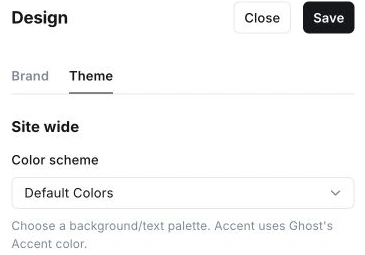
Set Accent color under Customize → Brand. It supplies button colors and the footer background. The footer text adjusts to contrast with that background.
Tag colors apply separately to homepage tag previews and the Post Split layout. Follow Tag pages to set them.
Homepage
Make sure to Upload the routes.yaml file.
The homepage has four main sections:
Opening and introduction
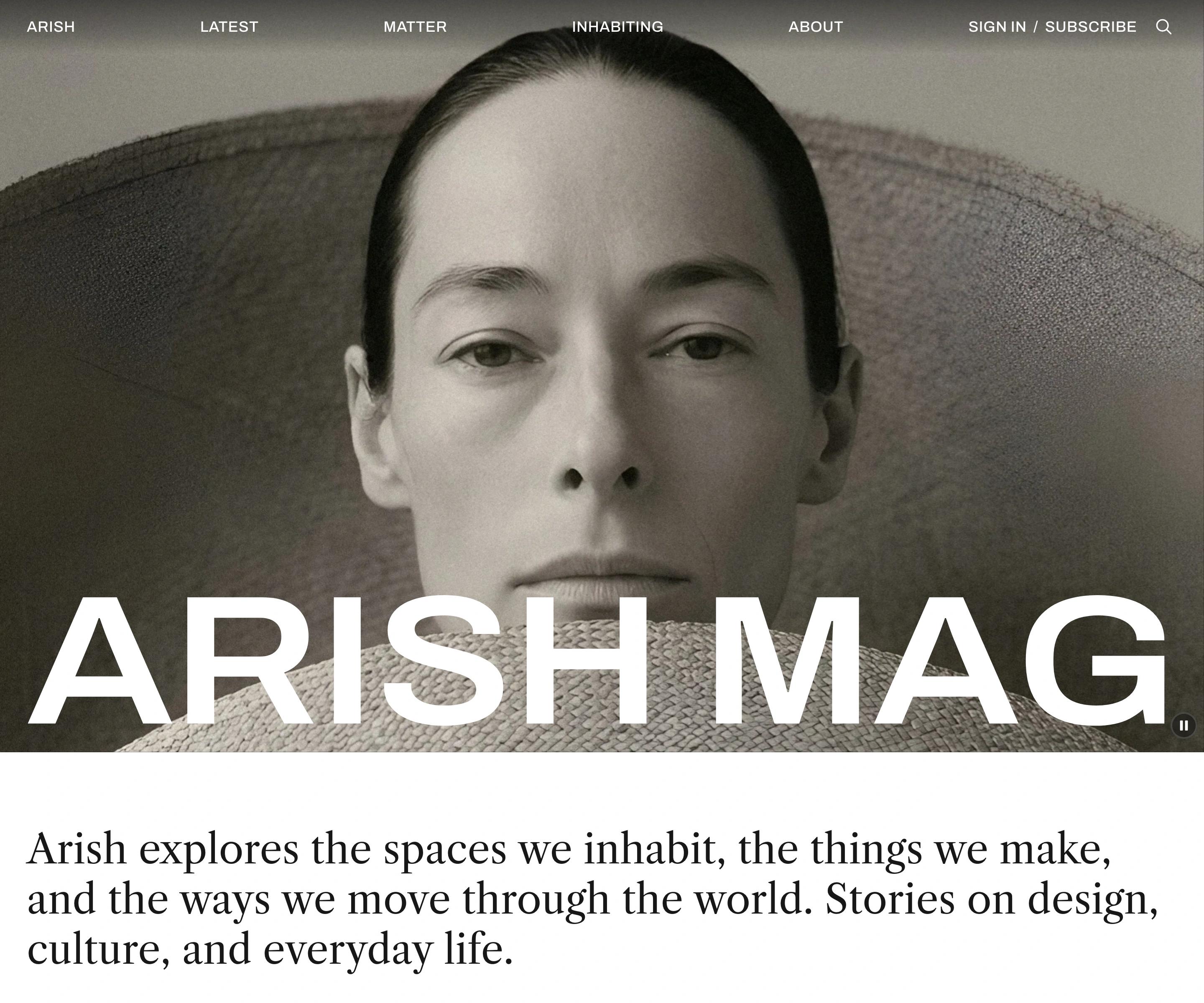
The Home page title appears across the opening. Your introduction appears below it.
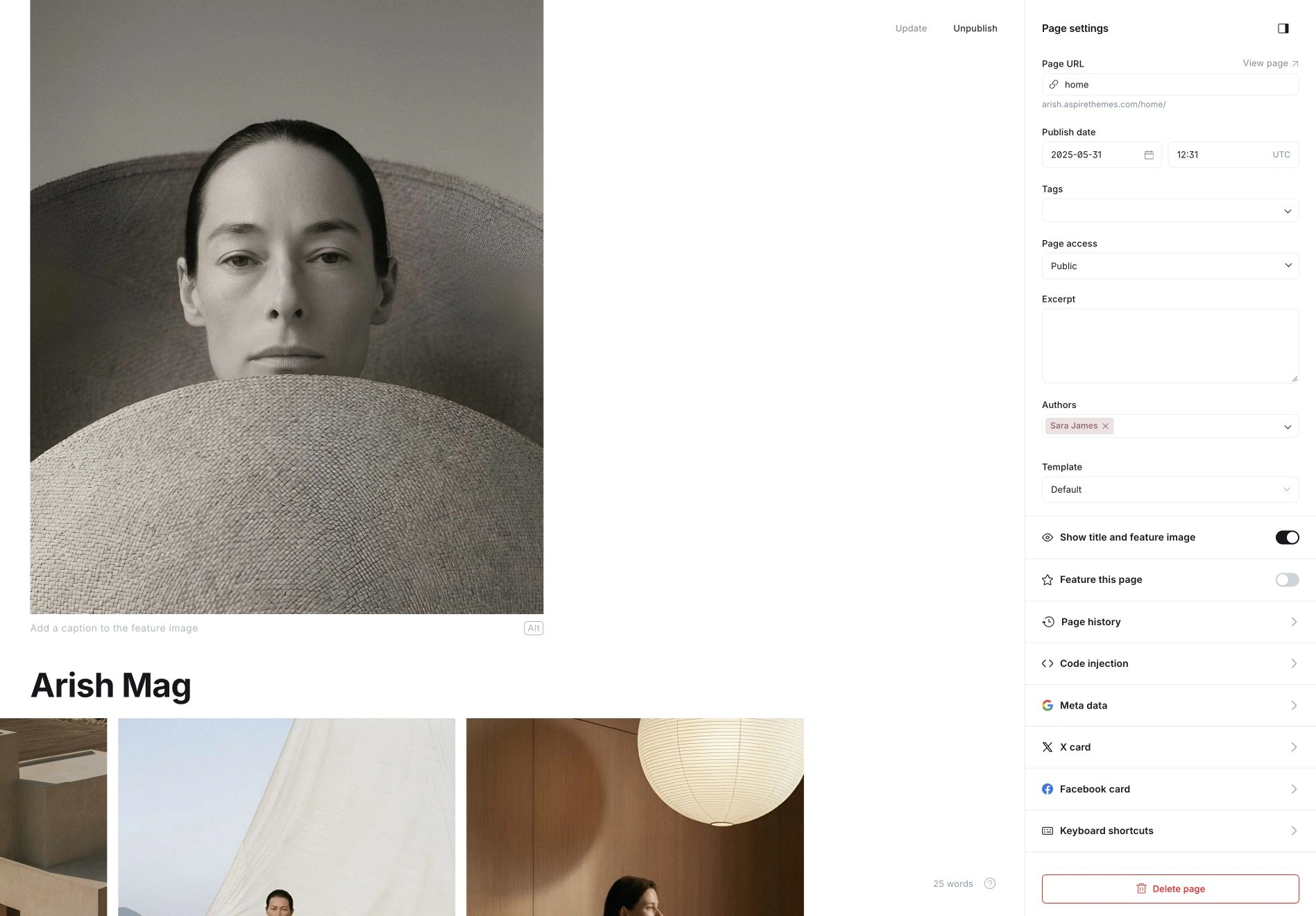
- Open Pages → New page in Ghost Admin.
- Enter the title you want across the opening. Write your introduction as paragraphs in the editor. You can include links, bold, italic text, and Button cards.
- Open Page settings and set Page URL to
home. - If you want a background image, add a Feature image.
- Select Publish and complete the publication steps.
Visit your site’s main address to see the opening.
For a title-only opening, leave Feature image empty and do not add Image, Gallery, or Video cards. Leave out paragraphs, headings, and Button cards if you do not want an introduction below the opening.
Add images or videos to the opening
- Open your Home page under Pages.
- On a new line below the introduction, select + and add an Image, Gallery, or Video card.
- Upload your media, then select Update.
Other card types are omitted.
The opening shows your Feature image first, if you added one, followed by the images and videos in editor order. Each image in a Gallery card becomes a separate slide. A single image stays still; multiple images create a slideshow.
YouTube and Vimeo embeds cannot appear in the opening. Uploaded videos play without sound. Some browsers may block automatic playback. A slideshow or video includes Pause and Play controls.
Featured posts
Arish shows up to three featured posts. The newest gets the largest position. The section disappears when no published posts are featured.
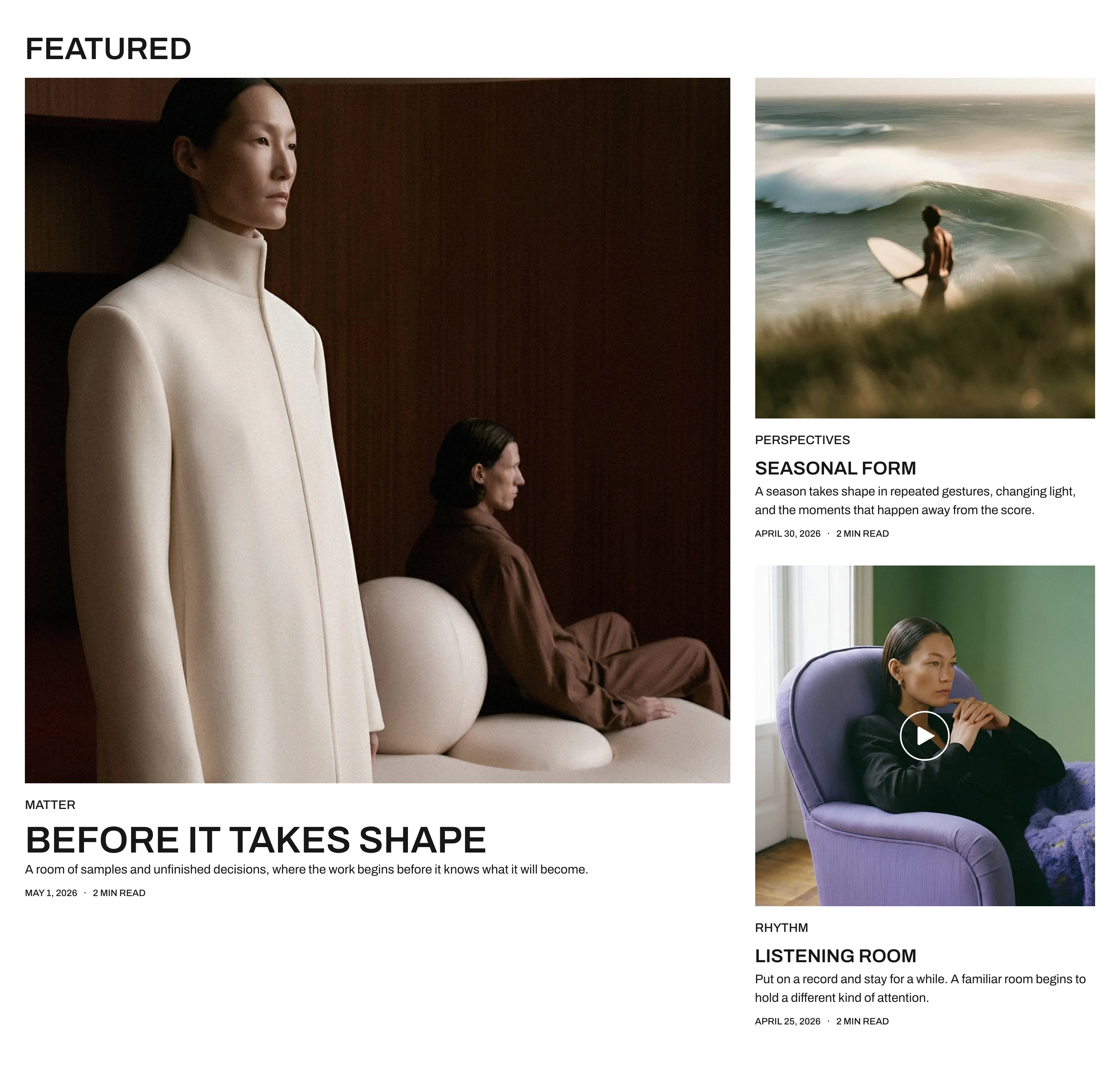
To feature a post:
- Open the post in Ghost Admin and open Post settings.
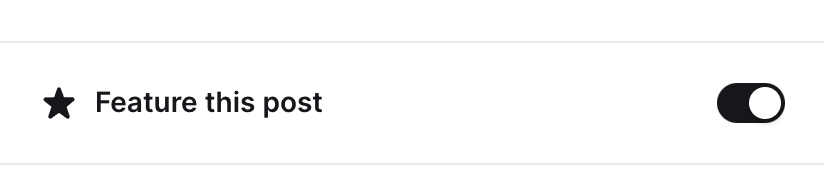
- Turn on Feature this post.
- Publish the post, or select Update if it is already published.
Homepage tags
Choose the subjects readers can browse from your homepage. Each tag name links to its posts and has an image preview.
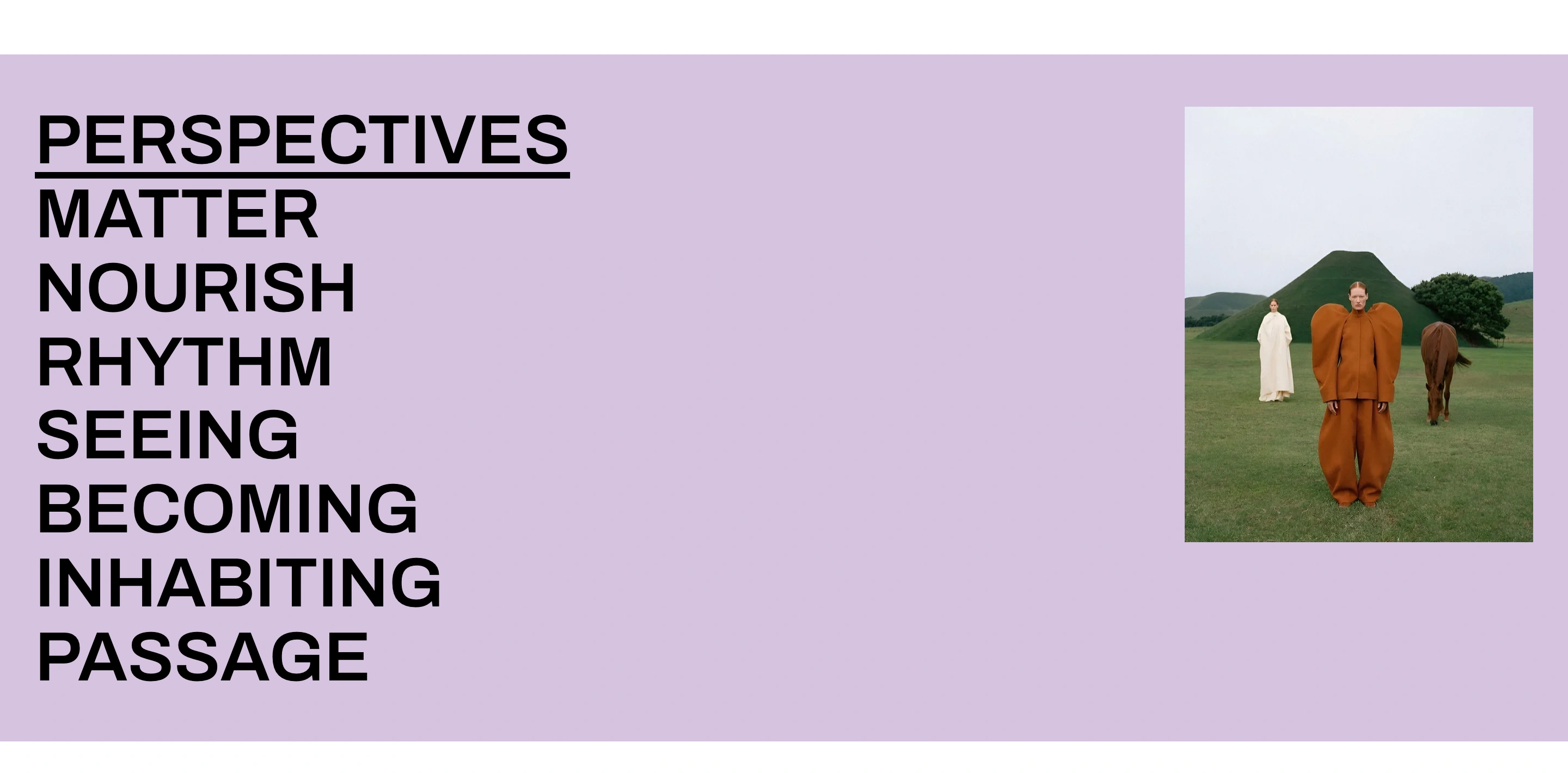
- Open Tags, select a public tag (one whose name does not start with
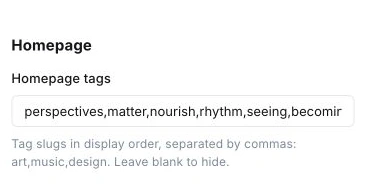
#), and copy its Slug. - Open Settings → Site → Design & branding → Customize → Theme → Homepage.
- Enter the slugs in Homepage tags, separated by commas, such as
design,culture,travel. - Select Save.
Set each tag’s preview image and color under Tag pages. Clear Homepage tags to hide the section.
Latest
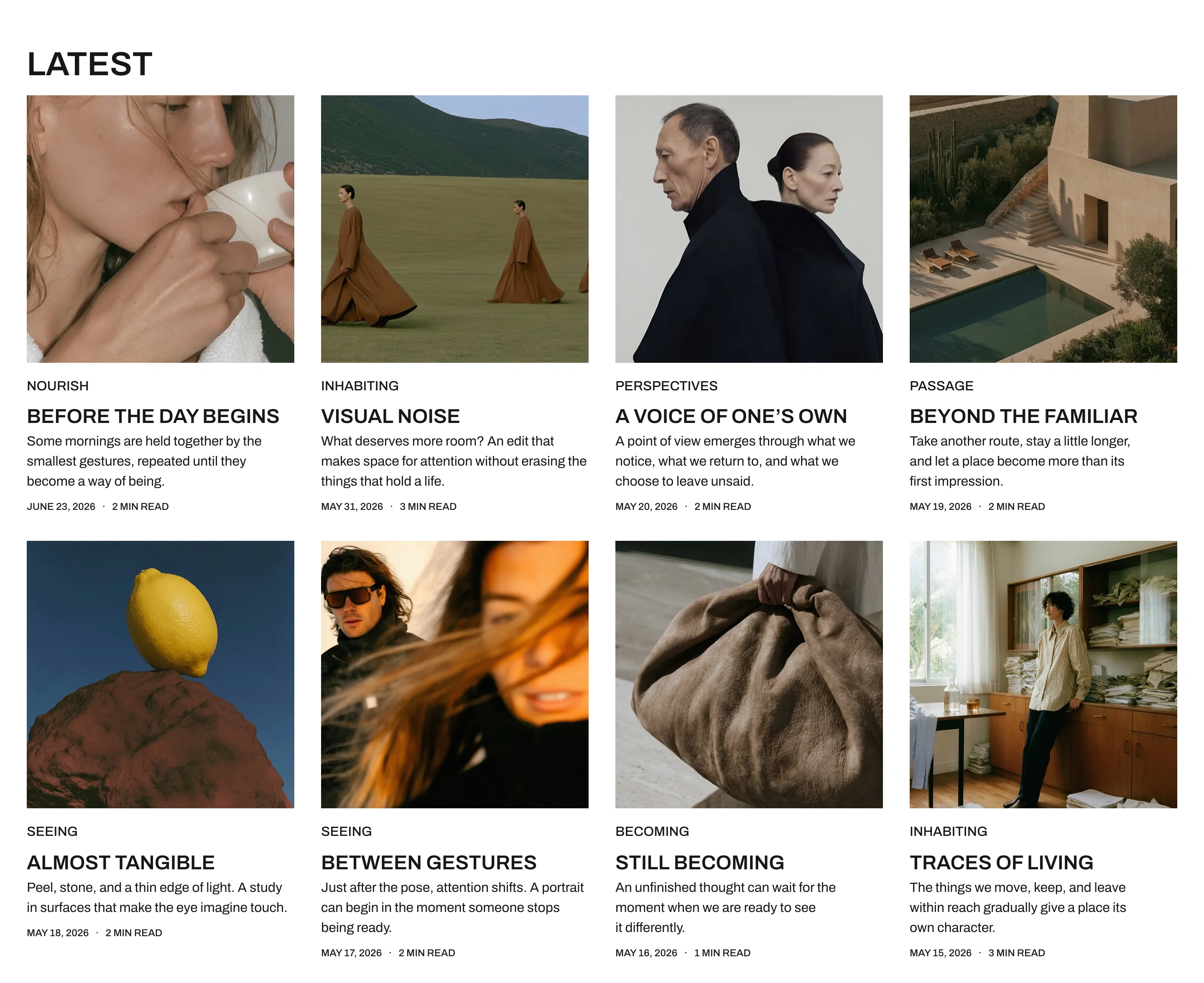
Arish automatically shows up to eight recent posts below the tags, excluding stories already displayed in Featured. When more posts are available, select Latest to browse them.
Navigation and footer
Header links
Add header links under Settings → Site → Navigation → Customize → Primary. Ghost’s navigation guide covers adding, reordering, and removing links.
For example:
| Label | URL |
|---|---|
| Latest | /latest/ |
| About | /about/ |
| Design | /tag/design/ |
Scroll sideways to see both columns.
Use addresses for pages and tags you have published.
Open your site and follow each link. On phones, select Menu to view the navigation. Arish displays direct links without dropdown menus.
When memberships are enabled, signed-out visitors see Sign in and Subscribe. Invite-only sites show Sign in without Subscribe. Signed-in members see Account. You do not need to add these links to the menu.
Footer links
Add footer links under Settings → Site → Navigation → Customize → Secondary. Publishing a page does not add it to this menu automatically.
Pages, tags, and authors
Create a page
Create and publish a page under Pages in Ghost Admin. Add its address to navigation if readers need a menu link. Ghost’s page guide covers the editor and publication steps.
Arish can show a page’s Excerpt beneath its heading. Choose one of Arish’s layouts under Page settings → Template. For a Default page, Show title and feature image controls whether its heading and feature image appear above the content.
Follow Homepage separately to create the Home page.
Latest page
The theme’s routes file creates the Latest page. You do not need to create a page for it in Ghost Admin.
Add /latest/ to navigation so readers can find it. Load More shows additional posts when available.
To add a cover behind its heading, upload Publication cover under Settings → Site → Design & branding → Customize → Brand.
Tag pages
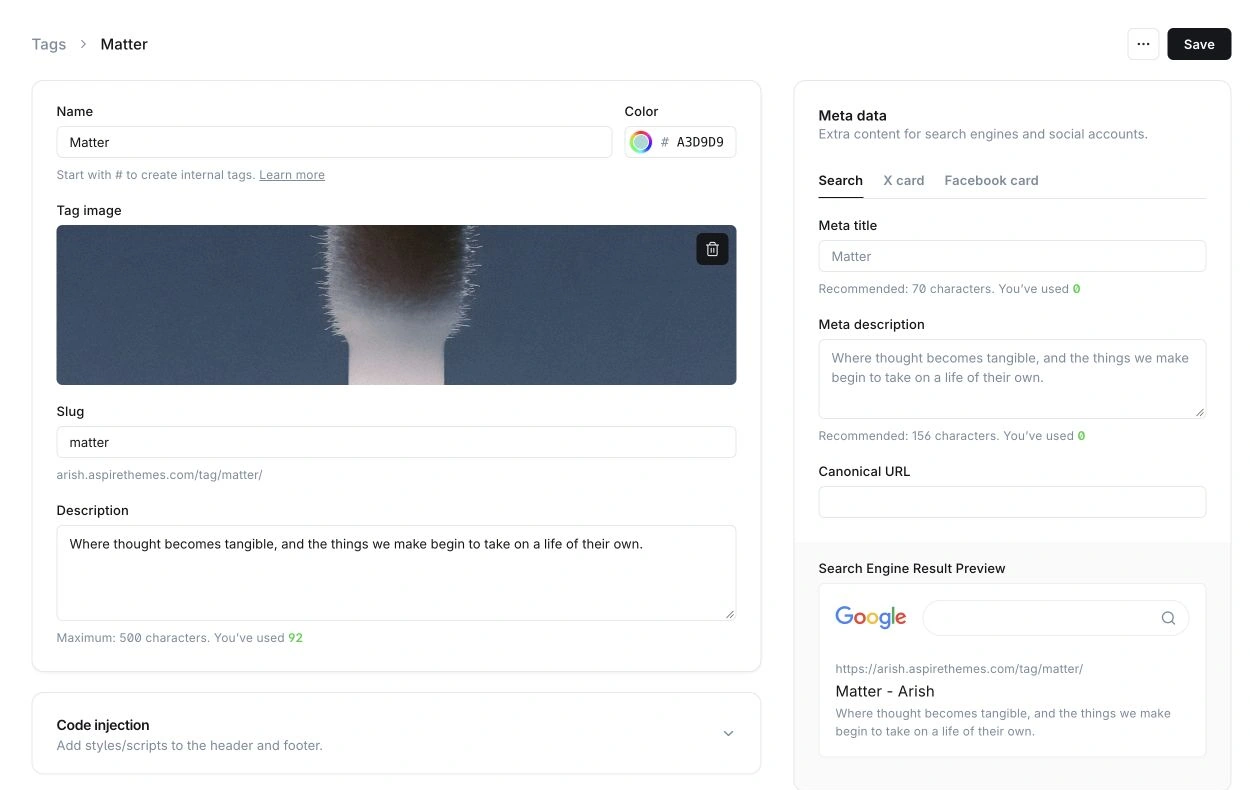
Ghost creates an archive for each public tag with published posts. In Tags, add a Description, Tag image, and optional Color to the tag you want to show. Ghost’s tag guide covers creating and organizing tags.
Open the tag’s page from a published post to check the result. Its image appears in the archive heading and homepage tag preview.
The tag color supplies its homepage preview background and the heading background for posts using Post Split.
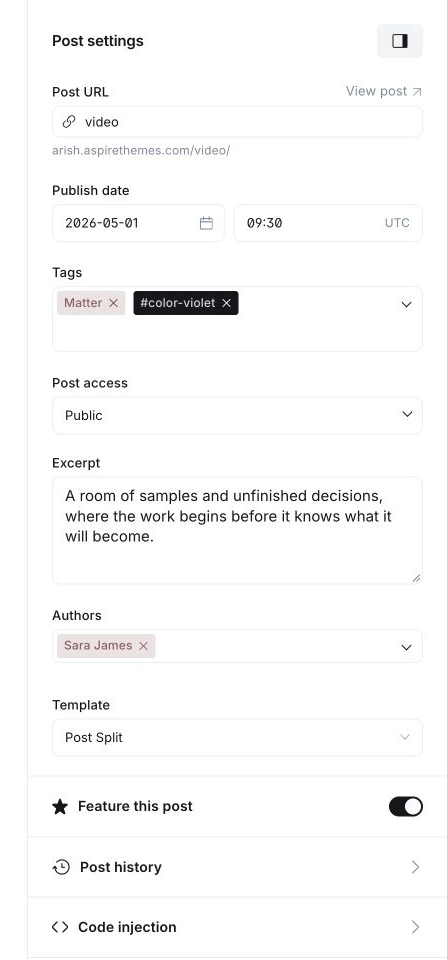
Assign tags under Post settings → Tags. Put the main public subject first; it supplies the post card’s tag and related stories.
If you change a tag’s Slug, update its navigation link and any entry in Homepage tags.
Author profiles
Add an author’s bio, images, website, and social links in their Ghost staff profile. Arish shows the profile on the author archive and below articles. Choose a post’s authors under Post settings → Authors.
Posts
Create a post
Create and publish your article under Posts in Ghost Admin. Ghost’s post guide covers editing and publishing. For Arish, add a Feature image, describe it with the image’s Alt control, and check how it appears in the article and on the homepage.
Arish uses Post settings → Excerpt for the description beneath a title. Leave it empty to omit the description. The opening article text is not used instead.
Post cards crop images to a square. Keep the subject near the center. Add the main subject under Post settings → Tags; the first public tag appears on the card and selects related stories.
Related stories
Arish shows up to four related stories after an article when other posts share its primary tag. No separate setting is needed.
Post layouts
Choose a layout under Post settings → Template. For pages, use Page settings → Template.
Publish or update the post or page, then open it on your site to check the layout.
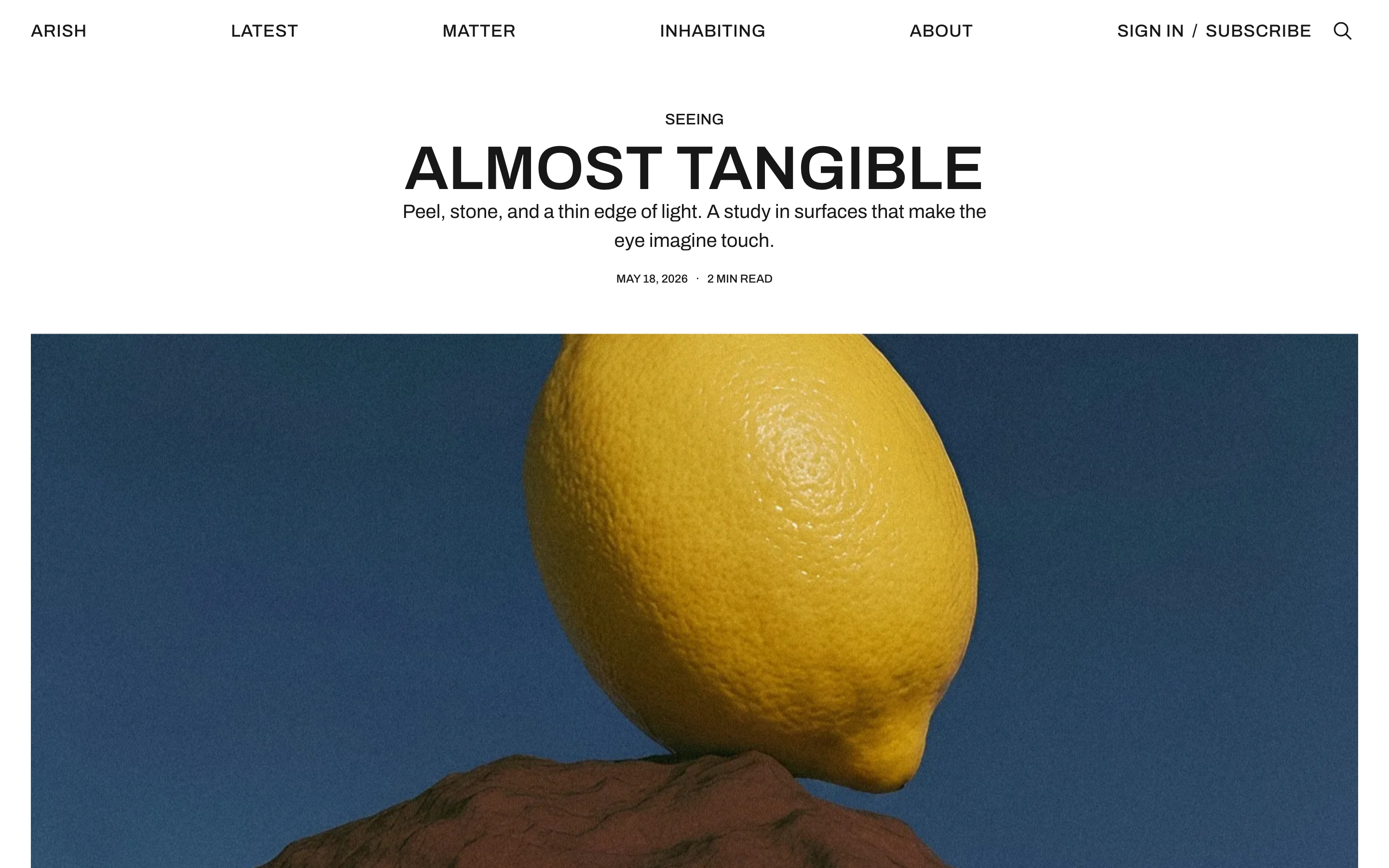
Default
The title and optional excerpt appear above a wide feature image. This is the standard layout when you have not selected a custom template.
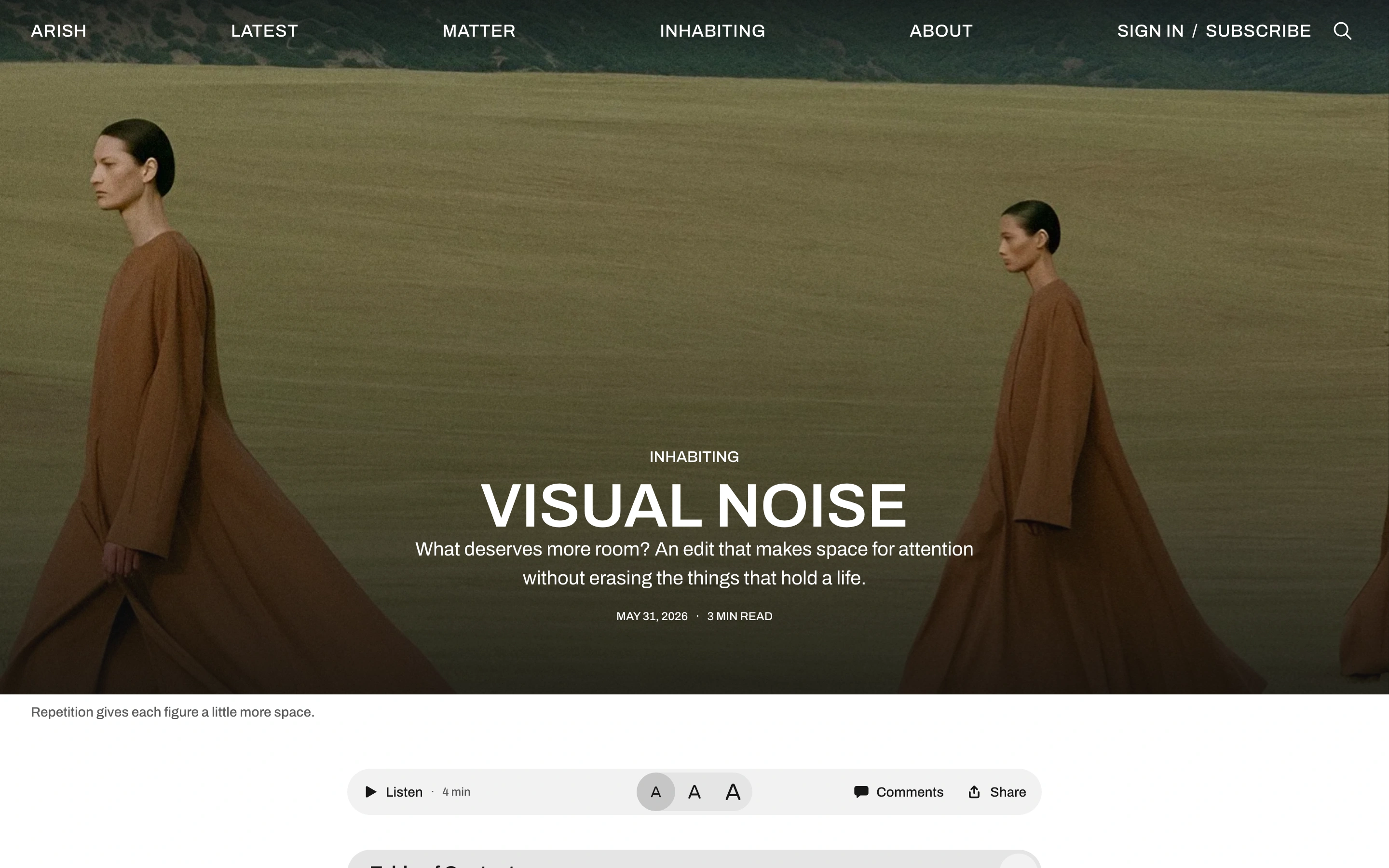
Post Hero
Choose Post Hero to place the title over the feature image.
Post Fullscreen
Choose Post Fullscreen for an opening image that fills the screen, with the title over it.
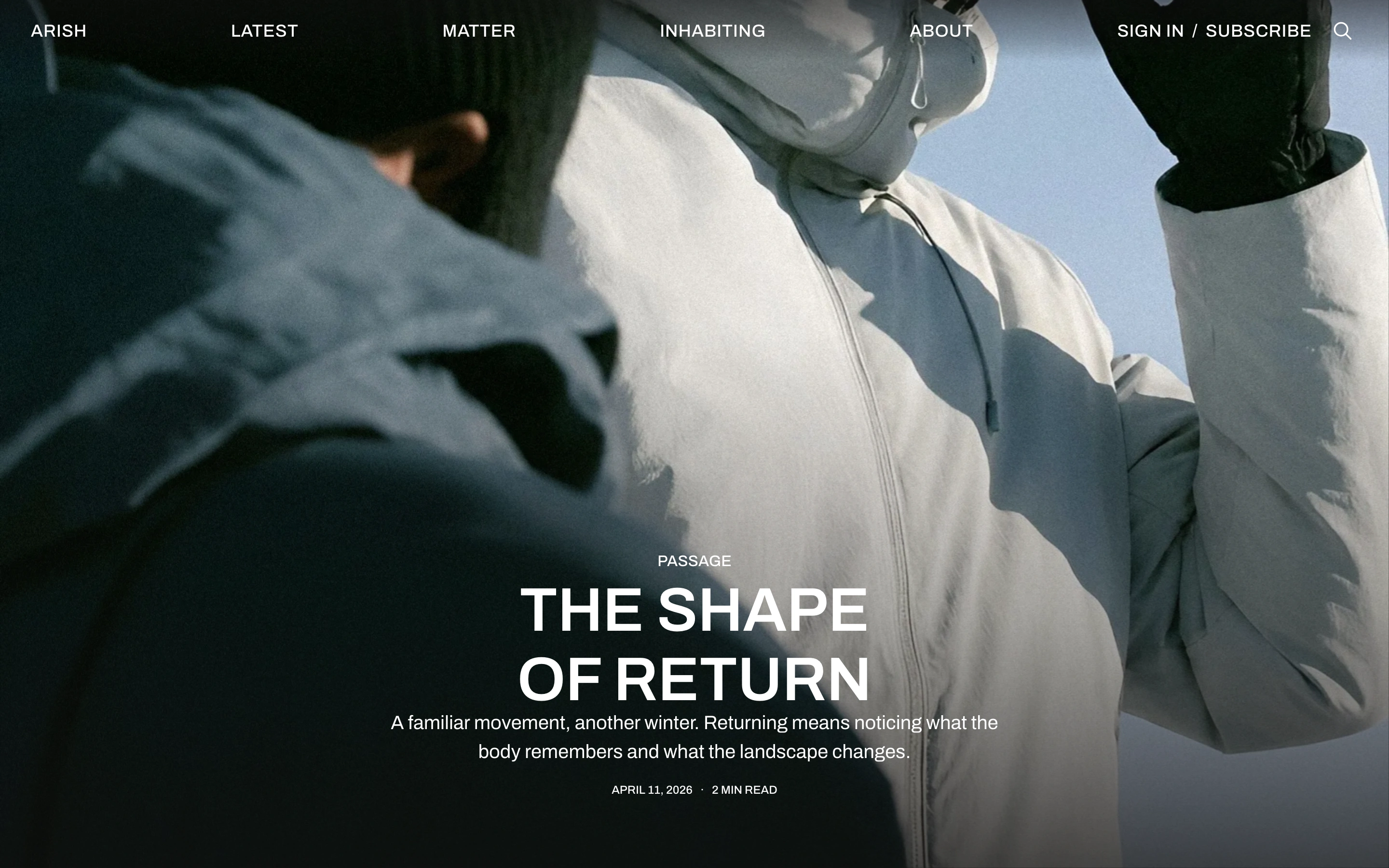
Post Split
Choose Post Split to place the heading beside the image on desktop. The image appears above the heading on phones.
The heading background uses the primary tag’s color. Without one, it uses the theme’s secondary background.
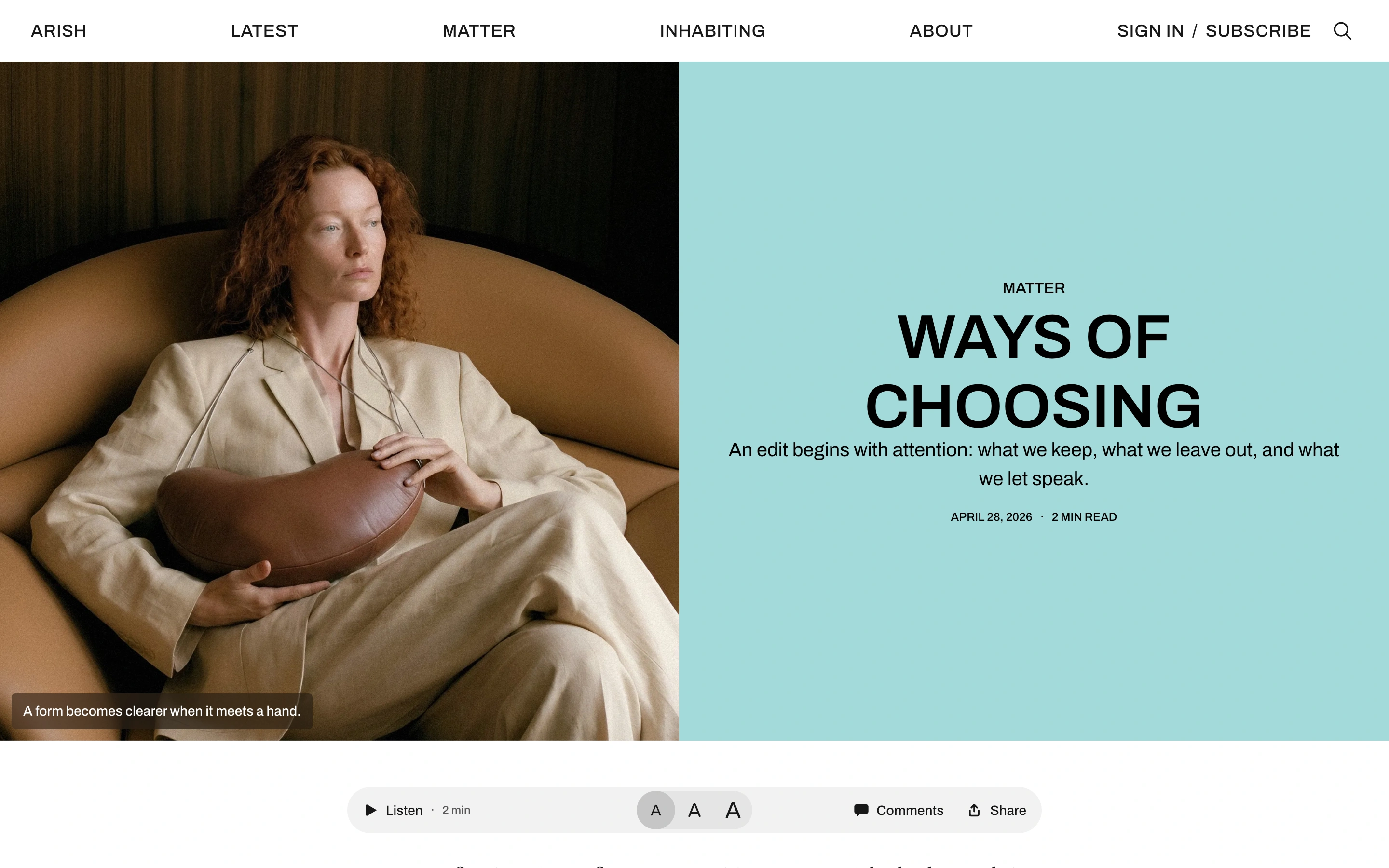
Hero, Fullscreen, and Split use a centered heading when no feature image is supplied.
Post Video
Choose Post Video for a heading followed by a large video player. Follow Video posts to add the video and poster.
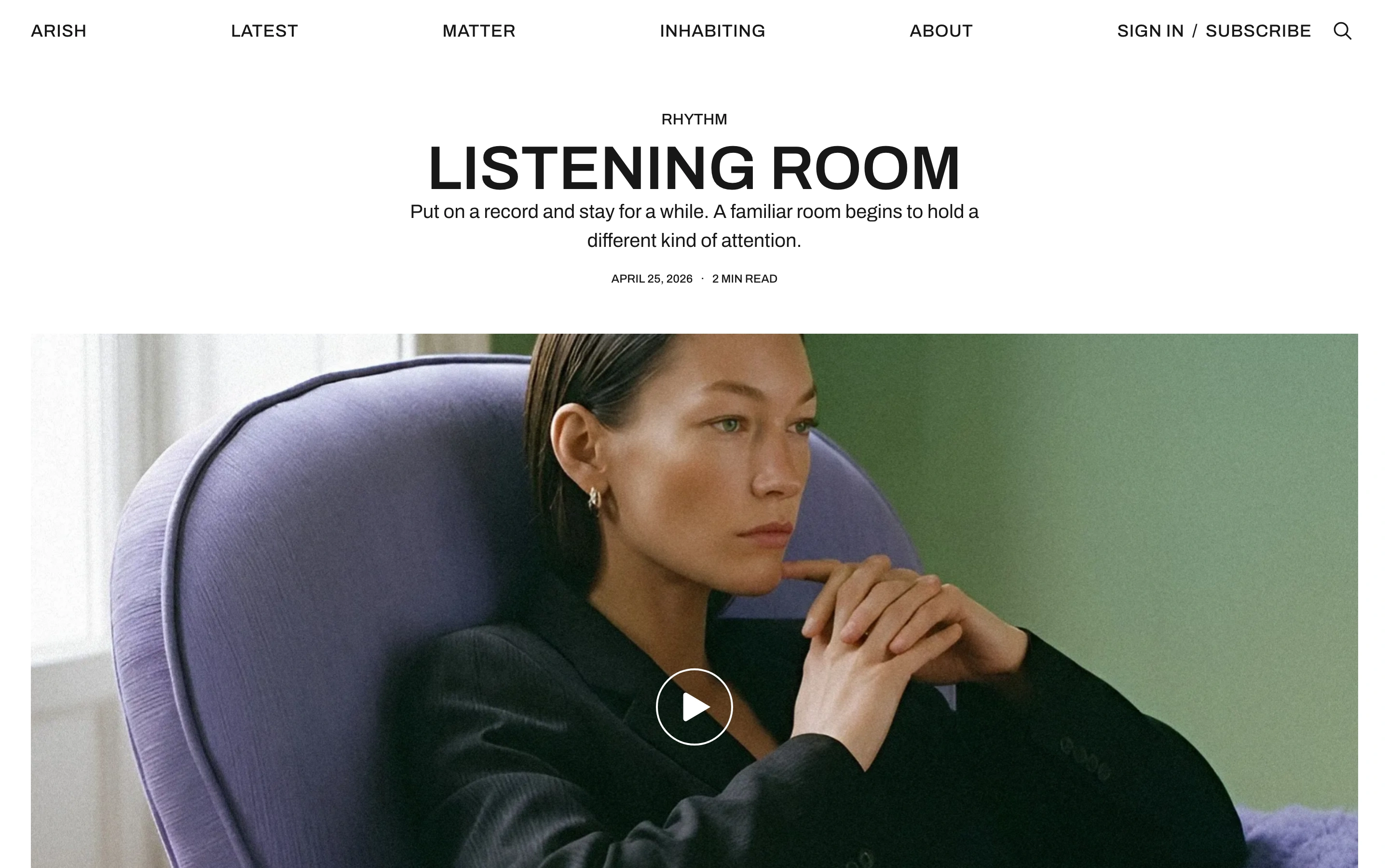
Video posts
Arish supports uploaded videos, YouTube, and Vimeo in the Post Video layout.
Add a video
- Open a post in Ghost Admin.
- Add a Video card to upload a file, or paste a YouTube or Vimeo link into an empty paragraph.
- Put the main video before any other video in the editor.
- Open Post settings → Template and select Post Video.
- Add a Feature image to choose the poster shown before playback.
- Wait for uploads to finish, then publish or update the post.
Open the published article and select Play. Arish moves the first Video card or YouTube or Vimeo video from the editor into the large player above the article.
Keep Default if you want the video to stay within the article content.
Video previews
The large player may show a silent preview before the reader selects Play. Post cards may also preview the video when someone hovers over them or focuses them with a keyboard.
Browsers and video providers can restrict automatic playback. The poster stays visible when a preview cannot play.
For an unlisted Vimeo video, paste the complete share link, including its privacy code. YouTube and Vimeo videos must allow embedding on your site.
The homepage opening supports uploaded Video cards only.
Membership links and prompts
The theme includes membership links and prompts:
- Header links: Sign in, Subscribe, or Account, depending on the visitor’s membership state and site settings
- Protected posts: signup or upgrade prompts based on the post’s access setting
Turn off membership
To remove sign-in and signup links and forms, turn off membership access in Ghost Admin.
- Go to Settings → Membership → Access.
- Select Nobody.
- Click Save.
Hide the Portal button
The floating Portal button is separate from your site’s membership links. Open Settings → Membership → Signup portal → Customize, then turn off Show Portal button under Look and feel. Portal links still work when the button is hidden. See Ghost’s Portal settings.
Membership Troubleshooting Tips
If the subscribe form shows an error, check these items first:
Make sure your site is running the latest version of Ghost.
If you self-host Ghost, configure the mail settings and restart your server.
Make sure the Ghost config URL matches the public URL readers use to visit your site, as described in the Ghost docs.
Use the full public URL. If your site uses a subpath, enter the full path, such as https://example.com/blog/. If SSL is enabled, use https://.
If the issue continues on Ghost(Pro), contact Ghost support. If you self-host, contact your hosting provider.
Membership email delivery and server configuration are handled by Ghost or your host, not by the theme.
For more information about Members, connecting Stripe, and setting the package price, check the official Ghost documentation.
Search
Arish uses the Ghost Native Search.
Ghost search uses post titles and excerpts from the 10,000 most recent posts. It does not search the full body of every post.
Comments
The theme comes with Ghost Native Comments integration. You can turn the comments on from your Ghost admin Settings → Membership → Access.
Learn more about Ghost comments.
Reader tools
Table of contents
Arish creates a table of contents from Heading 2 and Heading 3 in posts and pages.
- Open your post or page in Ghost Admin.
- Use Heading 2 for sections and Heading 3 for subsections.
- Publish or update the content.
Open the public article. The contents list appears above the body when the article contains Heading 2 or Heading 3 and the reader can view it.
To change the site setting, open Settings → Site → Design & branding → Customize → Theme → Post. Change Show table of contents and select Save.
For an individual post or page, add an internal tag in its settings:
| Tag | Result |
|---|---|
#table-of-contents | Shows the contents list when the site setting is off. |
#table-of-contents-off | Hides the contents list, regardless of the site setting. |
Scroll sideways to see both columns.
If you add both tags, the contents list stays hidden. A post still needs headings to show the list.
Drop caps
A drop cap is the enlarged first letter of an article.
- Open Settings → Site → Design & branding → Customize → Theme → Post.
- Turn on Show drop cap.
- Select Save.
Open a post or page to check its first paragraph. Arish sizes the first letter to fit the paragraph. Single-line paragraphs keep ordinary text.
Drop caps are off by default and apply to posts and pages when enabled.
Listen and text size
Readers can select Listen, Pause, and Resume above an article. Speech uses their browser’s available voices and needs no theme setup.
If a browser cannot read text aloud, Listen does not appear. The available voices and languages depend on the reader’s browser and device.
The three text-size buttons change article text size. Arish remembers the selection in that browser.
Image viewer
Readers can select an unlinked image in an article to open it in a fullscreen viewer. Ghost Image and Gallery cards are supported.
They can use Previous and Next, arrow keys, or a phone swipe to browse images. Select Close or press Escape to leave.
Add image descriptions with Ghost’s Alt control and captions beneath images in the editor. Linked images open their destination instead of the viewer.
Sharing and reading progress
Select Share above or below an article to open Ghost’s sharing options. No social-account setup is required.
The progress bar at the top of a post shows the reader’s position in the article. It works automatically.
Social links
Add your site’s social links under Settings → General → Social accounts in Ghost Admin.
Languages
Choose a language
Choose your Site language under Settings → General → Publication language, then save. Ghost sets the publication language; Arish translates its interface labels when a matching language file is included.
Refresh your site and check a label such as Load More. Your posts, page titles, navigation labels, and tag names keep their original wording.
Arish includes these translations:
| Language | Code |
|---|---|
| Danish | da |
| German | de |
| English | en |
| Spanish | es |
| Finnish | fi |
| French | fr |
| Hebrew | he |
| Italian | it |
| Dutch | nl |
| Portuguese | pt |
| Brazilian Portuguese | pt-BR |
| Turkish | tr |
Scroll sideways to see both columns.
Change a translated label
- Open Settings → Site → Theme.
- Open the … menu beside Arish and select Download to keep a backup.
- Open the same menu and select Edit code.
- Open locales, then the file for your language, such as
de.json. - Change the wording on the right of the label you want to edit.
- Select Save, then confirm Replace theme when Ghost asks.
For example, change only the German wording in this line:
"Load More": "Mehr laden"
Keep the English label on the left, quotation marks, and commas unchanged. Preserve placeholders such as {topic}, {ghostLink}, and {themeLink}.
Refresh your site to check the label. Keep a copy of your edits; uploading a future theme update replaces edited language files.
Contact Aspire Themes if you need help with a translation or want to request another language.
Troubleshooting
| What you see | What to check |
|---|---|
| The homepage opening is missing | Upload the theme’s routes file, then publish a page with the URL home. |
| The opening has no introduction | Add paragraphs in the Home page editor. The Excerpt field is not used here. |
| Featured is missing | Publish a post and turn on Feature this post in its settings. |
| A homepage tag is missing | Check its slug in Homepage tags and confirm it is a public tag with published posts. |
| A video does not play | Use an uploaded Video card or a YouTube or Vimeo link. If you use YouTube or Vimeo, check that the video allows embedding on your site. See Video posts. |
| A custom layout is missing from Template | Confirm Arish is active, then reload the editor. |
Have any questions? Contact Ahmad