Why Your Ghost Page Is Not on the Homepage
You published a page in Ghost, but it is missing from the list of articles on your homepage. The page may open perfectly at its own URL. Why does publishing it not add it to that list?
Ghost keeps pages separate from posts. The default homepage feed lists posts, so publishing a page does not add an article card to it. This is expected behavior.
The next step depends on what you meant to publish: an article that belongs among your latest posts, or standalone information such as About or Contact. Start by checking which content type you used.
Why Pages Stay Outside the Homepage Feed
Ghost’s default site structure uses the homepage to list posts, with the newest first. A post is part of that publishing stream: an essay, news story or announcement can appear alongside your other articles.
A page serves a different purpose. It has its own address, but publishing it does not automatically place it in the homepage feed, tag collections, author collections or menu. Ghost’s page documentation describes this separation.
For example, an About page can stay available at /about/ while your latest articles appear on the homepage. If you created a new essay under Pages, it follows the same standalone-page behavior, even though its content reads like an article.
Check That You Published a Page
Open Pages in Ghost Admin and find the content. If it is listed there, you created a page. Open it and check its publication status, then select Settings to find Page URL and View page.
For example, the About page on Aspire Themes’ Hakone demo opens at /about/, separately from the homepage’s post feed. On your own site, use the Admin checks above to confirm the page’s status and address.
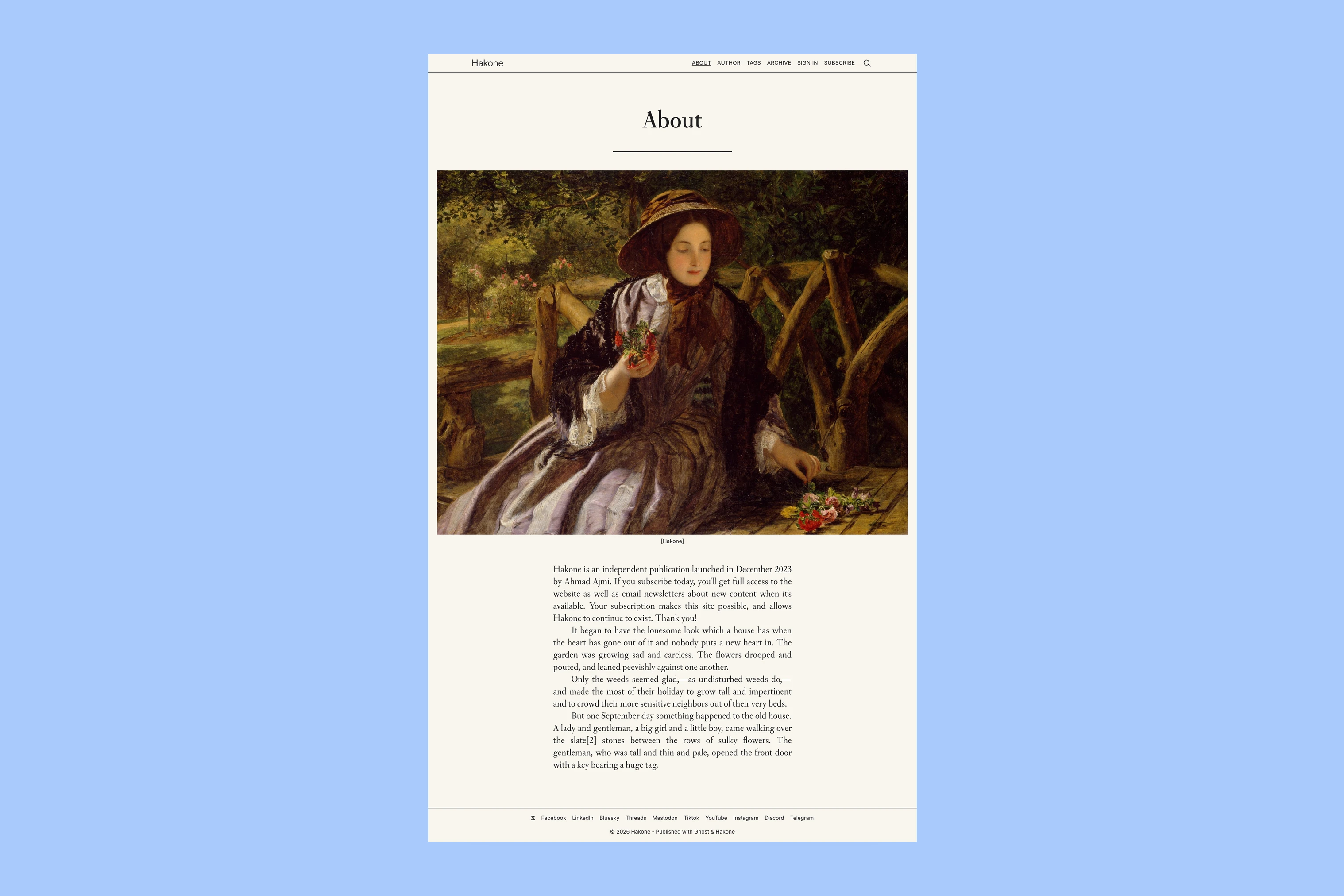
If your page opens at its public URL, it is available even though it is absent from the feed. If that URL returns a 404, check the publication status and address first; the page-versus-post distinction does not explain an unavailable destination.
If you find the content under Posts instead, this explanation is not the cause of its absence. Check whether it is published to the website and whether your theme or site’s routing rules limit which posts appear on the homepage.
Use a Post for Content That Belongs in the Feed
For an essay, announcement or other article you want alongside your latest stories, use Posts, rather than Pages. New articles start from Posts → New post in Admin.
Ghost’s post documentation explains that published posts normally appear on the homepage and in the site’s post collections. This applies to the default feed; a custom homepage or filtered collection can display a different selection.
If the article is already a published page, do not delete it just to make it appear in the feed. Plan how the replacement post will preserve or redirect its existing URL first; readers may already have links to that address.
Keep Standalone Pages and Link to Them
For About, Contact or similar information, a page is the appropriate format. You can make it reachable from the homepage through the menu while keeping it outside the article feed.
Copy its public URL from View page. Then open Settings → Site → Navigation → Customize, add a Primary item with a clear Label and the page’s URL, and select Save. Ghost’s navigation guide explains the setup. Secondary navigation is also available when your theme supports it.
Hakone’s menu already has an About link pointing to https://hakone.aspirethemes.com/about/. Follow your own saved link on desktop and on a phone to check that it reaches the intended public URL.
A Ghost Forum question about a missing Now page illustrates this choice: the page was already published, and its author reported resolving the issue by adding a navigation link.
A Custom Homepage
Displaying a page’s content at your site’s root address, such as example.com/, is a separate setup. Publishing a page or adding it to the menu does not assign it as the homepage.
Check your theme’s homepage documentation first. Where a custom route is needed, Ghost’s routing documentation explains how a custom homepage can replace the default feed while posts live at another address, such as /blog/. Ask your theme developer or host to set this up. It needs a suitable page layout and rules for which content appears at each address.
More from the Blog
Latest Ghost Themes
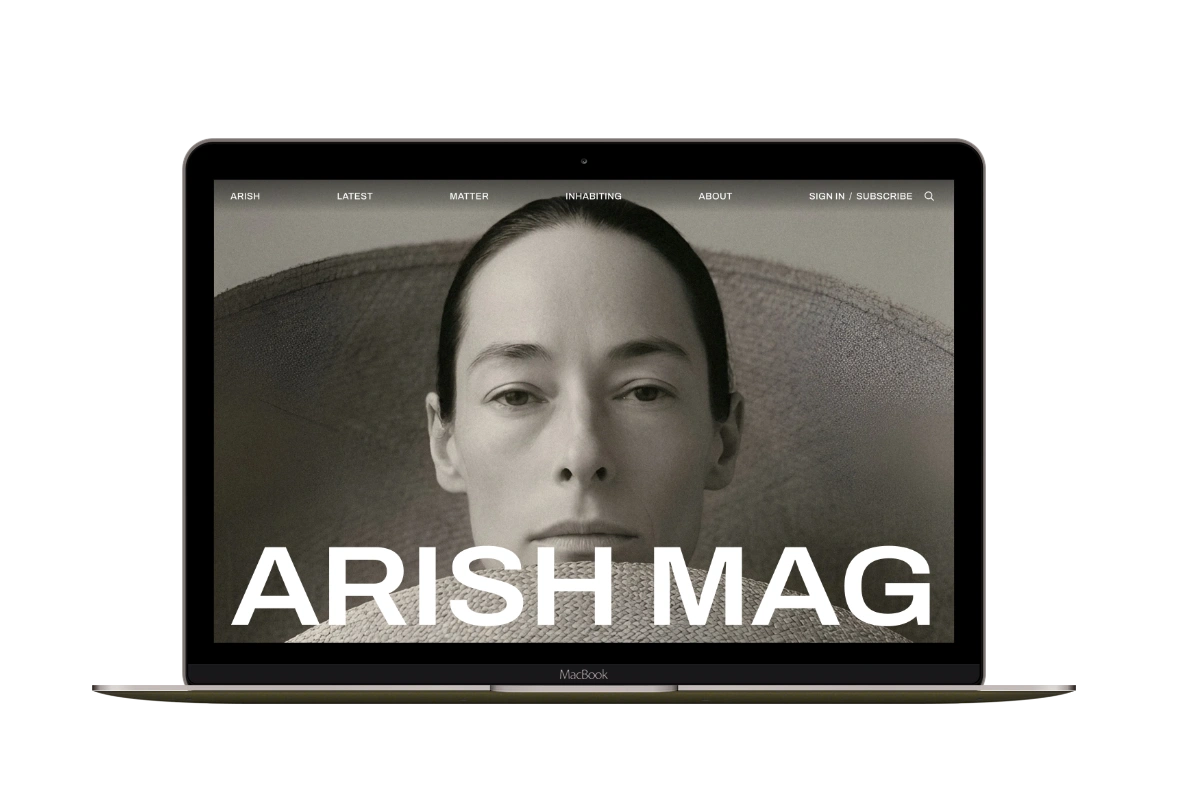
Arish
For visual magazines that lead with photography, film, and selected stories.
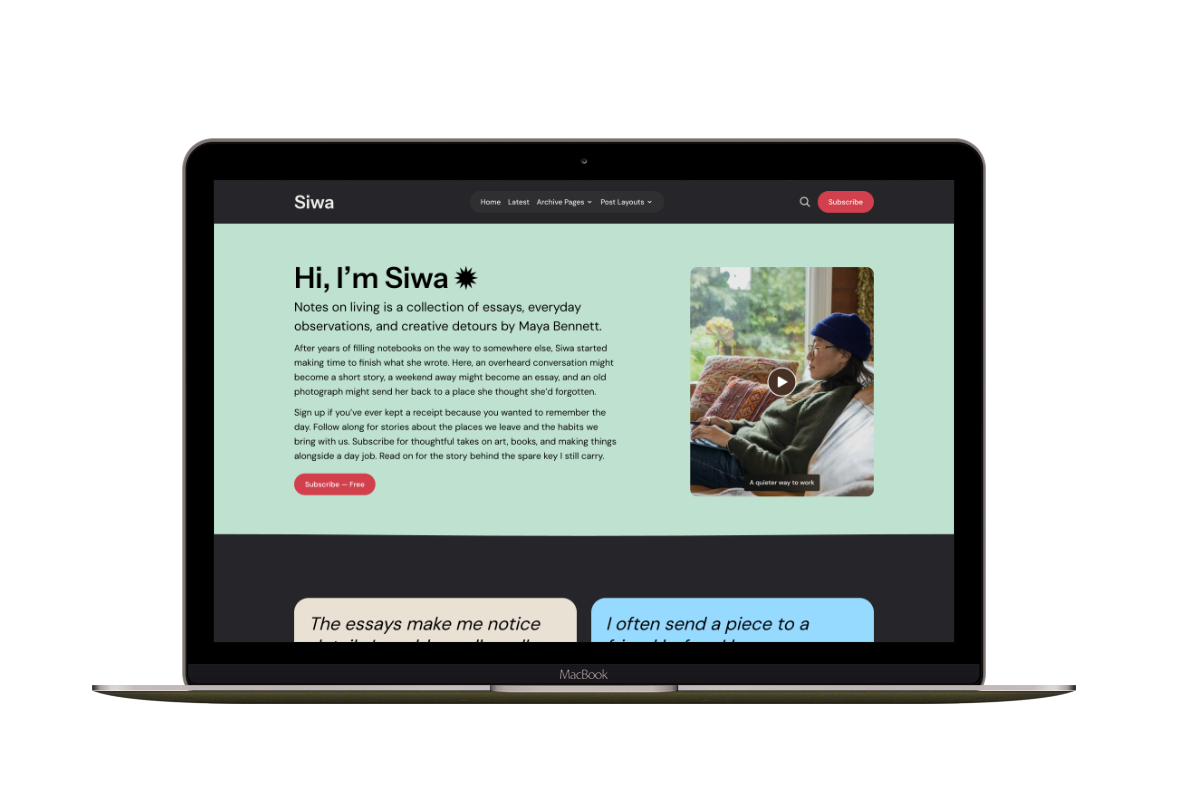
Siwa
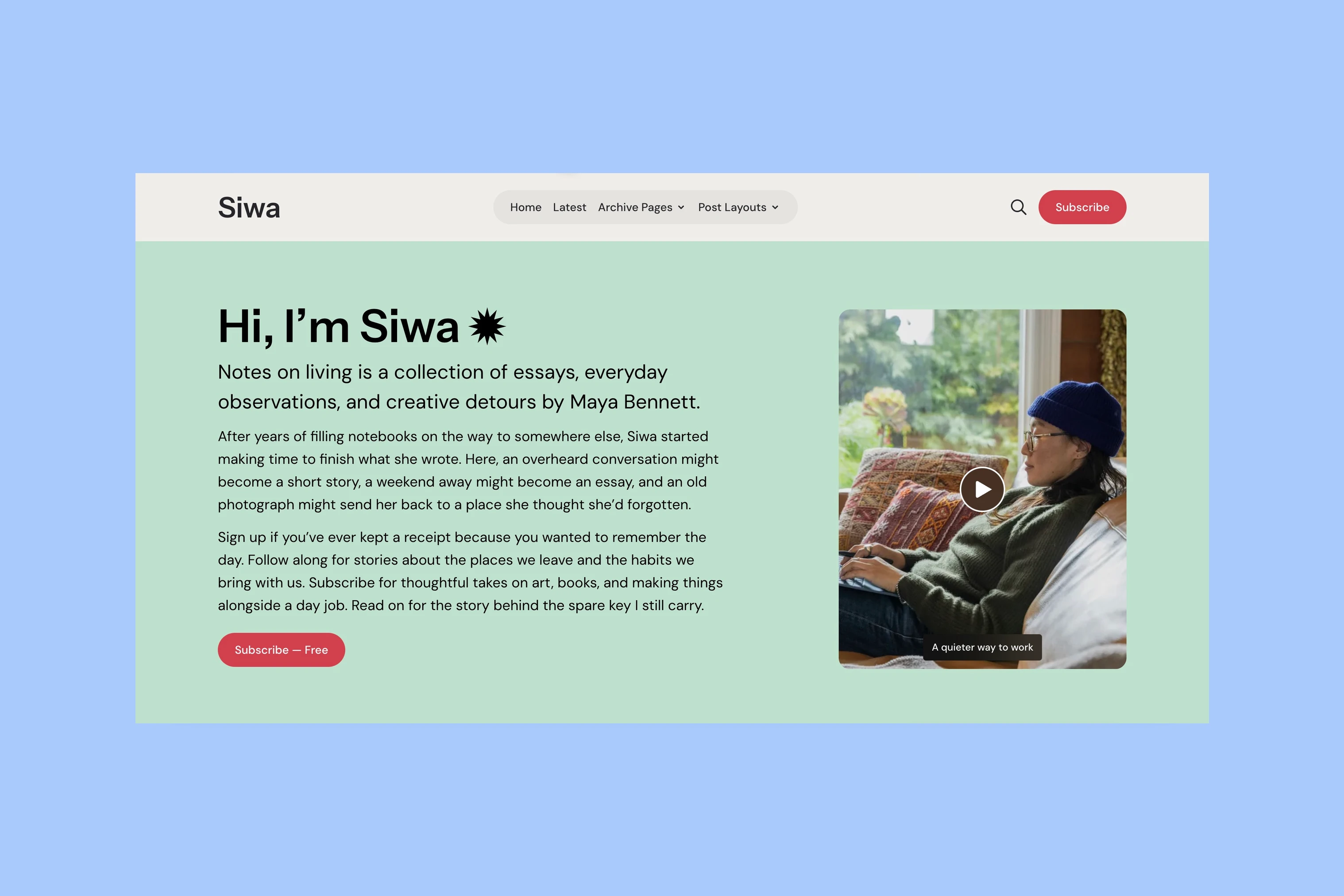
A personal publication that introduces the writer before inviting readers into the stories.
Hanoi
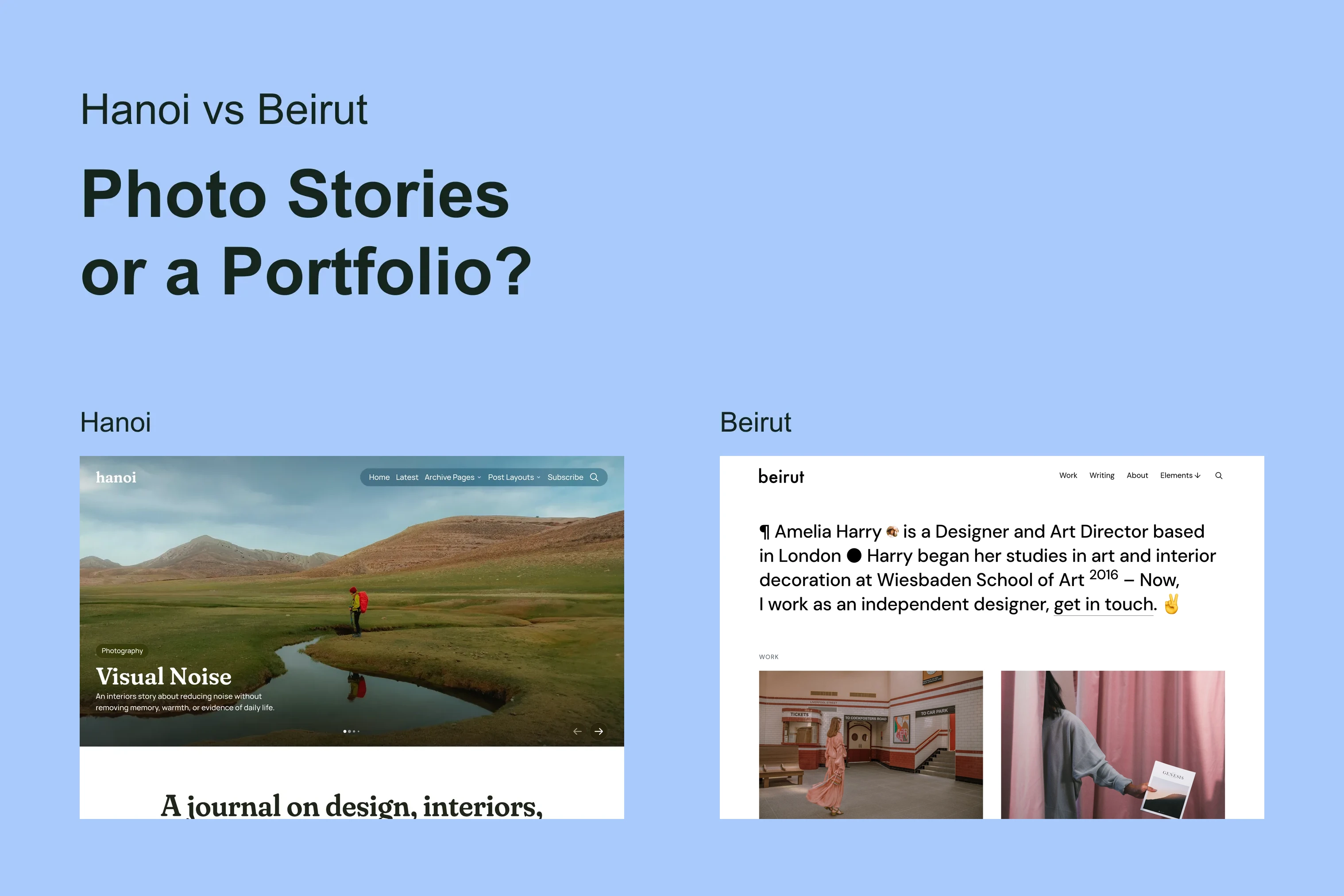
An image-led magazine for creative stories, rich navigation, and long-form reading.
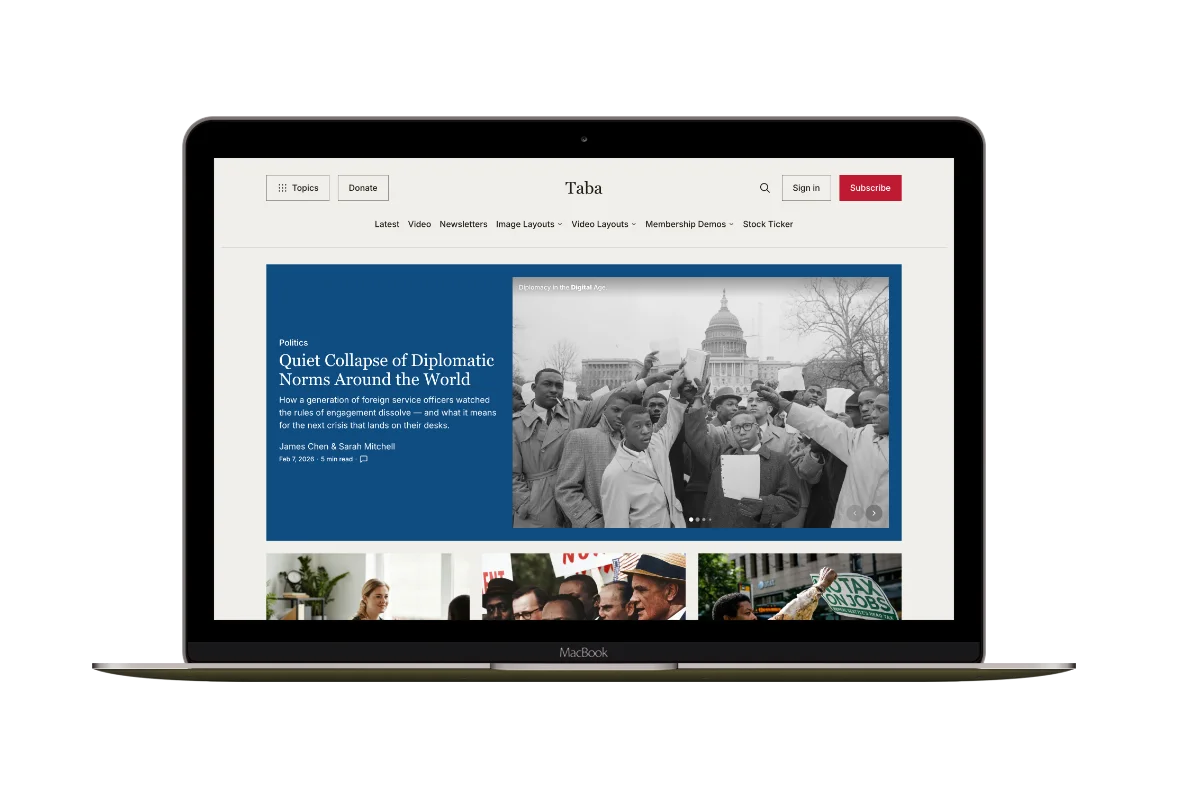
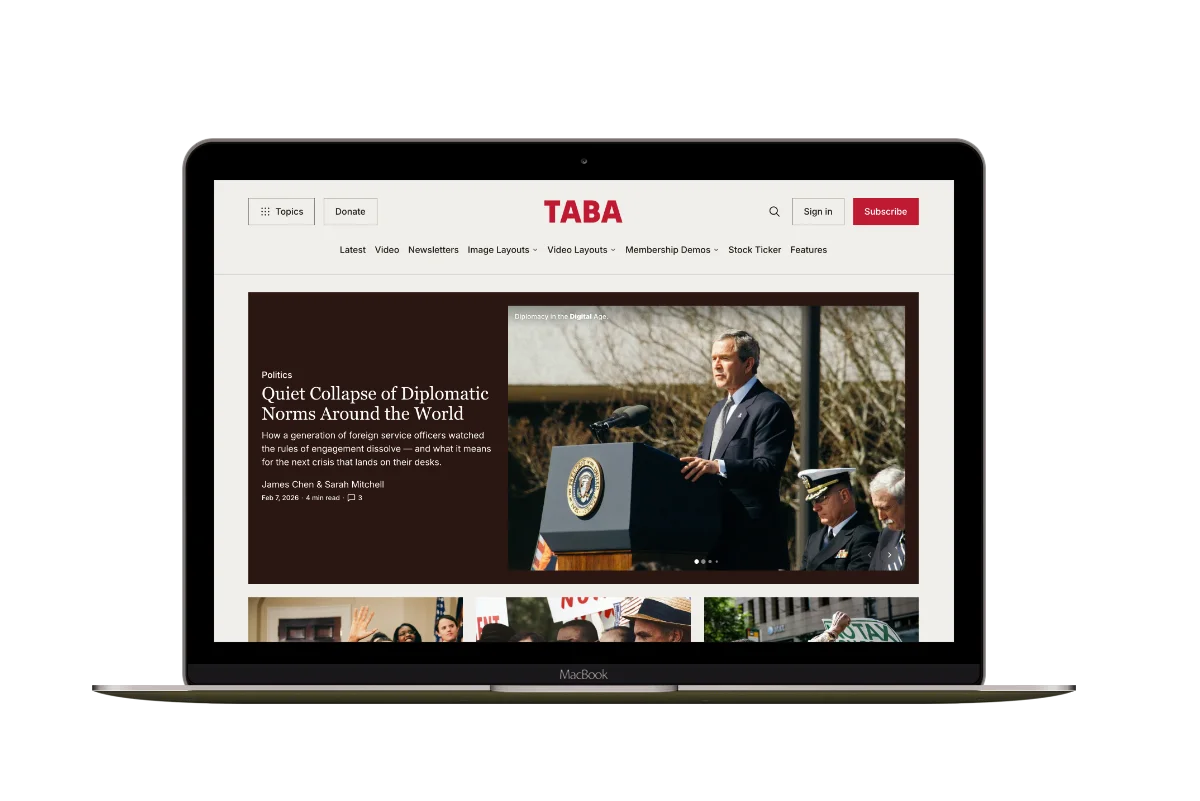
Taba
A newsroom front page for coverage across topics, video, and story formats.
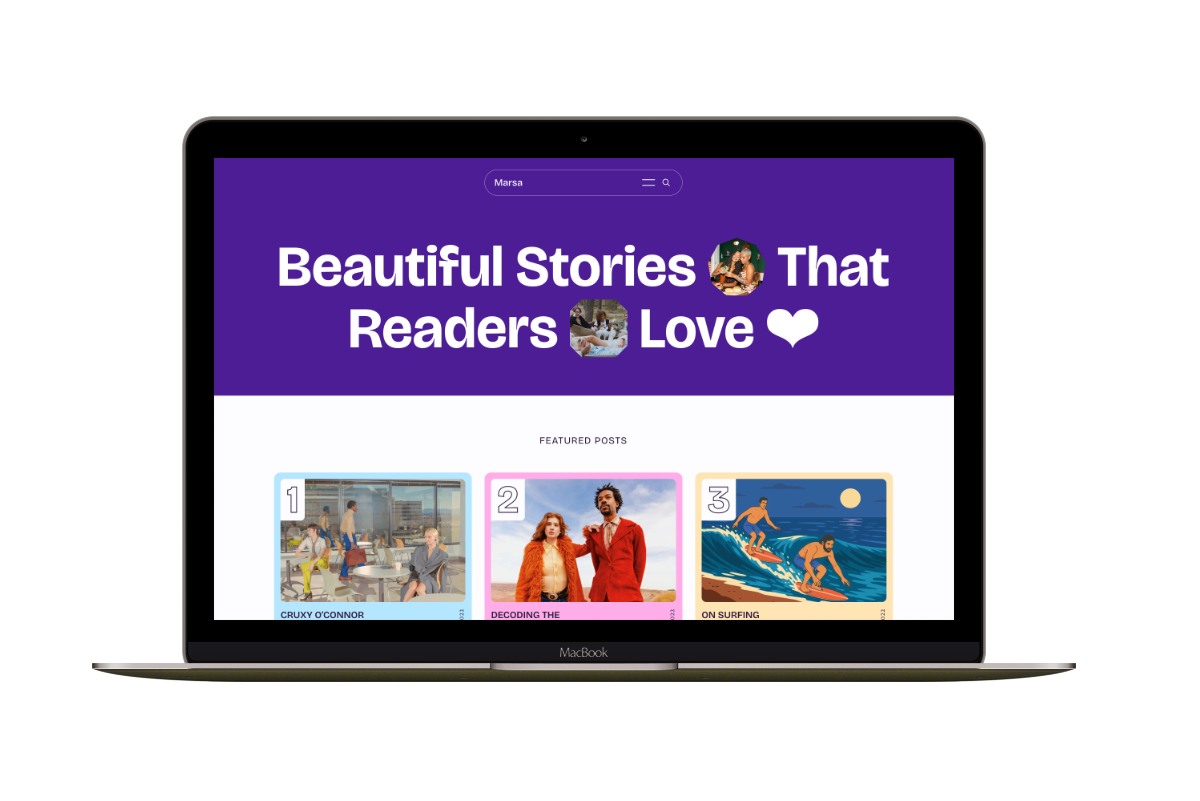
Marsa
A flexible publication homepage for featured stories, topics, and newsletters.
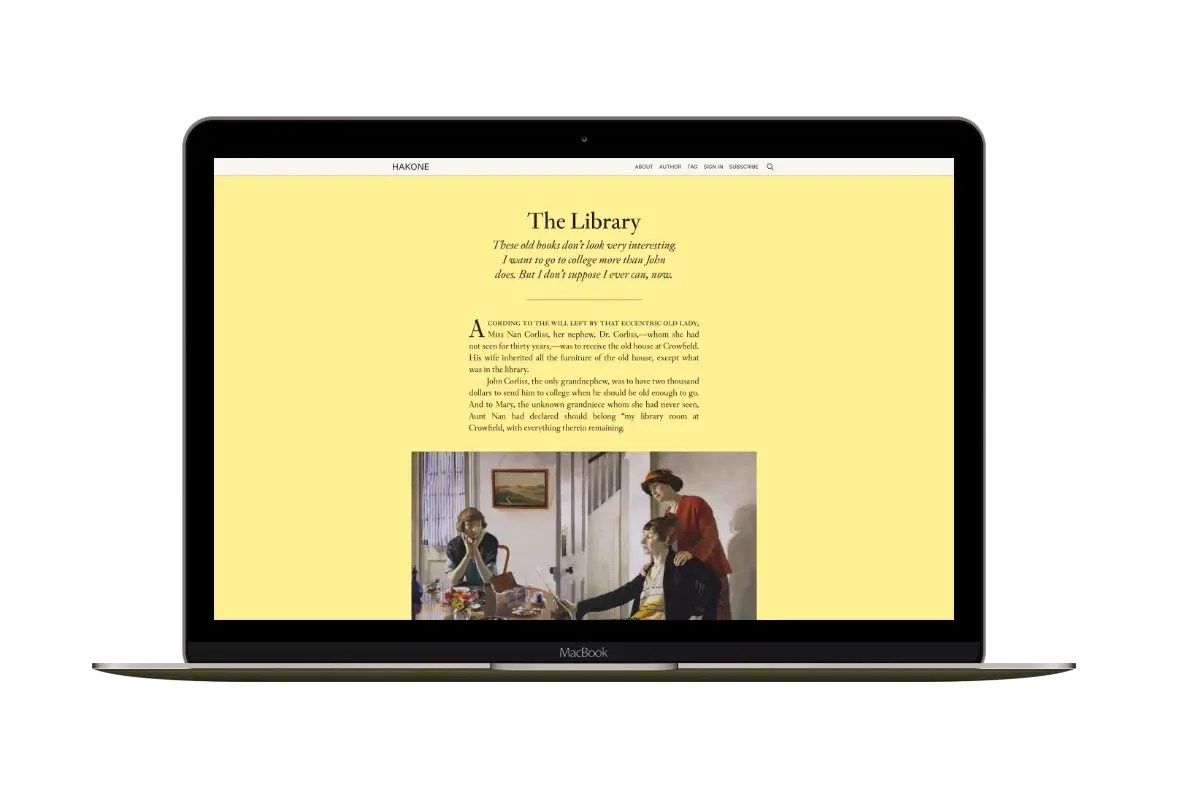
Hakone
For writers who want readers to browse complete posts on the homepage.