How to use toggle cards in Ghost
Ghost’s Toggle card adds a collapsible section of text to a post or page. Its heading stays visible while the content is closed. Readers select the arrow to reveal the text below.
Use it for supporting details such as delivery days, submission rules or what a membership includes.
Add a Toggle card
Open the post or page you want to edit in Ghost Admin. Use a draft if you want to try the card before changing a live page. You need a staff account with permission to edit that content.
On a new, empty paragraph, type /toggle and press Enter. Ghost inserts a card with Toggle header and Collapsible content fields. You can also open the card menu with the + button and choose Toggle.
Add a heading in Toggle header. It can be a label or a question. This example uses a newsletter delivery question:
When does the weekly edition arrive?
Click the content area below it and add:
The weekly edition arrives on Friday. You can read each edition on the website too.
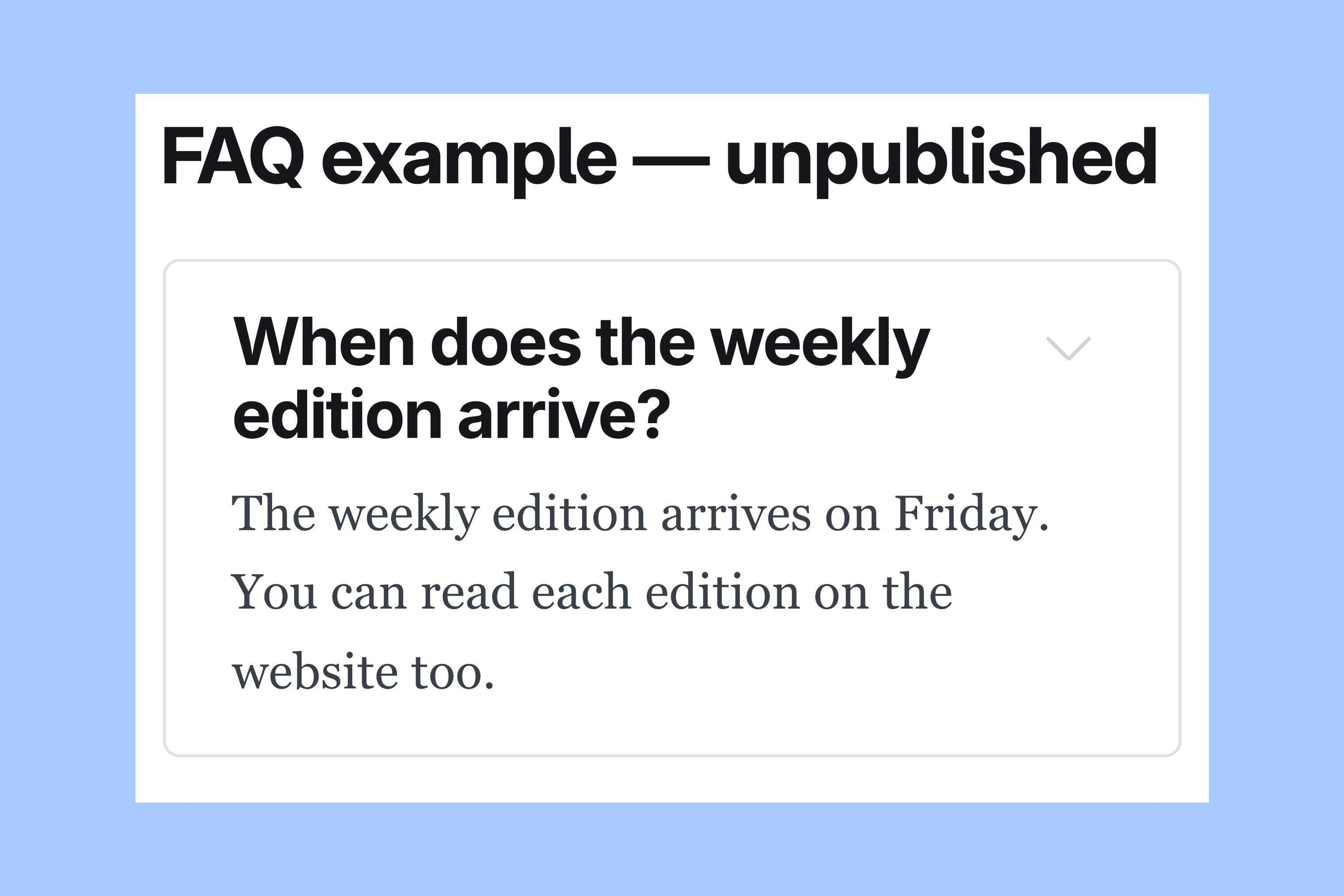
If you need to link a phrase, select its text and use the card’s link control. Ghost also supports bold and italic text inside toggles. The editor cards guide covers those options.
To add another collapsible section, move to a new paragraph after the card and insert another Toggle.
Test the web preview
Wait for Ghost to save the draft, then select Preview. Choose Web to see the page in your theme. The editor shows both fields while you write; the web page lets you test the collapsed card.
Select the arrow beside the heading. Confirm that the content appears, then select it again to close the card. If you add several toggles, test each one.
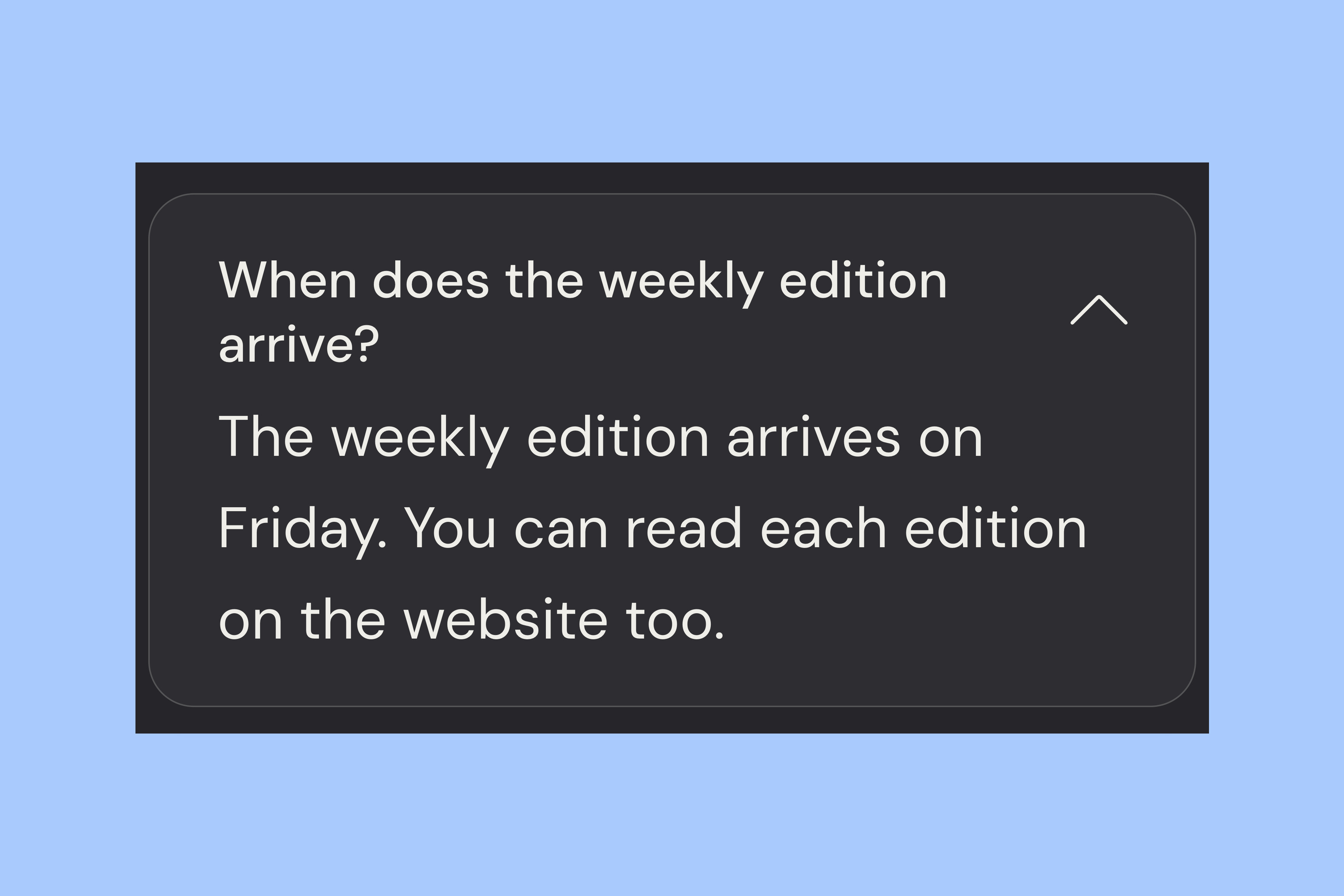
Switch the preview to Mobile and read the heading and content again. A long heading wraps onto more lines on a phone. Check that its meaning is still clear and that any links in the content are easy to use.
These images use the Siwa theme. Your theme controls the card’s visual style, so check the result in the theme you will publish with. A working draft preview lets you review the card before publishing the post or page.
Keep access and delivery separate
A closed Toggle hides text from view until a reader opens it. It does not make that text private or paid-only. Use Ghost’s content-access settings to control who can read a post.
If the post will also be a newsletter, check its Email preview separately. The web interaction does not establish how an email client will display the content. See the newsletter design guide for the distinction between your website theme and email layout.
More from the Blog
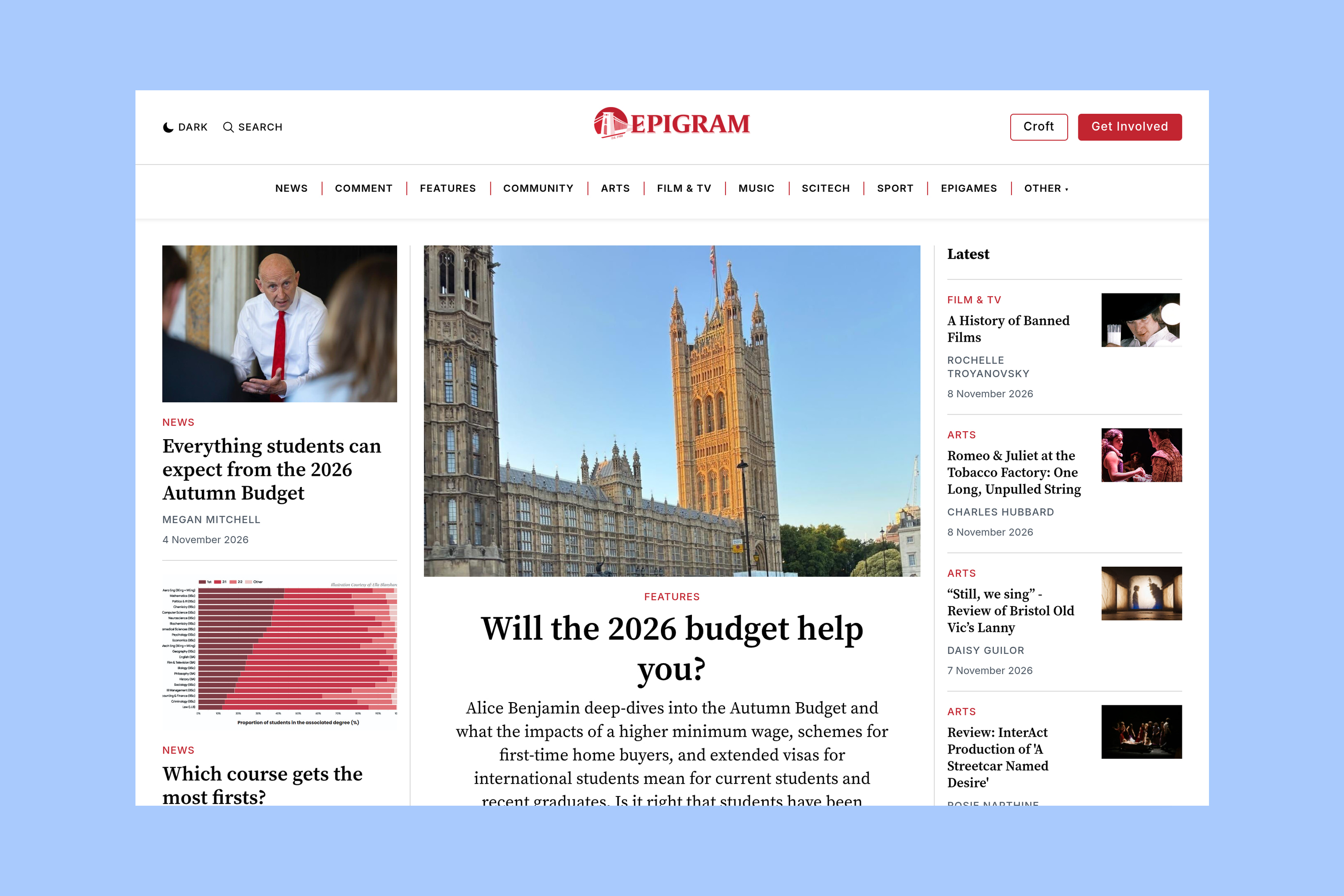
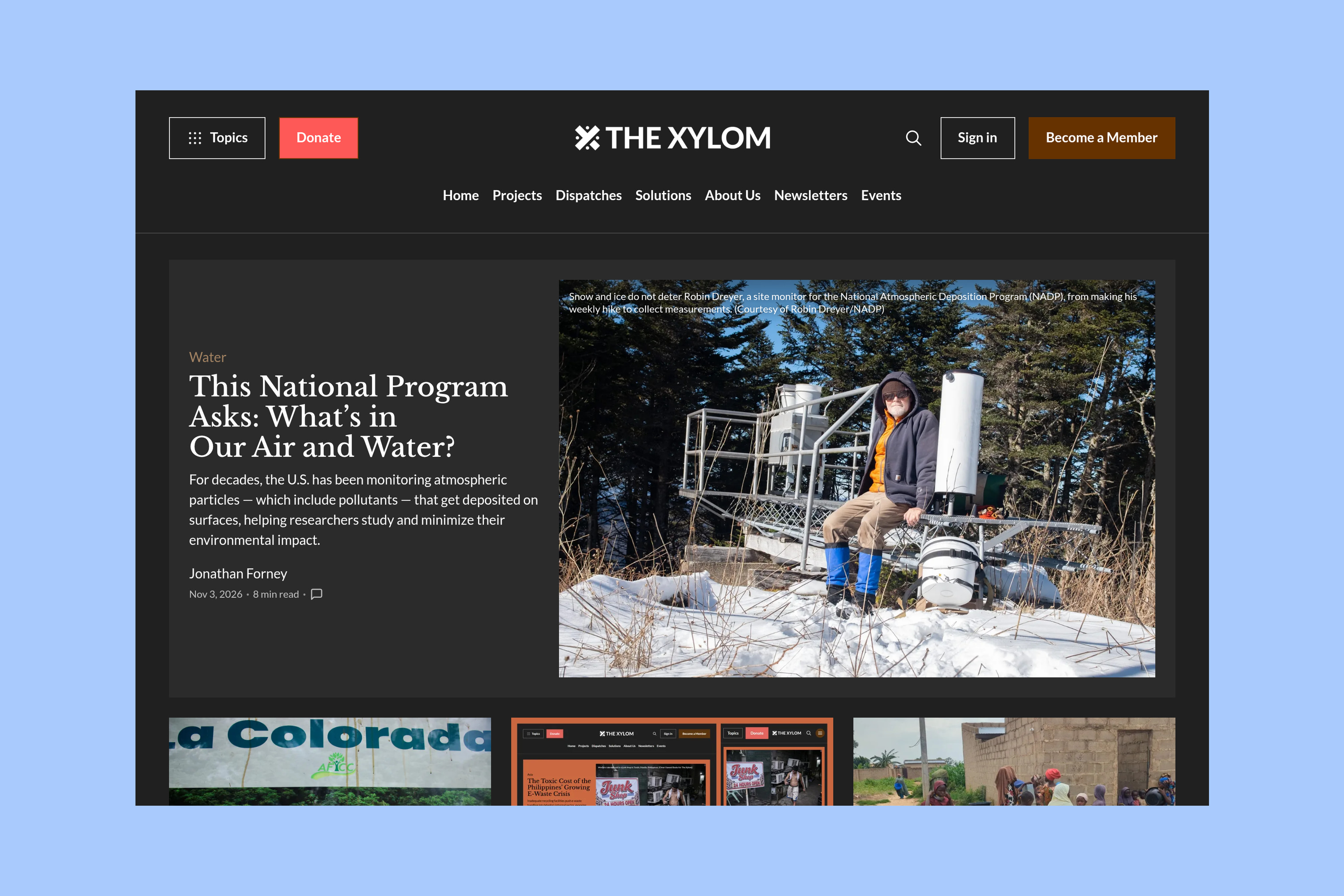
Latest Ghost Themes
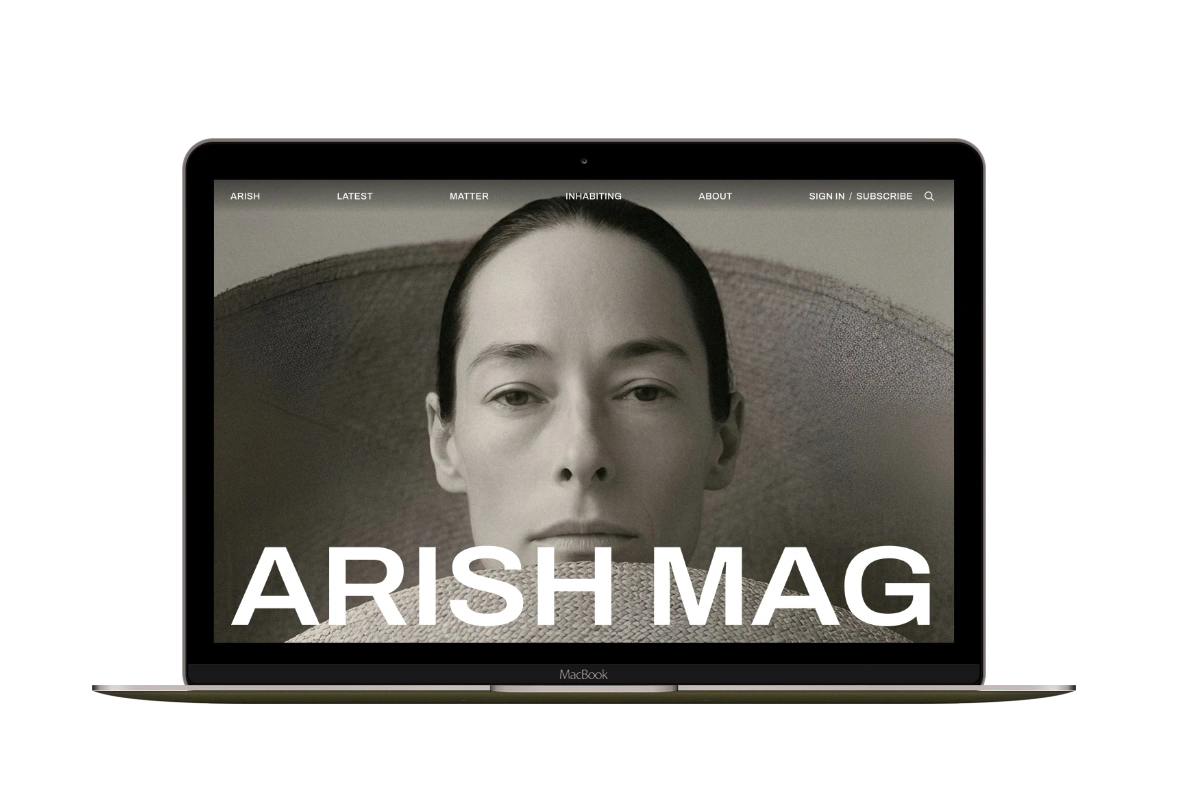
Arish
For visual magazines that lead with photography, film, and selected stories.
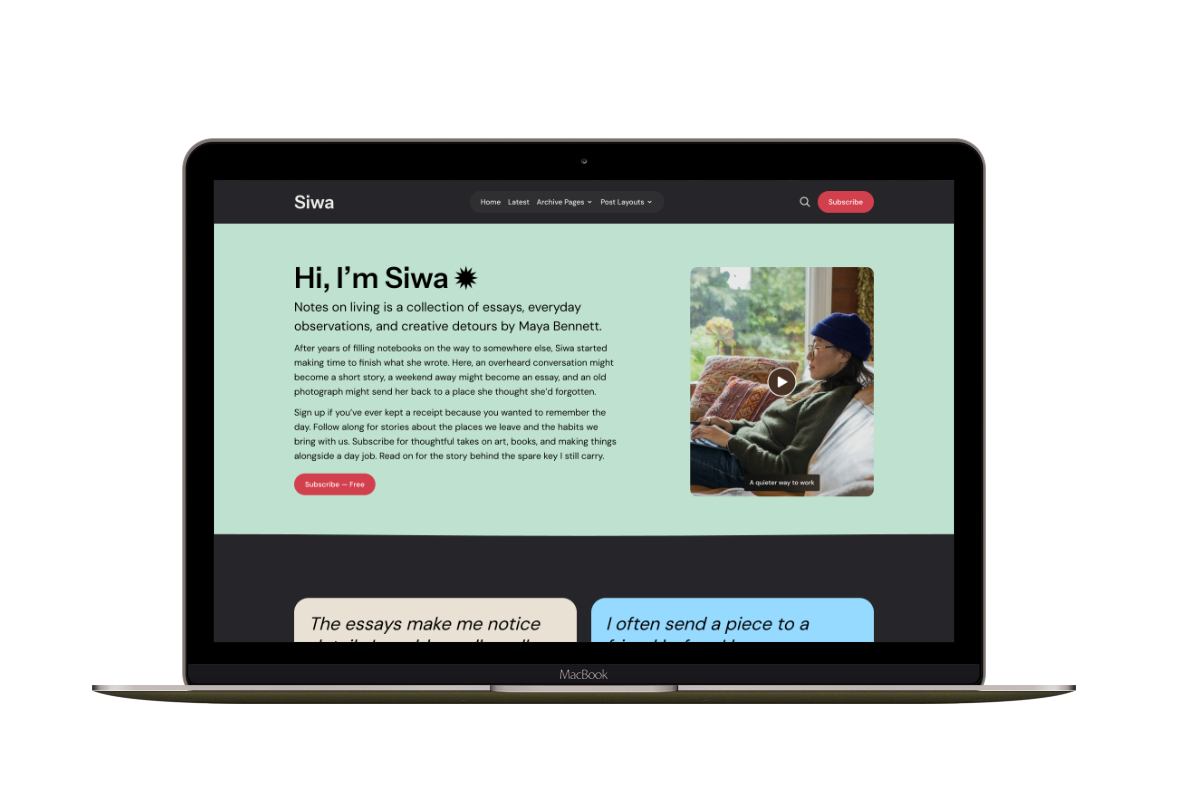
Siwa
A personal publication that introduces the writer before inviting readers into the stories.
Hanoi
An image-led magazine for creative stories, rich navigation, and long-form reading.
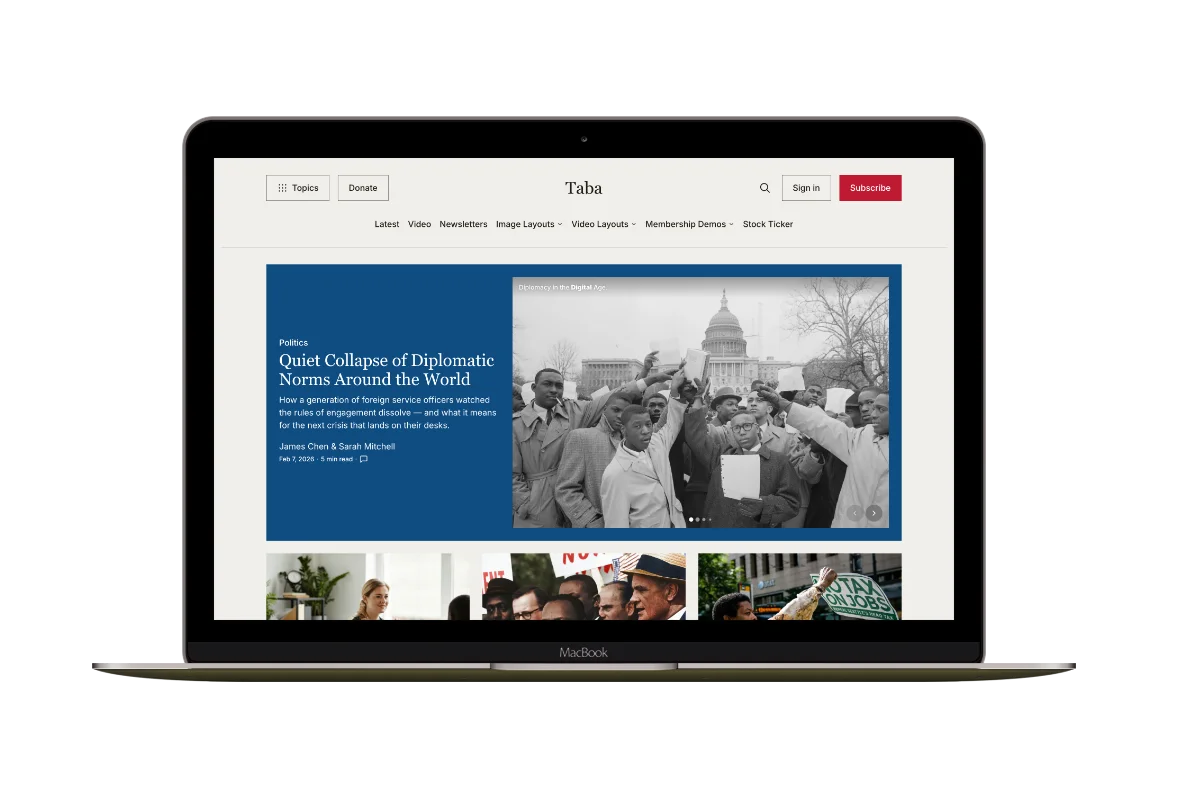
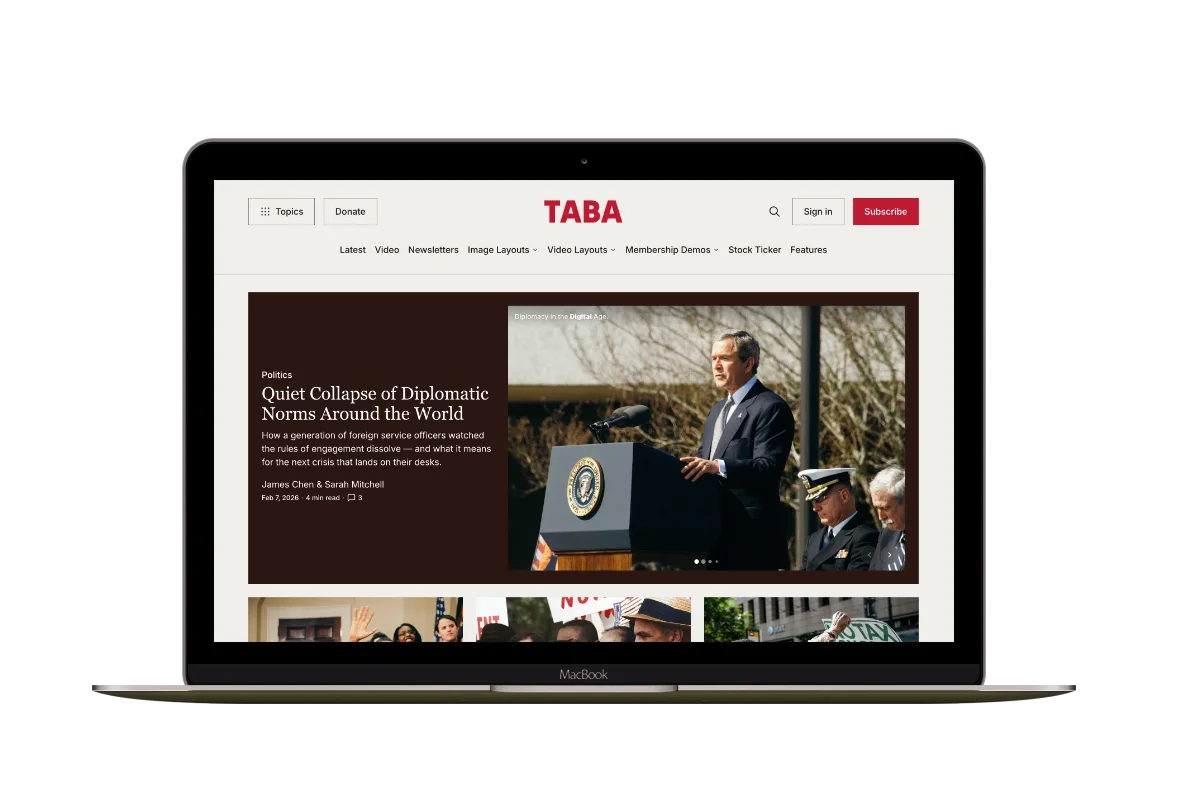
Taba
A newsroom front page for coverage across topics, video, and story formats.
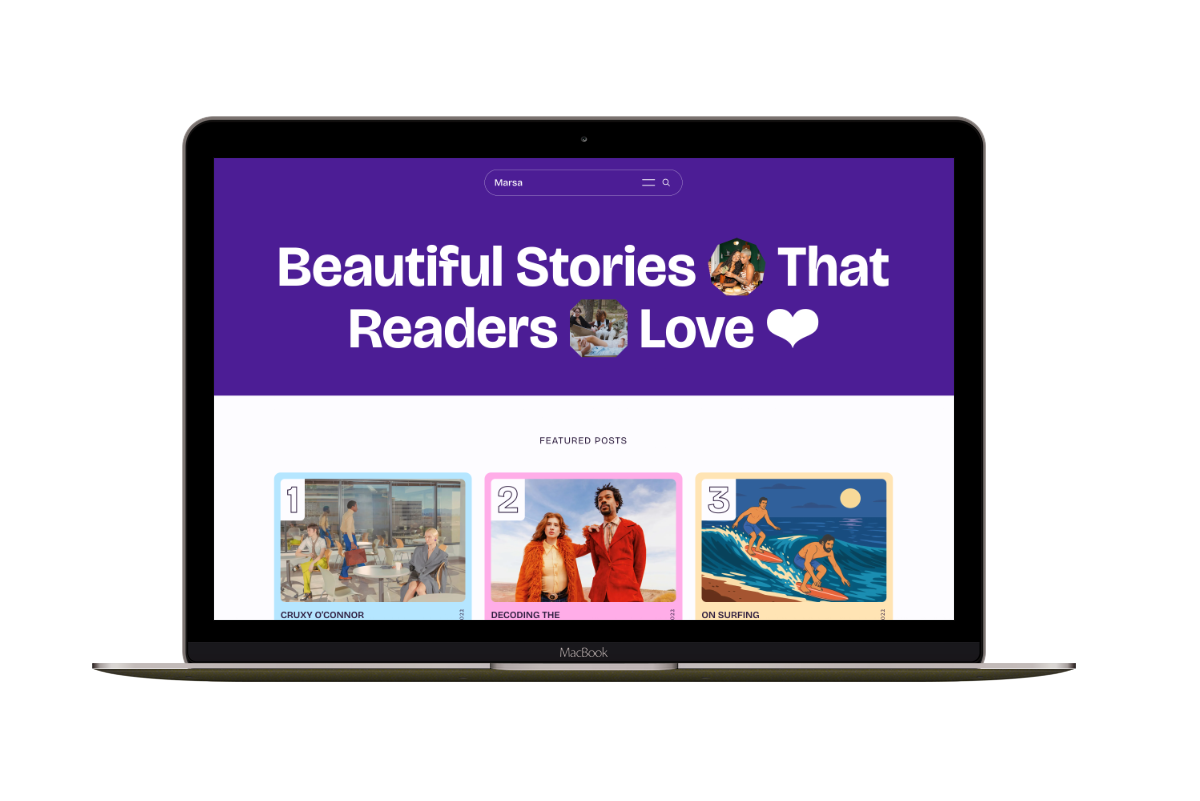
Marsa
A flexible publication homepage for featured stories, topics, and newsletters.
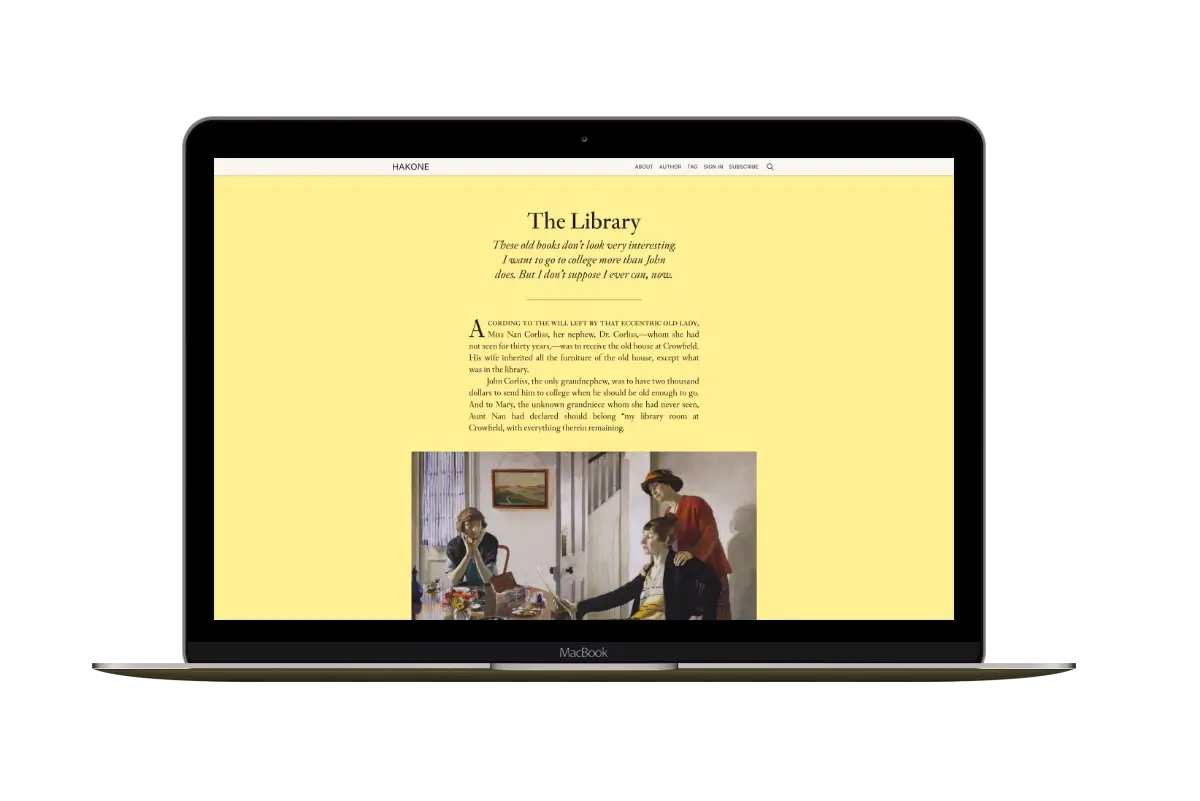
Hakone
For writers who want readers to browse complete posts on the homepage.