How to restore an earlier draft in Ghost
Has a useful passage gone missing from a Ghost draft? Post history may have a saved version that still contains it. Open the history inside that post’s editor. Read the earlier version. Restore it into the draft.
Ghost’s post settings documentation describes this content history. The site-wide History log in Settings records system activity. It is a separate feature. Looking in the wrong history screen was the problem in this Ghost Forum question.
Open the post’s history
You need permission to edit the affected post. This walkthrough uses an unpublished draft on the Siwa demo. Its Studio Notes paragraph has saved versions with both “monthly” and “weekly.”
- Open Posts in Ghost Admin.
- Select Drafts.
- Open the affected draft.
- Open Settings in the editor to reveal Post settings.
- Scroll down that panel.
- Select Post history, below Feature this post.
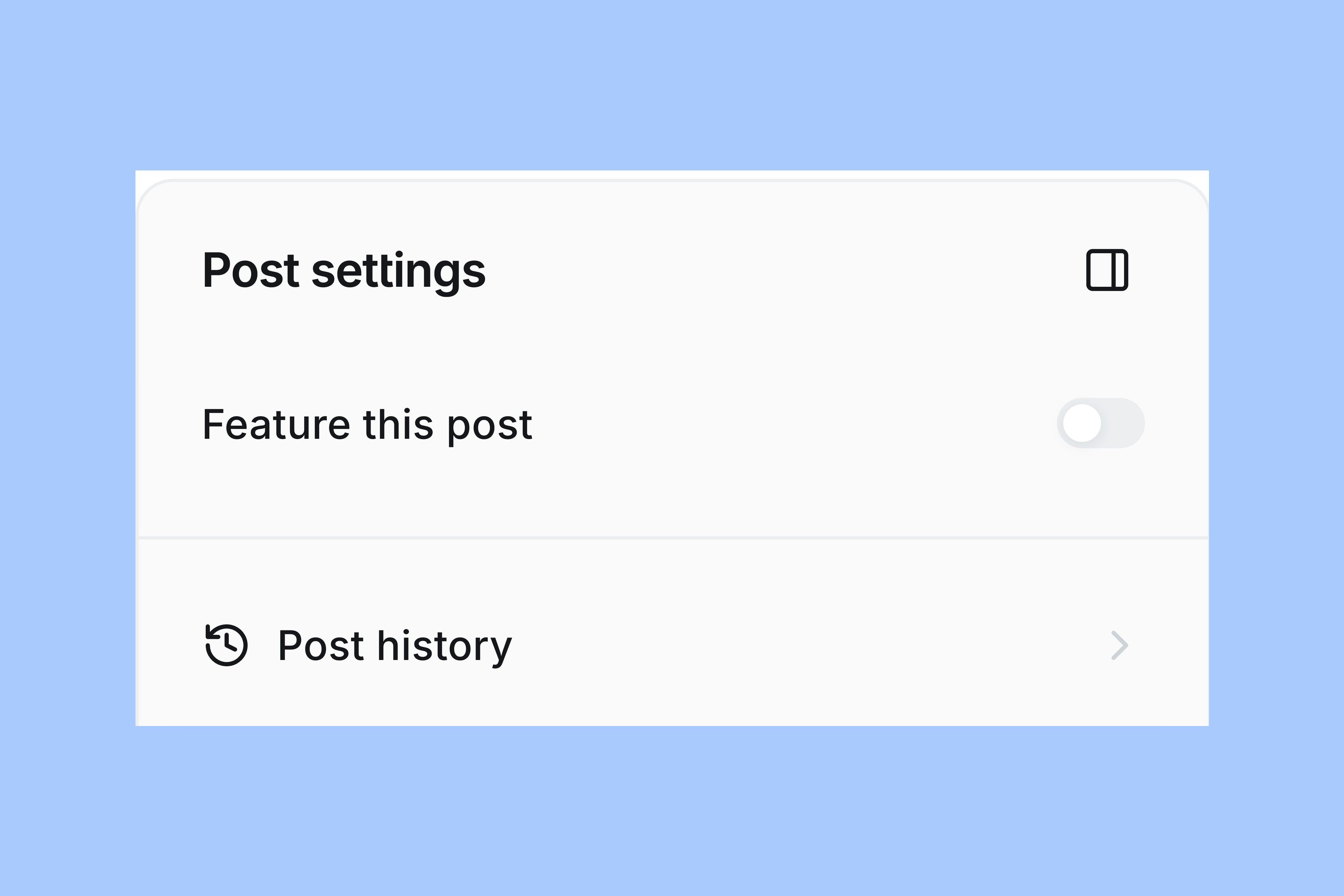
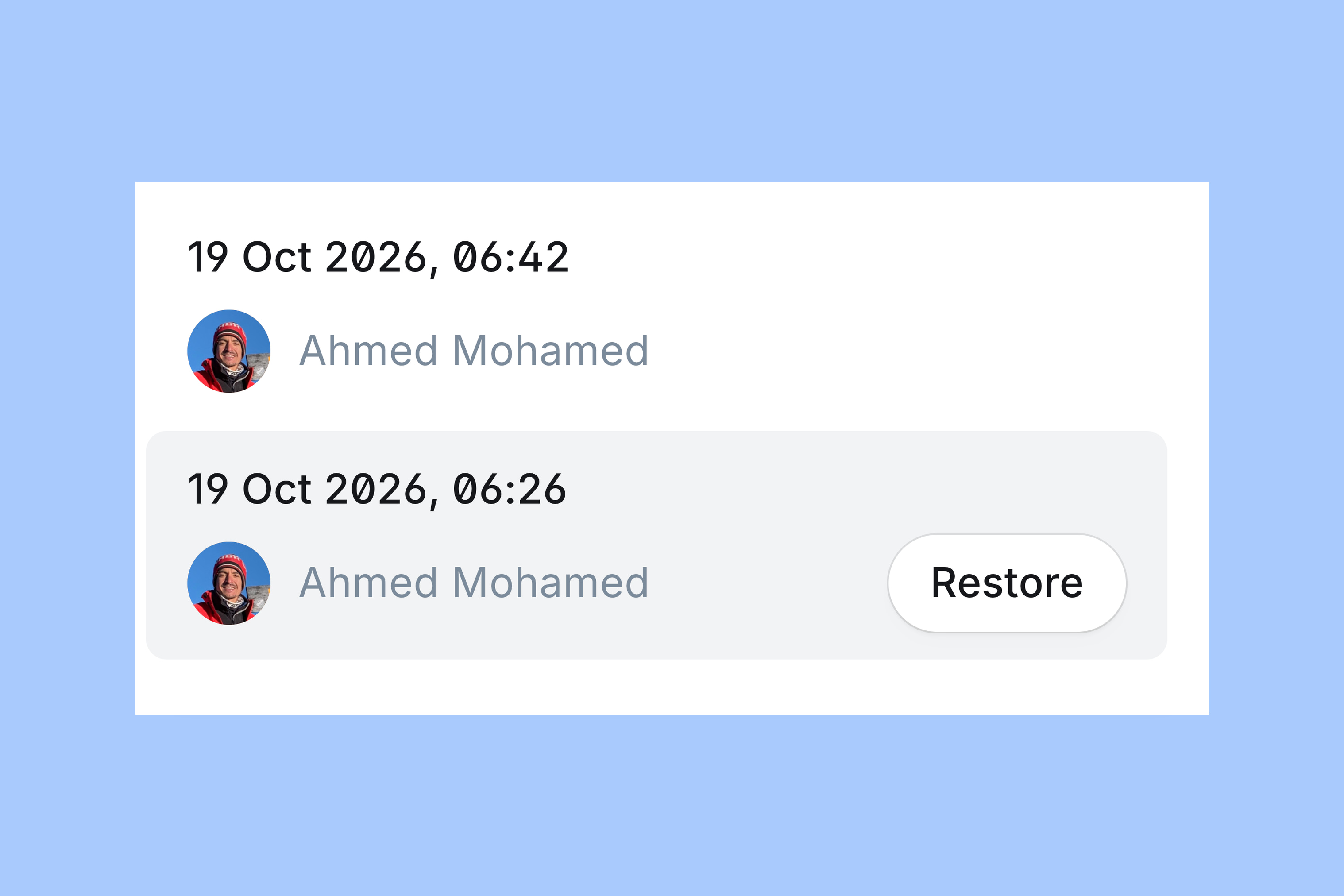
The history panel lists saved versions by date and author. Select a version to compare its content. Selecting a date alone does not replace the draft.
Compare saved versions
Read the passage you want to recover in the selected preview. For Studio Notes, the useful version says “A weekly letter about the work behind each issue.” Its date helps locate it, but the wording confirms it is the right version.
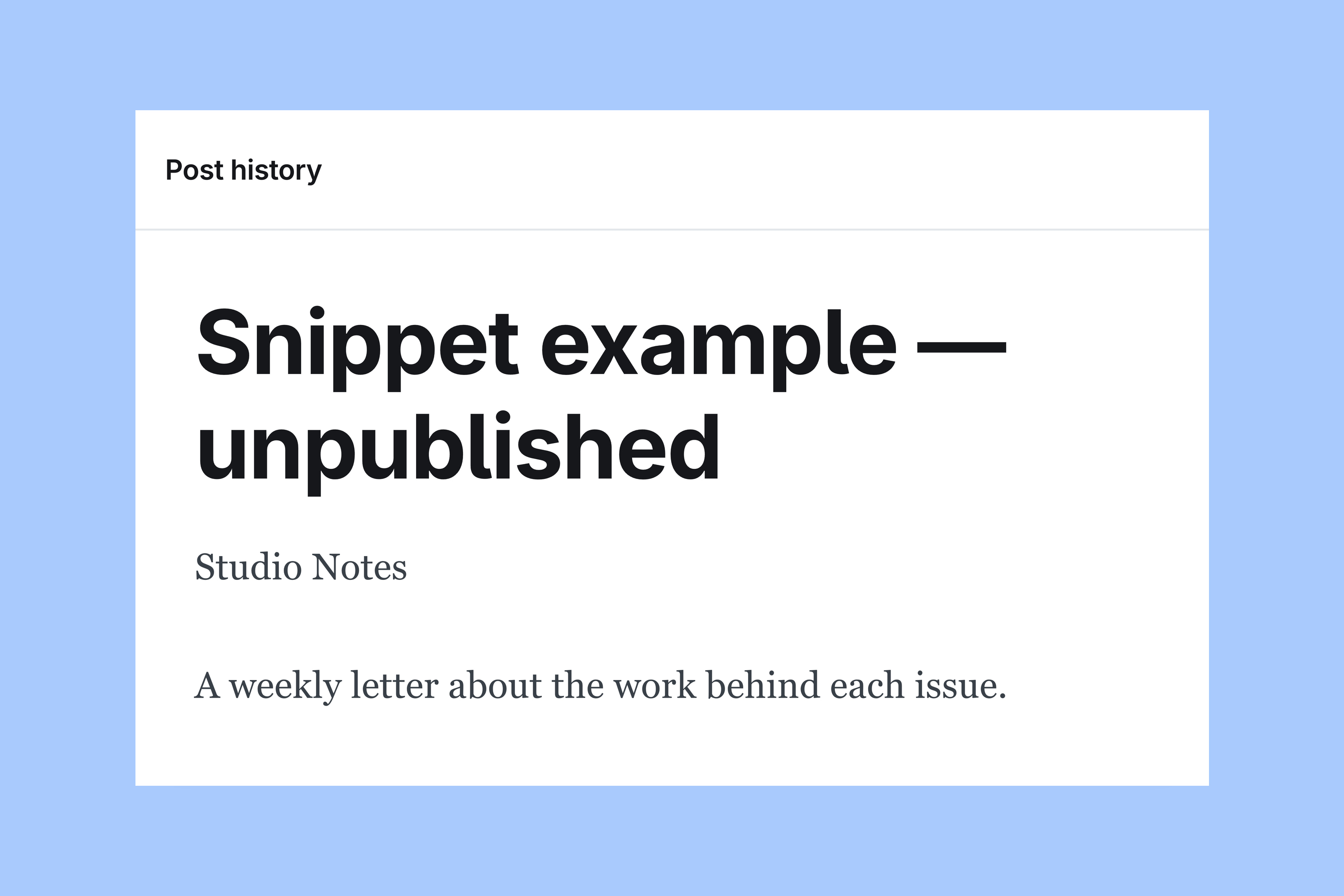
Check the rest of that version too. Restoring replaces the current draft content. The version with your missing passage may lack changes you made later. Copy any current passages you still need into a separate document before restoring.
Restore and check the draft
In the date list, select Restore beside the version you checked.
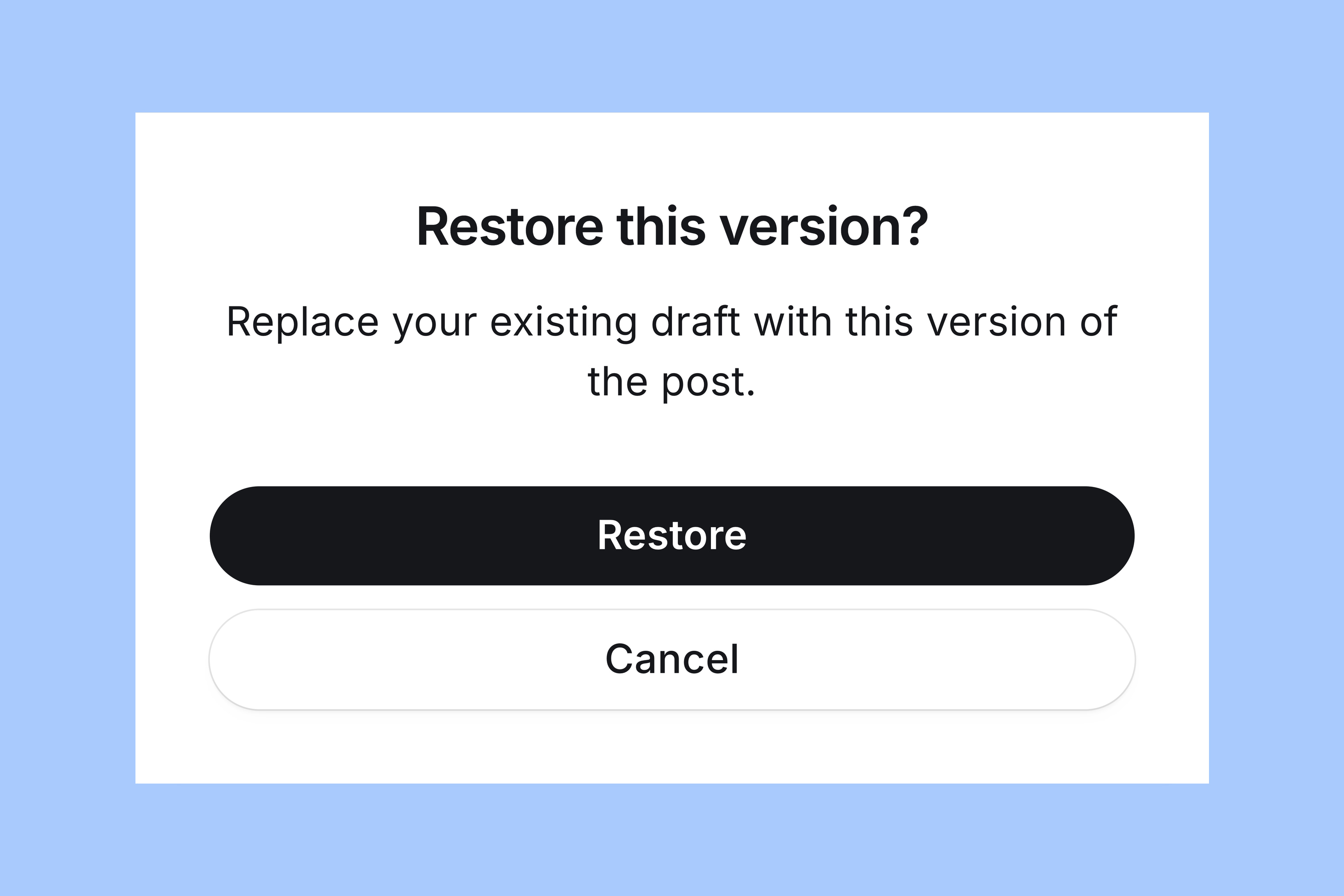
Ghost opens Restore this version? and explains that it will replace the existing draft. Select Cancel if you need to keep comparing. Select Restore in the confirmation only when you have chosen the version you want.
Back in the editor, check the recovered passage. Wait for Draft – Saved. Reopen the draft. Read that passage again. In the Studio Notes example, the editor now contains “weekly.” Add back any newer passages you kept separately. Check the complete draft before considering publication.
Restoring this unpublished draft does not publish it. Publishing is a separate decision. Restoring older content cannot recall an email you already sent.
If the version is missing
First, check which history you opened. Use Post history inside the affected post. The general History screen in Settings is a different log. If you cannot edit that post, ask its author or your site administrator to inspect its history.
If the saved versions do not contain the missing passage, this panel cannot supply it. Look for a copy you kept elsewhere, or ask your Ghost host about available backups. Include the post title, its URL and approximately when the text changed. Post history is not a full-site backup. It does not promise recovery of deleted posts.
More from the Blog



Latest Ghost Themes

Arish
For visual magazines that lead with photography, film, and selected stories.
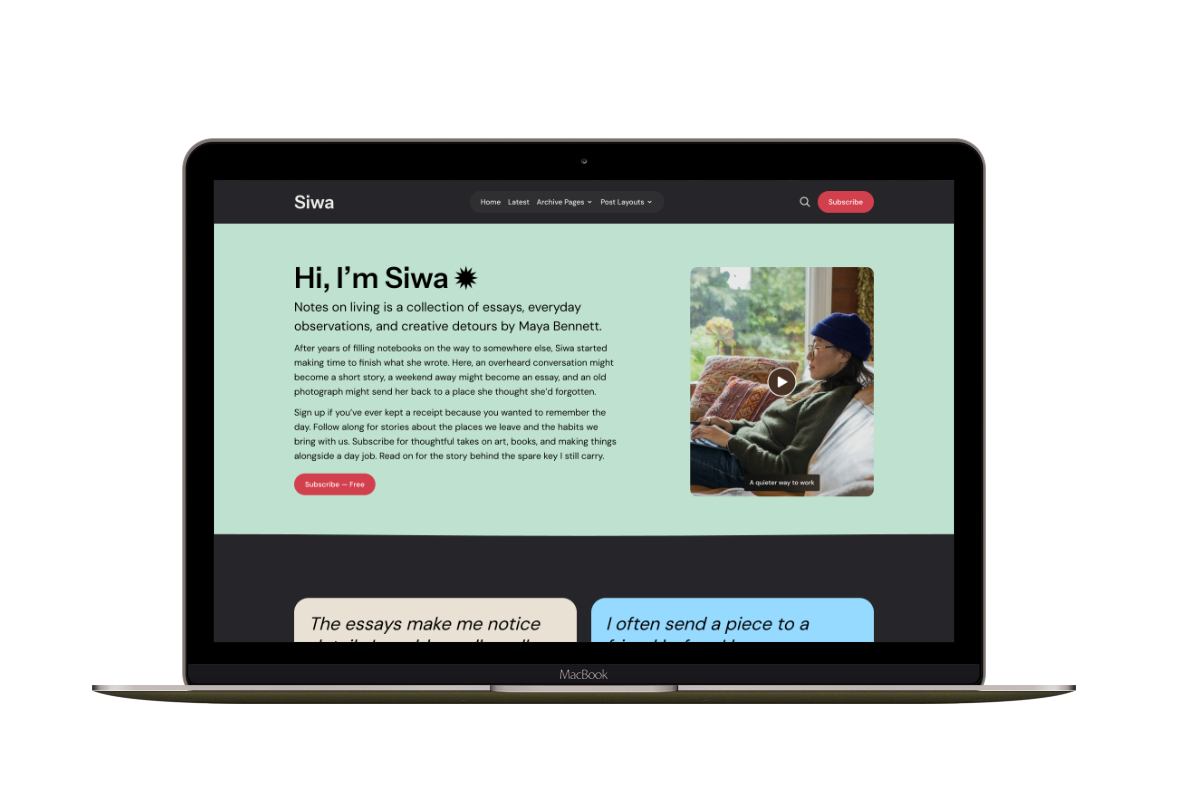
Siwa
A personal publication that introduces the writer before inviting readers into the stories.

Hanoi
An image-led magazine for creative stories, rich navigation, and long-form reading.

Taba
A newsroom front page for coverage across topics, video, and story formats.

Marsa
A flexible publication homepage for featured stories, topics, and newsletters.
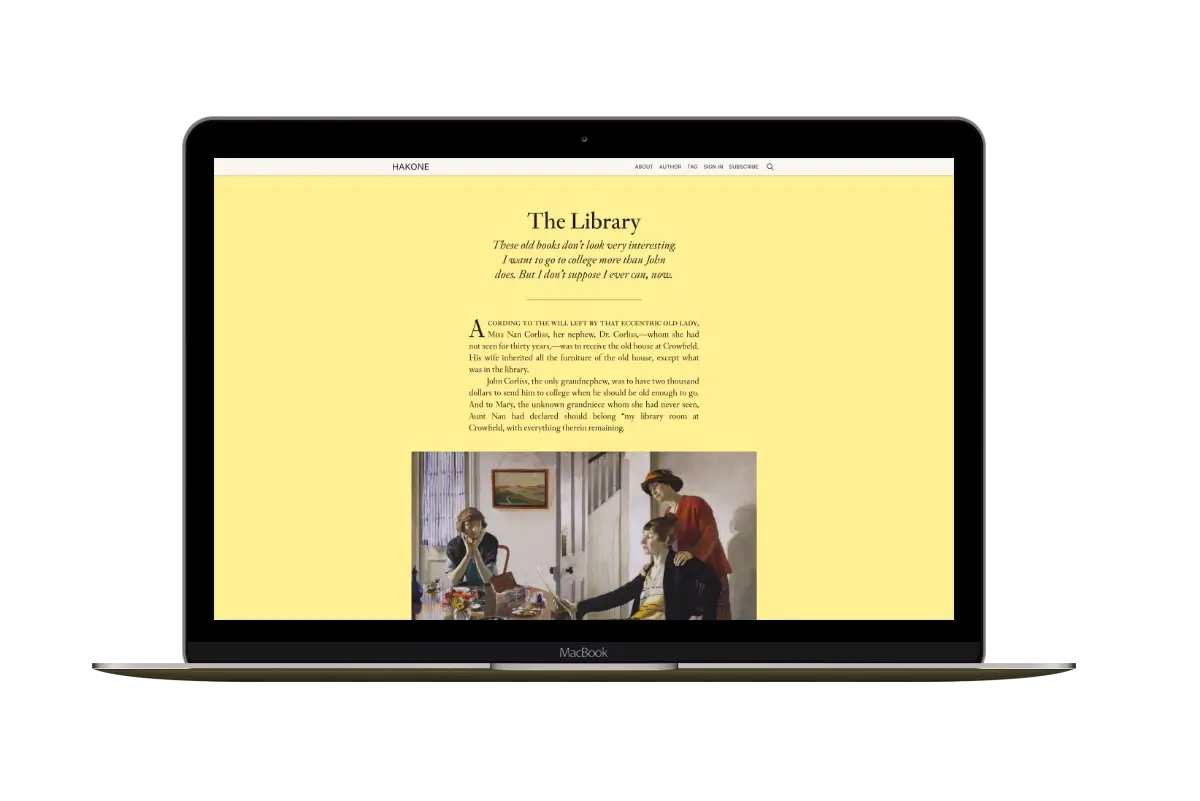
Hakone
For writers who want readers to browse complete posts on the homepage.