How to reuse content with Ghost snippets
If you paste the same introduction, sign-off or reading note into several Ghost posts, save it as a snippet. You can then insert that block from the editor instead of finding an older post to copy.
A snippet is a saved starting copy. Updating it changes what you insert next. Copies already placed in other posts stay the same. This guide uses a private draft in the Siwa demo, which I maintain at Aspire Themes. Nothing needs to be published or emailed to practise these steps.
Save a block
Sign in to Ghost Admin with a staff account that can create a draft. Open Posts → New post. Give the draft a title. Write a short block in the body. For this example, use:
Studio Notes
A monthly letter about the work behind each issue.
Select the block in the editor. In the floating formatting toolbar, click the Save as snippet icon. It looks like a note with a folded corner. Enter Studio Notes Footer — example as its name. Choose Create with that name.
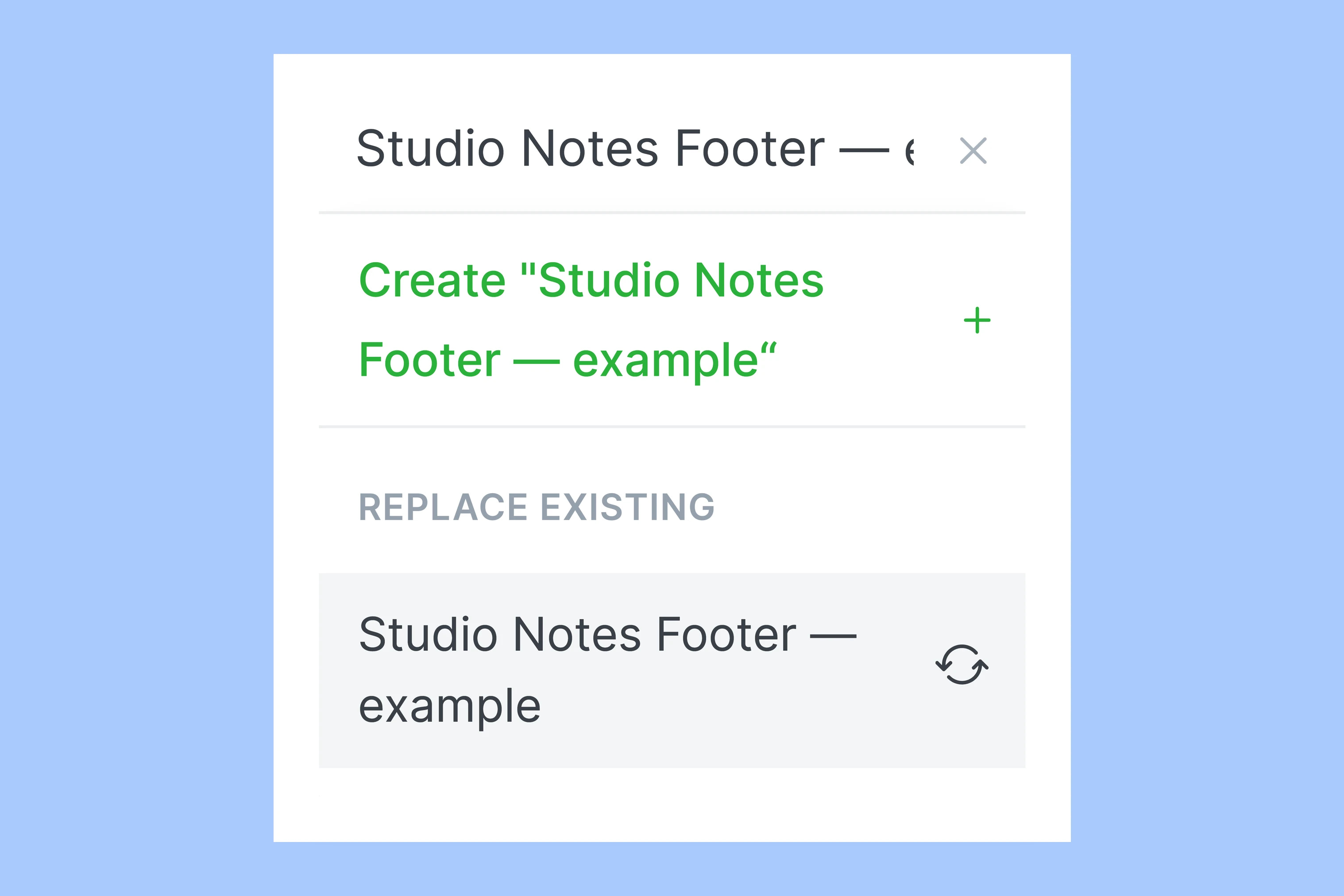
Check whether that name appears under Replace existing. To create a separate snippet, choose a different name. Choosing the existing entry starts the replacement path described below.
Ghost’s snippets documentation covers reuse of both text and editor cards. A short sign-off is a useful first example because you can check the entire saved block at a glance.
Insert the saved copy
Open another draft, or move to a blank paragraph in the current one. Type /Studio to search for the saved block. Choose Studio Notes Footer — example from the snippet result.
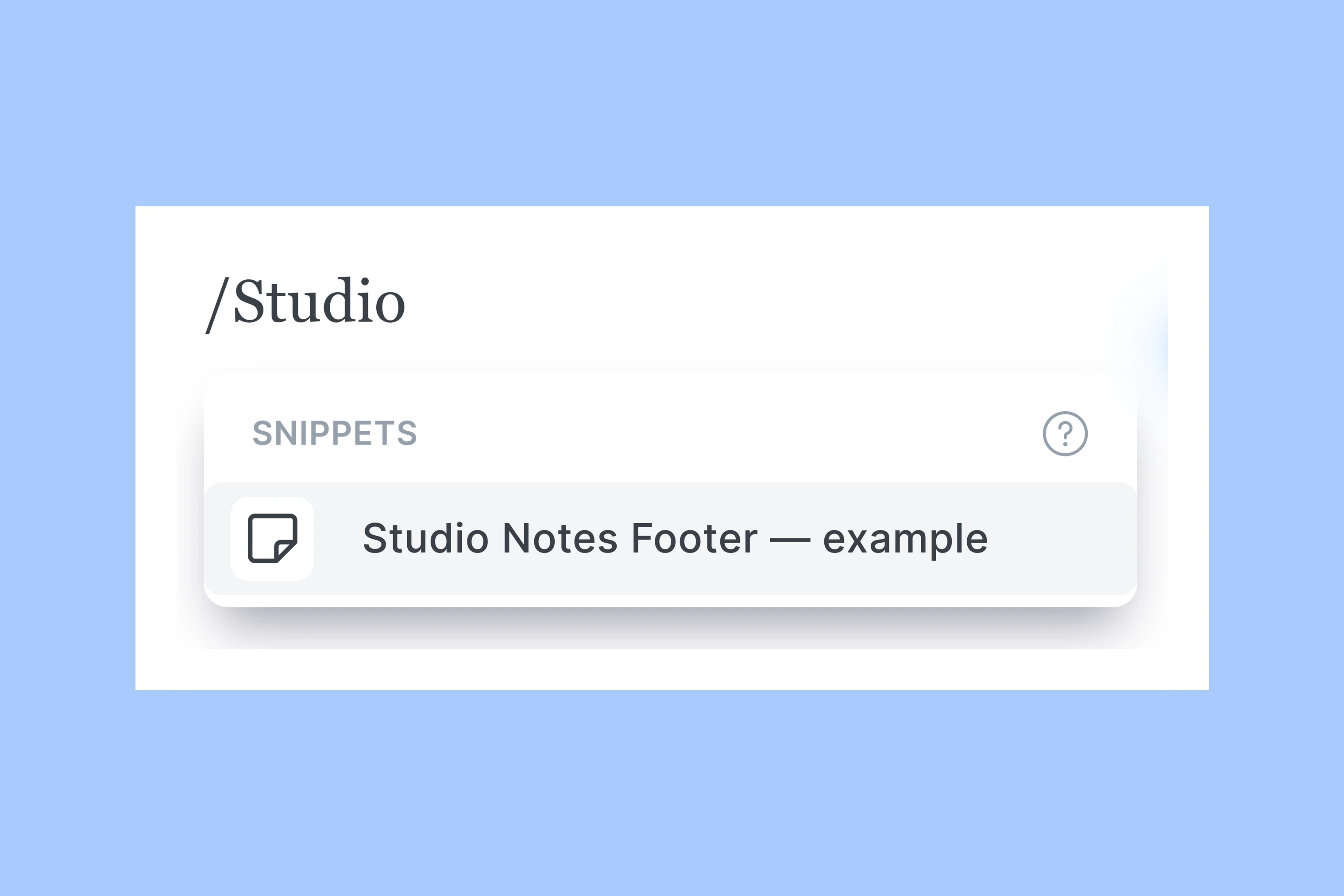
Ghost replaces the slash search with the saved content. Check that both the Studio Notes line and the monthly-letter sentence appear. You can now edit the copy in this post. The saved snippet stays the same.
The / menu works at the start of a blank editor paragraph. If your text remains in the paragraph without showing a result, start a new blank paragraph and try again. If the menu opens but the snippet is absent, check its saved name. Make sure you are editing the Ghost site where you saved it.
Replace the saved version
Suppose the letter changes from monthly to weekly. Edit the inserted block so its second line reads:
A weekly letter about the work behind each issue.
Select the complete revised block. Click Save as snippet again. Start typing Studio Notes Footer — example. Choose its matching entry under Replace existing. Ghost opens the Update this snippet? confirmation. Choose Update to replace the saved version.
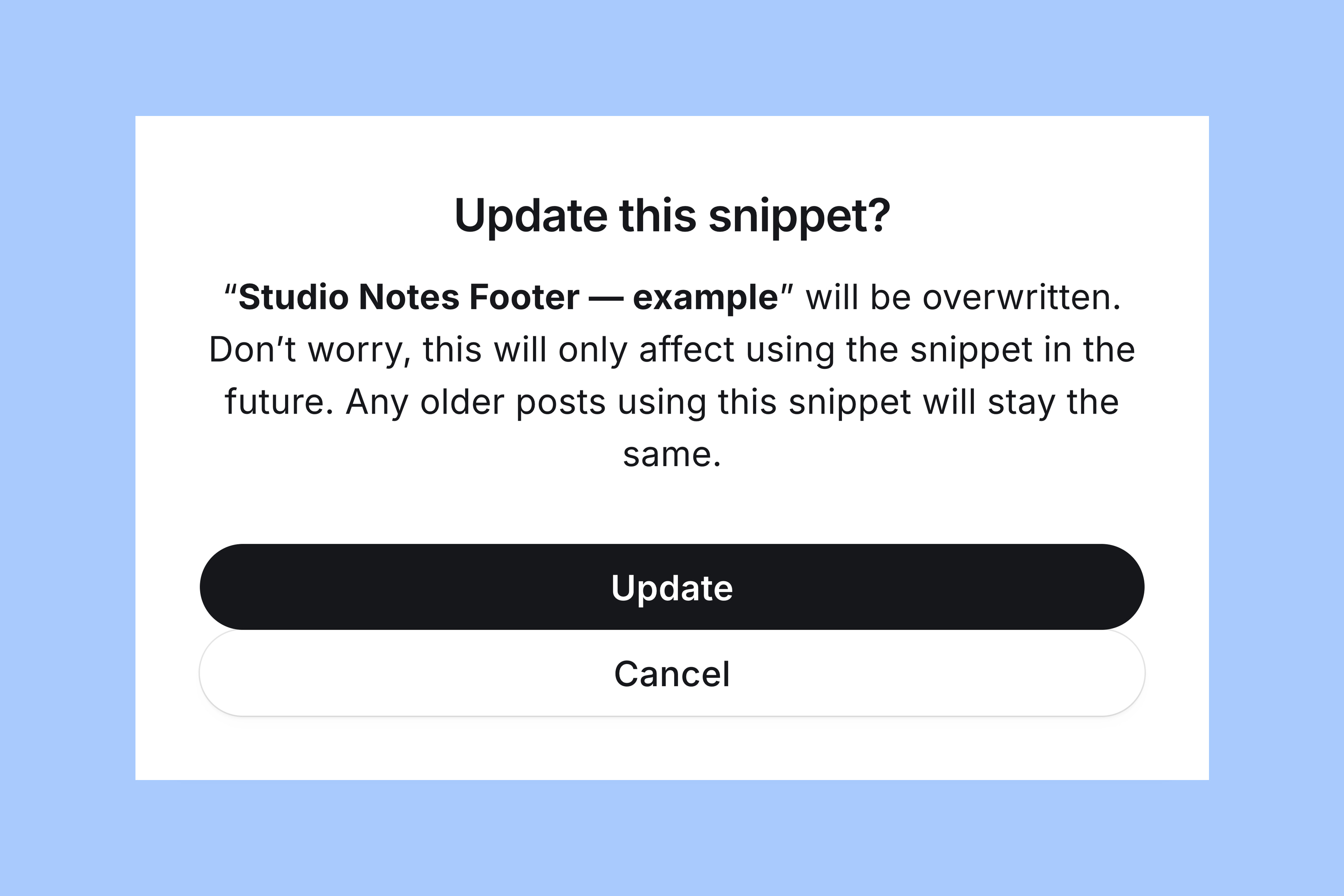
The confirmation explains the limit: older posts using the snippet stay the same. To check the replacement, insert the snippet on a fresh blank line in a private draft. The new copy should say “weekly.” Copies inserted before the change keep the old wording. Edit those copies yourself if they need the new wording.
Where snippets fit
Use snippets for material you expect to adapt in each post. This could be a series introduction, interview questions or a repeated editorial note. You can reuse the block without building it again. Each post keeps its own copy.
For information that must change everywhere at once, that independence is a limitation. A saved snippet does not act as a live reference shared by every post, and it does not create a site-wide footer. Could the repeated information live on a separate page? Link to that page to keep one destination to maintain.
More from the Blog

Latest Ghost Themes

Arish
For visual magazines that lead with photography, film, and selected stories.
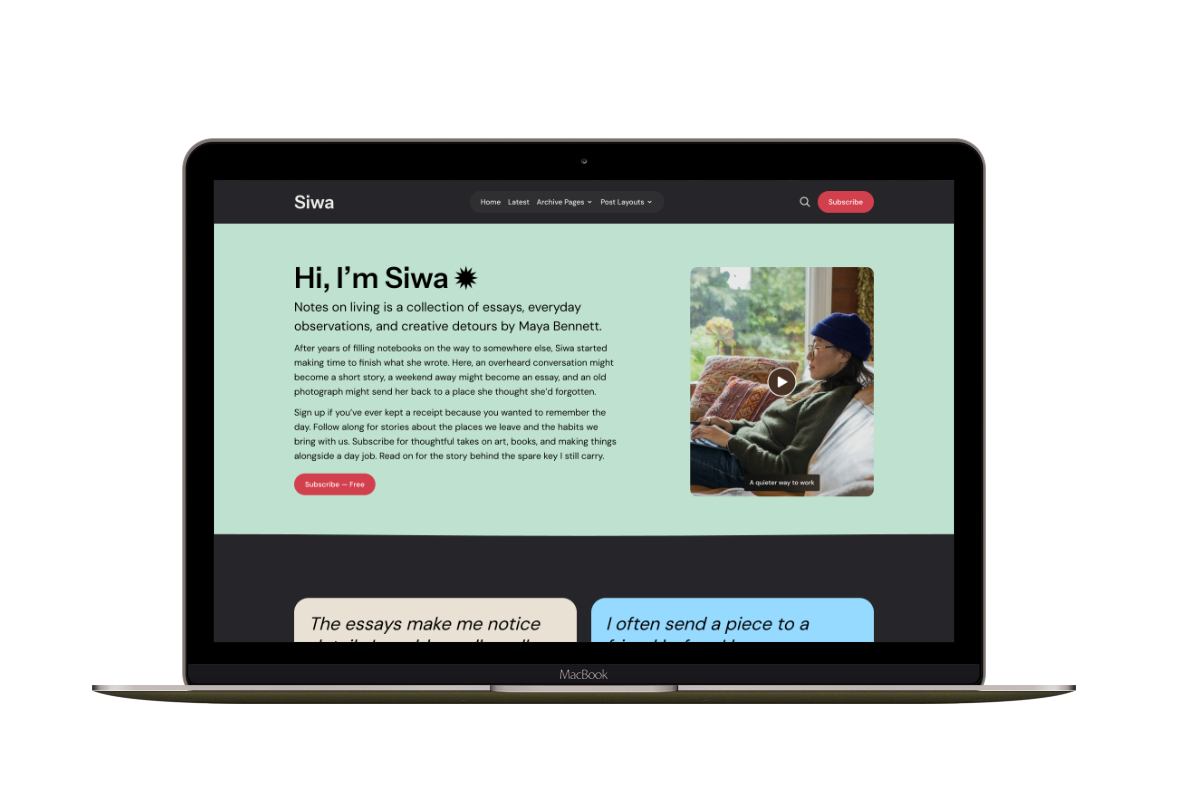
Siwa
A personal publication that introduces the writer before inviting readers into the stories.
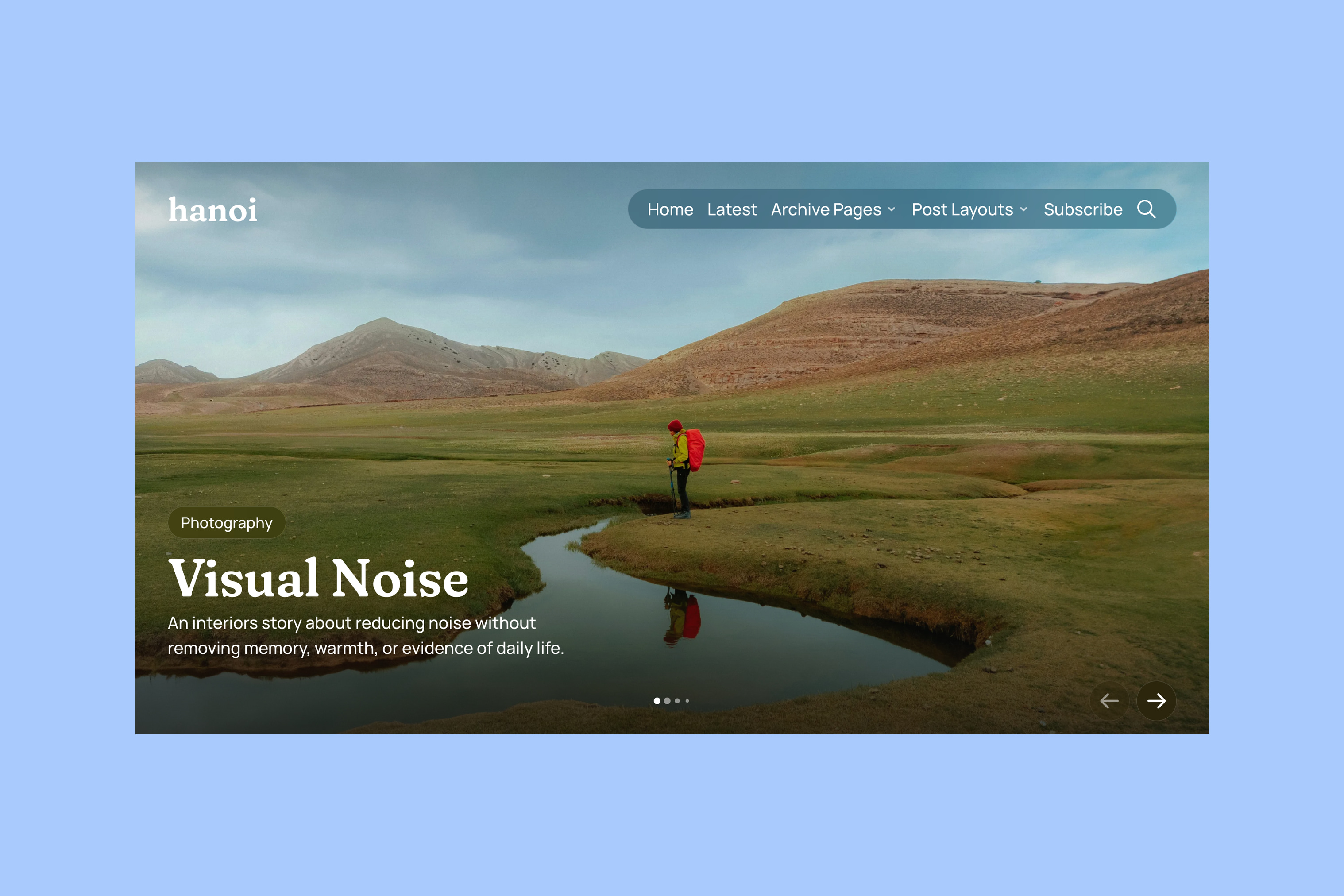
Hanoi
An image-led magazine for creative stories, rich navigation, and long-form reading.

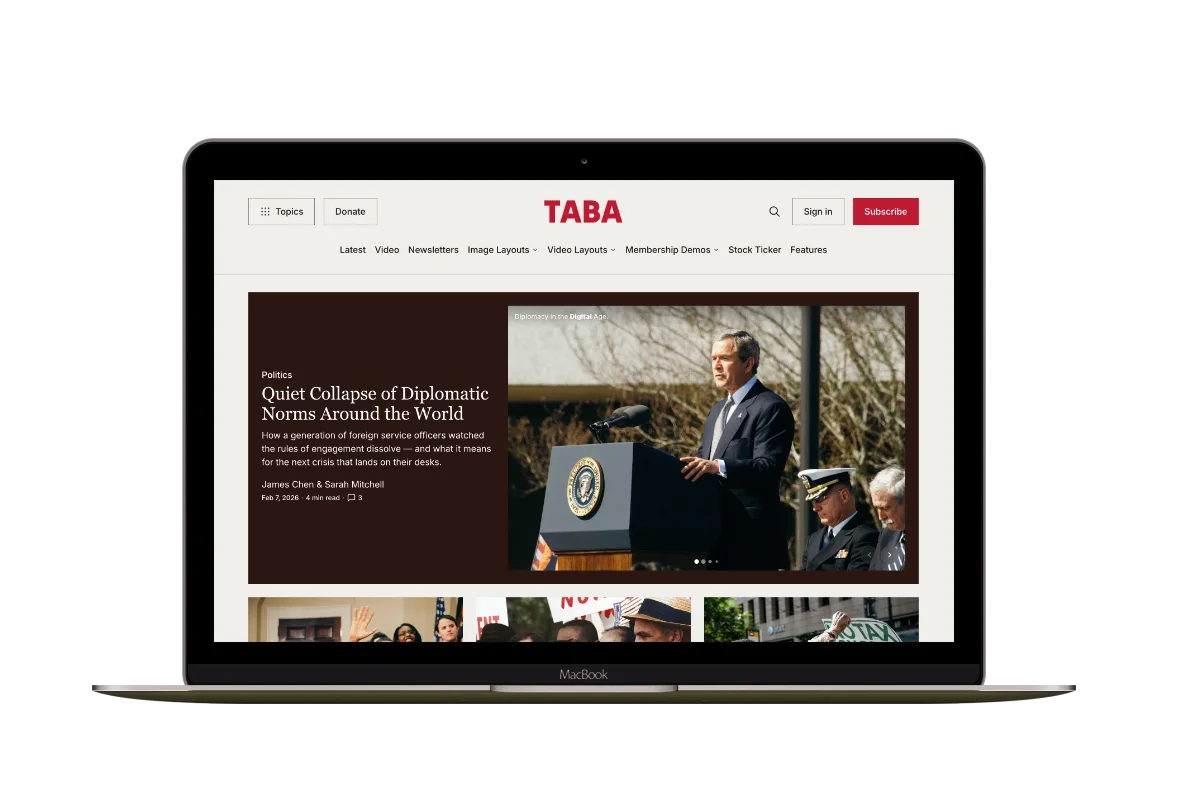
Taba
A newsroom front page for coverage across topics, video, and story formats.

Marsa
A flexible publication homepage for featured stories, topics, and newsletters.
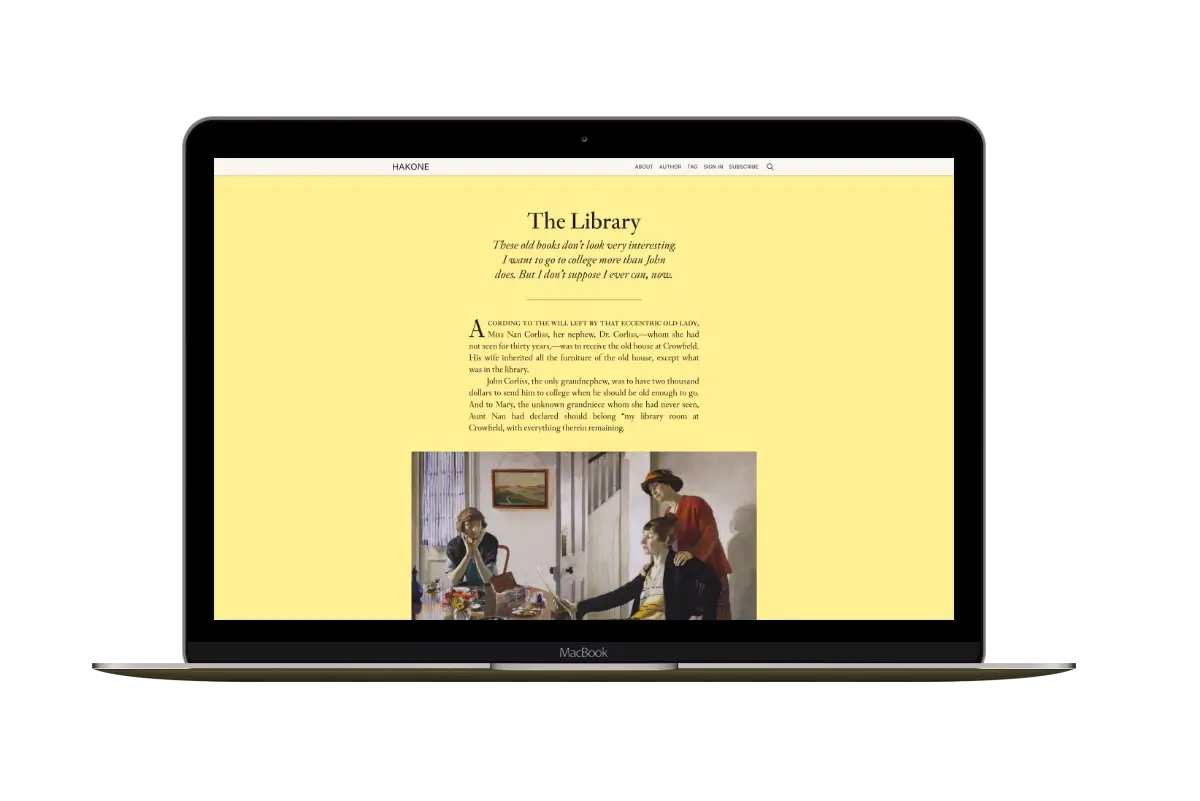
Hakone
For writers who want readers to browse complete posts on the homepage.