Why your Ghost secondary navigation is not showing
You added a link in Ghost Admin, but it is missing from your footer. First check which menu contains it. Ghost stores Primary and Secondary navigation separately, and your theme decides where to display each one.
A secondary menu is often in the footer, but it can appear elsewhere or have no place in a theme. Ghost’s navigation guide makes that support requirement explicit. A link saved in Secondary may appear somewhere else, or not appear in that theme.
Check the saved menu
Use an owner or administrator account that can edit site settings. Open Settings in Ghost Admin. Under Site, find Navigation and select Customize. The dialog has separate Primary and Secondary tabs.
Select Secondary. Check that the missing link has a label and a URL there. If it exists only under Primary, you have added it to a different menu. Decide which location you want before moving or duplicating it.
For a new item, enter a Label and its URL, then select Save. For an existing item, correct only the value that is wrong. Reopen the dialog after saving to confirm that Ghost kept the item. If it is missing there too, finish saving the menu before investigating the theme.
If the link points to a page on your site, open that page’s public URL in another tab. A draft page does not supply a working public destination. The page visibility guide explains publishing a page and adding its URL to navigation.
Check where your theme puts it
Open the public website in a separate tab and reload it. Look in the location described by your theme’s documentation. Check the footer if that is where the theme puts Secondary; check the mobile menu too if the theme puts those links there on a phone.
The Siwa demo gives a concrete example. Its Secondary menu contains Aspire Themes and Documentation, and those links appear together in the footer. Social icons sit in a separate group. Adding a navigation item does not add a social icon.
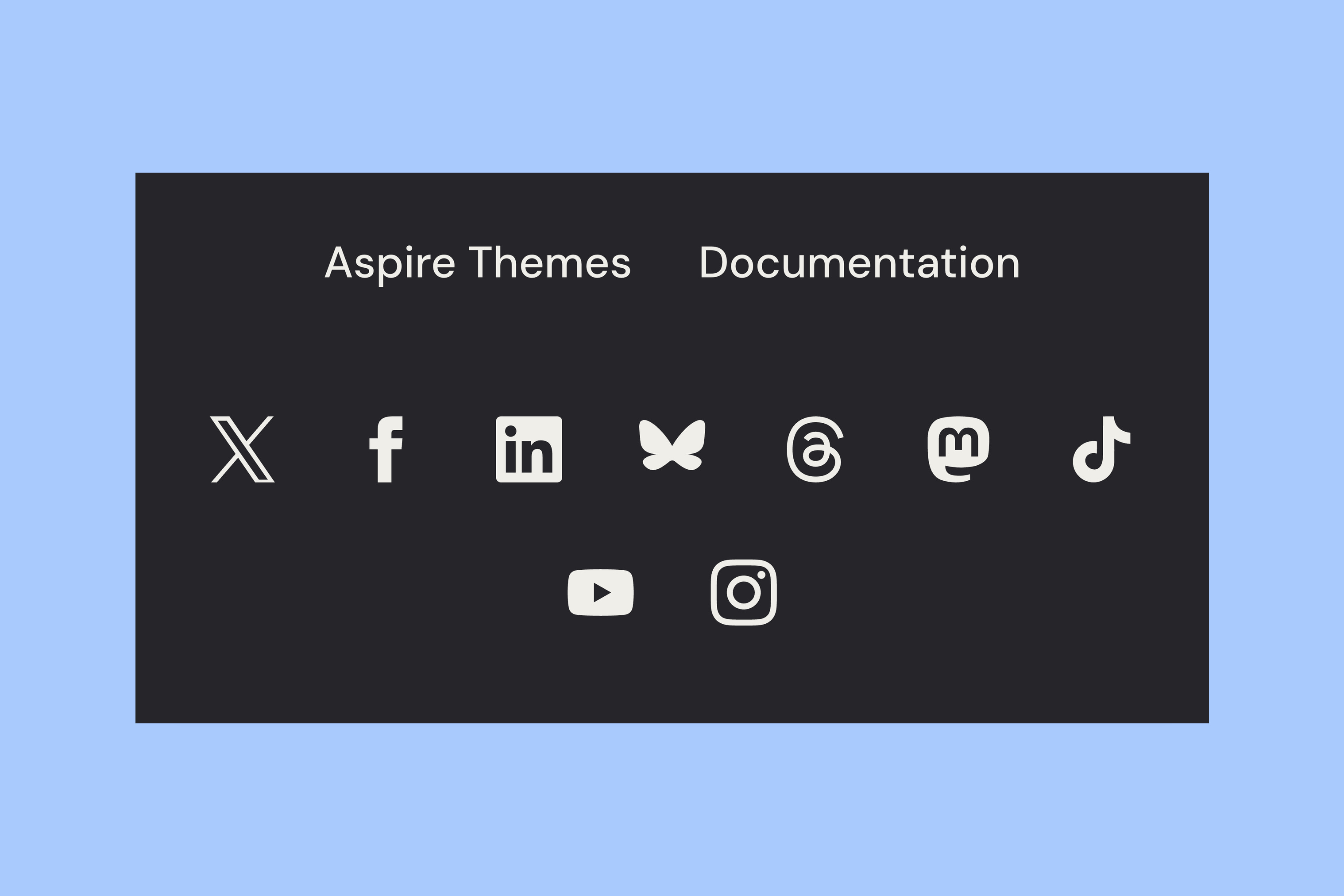
For another theme, check its guide or demo to find where the links belong. Do not assume that a footer shown in one theme is a feature of all Ghost themes. A theme can support Primary without displaying Secondary.
If the item is still missing
If Ghost retains the item but the public site does not display it, confirm the name of the active theme under Settings → Site → Theme. Check that theme’s documentation for secondary navigation support. If it does not support the menu, ask its maker which supported location you can use. Repeatedly saving the same item will not add a missing theme feature.
If the theme does support it, send its support team the public page URL, theme name and version, and a screenshot of the saved Secondary item. Say whether it is missing on desktop, mobile or both. They can then check the saved menu against the page where you expect the link.
More from the Blog
Latest Ghost Themes
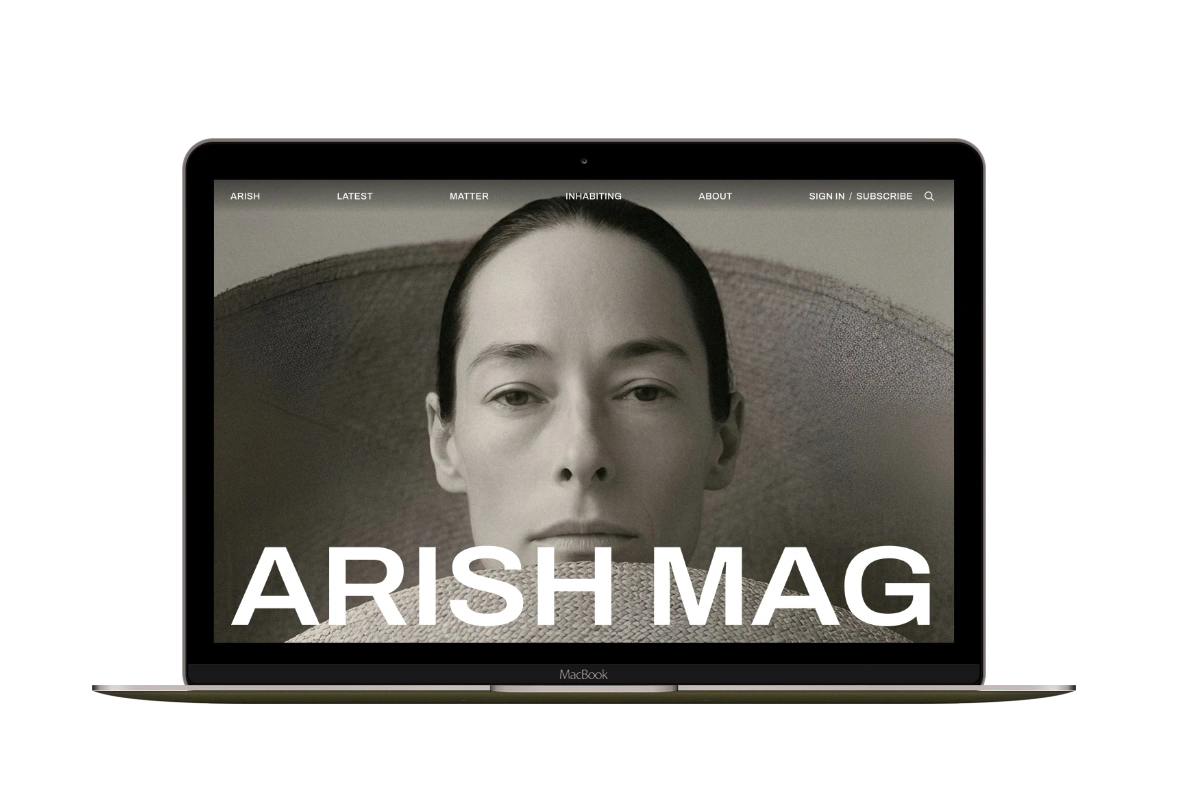
Arish
For visual magazines that lead with photography, film, and selected stories.
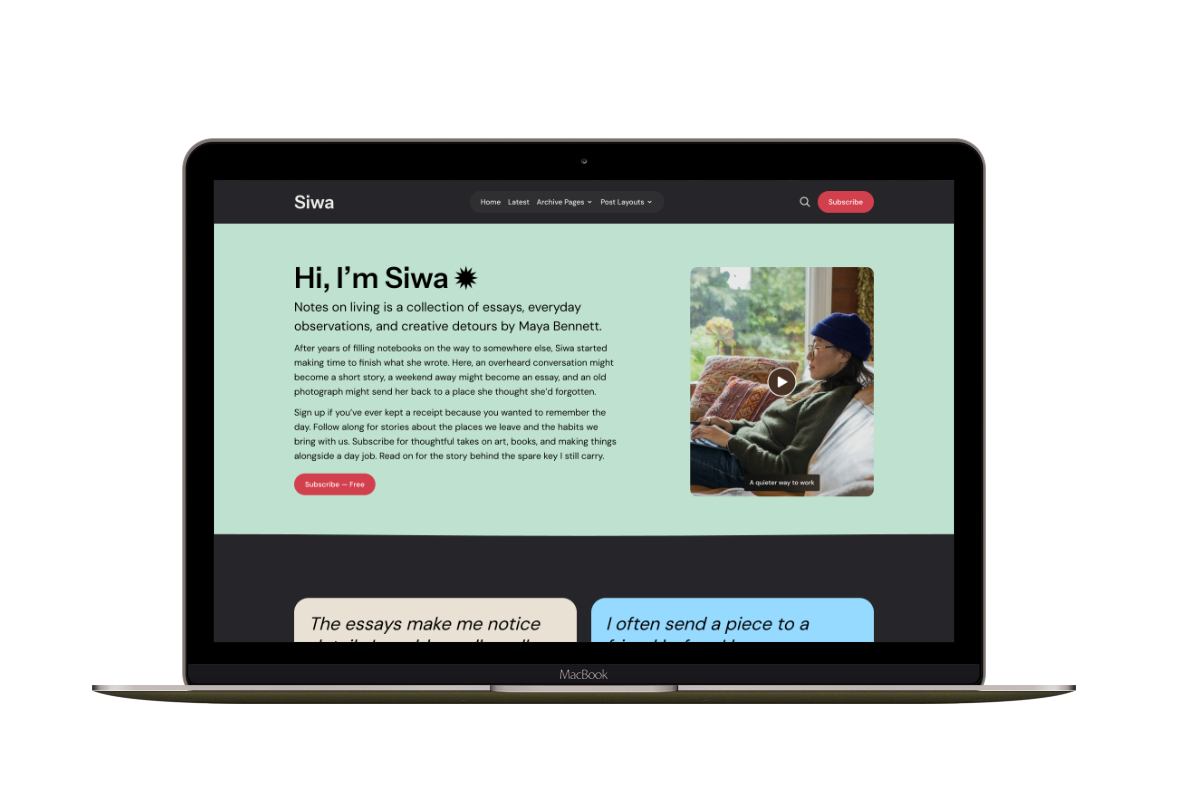
Siwa
A personal publication that introduces the writer before inviting readers into the stories.
Hanoi
An image-led magazine for creative stories, rich navigation, and long-form reading.
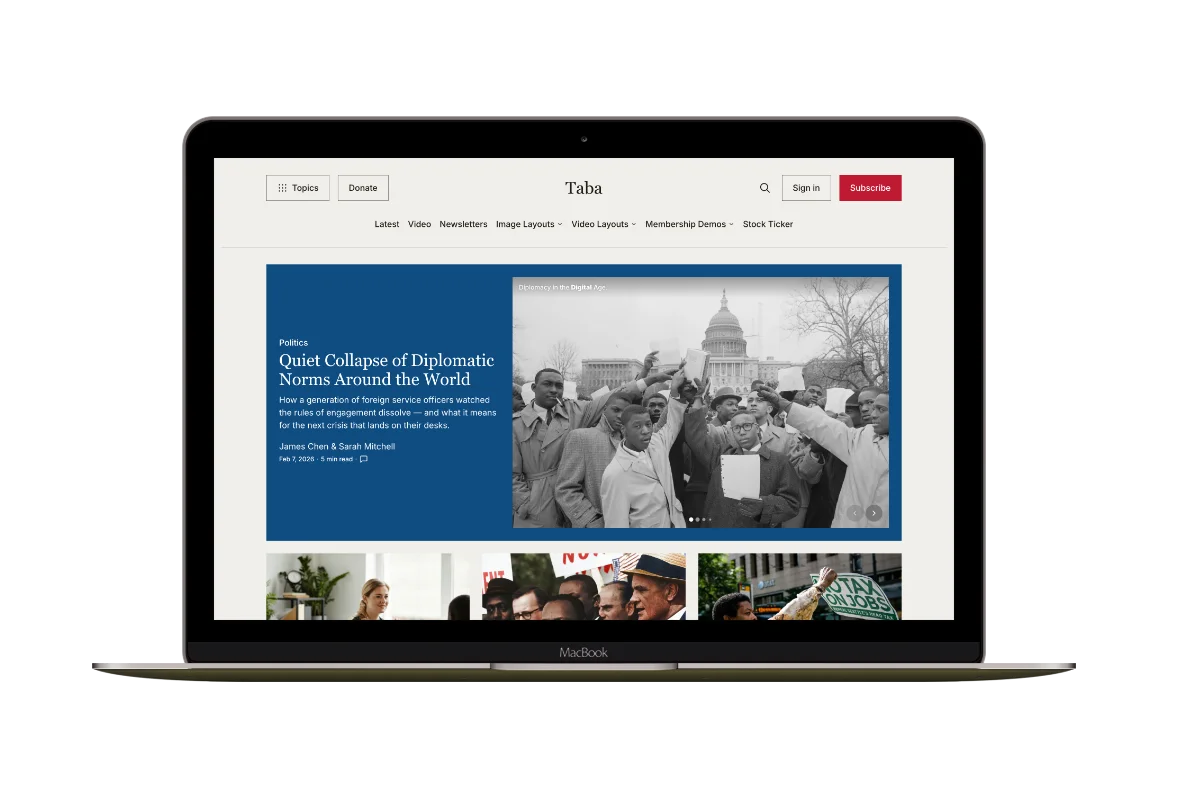
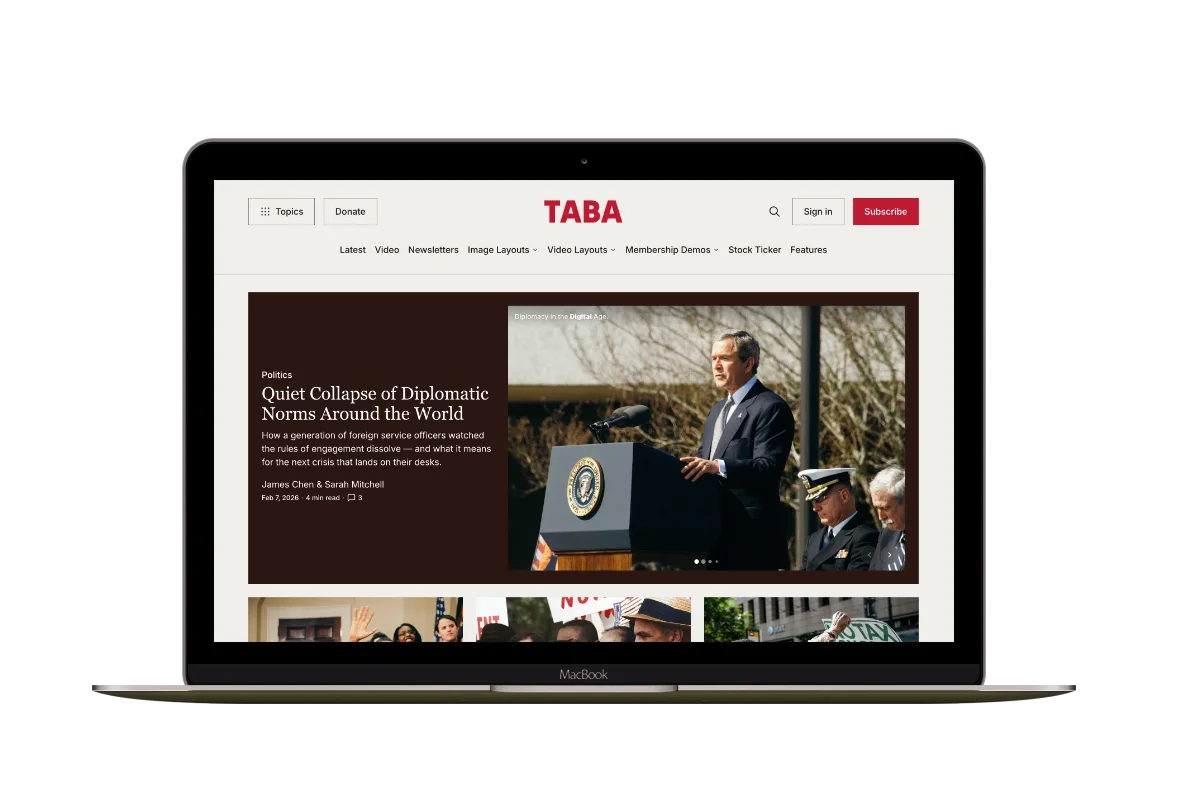
Taba
A newsroom front page for coverage across topics, video, and story formats.
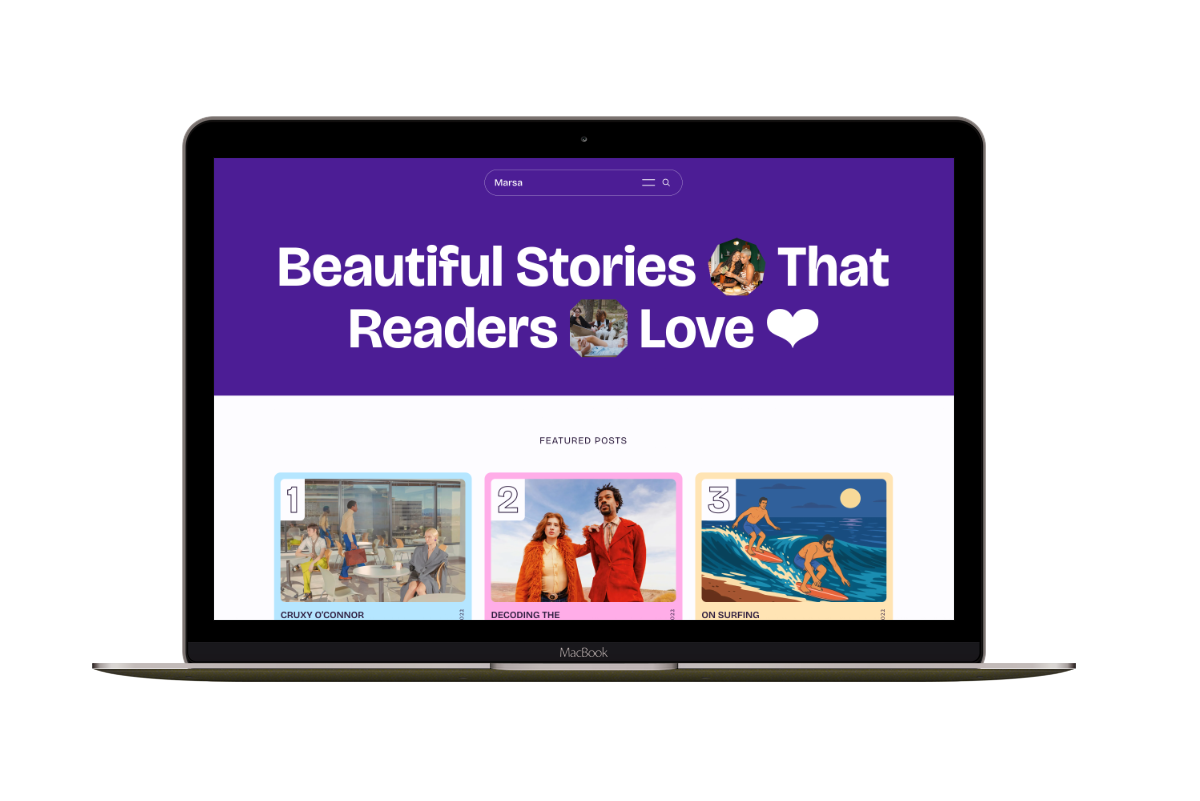
Marsa
A flexible publication homepage for featured stories, topics, and newsletters.
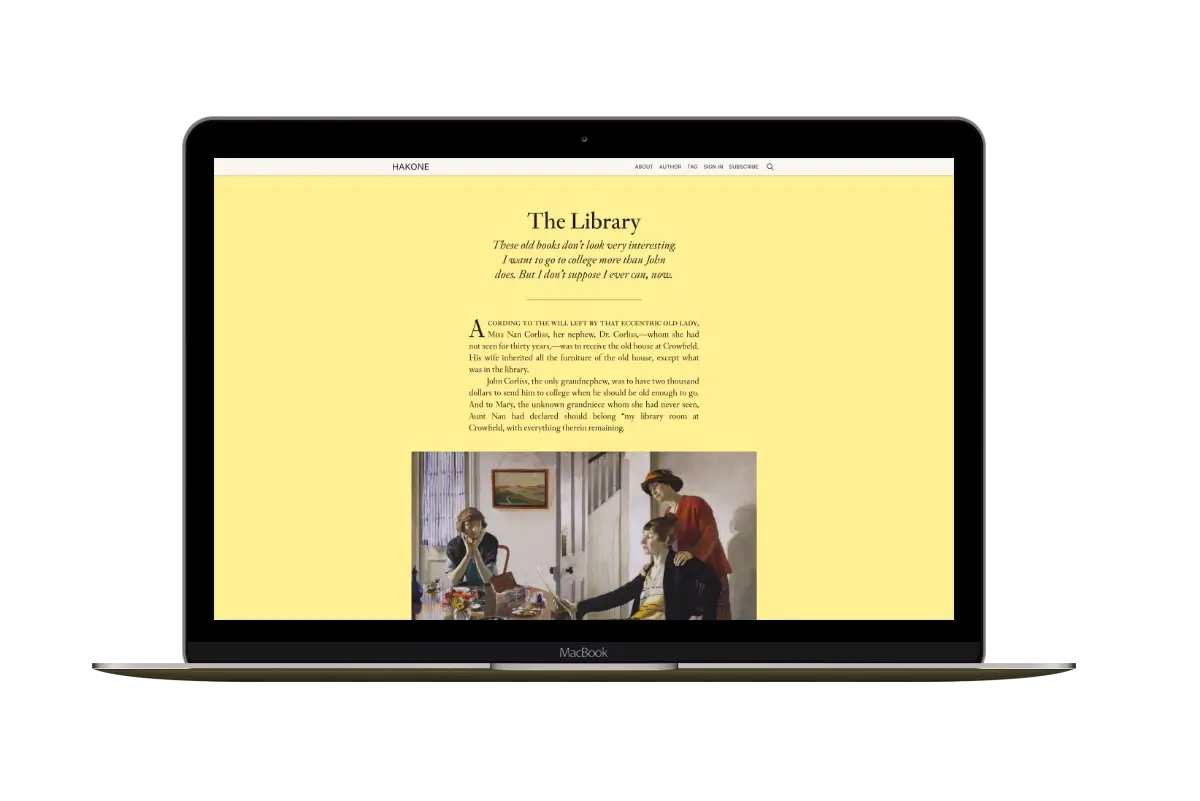
Hakone
For writers who want readers to browse complete posts on the homepage.