Why Your Ghost Tag Page Returns 404
If your Ghost tag page shows “Page not found,” first check its URL and whether the tag has any published posts.
The Tag URL
Open Tags in Ghost Admin and select the tag. Its Slug is the part of the address that identifies it. Copy the URL beneath that field rather than guessing from the display name. For example, a tag named Photography with the slug photography uses /tag/photography/.
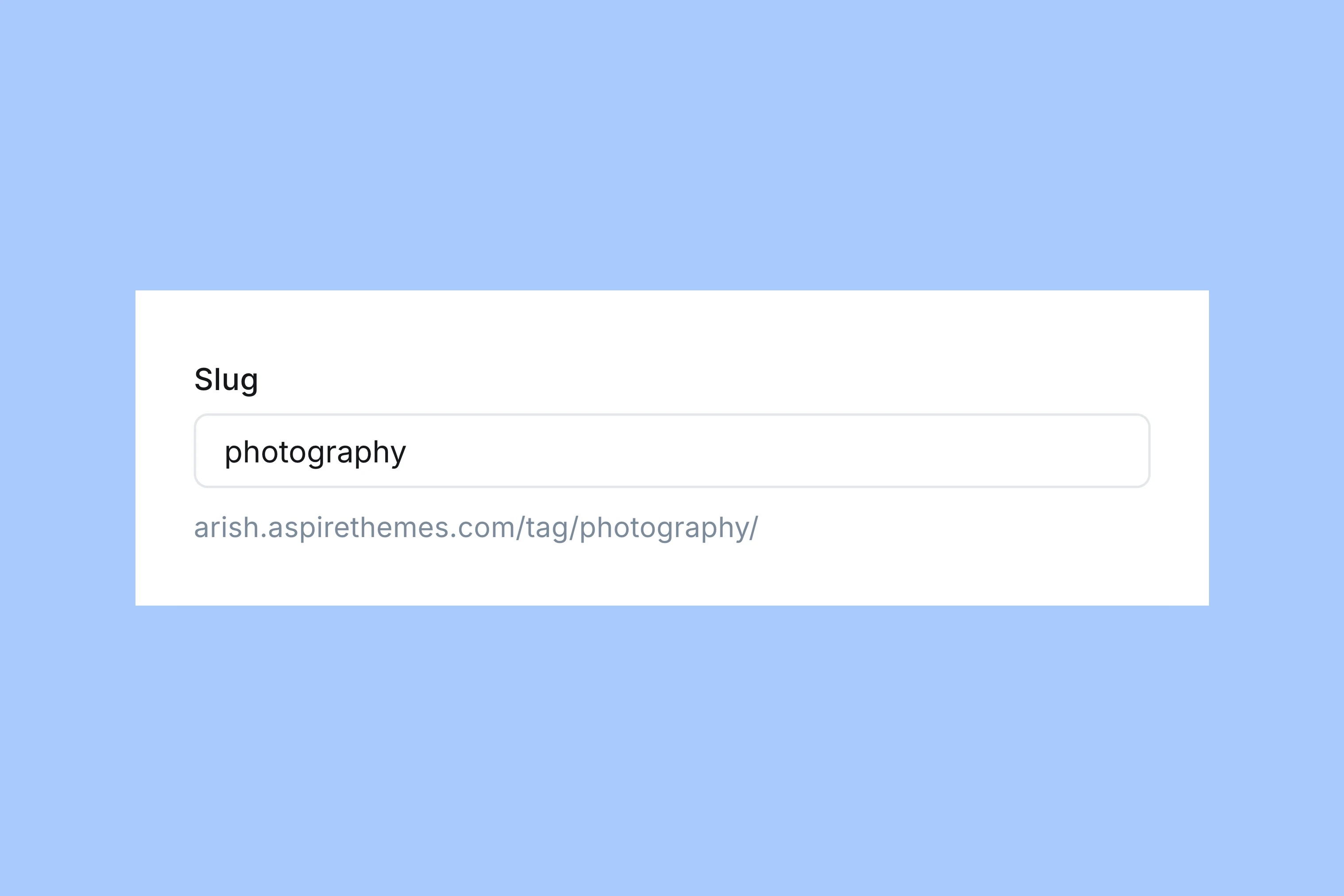
Check that the tag is public. Internal tags begin with # and organize content behind the scenes; they do not create public tag pages.
Open the copied URL in your browser. If it opens, update the menu or other link that led to the wrong address. If it still returns 404, check the posts assigned to the tag.
Published Posts
A tag archive lists posts with that tag. Ghost returns 404 when a default archive has no published posts, as discussed in the Ghost Forum.
Open Posts, choose the tag from the All tags menu and read each post’s status. Drafts and scheduled posts that have not gone live do not supply published content for the tag page.
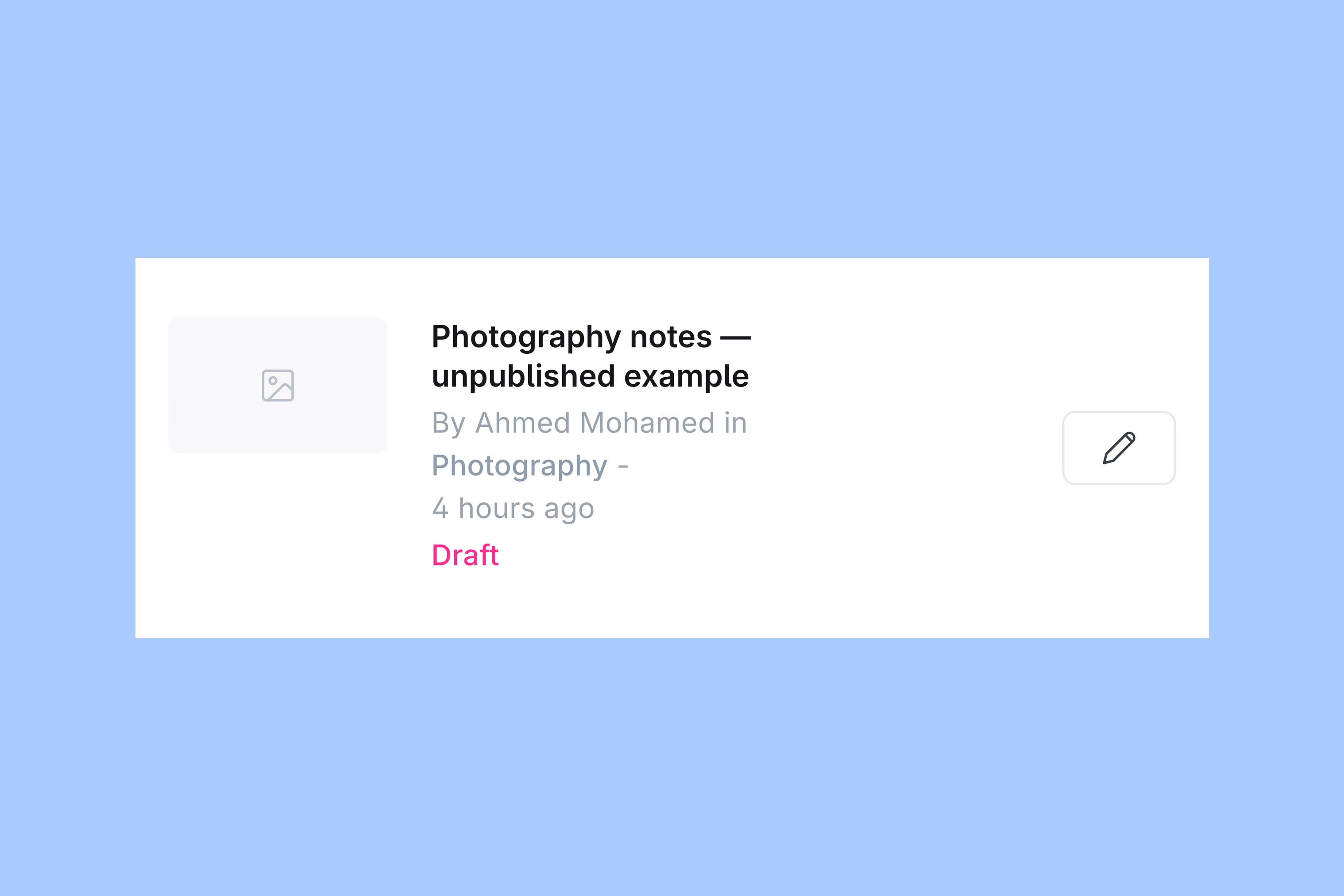
Once a tagged post is approved and published, open the copied tag URL again. The archive should list the post.
When Published Posts Exist
In Ghost Admin, open a published post and check its tags in the post settings. Confirm that the public tag you checked is assigned to it, then open the post’s URL to confirm it is available on the website. If the copied tag URL still fails, ask the person maintaining your site whether it uses custom routing: rules that change which pages appear at particular addresses.
Ghost’s routing documentation explains these rules in routes.yaml. Contact the person or provider maintaining your Ghost installation with the tag URL, the URL of a published post assigned to it and whether custom routing is enabled, if you know.
More from the Blog
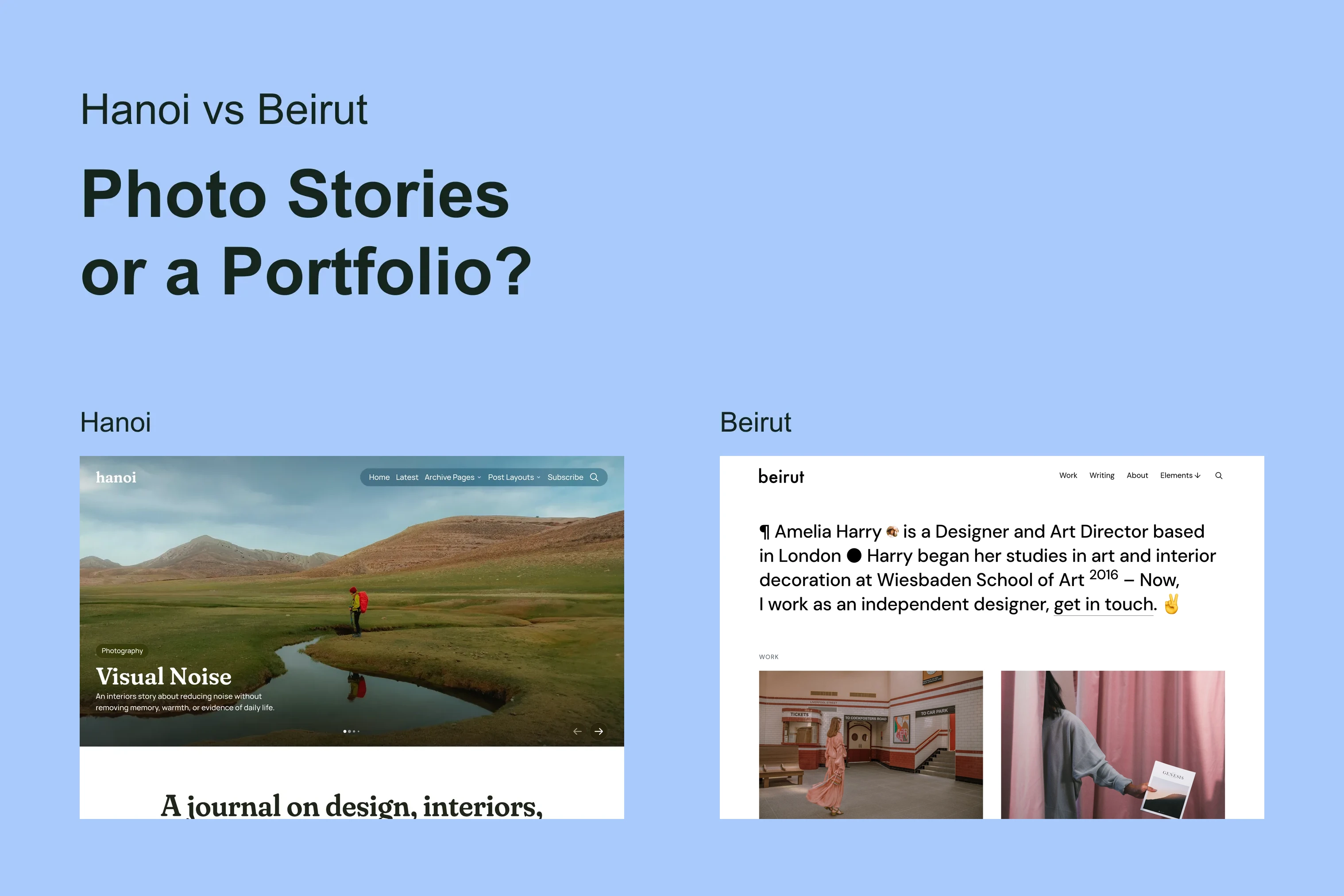
Latest Ghost Themes

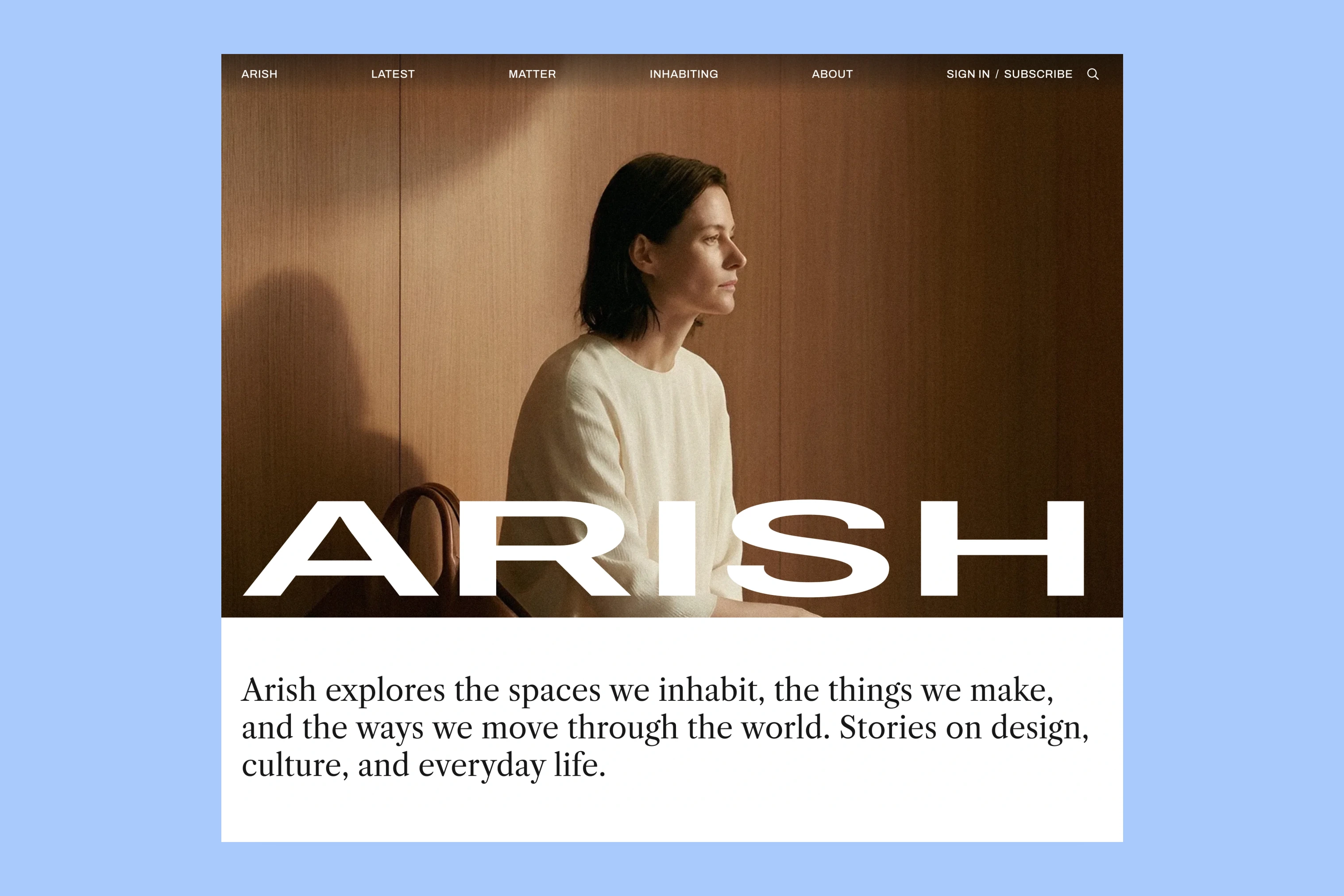
Arish
For visual magazines that lead with photography, film, and selected stories.
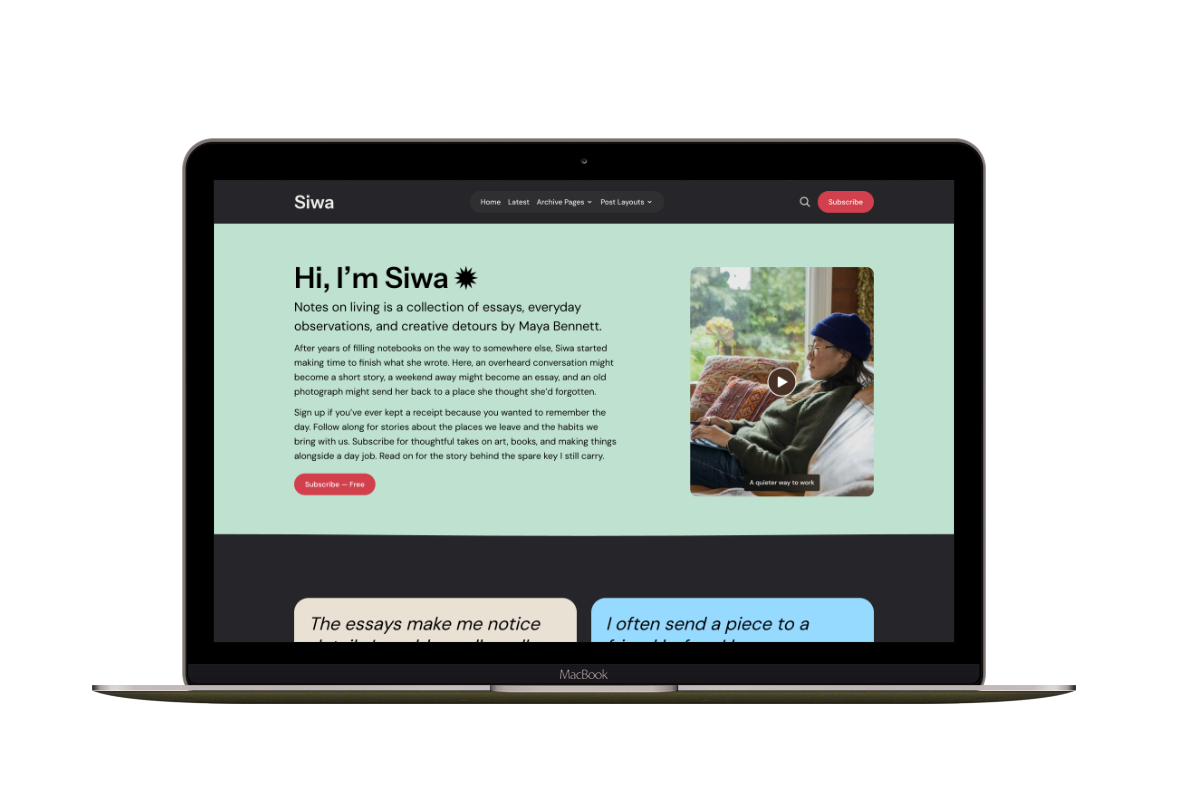
Siwa
A personal publication that introduces the writer before inviting readers into the stories.
Hanoi
An image-led magazine for creative stories, rich navigation, and long-form reading.
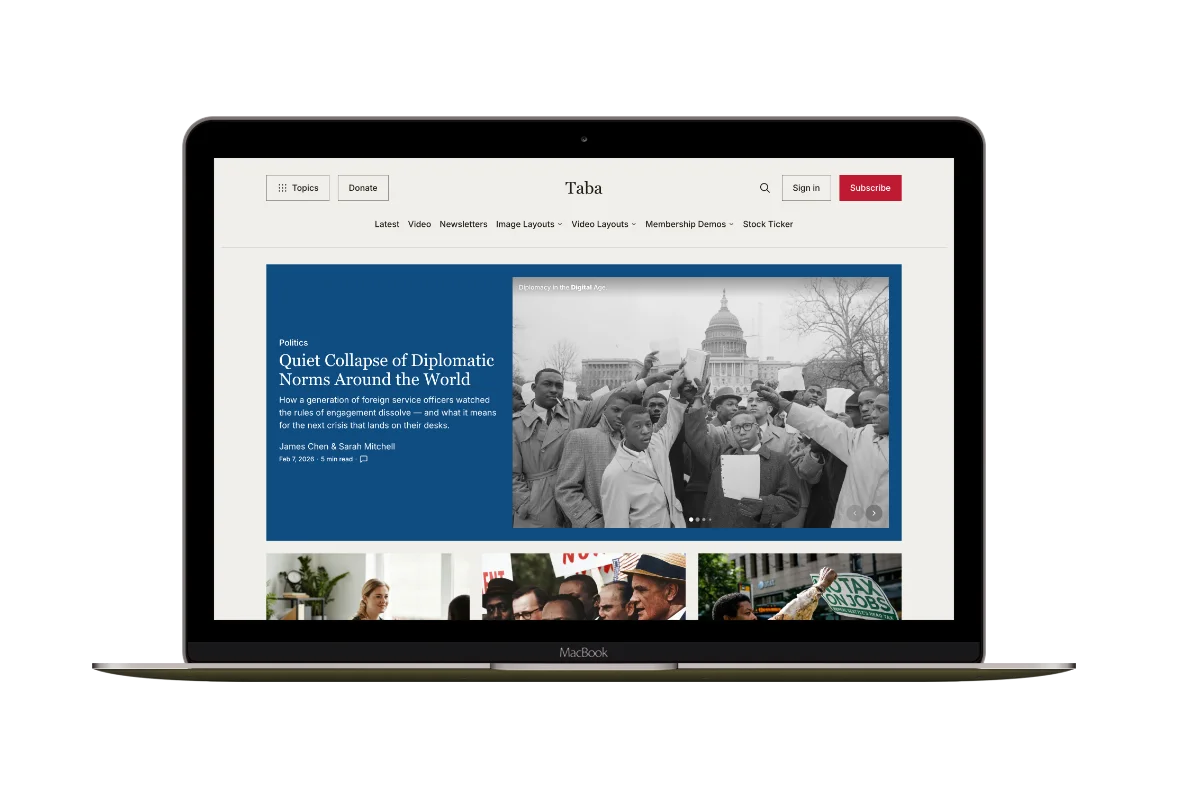
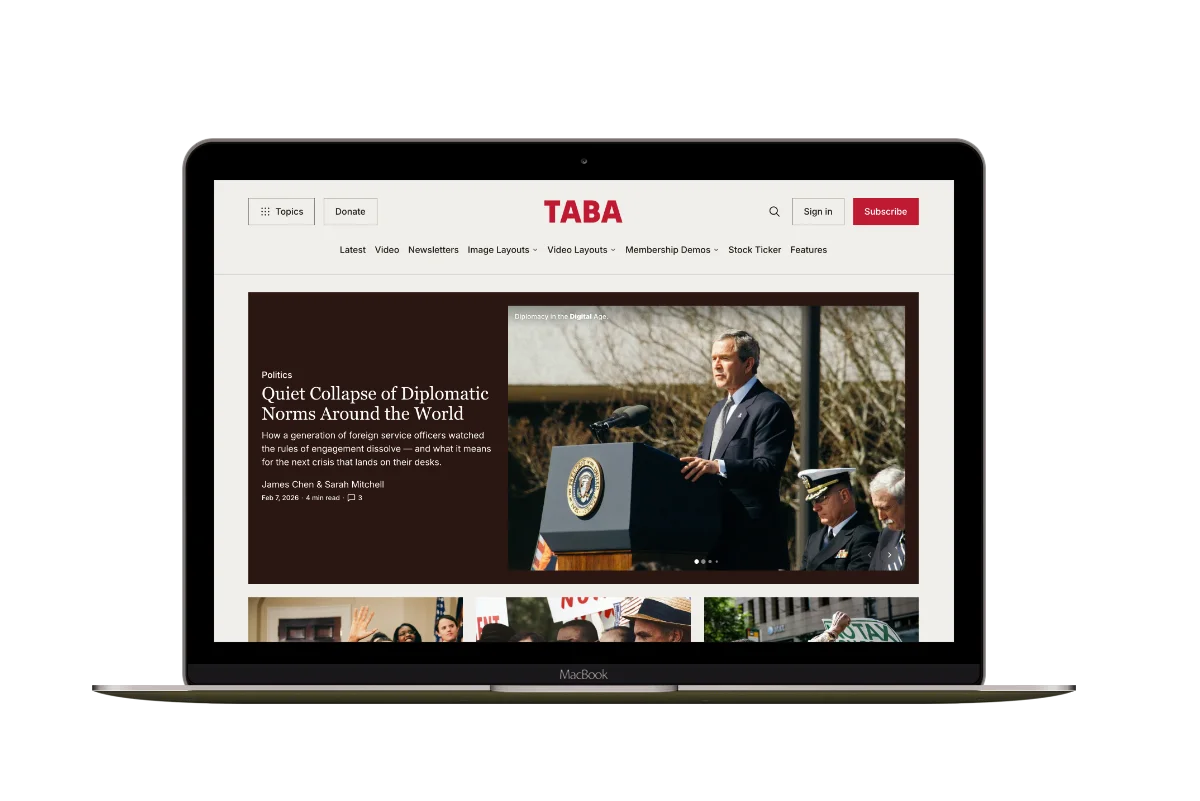
Taba
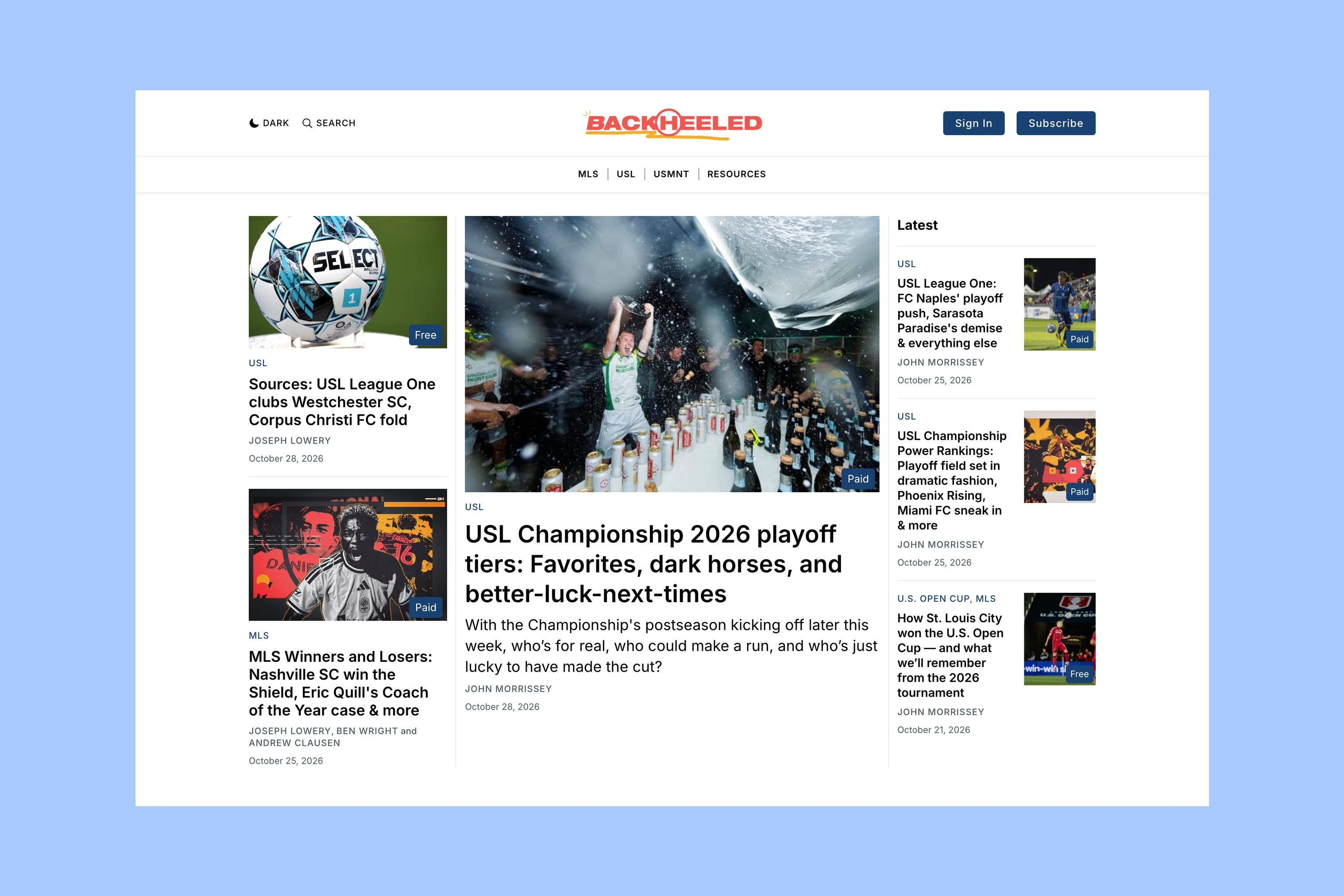
A newsroom front page for coverage across topics, video, and story formats.

Marsa
A flexible publication homepage for featured stories, topics, and newsletters.
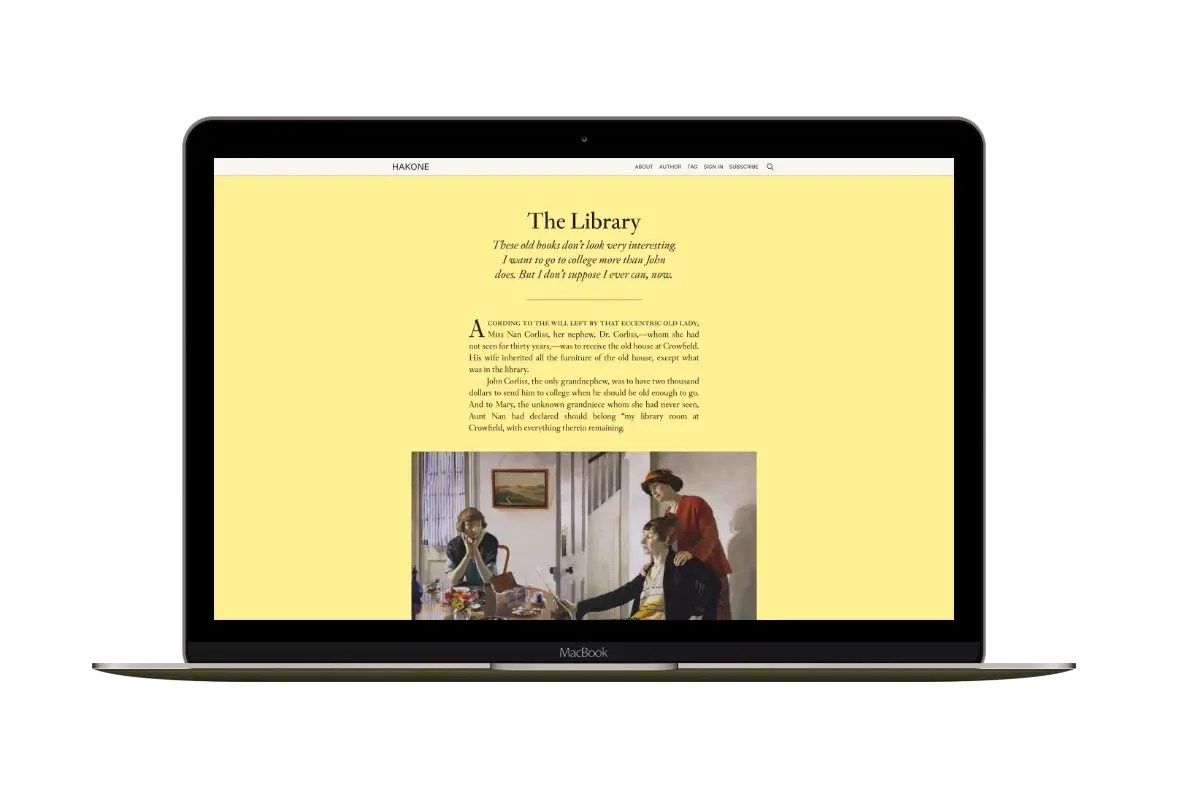
Hakone
For writers who want readers to browse complete posts on the homepage.