How Multiple Ghost Newsletters Work
A weekly newsletter and an occasional studio letter can share one Ghost website while readers choose which emails to receive. Each newsletter has its own subscriptions, so someone can receive Weekly Edit, Studio Letter or both.
These choices are separate from post tags and paid membership tiers. Tags organize website posts; tiers control access to paid content. Creating a tag called “Weekly” does not create a newsletter subscription.
Create a Newsletter
On Ghost(Pro), check your plan’s newsletter limit first. Starter includes one newsletter; adding another requires a higher plan. Self-hosted sites need email delivery configured before they can send newsletters.
In Ghost Admin, open Settings → Membership → Newsletters and check that Newsletter sending is enabled. Choose Add newsletter, then enter a name and description that explain what readers will receive. For example, name it Weekly Edit and describe the weekly articles readers will receive.
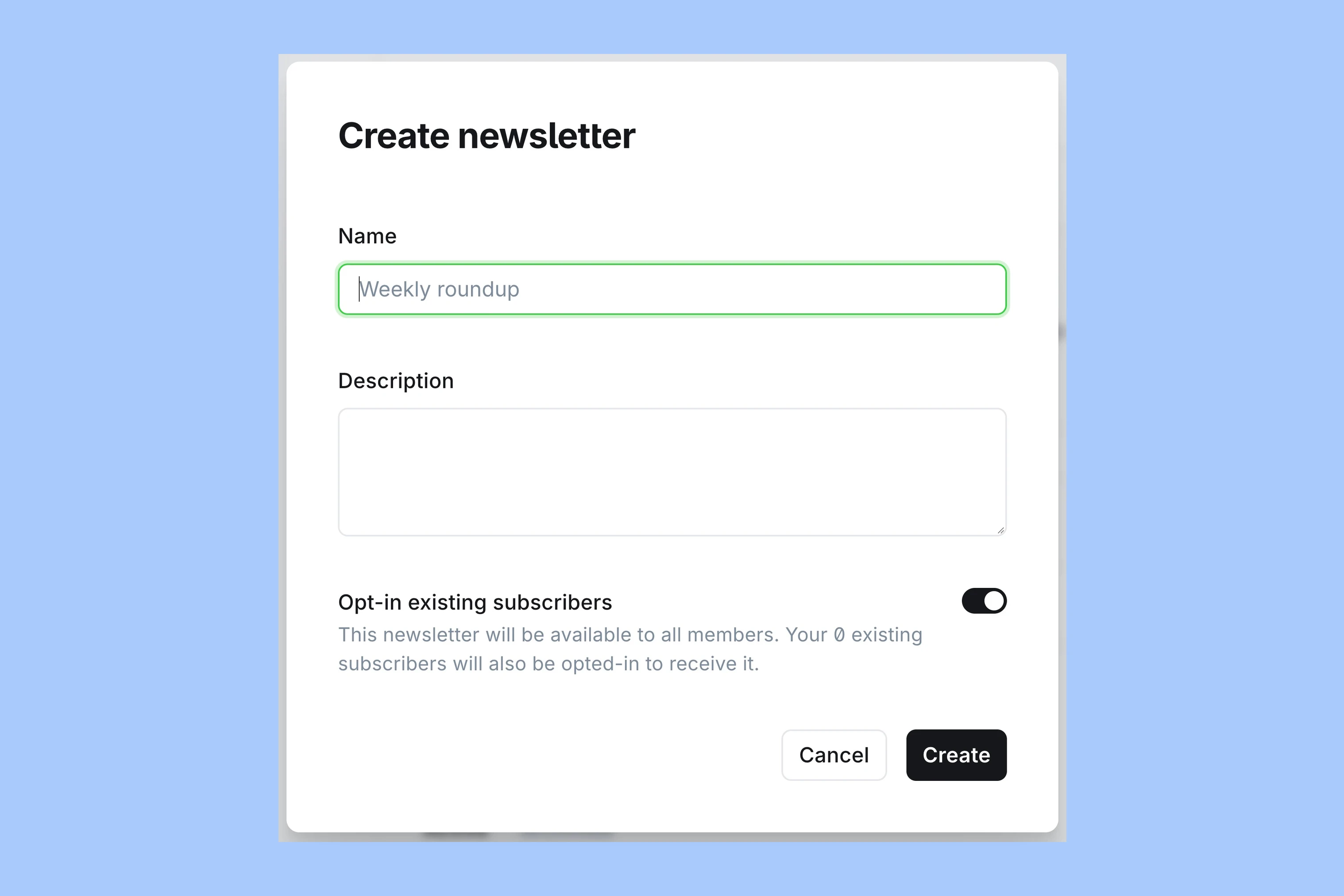
Enable Opt-in existing subscribers to add existing subscribers to the new newsletter, or leave it off so they can choose to join. Select Create.
New Member Defaults
Back in Newsletters, select Edit beside Weekly Edit, then open its General tab. Under Member settings, Subscribe new members on signup controls the default for people who join later. You could enable it for Weekly Edit and leave it off for Studio Letter.
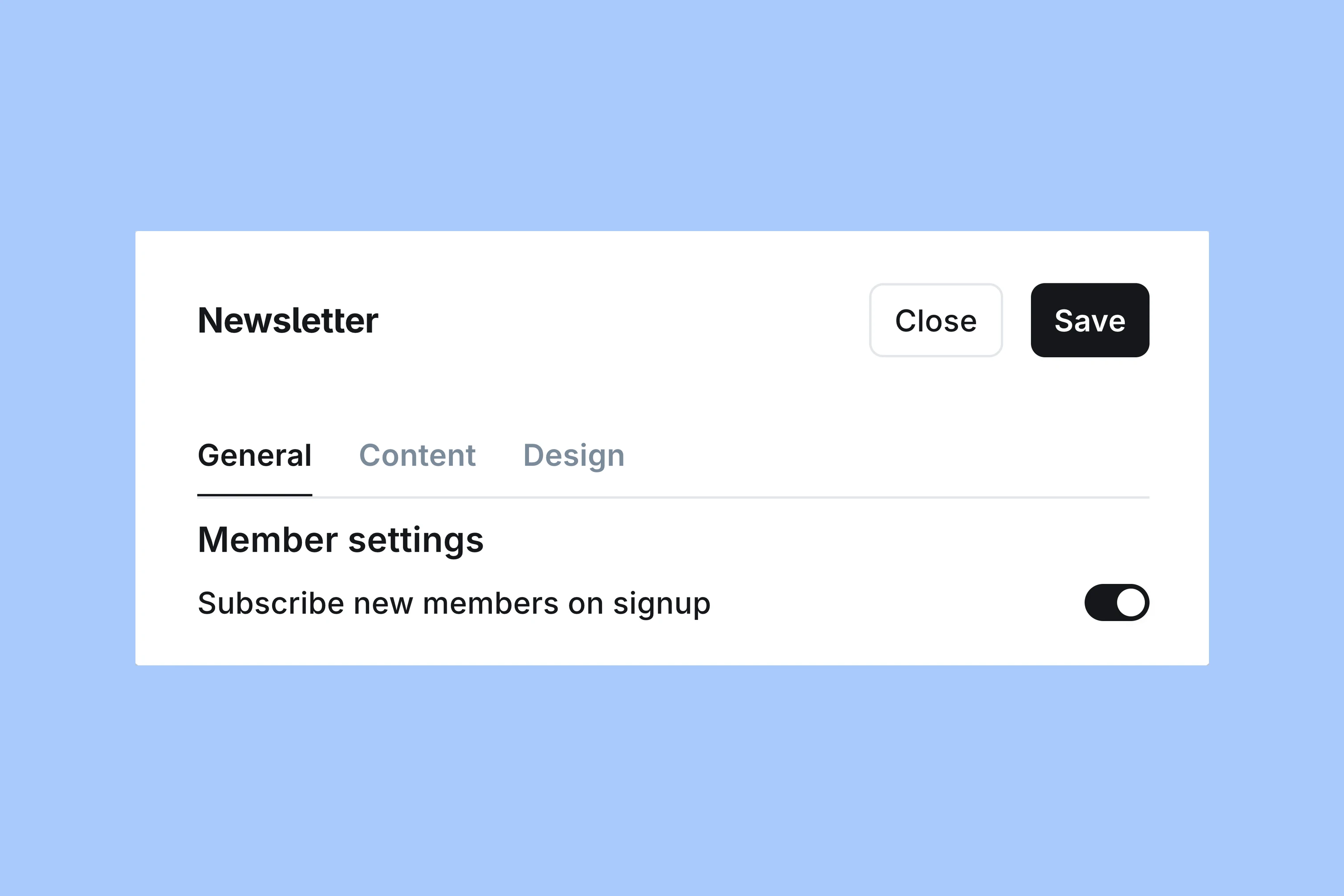
This setting applies to new signups; the choice in the creation dialog applies to existing subscribers. Review both so each group starts with the subscriptions you intend.
Reader Choices
Readers can choose newsletters through Portal, Ghost’s signup and account interface. Existing members can sign in and manage their email preferences from their account. To check this yourself, sign in as a member and open /#/portal/account/newsletters on your website.
Your theme may also show newsletter choices in its signup form. In this example from the Siwa theme, Weekly Edit is selected, while Field Notes and Studio Letter are optional.
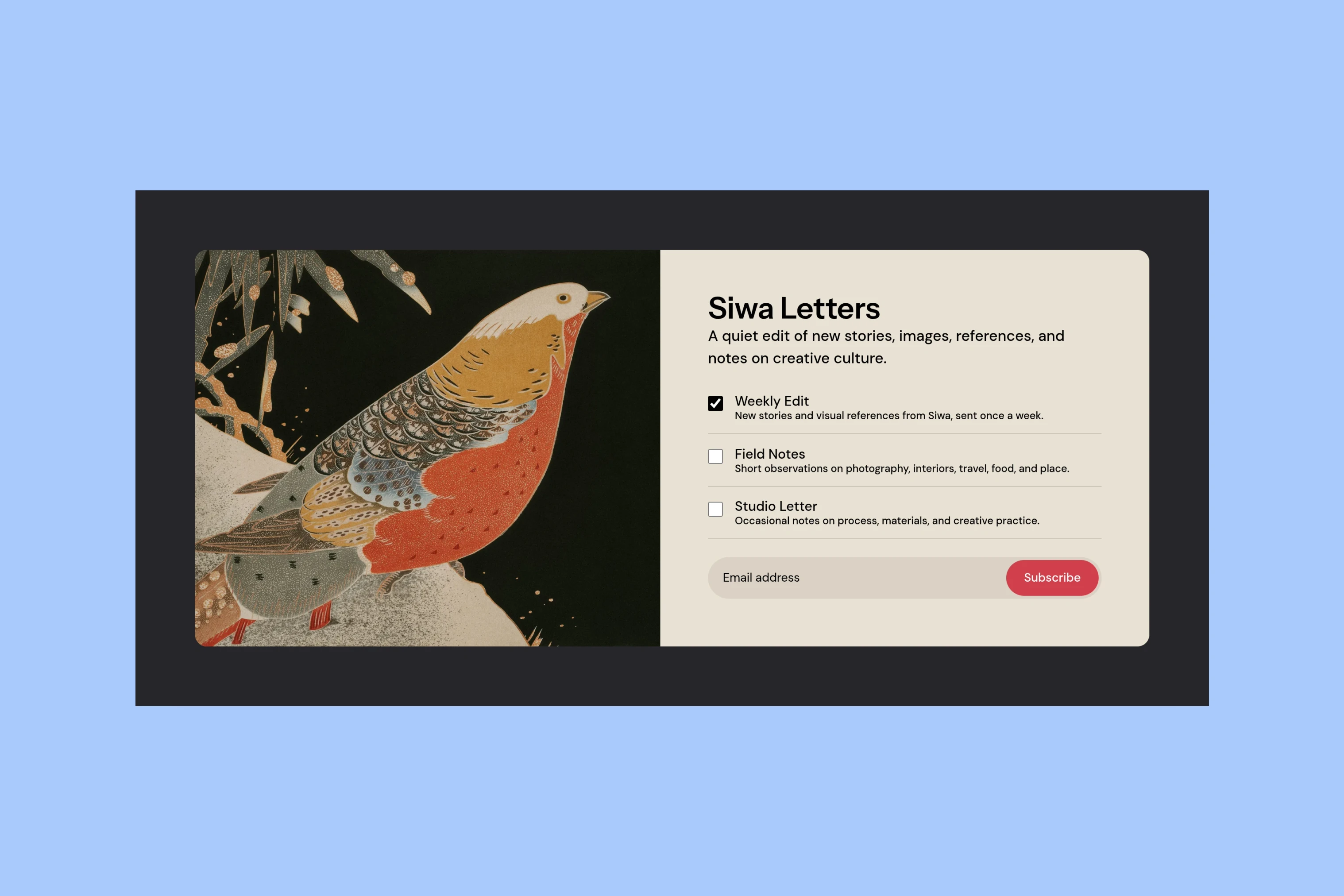
After adding a newsletter, check the choices in Portal and your theme’s form. If a custom form omits a newsletter, consult the theme’s documentation or its developer. If the form has only an email field, its description should explain which newsletters a signup includes.
Choose the Send Audience
Write your email as a post in the Ghost editor. A weekly roundup needs its own written content; creating a newsletter does not automatically gather your posts into a digest.
Select Publish to open the delivery options. Choose Publish and email to put the post on your website and email it, or Email only to send it without a website post. Publish only sends no email.
Open the audience row beneath the delivery options, then choose the list from the Newsletter dropdown. For the weekly email in this example, choose Weekly Edit. Check any free or paid member filter as well: the recipients must match both the newsletter subscription and the audience filter.
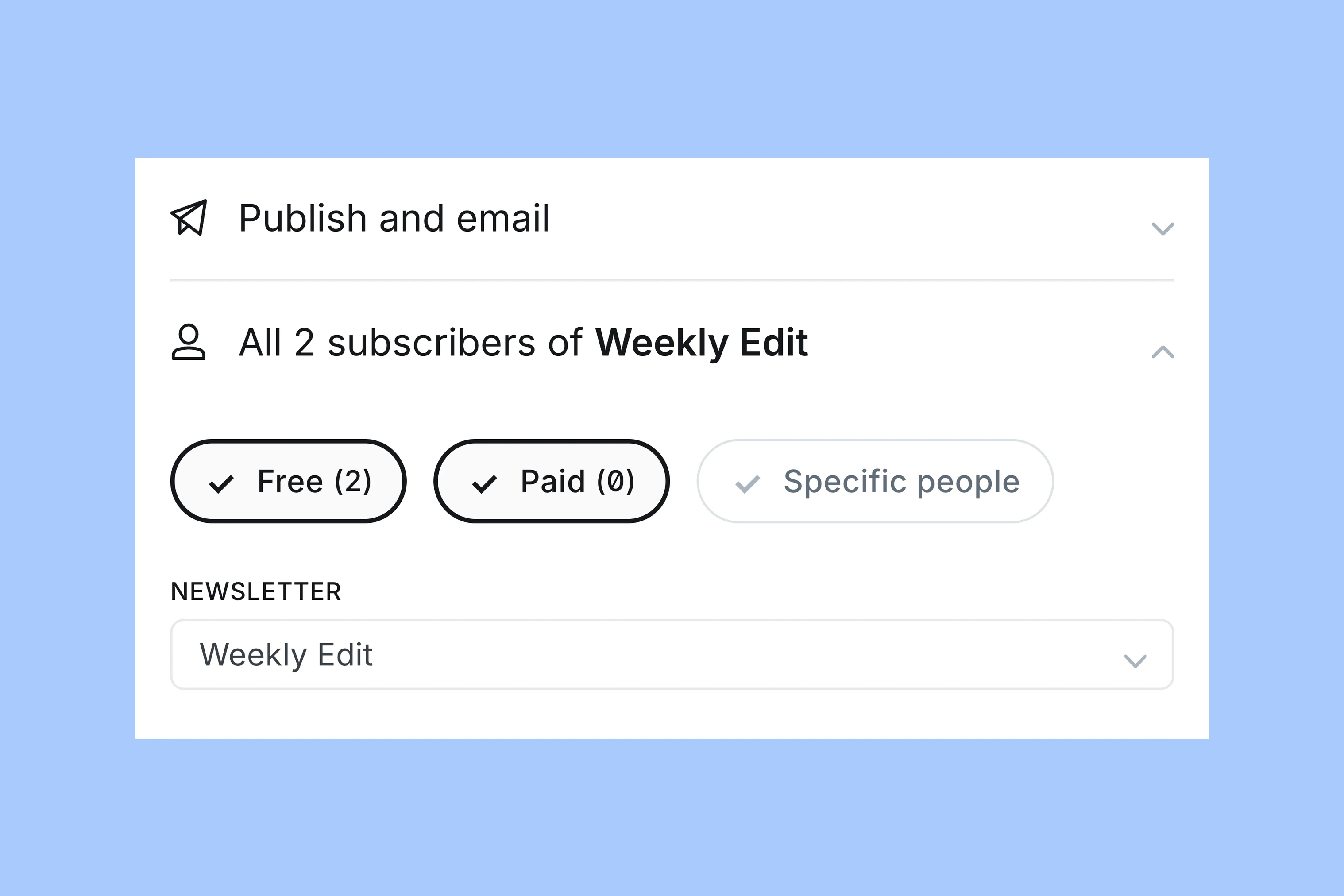
Before confirming the send, read Ghost’s final summary and check the newsletter name and recipient count. If either is unexpected, go back and correct the audience selection. Ghost’s email delivery guide explains the publishing flow.
More from the Blog
Latest Ghost Themes
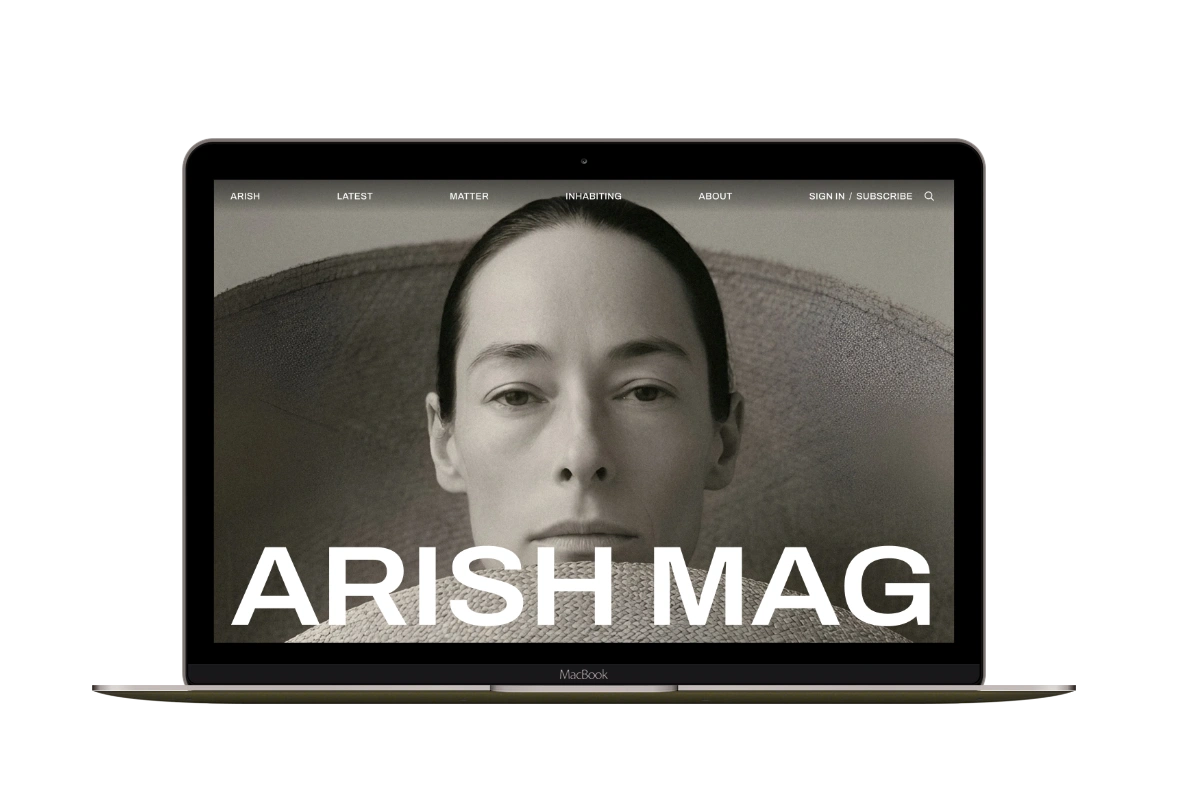
Arish
For visual magazines that lead with photography, film, and selected stories.
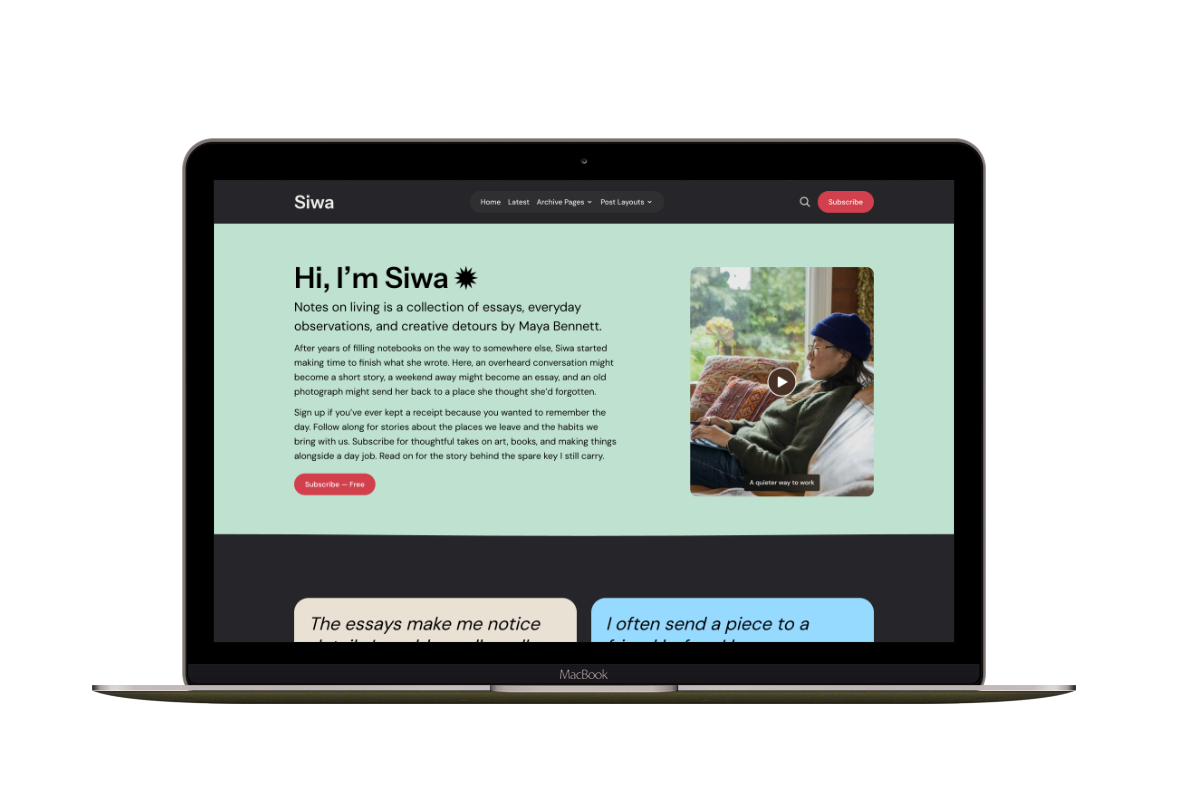
Siwa
A personal publication that introduces the writer before inviting readers into the stories.
Hanoi
An image-led magazine for creative stories, rich navigation, and long-form reading.
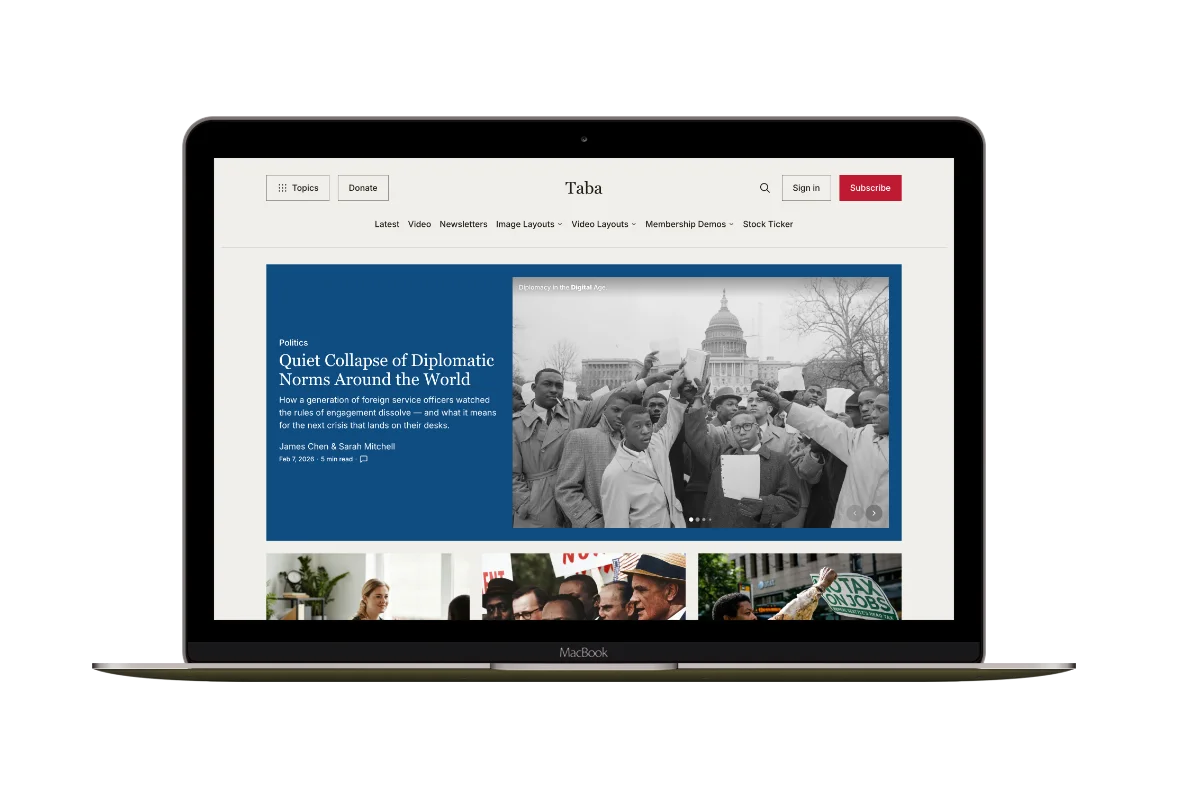
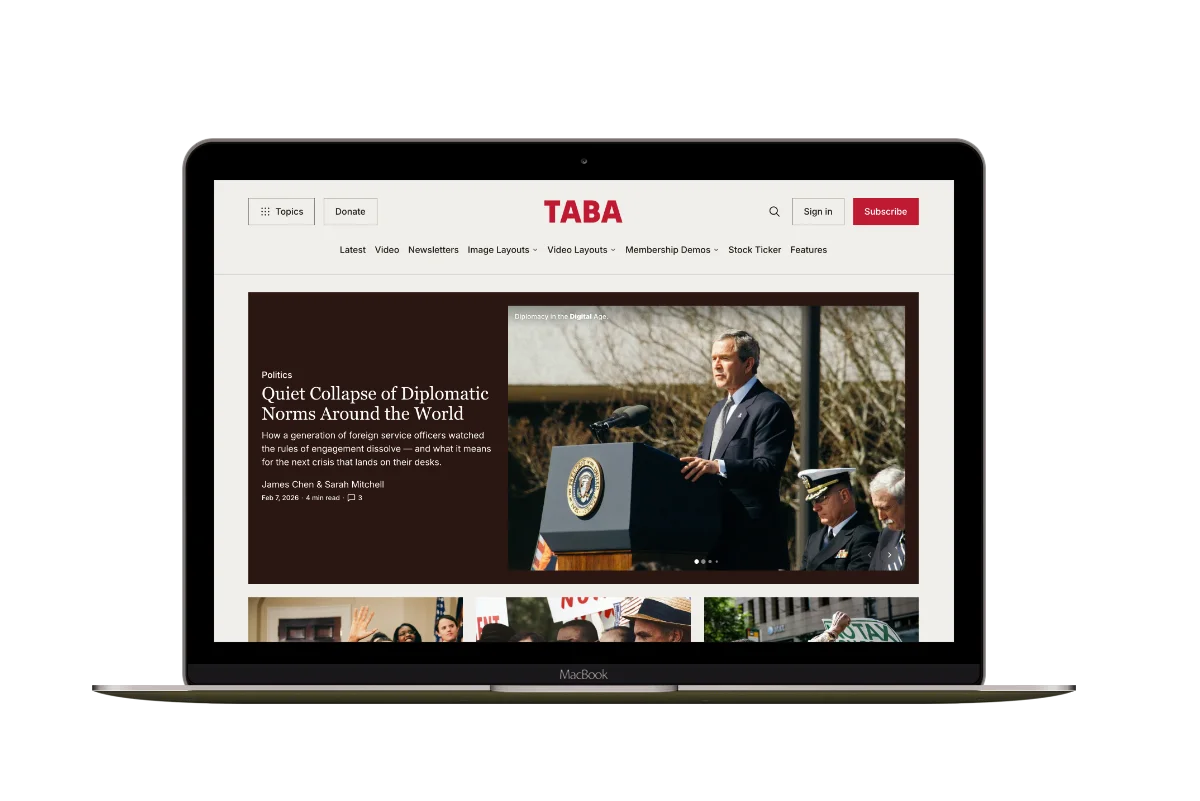
Taba
A newsroom front page for coverage across topics, video, and story formats.
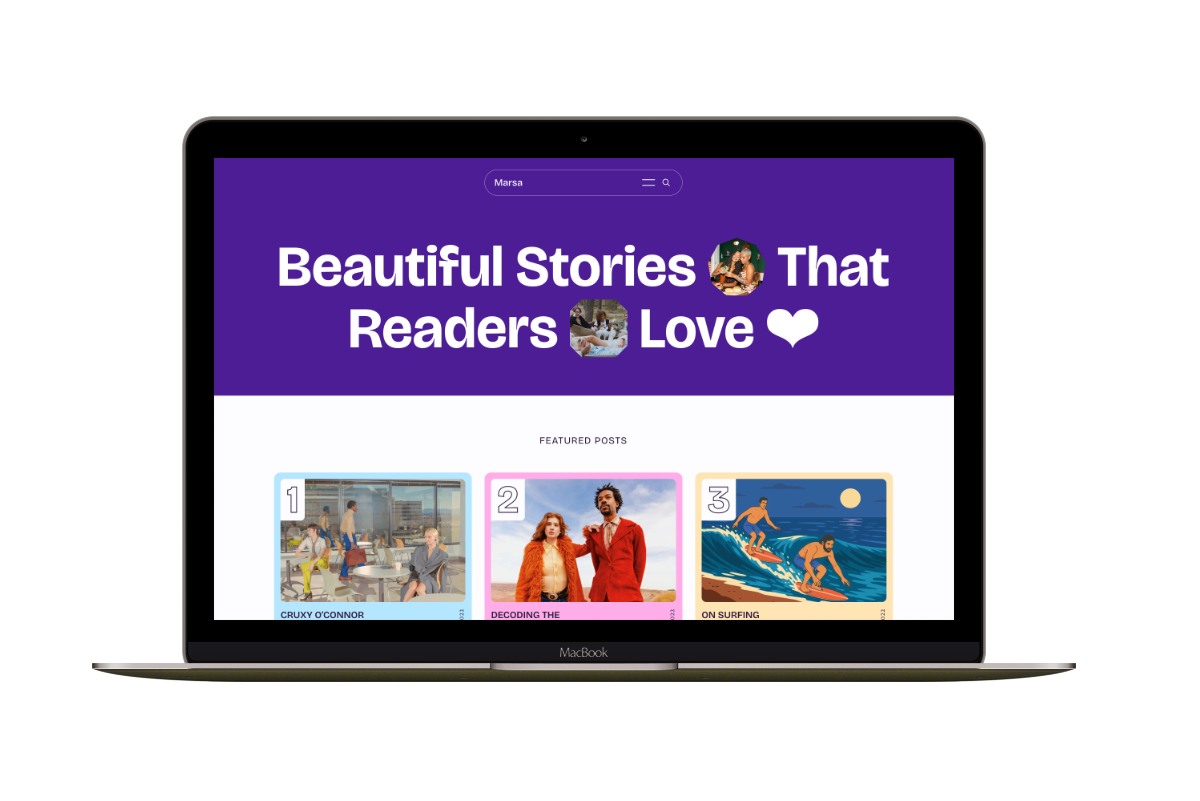
Marsa
A flexible publication homepage for featured stories, topics, and newsletters.
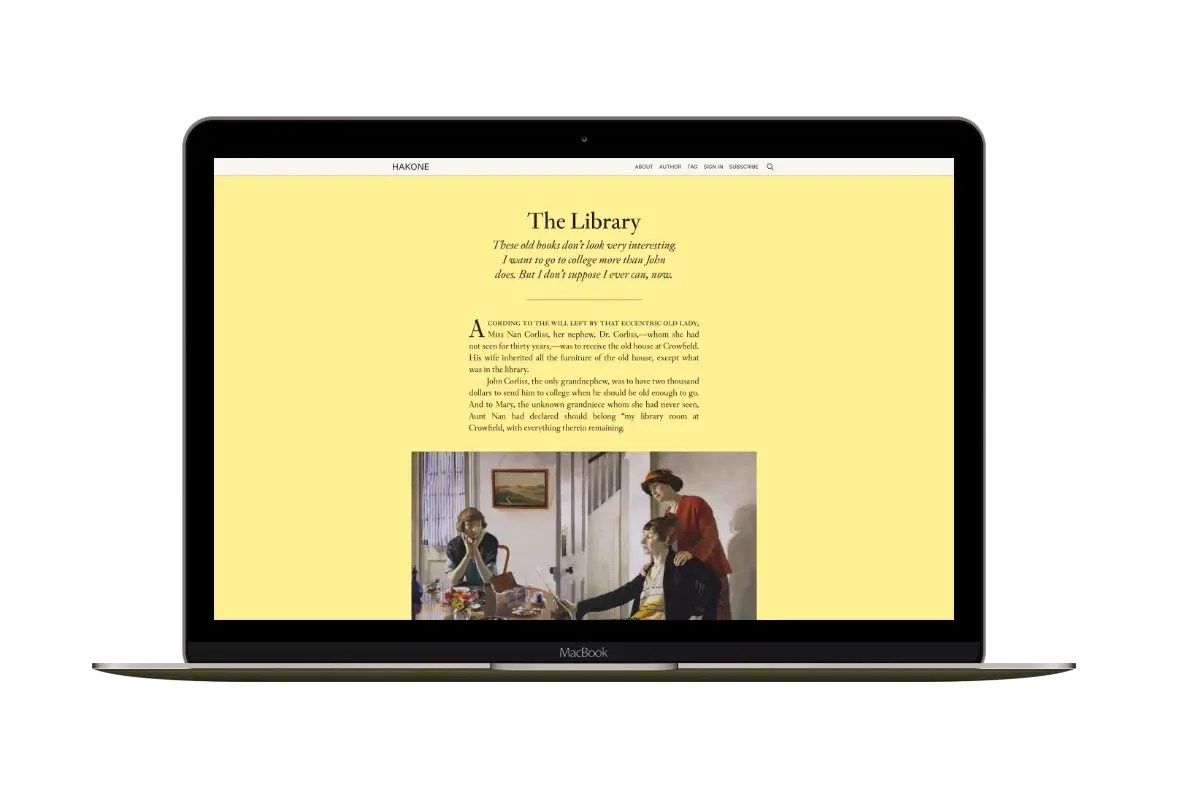
Hakone
For writers who want readers to browse complete posts on the homepage.