Why Ghost Newsletter Emails Look Different
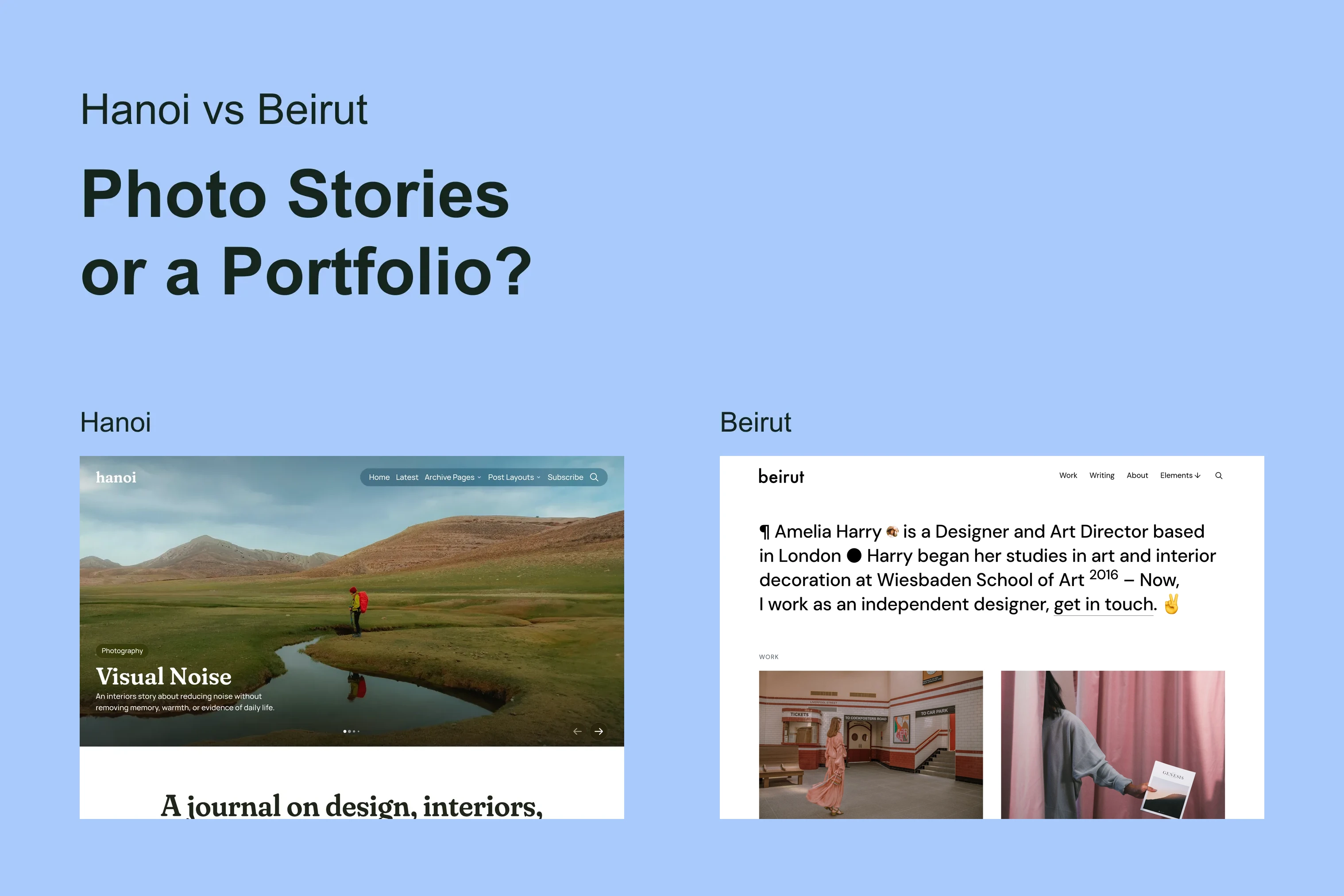
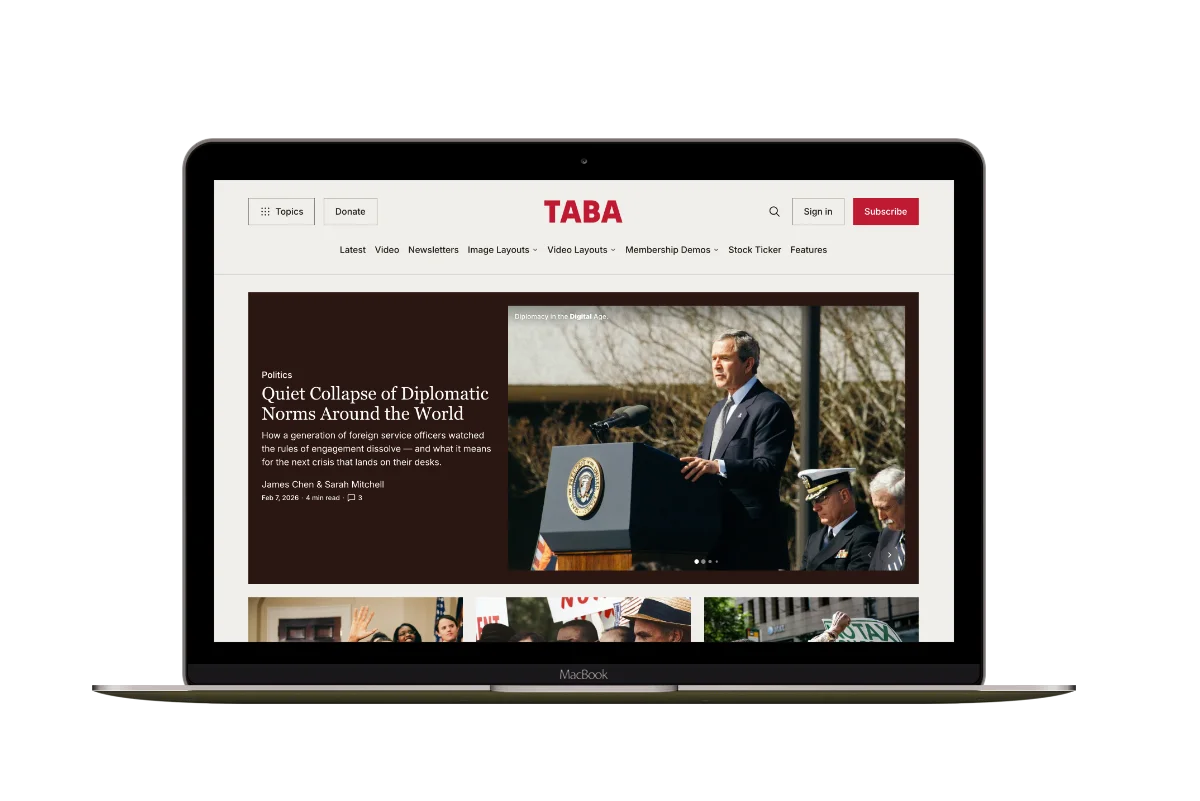
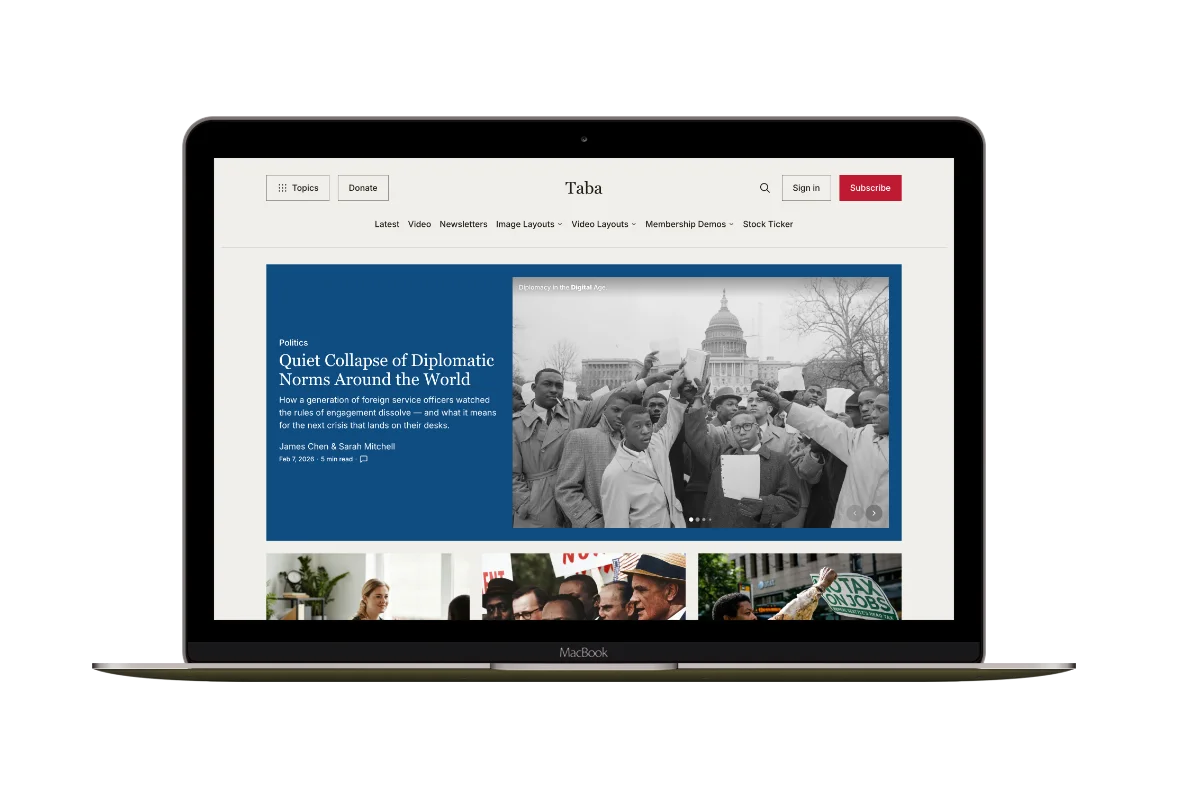
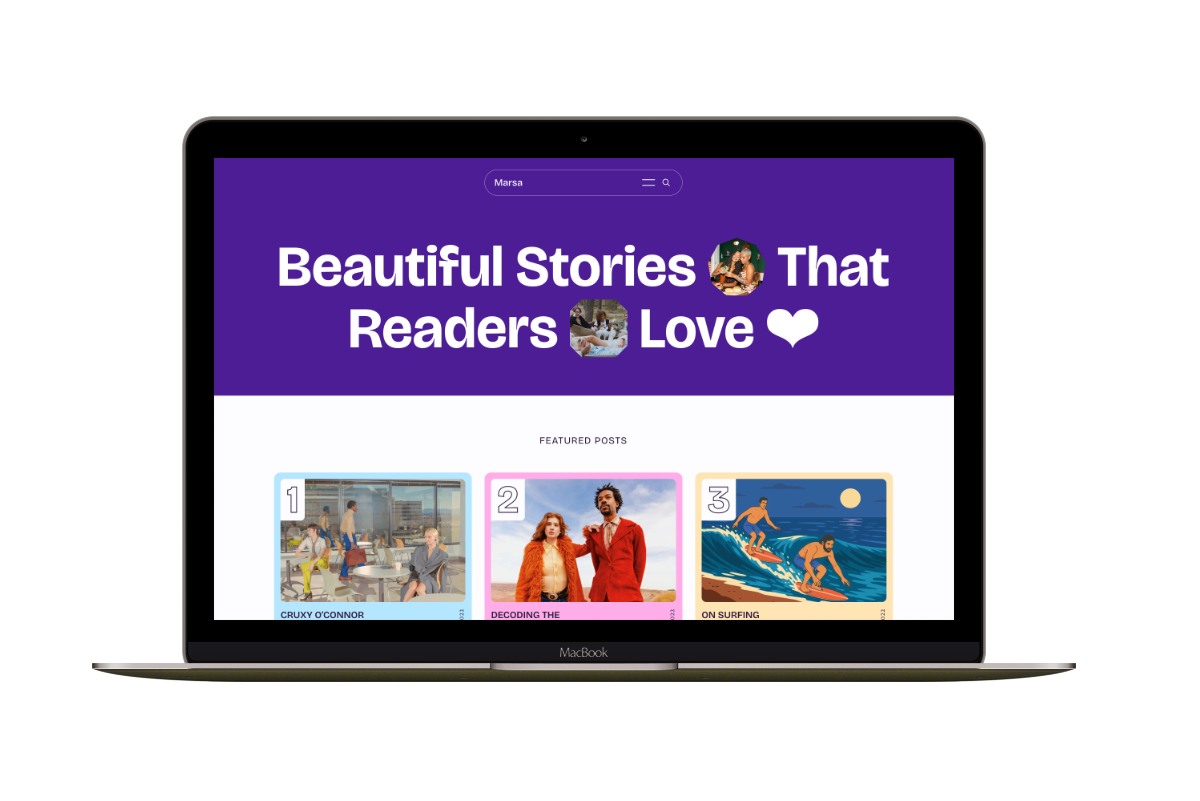
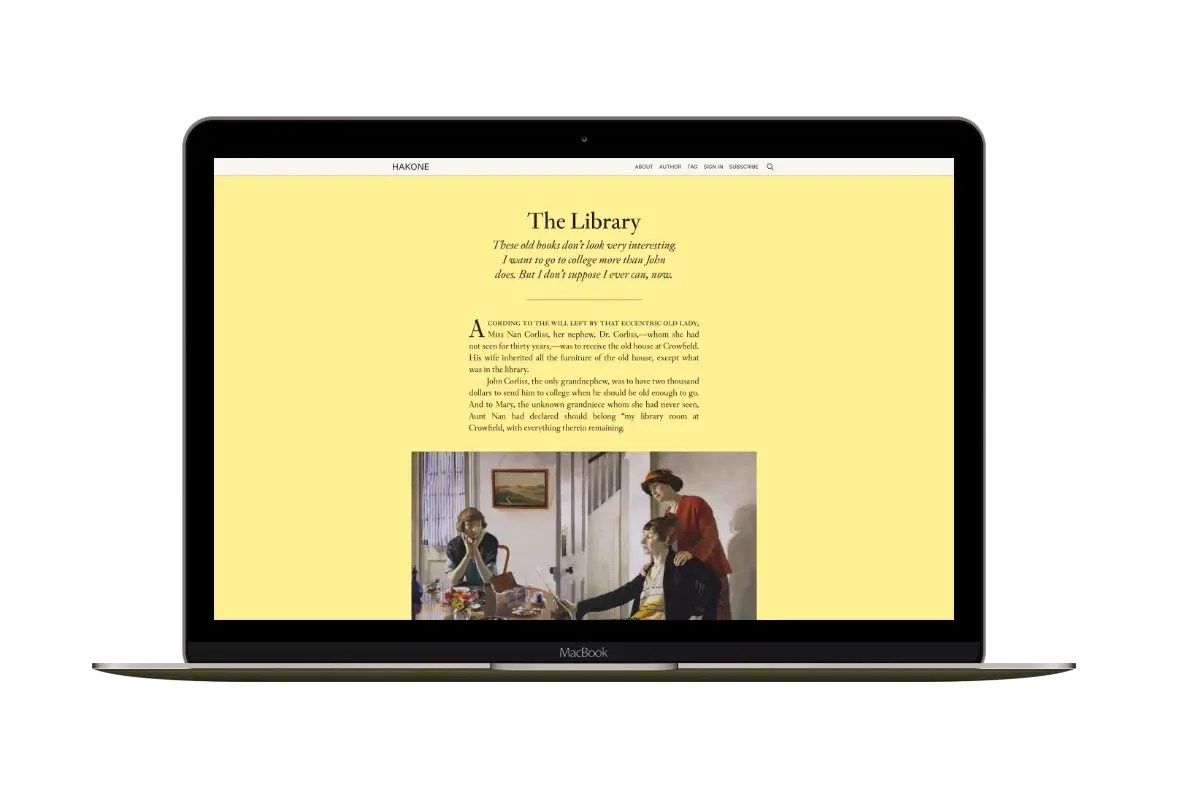
You can publish a Ghost post on your website and send it as a newsletter. The writing comes from the same editor, but the two versions have separate designs. Your theme controls the website; Ghost’s newsletter template controls the email.
To change the email’s appearance, use the newsletter settings in Ghost Admin.
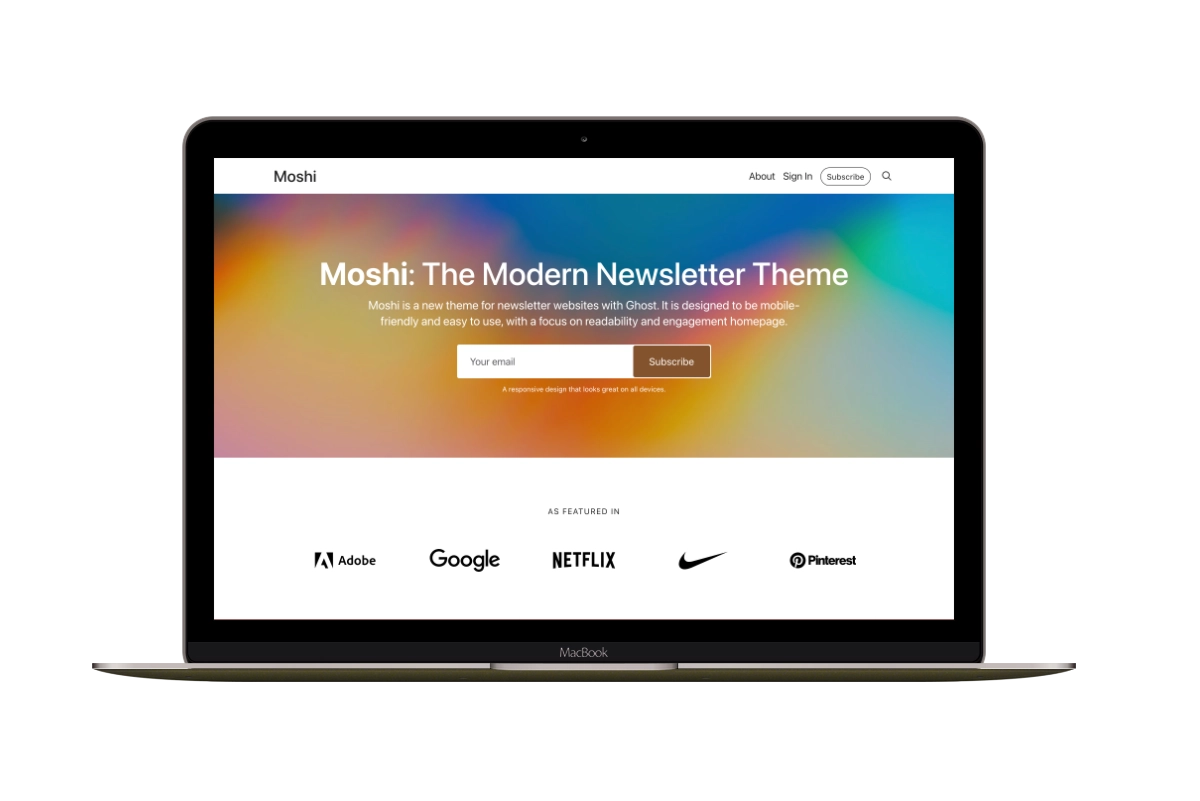
Your Theme Controls the Website
The theme determines how visitors see your homepage, article pages, and other website layouts. Its design options are under Settings → Site → Design & branding → Customize.
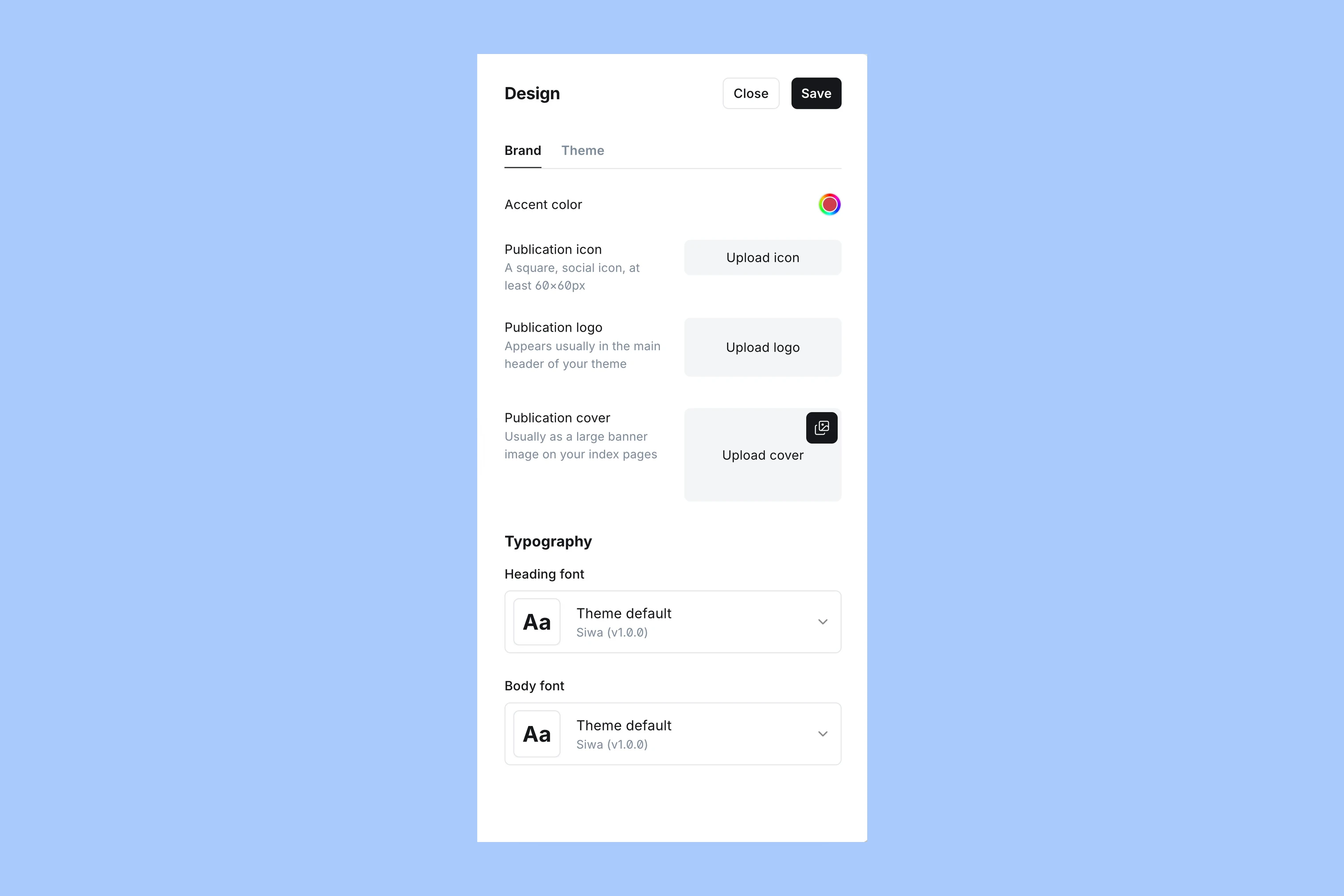
Ghost’s website design guide explains the website controls.
The Newsletter Has Its Own Settings
Open Settings → Membership → Newsletters, then edit the newsletter you want to change. If you publish several newsletters, open the one you intend to send.
Ghost’s newsletter template guide describes the options in the Content and Design tabs.
Content: What Appears in the Email
The Content tab lets you show or hide the publication title, newsletter name, post title, excerpt, and feature image.
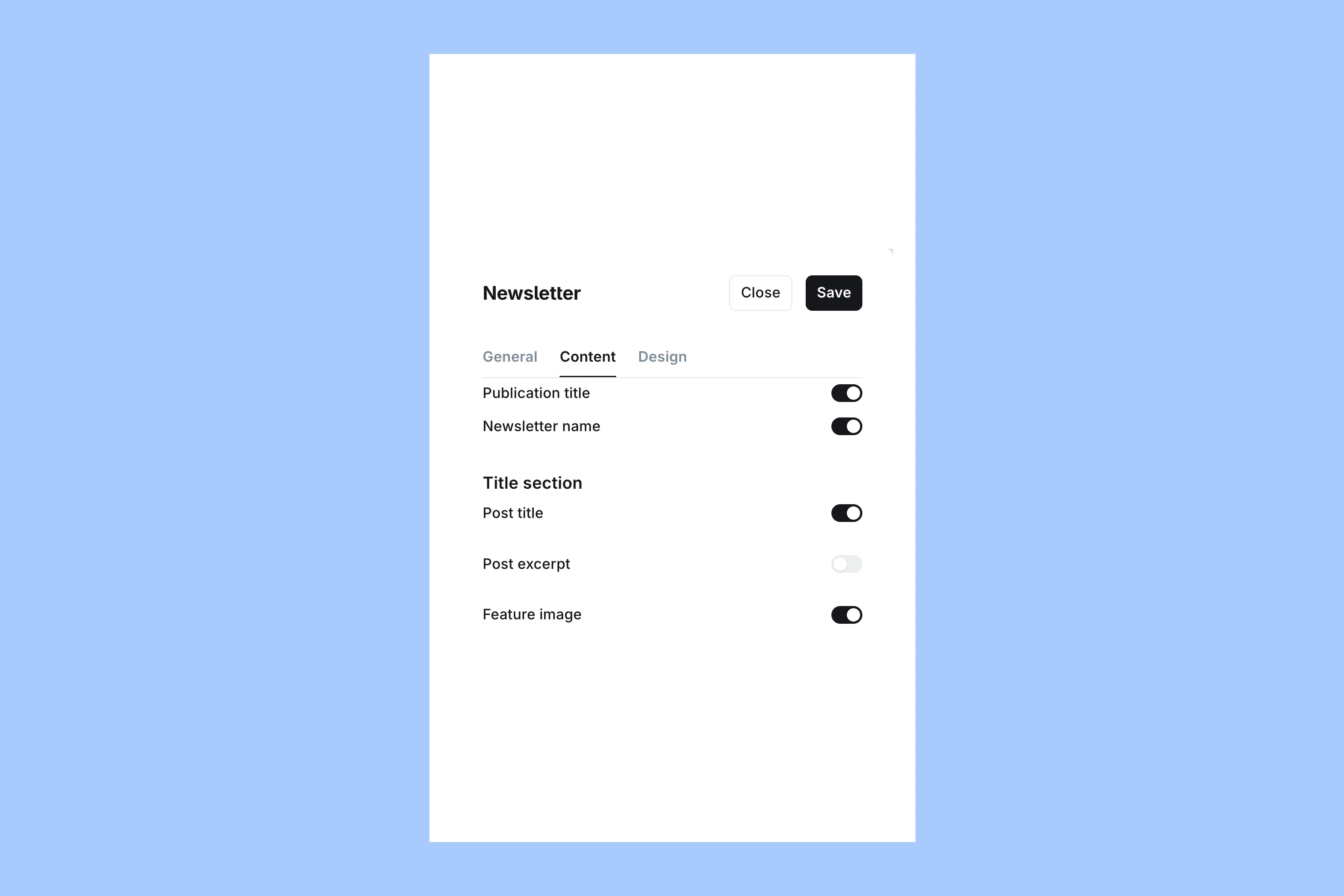
For example, a post can have a feature image on the website while the newsletter’s Feature image switch is off. To include that image at the top of the email, enable it here.
The same distinction applies to the excerpt: writing one for the post and displaying it in the newsletter are separate choices.
Design: How the Email Looks
The Design tab offers heading and body fonts, colors, and styling for elements such as links and buttons.
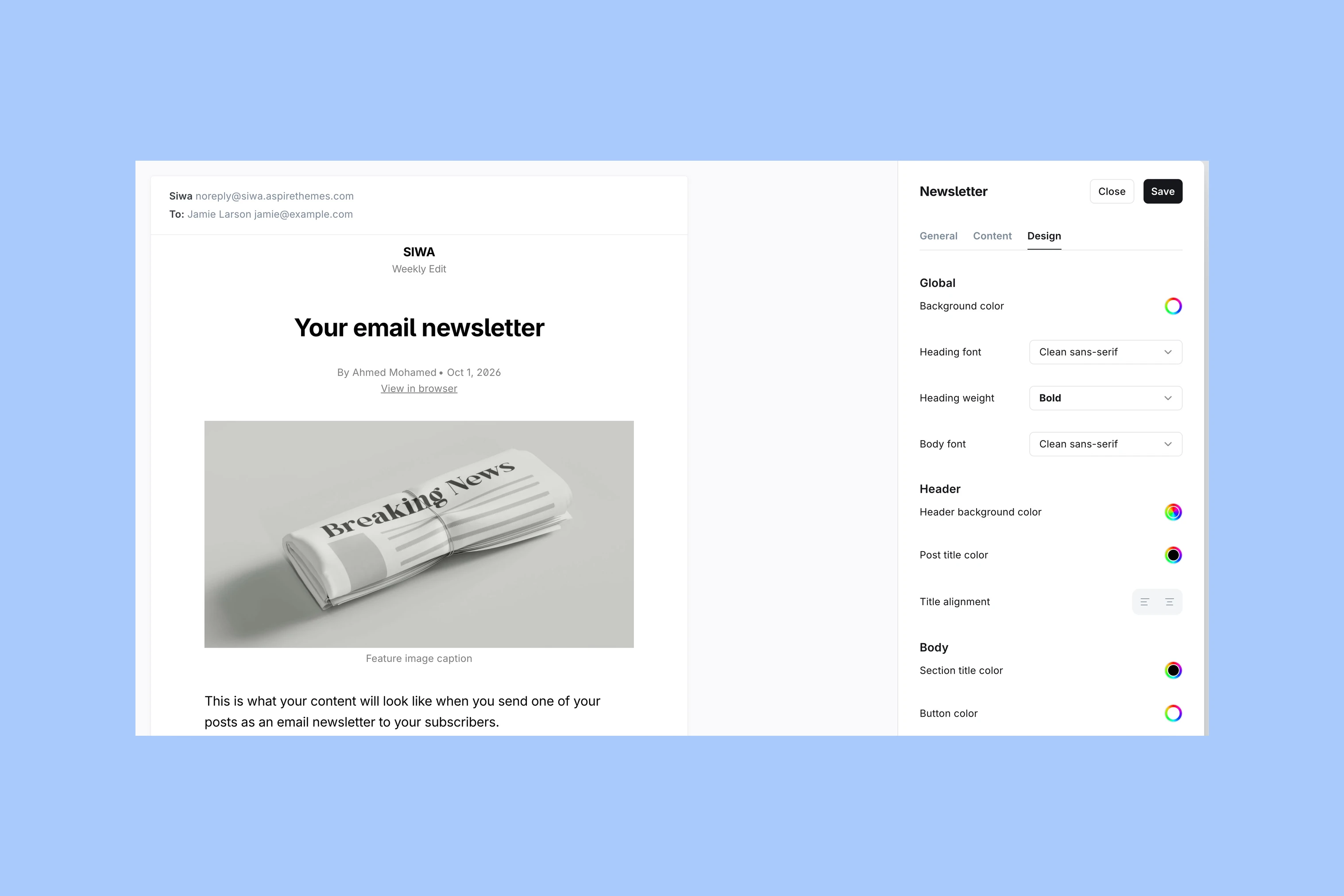
Use these controls to match the newsletter’s colors and typography to your publication.
Preview the Email Before Sending
Open a draft post and select Preview, then switch to Email. Check the selected newsletter before reviewing its appearance. The Web preview shows the theme’s article page; the Email preview shows the newsletter version.
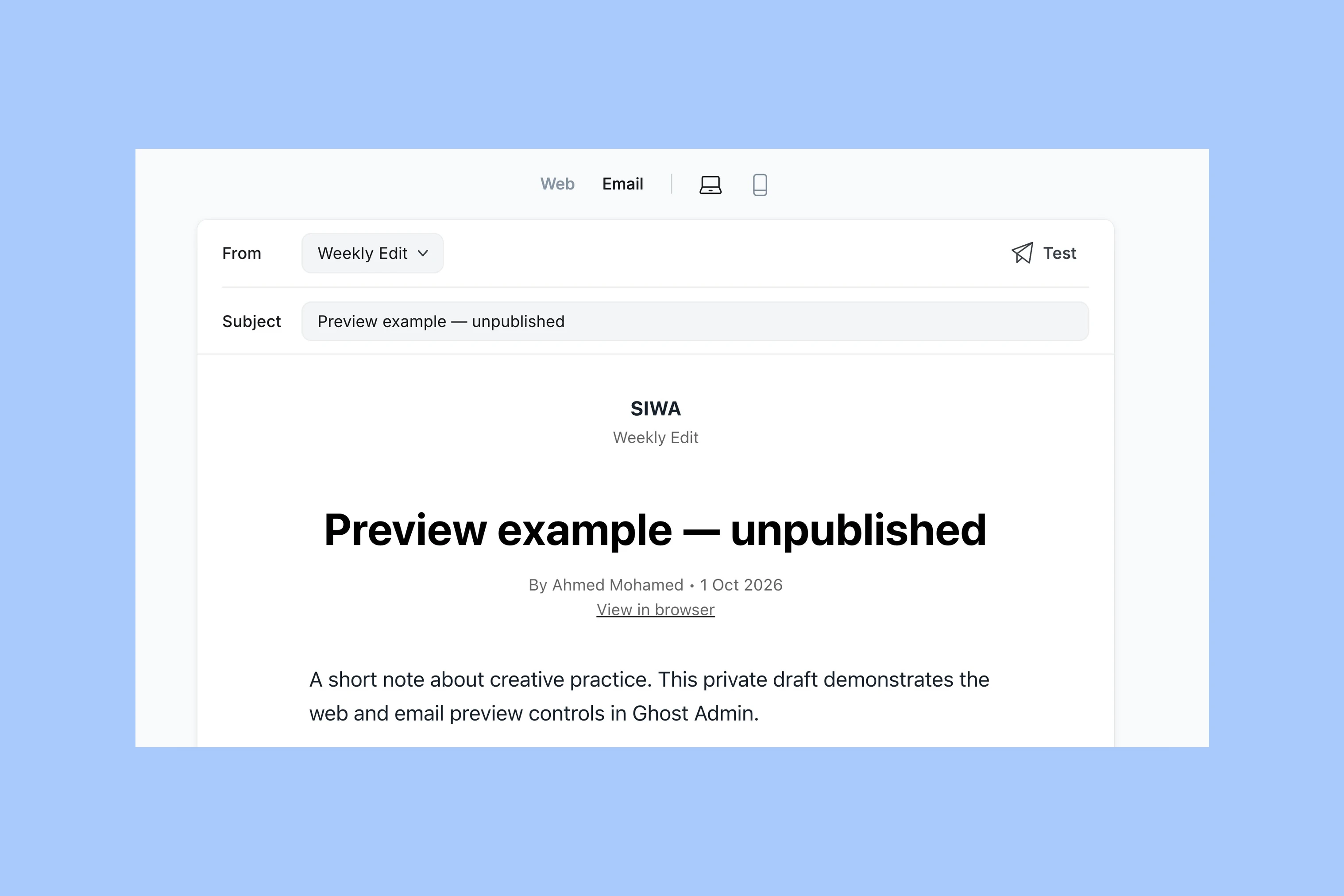
Check the elements you chose to include: the title, excerpt, feature image, and writing. Then use Test to send a preview to your own inbox, as described in Ghost’s publishing guide.
Open that test email on the devices and in the email apps your readers use. Check that the text is readable, images display, and links work.